Navigation Bar
The Navigation Bar is a vertical panel listing all the Hevo assets that you can work with. The version of Hevo that you are using is displayed at the bottom of the palette.
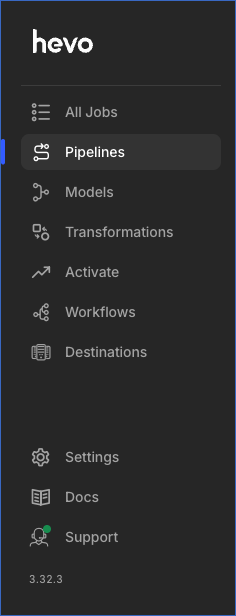
Refer to the descriptions below to understand how you can use the Navigation Bar to quickly access the different Hevo features while being anywhere in the application.
 : All Jobs enables you to view, track, and manage every Pipeline run in one place. Click this icon to open the list of jobs.
Note: Hevo has deprecated Job Monitoring. All Jobs is available only to existing customers who currently use this feature.
 : Pipelines enable you to transfer data from your Source application to a Destination database, warehouse, or file server. Click this icon to open the List View, which shows summary information for each Pipeline your team created. You can click on any Pipeline to open it in the Detailed View.
 : Models enable you to organize the data in your Destination so that analytics and BI tools can consume it. Click this icon to open the List View, which shows summary information for each Model your team created. You can click on any Model to open it in the Detailed View.
 : Transformations enable you to convert the raw data in your Destination into clean, structured tables for reporting and analysis using dbt models. Click this icon to open the List View, which shows all the projects your team created. You can click on any project to open it in the Detailed View.
 : Activate enables you to send data from your warehouses to the business applications where teams work. Click this icon to open the List View, which shows all the Activations your team created.
Note: Activate is currently available for Early Access.
 : Workflows enable you to query and combine data from two Sources in a common format using Models. Click this icon to open the List View, which shows summary information for each Workflow your team created. You can click on any Workflow to open it in the Detailed View.
Note: Starting Release 2.17, the Workflows feature is available only for existing users. Users signing up from Release 2.17 onwards cannot create Workflows. For more information, please contact Hevo Support or your account executive.
 : Destinations signify the database, warehouse, or file system where Hevo Pipelines replicate your Source data. You can set up Destinations independently or while creating a Pipeline. Click this icon to open the List View, which shows summary information for each Destination your team configured. You can click on any Destination to open it in the Detailed View.
 : Settings enables you to manage your alert preferences, billing, user account, and team in one place. Click this icon to open the sidebar, which groups these options under Alerts, Billing, User, and Team.
 : Docs opens the Hevo documentation, which explains product features and helps you configure Sources and Destinations for Pipelines and customize data replication to suit your requirements.
 : Support connects you with a Hevo engineer who can quickly address any issue with the product.