Familiarizing with the UI
Hevo provides you a consistent and user-friendly interface for conveniently accessing all the features and performing the required tasks.
The topics in this section familiarize you with the Hevo layouts and navigations and describe the Hevo user interface elements. We have also configured keyboard shortcuts for all the UI actions, in case you do not like using the mouse too much!
When you log in to Hevo for the very first time, a welcome page is displayed, inviting you to create your first Pipeline. In subsequent logins, the most recent Pipeline that you created is displayed. From there, you can navigate to the required page or task. All assets, icons, and tabs are organized for easy reach, while providing you the maximum screen space to work with.
The typical layouts in Hevo include:
-
The List View, which provides summary information of all the items for a given asset, and,
-
The Detailed View, which provides a set of tabs where you can perform tasks related to that asset and view different types of information for it.
Assets in Hevo are components that play a key role in extracting, replicating, and transforming your data. For example, Pipelines, Transformations, Models, Destinations. The following sections describe the layouts of these pages.
List View
The List View is a floating page that is displayed when you click on any asset in the Navigation Bar. It provides a summary list of all the items created for that asset by your team. You can click on any item to open it in the Detailed View, where you can view its detailed information and work on it.
Refer to the image and descriptions below to familiarize yourself with the components of a List View.
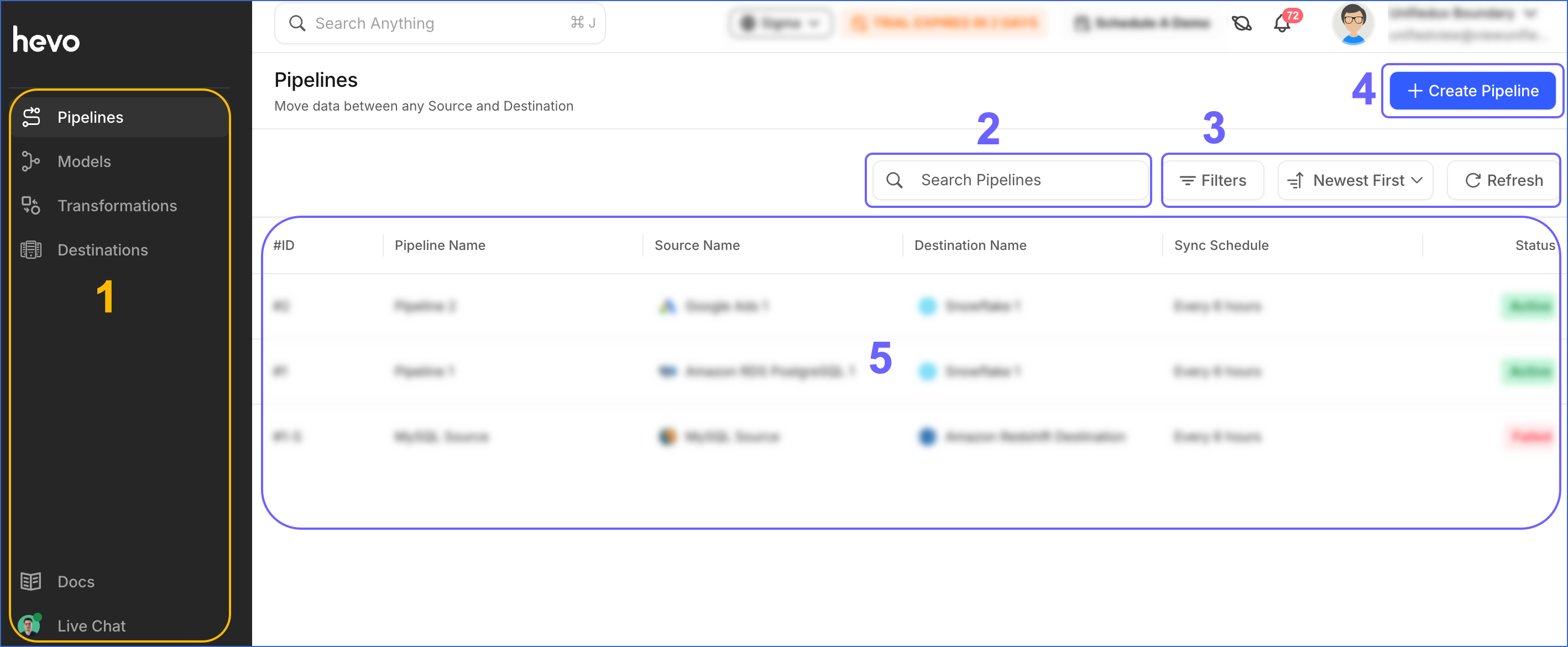
The following table describes each of these components:
| Page Component | Title | Description |
|---|---|---|
| 1 | Navigation Bar | A collapsible vertical bar on the left that helps you access and configure the different assets in Hevo in order to successfully replicate the data. For example, Pipelines, Models, Transformations, and Destinations. Read Navigation Bar. Note: The Navigation Bar is permanently displayed on the left, to help you navigate easily in Hevo. |
| 2 | Search Bar | Allows you to search items within the current asset based on complete or partial search strings. Search also supports Source name or type and Destination name or type, where applicable. For example, you can search for Pipelines by the Pipeline name, Source name or type, and Destination name or type. |
| 3 | Data Controls | Enables you to control the data that is displayed. The Data Controls, from left to right are: - Filters: Enables you to filter the Pipelines based on: - Destination. - Pipeline status. - Newest First: Sort and display the list based on the criterion selected from the drop-down. For the Pipelines List View, the available options are Newest First (default), Oldest First, A → Z, and Z → A. - Refresh: Enables you to view the Pipelines that are newly created but not visible in the UI yet. |
| 4 | + Create <ASSET> button | Enables you to create an asset of the type you are viewing. For example, + Create Pipeline in the Pipelines List View. |
| 5 | Asset List | The default list of items for the asset, which can be filtered based on a search string or criteria available in Data Controls. |
Depending on the asset you are viewing and when your team was created, you may see Standard and Edge tabs below the asset title.
-
For Destinations List View, the tabs are displayed for all teams.
-
For Pipelines List View, the tabs are displayed only for teams created before August 20, 2026. For teams created on or after this date, the Standard and Edge Pipelines are listed together in a single table.
Detailed View
When you click on any list item in the List View of an asset, the item opens in the Detailed View. It displays detailed information about the item and enables you to perform different tasks related to it. The Detailed View opens in the Overview tab for Pipelines and Destinations, Source Query tab for Models, and Workflow tab for Workflows by default.
Note: The vertical Navigation Bar is displayed in every page, to help you navigate easily in Hevo.
Some of the elements common to every Detailed View tab are illustrated below. Read section, Familiarizing with the Interface of each asset’s documentation to know the specific information displayed in these components.
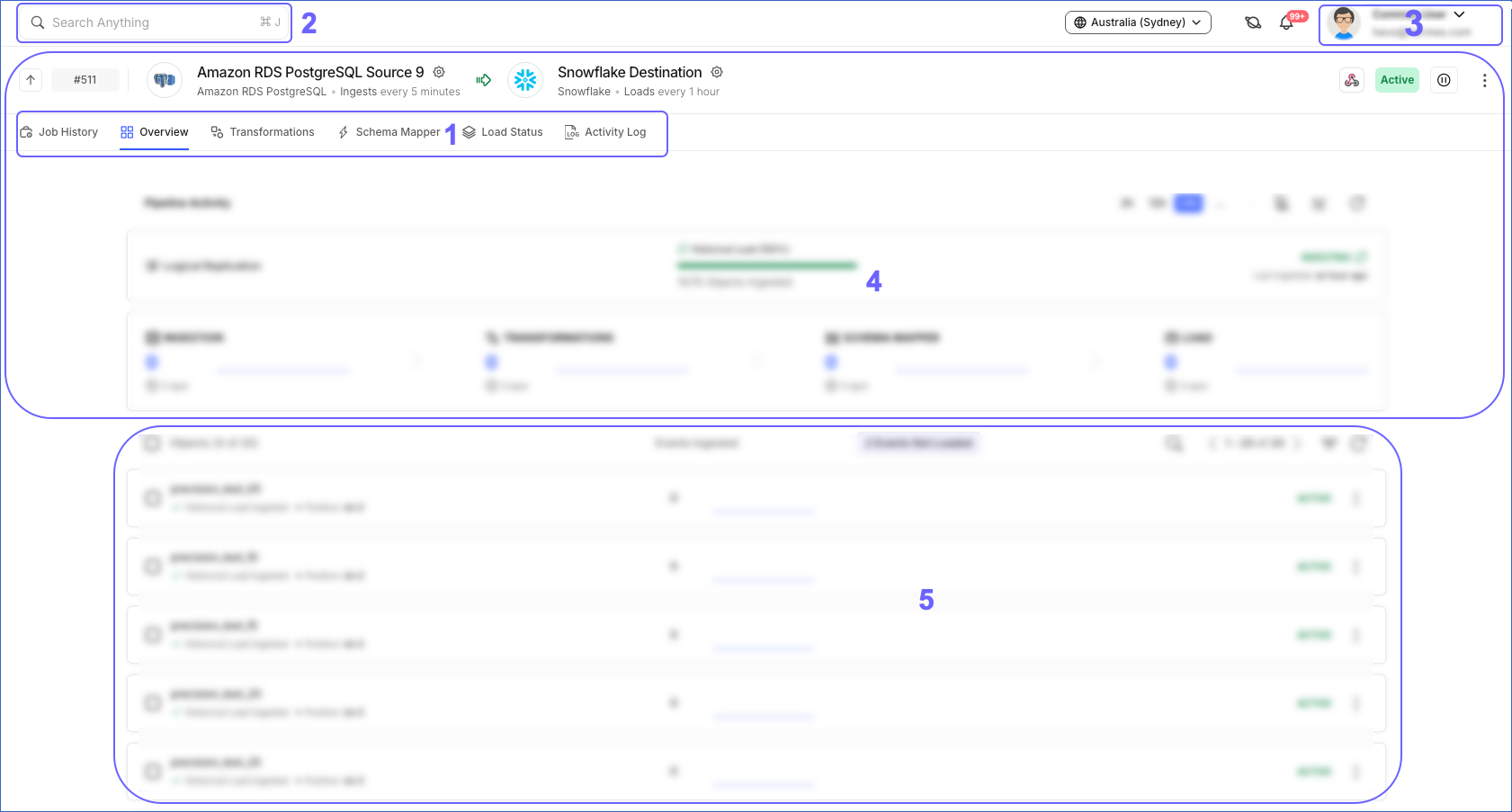
The following table describes each of these components:
| Page Component | Title | Description |
|---|---|---|
| 1 | Tools Bar | The Tools bar helps you navigate to different tasks and views of an asset. For example, for Standard Pipelines, the Tools bar displays the Job History, Overview, Transformations, Schema Mapper, Load Status, and Activity Log tabs. Similarly, for Destinations, it displays the Overview, Workbench, and Activity Log tabs. |
| 2 | Global Search | A search feature provided at the top left in the Detailed View of every asset. It allows you to search for any item across your Hevo application that matches the search string, irrespective of the page you are in currently. You can also refine your search results using additional filters and perform actions such as creating Pipelines from the Quick Actions filter. Read Global Search. |
| 3 | User Information Panel | Placed at the top right corner of your Hevo user interface. It provides links to the Hevo documentation, your alerts, the Dark Mode toggle, and the Log out option. Read User Information Panel. |
| 4 | Summary Bar | Used for providing summary information about the asset item you are working with. For example, in case of a Model, it provides the Model name and ID, while for a Pipeline, it displays: - The Pipeline summary from the Overview page, along with the Pause/Resume button. For teams created on or after August 20, 2026, these buttons are displayed as Disable and Enable. - The Progress Bar that visually represents the progress of the data loading process. - Any system notifications related to the Pipeline. - The Pipeline Activity section, which provides the Pipeline performance data once all the data loading stages displayed in the Progress Bar are successful. Note: The Progress Bar is displayed only for one hour after Pipeline creation. |
| 5 | Canvas | The dynamic section of the Detailed View where you can perform different actions related to the asset. The view in the Canvas changes based on the tab you are in. For example, schema mapping between Source and Destination tables during Pipeline creation, or data organization based on SQL queries in Models. By default, an asset opens in the Overview tab. |
See Also
- Familiarizing with the Activate UI
- Familiarizing with the Destinations UI
- Familiarizing with the Models UI
- Familiarizing with the Pipelines UI
- Hevo UI Elements and Terms Reference
Navigating the Hevo UI
- Navigation BarLearn about the vertical panel that lists all the Hevo assets you can work with.
- Global SearchLearn how to quickly search Pipelines, Models, Workflows, Destinations, Teams, Billing, and documentation from anywhere in the application.
- User Information PanelLearn about the panel that provides links to the Hevo documentation, your alerts, the Dark Mode toggle, and the Log out option.
- Activity GraphsLearn how to use activity graphs to view a visual representation of the data replication progress.
- Side-by-Side Setup GuideLearn how Hevo's side-by-side setup guide assists you in configuring the Source and Destination while creating a Pipeline.
- Keyboard ShortcutsView the keyboard shortcuts for some of the common tasks you may perform in Hevo.
- Switching to Dark ModeLearn how to switch the Hevo UI between light mode and dark mode.
- UI Elements and Terms ReferenceRefer to the glossary of common UI elements and terms used across the Hevo application.