Zoho Recruit is a cloud-based applicant tracking system that staffing agencies and corporate HR teams use to source candidates, manage job openings, schedule interviews, and track clients and vendors through the hiring process.
Hevo uses the Zoho Recruit API to replicate the candidates, job openings, interviews, clients, vendors, submissions, notes, and organization settings of your Zoho Recruit organization to the Destination of your choice. Hevo connects to Zoho Recruit using OAuth 2.0 with a Zoho API client that you register. To ingest data, you must provide Hevo with the Client ID and Client Secret of the API client and the region of your Zoho account, and then authorize Hevo to read your data.
Supported Features
| Feature Name | Supported |
|---|---|
| Capture deletes | Yes, for the objects that Hevo ingests in full in each run |
| History mode | No |
| Custom data (user-configured tables & fields) | No |
| Data blocking (skip objects and fields) | Yes |
| Resync (objects and Pipelines) | Yes |
| API configurable | Yes |
Prerequisites
-
An active Zoho Recruit organization exists from which data is to be ingested.
-
You are assigned the Administrator profile (recommended), or a profile with view access to all the modules you want to replicate, in Zoho Recruit. Zoho returns only the data that your profile can access. Replicating the Note object requires the Administrator profile, and the profile must be able to view candidates, as Hevo reads them to test the connection.
-
A Zoho API client is registered, and its Client ID and Client Secret are available.
Create a Zoho API Client
Hevo connects to Zoho Recruit through an OAuth client that you register in the Zoho API Console. Register the client in the API Console of the data center where your Zoho account is hosted, for example, https://api-console.zoho.com for the US data center or https://api-console.zoho.in for the India data center. Read OAuth 2.0.
Perform the following steps to create an API client:
-
Log in to the Zoho API Console with the Zoho account that you use to access Zoho Recruit.
-
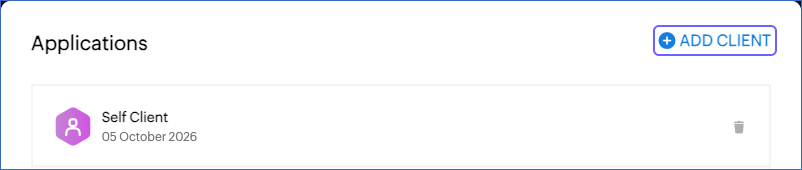
On the Applications page, click ADD CLIENT. If you have not created a client before, Zoho displays the client types directly.
-
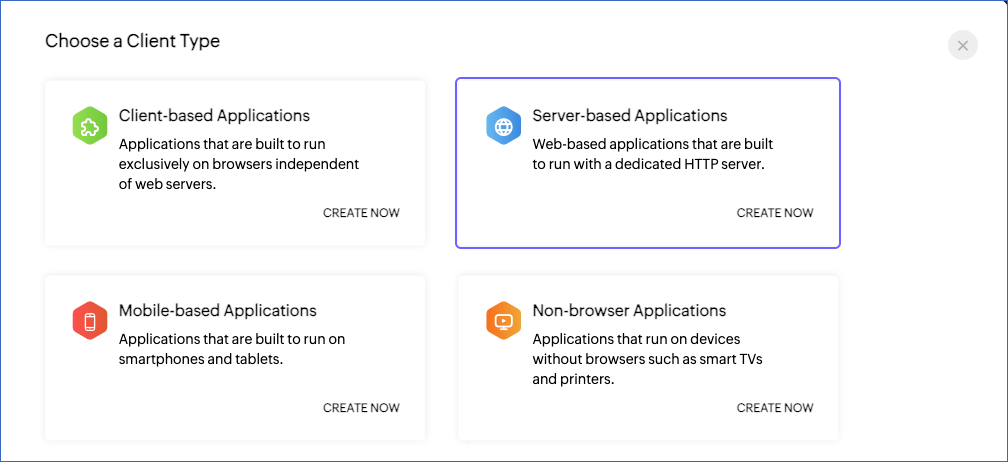
In the Choose a Client Type page, click CREATE NOW in the Server-based Applications card.
-
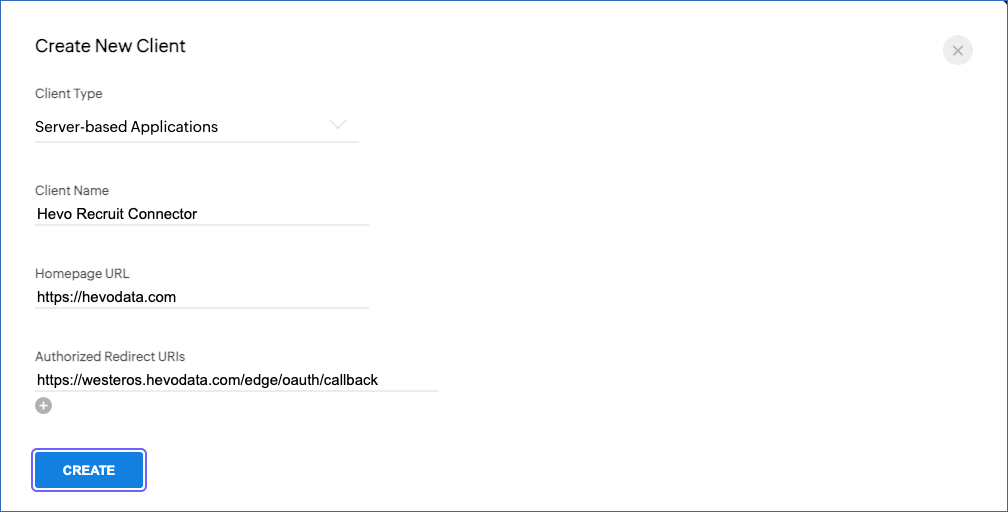
In the Create New Client page, specify the following, and then click CREATE:
-
Client Name: A name for the client. For example, Hevo Recruit Connector. Zoho does not allow the word Zoho in the client name.
-
Homepage URL: The URL of your company website. For example, https://hevodata.com.
-
Authorized Redirect URIs: https://westeros.hevodata.com/edge/oauth/callback. Hevo returns to this URL after you authorize it to read your Zoho Recruit data. This URL is the same for all Hevo regions. Enter it exactly as shown, without a trailing slash.
-
-
Click the Client Secret tab, and then copy the Client ID and the Client Secret and save them securely like any other password.
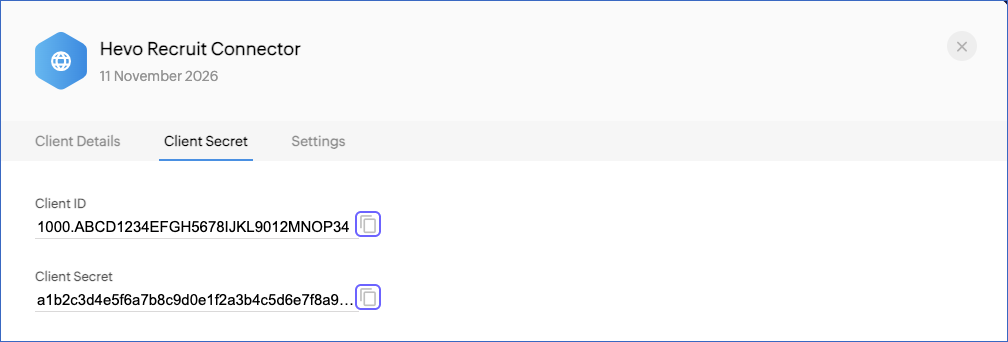
Use these credentials when configuring your Zoho Recruit Source in Hevo. The Client ID and Client Secret remain available on the Client Secret tab of the client, so you can copy them again later. You can also use a Server-based client that you created for another Zoho application, such as Zoho Inventory, if its redirect URI is the Hevo redirect URI.
If you delete the API client, regenerate its Client Secret, or revoke the access granted to Hevo in your Zoho account, Hevo cannot authenticate with Zoho Recruit, and all active jobs of the Pipeline fail. To resume data replication, modify the Source configuration in the Pipeline with valid credentials and authorize Hevo again. Once the updated configuration is saved, Hevo re-authenticates the Source, and data ingestion resumes from the last saved position.
Scopes Required by Hevo
When you authorize Hevo, Zoho asks you to grant the following scopes. Hevo uses each scope to read the objects listed against it:
| Scope | Objects |
|---|---|
| ZohoRecruit.modules.READ | Account, Candidate, Interview, Job Opening, Note, Questionnary, Submission, and Vendor objects and their child objects |
| ZohoRecruit.users.READ | Users and its child object |
| ZohoRecruit.settings.profiles.READ | Profile |
| ZohoRecruit.settings.roles.READ | Role |
| ZohoRecruit.settings.tags.READ | Tags |
| ZohoRecruit.org.READ | Organization |
Configure Zoho Recruit as a Source in your Pipeline
Perform the following steps to configure your Zoho Recruit Source:
-
Click Pipelines in the Navigation Bar.
-
Click + Create Pipeline in the Pipelines List View.
-
On the Select Source Type page, select Zoho Recruit.
-
On the Select Destination Type page, select the type of Destination you want to use.
-
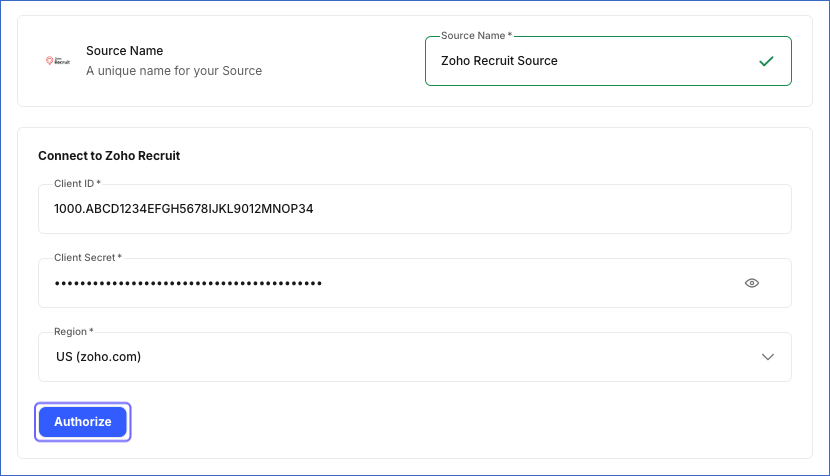
In the Configure Source screen, specify the following:
-
Source Name: A unique name for your Source, not exceeding 255 characters. For example, Zoho Recruit Source.
-
In the Connect to Zoho Recruit section:
-
Client ID: The Client ID of the API client that you created.
-
Client Secret: The Client Secret of the API client.
-
Region: The data center where your Zoho account is hosted. Select one of the following: US (zoho.com), Europe (zoho.eu), India (zoho.in), Australia (zoho.com.au), China (zoho.com.cn), or Japan (zoho.jp). The region must match the domain of the Zoho API Console in which you created the API client.
-
-
Click Authorize, log in to your Zoho account if prompted, select the check box to allow access, and then click Accept to grant Hevo the requested scopes.
-
-
Click Test & Continue to test the connection to your Zoho Recruit Source. Once the test is successful, you can proceed to set up your Destination.
When you click this button, Hevo checks that the OAuth authorization is valid by reading the candidates of your Zoho Recruit organization.
Data Replication
Hevo replicates data for all the objects selected on the Configure Objects page during Pipeline creation. By default, all supported objects and their available fields are selected. However, you can modify this selection while creating or editing the Pipeline. To ingest a child object, you must also select its parent object. For example, to ingest the Interviewer Save object, you must also select the Interview Save object. The Data Model lists the child objects of each parent object.
Zoho Recruit stores records of the Clients, Candidates, Interviews, Job Openings, and Vendors modules in two states: saved records and drafts, which are records that a user started but did not save. Hevo loads each state into its own object. For example, it loads the saved candidates into the Candidate Save object and the draft candidates into the Candidate Draft object. The Account objects contain the records of the Clients module.
In the first run of the Pipeline, Hevo ingests all the data available for the selected objects in your Zoho Recruit organization. In the subsequent runs, as per the sync frequency, Hevo ingests data as follows:
| Ingestion | Parent Objects |
|---|---|
| New and updated records, based on the time each record was last modified in Zoho Recruit | Account Draft, Account Save, Candidate Draft, Candidate Save, Interview Draft, Interview Save, Job Opening Draft, Job Opening Save, Note, Submission, Vendor Draft, and Vendor Save |
| All the records, in each run | Organization, Profile, Questionnary, Role, Tags, and Users |
Hevo ingests the child objects of a parent object along with it.
Zoho Recruit limits the number of API calls that an organization can make in a rolling 24-hour period, based on its edition and number of user licenses, and the number of calls that can run at the same time. Read API Limits. If Zoho Recruit returns a rate limit error, Hevo waits and retries the request. To understand how Hevo handles such scenarios, read Handling Rate Limit Exceptions.
Schema and Primary Keys
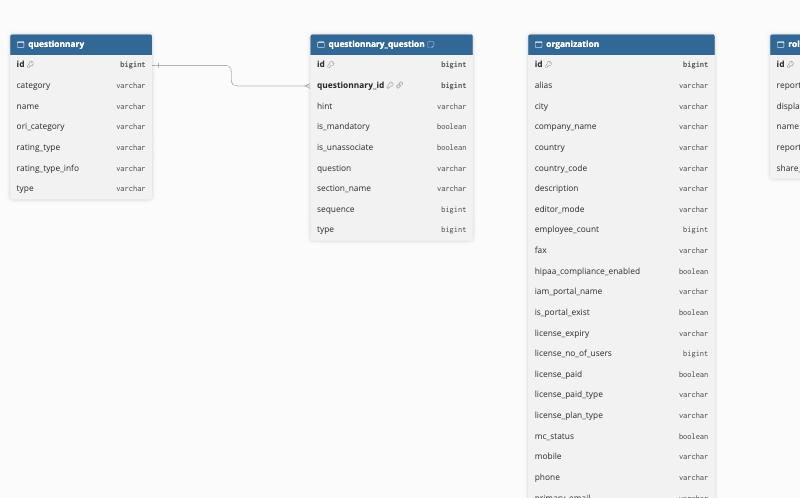
Hevo uses the following schema to upload the records in the Destination. For a detailed view of the objects, fields, and relationships, click the ERD.
Data Model
The following is the list of tables (objects) that are created at the Destination when you run the Pipeline:
| Object | Description |
|---|---|
| Account Draft | Contains the draft records of the Clients module, such as the client name, owner, and activity times. It includes a child object, Account Tag Draft. |
| Account Save | Contains the saved records of the Clients module, such as the client name, owner, and activity times. It includes a child object, Account Tag Save. |
| Candidate Draft | Contains the draft candidates, including the contact details, skills, experience, source, and status of each candidate. It includes a child object, Candidate Associate Tag Draft. |
| Candidate Save | Contains the saved candidates, including the contact details, skills, experience, source, and status of each candidate. It includes a child object, Candidate Associate Tag Save. |
| Interview Draft | Contains the draft interviews, including the candidate, job opening, schedule, and owner of each interview. It includes the following child objects: - Interview Tag Draft - Interviewer Draft |
| Interview Save | Contains the saved interviews, including the candidate, job opening, schedule, and owner of each interview. It includes the following child objects: - Interview Tag Save - Interviewer Save |
| Job Opening Draft | Contains the draft job openings, including the posting title, client, status, and account manager of each job opening. It includes the following child objects: - Job Opening Assigned Recruiter Draft - Job Opening Tag Draft |
| Job Opening Save | Contains the saved job openings, including the posting title, client, status, and account manager of each job opening. It includes the following child objects: - Job Opening Assigned Recruiter Save - Job Opening Tag Save |
| Note | Contains the notes added to Zoho Recruit records, along with the module and record that each note belongs to. |
| Organization | Contains the details of your Zoho Recruit organization, such as the company name, edition, time zone, and license details. |
| Profile | Contains the profiles defined in your Zoho Recruit organization. |
| Questionnary | Contains the questionnaires and assessments defined in your Zoho Recruit organization. It includes a child object, Questionnary Question. |
| Role | Contains the roles in the hierarchy of your Zoho Recruit organization. |
| Submission | Contains the candidates submitted to clients for job openings, including the candidate, job opening, submitter, and owner of each submission. |
| Tags | Contains the tags defined in your Zoho Recruit organization. |
| Users | Contains the users of your Zoho Recruit organization, including the profile and role of each user. It includes a child object, User Territory. |
| Vendor Draft | Contains the draft vendors, such as the vendor name, owner, and contact details. It includes a child object, Vendor Tag Draft. |
| Vendor Save | Contains the saved vendors, such as the vendor name, owner, and contact details. It includes a child object, Vendor Tag Save. |
Additional Information
Read the detailed Hevo documentation for the following related topics:
Handling of Deletes
Zoho Recruit does not mark deleted records in its API responses. Hevo captures deletes as follows:
-
Organization, Profile, Questionnary, Role, Tags, and Users objects: Hevo ingests all the records of these objects in each run. If a record that exists in the Destination is not returned by Zoho Recruit, Hevo marks it as deleted by setting the value of the metadata column, __hevo_marked_deleted, to True.
-
Account Draft, Account Save, Candidate Draft, Candidate Save, Interview Draft, Interview Save, Job Opening Draft, Job Opening Save, Note, Submission, Vendor Draft, and Vendor Save objects: Hevo ingests only the new and updated records of these objects, so records deleted in Zoho Recruit remain in the Destination. When a user saves a draft, its record remains in the draft object, for example, Candidate Draft, and appears in the saved object, for example, Candidate Save, in the next run. Hevo marks the draft record as deleted when you resync the draft object.
Source Considerations
-
Hevo ingests data from the Zoho Recruit organization of the Zoho account that authorizes Hevo. To ingest data from more than one organization, create a Pipeline for each organization.
-
Hevo ingests only the standard fields of the Zoho Recruit modules. It does not ingest the custom fields that you add to the modules.
-
If your profile cannot view a module, Hevo marks the corresponding object as inaccessible and continues to ingest the other objects. To ingest the object, give your profile view access to the module.
-
Hevo creates a table in the Destination only for the objects that have data. For example, if no candidates are submitted to clients in your organization, the Submission table is not created.