Zendesk Chat is a live chat application that businesses use to talk to the visitors of their website in real time. It helps support and sales teams route chats to agents and departments, and track the availability and performance of their agents.
Hevo uses the Zendesk Chat API to replicate the data of your Zendesk Chat account, such as chats, agents, departments, and bans, to the Destination of your choice. Hevo connects to Zendesk Chat using OAuth 2.0 with a Chat API client that you create. To ingest data, you must provide Hevo with the subdomain of your Zendesk account and the Client ID and Client Secret of the API client, and then authorize Hevo to read your data.
Supported Features
| Feature Name | Supported |
|---|---|
| Capture deletes | Yes, for the Agent, Ban IP, Ban Visitor, and Department objects and their child objects |
| History mode | Yes, for the Agent Engagement History and Agent Status History objects |
| Custom data (user-configured tables & fields) | No |
| Data blocking (skip objects and fields) | Yes |
| Resync (objects and Pipelines) | Yes |
| API configurable | Yes |
Prerequisites
-
An active Zendesk account with Zendesk Chat exists from which data is to be ingested.
-
You are assigned the Owner or Administrator role in Zendesk Chat. Only these roles can create an API client, authorize Hevo, and read the chats, agents, departments, and bans of your account.
-
The Client ID and Client Secret of a Zendesk Chat API client are available.
Create a Zendesk Chat API Client
Hevo connects to Zendesk Chat through an OAuth API client that you create in the Zendesk Chat dashboard. Read OAuth authentication.
Perform the following steps to create an API client:
-
Log in to your Zendesk Chat dashboard as an Owner or Administrator. For example, https://mycompany.zendesk.com/chat/agent.
-
In the left navigation pane, click Settings, and then click Account.
-
Click the API & SDKs tab, and then click Add API client.
-
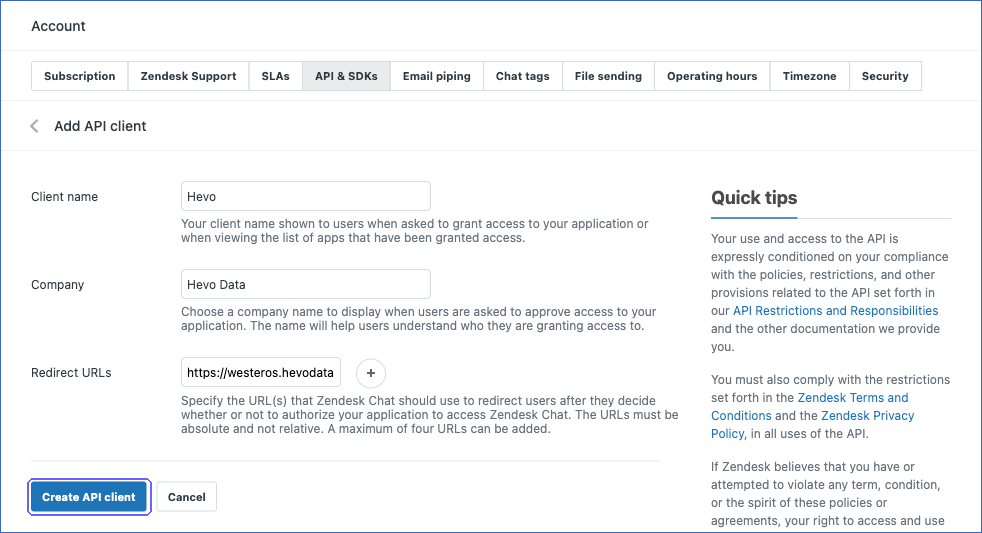
On the Add API client page, specify the following, and then click Create API client:
-
Client name: A name for the API client. For example, Hevo. Zendesk Chat displays this name when you authorize Hevo.
-
Company: The name of your company. For example, Hevo Data.
-
Redirect URLs: https://westeros.hevodata.com/edge/oauth/callback. Hevo returns to this URL after you authorize it to read your Zendesk Chat data. This URL is the same for all Hevo regions.
-
-
In the API client saved dialog, copy the Client ID and the Client Secret, and save them securely like any other password. Zendesk Chat displays the full client secret only once.
-
Click Okay, got it.
Use these credentials when configuring your Zendesk Chat Source in Hevo.
If you delete the API client or revoke the access granted to Hevo, Hevo cannot authenticate with Zendesk Chat, and all active jobs of the Pipeline fail. To resume data replication, modify the Source configuration in the Pipeline with valid credentials and authorize Hevo again. Once the updated configuration is saved, Hevo re-authenticates the Source, and data ingestion resumes from the last saved position.
Configure Zendesk Chat as a Source in your Pipeline
Perform the following steps to configure your Zendesk Chat Source:
-
Click Pipelines in the Navigation Bar.
-
Click + Create Pipeline in the Pipelines List View.
-
On the Select Source Type page, select Zendesk Chat.
-
On the Select Destination Type page, select the type of Destination you want to use.
-
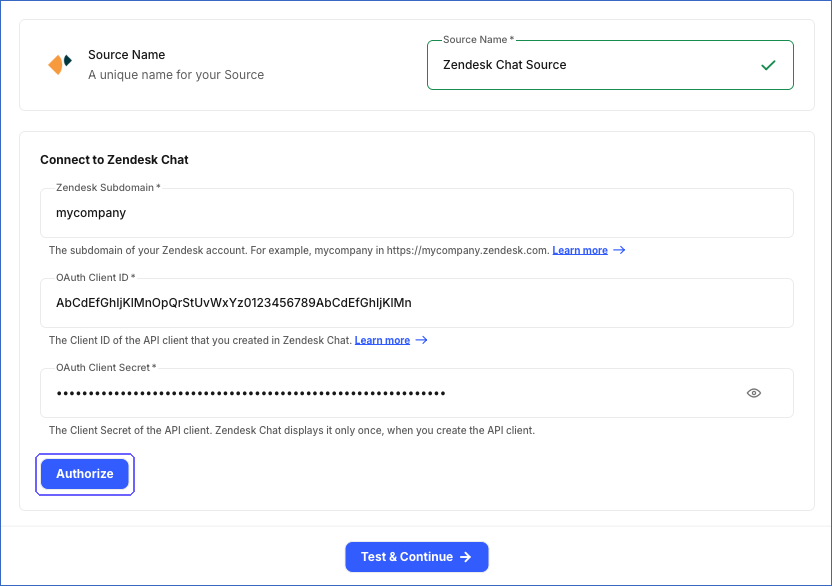
In the Configure Source screen, specify the following:
-
Source Name: A unique name for your Source, not exceeding 255 characters. For example, Zendesk Chat Source.
-
In the Connect to Zendesk Chat section:
-
Zendesk Subdomain: The subdomain of your Zendesk account. For example, if the URL of your account is https://mycompany.zendesk.com, specify mycompany.
-
OAuth Client ID: The Client ID of the API client that you created.
-
OAuth Client Secret: The Client Secret of the API client.
-
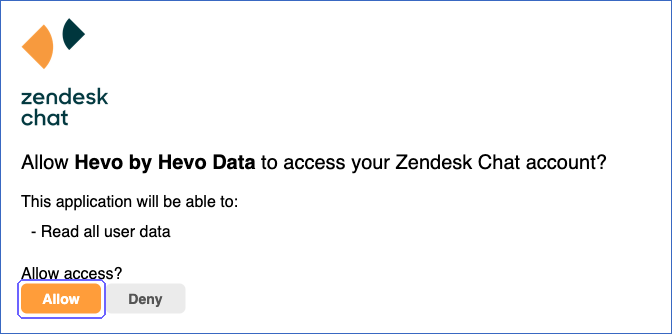
Click Authorize, and log in to your Zendesk account if prompted. On the page that asks you to allow the API client to access your Zendesk Chat account, click Allow. Hevo displays the email address of your Zendesk user as Account Added.
-
-
-
Click Test & Continue to test the connection to your Zendesk Chat Source. Once the test is successful, you can proceed to set up your Destination.
When you click this button, Hevo performs the following validations:
-
The OAuth authorization is valid. Hevo checks this by reading your Zendesk Chat account details.
-
The authorizing user can read the chats of your account. Hevo checks this by reading one chat. This check fails if you are not assigned the Owner or Administrator role.
-
Data Replication
Hevo replicates data for all the objects selected on the Configure Objects page during Pipeline creation. By default, all supported objects and their available fields are selected. However, you can modify this selection while creating or editing the Pipeline. The Data Model lists the child objects of each parent object. Hevo ingests a child object along with its parent object.
In the first run of the Pipeline, Hevo ingests all the data available for the selected objects in your Zendesk Chat account. In the subsequent runs, as per the sync frequency, Hevo ingests data as follows:
| Ingestion | Parent Objects |
|---|---|
| New and updated records, based on the time each record was last updated in Zendesk Chat | Agent Engagement History, Agent Status History, and Chat |
| All the records, in each run | Agent, Ban IP, Ban Visitor, and Department |
Pipelines with this Source support the Merge load mode. For the Agent Engagement History and Agent Status History objects, you can also use the History Tracking load mode, which is the default load mode for these objects. Read History Mode.
The Agent Engagement History and Agent Status History objects use the agent ID as their primary key. With the History Tracking load mode, Hevo keeps every event of an agent as a separate version of the record, with the time of the event in the __hevo__valid_from column. With the Merge load mode, Hevo keeps only the latest event of each agent.
API Rate Limits
Zendesk Chat allows up to 200 API requests per minute for each Chat API endpoint. Read Rate limiting. If Zendesk Chat returns a rate limit error, Hevo waits and retries the request. To understand how Hevo handles such scenarios, read Handling Rate Limit Exceptions.
Schema and Primary Keys
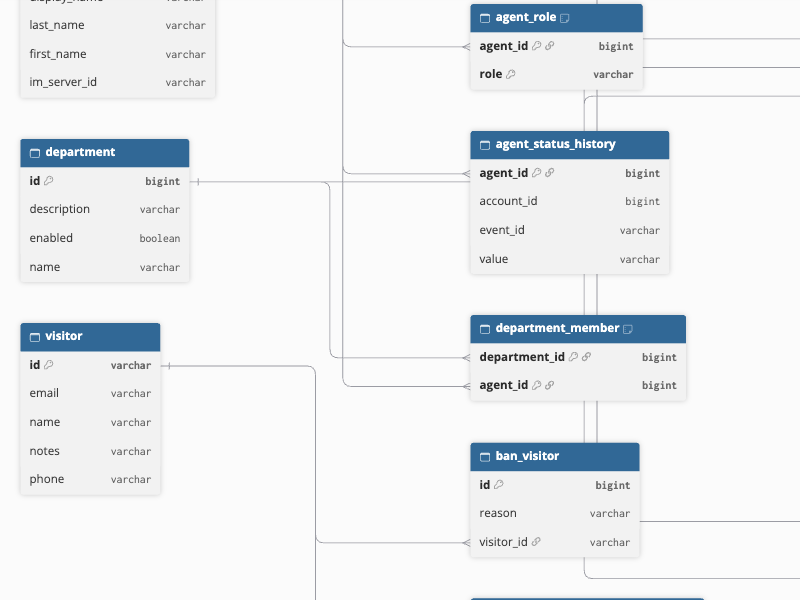
Hevo uses the following schema to upload the records in the Destination. For a detailed view of the objects, fields, and relationships, click the ERD.
Data Model
The following is the list of tables (objects) that are created at the Destination when you run the Pipeline:
| Object | Description |
|---|---|
| Agent | Contains the agents of your Zendesk Chat account, with their name, email address, login details, and whether they are enabled. It includes a child object, Agent Role, which contains the roles assigned to each agent. |
| Agent Engagement History | Contains the changes to the number of chats that each agent is engaged in at the same time. |
| Agent Status History | Contains the changes to the status of each agent, such as online, away, or invisible. |
| Ban IP | Contains the IP addresses that are banned from chatting with your agents, with the reason for each ban. |
| Ban Visitor | Contains the visitors that are banned from chatting with your agents, with the reason for each ban. |
| Chat | Contains the chats with your visitors, with the session details of the visitor, response times, rating, and the ID of the linked Zendesk Support ticket. It includes the following child objects: - Chat Agent, which contains the agents that took part in each chat - Chat History, which contains the messages and events of each chat - Chat Tag, which contains the tags applied to each chat - Engagement, which contains the engagements of agents in each chat, such as when a chat was assigned and accepted, and its duration and rating - Visitor, which contains the visitors who chatted with your agents, with their name, email address, phone number, and notes |
| Department | Contains the departments of your Zendesk Chat account, with their name, description, and whether they are enabled. It includes a child object, Department Member, which contains the agents in each department. |
Additional Information
Read the detailed Hevo documentation for the following related topics:
Handling of Deletes
Hevo marks a record as deleted by setting the value of the metadata column __hevo__marked_deleted to True. Hevo captures deletes as follows:
-
For the Agent, Ban IP, Ban Visitor, and Department objects, Hevo ingests all the records in each run and compares them with those in the Destination. Records that are no longer returned by Zendesk Chat are marked as deleted in the Destination.
-
The Agent Role and Department Member child objects are ingested in full in each run along with their parent objects. The roles and department members removed in Zendesk Chat are marked as deleted in the Destination.
-
For the Agent Engagement History, Agent Status History, and Chat objects and the child objects of Chat, Hevo ingests only the new and updated records in the subsequent runs, so it does not capture records that are deleted in Zendesk Chat. A resync of the Chat object does not remove deleted chats either. To remove the deleted chats and their child records from the Destination, resync the Chat object with the Enable Drop and Load option selected. Hevo then re-creates the Destination tables with only the chats that exist in Zendesk Chat.
Source Considerations
-
Only a user who is assigned the Owner or Administrator role can authorize Hevo. If any other user authorizes Hevo, the Test & Continue check fails, and Hevo prompts you to authorize again as an Owner or Administrator.
-
If the authorizing user later loses access to an object, for example, because the user’s role is changed, Hevo marks the object as Inaccessible. The other objects continue to be ingested. To ingest the object, authorize Hevo with a user who is assigned the Owner or Administrator role, and then resync the object.
-
The Visitor object contains only the visitors who have chatted with your agents. Hevo updates the details of a visitor only when one of their chats is new or updated. So, a change to only the details of a visitor, such as their notes, is not ingested until one of their chats changes.