WorkOS is a developer platform that adds enterprise features, such as single sign-on (SSO), directory sync, user management, role-based access control, and audit logs, to applications.
Hevo uses the WorkOS API to replicate data from a WorkOS environment to the Destination of your choice. To ingest data, you must provide Hevo with the secret API key of the WorkOS environment whose data you want to replicate.
Supported Features
| Feature Name | Supported |
|---|---|
| Capture deletes | Yes |
| History mode | No |
| Custom data (user-configured tables & fields) | No |
| Data blocking (skip objects and fields) | Yes |
| Resync (objects and Pipelines) | Yes |
| API configurable | Yes |
Prerequisites
-
An active WorkOS account from which data is to be ingested.
-
Access to the WorkOS Dashboard with permission to create API keys, to obtain the API key. The Admin and Developer roles can create API keys in all environments, while the Sandbox Developer role can create them only in Staging environments.
Obtain the API Key
Hevo connects to WorkOS using the secret API key of a WorkOS environment, such as Staging or Production. Each API key gives access only to the data of its own environment.
Perform the following steps to obtain the API key:
-
Log in to the WorkOS Dashboard.
-
In the environment switcher at the top of the page, select the environment whose data you want to replicate. For example, Production.
-
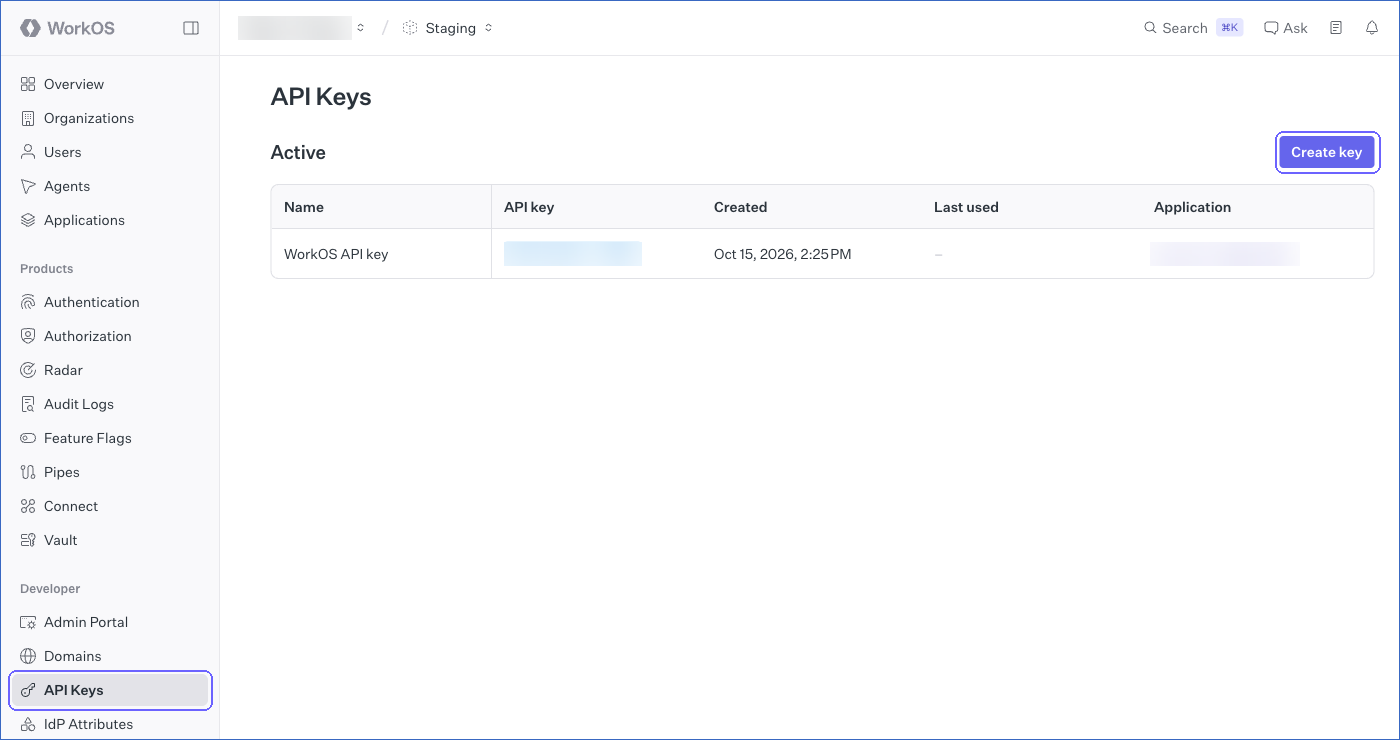
In the left navigation pane, click API Keys, and then click Create key.
-
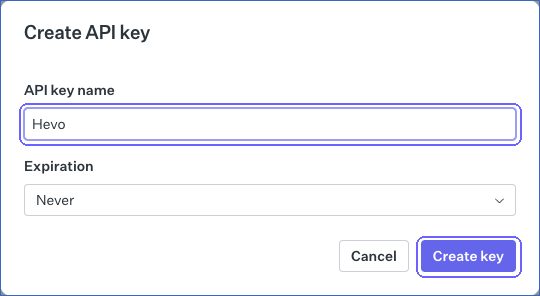
In the Create API key dialog, specify a name for the key, such as Hevo, select an Expiration, and then click Create key.
-
In the Your API key dialog, click the copy icon to copy the key, and save it securely like any other password. Then, click Close.
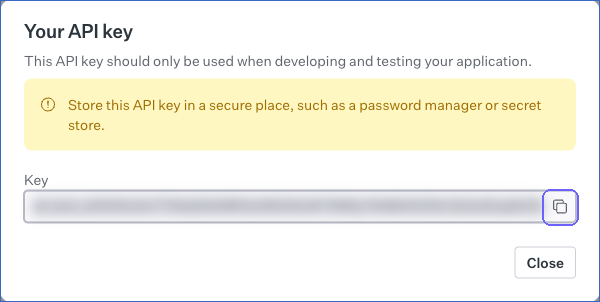
Note: WorkOS shows the key of a Production environment only when you create it. If you lose the key, create a new one. You can view the API key of a Staging environment at any time.
Use this API key while configuring your WorkOS Source in Hevo. If the key expires or is revoked, Hevo cannot connect to WorkOS, and the Pipeline stops ingesting data. To resume, modify the Source configuration with a valid API key.
Configure WorkOS as a Source in your Pipeline
Perform the following steps to configure your WorkOS Source:
-
Click Pipelines in the Navigation Bar.
-
Click + Create Pipeline in the Pipelines List View.
-
On the Select Source Type page, select WorkOS.
-
On the Select Destination Type page, select the type of Destination you want to use.
-
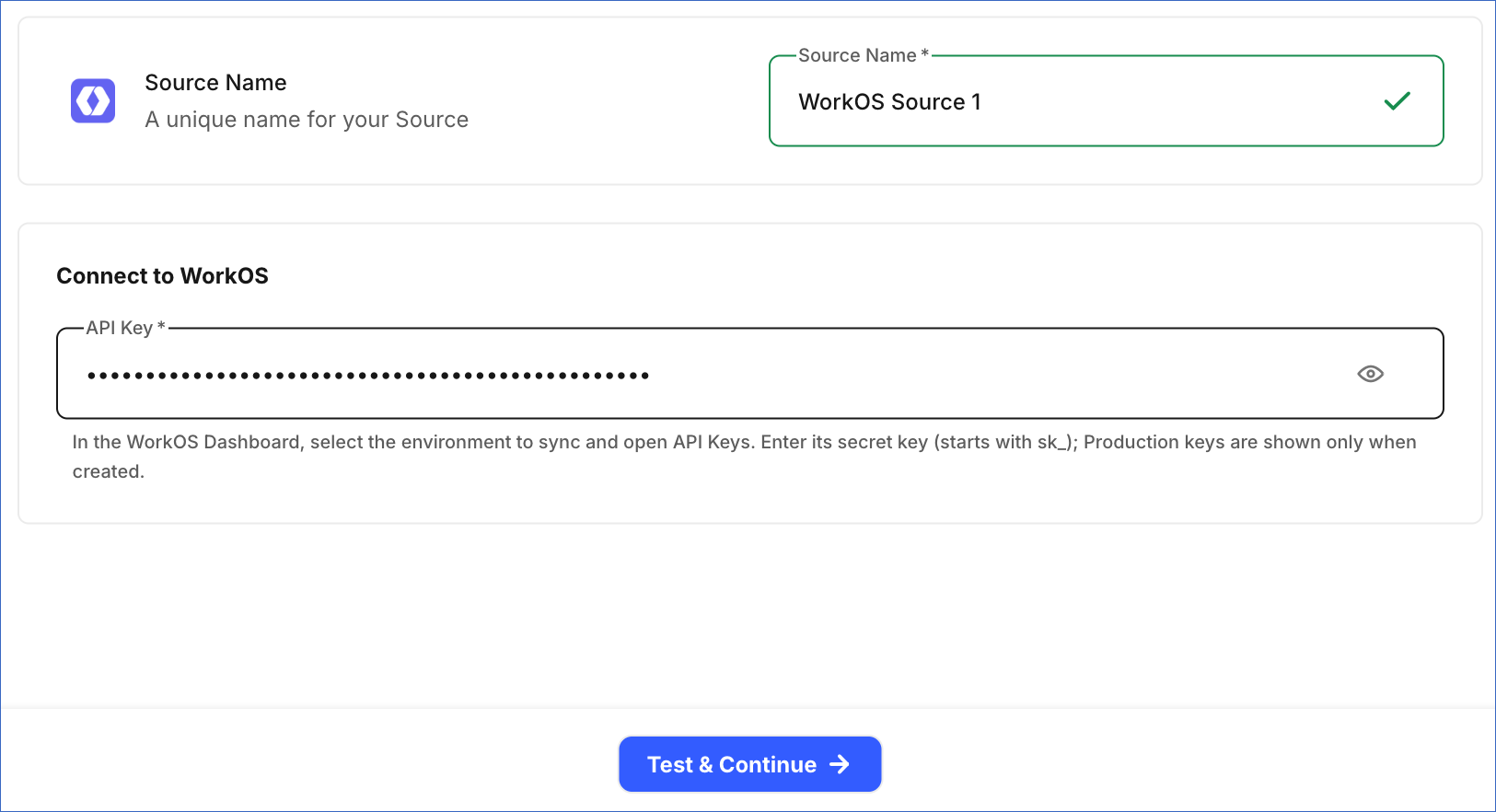
In the Configure Source screen, specify the following:
-
Source Name: A unique name for your Source, not exceeding 255 characters. For example, WorkOS Source.
-
In the Connect to WorkOS section, specify the secret API key that you copied from the WorkOS Dashboard. The key starts with sk_.
-
-
Click Test & Continue to test the connection to your WorkOS Source. Once the test is successful, you can proceed to set up your Destination.
Data Replication
Hevo replicates data for all the objects selected on the Configure Objects page during Pipeline creation. By default, all supported objects and their available fields are selected. However, you can modify this selection while creating or editing the Pipeline.
Hevo ingests the entire data of all the selected objects during each Pipeline run, as per the sync frequency. The WorkOS API does not provide a way to fetch only the records that changed since the last run.
Note: You can create a Pipeline with this Source only using the Merge load mode. The Append mode is not supported for this Source.
Schema and Primary Keys
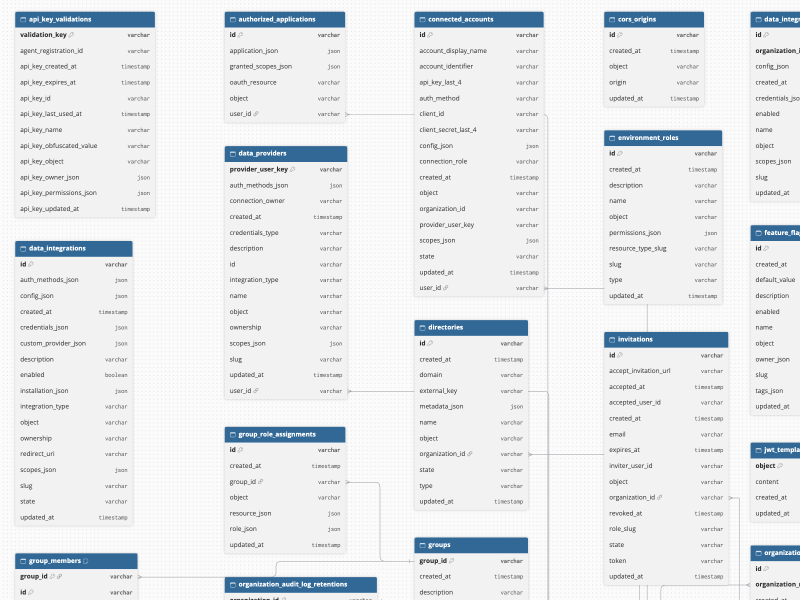
Hevo uses the following schema to upload the records in the Destination. For a detailed view of the objects, fields, and relationships, click the ERD.
Data Model
The following is the list of tables (objects) that are created at the Destination when you run the Pipeline:
| Object | Description |
|---|---|
| API Key Validations | Contains the details of the API key that you use to connect Hevo to WorkOS, as returned by the WorkOS API key validation endpoint. This endpoint returns key details only for the API keys that your application issues to its users through AuthKit. Hence, for the secret API key of an environment, this object contains a single record without any key details. |
| CORS Origins | Contains the origins allowed to make cross-origin requests to WorkOS from your application. |
| Data Integrations | Contains the third-party integrations, such as GitHub or Slack, that are configured in WorkOS Pipes for your environment. |
| Directories | Contains the directories connected through Directory Sync, including their type, state, domain, and organization. |
| Environment Roles | Contains the roles defined for your environment, including their slug, description, and permissions. |
| Feature Flags | Contains the feature flags defined in your environment, including their slug, default value, and tags. |
| Invitations | Contains the invitations sent to users to join your application or an organization, including the email address, state, and expiry date. |
| JWT Template | Contains the template that WorkOS uses to add custom claims to the access tokens of your application. |
| Organizations | Contains the organizations in your environment, including their name, external ID, and metadata. It includes the following child objects: - Data Integration Configurations - Group Members - Group Role Assignments - Groups - Organization Audit Log Configurations - Organization Audit Log Retentions - Organization Authorized Applications - Organization Domains - Organization Membership Groups - Organization Membership Role Assignments - Organization Membership Roles - Organization Memberships - Organization Roles |
| Permissions | Contains the permissions defined for your environment, including their slug, name, and the resource type they apply to. This includes the system permissions that WorkOS creates for your environment. |
| Redirect URIs | Contains the URIs that WorkOS can redirect users to after they authenticate. |
| Users | Contains the users of your application, including their name, email address, and last sign-in time. It includes the following child objects: - Authorized Applications - Connected Accounts - Data Providers - User Identities - User Sessions |
Additional Information
Read the detailed Hevo documentation for the following related topics:
Handling of Deletes
The WorkOS API does not return deleted records. Hence, Hevo uses a full data refresh approach to capture delete actions for all the objects. During each Pipeline run, Hevo compares the data fetched from the Source object with the data present in the Destination table. If a record exists in the Destination but is no longer returned by the Source, the record is marked as deleted by setting the value of the metadata column __hevo__marked_deleted to True.
Source Considerations
-
Hevo replicates data only from the WorkOS environment to which the API key belongs. To replicate data from more than one environment, such as Staging and Production, create a separate Pipeline for each environment.
-
If no JWT template is configured in your WorkOS environment, ingestion fails for the JWT Template object. To avoid this, deselect the object in the Pipeline.
-
Some objects, such as Directories, Feature Flags, and Data Integrations, are populated only if you use the related WorkOS feature. If you do not use a feature, the related objects are created in the Destination without any records.
-
For each organization, the Organization Roles object contains the environment roles that apply to the organization and the custom roles created for it.
-
The Invitations object contains the token and the acceptance URL of each invitation. Anyone with these values can accept the invitation. If you do not need them in your Destination, deselect the token and accept_invitation_url fields of the object.