Teamwork.com is a project management and client work platform. Teams use it to plan projects, assign and track tasks and milestones, log time and expenses, manage budgets and invoices, and collaborate through messages, comments, and notebooks.
Hevo uses the Teamwork.com API to replicate data from your Teamwork.com site to the Destination of your choice. To ingest data, you must provide Hevo with the API token of a Teamwork.com user and the URL of your Teamwork.com site.
Supported Features
| Feature Name | Supported |
|---|---|
| Capture deletes | Yes (for some objects) |
| History mode | No |
| Custom data (user-configured tables & fields) | No |
| Data blocking (skip objects and fields) | Yes |
| Resync (objects and Pipelines) | Yes |
| API configurable | No |
Prerequisites
-
An active Teamwork.com site from which data is to be ingested.
-
API access is turned on for the Teamwork.com user whose API token you provide. Hevo can read only the data that this user can access in Teamwork.com. We recommend that you use the API token of a site administrator.
Obtain the API Token
Hevo authenticates with Teamwork.com using the API token of a Teamwork.com user.
Perform the following steps to obtain the API token:
-
Log in to your Teamwork.com site.
-
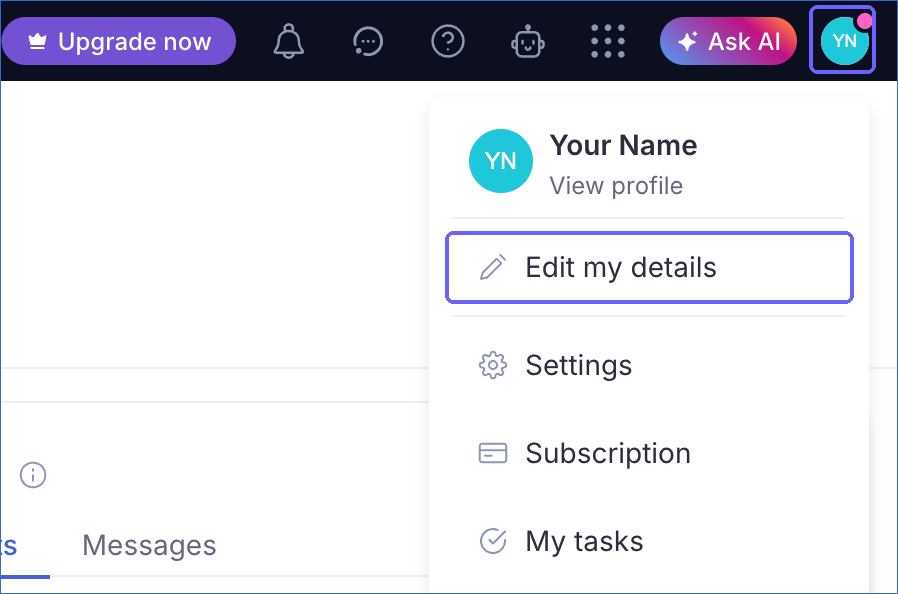
In the upper-right corner, click your profile icon, and then click Edit my details.
-
In the dialog that appears, click the API & Mobile tab, and then click Show your Token.
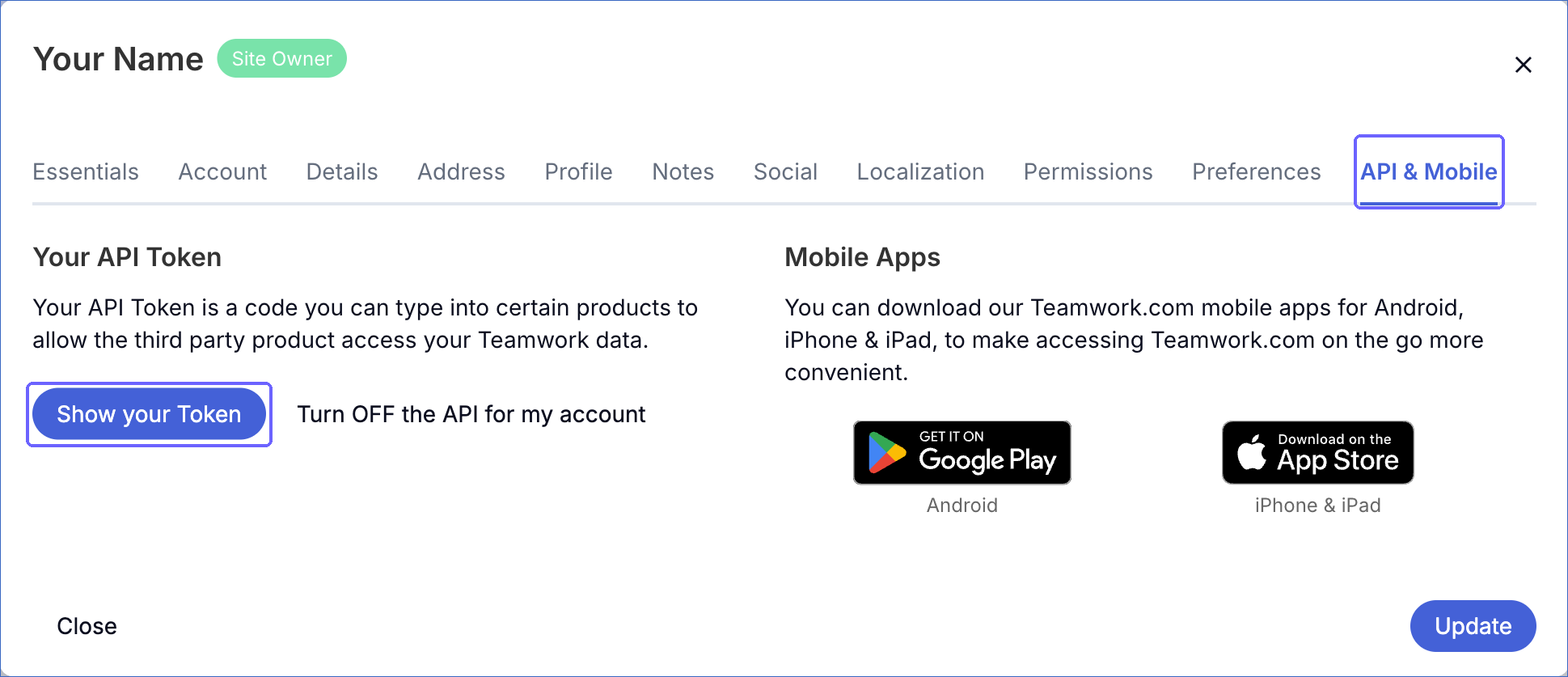
If API access is not turned on for your account, click Get API Token. In the Turn On API Access For This Account dialog, select the I have read and agree to the API terms and conditions check box, and then click Enable API.
-
Click the copy icon next to the token, and save the token securely like any other password.
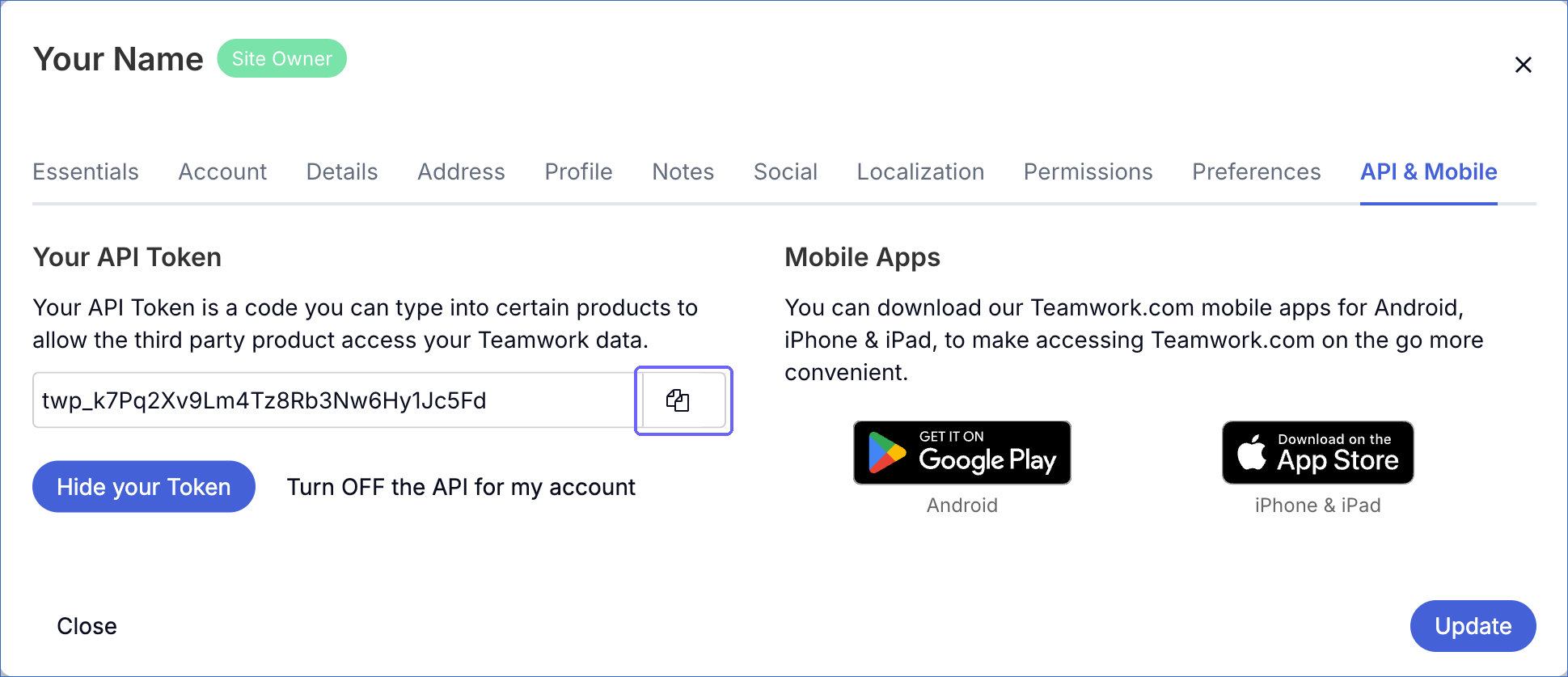
Note: If the API token is regenerated or API access is turned off for the user, Hevo cannot connect to your Teamwork.com site, and the Pipeline stops ingesting data. To resume, modify the Source configuration with a valid API token.
Configure Teamwork.com as a Source in your Pipeline
Perform the following steps to configure your Teamwork.com Source:
-
Click Pipelines in the Navigation Bar.
-
Click + Create Pipeline in the Pipelines List View.
-
On the Select Source Type page, select Teamwork.
-
On the Select Destination Type page, select the type of Destination you want to use.
-
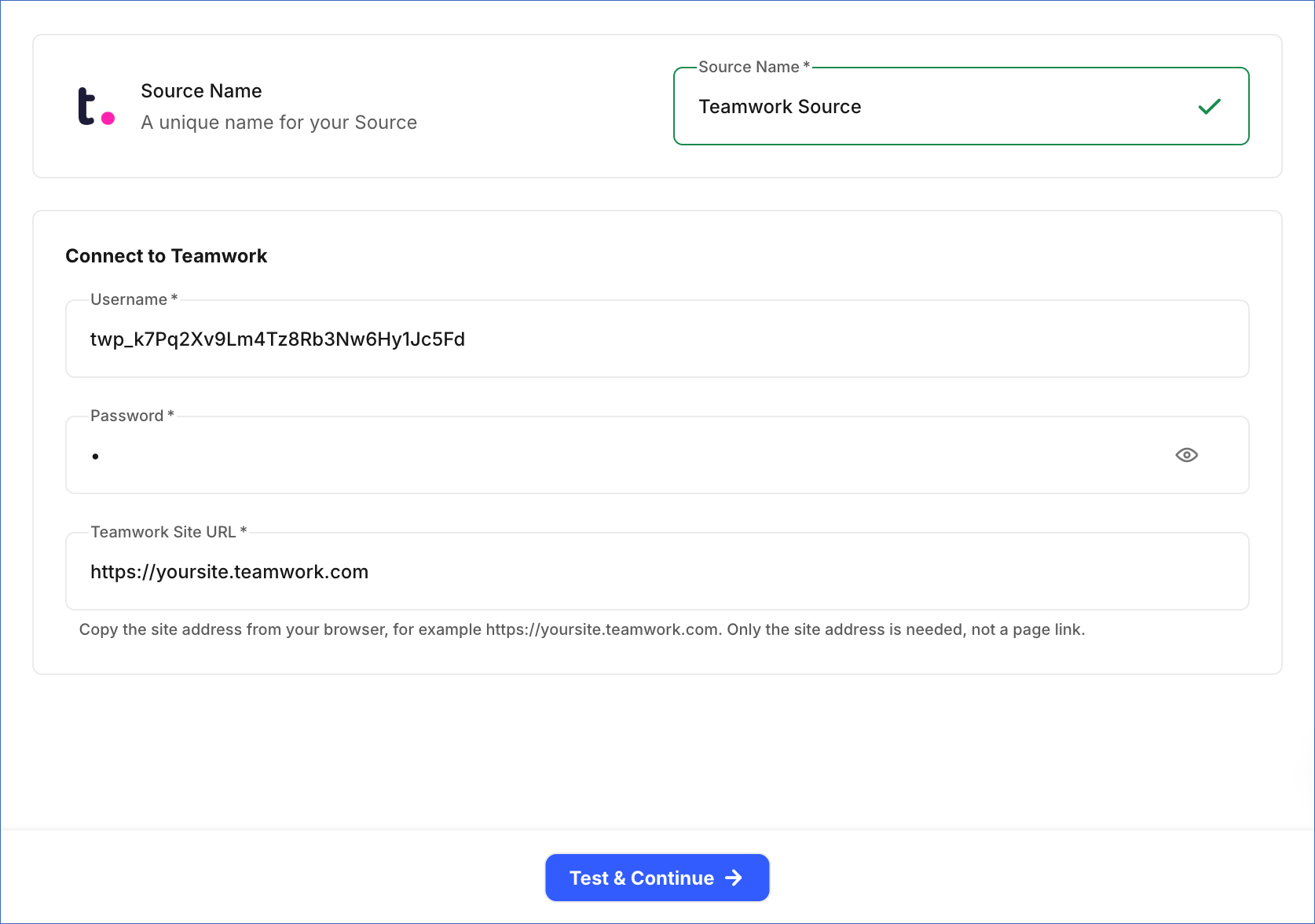
In the Configure Source screen, specify the following:
-
Source Name: A unique name for your Source, not exceeding 255 characters. For example, Teamwork Source.
-
In the Connect to Teamwork section, specify the following:
-
Username: The API token that you copied from your Teamwork.com site.
-
Password: Any value, such as X. Teamwork.com ignores the password when you authenticate with an API token.
-
Teamwork Site URL: The address of your Teamwork.com site, as shown in your browser. For example, https://yoursite.teamwork.com. Specify only the site address, not the link to a page in the site. For a site in the EU region, the address is of the form https://yoursite.eu.teamwork.com.
-
-
-
Click Test & Continue to test the connection to your Teamwork.com Source. Once the test is successful, you can proceed to set up your Destination.
Data Replication
Hevo replicates data for all the objects selected on the Configure Objects page during Pipeline creation. By default, all supported objects and their available fields are selected. However, you can modify this selection while creating or editing the Pipeline.
For the Activity, Calendar Event, Comment, Project, Project Budget, Task, Users, and Workflow objects, Hevo ingests new and updated records in each Pipeline run, as per the sync frequency. Changes are identified using the time at which a record was last updated. In the first run, Hevo ingests all the records updated since January 1, 2008.
For all the other objects, Hevo ingests the entire data during each Pipeline run.
You can resync only the parent objects. When you resync a parent object, Hevo also resyncs its child objects.
Teamwork.com limits the number of API requests that can be made per minute, based on your plan. If this limit is exceeded, a rate limit exception occurs. To understand how Hevo handles such scenarios, read Handling Rate Limit Exceptions.
Note: You can create a Pipeline with this Source only using the Merge load mode. The Append mode is not supported for this Source.
Schema and Primary Keys
Hevo uses the following schema to upload the records in the Destination. For a detailed view of the objects, fields, and relationships, click the ERD.
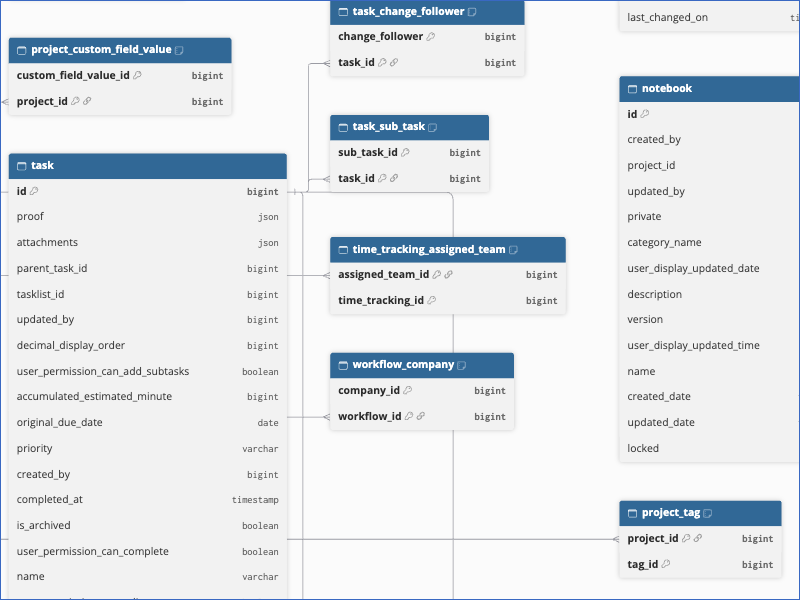
The primary key of most objects is id. The following objects use other primary keys:
-
Users:
user_id. -
The child objects that link two records, such as Project User, Task Tag, and Workflow Project, use the IDs of both records, for example,
project_idanduser_id. -
Company Tag, Milestone Tag, Milestone Tasklist, Project Budget Notification, Team Member, and Tasklist Tag:
idand the ID of the parent record, for example,company_id. -
Milestone Change Follower, Milestone Comment Follower, and Milestone Responsible Party:
milestone_idand the ID of the person, such aschange_follower. -
Task Change Follower, Task Comment Follower, and Task Complete Follower:
task_idand the ID of the person, such aschange_follower. -
Task CRM Deal:
task_idandcrm_deal. -
Task Workflow Stage:
task_idandindex.
Data Model
The following is the list of tables (objects) that are created at the Destination when you run the Pipeline:
| Object | Description |
|---|---|
| Activity | Contains the latest activity on your site, such as the items that were created, updated, or completed, and the user who performed each action. |
| Calendar Event | Contains the events in your Teamwork.com calendars, including their titles, dates, and attendees. |
| Comment | Contains the comments added to tasks, milestones, messages, notebooks, files, and links, including the author and the item that each comment belongs to. |
| Company | Contains the companies (clients) on your site, including their addresses and contact details. It includes a child object, Company Tag. |
| Custom Field | Contains the custom fields defined for projects and tasks, including their name, type, and options. |
| Expense | Contains the expenses logged against projects, including the cost, date, and the user who logged them. |
| Invoice | Contains the invoices created for projects, including the invoice number, status, and display date. |
| Link | Contains the links added to projects, including their title, URL, and the project they belong to. |
| Message | Contains the messages posted in projects, including their title, body, and author. |
| Milestone | Contains the milestones in your projects, including their deadline, status, and the people responsible. It includes the following child objects: - Milestone Change Follower - Milestone Comment Follower - Milestone Responsible Party - Milestone Tag - Milestone Tasklist |
| Notebook | Contains the notebooks in your projects, including their name, description, and content. |
| Project | Contains the projects on your site, including their status, dates, company, and category. It includes the following child objects: - Project Custom Field Value - Project Portfolio Card - Project Tag - Project User |
| Project Budget | Contains the budgets set for projects, including their type, amount, and period. It includes a child object, Project Budget Notification. |
| Project Category | Contains the categories used to group projects. |
| Risk | Contains the risks recorded in projects, including their source, probability, impact, and status. |
| Tags | Contains the tags defined on your site, including their name and color. |
| Task | Contains the tasks in your projects, including their status, priority, dates, estimates, and task list. It includes the following child objects: - Assignee Company Task - Assignee Team Task - Assignee User Task - Task Change Follower - Task Comment Follower - Task Complete Follower - Task CRM Deal - Task Dependency - Task Predecessor - Task Sub Task - Task Tag - Task Workflow Stage |
| Task List | Contains the task lists in your projects, including their name, description, and status. It includes a child object, Tasklist Tag. |
| Team | Contains the teams on your site, including their name, handle, and parent team. It includes the following child objects: - Team Member - Time Tracking Assigned Team |
| Time Tracking | Contains the time entries logged against projects and tasks, including the duration, date, and billable status. |
| User Status | Contains the status updates that users post on your site. |
| Users | Contains the people on your site, including their name, email address, company, and role. It includes the following child objects: - Clock In - Users Team |
| Workflow | Contains the workflows (boards) on your site, including their name and status. It includes the following child objects: - Project Workflow - Workflow Company - Workflow Project - Workflow Stage |
Additional Information
Read the detailed Hevo documentation for the following related topics:
Handling of Deletes
For the Calendar Event, Project, Project Budget, Task, Users, and Workflow objects, Teamwork.com returns the deleted records along with the other records. When Hevo ingests a deleted record, it marks the record as deleted in the Destination by setting the value of the metadata column __hevo__marked_deleted to True.
For the Company, Company Tag, Custom Field, Expense, Invoice, Link, Message, Milestone and its child objects, Project Category, Risk, Team, Team Member, Time Tracking Assigned Team, and User Status objects, Hevo uses a full data refresh approach to capture deletes. During each Pipeline run, Hevo compares the data fetched from the Source object with the data present in the Destination table. If a record exists in the Destination but is no longer returned by the Source, the record is marked as deleted by setting the value of the metadata column __hevo__marked_deleted to True.
For all the other objects, Hevo does not capture deletes. Records deleted in Teamwork.com remain in the Destination.
Source Considerations
-
Hevo reads data with the permissions of the user whose API token you provide. If the user cannot access a project, the data of that project is not replicated.
-
Some objects, such as Risk and Project Budget, are available only on certain Teamwork.com plans. If your plan does not include a feature, the related objects contain no records.
-
Custom domains are not supported. Specify the teamwork.com address of your site in the Teamwork Site URL field.