Slack is a cloud-based collaboration platform that enables teams to communicate through organized channels, direct messages, and shared workspaces. It provides messaging, file sharing, and integrations with thousands of third-party tools to help businesses streamline communication and improve team productivity.
Hevo uses Slack’s Web API to replicate data from your Slack workspace to the Destination of your choice. Slack uses a Slack Bot User OAuth Token to identify Hevo and authorize the request for accessing account data. You generate the token by creating and configuring a Slack app and installing it in your workspace. Hevo then ingests workspace data including users, channels, messages, and related objects.
Supported Features
| Feature Name | Supported |
|---|---|
| Capture deletes | Yes |
| Custom data (user-configured tables & fields) | No |
| Data blocking (skip objects and fields) | Yes |
| Resync (objects and Pipelines) | Yes |
| API configurable | Yes |
| Authorization via API | Yes |
Prerequisites
-
An active Slack workspace exists from which data is to be ingested.
-
You have Workspace Owner or Admin permissions to create and install a Slack app with the required OAuth scopes.
-
The required credentials are available to provide Hevo access to your Slack workspace data.
Create a Slack App and Obtain the OAuth Token
To connect Hevo to your Slack workspace, you must create a Slack app, configure the required OAuth scopes, and obtain the Bot User OAuth Token.
Note: Slack Bot User OAuth Tokens do not expire and can be reused across all your Pipelines.
Perform the following steps to create a Slack app and obtain the OAuth token:
-
Log in to your Slack account and navigate to the Your Apps page.
-
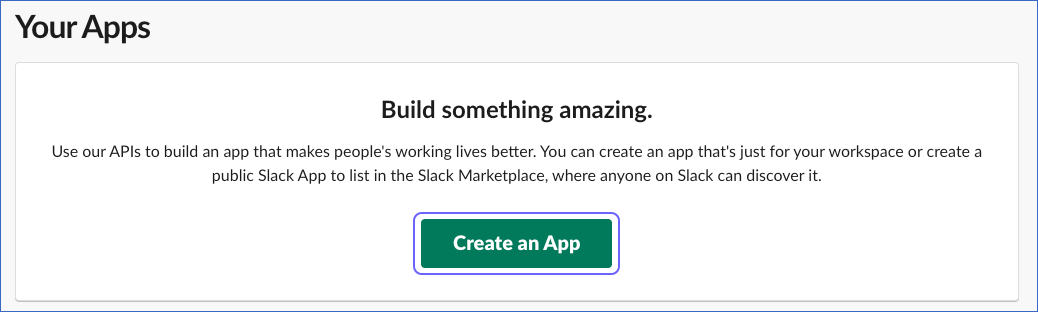
Click Create an App.
-
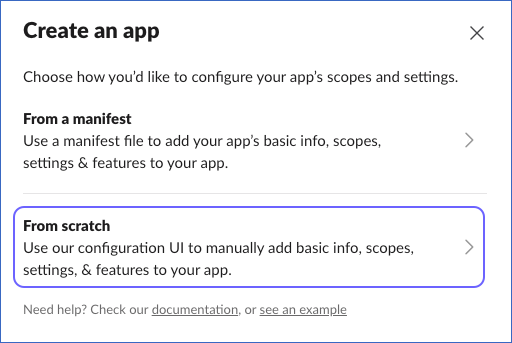
In the Create an app dialog box, click From scratch.
-
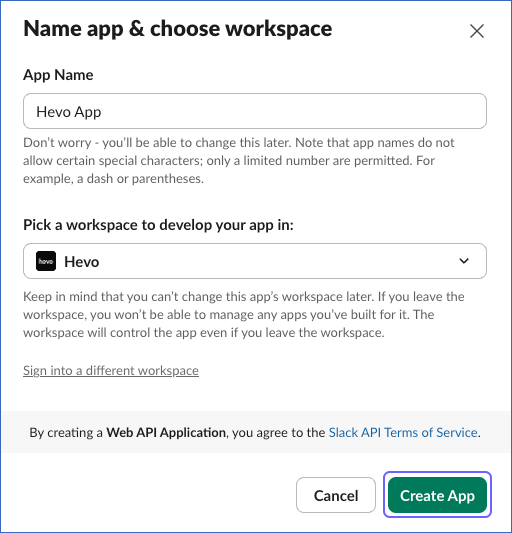
In the Name app & choose workspace pop-up window, specify the following, and then click Create App:
-
App Name: A unique name for the app, for example, Hevo App.
-
Pick a workspace to develop your app in: Select the Slack workspace in which you want to create your app.
-
-
In the left navigation bar, under Features, click OAuth & Permissions.
-
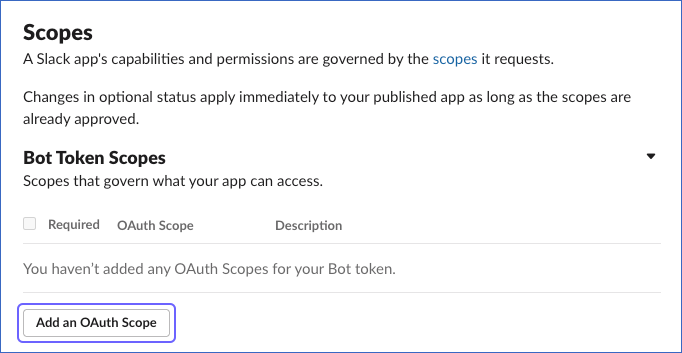
On the OAuth & Permissions page, scroll down to the Scopes section, and under Bot Token Scopes, click Add an OAuth Scope.
-
From the drop-down list, search and add the following scopes:
bookmarks:readchannels:historychannels:readdnd:readfiles:readgroups:historygroups:readim:historyim:readmpim:historympim:readpins:readreactions:readteam:readteam.billing:readteam.preferences:readusergroups:readusers.profile:readusers:readusers:read.email
-
Scroll up to the OAuth Tokens section and click Install to <Workspace Name>.
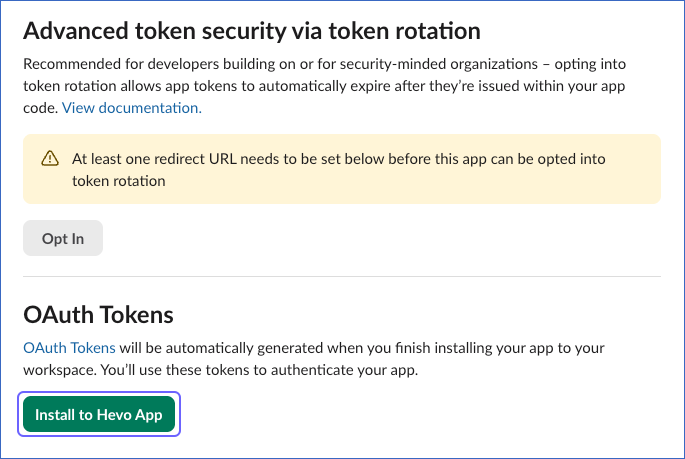
-
On the permission confirmation screen, click Allow to authorize the app.
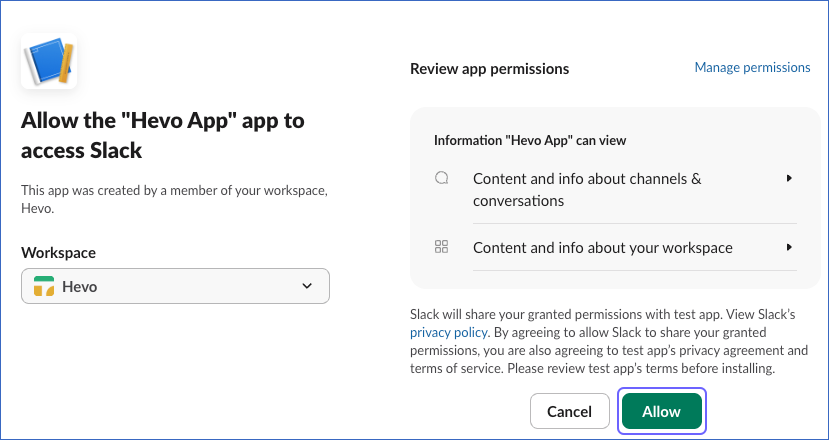
-
From the OAuth Tokens section, copy the Bot User OAuth Token and save it securely like any other password. Use this OAuth token while configuring your Hevo Pipeline.
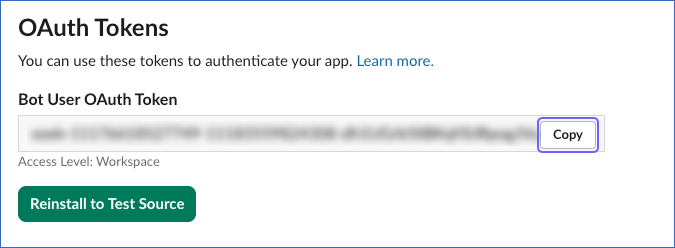
If the OAuth Token configured in the Pipeline is revoked manually from your Slack account, Hevo cannot authenticate with the Source. As a result, all active jobs for the Pipeline fail, and no data is replicated. To resume data replication, modify the Source configuration in the Pipeline with a valid OAuth Token. Once the updated token is saved, Hevo re-authenticates the Source, and data ingestion resumes from the last saved offset.
Configure Slack as a Source in your Pipeline
Perform the following steps to configure your Slack Source:
-
Click Pipelines in the Navigation Bar.
-
Click + Create Pipeline in the Pipelines List View.
-
On the Select Source Type page, select Slack.
-
On the Select Destination Type page, select the type of Destination you want to use.
-
On the Select Pipeline Type page, click Edge, and then click Continue.
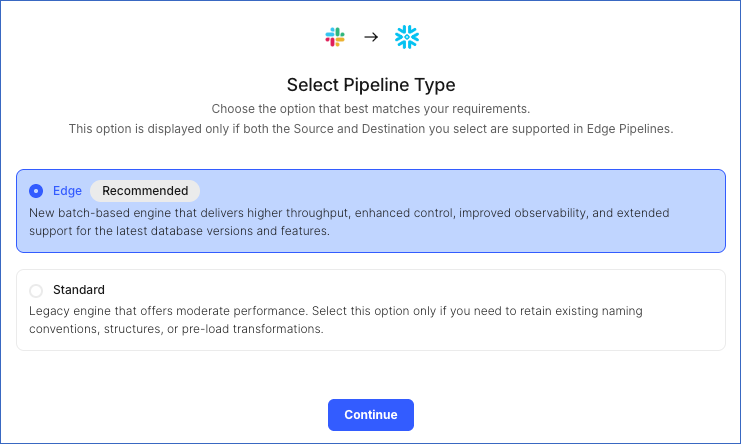
This page appears only if the selected Destination type is supported in Edge and your Team has an existing Slack Pipeline with the same Destination type. Otherwise, you can proceed to create an Edge Pipeline.
-
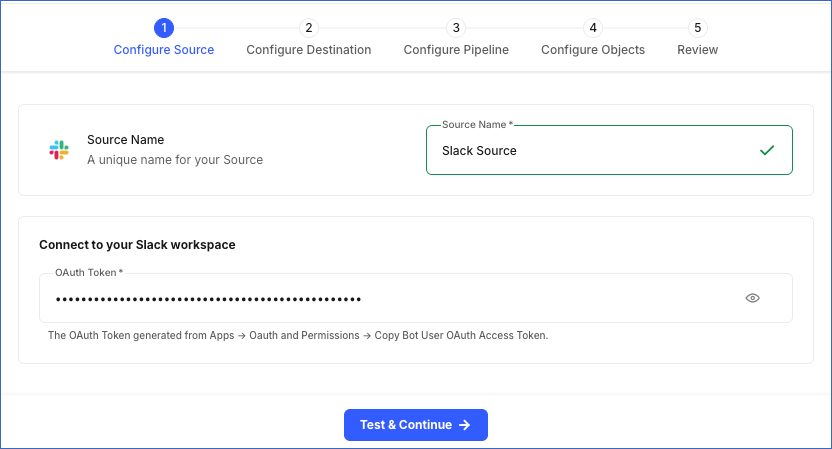
In the Configure Source screen, specify the following:
-
Source Name: A unique name for your Source, not exceeding 255 characters. For example, Slack Source.
-
OAuth Token: The OAuth token that you generated for your Slack workspace.
-
-
Click Test & Continue to test the connection to your Slack Source. Once the test is successful, you can proceed to set up your Destination.
When you click this button, Hevo validates that the OAuth Token field is not null or empty, and then makes a request to the Slack auth.test endpoint using the token provided. If the request confirms that the token is valid and the associated Slack workspace is active, the connection test is marked as successful. You can then proceed to set up your Destination.
Data Replication
Hevo replicates data for all the objects selected on the Configure Objects page during Pipeline creation. By default, all supported objects and their available fields are selected. However, you can modify this selection while creating or editing the Pipeline.
Selecting a parent object automatically includes all its associated child objects for replication. Child objects cannot be selected or deselected individually.
Hevo ingests the following types of data from your Source objects:
-
Historical Data: The first run of the Pipeline ingests all available historical data for the selected objects and loads it into the Destination.
-
Incremental Data: Once the historical load is complete, new and updated records for objects are ingested as per the sync frequency.
For the following objects, Hevo ingests only the incremental data in subsequent Pipeline runs:
-
Message
-
Message Reply
Incremental changes are detected using the ts timestamp field. The maximum ts value recorded in the previous Pipeline run is used as the oldest parameter in subsequent API calls to fetch only new and updated messages.
For all other objects, Hevo ingests the entire data during each Pipeline run.
Slack enforces per-method API rate limits. Depending on the API method used, rate limits range from approximately 20 requests per minute for metadata APIs to approximately 100 requests per minute for message history APIs. If a rate limit is exceeded, a rate limit exception occurs. To understand how Hevo handles such scenarios, read Handling Rate Limit Exceptions.
Note: You can create a Pipeline with this Source only using the Merge load mode. The Append mode is not supported for this Source.
Schema and Primary Keys
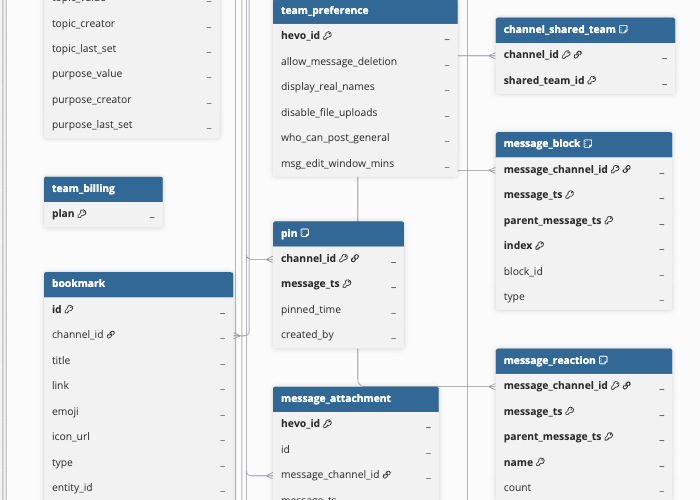
Hevo uses the following schema to upload the records in the Destination. For a detailed view of the objects, fields, and relationships, click the ERD.
Data Model
The following is the list of tables (objects) that are created at the Destination when you run the Pipeline:
| Object | Description |
|---|---|
| Users | Contains workspace members and their profile details, including usernames, real names, timezone settings, admin and guest flags, and custom profile field values. Includes both human users and bot accounts. This object has a child object, DND Info. |
| Channel | Contains Slack conversations, including public channels, private channels, multi-party direct messages (MPIM), and direct messages (IM). Each record includes the channel name, creator, privacy settings, topic, and purpose. This object has the following child objects: - Channel Member - Bookmark - Pin - Channel Shared Team - Previous Channel Name - Message - Message Reply - Message Attachment - Message Block - Message Block Element - Message Block Field - Message File - Message Reaction - Message Reaction User - Chat Permalink |
| Message | Contains messages posted in channels, including top-level messages and thread parent messages. Each record includes the message text, author user ID, Slack timestamp, subtype, thread metadata, and edit history. |
| Profile Field | Contains custom profile field definitions configured in the workspace, including field labels, types, hint text, and display ordering. This object has a child object, Profile Field Option. |
| User Group | Contains Slack user groups within the workspace, including group names, mention handles, descriptions, member counts, and creation and update metadata. |
| Team Billing | Contains billing plan information for the workspace, such as the current subscription plan name. |
| Team Preference | Contains workspace-level preference settings, including message deletion permissions, display name settings, file upload restrictions, and message edit window configuration. |
Additional Information
Read the detailed Hevo documentation for the following related topics:
Handling of Deletes
For the Message and Message Reply objects, where only new and updated records are ingested after the first Pipeline run, Hevo identifies deleted records by comparing the latest data fetched from the Source with the data present in the Destination. If a record exists in the Destination but is no longer returned by the Source in a subsequent sync, Hevo marks it as deleted by setting the value of the metadata column __hevo__marked_deleted to True.
For child objects, the complete data is fetched during every sync. If a record exists in the Destination but is no longer returned by the API, Hevo removes the record from the Destination. The following child objects use this method:
-
DND Info
-
Channel Member
-
Bookmark
-
Pin
-
Channel Shared Team
-
Previous Channel Name
-
Message Attachment
-
Message Block
-
Message Block Element
-
Message Block Field
-
Message File
-
Message Reaction
-
Message Reaction User
-
Chat Permalink
-
Profile Field Option
The following objects do not support capturing deletes:
-
Users
-
Channel
-
Profile Field
-
User Group
-
Team Billing
-
Team Preference
Source Considerations
-
The Slack bot must be a member of a private channel to ingest that channel’s messages, members, bookmarks, and pins. To add the bot to a private channel, use
/invite @<bot-name>in the channel. If the bot is not a member, data ingestion for that channel’s child objects fails with anot_in_channelerror. -
The Team Billing object requires a paid Slack plan. If your workspace is on the free plan, this object fails to ingest.