SendGrid is a cloud-based email delivery and marketing platform from Twilio. Businesses use it to send transactional and marketing emails, manage their contacts and lists, run email campaigns, and track how recipients engage with their emails.
Hevo uses the SendGrid v3 API and the Event Webhook to replicate data from your SendGrid account to the Destination of your choice. To ingest data, you must provide Hevo with a SendGrid API key.
Supported Features
| Feature Name | Supported |
|---|---|
| Capture deletes | Yes (for some objects) |
| History mode | No |
| Custom data (user-configured tables & fields) | No |
| Data blocking (skip objects and fields) | Yes |
| Resync (objects and Pipelines) | Yes |
| API configurable | Yes |
Prerequisites
-
An active SendGrid account from which data is to be ingested. Hevo does not support SendGrid subusers or the accounts that use the EU regional API host (api.eu.sendgrid.com).
-
A SendGrid API key with the permissions required by Hevo. Read Create an API Key.
Create an API Key
Hevo connects to your SendGrid account using an API key. You can create an API key with Custom Access and grant it only the permissions that Hevo requires.
Perform the following steps to create an API key:
-
Log in to your SendGrid account.
-
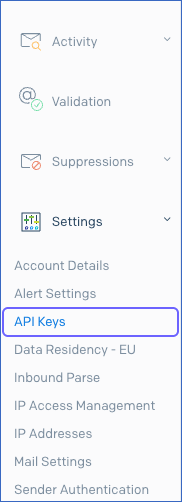
In the left navigation pane, click Settings, and then click API Keys.
-
On the API Keys page, click Create API Key.

-
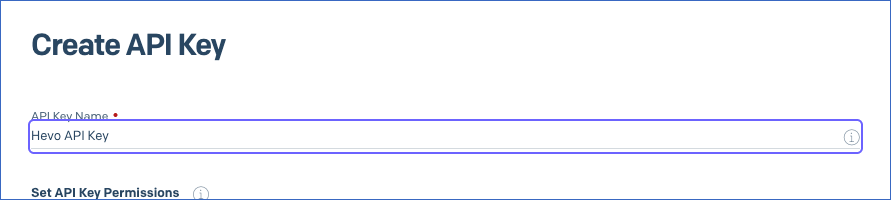
In the API Key Name box, specify a name for the key. For example, Hevo API Key.
-
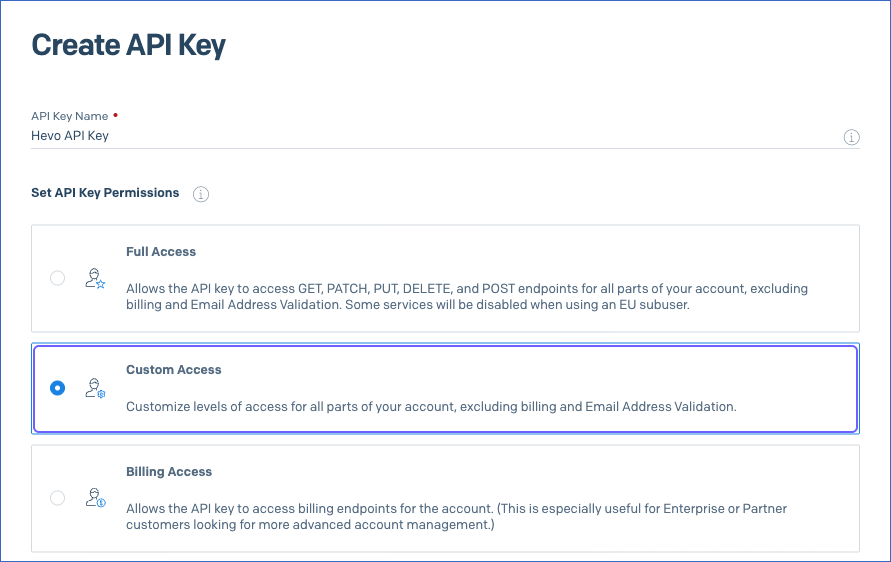
In the Set API Key Permissions section, select Custom Access, and then grant the permissions required by Hevo.
-
Click Create & View.
-
Click the API key to copy it, and save it securely like any other password. SendGrid displays the API key only once.
If you delete the API key or remove its permissions in your SendGrid account, Hevo cannot ingest data from your account, and the Pipeline fails. To resume data ingestion, modify the Source configuration with a valid API key.
Permissions Required by Hevo
Grant your API key the following permissions based on the objects for which you want Hevo to ingest data. The API key must have at least one of these permissions, or the connection test fails when you click Test & Continue while configuring your Source. If a permission is not granted, Hevo does not ingest data for the objects associated with it, and marks those objects as Inaccessible on the Configure Objects page.
| Permission | Scopes | Objects |
|---|---|---|
| Marketing: Full Access | marketing.read |
- Contact - Contact Alternate Email - Contact List - Custom Field - List - Segment - Sender - Single Send - Single Send List - Single Send Segment |
| Suppressions > Unsubscribe Groups: Read Access | asm.groups.read |
- Unsubscribe Group |
| Stats: Read Access | - stats.read- browsers.stats.read- clients.stats.read- devices.stats.read- geo.stats.read- mailbox_providers.stats.read
|
- Browser Stat - Client Stat - Country Location Stat - Device Stat - Global Location Stat - Mailbox Provider Stat |
| Template Engine: Read Access | - templates.read- templates.versions.read
|
- Transactional Template - Transactional Template Version |
| Mail Settings > Event Notification: Full Access | - user.webhooks.event.settings.read- user.webhooks.event.settings.create- user.webhooks.event.settings.update
|
- Category - Event |
Note: SendGrid does not offer read-only access for the Marketing permission. Therefore, you must grant it full access, although Hevo only reads data from your account.
Configure SendGrid as a Source in your Pipeline
Perform the following steps to configure your SendGrid Source:
-
Click Pipelines in the Navigation Bar.
-
Click + Create Pipeline in the Pipelines List View.
-
On the Select Source Type page, select SendGrid.
-
On the Select Destination Type page, select the type of Destination you want to use.
-
In the Configure Source screen, specify the following:
-
Source Name: A unique name for your Source, not exceeding 255 characters. For example, SendGrid Source.
-
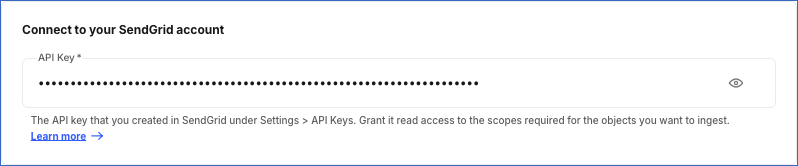
In the Connect to your SendGrid account section, specify the following:
- API Key: The API key that you created in your SendGrid account.
-
-
Click Test & Continue to test the connection to your SendGrid Source. Hevo checks whether SendGrid accepts the API key and whether the key has at least one of the permissions required by Hevo. Once the test is successful, you can proceed to set up your Destination.
Data Replication
Hevo replicates data for all the objects selected on the Configure Objects page during Pipeline creation. By default, all supported objects and their available fields are selected. However, you can modify this selection while creating or editing the Pipeline.
Hevo ingests the following types of data from your Source objects:
-
Historical Data: The first run of the Pipeline ingests all the data of the selected objects, except for the following:
-
Mailbox Provider Stat: Hevo ingests the statistics of the last three years, as SendGrid provides these statistics only for this period. Hevo first ingests the statistics of the last seven days, and then the older statistics.
-
Browser Stat, Client Stat, Country Location Stat, Device Stat, and Global Location Stat: Hevo ingests the statistics of the last seven days.
-
Event and Category: Hevo ingests only the events that SendGrid sends after the Pipeline is created. Read Event Webhook.
-
-
Incremental Data: Once the historical load is complete, Hevo ingests data as per the sync frequency, as follows:
-
Statistics objects, such as Mailbox Provider Stat: Hevo ingests the statistics from the day of the previous run until the current day.
-
Event and Category: Hevo ingests the events that SendGrid has sent since the previous run.
-
All other objects: Hevo ingests the entire data in each run.
-
You can resync any object. When you resync the Contact, Single Send, or Transactional Template object, Hevo also resyncs its child objects. When you resync the Event object, Hevo ingests only the events that the webhook received in the last 24 hours, and does not resync the Category object. Read Event Webhook.
SendGrid limits the number of API requests that each endpoint can receive in a period. Read Rate limits. If a limit is reached, Hevo waits for the time that SendGrid specifies and retries the request. If the retry fails, the affected objects fail, and Hevo ingests their data in the next run.
Note: You can create a Pipeline with this Source only using the Merge load mode. The Append mode is not supported for this Source.
Event Webhook
Hevo ingests the Event and Category objects through the SendGrid Event Webhook. When the Pipeline runs, Hevo adds an Event Webhook named Hevo Data Pipeline to your SendGrid account, enables its signature verification, and selects all the engagement and deliverability events, such as Delivered, Bounced, Opened, and Clicked. If a webhook with the same URL already exists, Hevo uses it. The webhook URL is displayed in the Pipeline Setup tab of your Pipeline, and you can view the webhook in your SendGrid account under Settings > Mail Settings > Event Webhook.
To add the webhook, your API key must have the Mail Settings > Event Notification: Full Access permission. SendGrid limits the number of Event Webhooks in an account as per your plan. If this limit is reached, Hevo cannot add the webhook, and marks the Event and Category objects as Inaccessible. Hevo continues to ingest data for the other objects.
Hevo retains the events that the webhook receives for 24 hours. If the Pipeline is paused or fails for more than 24 hours, the events received during that period are lost, and you cannot recover them by resyncing the Pipeline or the objects. Therefore, resolve any Pipeline failures promptly.
Note: Each Pipeline that you create with this Source adds its own webhook, and Hevo does not remove the webhook when you delete the Pipeline. Therefore, when you delete a Pipeline, delete its webhook in your SendGrid account. Otherwise, the webhook continues to use one of the webhook slots of your account, and SendGrid continues to send events to it. Read Remove the webhook of a deleted Pipeline.
Schema and Primary Keys
Hevo uses the following schema to upload the records in the Destination. For a detailed view of the objects, fields, and relationships, click the ERD.
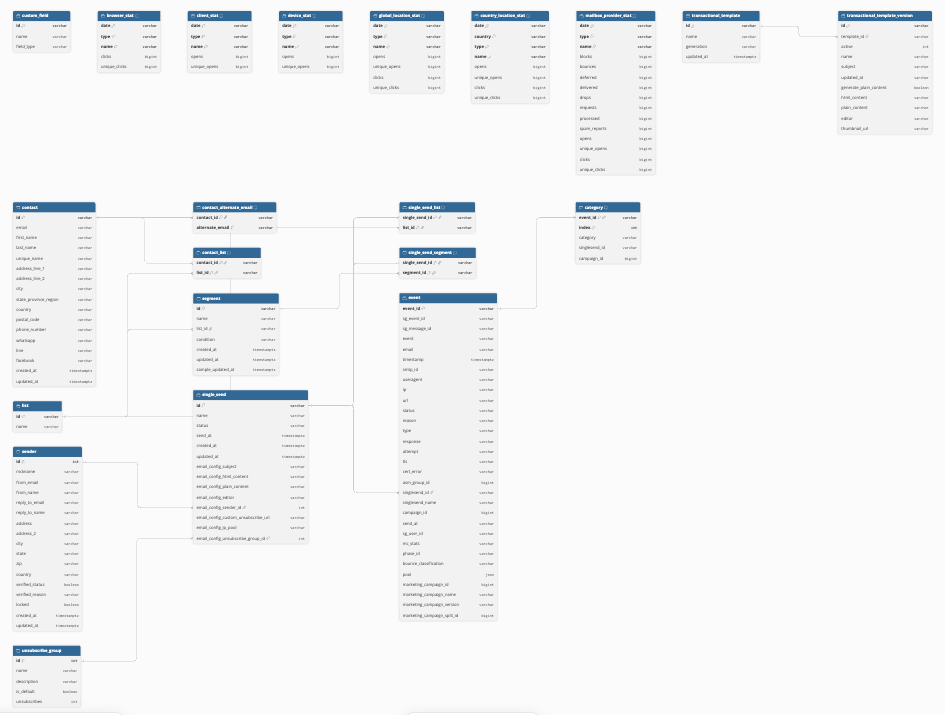
Data Model
The following is the list of tables (objects) that are created at the Destination when you run the Pipeline:
| Object | Description |
|---|---|
| Browser Stat | Contains the daily number of clicks on your emails for each browser. |
| Category | Contains the categories of each event that SendGrid sends to the Event Webhook. |
| Client Stat | Contains the daily number of opens of your emails for each type of client, such as desktop or webmail. |
| Contact | Contains the marketing contacts in your account, such as their email address, name, address, and phone number. It includes the following child objects: - Contact Alternate Email - Contact List |
| Contact Alternate Email | Contains the alternate email addresses of each contact. |
| Contact List | Contains the lists to which each contact belongs. |
| Country Location Stat | Contains the daily number of opens and clicks of your emails for each state or province in the United States and Canada. |
| Custom Field | Contains the definitions of the custom fields created for contacts, such as their name and type. |
| Device Stat | Contains the daily number of opens of your emails for each type of device, such as desktop or phone. |
| Event | Contains the delivery and engagement events of your emails, such as deliveries, bounces, opens, and clicks, that SendGrid sends to the Event Webhook. It includes a child object, Category. |
| Global Location Stat | Contains the daily number of opens and clicks of your emails for each country. |
| List | Contains the contact lists in your account. |
| Mailbox Provider Stat | Contains the daily delivery and engagement statistics of your emails for each mailbox provider, such as Gmail or Outlook. |
| Segment | Contains the segments in your account, with the list and the query that defines each segment. |
| Sender | Contains the sender identities in your account, with their from and reply-to details, address, and verification status. |
| Single Send | Contains the Single Sends, which are one-time marketing emails, with their status, send time, and email settings. It includes the following child objects: - Single Send List - Single Send Segment |
| Single Send List | Contains the lists to which each Single Send is sent. |
| Single Send Segment | Contains the segments to which each Single Send is sent. |
| Transactional Template | Contains the legacy and dynamic templates used for transactional emails. It includes a child object, Transactional Template Version. |
| Transactional Template Version | Contains the versions of each transactional template, with their subject and content. |
| Unsubscribe Group | Contains the unsubscribe groups in your account, with the number of recipients who unsubscribed from each group. |
Additional Information
Read the detailed Hevo documentation for the following related topics:
Handling of Deletes
Hevo marks a record as deleted by setting the value of the metadata column __hevo__marked_deleted to True. The record remains in the Destination with all its data. Hevo captures deletes as follows:
-
For the objects whose entire data Hevo ingests in each run, such as Contact, List, and Single Send, Hevo marks a record as deleted if it is no longer returned by SendGrid. For example, if a contact is removed from a list, Hevo marks the corresponding record of the Contact List object as deleted.
-
Hevo does not mark the records of the statistics objects, such as Mailbox Provider Stat, and of the Event and Category objects as deleted.
Source Considerations
-
Hevo ingests the definitions of your custom contact fields in the Custom Field object, but not the values of these fields for each contact. Hevo also does not ingest the custom arguments of the events.
-
The Country Location Stat object contains statistics only for the United States and Canada, as SendGrid provides statistics by state or province only for these countries.
-
Hevo loads the empty text values from SendGrid as NULL in the Destination.
-
Hevo ingests the entire data of most objects, such as Contact, in each run. If your SendGrid account has a large amount of data, set the sync frequency of the Pipeline to 2 hours or more.
-
If you delete the Pipeline, Hevo does not remove its Hevo Data Pipeline Event Webhook from your SendGrid account. The webhook continues to use one of the webhook slots of your account, and SendGrid continues to send events to it. To remove the webhook, read Remove the webhook of a deleted Pipeline.
Remove the webhook of a deleted Pipeline
Before you delete a Pipeline, note its webhook URL from the Pipeline Setup tab of the Pipeline. Then, after you delete the Pipeline, perform the following steps:
-
Log in to your SendGrid account.
-
In the left navigation pane, click Settings > Mail Settings, and then click Event Webhook.
-
Find the webhook named Hevo Data Pipeline whose endpoint URL matches the URL that you noted, and delete it.
If you did not note the URL, compare the endpoint URLs of the Hevo Data Pipeline webhooks with the webhook URLs of your existing Pipelines, and delete the webhooks that do not match any of them. Read Getting started with the Event Webhook.