Rollbar is an error monitoring platform that helps software teams find, group, and fix the errors and exceptions in their applications. It records each error as an occurrence and groups similar occurrences into items, along with details of the deploys, environments, and code versions in which they occur.
Hevo uses the Rollbar API to replicate data from your Rollbar account to the Destination of your choice. To ingest data, you must provide Hevo with an account access token of your Rollbar account.
Supported Features
| Feature Name | Supported |
|---|---|
| Capture deletes | Yes |
| History mode | No |
| Custom data (user-configured tables & fields) | No |
| Data blocking (skip objects and fields) | Yes |
| Resync (objects and Pipelines) | Yes (for some objects) |
| API configurable | Yes |
Prerequisites
-
An active Rollbar account from which data is to be ingested.
-
The Owner access level in your Rollbar account to create a service access token. If you are not an owner, you can create a personal access token, which provides access only to the projects that you can view.
Create an Account Access Token
Hevo connects to your Rollbar account using an account access token with the read scope. You can use a service access token, which can read the data of all the projects in your account, or a personal access token, which can read only the data that its user can view. Project access tokens are not supported.
Create a service access token
A service access token can read the data of all the projects in your Rollbar account. Only the users with the Owner access level can create it.
Perform the following steps to create a service access token:
-
Log in to your Rollbar account.
-
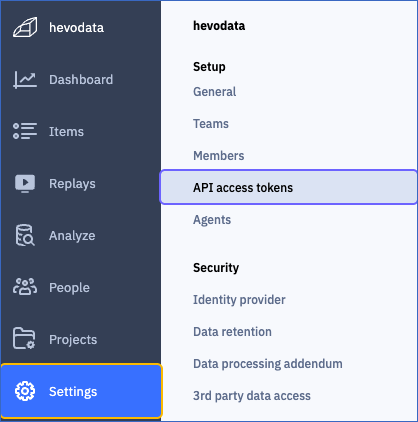
In the left navigation pane, click Settings, and then click API access tokens.
-
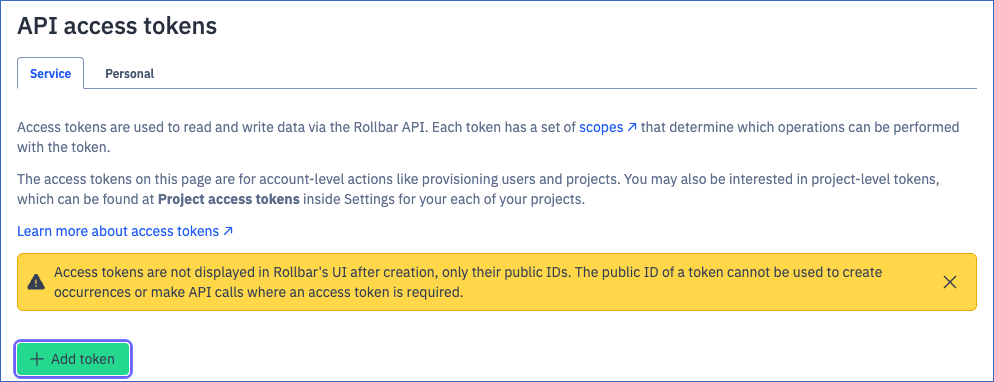
On the Service tab, click + Add token.
-
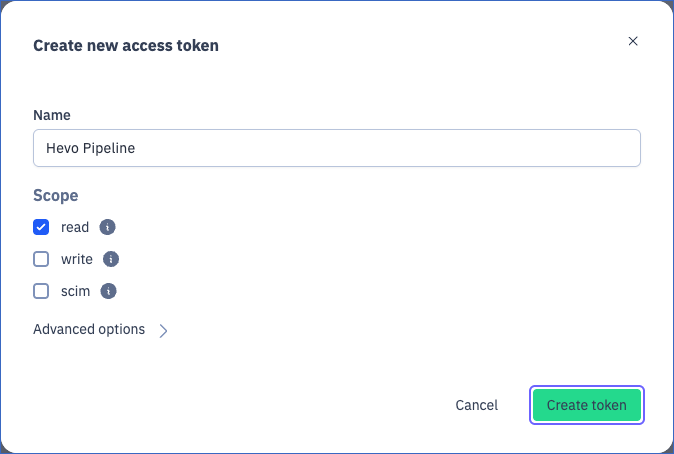
In the Create new access token dialog, do the following:
-
In the Name field, specify a name for the token. For example, Hevo Pipeline.
-
Under Scope, select the read check box. Hevo only reads data from Rollbar, so the token needs only the read scope.
-
Click Create token.
-
-
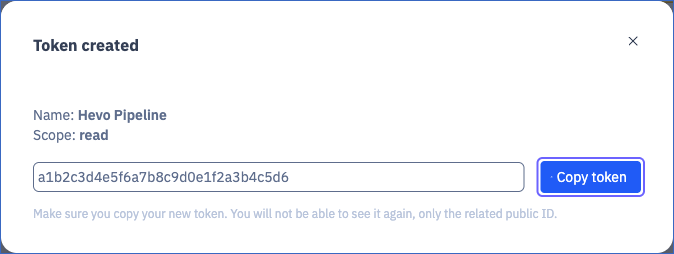
In the Token created dialog, click Copy token, and save the token securely like any other password. Rollbar displays the token only once, when you create it.
Create a personal access token
A personal access token can read only the data of the projects that you can view in Rollbar. Any user can create it.
Perform the following steps to create a personal access token:
-
Log in to your Rollbar account.
-
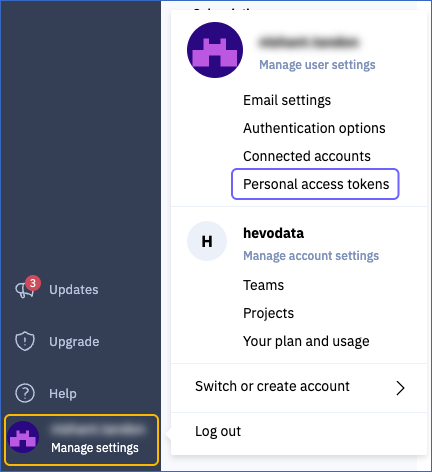
In the bottom left corner, click your user name, and then click Personal access tokens.
-
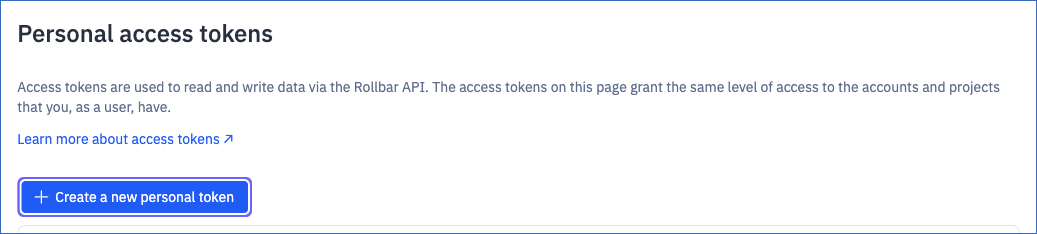
Click + Create a new personal token.
-
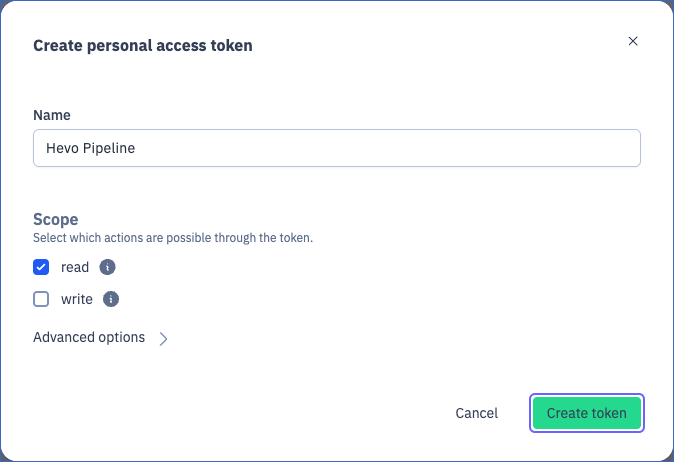
In the Create personal access token dialog, do the following:
-
In the Name field, specify a name for the token. For example, Hevo Pipeline.
-
Under Scope, select the read check box, and clear the write check box.
-
Click Create token.
-
-
In the Token created dialog, click Copy token, and save the token securely like any other password. Rollbar displays the token only once, when you create it.
Read Access tokens for more information about the types of tokens.
If the access token is disabled or deleted in Rollbar, Hevo cannot connect to your account, and the Pipeline fails. To resume data ingestion, create a new token and modify the Source configuration with it.
Configure Rollbar as a Source in your Pipeline
Perform the following steps to configure your Rollbar Source:
-
Click Pipelines in the Navigation Bar.
-
Click + Create Pipeline in the Pipelines List View.
-
On the Select Source Type page, select Rollbar.
-
On the Select Destination Type page, select the type of Destination you want to use.
-
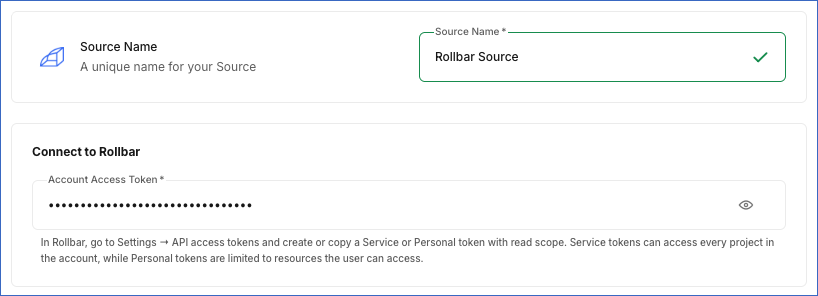
In the Configure Source screen, specify the following:
-
Source Name: A unique name for your Source, not exceeding 255 characters. For example, Rollbar Source.
-
In the Connect to Rollbar section, specify the following:
- Account Access Token: The account access token that you created in Rollbar.
-
-
Click Test & Continue to test the connection to your Rollbar Source. Hevo checks the connection by reading the list of projects in your Rollbar account. The test fails if Rollbar rejects the access token. Once the test is successful, you can proceed to set up your Destination.
Data Replication
Hevo replicates data for all the objects selected on the Configure Objects page during Pipeline creation. By default, all supported objects and their available fields are selected. However, you can modify this selection while creating or editing the Pipeline. To ingest a child object, you must also select its parent object.
Hevo ingests the following types of data from your Source objects:
-
Historical Data: The first run of the Pipeline ingests all the data of the selected objects.
-
Incremental Data: Once the historical load is complete, Hevo ingests the entire data of all the objects in each run, as per the sync frequency.
You can resync only the Project, Team, and Users objects. To resync a child object, resync its parent object.
Rollbar limits the number of API requests that each access token can make. Read Rate Limits. If a limit is reached, Hevo waits and retries the request.
Note: You can create a Pipeline with this Source only using the Merge load mode. The Append mode is not supported for this Source.
Schema and Primary Keys
Hevo uses the following schema to upload the records in the Destination. For a detailed view of the objects, fields, and relationships, click the ERD.
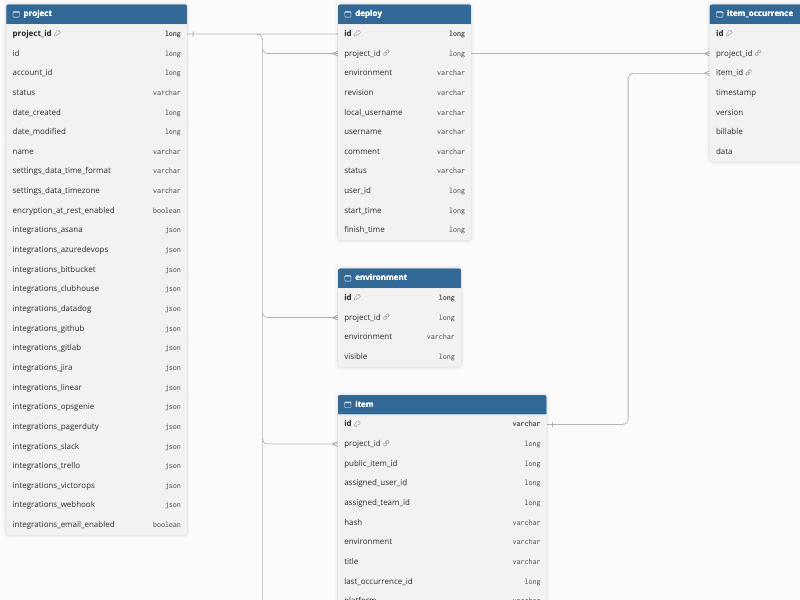
The primary key of most objects is id. The following objects use other primary keys:
-
Project:
project_id. -
Project Global:
indexandproject_id. -
Project Setting Data Custom:
project_id. -
Project Version:
project_idandversion. -
Query Language Job:
job_id. -
Team Project:
project_idandteam_id. -
Team User:
team_idanduser_id. -
User Project:
project_idanduser_id.
Data Model
The following is the list of tables (objects) that are created at the Destination when you run the Pipeline:
| Object | Description |
|---|---|
| Project | Contains the projects in your Rollbar account, including their name, status, time zone, and integration settings. It includes the following child objects: - Deploy - Environment - Item - Item Occurrence - Project Global - Project Occurrence - Project Setting Data Custom - Project Version - Query Language Job |
| Deploy | Contains the deploys recorded for each project, including the environment, revision, user, status, and start and finish times. |
| Environment | Contains the environments of each project, such as production and staging. |
| Item | Contains the items of each project, which group similar errors and messages, including the title, level, status, environment, assignee, and occurrence counts of each item. |
| Item Occurrence | Contains the occurrences of each item, including the timestamp, code version, and data of each occurrence. |
| Project Global | Contains the custom fingerprinting rules of each project, which define how Rollbar groups occurrences into items. |
| Project Occurrence | Contains the occurrences received by each project, including the item, timestamp, code version, and data of each occurrence. |
| Project Setting Data Custom | Contains the settings of each project, such as the time format, time zone, and grouping and encryption settings. |
| Project Version | Contains the recent code versions of each project. |
| Query Language Job | Contains the Rollbar Query Language (RQL) jobs run in each project, including the query and the status of each job. |
| Team | Contains the teams in your Rollbar account, including their name and access level. It includes the following child objects: - Invitation - Team Project - Team User |
| Invitation | Contains the invitations sent to join each team, including the email address, status, and the dates on which each invitation was sent and accepted. |
| Team Project | Contains the projects assigned to each team. |
| Team User | Contains the users in each team. |
| Users | Contains the users in your Rollbar account, including their username and email address. It includes a child object, User Project. |
| User Project | Contains the projects that each user can access. |
Additional Information
Read the detailed Hevo documentation for the following related topics:
Handling of Deletes
Hevo captures deletes by comparing the data ingested from the Source with the data present in the Destination in each run. If a record exists in the Destination but is no longer returned by the Source, Hevo marks it as deleted by setting the value of the metadata column __hevo__marked_deleted to True. The record remains in the Destination with all its data. This applies to all the objects.
Source Considerations
-
Hevo ingests the data that the access token can read. A service access token can read the data of all the projects in your account. A personal access token can read only the data of the projects that its user can view, and it stops working when the user is removed from the account.
-
Hevo reads all the data of the selected objects in each run. In accounts with many projects, items, and occurrences, this may increase the ingestion time and the number of API requests that count toward the rate limits of the access token.
-
The Item Occurrence and Project Occurrence objects contain the same occurrences. The Item Occurrence object lists them by item, and the Project Occurrence object lists them by project.
-
Occurrences that Rollbar deletes as per the data retention period of your account are marked as deleted in the Destination.
-
The Query Language Job object contains the details of the RQL jobs, and not their results. Your Rollbar plan must include RQL for Hevo to ingest this object.
-
The date and time fields, such as date_created and timestamp, contain Unix timestamps in seconds, in the UTC time zone.
Limitations
-
Hevo does not support project access tokens. You must use an account access token.
-
The Project Version object contains only the recent code versions of each project, as listed in the project settings.