Okendo is a customer marketing platform for e-commerce businesses, particularly Shopify merchants. It provides an integrated suite of tools, including reviews, loyalty programs, product quizzes, and referral systems, that help merchants build customer relationships, drive social proof, and increase customer lifetime value.
Hevo uses the Okendo Merchant REST API to replicate data from your Okendo account to the Destination of your choice. To ingest data, you must provide Hevo with your Okendo User ID and API Key.
Supported Features
| Feature Name | Supported |
|---|---|
| Capture deletes | Yes |
| History mode | No |
| Data blocking (skip objects and fields) | Yes |
| Resync (objects and Pipelines) | Yes |
| API configurable | No |
Prerequisites
-
An active Okendo account exists from which data is to be ingested.
-
The Okendo User ID and API Key are available to provide Hevo access to your Okendo account data.
Obtain the Okendo User ID and API Key
To connect Hevo to your Okendo account, you must obtain your Okendo User ID and API Key from your Okendo account.
Perform the following steps to obtain these credentials:
-
Log in to your Okendo account.
-
Navigate to the Integration Settings section of your Okendo app.
-
Make a note of your User ID and Merchant REST API Key.
Use these credentials while configuring your Source in Hevo. If the API Key configured in the Pipeline is revoked manually from your Okendo account, Hevo cannot authenticate with the Source. As a result, all active jobs for the Pipeline fail, and no data is replicated. To resume data replication, modify the Source configuration in the Pipeline with a valid API Key. Once the updated key is saved, Hevo re-authenticates the Source, and data ingestion resumes from the last saved offset.
Configure Okendo as a Source in your Pipeline
Perform the following steps to configure your Okendo Source:
-
Click Pipelines in the Navigation Bar.
-
Click + Create Pipeline in the Pipelines List View.
-
On the Select Source Type page, select Okendo.
-
On the Select Destination Type page, select the type of Destination you want to use.
-
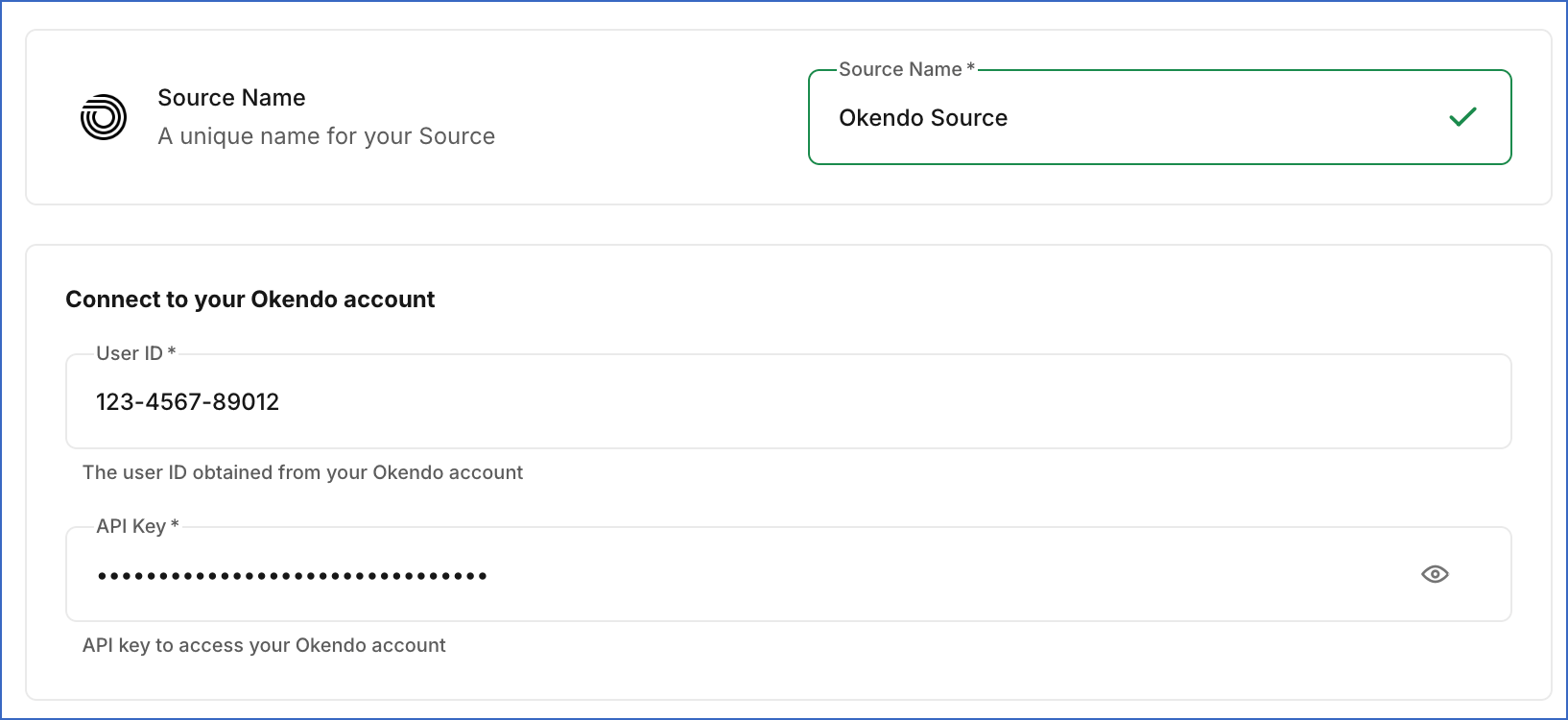
In the Configure Source screen, specify the following:
-
Source Name: A unique name for your Source, not exceeding 255 characters. For example, Okendo Source.
-
In the Connect to your Okendo account section, specify the following:
-
User ID: The Okendo User ID you obtained in the Obtain the Okendo User ID and API Key section.
-
API Key: Your Okendo Merchant REST API Key you obtained in the Obtain the Okendo User ID and API Key section.
-
-
-
Click Test & Continue to test the connection to your Okendo Source. Once the test is successful, you can proceed to set up your Destination.
Data Replication
Hevo replicates data for all the objects selected on the Configure Objects page during Pipeline creation. By default, all supported objects and their available fields are selected. However, you can modify this selection while creating or editing the Pipeline.
Hevo ingests the following types of data from your Source objects:
-
Historical Data: The first run of the Pipeline ingests all available historical data for the selected objects and loads it into the Destination.
-
Incremental Data: Once the historical load is complete, new and updated records for objects are ingested as per the sync frequency.
For all objects, Hevo ingests the entire data during each Pipeline run.
Okendo currently enforces a rate limit of 2 requests per second. If this limit is exceeded, a rate limit exception occurs. To understand how Hevo handles such scenarios, read Handling Rate Limit Exceptions.
Note: You can create a Pipeline with this Source only using the Merge load mode. The Append mode is not supported for this Source.
Schema and Primary Keys
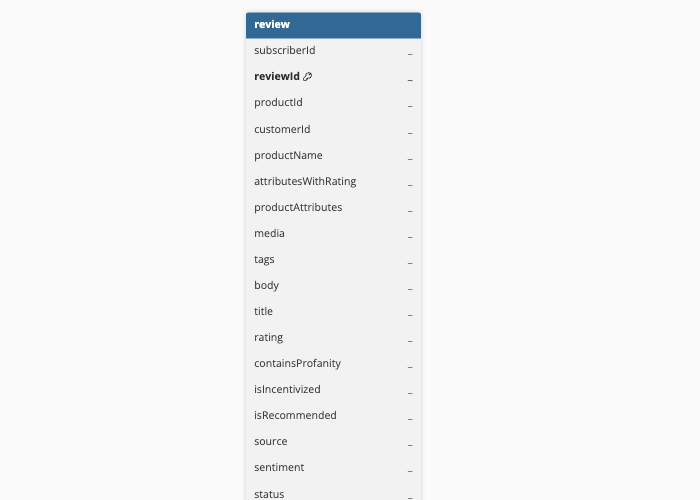
Hevo uses the following schema to upload the records to the Destination. For a detailed view of the objects, fields, and relationships, click the ERD.
Data Model
The following is the list of tables (objects) that are created at the Destination when you run the Pipeline:
| Object | Description |
|---|---|
| Review | Contains product reviews submitted by customers, including the rating, reviewer details, associated product and order information, media attachments, and merchant replies. |
Additional Information
Read the detailed Hevo documentation for the following related topics:
Handling of Deletes
Okendo does not explicitly mark records as deleted in its API responses. When a record is deleted, it is no longer returned in subsequent API responses.
Hevo uses a full data refresh approach to capture delete actions for parent objects. During each Pipeline run, Hevo compares the data fetched from the Source object with the data present in the Destination table. If a record exists in the Destination but is no longer returned by the Source, the record is marked as deleted by setting the value of the metadata column __hevo__marked_deleted to True. This applies to all the objects.