Notion is a connected workspace in which teams write documents, build wikis, and manage projects and tasks. Teams organize their content as pages and databases, and collaborate through comments.
Hevo uses the Notion API to replicate data from your Notion workspace to the Destination of your choice. To ingest data, you must provide Hevo with the API key of a Notion internal connection that has access to the pages and databases you want to replicate.
Supported Features
| Feature Name | Supported |
|---|---|
| Capture deletes | Yes (for some objects) |
| History mode | No |
| Custom data (user-configured tables & fields) | No |
| Data blocking (skip objects and fields) | Yes |
| Resync (objects and Pipelines) | Yes |
| API configurable | Yes |
Prerequisites
-
An active Notion workspace from which data is to be ingested.
-
You are a Workspace Owner in Notion, to create an internal connection and obtain the API key.
-
The pages and databases that you want to replicate are accessible to the internal connection.
Obtain the API Key
Hevo connects to Notion using the API token of an internal connection in your Notion workspace. An internal connection, also known as an internal integration, can read only the pages and databases that it has access to.
Perform the following steps to create an internal connection and obtain its API token:
-
Log in to the Notion Developer tools page as a Workspace Owner.
-
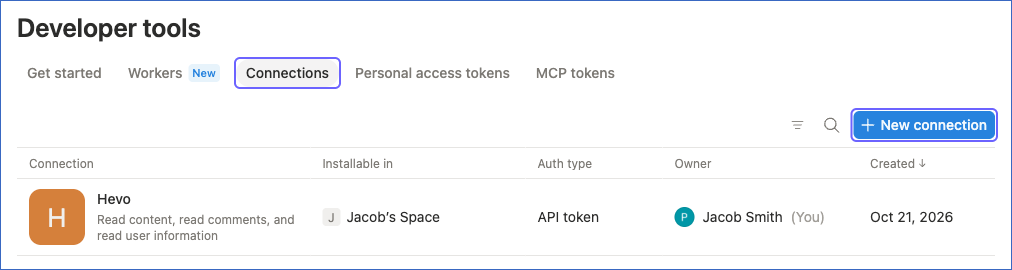
Click the Connections tab, and then click New connection.
-
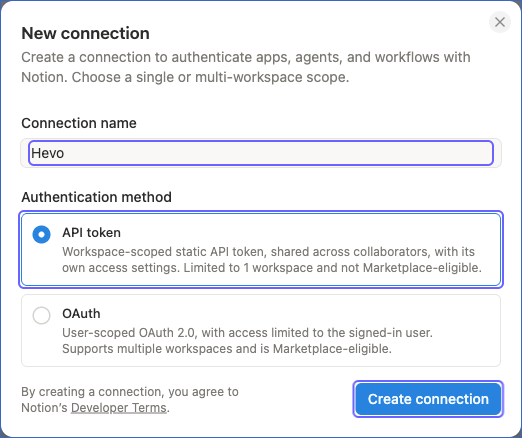
In the New connection dialog, do the following:
-
In the Connection name field, specify a name for the connection. For example, Hevo.
-
Under Authentication method, select API token.
-
Click Create connection.
-
-
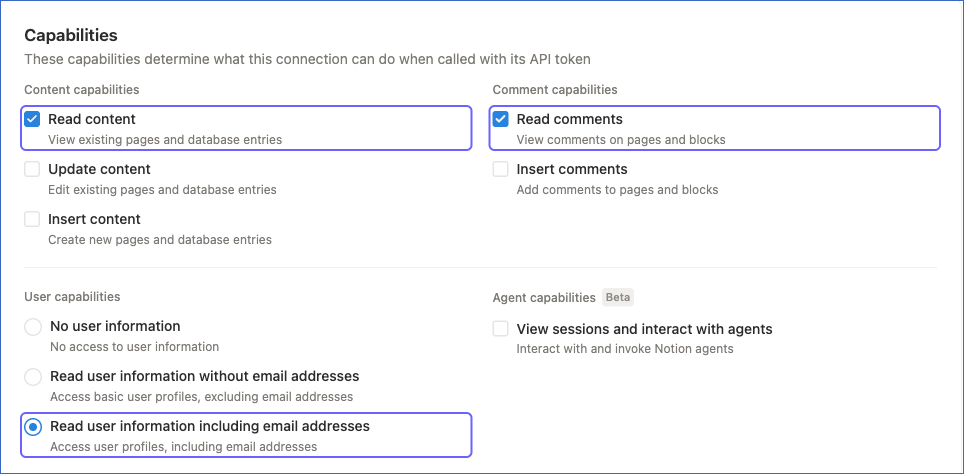
On the Configuration tab of the connection, under Capabilities, do the following. Notion saves your changes automatically.
-
Under Content capabilities, select Read content, and deselect Update content and Insert content. Hevo only reads data from Notion.
-
Under Comment capabilities, select Read comments. Hevo needs this capability to ingest the comments on pages and blocks.
-
Under User capabilities, select Read user information including email addresses. Hevo needs this capability to ingest the users of your workspace. If you do not want to ingest email addresses, select Read user information without email addresses.
-
-
In the Integration token section, click the Copy icon next to the API token field to copy the token, and save it securely like any other password.

Use this API token while configuring your Notion Source in Hevo. If the connection is deleted or its API token is refreshed, Hevo cannot connect to Notion, and the Pipeline stops ingesting data. To resume, modify the Source configuration with a valid API token.
Capabilities Required by Hevo
Your internal connection must have the capabilities that allow Hevo to read data from your Notion workspace. Hevo requires the following types of capabilities:
-
Mandatory capabilities: Allow Hevo to read the pages and databases that the connection can access.
-
Optional capabilities: Allow Hevo to ingest data from the corresponding objects in your Notion workspace.
Mandatory Capabilities
Your internal connection must have the following capability for Hevo to ingest data from Notion. The connection test does not check this capability. If the connection does not have it, the test succeeds, but Hevo does not ingest any pages or databases.
| Capability | Objects |
|---|---|
| Read content | - Block - Data Source - Data Source Description - Data Source Property - Data Source Query Results - Data Source Title - Database - Database Data Source - Database Title - Page - Page Index - Page Property - Views |
Optional Capabilities
Select the following capabilities based on the objects for which you want Hevo to ingest data. If the connection does not have a capability, ingestion fails for the objects associated with it. To avoid this, deselect those objects in the Pipeline.
| Capability | Objects |
|---|---|
| Read comments | - Block Comment - Page Comment |
| Read user information including email addresses, or Read user information without email addresses | - Users |
Give the Connection Access to your Pages
Hevo can replicate only the pages and databases that your internal connection can access. When the connection can access a page, it can also access all of its child pages and databases.
Perform the following steps to give the connection access to your pages:
-
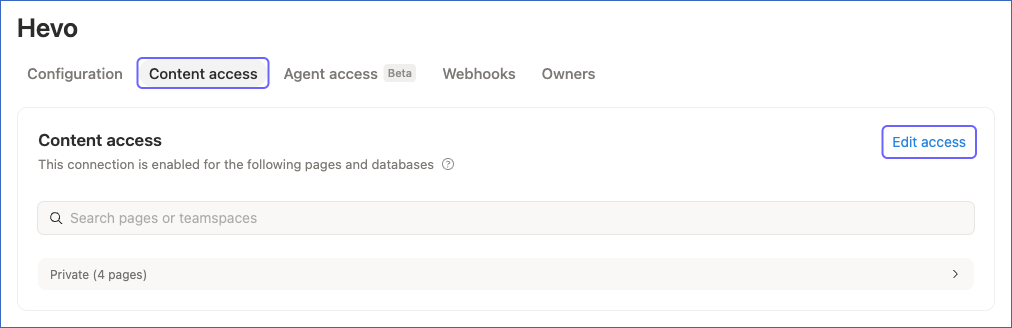
On the page of the connection in Developer tools, click the Content access tab, and then click Edit access.
-
In the Manage page access dialog, select the pages and databases that you want to replicate, and then click Save. To find a page that is not listed, search for it.
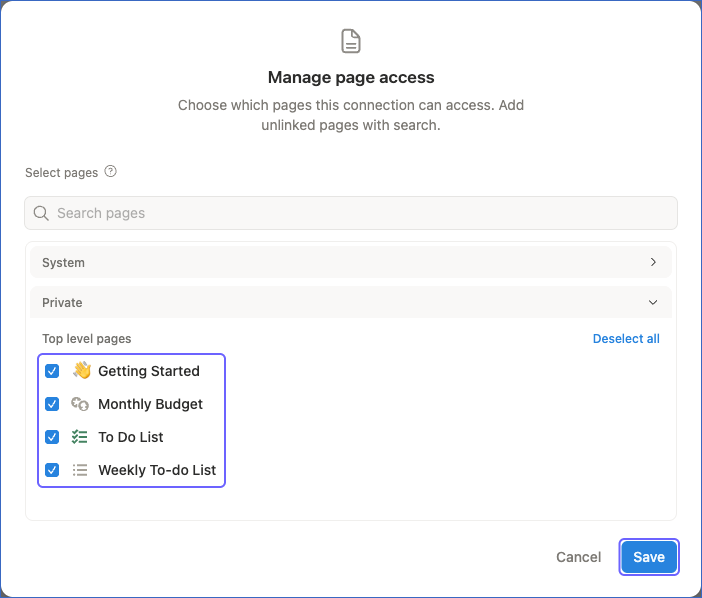
Alternatively, you can open a page in Notion, click the ••• (More) icon in the top-right corner, and add the connection from the Connections menu.
Configure Notion as a Source in your Pipeline
Perform the following steps to configure your Notion Source:
-
Click Pipelines in the Navigation Bar.
-
Click + Create Pipeline in the Pipelines List View.
-
On the Select Source Type page, select Notion.
-
On the Select Destination Type page, select the type of Destination you want to use.
-
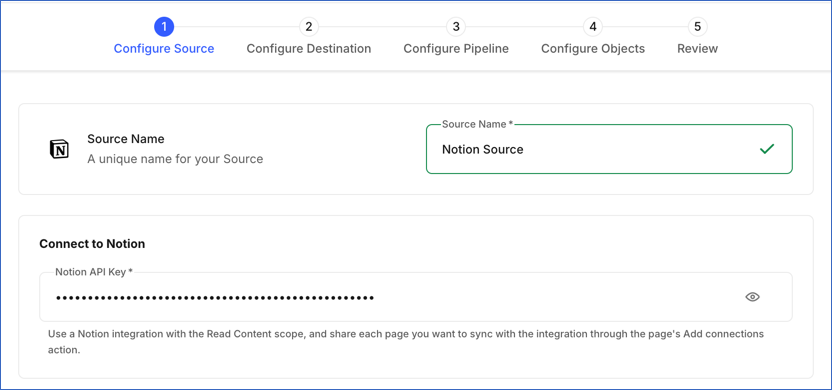
In the Configure Source screen, specify the following:
-
Source Name: A unique name for your Source, not exceeding 255 characters. For example, Notion Source.
-
In the Connect to Notion section, specify the following:
- Notion API Key: The API token of the internal connection that you copied from Notion Developer tools.
-
-
Click Test & Continue to test the connection to your Notion Source. Hevo uses the API key to retrieve the bot user of your internal connection and verify that the key is valid. Once the test is successful, you can proceed to set up your Destination.
Data Replication
Hevo replicates data for all the objects selected on the Configure Objects page during Pipeline creation. By default, all supported objects and their available fields are selected. However, you can modify this selection while creating or editing the Pipeline.
For the Data Source and Page objects, Hevo ingests new and updated records in each Pipeline run, as per the sync frequency. Changes are identified using the time at which a record was last edited. In the first run, Hevo ingests all the records. Hevo ingests the child objects of a data source or a page, such as Data Source Property and Page Property, only when the parent record is new or updated.
For the Page Index, Block, Block Comment, Page Comment, and Users objects, Hevo ingests the entire data during each Pipeline run.
You can resync only the parent objects. When you resync a parent object, Hevo also resyncs its child objects.
Notion limits the number of API requests that each connection can make. For workspaces on the Business and Enterprise plans, the limit is an average of 10 requests per second, and for all the other plans, it is an average of 3 requests per second. If this limit is exceeded, a rate limit exception occurs. To understand how Hevo handles such scenarios, read Handling Rate Limit Exceptions.
Note: You can create a Pipeline with this Source only using the Merge load mode. The Append mode is not supported for this Source.
Schema and Primary Keys
Hevo uses the following schema to upload the records in the Destination. For a detailed view of the objects, fields, and relationships, click the ERD.
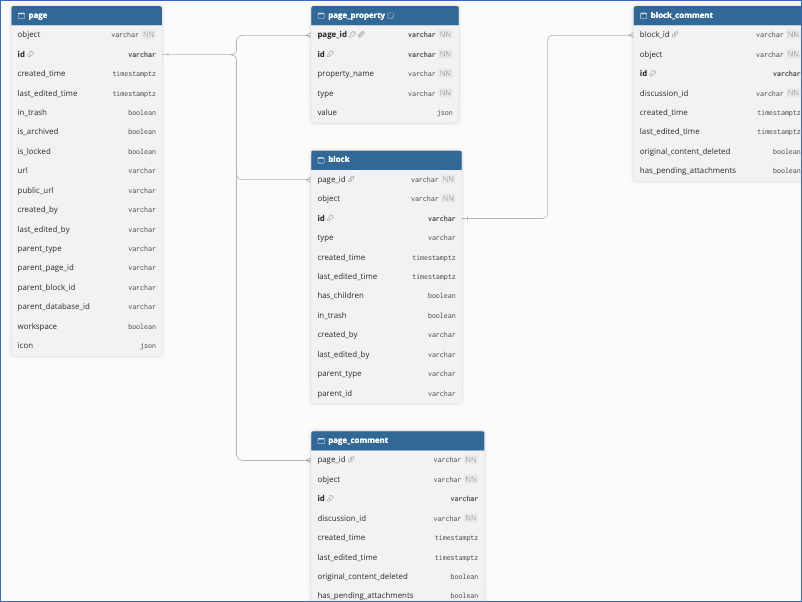
The primary key of most objects is id. The following objects use other primary keys:
-
Data Source Property, Data Source Query Results, and Views:
data_source_idandid. -
Data Source Title and Data Source Description:
data_source_idandindex. -
Database Data Source:
database_idandid. -
Database Title:
database_idandindex. -
Page Property:
page_idandid.
Data Model
The following is the list of tables (objects) that are created at the Destination when you run the Pipeline:
| Object | Description |
|---|---|
| Data Source | Contains the data sources (the tables of databases) accessible to your internal connection, including their URL, parent, creator, and the time they were created and last edited. It includes the following child objects: - Data Source Description - Data Source Property - Data Source Query Results - Data Source Title - Database - Database Data Source - Database Title - Views |
| Page | Contains the pages accessible to your internal connection, including their URL, parent, creator, trash and lock status, and the time they were created and last edited. It includes a child object, Page Property. |
| Page Index | Contains the IDs of all the pages accessible to your internal connection. Hevo uses this object to fetch the blocks and comments of each page. It includes the following child objects: - Block - Block Comment - Page Comment |
| Users | Contains the people and bots in your Notion workspace, including their name, type, and email address, and the owner and workspace details of each bot. |
The child objects contain the following data:
-
Block: The blocks at the top level of each page, such as paragraphs, headings, and lists, including their type, parent, and whether they have nested blocks.
-
Block Comment and Page Comment: The comments added to blocks and pages, including their discussion ID and the time they were created and last edited.
-
Data Source Description and Data Source Title: The rich text elements that make up the description and the title of each data source, including their plain text, link, and formatting.
-
Data Source Property: The properties (columns) defined in each data source, including their name, type, and configuration.
-
Data Source Query Results: The pages (rows) in each data source, including their URL, trash and lock status, and the time they were created and last edited. The values of the rows are in the Page Property object. To get the values of a row, join the
idfield of this object with thepage_idfield of Page Property. -
Database: The databases that contain the data sources, including their URL, parent, description, and lock status.
-
Database Data Source: The data sources that each database contains, including their name.
-
Database Title: The rich text elements that make up the title of each database.
-
Page Property: The property values of each page, including the property name, type, and value.
-
Views: The IDs of the views of each data source.
Additional Information
Read the detailed Hevo documentation for the following related topics:
Handling of Deletes
For the Page Index, Block, Block Comment, Page Comment, and Users objects, Hevo uses a full data refresh approach to capture deletes. During each Pipeline run, Hevo compares the data fetched from the Source object with the data present in the Destination table. If a record exists in the Destination but is no longer returned by the Source, the record is marked as deleted by setting the value of the metadata column __hevo__marked_deleted to True.
For all the other objects, Hevo does not capture deletes. Records deleted in Notion remain in the Destination.
Source Considerations
-
Hevo replicates only the pages and databases that your internal connection can access. If you give the connection access to a page after creating the Pipeline, Hevo ingests its data in the next Pipeline run.
-
The Block Comment and Page Comment objects require the Read comments capability, and the Users object requires a user information capability. If your internal connection does not have the required capability, Notion does not return the data for these objects. To avoid ingestion errors, add the capability to the connection or deselect the objects in the Pipeline.
-
The email addresses of people are replicated in the Users object only if your internal connection has the Read user information including email addresses capability.
-
The Users object does not contain the guests of your workspace, as Notion does not return guests in the list of users.
-
Notion returns only the unresolved comments on a page or block. Hence, when a comment is resolved in Notion, Hevo marks it as deleted in the Destination.
-
Adding or editing a row in a database does not update the last edited time of its data source. As Hevo ingests the child objects of a data source only when the data source is new or updated, the Data Source Query Results object does not include rows that are added or edited later. The rows of databases are also pages, so Hevo ingests their latest data in the Page and Page Property objects. To get the current rows of a database, use the Page records whose
parent_typeis data_source_id and whoseparent_database_idis the ID of the database. To refresh the Data Source Query Results object, resync the Data Source object.
Limitations
-
Hevo ingests only the blocks at the top level of each page. Blocks nested inside other blocks, such as the items of a toggle list, and the comments on them are not ingested.
-
Hevo does not ingest the content of blocks and comments, such as the text of a paragraph or a comment.
-
The Data Source Title, Data Source Description, and Database Title objects store each title and description as a list of rich text elements, identified by their position. If you shorten a title or description in Notion so that it has fewer elements, the rows for the positions that no longer exist remain in the Destination.