Generic MongoDB is designed for MongoDB deployments that you manage yourself, such as on virtual machines, on-premises servers, or containers.
You can use Hevo Pipelines to replicate data from your MongoDB database to a Destination of your choice.
Before you begin, read MongoDB for supported versions, instance types, and oplog retention requirements.
Prerequisites
-
The MongoDB version is 4.0.7 to 8.0.
-
Your MongoDB deployment runs as a replica set or sharded cluster. Standalone instances are not supported.
-
A database user with the permissions to read your MongoDB databases is available.
-
Hevo’s IP address(es) for your region are allowlisted to reach your MongoDB host through your firewall or security group.
-
The hostname or IP address and port of your MongoDB server are available.
Set up MongoDB Replication for Change Streams
Note: Hevo supports data ingestion from MongoDB only through Change Streams. Change Streams are built on the MongoDB oplog, so your deployment must run as a replica set, and the oplog must be large enough to retain changes between syncs.
To set up replication for Change Streams, perform the following steps:
-
Modify the MongoDB server configuration: The MongoDB configuration file,
mongod.conf, is generally found in the/etc/directory in a Linux system. Set the following options:-
replication.replSetName: The name of the replica set. Every member of the replica set must use the same name.
-
replication.oplogSizeMB: The maximum size of the oplog. We recommend setting it to retain at least 72 hours of changes.
-
net.bindIp: The IP addresses on which this MongoDB server listens, as a comma-separated list.
Example configuration:
net: bindIp: 127.0.0.1,10.0.0.5 replication: replSetName: "repSet0" oplogSizeMB: 2048Note:
-
Do not set
bindIpto0.0.0.0on a host that’s reachable from the internet. Bind only to the interfaces that Hevo or your SSH host connects through. -
The
oplogSizeMBconfiguration takes effect only when the oplog is first created. To resize the oplog of an existing replica set, read Change the Size of the Oplog.
-
-
-
Restart MongoDB: Restart
mongodfor the changes to take effect.sudo systemctl restart mongod -
Initiate the replica set: Using
mongosh, connect to the node you want to make primary, and run the following commands:-
rs.initiate(): Initializes the replica set. Run this command only once on one member if the replica set is not already initialized. Running it again returns an error.
-
rs.conf(): Displays the replica set configuration. Verify that the
_idmatches yourreplSetName. -
rs.status(): Displays the replica set status. Verify that one member is
PRIMARYand the remaining members areSECONDARY.
-
Set up Permissions to Read your MongoDB Databases
After configuring replication for the Change Streams, grant the following roles to the database user so Hevo can read the databases you want to replicate:
-
readAnyDatabaseon theadmindatabase, orreadon each database you want to replicate: To read your collections and their changes. -
clusterMonitoron theadmindatabase: To check your deployment’s configuration and health, such as its replica set status and shards.
To create the user or grant the roles, perform the following steps:
-
Using
mongosh, connect to your replica set or to amongosrouter in your sharded cluster as an admin user. -
Do one of the following:
Note: Replace the placeholder values in the commands below with your own. For example, replace <database_username> with hevouser, <password> with a strong password, and <database_name> with sales.
Create a new user
-
Run the following commands to create a user with access to all databases:
use admin db.createUser({ user: "<database_username>", pwd: "<password>", roles: [ "readAnyDatabase", "clusterMonitor" ] }) -
Run the following commands to create a user with access to specific databases:
use admin
db.createUser({
  user: "<database_username>",
  pwd: "<password>",
  roles: [
    { role: "read", db: "<database_name_1>" },
    { role: "read", db: "<database_name_2>" },
    "clusterMonitor"
  ]
})
Grant roles to an existing user
-
Run the following commands to grant access to all databases to an existing user:
use admin db.grantRolesToUser( "<database_username>", [ "readAnyDatabase", "clusterMonitor" ] ) -
Run the following commands to grant access to specific databases to an existing user:
use admin
db.grantRolesToUser(
  "<database_username>",
  [
    { role: "read", db: "<database_name_1>" },
    { role: "read", db: "<database_name_2>" },
    "clusterMonitor"
  ]
)
-
Allowlist Hevo IP Addresses for your Region
You must add Hevo’s IP address for your region to the inbound rules of the firewall or security group that protects your MongoDB host, on the MongoDB port (default 27017). For more information, read Network and Configuration Hardening for Self-Managed Deployments.
Configure Generic MongoDB as a Source in your Pipeline
Perform the following steps to configure Generic MongoDB as a Source in Hevo:
-
Click Pipelines in the Navigation Bar.
-
Click + Create Pipeline in the Pipelines List View.
-
On the Select Source Type page, select MongoDB.
-
On the Select Destination Type page, select the type of Destination you want to use.
-
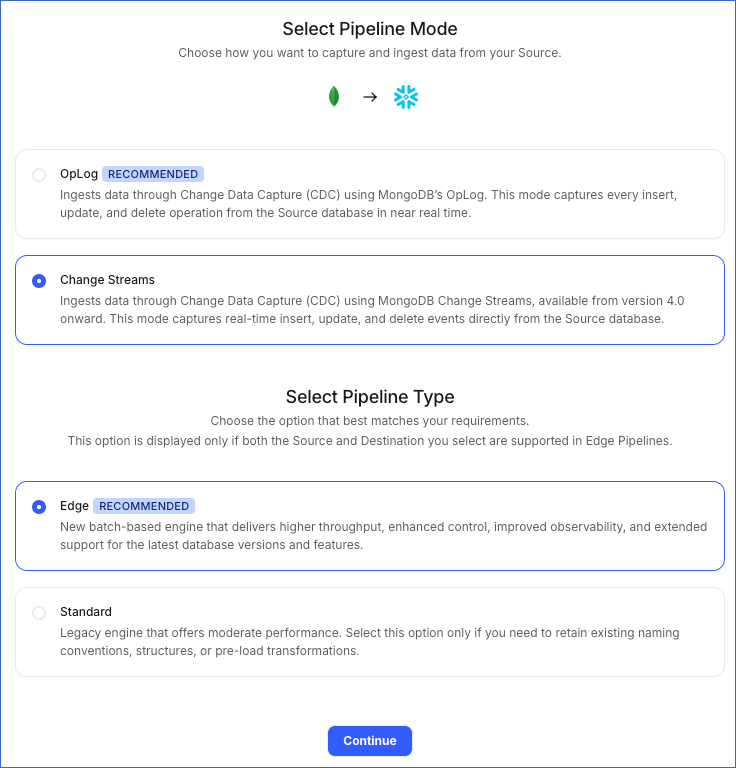
On the page that appears, do the following:
-
Select Pipeline Mode: Choose Change Streams. Hevo supports only this mode for Edge Pipelines created with the MongoDB Source. If you choose any other mode, Hevo creates a Standard Pipeline. Read Generic MongoDB.
-
Select Pipeline Type: Choose the type of Pipeline you want to create based on your requirements.
-
If you select Edge, skip to step 6 below.
-
If you select Standard, read Generic MongoDB to configure your Standard Pipeline.
-
-
This option is displayed only if all the following conditions are met:
-
The selected Destination type is supported in Edge.
-
The Pipeline mode is set to Change Streams.
-
Your Team was created before September 15, 2025, and has an existing Pipeline created with the same Destination type and Pipeline mode.
-
-
For Teams that do not meet the above criteria, if the selected Destination type is supported in Edge and the Pipeline mode is set to Change Streams, you can proceed to create an Edge Pipeline. Otherwise, you can proceed to create a Standard Pipeline. Read Generic MongoDB to configure your Standard Pipeline.
-
-
Click Continue.
-
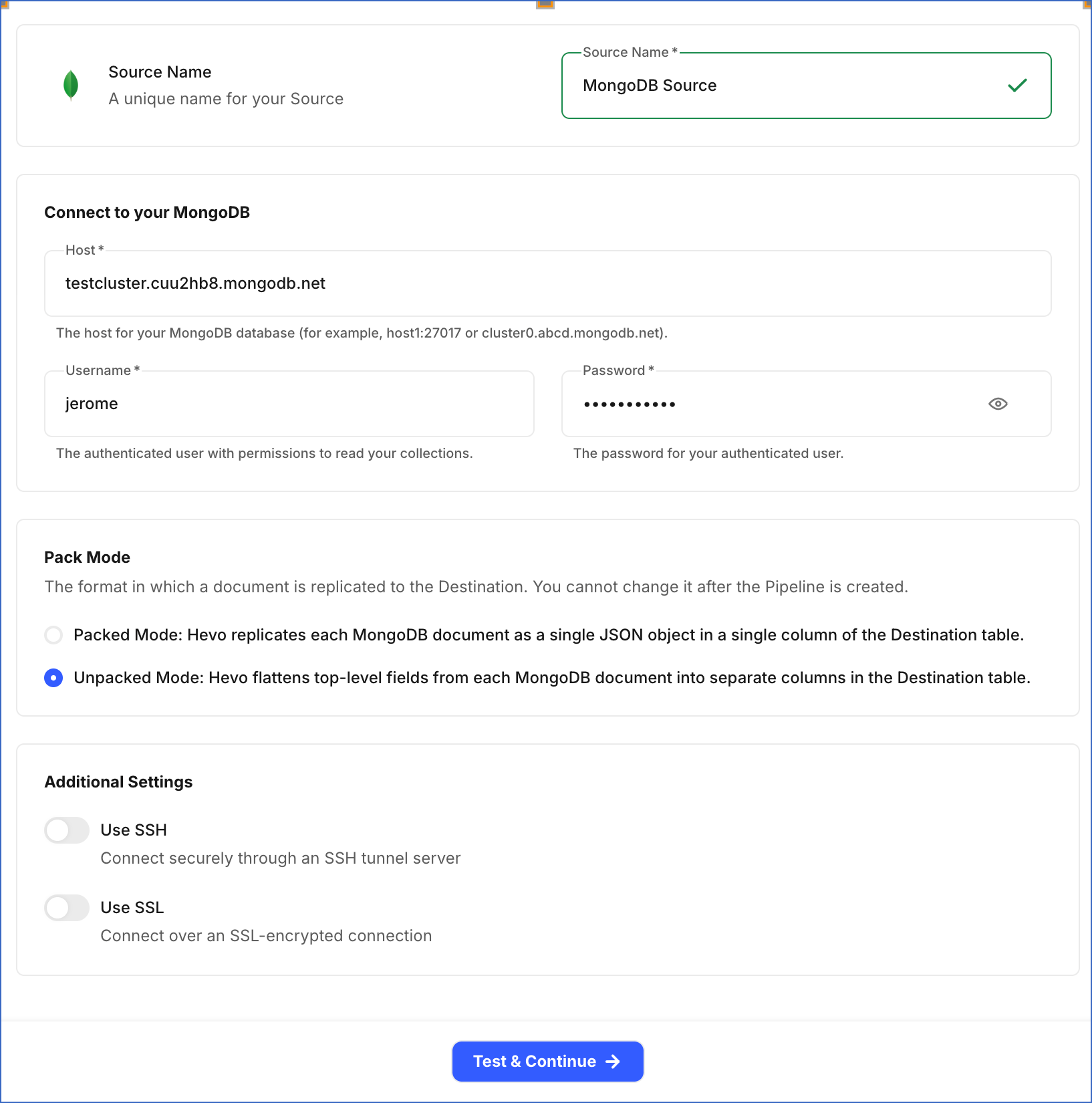
In the Configure Source screen, specify the following:
-
Source Name: A unique name for your Source, not exceeding 255 characters. For example, MongoDB Source.
-
Host: The hostname or IP address and port of your MongoDB server, in the format
host:port. For example,mongodb0.example.com:27017. For a replica set, enter any member. For a sharded cluster, enter amongosrouter. -
Username: The database user you created or granted roles to in Step 2.
-
Password: The password for the database user.
-
Pack Mode: The format in which a MongoDB document is replicated to the Destination. This cannot be changed after the Pipeline is created. Default Value: Unpacked Mode.
-
Packed Mode: Hevo stores each document as a single JSON column.
-
Unpacked Mode: Hevo creates one column for each top-level field in the document.
For more information, read Document Packing Mode.
-
-
Additional Settings:
-
Use SSH: Enable this option to connect Hevo to your MongoDB database using an SSH tunnel instead of directly connecting to your database host. This provides an additional level of security to your database by not exposing your MongoDB setup to the public.
If this option is turned off, you must configure your Source to accept connections from Hevo’s IP address.
-
Use SSL: Enable this option to use an SSL-encrypted connection. Specify the following:
-
CA File: The file containing the SSL server certificate authority (CA).
-
Client Certificate: The client’s public key certificate file.
-
Client Key: The client’s private key file.
-
-
-
-
Click Test & Continue to test the connection to your MongoDB Source. Once the test is successful, you can proceed to set up your Destination.
Additional Information
Read the detailed Hevo documentation for the following related topics:
Data Type Mapping
Hevo maps each MongoDB data type to a Hevo data type, as shown in the following table. Hevo then maps the Hevo data type to the corresponding Destination data type.
| MongoDB Data Type | Hevo Data Type |
|---|---|
| - DOUBLE - DECIMAL128 |
DOUBLE |
| - STRING - OBJECT_ID - JAVASCRIPT CODE - CODE WITH SCOPE |
VARCHAR |
| - ARRAY - EMBEDDED DOCUMENT - OBJECT |
JSON |
| - BINARY - BINARY (UUID) |
BYTEARRAY |
| - BOOLEAN | BOOLEAN |
| - DATE - TIMESTAMP |
DATETIME |
| - INT32 | INTEGER |
| - INT64 - LONG |
LONG |
Any data type not listed in the table above is currently not supported by Hevo.
Note:
-
Hevo infers the data type of STRING values from their content. For example, a STRING value of “42” is mapped to INTEGER.
-
Fields with unsupported data types are dropped from the ingested record and are not replicated to the Destination.