Mixpanel is a product analytics platform. It records the actions that users take in your websites and apps as events, and lets you analyze them to understand how people use your product, which features drive engagement, and where users drop off.
Hevo uses the Mixpanel Raw Event Export API to replicate the events of your Mixpanel project to the Destination of your choice. To ingest data, you must provide Hevo with the username and secret of a Mixpanel service account, and the ID of the project from which you want to ingest events.
Supported Features
| Feature Name | Supported |
|---|---|
| Capture deletes | No |
| History mode | No |
| Custom data (user-configured tables & fields) | No |
| Data blocking (skip objects and fields) | Yes |
| Resync (objects and Pipelines) | Yes |
| API configurable | Yes |
Prerequisites
-
An active Mixpanel account with a project from which events are to be ingested.
-
The Owner or Admin role in your Mixpanel organization or project, to create a service account.
-
The username and secret of a Mixpanel service account that has access to the project, and the ID of the project. Read Obtain the Mixpanel Credentials.
Obtain the Mixpanel Credentials
Hevo connects to your Mixpanel project using a service account. A service account is a special type of user that lets applications access the Mixpanel APIs. You need the username and secret of the service account, and the ID of your project.
Create a service account
Perform the following steps to create a service account:
-
Log in to your Mixpanel account as a user with the Owner or Admin role.
-
Go to the Project Settings of the project from which you want to ingest events, and then click Service Accounts.
Note: You can also create the service account in Organization Settings > Service Accounts. In this case, you must add the project to the service account.
-
Add a service account, and specify the following:
-
A name for the service account. For example, Hevo.
-
The role of the service account. Select Analyst or a role with more permissions. A service account with the Consumer role cannot export events.
-
(Optional) An expiration date for the service account. By default, a service account does not expire.
-
-
Copy the Username and Secret of the service account, and save them securely like any other password. Mixpanel shows the secret only once, when the service account is created.
Read Service Accounts for more information.
Obtain the project ID
Perform the following steps to obtain the ID of your project:
-
In Mixpanel, go to Project Settings.
-
On the Overview tab, copy the Project ID. For example, 1234567.
If the service account configured in the Pipeline is deleted or expires in your Mixpanel account, Hevo cannot authenticate with the Source. As a result, all active jobs for the Pipeline fail, and no data is replicated. To resume data replication, modify the Source configuration in the Pipeline with the username and secret of a valid service account. Once the updated credentials are saved, Hevo re-authenticates the Source, and data ingestion resumes from the last saved offset.
Configure Mixpanel as a Source in your Pipeline
Perform the following steps to configure your Mixpanel Source:
-
Click Pipelines in the Navigation Bar.
-
Click + Create Pipeline in the Pipelines List View.
-
On the Select Source Type page, select Mixpanel.
-
On the Select Destination Type page, select the type of Destination you want to use.
-
On the Select Pipeline Type page, click Edge, and then click Continue.
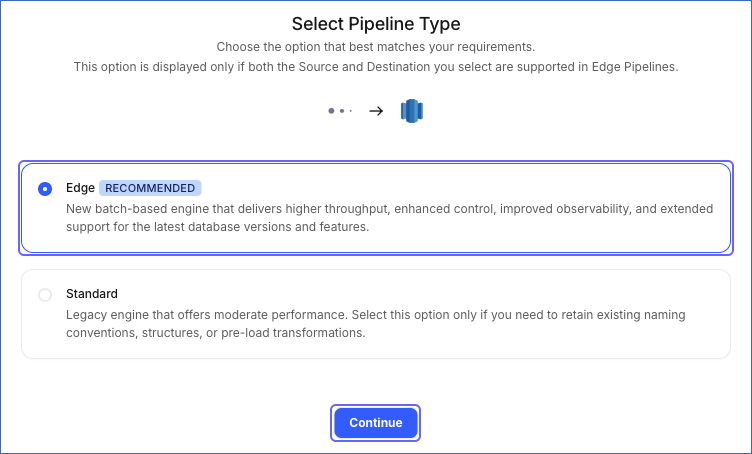
Note: This page appears only if both the Source and the Destination type you selected are supported in Edge. Otherwise, the Configure Source page appears.
-
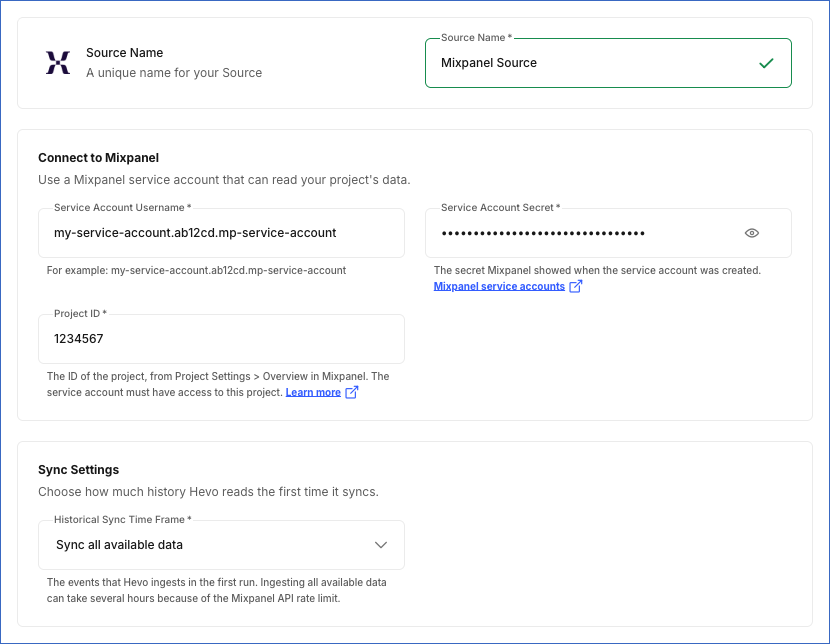
On the Configure Source page, specify the following:
-
Source Name: A unique name for your Source, not exceeding 255 characters. For example, Mixpanel Source.
-
In the Connect to Mixpanel section:
-
Service Account Username: The username of the Mixpanel service account. For example, my-service-account.ab12cd.mp-service-account.
-
Service Account Secret: The secret that Mixpanel showed when you created the service account.
-
Project ID: The ID of the Mixpanel project from which you want to ingest events, from Project Settings > Overview in Mixpanel. The service account must have access to this project.
-
-
In the Sync Settings section:
-
Historical Sync Time Frame: The events that Hevo ingests in the first run of the Pipeline. Select one of the following options:
-
Sync all available data: Hevo ingests all the events available in the project, from March 1, 2019. This is the default option.
-
Sync data from selected date: Hevo ingests the events from the date that you specify.
- Backward Sync Limit Date: The date (in UTC) from which Hevo ingests events. The earliest date that you can select is March 1, 2019.
-
-
-
-
Click Test & Continue to test the connection to your Mixpanel Source. Once the test is successful, you can proceed to set up your Destination.
Data Replication
Hevo replicates data for all the objects selected on the Configure Objects page during Pipeline creation. By default, all supported objects and their available fields are selected. However, you can modify this selection while creating or editing the Pipeline.
Hevo ingests the following types of data from your Source objects:
-
Historical Data: The first run of the Pipeline ingests the events of the period that you selected in the Historical Sync Time Frame field, and loads them into the Destination.
-
Incremental Data: Once the historical load is complete, Hevo ingests the new events as per the sync frequency. Incremental changes are detected using the time field of each event.
Mixpanel returns events by date (in UTC). In each run, Hevo ingests the events of the current day again, until the day is over, so that the events received later in the day are also ingested. In addition, about once every 24 hours, Hevo ingests the events of the last 8 days again, instead of the new events. As a result, Hevo ingests the events that reach Mixpanel up to 8 days after they occur, such as events sent with a delay from mobile apps. Hevo identifies each event by its name, distinct ID, time, and insert ID, so an event that is ingested again updates its existing record in the Destination.
Mixpanel currently enforces a rate limit of 60 queries per hour and 3 queries per second for the Raw Event Export API. If this limit is exceeded, a rate limit exception occurs. To understand how Hevo handles such scenarios, read Handling Rate Limit Exceptions.
Note: You can create a Pipeline with this Source only using the Merge load mode. The Append mode is not supported for this Source.
Schema and Primary Keys
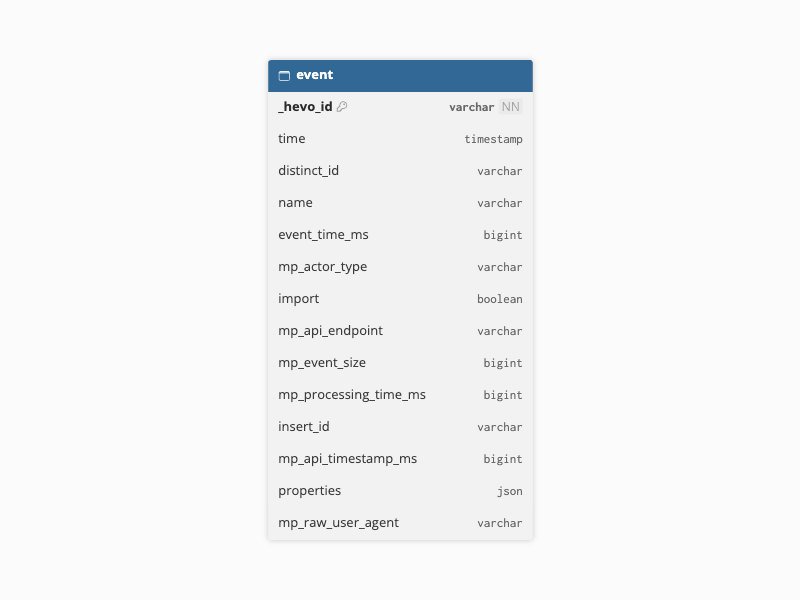
Hevo uses the following schema to upload the records in the Destination. For a detailed view of the objects, fields, and relationships, click the ERD.
Data Model
The following is the list of tables (objects) that are created at the Destination when you run the Pipeline:
| Object | Description |
|---|---|
| Event | Contains the events of your Mixpanel project, including the name, time, distinct ID, and insert ID of each event, the details that Mixpanel adds, such as the API endpoint, event size, and processing time, and the other properties of the event in the properties JSON column. |
Additional Information
Read the detailed Hevo documentation for the following related topics:
Handling of Deletes
Hevo does not capture deletes for the Event object. If an event is deleted in Mixpanel, for example, through a data deletion request, the event remains in the Destination.
Source Considerations
-
Mixpanel keeps the event data from March 1, 2019. Hevo cannot ingest events older than this date.
-
Hevo ingests the events of one project. To ingest events from more than one project, create a Pipeline for each project.
-
Hevo identifies the data residency of your project, US, EU, or India, from your Mixpanel account, and reads the events from the matching Mixpanel data center. You do not need to specify it.
-
Hevo ingests the historical events in periods of up to 7 days, with one API request for each period. If you select Sync all available data, Hevo reads every period from March 1, 2019, even if your project has events only for a shorter time, as the Mixpanel API does not provide the date of the first event. Because of the rate limit of the Raw Event Export API, the first run of the Pipeline takes at least 7 hours in this case, and longer if your project has a large number of events. To reduce this time, select Sync data from selected date, and specify the date from which your project has events.
-
Hevo does not ingest the events that reach Mixpanel more than 8 days after they occur.