Microsoft Teams is a collaboration platform that brings together chats, channel conversations, meetings, and calls in a single workspace. Organizations use it to communicate and work together across teams in their Microsoft 365 tenant.
Hevo uses the Microsoft Graph API to replicate data from your Microsoft Teams tenant to the Destination of your choice. To ingest data, you must provide Hevo with the tenant ID, client ID, and client secret of an app that you register in Microsoft Entra ID.
Supported Features
| Feature Name | Supported |
|---|---|
| Capture deletes | Yes (for some objects) |
| History mode | No |
| Custom data (user-configured tables & fields) | No |
| Data blocking (skip objects and fields) | Yes |
| Resync (objects and Pipelines) | Yes |
| API configurable | Yes |
Prerequisites
-
An active Microsoft 365 tenant that uses Microsoft Teams, from which data is to be ingested.
-
You are assigned the Application Developer or a higher role in Microsoft Entra ID to register an app.
-
You are assigned the Privileged Role Administrator or Global Administrator role in Microsoft Entra ID to grant admin consent for the Microsoft Graph permissions.
Obtain the Microsoft Teams Credentials
Hevo connects to Microsoft Teams through an app registered in your Microsoft Entra ID tenant. The app reads data from Microsoft Graph using application permissions, so Hevo ingests the data of all the teams, users, chats, and calls in your tenant.
Register an app in Microsoft Entra ID
Perform the following steps to register an app and obtain its tenant ID and client ID:
-
Log in to the Microsoft Entra admin center.
-
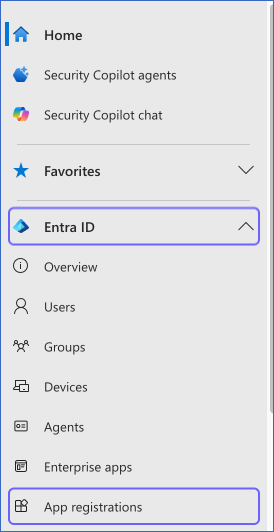
In the left navigation pane, click Entra ID, and then click App registrations.
-
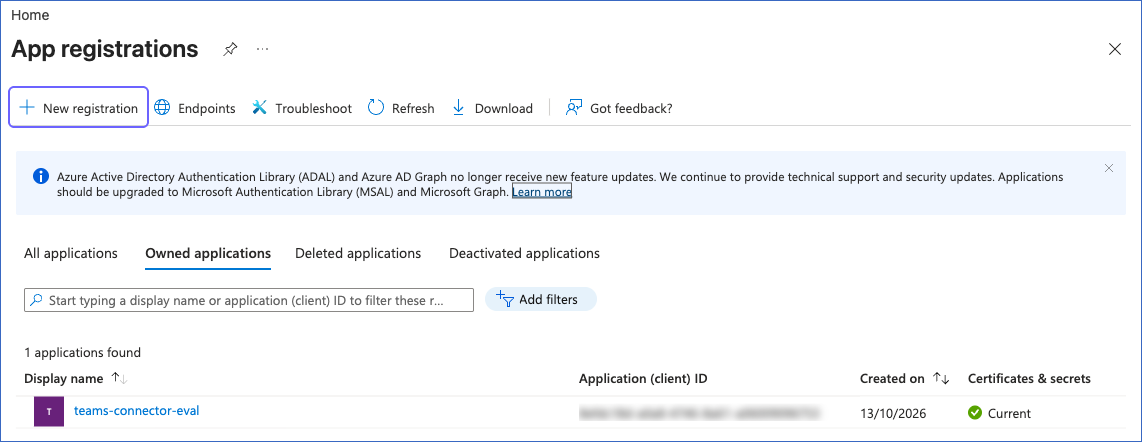
On the App registrations page, click + New registration.
-
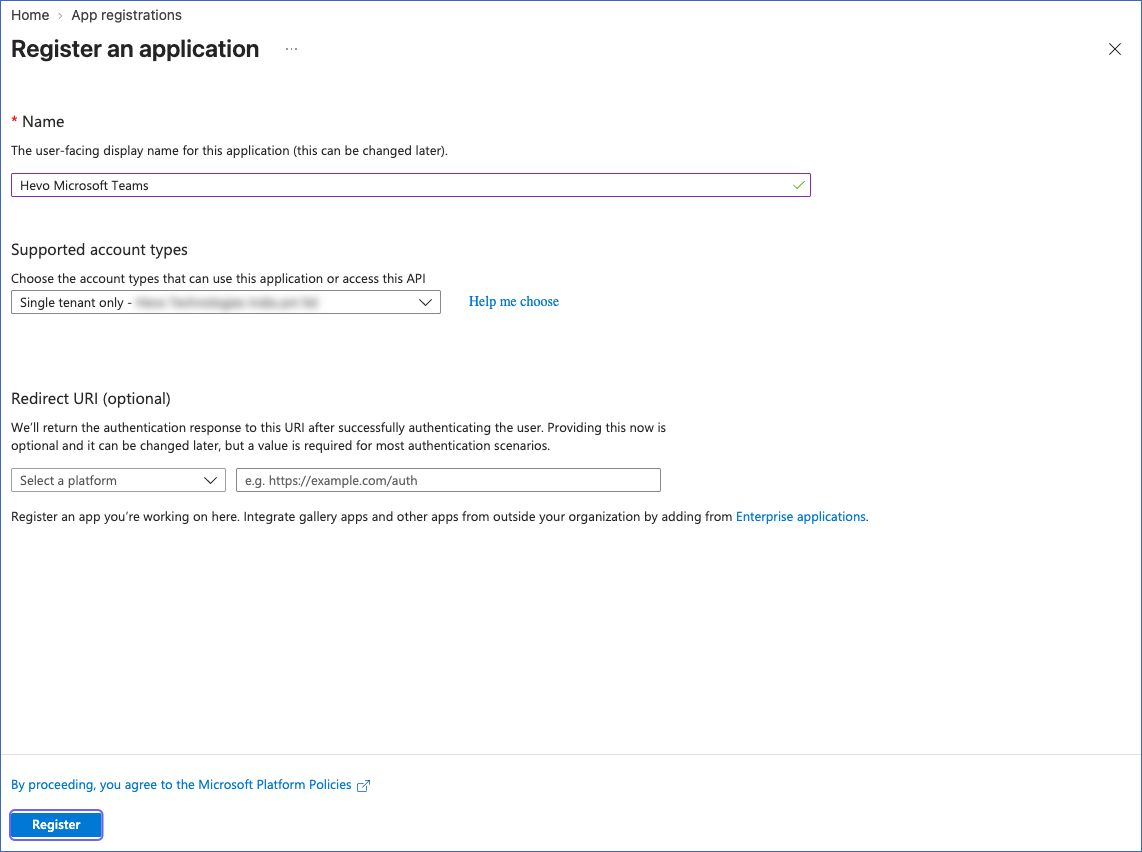
On the Register an application page, do the following:
-
Name: Specify a name for the app. For example, Hevo Microsoft Teams.
-
Supported account types: Select Single tenant only - <Your Tenant Name>.
-
Click Register.
-
-
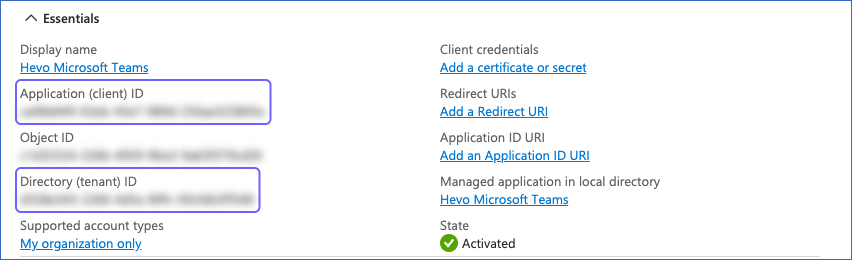
On the Overview page of the app, copy the Application (client) ID and the Directory (tenant) ID, and save them securely like any other password. Use these values as the Client ID and Tenant ID while configuring your Microsoft Teams Source in Hevo.
Add the Microsoft Graph permissions
Perform the following steps to grant the app read access to your Microsoft Teams data:
-
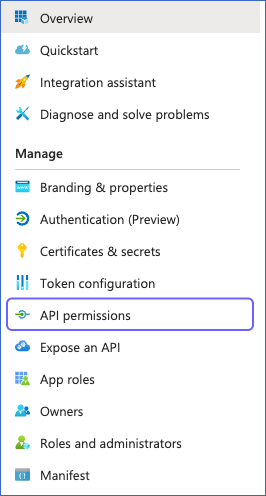
On the page of the app that you registered, in the left navigation pane, click API permissions.
-
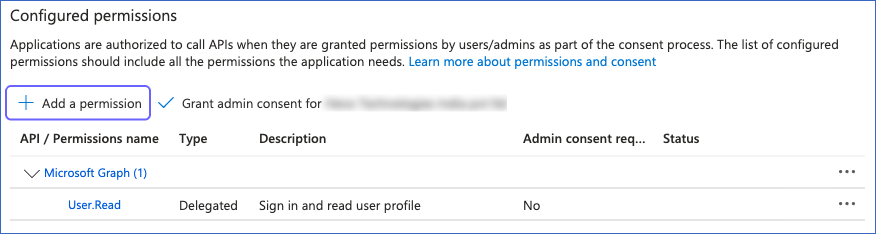
In the Configured permissions section, click + Add a permission.
-
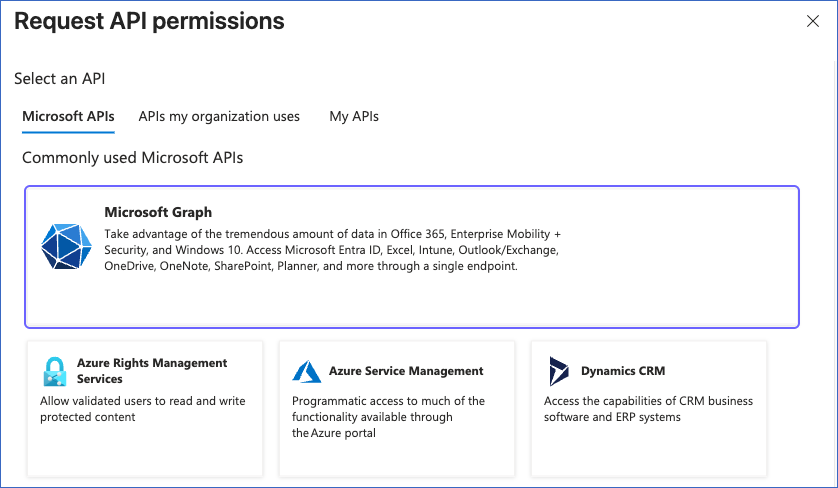
In the Request API permissions pane, click Microsoft Graph.
-
Click Application permissions, search for and select the following permissions, and then click Add permissions:
Permission Objects AppCatalog.Read.All teamsApps CallRecords.Read.All call and its child objects, direct_routing_call, and pstn_call Channel.ReadBasic.All channels, tabs, and channel_message and its child objects. Hevo also needs this permission to ingest the teams object. ChannelMessage.Read.All channel_message and its child objects Chat.Read.All chat and chat_message Team.ReadBasic.All teams and its child objects, including channel_message and its child objects TeamMember.Read.All members TeamsTab.Read.All tabs TeamworkTag.Read.All tags User.Read.All users. Hevo also uses this permission to test the connection. 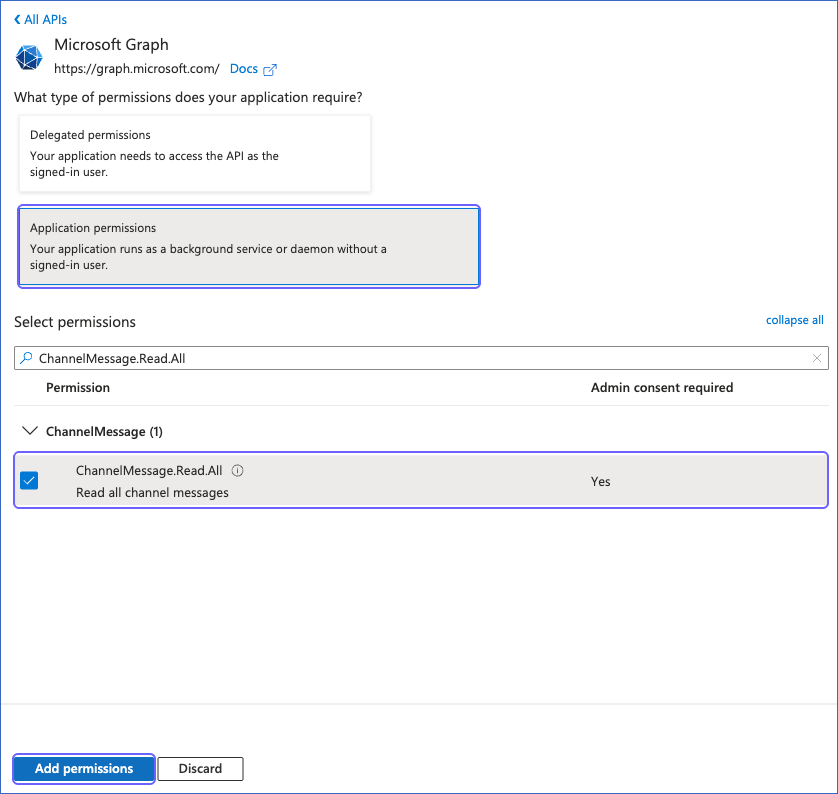
Note: Grant the permissions of all the objects that you want to ingest. Hevo needs the User.Read.All permission to test the connection, and the Team.ReadBasic.All and Channel.ReadBasic.All permissions to ingest any object of the teams group. If a permission is missing, the Pipeline fails to ingest the related objects and the other objects ingested along with them. For example, if the permission of the members, tags, or tabs object is missing, Hevo does not ingest the teams object, its child objects, and the channel_message object and its child objects. If you do not grant the permission of an object, deselect that object while creating the Pipeline.
-
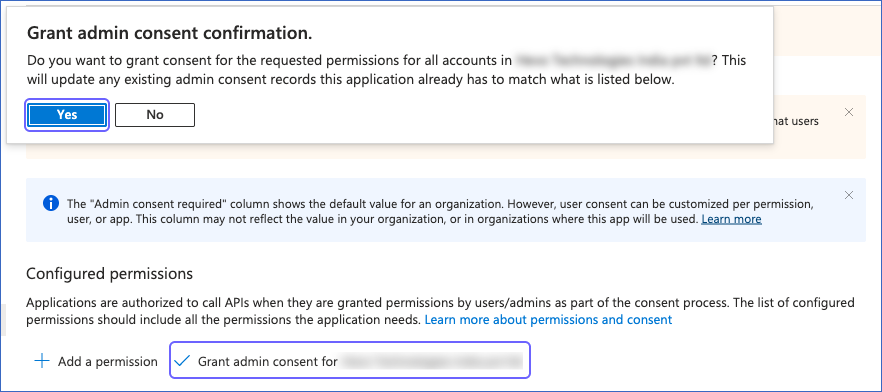
Click Grant admin consent for <Your Tenant Name>, and then click Yes to confirm.
Create a client secret
Perform the following steps to create a client secret for the app:
-
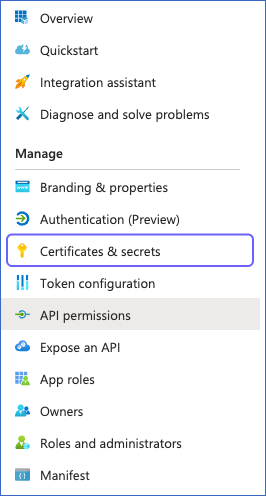
On the page of the app that you registered, in the left navigation pane, click Certificates & secrets.
-
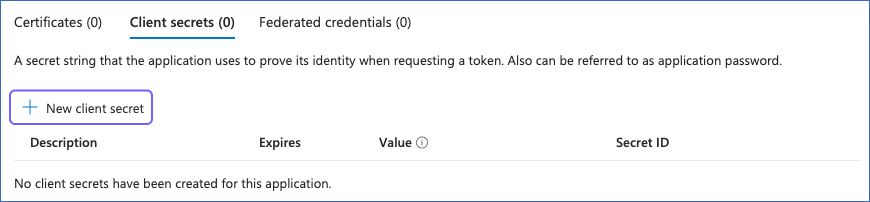
On the Client secrets tab, click + New client secret.
-
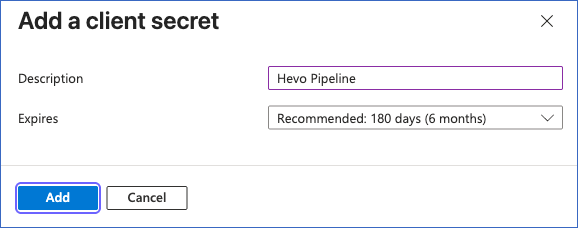
In the Add a client secret pane, do the following:
-
Description: Specify a description for the secret. For example, Hevo Pipeline.
-
Expires: Select the period after which the secret expires.
-
Click Add.
-
-
In the Value column of the secret that you created, click the copy icon, and save the value securely like any other password. Use this value as the Client Secret while configuring your Microsoft Teams Source in Hevo.
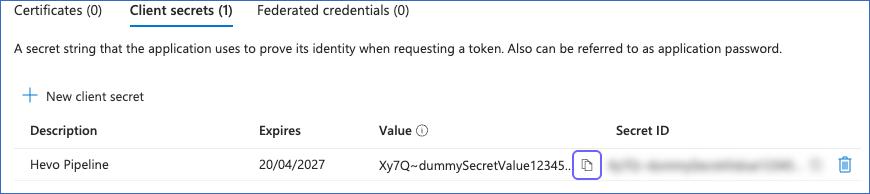
Note: Microsoft Entra ID displays the secret value only once. Copy the value and not the secret ID.
If the client secret expires or is deleted from your app, Hevo cannot connect to Microsoft Teams, and the Pipeline fails. To resume data replication, create a new client secret and modify the Source configuration in the Pipeline to use it.
Configure Microsoft Teams as a Source in your Pipeline
Perform the following steps to configure your Microsoft Teams Source:
-
Click Pipelines in the Navigation Bar.
-
Click + Create Pipeline in the Pipelines List View.
-
On the Select Source Type page, select Microsoft Teams.
-
On the Select Destination Type page, select the type of Destination you want to use.
-
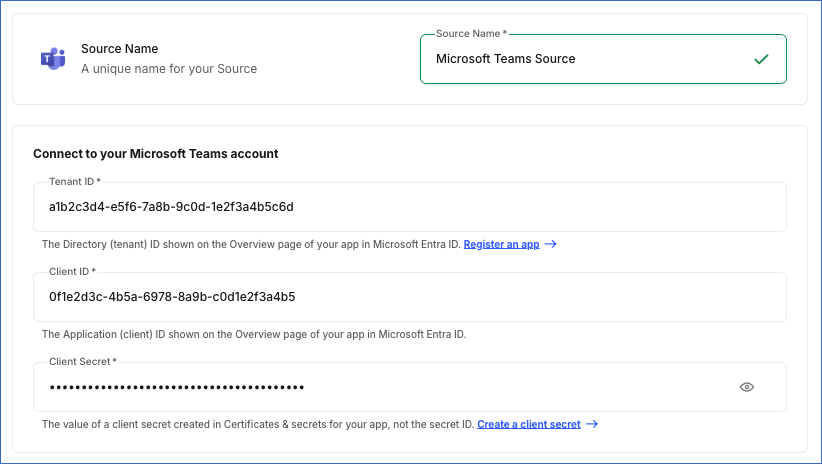
In the Configure Source screen, specify the following:
-
Source Name: A unique name for your Source, not exceeding 255 characters. For example, Microsoft Teams Source.
-
In the Connect to your Microsoft Teams account section, specify the following:
-
Tenant ID: The directory (tenant) ID of the app that you registered in Microsoft Entra ID.
-
Client ID: The application (client) ID of the app that you registered in Microsoft Entra ID.
-
Client Secret: The value of the client secret that you created for the app.
-
-
-
Click Test & Continue to test the connection to your Microsoft Teams Source. Hevo obtains an access token from Microsoft Entra ID using the tenant ID, client ID, and client secret, and then reads one user from your tenant. The test fails if the credentials are not valid, if the client secret has expired, or if the app does not have the User.Read.All permission. Hevo checks the other permissions only when it ingests data. Once the test is successful, you can proceed to set up your Destination.
Data Replication
Hevo replicates data for all the objects selected on the Configure Objects page during Pipeline creation. By default, all supported objects and their available fields are selected. However, you can modify this selection while creating or editing the Pipeline.
You can select or deselect each object individually. If you select a child object without its parent object, Hevo reads the parent object from Microsoft Teams to fetch the child records, but does not load the parent object to the Destination.
When you resync the teams, users, or call object, Hevo also resyncs its child objects. However, resyncing the teams object does not resync the channel_message object and its child objects. To ingest the channel messages again, resync the channel_message object separately.
Hevo ingests the following types of data from your Source objects:
-
Historical Data: The first run of the Pipeline ingests the following data:
-
For the pstn_call and direct_routing_call objects, the calls made in the last 365 days.
-
For the call object and its child objects, the call records of the last 30 days. Microsoft Graph retains call records only for 30 days.
-
For all the other objects, all the available data.
-
-
Incremental Data: Once the historical load is complete, Hevo ingests data as per the sync frequency:
-
For the pstn_call and direct_routing_call objects, Hevo ingests the calls that started up to 48 hours before the most recent call ingested in the previous run, based on the start_date_time field. This captures the call records that Microsoft Graph publishes late. Hevo updates the records that are ingested again in the Destination.
-
For all the other objects, Hevo ingests the entire data in each run.
-
Microsoft Graph limits the number of API requests that an app can make in a tenant. Read Microsoft Graph throttling limits. If a limit is reached, Hevo waits for the time specified by Microsoft Graph, up to about five minutes, or for 10 seconds if no time is specified, and retries the request up to four times. If Hevo still cannot read the data of some teams, users, chats, channels, or messages, it ingests the rest of the data, displays a warning for the object, and reads the missed data in the next run. If Hevo cannot read the list of records of an object, it does not ingest that object and the objects read along with it in that run.
Schema and Primary Keys
Hevo uses the following schema to upload the records in the Destination. For a detailed view of the objects, fields, and relationships, click the ERD.
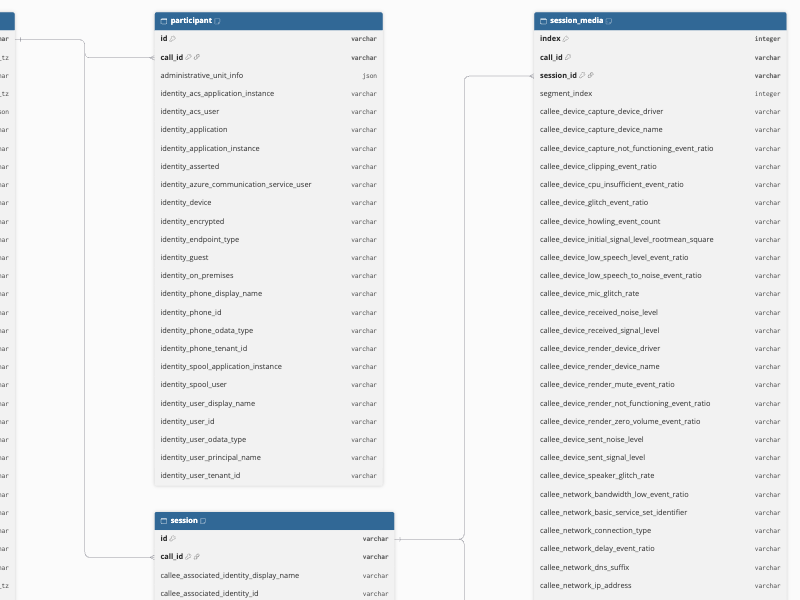
The primary key of the session_media object includes a column named index. As index is a reserved word in most Destinations, enclose the column name in quotes when you query the table. For example, use "index" in Amazon Redshift and Snowflake, and `index` in Google BigQuery.
Data Model
The following is the list of tables (objects) that are created at the Destination when you run the Pipeline:
| Object | Description |
|---|---|
| teams | Contains the details of the teams in your tenant, such as the name, description, visibility, web URL, archive status, and member, messaging, and fun settings of each team. This object has the following child objects: - channels - channel_message - members - tabs - tags |
| channels | Contains the details of the channels in each team, such as the name, description, membership type, email address, web URL, and creation date of each channel. |
| members | Contains the details of the members of each team, such as the name, email address, and roles of each member. |
| tabs | Contains the details of the tabs added to each channel, such as the name, web URL, and configuration of each tab. |
| tags | Contains the details of the tags in each team, such as the name, description, type, and number of members of each tag. |
| channel_message | Contains the details of the messages posted in channels, such as the content, sender, importance, attachments, and creation and modification dates of each message. This object has the following child objects: - channel_message_mention - channel_message_reaction - channel_message_reply - channel_message_reply_mention - channel_message_reply_reaction |
| channel_message_mention | Contains the details of the users, apps, and conversations mentioned in channel messages. |
| channel_message_reaction | Contains the details of the reactions to channel messages, such as the reaction type, the user who reacted, and the date of each reaction. |
| channel_message_reply | Contains the details of the replies to channel messages, such as the content, sender, importance, attachments, and creation and modification dates of each reply. |
| channel_message_reply_mention | Contains the details of the users and apps mentioned in the replies to channel messages. |
| channel_message_reply_reaction | Contains the details of the reactions to the replies to channel messages. |
| users | Contains the details of the users in your tenant, such as the name, email address, job title, department, office location, and account status of each user. This object has the following child objects: - chat - chat_message |
| chat | Contains the details of the one-on-one, group, and meeting chats of each user, such as the chat type, topic, web URL, and creation and update dates of each chat. A chat has one record for each user who is a member of it. |
| chat_message | Contains the details of the messages sent in chats, such as the content, sender, importance, attachments, mentions, and reactions of each message. |
| teamsApps | Contains the details of the apps in the Microsoft Teams app catalog of your tenant, such as the name, external ID, and distribution method of each app. |
| call | Contains the details of the calls and online meetings in your tenant, such as the type, modalities, start and end times, and join URL of each call. This object has the following child objects: - participant - session - session_media - session_media_stream |
| participant | Contains the details of the participants of each call, such as the identity of each participant. |
| session | Contains the details of the sessions of each call, such as the identity, CPU, user agent, and feedback of the caller and the callee, and the start and end times of each session. |
| session_media | Contains the device and network details of the caller and the callee for each type of media, such as audio, video, or screen sharing, in each session segment. For example, the audio devices, connection type, IP address, and Wi-Fi details. |
| session_media_stream | Contains the details of the media streams in each session segment, such as the codec, jitter, packet loss, and round-trip time of each stream. |
| pstn_call | Contains the details of the calls made to or received from the public switched telephone network (PSTN) using Microsoft calling plans, such as the caller and callee numbers, duration, and charges of each call. |
| direct_routing_call | Contains the details of the calls made using Direct Routing, such as the caller and callee numbers, duration, SIP response codes, and trunk details of each call. |
Additional Information
Read the detailed Hevo documentation for the following related topics:
Handling of Deletes
For the call, participant, and session objects, Hevo captures deletes by comparing the data fetched from the Source with the data present in the Destination in each run. If a record exists in the Destination but is no longer returned by the Source, Hevo marks it as deleted by setting the value of the metadata column __hevo__marked_deleted to True.
As Microsoft Graph retains call records only for 30 days, Hevo marks the records of the call, participant, and session objects as deleted when they are more than 30 days old, even if they are not deleted in Microsoft Teams. The records of the session_media and session_media_stream objects are not marked as deleted.
If Hevo cannot read the participants or sessions of a call in a run, it does not ingest the call object and its child objects in that run, to avoid incorrectly marking the records as deleted. Hevo reads them again in the next run.
For all the other objects, Hevo does not capture deletes. Records deleted in Microsoft Teams remain unchanged in the Destination. For the channel_message, channel_message_reply, and chat_message objects, the deleted_date_time field contains the date and time at which a message was deleted.
Source Considerations
-
Hevo ingests the data of all the teams, users, chats, and calls in your tenant that the app can access with the Microsoft Graph permissions granted to it.
-
Microsoft Graph applies its throttling limits to all the requests made by the app in your tenant. If you use the same app in other tools, those requests also count toward the limits.
-
Hevo reads the chats of each user in your tenant. The chat object contains one record for each member of a chat, while Hevo ingests the messages of each chat only once.
-
If your tenant has accounts that do not use Microsoft Teams, such as service accounts, room mailboxes, or users without a Microsoft Teams license, and Hevo reads several such accounts one after the other, it skips the chats and chat messages of the remaining users in that run. Hevo displays a warning for the chat object and reads the chats again in the next run.
-
In each run, Hevo makes separate API requests for the details, channels, members, tags, and tabs of each team, for the messages of each channel and the replies to each message, for the chats of each user and the messages of each chat, and for the participants and sessions of each call. In large tenants, this may increase the ingestion time and the number of requests that count toward the Microsoft Graph throttling limits.
Limitations
-
Hevo does not ingest the call records that are more than 30 days old, as Microsoft Graph does not provide them.
-
Hevo does not ingest the reactions made by apps or bots, and the mentions that do not have a mention ID, such as @everyone mentions, as these records do not have the fields required for their primary key.
-
The deleted_date_time field of the users object is always empty, as Microsoft Graph returns only the active users of your tenant.