Adobe Marketo Engage (Marketo) is a marketing automation platform that businesses use to capture and nurture leads, run multi-channel campaigns and programs, and measure the engagement of their leads across channels.
Hevo uses the Marketo REST API to replicate the leads, lead activities, programs, campaigns, lists, assets, and other marketing data of your Marketo instance to the Destination of your choice. Hevo connects to Marketo using the credentials of a LaunchPoint custom service that is linked to an API-only user. To ingest data, you must provide Hevo with the REST API Endpoint and REST API Identity of your Marketo instance, and the Client ID and Client Secret of the custom service.
Supported Features
| Feature Name | Supported |
|---|---|
| Capture deletes | Yes, for the objects that Hevo ingests in full in each run |
| History mode | No |
| Custom data (user-configured tables & fields) | Yes, the custom fields of the Lead object |
| Data blocking (skip objects and fields) | Yes |
| Resync (objects and Pipelines) | Yes |
| API configurable | Yes |
Prerequisites
-
An active Marketo instance exists from which data is to be ingested.
-
You are assigned the Admin role in Marketo to create an API-only role and user and a LaunchPoint custom service.
-
The Client ID and Client Secret of the custom service are available.
-
The REST API Endpoint and REST API Identity of your Marketo instance are available.
Create an API-only Role and User
Hevo reads your Marketo data as an API-only user. The data that Hevo can read depends on the permissions of the role assigned to this user.
Perform the following steps to create an API-only role and user:
-
Log in to your Marketo instance as an Admin user.
-
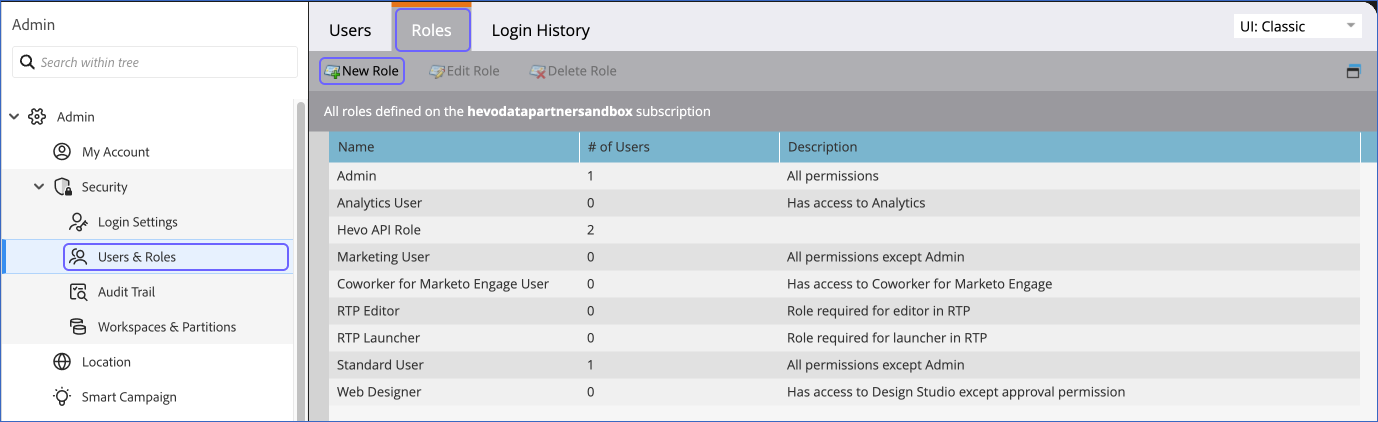
In the Admin area, under Security, click Users & Roles. Click the Roles tab, and then click New Role.
-
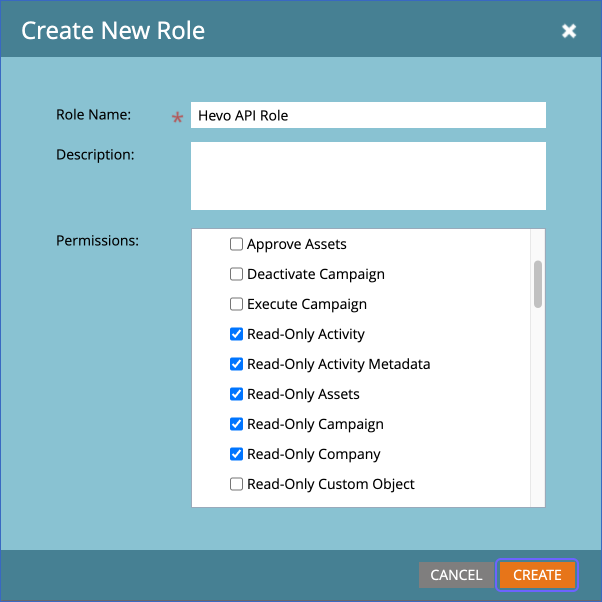
In the Create New Role dialog, specify a Role Name, for example, Hevo API Role. Under Permissions, expand Access API, select the following read-only permissions, and then click CREATE:
-
Read-Only Activity
-
Read-Only Activity Metadata
-
Read-Only Assets
-
Read-Only Company
-
Read-Only Opportunity: Required only for the Opportunity, Opportunity Role, and Sales Person objects.
-
Read-Only Person
-
-
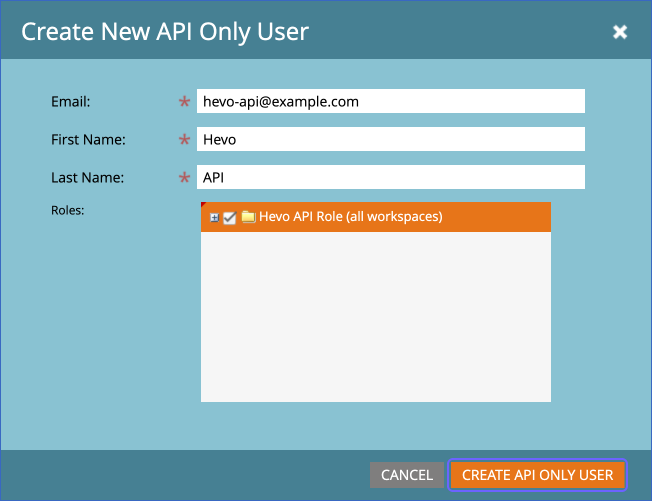
Click the Users tab, and then click Create API Only User.

-
In the Create New API Only User dialog, specify the Email, First Name, and Last Name of the user, select the role that you created, and then click CREATE API ONLY USER. The email address identifies the user in Marketo and does not need to be a working mailbox.
Create a LaunchPoint Custom Service
Hevo authenticates with Marketo using the Client ID and Client Secret of a custom service that you create in LaunchPoint. Read Authentication.
Perform the following steps to create a custom service:
-
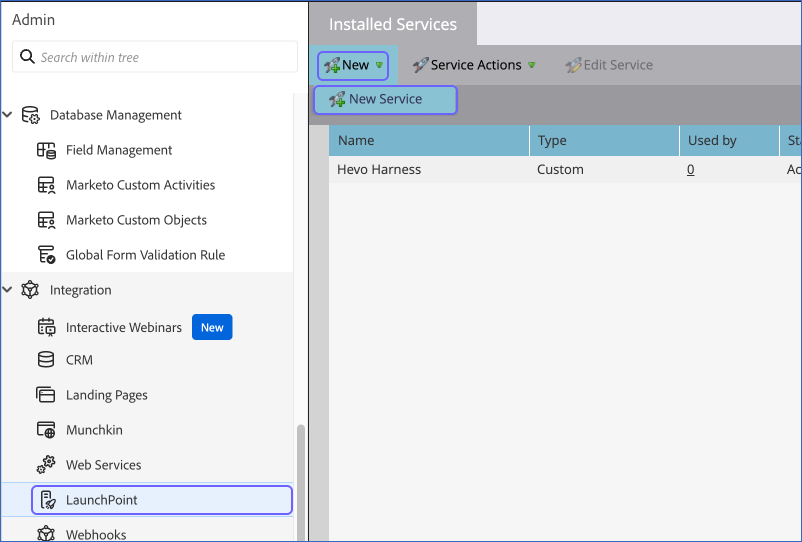
In the Admin area, under Integration, click LaunchPoint, and then click New > New Service.
-
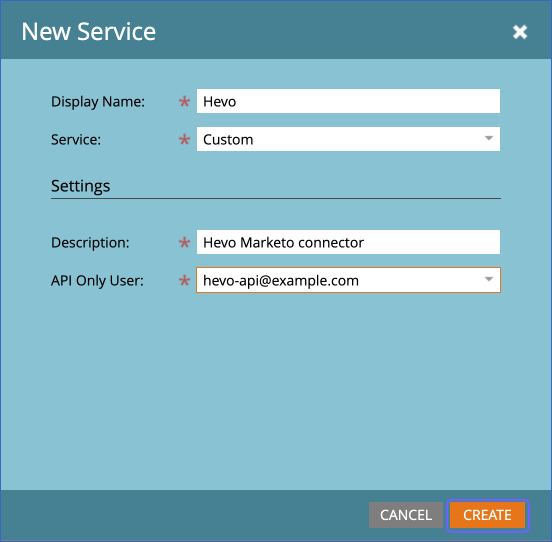
In the New Service dialog, specify the following, and then click CREATE:
-
Display Name: A name for the service. For example, Hevo.
-
Service: Select Custom.
-
Description: A description of the service. For example, Hevo Marketo connector.
-
API Only User: Select the API-only user that you created.
-
Obtain the Client ID and Client Secret
Perform the following steps to obtain the Client ID and Client Secret of the custom service:
-
In the Admin area, under Integration, click LaunchPoint, and then click View Details for the custom service that you created.

-
In the Details dialog, copy the Client Id and Client Secret and save them securely like any other password.
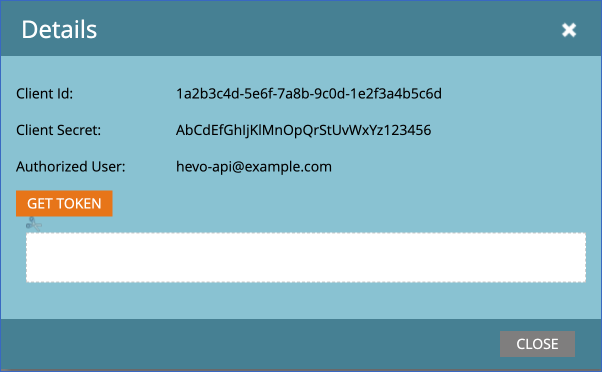
The Client ID and Client Secret remain available in the Details dialog, so you can copy them again later.
If you delete the custom service or the API-only user, or remove the permissions of the API role, Hevo cannot read your Marketo data, and the jobs of the Pipeline fail. To resume data replication, modify the Source configuration in the Pipeline with valid credentials. Once the updated configuration is saved, Hevo re-authenticates the Source, and data ingestion resumes from the last saved position.
Obtain the REST API Endpoint and Identity
Perform the following steps to obtain the REST API Endpoint and REST API Identity of your Marketo instance:
-
In the Admin area, under Integration, click Web Services.
-
In the REST API section, copy the Endpoint and Identity URLs. For example, https://123-ABC-456.mktorest.com/rest and https://123-ABC-456.mktorest.com/identity.
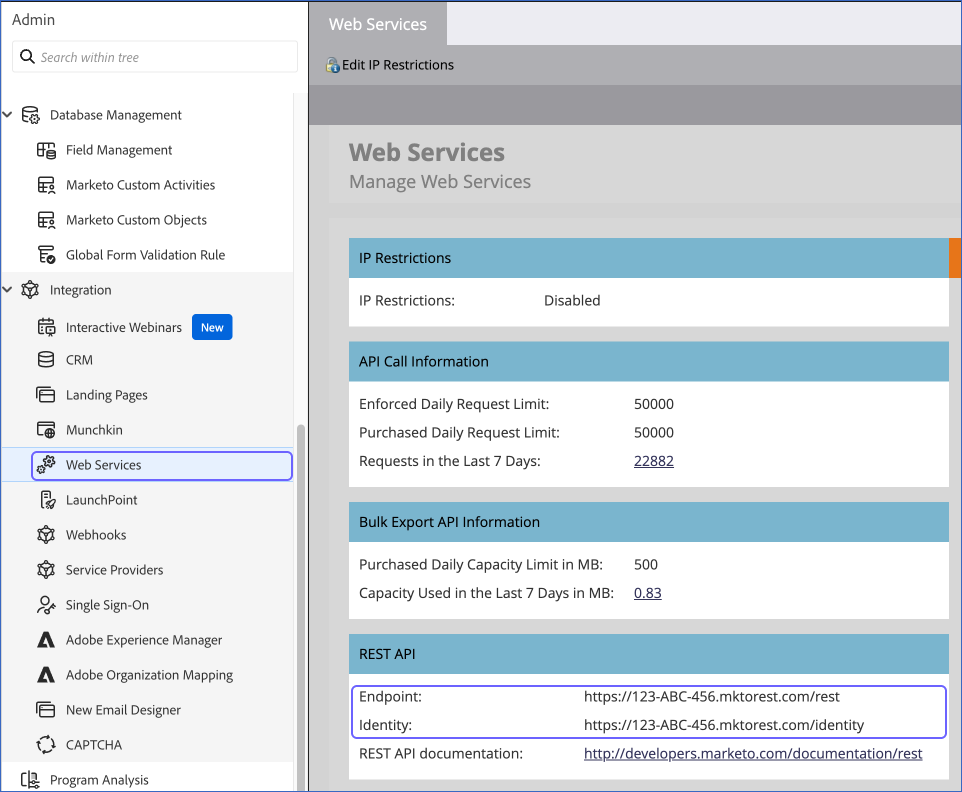
The Web Services page also shows the daily API request limit of your Marketo subscription in the API Call Information section.
Configure Marketo as a Source in your Pipeline
Perform the following steps to configure your Marketo Source:
-
Click Pipelines in the Navigation Bar.
-
Click + Create Pipeline in the Pipelines List View.
-
On the Select Source Type page, select Marketo.
-
On the Select Destination Type page, select the type of Destination you want to use.
-
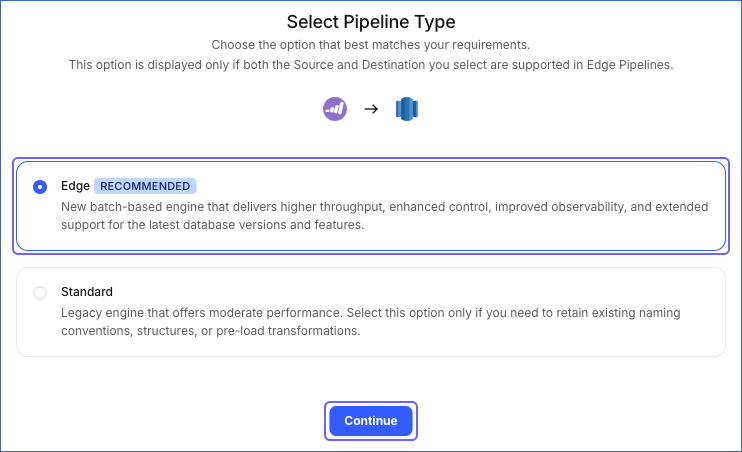
On the Select Pipeline Type page, click Edge, and then click Continue.
-
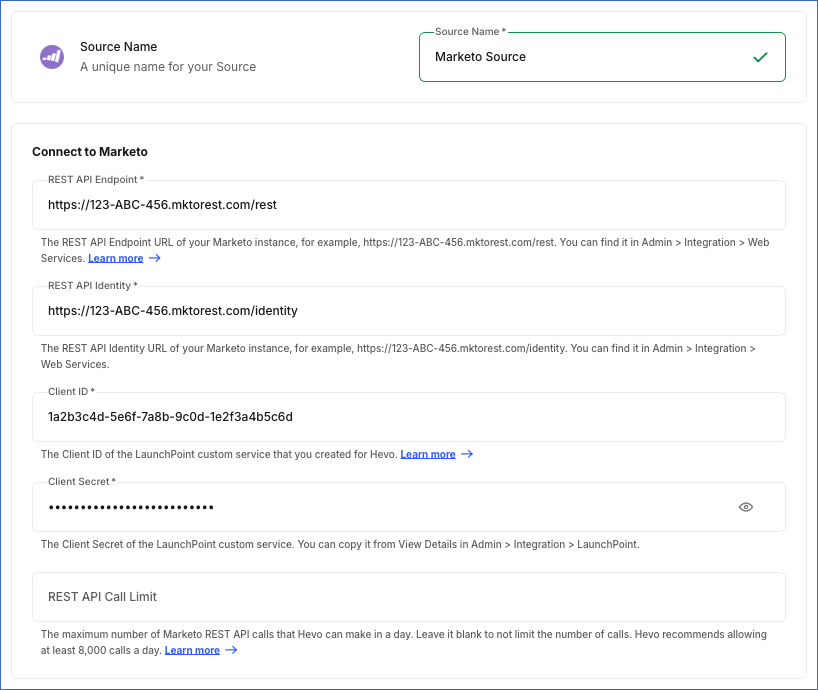
In the Configure Source screen, specify the following:
-
Source Name: A unique name for your Source, not exceeding 255 characters. For example, Marketo Source.
-
In the Connect to Marketo section:
-
REST API Endpoint: The REST API Endpoint of your Marketo instance. For example, https://123-ABC-456.mktorest.com/rest.
-
REST API Identity: The REST API Identity of your Marketo instance. For example, https://123-ABC-456.mktorest.com/identity.
-
Client ID: The Client ID of the LaunchPoint custom service.
-
Client Secret: The Client Secret of the custom service.
-
REST API Call Limit (Optional): The maximum number of Marketo REST API calls that Hevo can make in a day. Leave it blank if you do not want to limit the number of calls. Hevo recommends allowing at least 8,000 calls a day. Read API Request Limits.
-
-
-
Click Test & Continue to test the connection to your Marketo Source. Once the test is successful, you can proceed to set up your Destination.
When you click this button, Hevo checks that the Client ID and Client Secret are valid by obtaining an access token from the REST API Identity URL and reading the activity types of your Marketo instance.
Data Replication
Hevo replicates data for all the objects selected on the Configure Objects page during Pipeline creation. By default, all supported objects and their available fields are selected. However, you can modify this selection while creating or editing the Pipeline. To ingest a child object, you must also select its parent object. For example, to ingest the List Membership object, you must also select the List object. The Data Model lists the child objects of each parent object.
In the first run of the Pipeline, Hevo ingests all the data available for the selected objects in your Marketo instance. In the subsequent runs, as per the sync frequency, Hevo ingests data as follows:
| Ingestion | Objects |
|---|---|
| New and updated records, based on the time each record was created or last updated in Marketo | API Usage, Company, Deleted Program Membership, Email Template History, Lead, Lead Company, Lead Segment, Merged Lead, Opportunity Membership, and Program, and the activity objects |
| The opportunities and opportunity roles of the leads whose opportunity activities (Add to Opportunity, Remove from Opportunity, and Update Opportunity) were logged since the previous run, and the sales persons of these opportunities | Opportunity, Opportunity Role, and Sales Person |
| All the records, in each run | Activity Type, Campaign, File, Folder, Form, List, Segmentation, and Smart List, and their child objects |
Hevo ingests the child objects of a parent object along with it.
Hevo reads leads using the Marketo Bulk Lead Extract API. In the first run, Hevo exports the leads by the time they were created. In the subsequent runs, it exports the leads that were updated since the previous run. Hevo ingests all the fields of the Lead object that Marketo lists for your instance, including your custom lead fields.
Hevo reads each activity object using the time of the activity. In the first run, Hevo ingests all the activities that Marketo retains for your instance. Marketo deletes older activities as per its data retention policy, so Hevo cannot ingest activities older than the retention period. If you pause the Pipeline for longer than the retention period, the activities of that period are not ingested.
Pipelines with this Source support only the Merge load mode.
API Request Limits
Marketo allows 50,000 API calls per day for a subscription, 100 API calls per 20 seconds, and up to 10 concurrent API calls for an instance. The daily limit resets at 12:00 AM CST. Read Marketo REST API. These limits are shared by all the applications that use the Marketo API of your instance.
Hevo counts its API calls against the REST API Call Limit that you specify while configuring the Source, using the daily API usage that Marketo reports for the API-only user. If the limit is reached, Hevo stops ingesting the objects for the day and resumes from the last saved position after the Marketo day resets. If Marketo returns a rate limit error, Hevo waits and retries the request. To understand how Hevo handles such scenarios, read Handling Rate Limit Exceptions.
Schema and Primary Keys
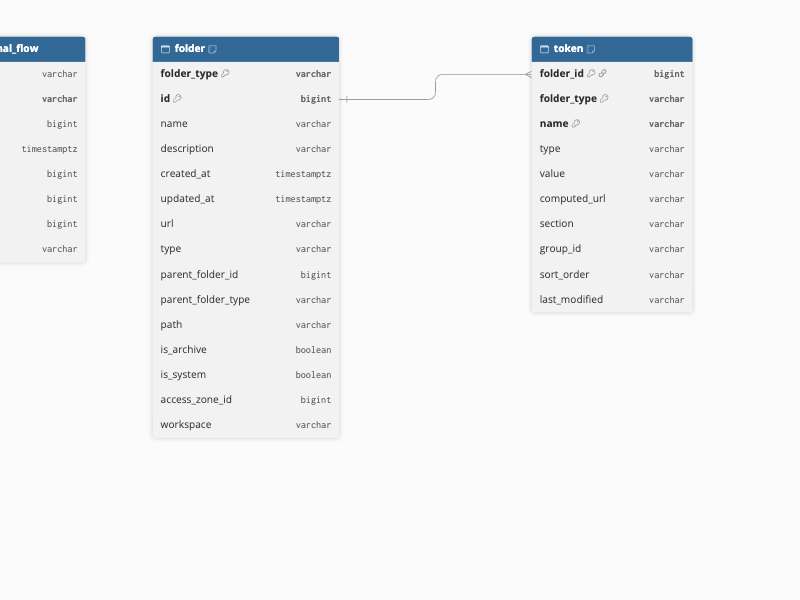
Hevo uses the following schema to upload the records in the Destination. For a detailed view of the objects, fields, and relationships, click the ERD.
Data Model
The following is the list of tables (objects) that are created at the Destination when you run the Pipeline:
| Object | Description |
|---|---|
| Activity objects | Contain the activities logged for your leads, such as the lead ID, activity date, activity type, campaign, and the primary attribute of each activity. Hevo creates a table for each activity type, named activity_ followed by the activity type, for example, activity_open_email. The following activity objects are available: - Add to List - Add to Named Account - Add to Nurture - Add to Opportunity - Asks Questions in Webinar - Asset Downloads in Webinar - Call to Action Clicked in Webinar - Call Webhook - Change Data Value - Change Lead Partition - Change Nurture Cadence - Change Nurture Track - Change Program Member Data - Change Revenue Stage - Change Revenue Stage Manually - Change Score - Change Segment - Change Status in Progression - Click Email - Click Link - Click Predictive Content - Click RTP Call to Action - Click Sales Email - Delete Lead - Email Bounced - Email Bounced Soft - Email Delivered - Engaged with a Conversational Flow - Engaged with a Dialogue - Engaged with an Agent in Conversational Flow - Engaged with an Agent in Dialogue - Execute Callable Agent - Execute Campaign - Fill Out Form - Has Attended Event - Interacted with Document in Conversational Flow - Interacted with Document in Dialogue - Merge Leads - New Lead - Open Email - Open Sales Email - Push Lead to Marketo - Reached Conversational Flow Goal - Reached Dialogue Goal - Receive Sales Email - Received Forward to Friend Email - Remove from List - Remove from Named Account - Remove from Opportunity - Reply to Sales Email - Request Campaign - Responded to a Poll in Webinar - Responded to a Survey in Webinar - Sales Email Bounced - Scheduled Meeting in Conversational Flow - Scheduled Meeting in Dialogue - Send Alert - Send Email - Send Sales Email - Sent Forward to Friend Email - Unsubscribe Email - Update Opportunity - Visit Webpage |
| Activity Type | Contains the activity types available in your Marketo instance, with their name and description. It includes a child object, Activity Type Attribute, which contains the attributes of each activity type. |
| API Usage | Contains the number of API calls made each day by each API-only user of your Marketo instance. |
| Campaign | Contains the smart campaigns of your Marketo instance, with their type, status, qualification rules, and the program and workspace that they belong to. |
| Company | Contains the companies that your leads belong to, with their name and external company ID. |
| Deleted Program Membership | Contains the program memberships that were deleted, with the previous status and the time of deletion. |
| Email Template History | Contains the versions of your email assets, with their subject, sender, status, and the folder and program that they belong to. |
| File | Contains the files stored in your Marketo instance, such as images and documents, with their name, type, size, and URL. |
| Folder | Contains the folders of your Marketo instance, with their type, path, parent folder, and workspace. It includes a child object, Token, which contains the tokens (My Tokens) defined in each folder and program. |
| Form | Contains the forms of your Marketo instance, with their status, language, theme, and the program and folder that they belong to. |
| Lead | Contains the leads (persons) in your Marketo database, with their name, email address, company, source, and opt-out and suspension details. It includes a child object, Lead Describe, which contains the metadata of the lead fields of your Marketo instance. |
| Lead Company | Contains the mapping between your leads and their companies. |
| Lead Segment | Contains the segments that each lead belongs to, with the segmentation and the time of the last update. |
| List | Contains the static lists of your Marketo instance, with their description and the program and workspace that they belong to. It includes a child object, List Membership, which contains the leads that are members of each list. |
| Merged Lead | Contains the leads that were merged into another lead, with the time of the merge. |
| Opportunity | Contains the opportunities of your Marketo instance, with their name, type, stage, amount, expected revenue, close date, and fiscal period. |
| Opportunity Membership | Contains the opportunities that each lead is a member of, based on the Add to Opportunity and Remove from Opportunity activities. |
| Opportunity Role | Contains the roles that your leads hold in opportunities, with the opportunity, role, and whether the lead is the primary contact. |
| Program | Contains the programs of your Marketo instance, with their type, channel, status, start and end dates, and workspace. It includes the following child objects: - Program Membership - Program Cost - Program Tag - Program Tag Type |
| Sales Person | Contains the sales persons named in your opportunities, with their name, email address, title, and phone numbers. |
| Segmentation | Contains the segmentations of your Marketo instance, with their description, status, and workspace. It includes a child object, Segment, which contains the segments of each segmentation. |
| Smart List | Contains the smart lists of your Marketo instance, including the smart lists of your smart campaigns, with their description, folder, and the campaign or program that they belong to. |
Additional Information
Read the detailed Hevo documentation for the following related topics:
Handling of Deletes
Hevo marks a record as deleted by setting the value of the metadata column __hevo__marked_deleted to True. Hevo captures deletes as follows:
-
For the objects whose records Hevo ingests in full in each run, Hevo compares the records fetched from Marketo with those in the Destination table. Records that are no longer returned by Marketo are marked as deleted in the Destination. The child objects of these objects are replaced in full in each run, so the records removed in Marketo are removed from the Destination table.
-
For the Lead, Program, Company, and the activity objects, and the other objects that Hevo ingests incrementally, Hevo does not capture records that are deleted in Marketo. These records remain in the Destination. Deleted leads are recorded in the Delete Lead activity object, and deleted program memberships in the Deleted Program Membership object. A resync of these objects does not remove the deleted records. A resync with Drop and Load rebuilds the table from the data that Marketo returns, so the deleted records are removed. However, for the activity objects, this also removes the activities that Marketo no longer retains.
-
For the Opportunity Membership object, when the latest activity of a lead for an opportunity is Remove from Opportunity, Hevo marks the membership as deleted.
Source Considerations
-
Hevo does not ingest your Marketo custom objects and custom activities.
-
Hevo reads companies through your leads, so the Company object contains only the companies that at least one lead belongs to.
-
Hevo creates a table in the Destination only for the objects that have data. For example, if no leads in your instance have the Click Email activity, the activity_click_email table is not created.
-
The Lead, Company, and Program Membership objects are exported using the Marketo Bulk Extract API, which has a daily export limit for your subscription, shown in the Bulk Export API Information section of the Web Services page. If the limit is reached, Hevo resumes the export in a later run.