Klaviyo is a marketing automation platform used by consumer brands to manage email, SMS, and other messaging channels from a single account. It unifies customer and behavioral data so businesses can build personalized, cross-channel marketing campaigns and automated flows.
Hevo uses the Klaviyo REST APIs to replicate data from your Klaviyo account to the Destination of your choice. To ingest data, you must provide Hevo with a Private API key generated from your Klaviyo account that grants read access to your account’s data.
Supported Features
| Feature Name | Supported |
|---|---|
| Capture deletes | Yes |
| History mode | No |
| Custom data (user-configured tables & fields) | Yes |
| Data blocking (skip objects and fields) | Yes |
| Resync (objects and Pipelines) | Yes |
| API configurable | Yes |
Prerequisites
-
An active Klaviyo account exists from which data is to be ingested.
-
The Private API key is available to provide Hevo access to your Klaviyo account data.
Obtain the API Key
You require a Private API key to authenticate Hevo with your Klaviyo account. The API key does not expire and can be reused across all your Pipelines.
Note: To create the API key, you must have the Owner, Admin, or Manager role on your Klaviyo account.
Perform the following steps to obtain the API key:
-
Log in to your Klaviyo account.
-
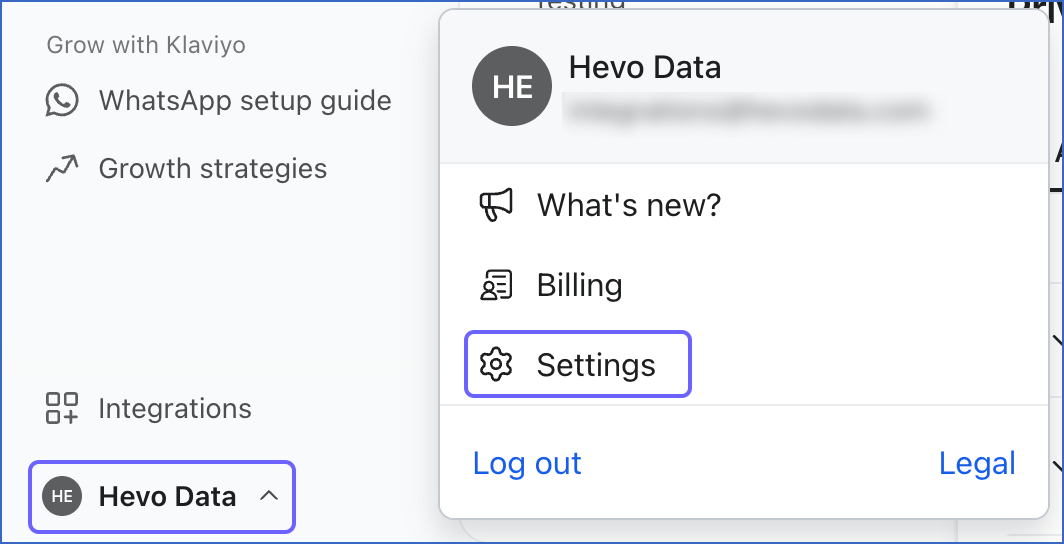
In the left navigation pane, click the Profile icon, and then click Settings.
-
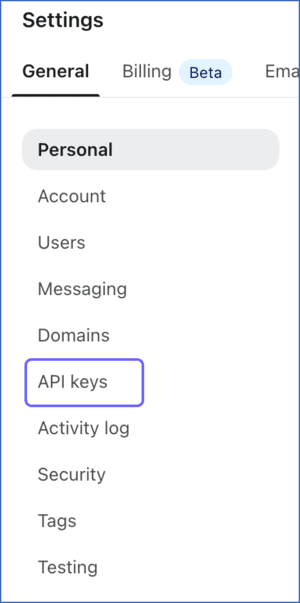
On the Settings page, under the General tab, click API keys.
-
In the Private API Keys section, click Create Private API Key.

-
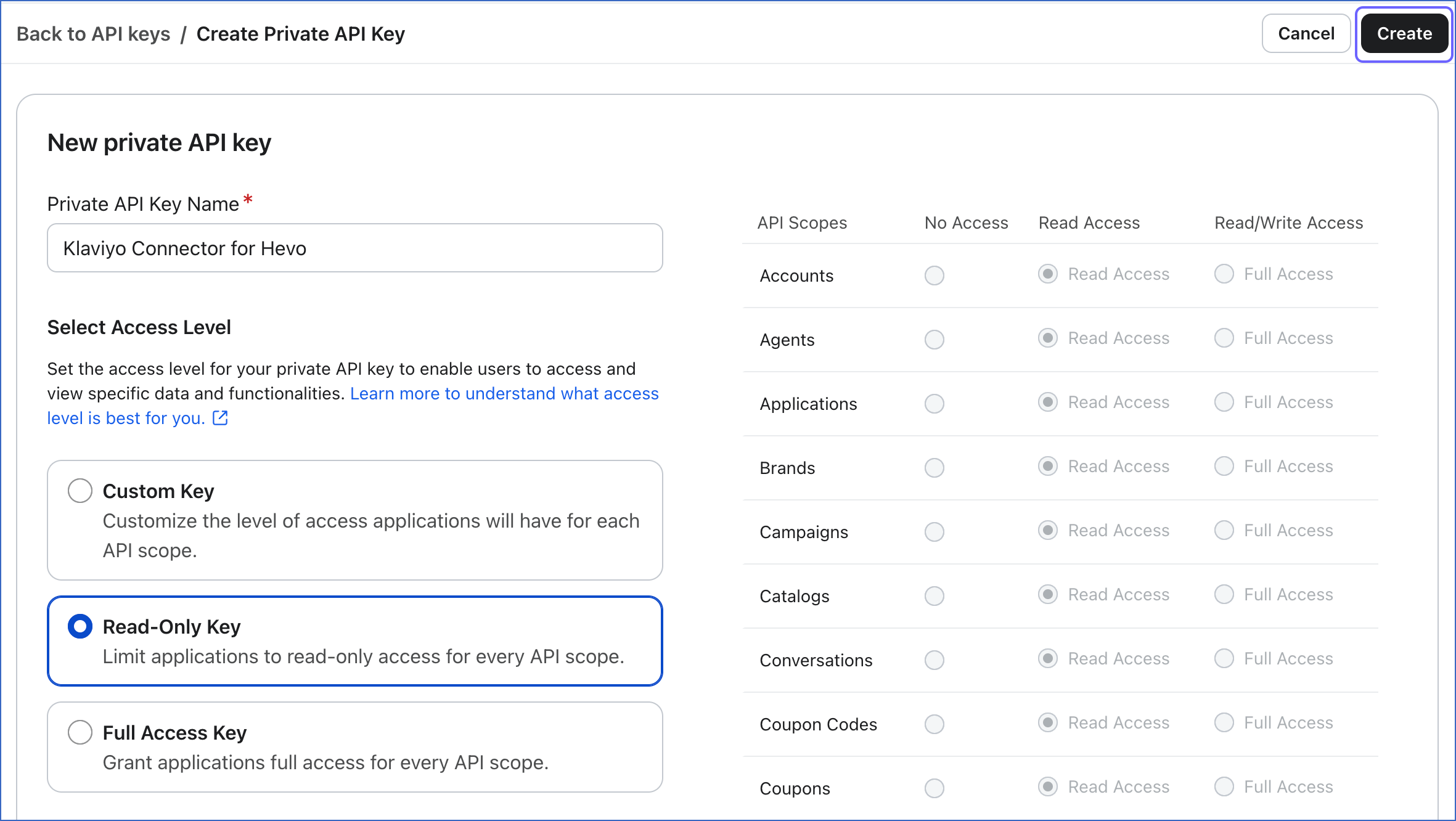
On the Create Private API Key page, do the following:
-
In the Private API Key Name field, specify a name for the API key. For example, Klaviyo Connector for Hevo.
-
In the Select Access Level section, specify one of the following:
-
Read-Only Key: Allows you to set Read Access across all API scopes.
-
Custom Key: Allows you to set Read Access or Read/Write Access individually per API scope. For Hevo, grant Read Access to the following scopes:
-
Accounts
-
Campaigns
-
Coupons
-
Coupon codes
-
Events
-
Flows
-
Forms
-
Lists
-
Metrics
-
Profiles
-
Segments
-
Tags
-
Templates
-
-
Full Access Key (Not recommended): Grants full Read/Write Access across every API scope, more than Hevo needs.
-
-
Click Create.
-
-
On the Private API Key Confirmation page, click the copy icon to copy the key, and save it securely like any other password.
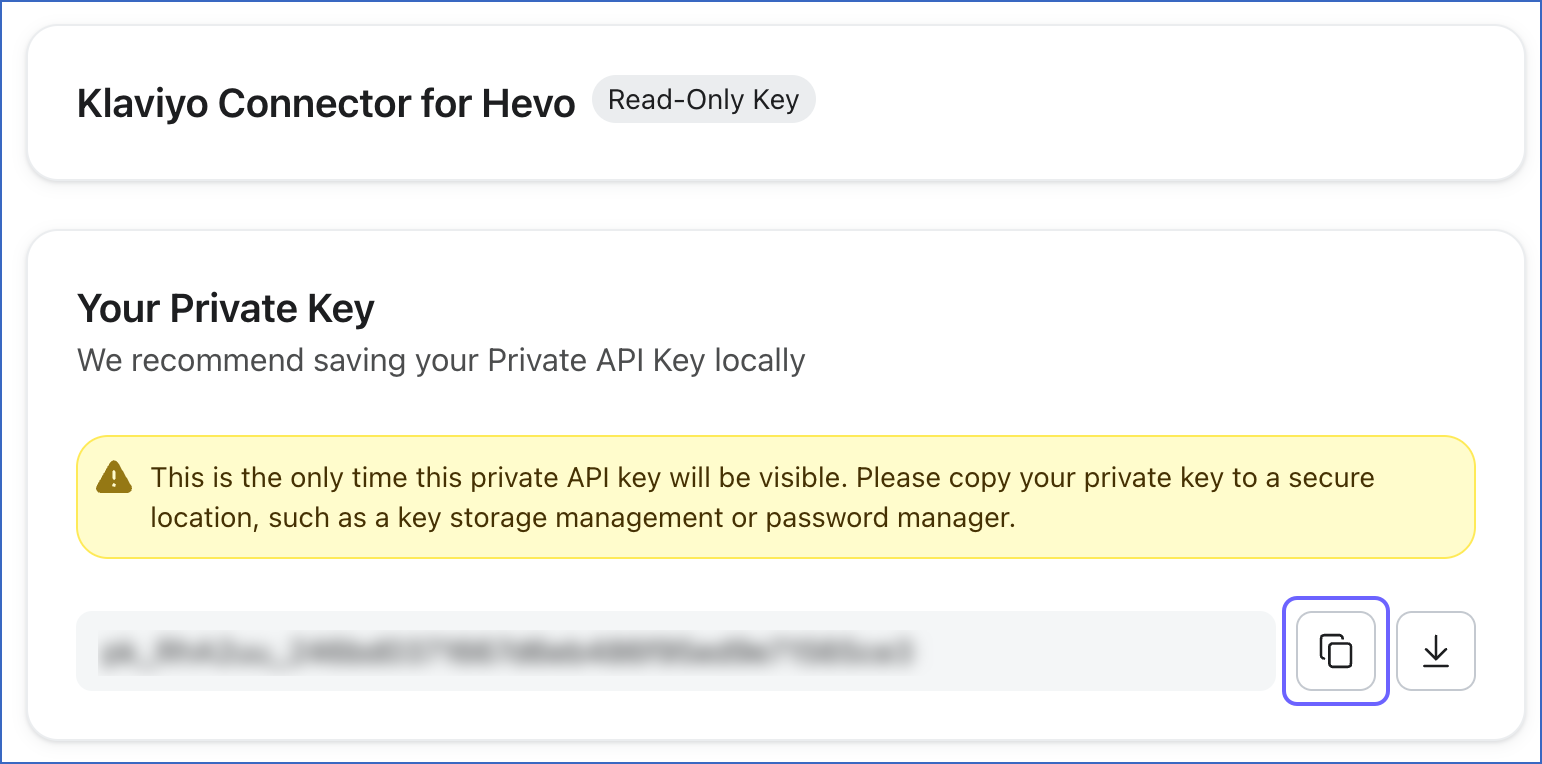
Use this key while configuring your Pipeline. If the Private API key configured in the Pipeline is revoked manually from your Klaviyo account, Hevo cannot authenticate with the Source. As a result, all active jobs for the Pipeline fail, and no data is replicated. To resume data replication, modify the Source configuration in the Pipeline with a valid Private API key. Once the updated key is saved, Hevo re-authenticates the Source, and data ingestion resumes from the last saved offset.
Configure Klaviyo as a Source in your Pipeline
Perform the following steps to configure your Klaviyo Source:
-
Click Pipelines in the Navigation Bar.
-
Click + Create Pipeline in the Pipelines List View.
-
On the Select Source Type page, select Klaviyo v2.
-
On the Select Destination Type page, select the type of Destination you want to use.
-
On the Select Pipeline Type page, click Edge, and then click Continue.
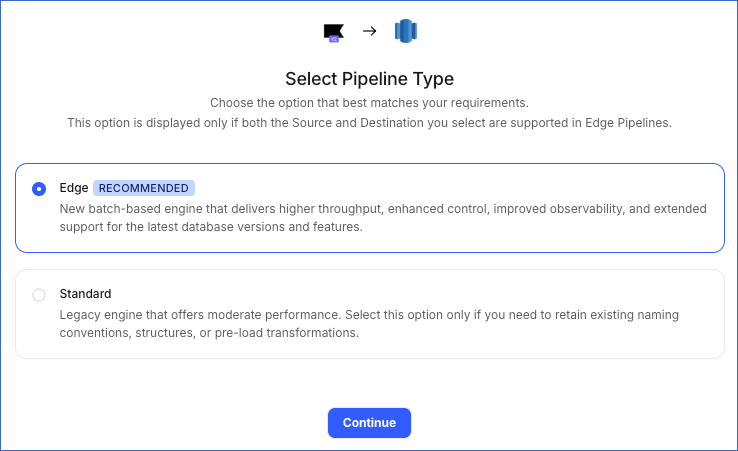
This page appears only if the selected Destination type is supported in Edge and your Team has an existing Klaviyo v2 Pipeline with the same Destination type. Otherwise, you can proceed to create an Edge Pipeline.
-
In the Configure Source screen, specify the following:

-
Source Name: A unique name for your Source, not exceeding 255 characters. For example, Klaviyo v2 Source.
-
In the Connect to your Klaviyo account section, specify the following:
-
Private API Key: The Private API Key with Read access to the required scopes that you obtained from your Klaviyo account.
-
Historical Sync Duration: The duration for which you want to ingest existing data from the Source. From the drop-down, select one of the following:
-
All Time: Hevo fetches all historical data in your Klaviyo account, from January 1, 1970, to the current date.
-
Sync data from a specific date: Hevo fetches historical data starting from the date you specify in the Historical Sync Start Date field.

-
-
Pack Mode: The format in which custom fields from the Person and Event objects are replicated to the Destination. From the drop-down, select one of the following:
-
Unpacked: Each custom field is replicated to a separate column in the Destination.
-
Packed: All custom fields are combined into a single JSON column in the Destination, rather than separate columns for each field. Use this option if the number of custom fields may exceed the Destination’s column limit.
-
-
Sync Predictive Analytics for Person Object: Enable this option to sync predictive analytics data for the Person object.
Note: Enabling this option reduces the Klaviyo Profiles API rate limit from 750 to 150 requests per minute.
-
Sync Events for Deleted Profiles: Enable this option to sync Events for profiles that have been deleted from Klaviyo.
-
-
(Optional) In the Custom Reports section, define one or more custom reports. Each report you define is replicated into its own table in the Destination. To add a report, specify the following:

-
Report Name: A unique name for the Destination table where Hevo loads the data for this report.
-
Report Type: The type of Klaviyo data you want to include in the report.
-
Conversion Metric: The metric used to determine the success of a Flow. Applicable only to the Flow report type.
-
Time Interval: The time interval used to group the report data. Default value: Daily.
-
Report Metrics: The metrics you want to include in this report. The available metrics depend on the selected Report Type value.
-
Rollback Window (days): The number of days for which Hevo re-fetches previously ingested report data to capture updated report data. Min: 2 days. Max: 90 days. Default value: 5 days.
-
Note:
-
Click Save after configuring each report. Reports that are not saved before you click Test & Continue are not included in the Pipeline.
-
If you add a new custom report or edit an existing one after the Pipeline is created, resync the corresponding object to apply the changes and load the data using the updated configuration.
-
-
Click Test & Continue to test the connection to your Klaviyo Source. Once the test is successful, you can proceed to set up your Destination.
Data Replication
Hevo replicates data for all the objects selected on the Configure Objects page during Pipeline creation. By default, all supported objects and their available fields are selected. However, you can modify this selection while creating or editing the Pipeline.
Hevo ingests the following types of data from your Source objects:
-
Historical Data: The first run of the Pipeline ingests historical data for the selected objects based on the Historical Sync Duration specified when creating the Pipeline, and loads it into the Destination.
-
Incremental Data: Once the historical load is complete, new and updated records for objects are ingested as per the sync frequency.
For the following objects, Hevo ingests only the incremental data in subsequent Pipeline runs:
-
Campaign
-
Campaign List
-
Campaign Message
-
Campaign Message Send Time
-
Campaign Recipient Estimation
-
Campaign Tracking UTM Param
-
Event
-
Flow
-
Flow Action
-
Flow Action Tracking UTM Param
-
Form
-
Form Version
-
Global Exclusion
-
List
-
List Exclusion
-
List Person
-
Person
-
Segment
-
Segment Person
For all other objects, Hevo ingests the entire data during each Pipeline run.
During each sync, Hevo also re-fetches the custom reports data for the number of days specified in the Rollback Window (days) field to capture any revisions to previously ingested report data. This ensures that your Destination stays up to date.
Klaviyo enforces a rate limit on the number of calls that can be made to its API in a given time period. If this limit is exceeded, a rate limit exception occurs. To understand how Hevo handles such scenarios, read Handling Rate Limit Exceptions.
Note: You can create a Pipeline with this Source only using the Merge load mode. The Append mode is not supported for this Source.
Schema and Primary Keys
Hevo uses the following schema to upload the records to the Destination. For a detailed view of the objects, fields, and relationships, click the ERD.

Data Model
The following is the list of tables (objects) that are created at the Destination when you run the Pipeline:
| Object | Description |
|---|---|
| Account History | Contains a snapshot of Klaviyo account settings, such as contact information, timezone, and locale, captured whenever a change is detected. |
| Campaign | Contains details of the email, SMS, or mobile push marketing campaigns in your Klaviyo account, including the campaign’s status, send time, and send strategy. It includes the following child objects: - Campaign Message - Campaign List - Campaign Message Send Time - Campaign Tracking UTM Param - Campaign Recipient Estimation |
| Coupon | Contains the discount coupons defined in your Klaviyo account. It includes a child object, Coupon Code. |
| Email Template | Contains saved message layouts used for emails in the account, including their HTML and plain-text content. |
| Event | Contains details of actions taken by profiles in your Klaviyo account, such as email opens, clicks, and purchases. Each event also contains information about the related metric, profile, campaign, or flow. This information is part of the event object and is not replicated as separate objects. |
| Flow | Contains details of the automated, multi-step marketing workflows in your Klaviyo account, such as an abandoned cart or welcome series flow. It includes the following child objects: - Flow Action - Flow Message - Flow Action Tracking UTM Param |
| Form | Contains popups, embedded modules, and other sign-up tools configured in the account to collect visitor information. It includes a child object, Form Version. |
| List | Contains groups of profiles that are manually added or imported into the account. It includes a child object, List Person. |
| Metric | Contains the types of events tracked in the account, such as Placed Order or Opened Email, along with details of the integration that generated each one. |
| Person | Contains details of the profiles in the account, including personal details, location, and marketing consent status across the email, SMS, and mobile push channels. It includes the following child objects: - Global Exclusion - List Exclusion If the Sync Predictive Analytics for Person Object option is enabled, this object also includes predictive analytics data for each profile, such as predicted lifetime value and churn probability. |
| Segment | Contains groups of profiles that are automatically updated based on defined conditions. It includes a child object, Segment Person. |
| Tags | Contains labels used to organize campaigns, flows, segments, lists, and forms in the account. It includes the following child objects: - Campaign Tag - Flow Tag - List Tag - Segment Tag |
| Tag Group | Contains the groups used to sort tags into categories in the account. Every account automatically includes one default group, which cannot be deleted. |
Additional Information
Read the detailed Hevo documentation for the following related topics:
Handling of Deletes
Once every 7 days, Hevo compares the data fetched from the Source object with the data present in the Destination table. If a record exists in the Destination but is no longer returned by the Source, the record is marked as deleted by setting the value of the metadata column __hevo__marked_deleted to True. This applies to the following objects:
-
Campaign
-
Campaign List
-
Campaign Message
-
Campaign Message Send Time
-
Campaign Tracking UTM Param
-
Email Template
-
Flow
-
Global Exclusion
-
List
-
List Exclusion
-
List Person
-
Metric
-
Person
-
Segment
-
Segment Person
For all other objects, Hevo does not support capturing deletes.