Freshchat is a customer messaging platform from Freshworks that support and sales teams use to talk to customers over web chat, mobile apps, email, and social messaging channels, and to route these conversations to agents and groups.
Hevo uses the Freshchat API to replicate the agents, groups, channels, users, conversations, messages, and reports of your Freshchat account to the Destination of your choice. To ingest data, you must provide Hevo with the subdomain of your Freshchat account and an API token.
Supported Features
| Feature Name | Supported |
|---|---|
| Capture deletes | Yes, for some objects |
| History mode | No |
| Custom data (user-configured tables & fields) | Yes, the custom properties of conversations |
| Data blocking (skip objects and fields) | Yes |
| Resync (objects and Pipelines) | Yes |
| API configurable | Yes |
Prerequisites
-
An active Freshchat account exists from which data is to be ingested.
-
You are assigned the Account Owner or Admin role in Freshchat, so that you can view and generate API tokens.
-
The API token and the subdomain of your Freshchat account are available.
Obtain the API Token
Hevo connects to Freshchat using an API token of your account. The token gives access to all the user and conversation data of the account. Read Freshchat API authentication.
Perform the following steps to obtain the API token:
-
Log in to your Freshchat account as an admin.
-
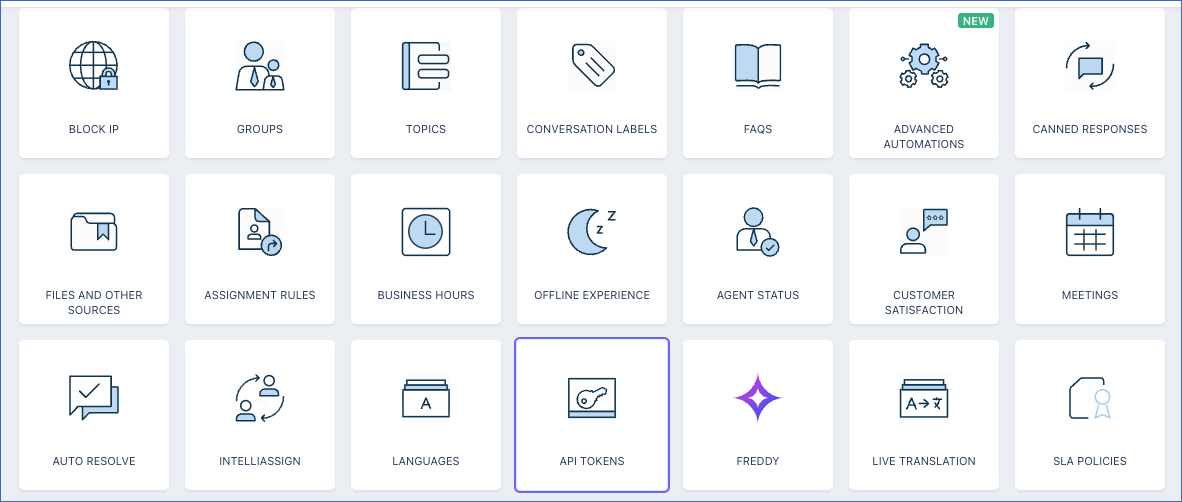
Click the Admin icon in the left navigation pane, and then click API Tokens.
-
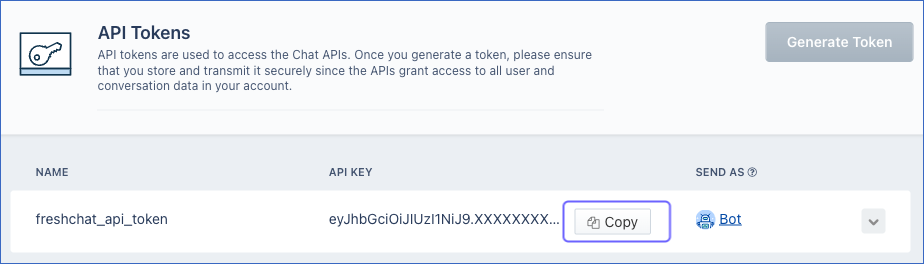
On the API Tokens page, if no token is listed, click Generate Token.
-
Click Copy next to the token, and save it securely like any other password.
The subdomain of your account is the part of your Freshchat URL before .freshchat.com. For example, if you access Freshchat at https://acme-1a2b3c4d5e6f7a8b9c0d123456.freshchat.com, the subdomain is acme-1a2b3c4d5e6f7a8b9c0d123456.
If the API token that you provided to Hevo is no longer valid, Hevo cannot authenticate with Freshchat. As a result, all active jobs of the Pipeline fail. To resume data replication, modify the Source configuration in the Pipeline with the new token. Once the updated configuration is saved, Hevo re-authenticates the Source, and data ingestion resumes from the last saved position.
Configure Freshchat as a Source in your Pipeline
Perform the following steps to configure your Freshchat Source:
-
Click Pipelines in the Navigation Bar.
-
Click + Create Pipeline in the Pipelines List View.
-
On the Select Source Type page, select Freshchat.
-
On the Select Destination Type page, select the type of Destination you want to use.
-
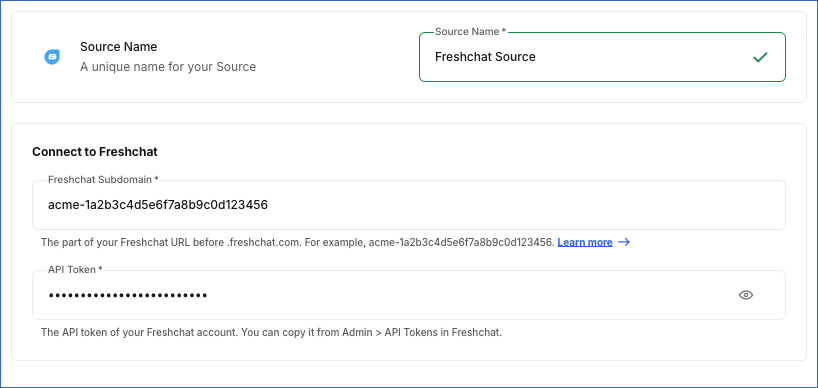
In the Configure Source screen, specify the following:
-
Source Name: A unique name for your Source, not exceeding 255 characters. For example, Freshchat Source.
-
In the Connect to Freshchat section:
-
-
Click Test & Continue to test the connection to your Freshchat Source. Once the test is successful, you can proceed to set up your Destination.
When you click this button, Hevo checks that Freshchat accepts the API token by reading the configuration of your account.
Data Replication
Hevo replicates data for all the objects selected on the Configure Objects page during Pipeline creation. By default, all supported objects and their available fields are selected. However, you can modify this selection while creating or editing the Pipeline. To ingest a child object, you must also select its parent object. For example, to ingest the Channel Tag object, you must also select the Channel object. The Data Model lists the child objects of each parent object.
In the first run of the Pipeline, Hevo ingests all the data available for the selected objects in your Freshchat account. In the subsequent runs, as per the sync frequency, Hevo ingests data as follows:
| Ingestion | Parent Objects |
|---|---|
| All the records, in each run | Agent, Channel, Conversation Property, Groups, and Role |
| The users created or updated since the previous run | Users |
| All the conversations of all users, and their messages, in each run | Conversation and Conversation Message |
| In the first run, the daily CSAT metrics since January 1, 2016, and the other metrics for the last 24 hours. In subsequent runs, the metrics since the previous run. | Conversation Metrics, CSAT Metrics, Team Performance First Response Time, Team Performance Resolution Time, and Team Performance Response Time |
| The report records since the previous run | Conversation Report and CSAT Report |
Hevo ingests the child objects of a parent object along with it.
Freshchat provides the data of the CSAT Report and Conversation Report objects as report exports. Freshchat allows one export of each report in a minute, for a period of up to one month, and only for the last 60 months. In the first run, Hevo ingests up to 59 months of data of these objects, the most recent first. In subsequent runs, Hevo ingests the data since the previous run.
Freshchat limits the number of API requests that your account can make in an hour, based on your plan. Read Rate limits. If Freshchat returns a rate limit error, Hevo waits and retries the request, or defers the object to the next run. To understand how Hevo handles such scenarios, read Handling Rate Limit Exceptions.
Schema and Primary Keys
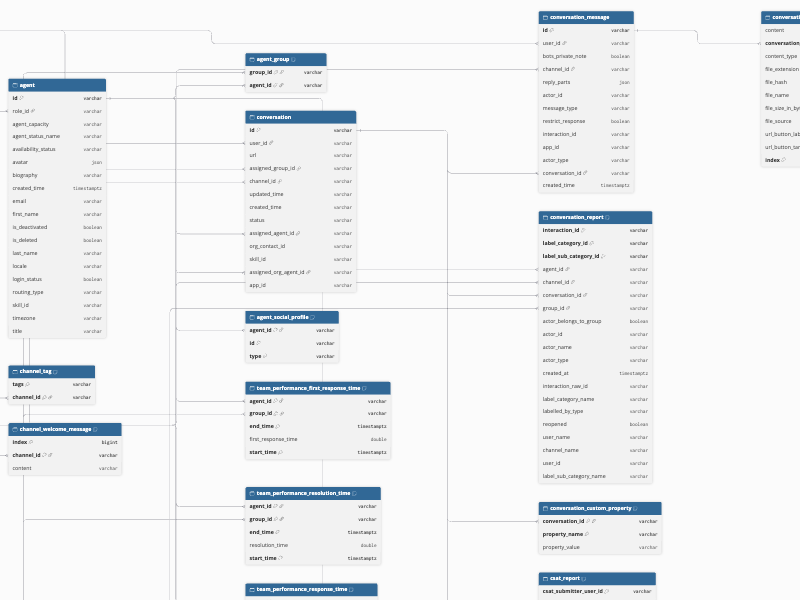
Hevo uses the following schema to upload the records in the Destination. For a detailed view of the objects, fields, and relationships, click the ERD.
Data Model
The following is the list of tables (objects) that are created at the Destination when you run the Pipeline:
| Object | Description |
|---|---|
| Agent | Contains the agents of your Freshchat account, such as the name, email address, role, availability status, and whether the agent is deactivated. It includes the following child objects: - Agent Group - Agent Social Profile |
| Channel | Contains the channels (topics) of your Freshchat account, such as the name, locale, and whether the channel is enabled and public. It includes the following child objects: - Channel Tag - Channel Welcome Message |
| Conversation | Contains the conversations of your Freshchat account, such as the user, channel, status, and the agent and group that each conversation is assigned to. It includes a child object, Conversation Custom Property. |
| Conversation Message | Contains the messages of each conversation, such as the sender, message type, and the time at which it was sent. It includes a child object, Conversation Message Part. |
| Conversation Metrics | Contains the conversation metrics of your account for each time period, such as the number of assigned interactions and of conversations that are unassigned. |
| Conversation Property | Contains the default and custom properties of conversations, such as the name, label, type, and default value of each property. It includes a child object, Conversation Property Choice. |
| Conversation Report | Contains the conversation resolution labels, such as the label category and sub-category, the conversation, the agent, and the group of each labelled conversation. |
| CSAT Metrics | Contains the customer satisfaction (CSAT) metrics of your account for each day, such as the number of rated, satisfactory, and unsatisfactory interactions. |
| CSAT Report | Contains the CSAT ratings submitted by users, such as the rating, the response, whether the issue was resolved, and the conversation, agent, and group of each rating. |
| Groups | Contains the agent groups of your Freshchat account, such as the name, description, and routing type of each group. |
| Role | Contains the roles of your Freshchat account, such as the name, description, and whether the role is a custom role. |
| Team Performance First Response Time | Contains the first response time of each agent and group for each time period. |
| Team Performance Resolution Time | Contains the resolution time of each agent and group for each time period. |
| Team Performance Response Time | Contains the response time of each agent and group for each time period. |
| Users | Contains the users (customers) of your Freshchat account, such as the name, email address, phone number, reference ID, and the custom properties of each user. |
Additional Information
Read the detailed Hevo documentation for the following related topics:
Handling of Deletes
Freshchat does not mark deleted records in its API responses. Hevo captures deletes as follows:
-
Agent, Channel, Conversation Property, Groups, and Role objects and their child objects, and the Conversation Custom Property object: Hevo ingests all the records of these objects in each run. If a record that exists in the Destination is not returned by Freshchat, Hevo marks it as deleted by setting the value of the metadata column, __hevo_marked_deleted, to True.
-
Users, Conversation, Conversation Message, and the metrics and report objects: records deleted in Freshchat remain in the Destination.
Source Considerations
- Hevo creates a table in the Destination only for the objects that have data. For example, if no agent has a social profile, the Agent Social Profile table is not created.