Fathom is an AI-powered meeting assistant that automatically records, transcribes, and summarizes video meetings. It integrates with conferencing platforms such as Zoom and Google Meet to generate AI-written summaries, action items, and searchable transcripts, enabling teams to capture and share key meeting outcomes without manual note-taking.
Hevo uses Fathom’s REST API to replicate data from your Fathom account to the Destination of your choice. To ingest data, you must provide Hevo with an API key for authentication.
Supported Features
| Feature Name | Supported |
|---|---|
| Capture deletes | No |
| Custom data (user-configured tables & fields) | No |
| Data blocking (skip objects and fields) | Yes |
| Resync (objects and Pipelines) | Yes |
| API configurable | No |
| Authorization via API | Yes |
Prerequisites
-
An active Fathom account exists from which data is to be ingested.
-
An API key to provide Hevo access to your Fathom account data.
Obtain the API Key
To connect Hevo to your Fathom account, you must generate an API key. Fathom API keys do not expire and can be reused across all your Pipelines.
Perform the following steps to obtain the API key:
-
Log in to your Fathom account.
-
In the top right corner of the page, click Settings.

-
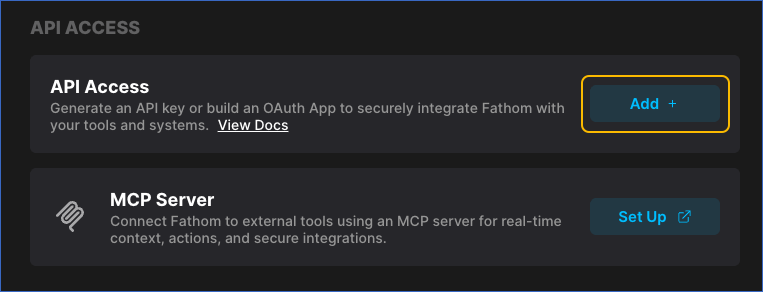
On the page that appears, scroll down to the API ACCESS section and click Add +.
-
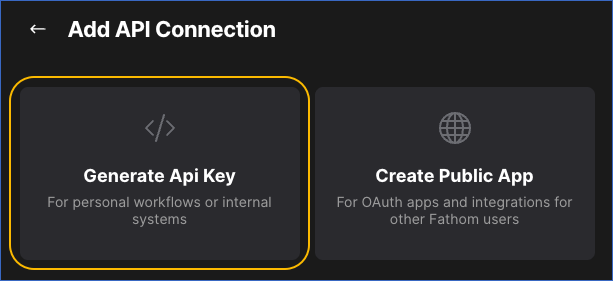
On the Add API Connection page, click Generate Api Key.
-
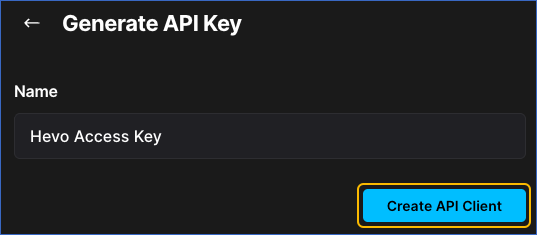
On the Generate API Key page, specify a name for the API key, and then click Create API Client.
-
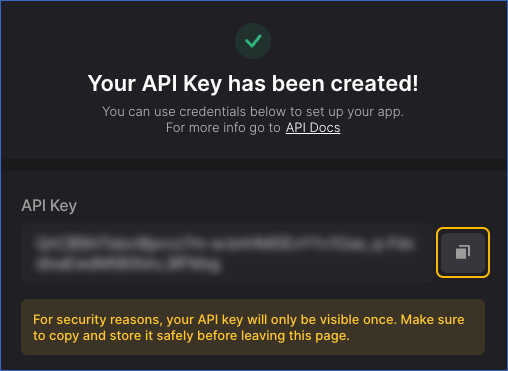
Click the Copy icon to copy the API Key and save it securely like any other password. Use this token while configuring your Fathom Source in Hevo.
If the API key configured in the Pipeline is revoked manually from your Fathom account, Hevo cannot authenticate with the Source. As a result, all active jobs for the Pipeline fail, and no data is replicated. To resume data replication, modify the Source configuration in the Pipeline with a valid API key. Once the updated key is saved, Hevo re-authenticates the Source, and data ingestion resumes from the last saved offset.
Configure Fathom as a Source in your Pipeline
Perform the following steps to configure your Fathom Source:
-
Click Pipelines in the Navigation Bar.
-
Click + Create Pipeline in the Pipelines List View.
-
On the Select Source Type page, select Fathom.
-
On the Select Destination Type page, select the type of Destination you want to use.
-
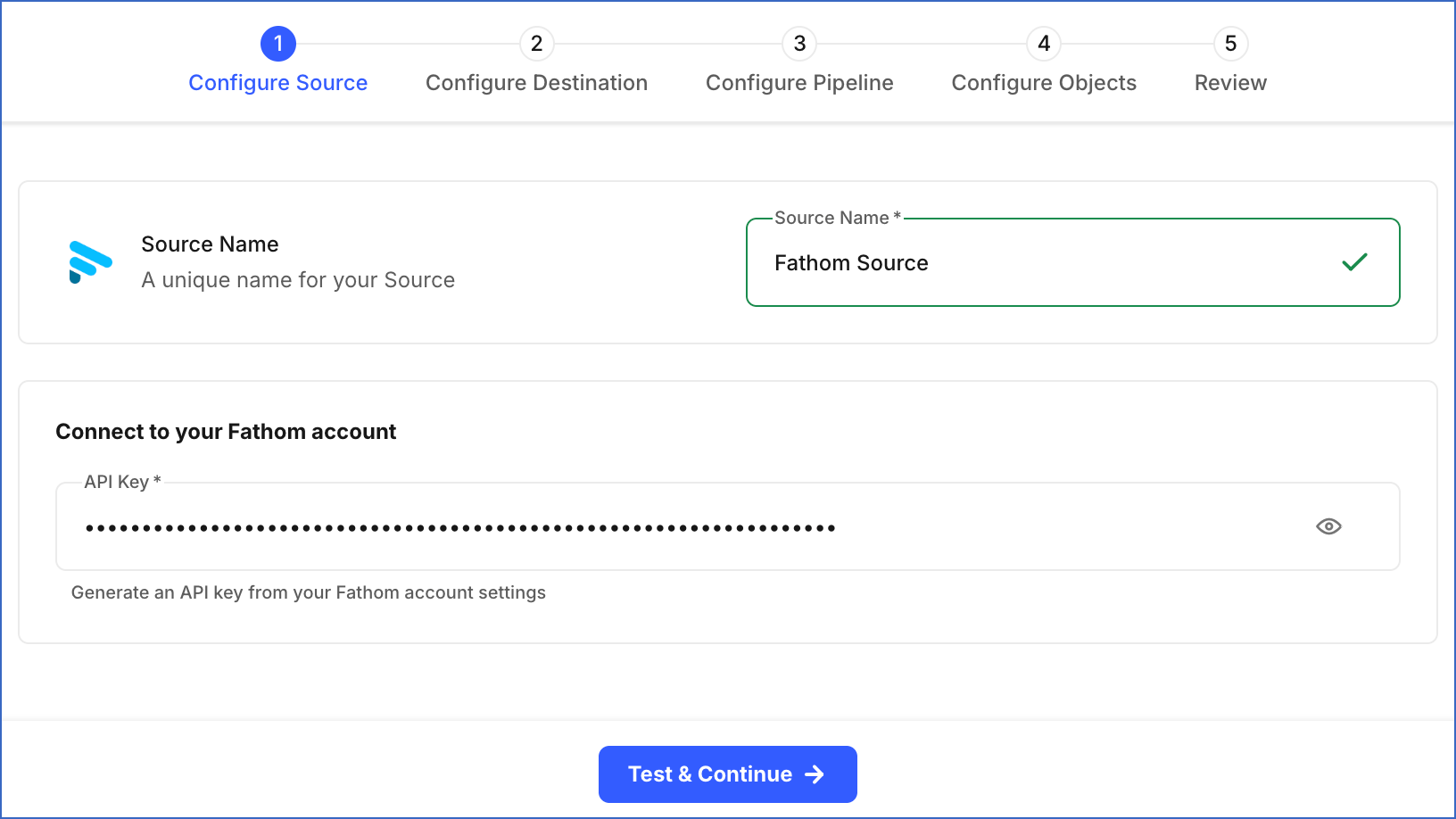
In the Configure Source screen, specify the following:
-
Source Name: A unique name for your Source, not exceeding 255 characters. For example, Fathom Source.
-
API Key: The API key that you obtained from your Fathom account. The value of this field is masked for security.
-
-
Click Test & Continue to test the connection to your Fathom Source. Once the test is successful, you can proceed to set up your Destination.
Data Replication
Hevo replicates data for all the objects selected on the Configure Objects page during Pipeline creation. By default, all supported objects and their available fields are selected. However, you can modify this selection while creating or editing the Pipeline.
Selecting a parent object automatically includes all its associated child objects for replication. Child objects cannot be selected or deselected individually.
Hevo ingests the following types of data from your Source objects:
-
Historical Data: The first run of the Pipeline ingests all available historical data for the selected objects and loads it into the Destination.
-
Incremental Data: Once the historical load is complete, new and updated records for objects are ingested as per the sync frequency.
For all objects, Hevo ingests only the incremental data in subsequent Pipeline runs using the created_at timestamp field:
Fathom currently enforces a rate limit of 60 API requests per minute. If this limit is exceeded, a rate limit exception occurs. To understand how Hevo handles such scenarios, read Handling Rate Limit Exceptions.
Note: You can create a Pipeline with this Source only using the Merge load mode. The Append mode is not supported for this Source.
Schema and Primary Keys
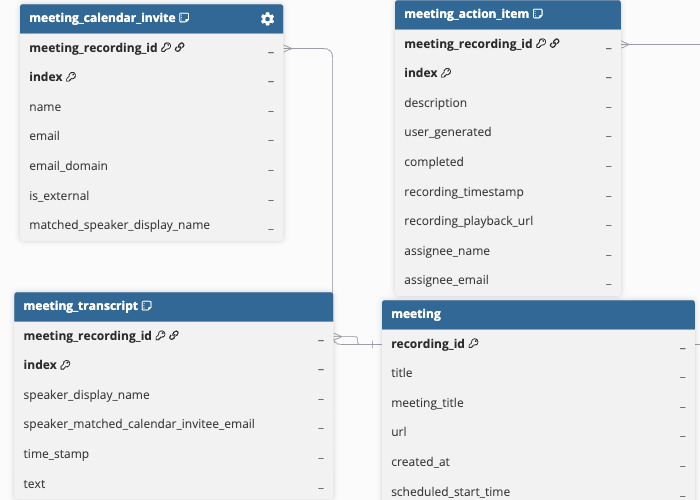
Hevo uses the following schema to upload the records to the Destination. For a detailed view of the objects, fields, and relationships, click the ERD.
Data Model
The following is the list of tables (objects) that are created at the Destination when you run the Pipeline:
| Object | Description |
|---|---|
| Meeting | Contains meeting recording details, including title, scheduled and actual recording times, AI-generated summary, transcript language, CRM match status, share URL, and details of the person who recorded the meeting. This object has the following child objects: - Meeting Calendar Invite - Meeting Action Item - Meeting Transcript |
| Meeting Calendar Invite | Contains calendar invitee information for each meeting, including the invitee’s name, email address, email domain, whether the invitee is external to the organization, and whether the invitee was matched as a speaker during the meeting. |
| Meeting Action Item | Contains action items associated with a meeting, including the description, assignee name and email, completion status, recording timestamp, playback URL, and whether the action item was user-created or AI-generated. |
| Meeting Transcript | Contains transcript segments for a meeting recording, including the speaker’s display name, matched calendar invitee email, timestamp within the recording, and the transcribed text. |
Additional Information
Read the detailed Hevo documentation for the following related topics:
Source Considerations
-
The initial Pipeline run ingests meeting data starting from January 1, 2020. As Fathom was introduced in 2020, meeting data is not available for dates before this.
-
Transcripts may not be available for all meetings. Meetings without speech content, very short meetings, or meetings where transcript generation is not enabled in your Fathom account do not have transcripts. In such cases, no Meeting Transcript records are ingested for those meetings.