Facebook Pages is Meta’s platform that lets businesses, brands, and public figures create a public presence, publish posts, and engage with their audiences. Pages provide tools such as post publishing, engagement tracking, and Page and post-level insights that help businesses understand how their audience is growing and interacting with their content.
Hevo uses Meta’s Graph API to replicate data from your Facebook Pages account to the Destination of your choice.
Hevo supports the following authentication methods to connect to your Facebook Pages account:
-
Grant User Access: Allows Hevo to connect to your account through an authorization flow, where you sign in to Facebook and grant Hevo access to your Page data.
-
Use System User Token: Allows Hevo to connect to your account using a system user access token that you generate in Meta Business Manager.
-
OAuth app: Allows Hevo to connect to your account using the App ID, App Secret, and long-lived access token of a Meta app that you create in your developer account.
Note: To create a Pipeline with Facebook Pages as the Source using an OAuth app, you must use the Create a Pipeline endpoint through the Hevo API. This method is not available in the Hevo UI. Read Creating a Pipeline with Hevo API for the steps to create the Pipeline.
Supported Features
| Feature Name | Supported |
|---|---|
| Capture deletes | No |
| History mode | No |
| Custom data (user-configured tables & fields) | No |
| Data blocking (skip objects and fields) | Yes |
| Resync (objects and Pipelines) | Yes |
| API configurable | Yes |
Prerequisites
-
An active Facebook account from which data is to be ingested.
-
You have Admin access to the Facebook Page or Meta Business Manager to generate a system user access token.
-
The system user access token is available and has the required permissions to provide Hevo access to your Facebook Pages data.
Obtain the System User Access Token
A system user access token allows Hevo to access your Facebook Pages account without requiring OAuth authorization. Generate a system user access token in Meta Business Manager and ensure it has the required permissions for the Pages you want to sync.
Use this token when configuring your Facebook Pages Source in Hevo. If the system user access token configured in the Pipeline is revoked in Meta Business Manager, Hevo cannot authenticate with the Source. As a result, all active jobs for the Pipeline fail, and no data is replicated until the authentication issue is resolved. To resume data replication, modify the Source configuration in the Pipeline with a valid system user access token. Once the updated token is saved, Hevo re-authenticates the Source, and data ingestion resumes from the last saved offset.
Configure Facebook Pages as a Source in your Pipeline
Perform the following steps to configure your Facebook Pages Source:
-
Click Pipelines in the Navigation Bar.
-
Click + Create Pipeline in the Pipelines List View.
-
On the Select Source Type page, select Facebook Pages.
-
On the Select Destination Type page, select the type of Destination you want to use.
-
On the Select Pipeline Type page, click Edge, and then click Continue.
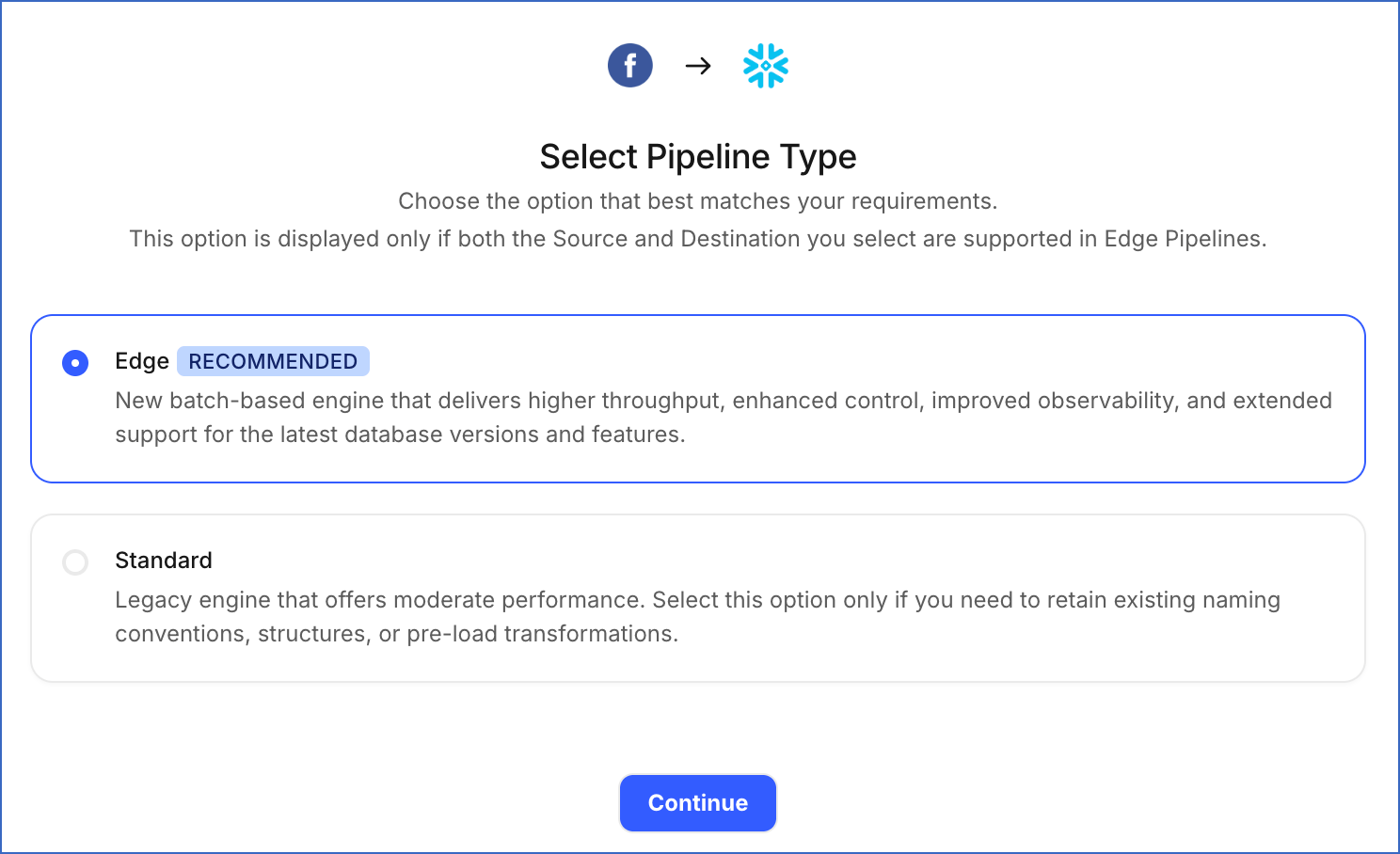
This page appears only if the selected Destination type is supported in Edge and your Team has an existing Facebook Pages Pipeline with the same Destination type. Otherwise, you can proceed to create an Edge Pipeline.
-
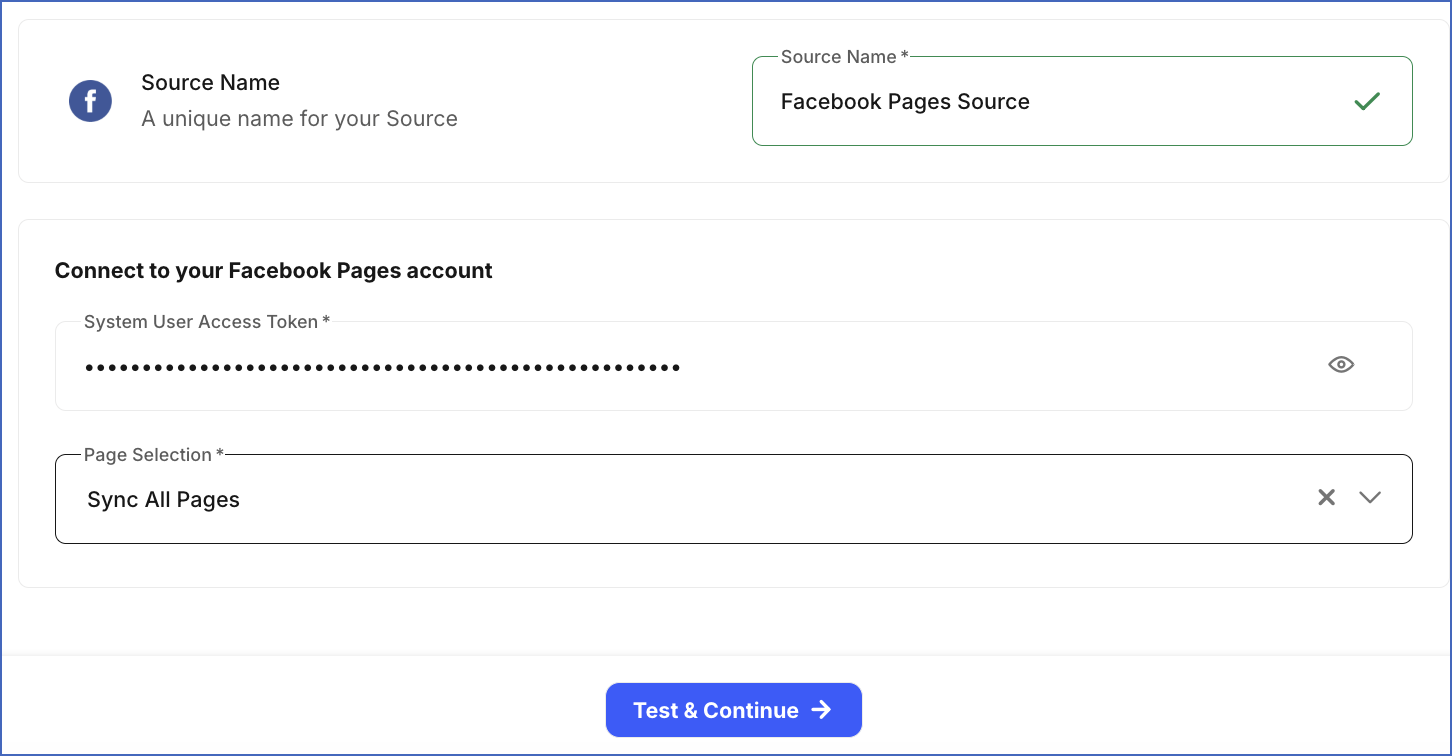
In the Configure Source screen, specify the following:
-
Source Name: A unique name for your Source, not exceeding 255 characters. For example, Facebook Pages Source.
-
System User Access Token: Specify the system user access token generated in Meta Business Manager.
-
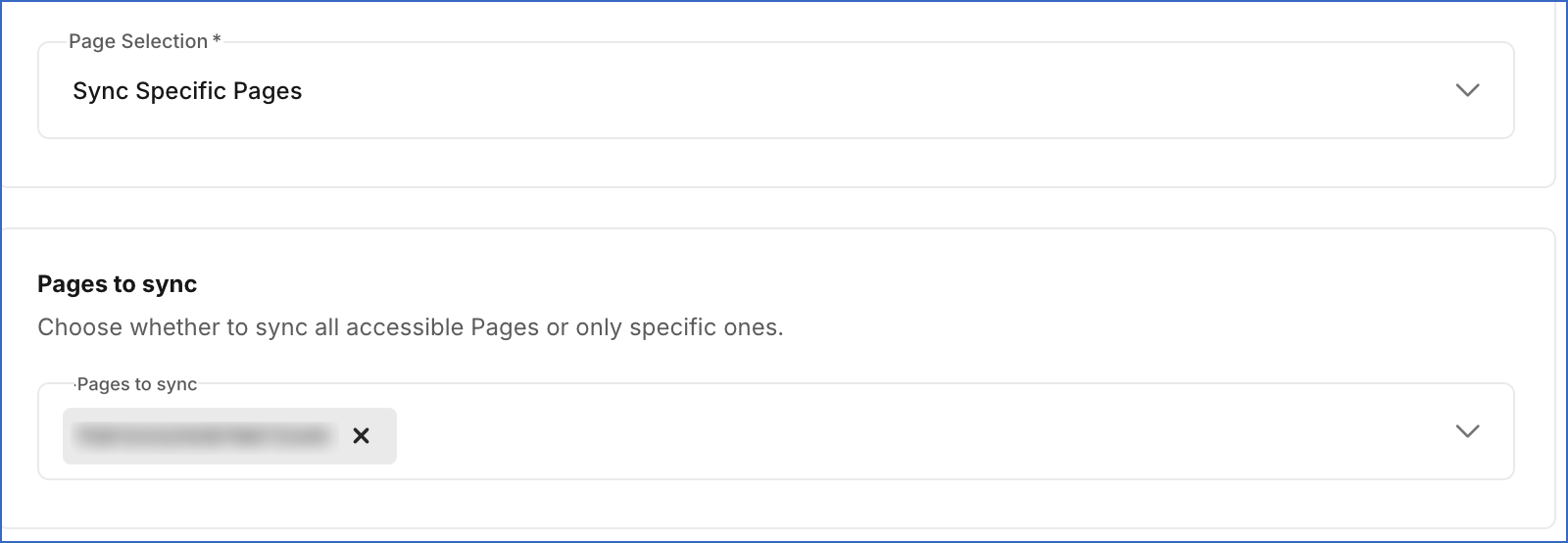
Page Selection: From the drop-down, select whether to sync all Pages accessible through your authentication method or only specific pages. Default value: Sync All Pages.
-
Sync All Pages: Hevo syncs data for all Facebook Pages accessible through your authorized account, including any Pages added later.
-
Sync Specific Pages: Select the Pages you want to sync from the Pages to sync drop-down.
-
-
-
Click Test & Continue to test the connection to your Facebook Pages Source. Once the test is successful, you can proceed to set up your Destination.
Data Replication
Hevo replicates data for all the objects selected on the Configure Objects page during Pipeline creation. By default, all supported objects and their available fields are selected. However, you can modify this selection while creating or editing the Pipeline.
Hevo ingests the following types of data from your Source objects:
-
Historical Data: The first run of the Pipeline ingests all available historical data for the selected objects and loads it into the Destination.
-
Incremental Data: Once the historical load is complete, new and updated records for objects are ingested as per the sync frequency.
For the following objects, Hevo ingests only the incremental data in subsequent Pipeline runs:
- Daily Page Metrics by City
- Daily Page Metrics by Country
- Daily Page Metrics by Paid Non Paid
- Daily Page Metrics by Paid Organic
- Daily Page Metrics
- Daily Page Metrics by Crosspost Status
- Daily Page Metrics by Earning Source
- Daily Page Metrics by Monetization Tool
- Daily Page Monetization Metrics
- Daily Post Metrics by Locale
- Daily Post Metrics
- Daily Post Metrics by Monetization Tool
- Daily Post Monetization Metrics
- Unique Daily Page Metrics by Paid Non Paid
- Unique Daily Page Metrics
- Unique Daily Post Metrics
Hevo also re-fetches data for the last 5 days for these objects every 24 hours. This captures any updates made to previously ingested data and keeps your Destination up to date.
For all other objects, Hevo ingests the entire data during each Pipeline run.
Facebook enforces a rate limit on the number of calls that can be made to its API in a given time period. If this limit is exceeded, a rate limit exception occurs. To understand how Hevo handles such scenarios, read Handling Rate Limit Exceptions.
Note: You can create a Pipeline with this Source only using the Merge load mode. The Append mode is not supported for this Source.
Schema and Primary Keys
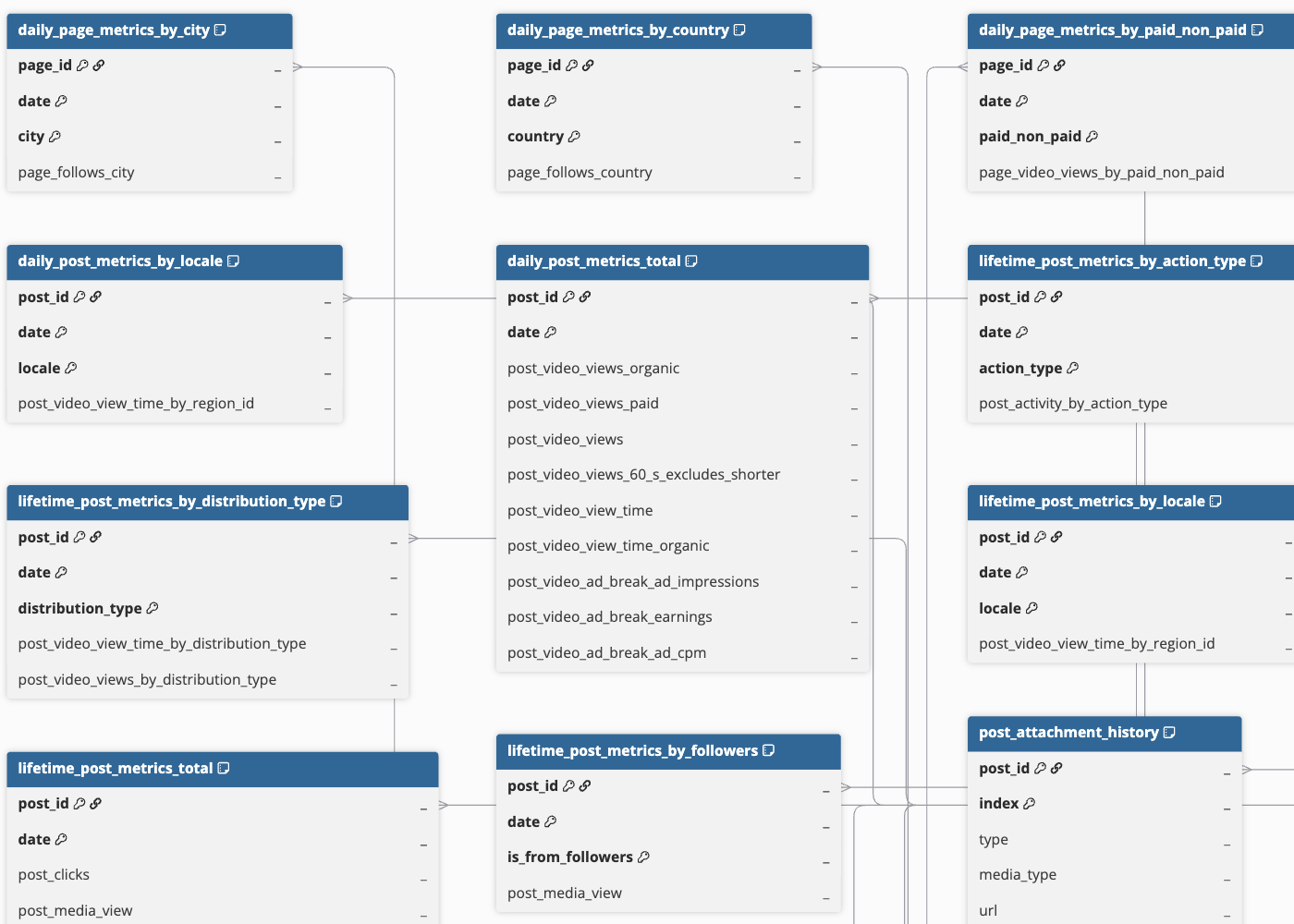
Hevo uses the following schema to replicate the records to the Destination. For a detailed view of the objects, fields, and relationships, click the ERD.
Data Model
The following tables (objects) are created at the Destination when you run the Pipeline:
| Object | Description |
|---|---|
| Daily Page Metrics | Contains daily performance metrics for a Facebook page, including media views, post engagements, follows, and reaction counts by type. It includes the following child objects: - Unique Daily Page Metrics - Daily Page Metrics by Paid Non Paid - Unique Daily Page Metrics by Paid Non Paid - Daily Page Metrics by Paid Organic - Daily Page Metrics by City - Daily Page Metrics by Country |
| Daily Page Monetization Metrics | Contains earnings metrics for a Facebook page, recorded for each day, such as the estimated amount earned and the value and currency of payments received for content. It includes the following child objects: - Daily Page Metrics by Earning Source - Daily Page Metrics by Crosspost Status - Daily Page Metrics by Monetization Tool |
| Daily Post Metrics | Contains daily post metrics for video content published on a Facebook page, such as organic and paid views, watch time, and ad break performance. It includes the following child objects: - Unique Daily Post Metrics - Daily Post Metrics by Locale |
| Daily Post Monetization Metrics | Contains earnings metrics for the content published on a Facebook page, recorded for each day, such as the estimated amount earned and the value and currency of payments received for that content. It includes a child object, Daily Post Metrics by Monetization Tool. |
| Lifetime Post Metrics | Contains all-time performance metrics for content published on a Facebook page, such as clicks, media views, reactions by type, and video watch and completion metrics. It includes the following child objects: - Unique Lifetime Post Metrics - Lifetime Post Metrics by Action Type - Unique Lifetime Post Metrics by Action Type - Lifetime Post Metrics by Type - Lifetime Post Metrics by Video Interval - Lifetime Post Metrics by Country - Lifetime Post Metrics by Locale - Lifetime Post Metrics by Age and Gender - Lifetime Post Metrics by Distribution Type - Lifetime Post Metrics by Followers - Lifetime Post Metrics by Paid Organic |
| Lifetime Post Monetization Metrics | Contains all-time earnings metrics for content published on a Facebook page, such as the estimated amount earned and the value and currency of payments received for that content. It includes a child object, Lifetime Post Metrics by Monetization Tool. |
| Lifetime Reel Metrics | Contains all-time performance metrics for Reels published on a Facebook page, such as play counts, average time watched, and view time. It includes a child object, Lifetime Reel Metrics by Type. |
| Page | Contains details about a Facebook page, such as its name, category, contact information, follower and fan counts, and publishing status. |
| Page Video | Contains details about videos published on a Facebook page, such as the title, description, format, privacy settings, publish and update timestamps, and view counts. It includes a child object, Page Video Thumbnail. |
| Post | Contains details of the content published on a Facebook page, such as the message, permalink, publish and update timestamps, visibility status, and share count. It includes the following child objects: - Post Attachment - Post Tagged Profile - Post Video Property |
| Post Comment | Contains details of comments on content published on a Facebook page, such as the comment message, like and reply counts, attachment details, and the actions the commenter can perform. |
| Reel | Contains details about Reels published on a Facebook page, such as the title, description, content category and tags, publish and update timestamps, permalink, and processing status. |
Additional Information
Read the detailed Hevo documentation for the following related topics:
Source Considerations
-
Page insights data is available only for Pages with at least 100 likes.
-
Facebook retains Page and Post Insights metric data for up to two years. Historical data older than this period is not available for ingestion.