ClickUp is a cloud-based project management and productivity platform that enables teams to plan, track, and collaborate on work in one place. It provides a flexible hierarchy of workspaces, spaces, folders, lists, and tasks, and supports features such as goals, time tracking, custom fields, and multiple view types including list, board, calendar, and Gantt charts.
Hevo uses the ClickUp REST API v2 to replicate data from your ClickUp account to the Destination of your choice. To ingest data, you must provide Hevo with a ClickUp API Token for authentication.
Supported Features
| Feature Name | Supported |
|---|---|
| Capture deletes | Yes |
| Custom data (user-configured tables & fields) | No |
| Data blocking (skip objects and fields) | Yes |
| Resync (objects and Pipelines) | Yes |
| API configurable | Yes |
| Authorization via API | Yes |
Prerequisites
-
An active ClickUp account exists from which data is to be ingested.
-
A ClickUp API Token to provide Hevo access to your ClickUp account data.
Obtain the API Key
To connect Hevo to your ClickUp account, you must obtain your API Token.
Note: ClickUp API Tokens do not expire automatically but can be regenerated at any time.
Perform the following steps to obtain the API Token:
-
Log in to your ClickUp account.
-
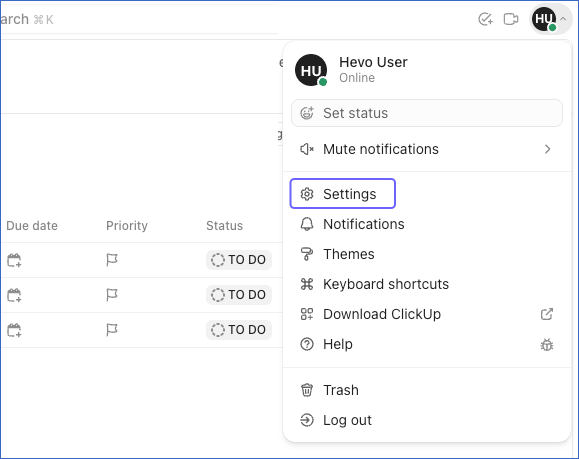
In the top-right corner of the page, click your profile icon, and then click Settings.
-
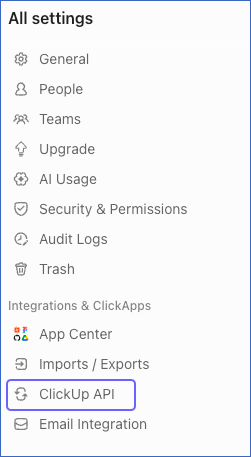
In the left navigation pane, click ClickUp API.
-
Under the API Token section, click Generate or Regenerate to create a new token, or click Copy to copy your existing token.
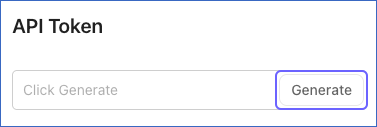
Note: Regenerating your API Token immediately invalidates the previous token. Any Pipeline using the old token stops replicating data until the token is updated.
-
Click Copy corresponding to the API token to copy it, and save it securely like any other password. Use this token while configuring your ClickUp Source in Hevo.

Note: If the API Token configured in the Pipeline is revoked or regenerated in your ClickUp account, Hevo can no longer authenticate with the Source. As a result, all active jobs for the Pipeline fail and data ingestion stops. To resume data replication, modify the Source configuration in the Pipeline with a valid API Token. Once the updated token is saved, Hevo re-authenticates the Source, and data ingestion resumes from the last saved offset.
Configure ClickUp as a Source in your Pipeline
Perform the following steps to configure your ClickUp Source:
-
Click Pipelines in the Navigation Bar.
-
Click + Create Pipeline in the Pipelines List View.
-
On the Select Source Type page, select ClickUp.
-
On the Select Destination Type page, select the type of Destination you want to use.
-
On the Select Pipeline Type page, click Edge, and then click Continue.
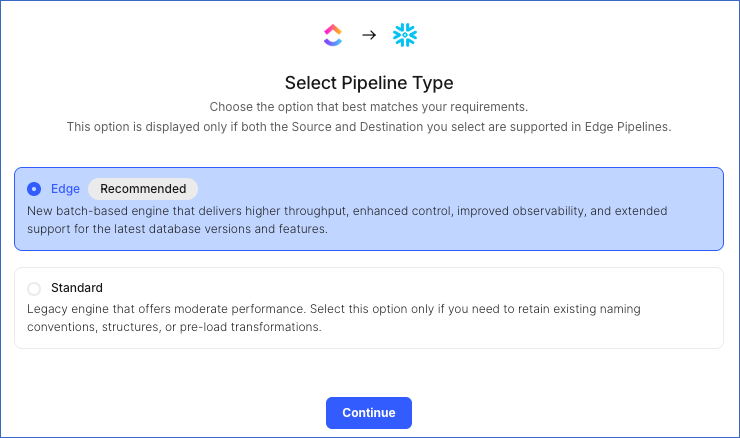
This page appears only if the selected Destination type is supported in Edge and your team has an existing ClickUp Pipeline with the same Destination type. Otherwise, you can proceed to create an Edge Pipeline.
-
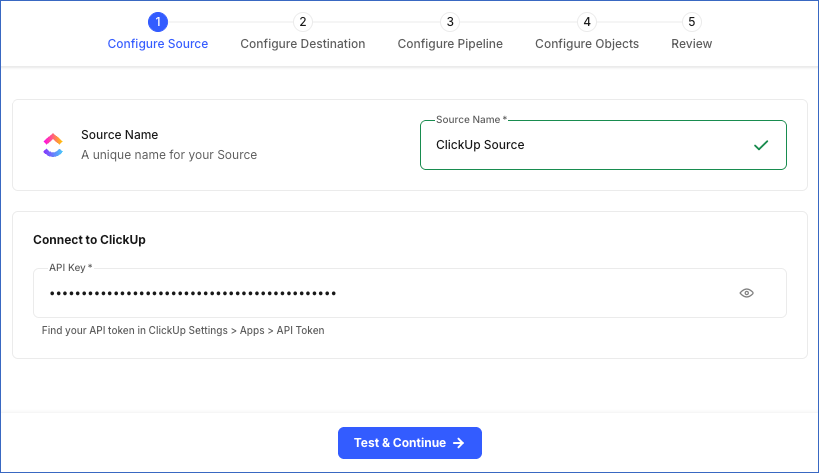
In the Configure Source screen, specify the following:
-
Source Name: A unique name for your Source, not exceeding 255 characters. For example, ClickUp Source.
-
In the Connect to ClickUp section, specify the following:
- API Key: The API Token that you obtained from your ClickUp account to allow Hevo to access your data.
-
-
Click Test & Continue to test the connection to your ClickUp Source.
When you click this button, Hevo validates that the API Key field is not null or empty, then makes a request to the
GET /userendpoint to retrieve the authenticated user’s profile. If the request confirms that the token is valid and has workspace access, the connection test is marked as successful. You can then proceed to set up your Destination.
Data Replication
Hevo replicates data for all the objects selected on the Configure Objects page during Pipeline creation. By default, all supported objects and their available fields are selected. However, you can modify this selection while creating or editing the Pipeline.
Selecting a parent object automatically includes all its associated child objects for replication. Child objects cannot be selected or deselected individually.
Hevo ingests the following types of data from your Source objects:
-
Historical Data: The first run of the Pipeline ingests all available historical data for the selected objects and loads it into the Destination.
-
Incremental Data: Once the historical load is complete, new and updated records for objects are ingested as per the sync frequency.
For Task and Time Entry objects and their child objects, Hevo ingests only the incremental data in subsequent Pipeline runs. Incremental changes are detected using the date_updated and start_time timestamp fields, respectively.
For all other objects, Hevo ingests the entire data during each Pipeline run.
Note: You can create a Pipeline with this Source only using the Merge load mode. The Append mode is not supported for this Source.
Currently, ClickUp enforces API rate limits. If the rate limit is exceeded, a rate limit exception occurs. Hevo handles such scenarios using built-in retry logic, applicable to both historical and incremental ingestion. To understand how Hevo handles such scenarios, read Handling Rate Limit Exceptions.
Schema and Primary Keys
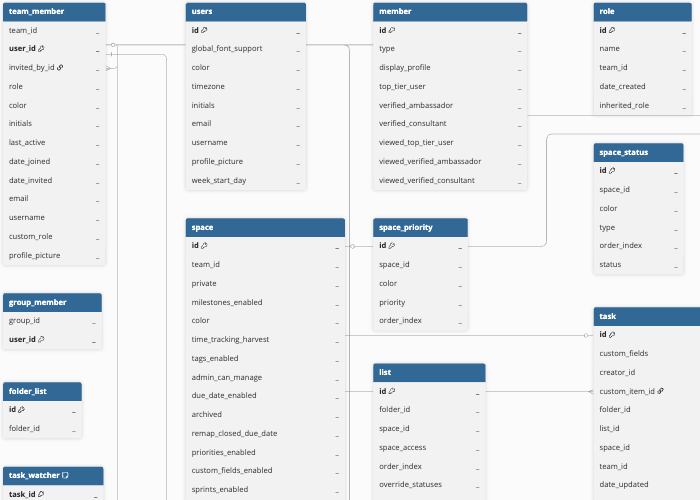
Hevo uses the following schema to upload the records in the Destination. For a detailed view of the objects, fields, and relationships, click the ERD.
Data Model
The following is the list of tables (objects) that are created at the Destination when you run the Pipeline:
| Object | Description |
|---|---|
| Team | Contains details of ClickUp workspaces (referred to as teams in ClickUp), including workspace name, avatar URL, and theme color. |
| Team Member | Contains details of members belonging to a workspace, including role (owner, admin, member, or guest), invitation information, last active timestamp, and contact details. |
| Users | Contains authenticated user profile details, including email, username, timezone, and display preferences. |
| Member | Contains workspace member summary details, including member type and profile badge information such as verified ambassador and consultant status. |
| Role | Contains custom roles defined in a workspace, including role name, creation date, and inheritance status. This object has the following child object: - Role Member |
| Groups | Contains details of user groups (teams within a workspace), including group name, handle, avatar, creation date, and creator information. This object has the following child object: - Group Member |
| Space | Contains details of spaces within a workspace, which serve as top-level project containers. Includes settings for features such as time tracking, tags, due dates, priorities, and custom fields. This object has the following child objects: - Space Priority - Space Status - Space Tag |
| Folder | Contains details of folders within a space, which serve as containers for lists. Includes folder name, task count, permission level, and archive status. This object has the following child objects: - Folder List - Folder List Status |
| List | Contains details of lists (task containers) within spaces and folders, including list name, task count, due date, start date, default priority, default assignee, and status information. |
| Task | Contains details of tasks, including task name, status, priority, dates (created, updated, due, start, closed, done), description, time tracking data, and custom field values. Hevo ingests incremental updates using the date_updated field. This object has the following child objects: - Task Assignee - Task Tag - Task Watcher - Task Checklist - Task Checklist Item - Task Dependency |
| Subtask | Contains details of subtasks (tasks that have a parent task), including subtask name, status, priority, dates, description, and the parent task ID. This object has the following child object: - Subtask Assignee |
| Comment | Contains comments on tasks, including comment text, author user ID, creation date, resolved status, assigned user, and reactions. |
| Time Entry | Contains time tracking entries, including start time, end time, duration, source, billable status, associated task, and the user who logged the time. Hevo ingests incremental updates using the start_time field. This object has the following child object: - Time Entry Task Tag |
| Goal | Contains details of goals (OKR-style objectives), including goal name, description, due date, completion percentage, owner, creator, and archive status. This object has the following child objects: - Goal Member - Goal Owner - Goal Group Member - Goal Folder - Goal Folder Member - Goal Group Member in Goal Folder - Goal Members in Goal Folder - Goal Owners in Goal Folder - Goals in Goal Folder |
| View | Contains details of saved views, including view name, type (list, board, calendar, gantt, and so on), creator, visibility, display order, and grouping and filter configurations. Hevo fetches views from both team-level and space-level endpoints. This object has the following child object: - View Column Field |
| Custom Item | Contains custom item types (task type definitions) available in a workspace, including item type name, description, and plural name. |
| Accessible Custom Field | Contains custom fields accessible on a list, including field name, type, type configuration, creation date, and guest visibility settings. |
| Task Template | Contains task templates defined in a workspace, including template name and workspace ID. |
Additional Information
Read the detailed Hevo documentation for the following related topics:
Handling of Deletes
ClickUp does not explicitly mark records as deleted in its API responses. When a record is deleted, it is no longer returned in subsequent API responses.
Hevo uses a full data refresh approach to capture delete actions for all the objects. During each Pipeline run, Hevo compares the data fetched from the Source object with the data present in the Destination table. If a record exists in the Destination but is no longer returned by the Source, the record is marked as deleted by setting the value of the metadata column __hevo__marked_deleted to True.
Source Considerations
-
If a task is deleted after Hevo fetches the task list but before it fetches the task comments in the same sync cycle, the comments for that task may not be ingested.
-
Team-level or Space-level views may not be ingested if the API Token used while configuring the Source does not have access to the corresponding Workspace or Space.