Checkout.com is a global payments platform that helps businesses accept payments, manage disputes, and move money. It also provides reports on the financial activity of your account, such as fees, payouts, and balances.
Hevo uses the Checkout.com API to replicate data from your Checkout.com account to the Destination of your choice. To ingest data, you must provide Hevo with an access key of your Checkout.com account, along with your Entity ID and the prefix of your account’s API base URL.
Supported Features
| Feature Name | Supported |
|---|---|
| Capture deletes | Yes (for some objects) |
| History mode | No |
| Custom data (user-configured tables & fields) | No |
| Data blocking (skip objects and fields) | Yes |
| Resync (objects and Pipelines) | Yes (for some objects) |
| API configurable | Yes |
Prerequisites
-
An active Checkout.com account in the Production or Sandbox environment from which data is to be ingested.
-
Access to the Developers section of the Checkout.com Dashboard to create an access key with the scopes required by Hevo and obtain the prefix.
Create an Access Key
Hevo connects to your Checkout.com account using an access key, which consists of an access key ID and an access key secret. Hevo uses the access key to obtain an OAuth 2.0 token from Checkout.com. You must create the access key in the environment, Production or Sandbox, from which you want to ingest data.
Perform the following steps to create an access key:
-
Log in to the Checkout.com Dashboard. To ingest data from the Sandbox environment, log in to the Sandbox Dashboard.
-
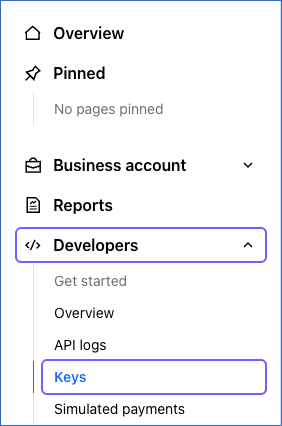
In the left navigation pane, click Developers, and then click Keys.
-
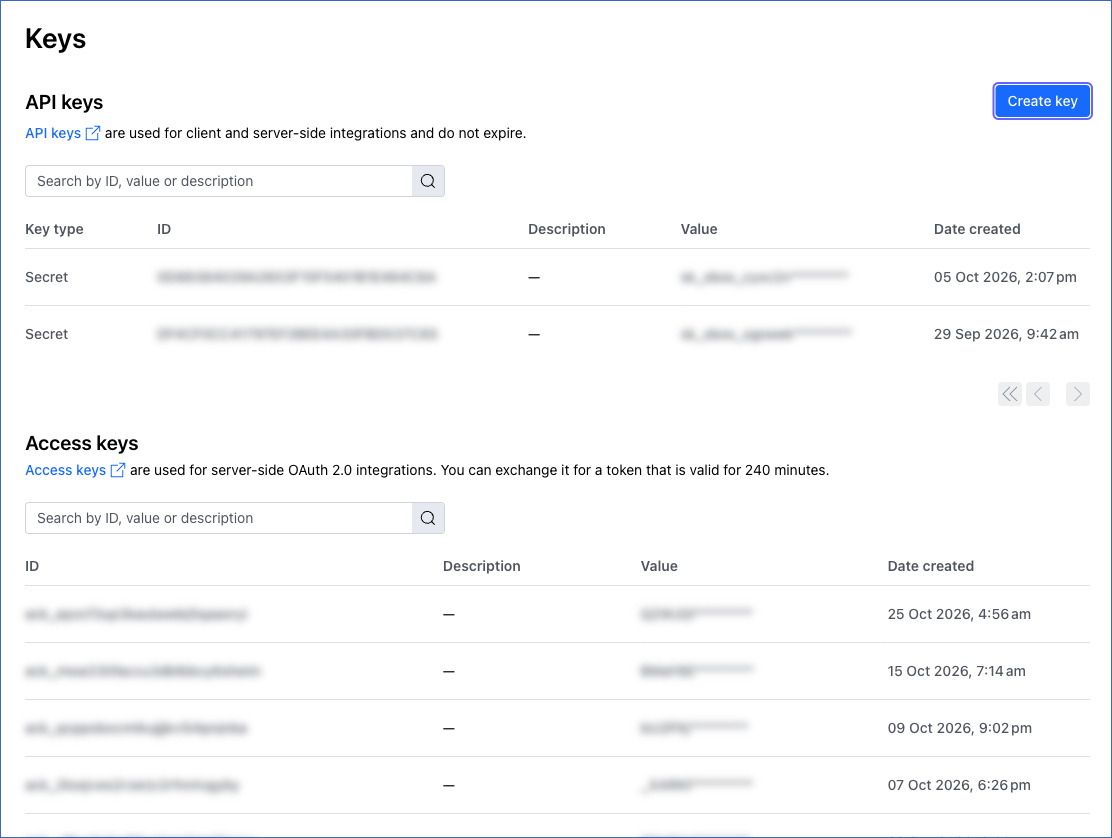
On the Keys page, click Create key.
-
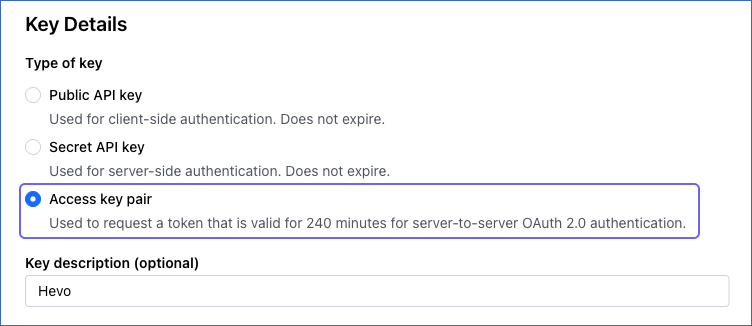
In the Key Details section, under Type of key, select Access key pair. Optionally, in the Key description (optional) field, specify a description for the key. For example, Hevo.
-
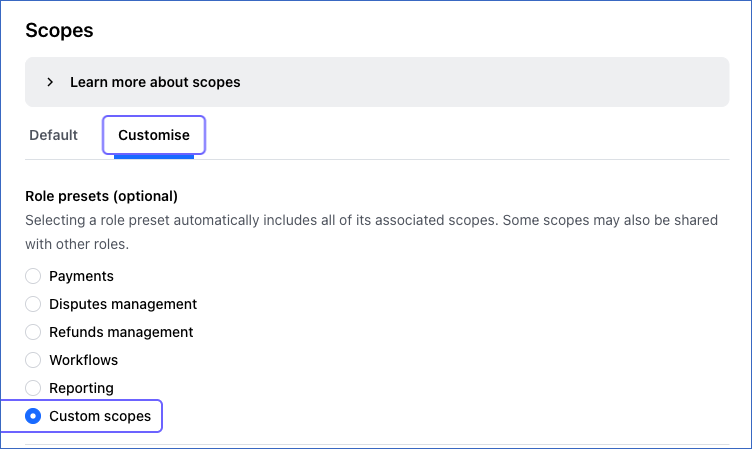
In the Scopes section, click the Customise tab, and then select Custom scopes.
-
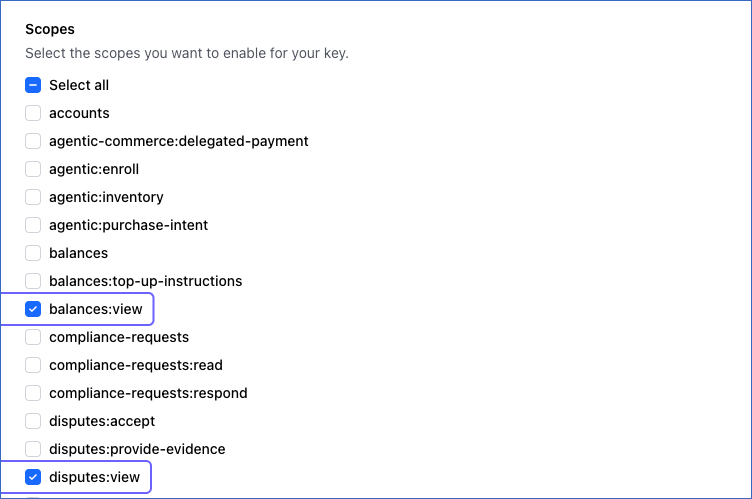
Under Scopes, clear the check boxes of the scopes that are selected by default, and then select the check box next to each scope required by Hevo. Hevo only reads data from Checkout.com, so the key does not need any other scopes.
-
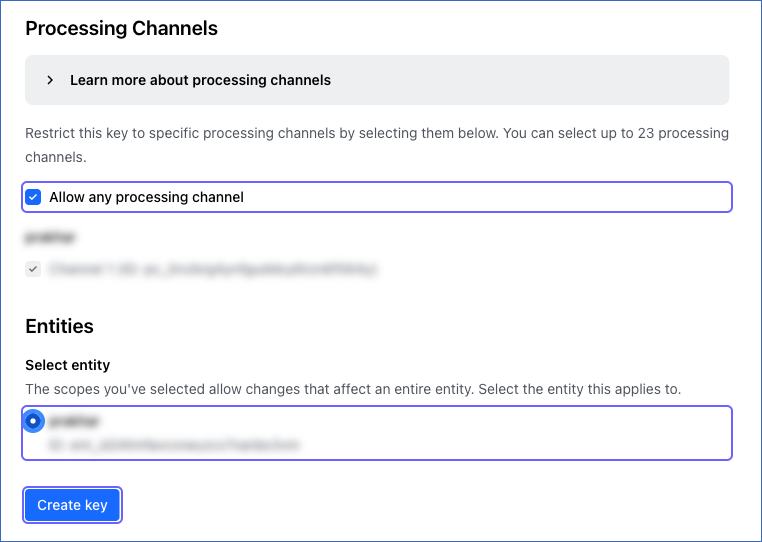
In the Processing Channels section, select the Allow any processing channel check box. Hevo requires this option to ingest your data. In the Entities section, under Select entity, select the entity whose balances you want to ingest. Then, click Create key.
-
On the Key details page, click the Copy (
 ) icon next to the Key ID and the Access Key Secret to copy them, and save them securely like any other password. Checkout.com displays the access key secret only once.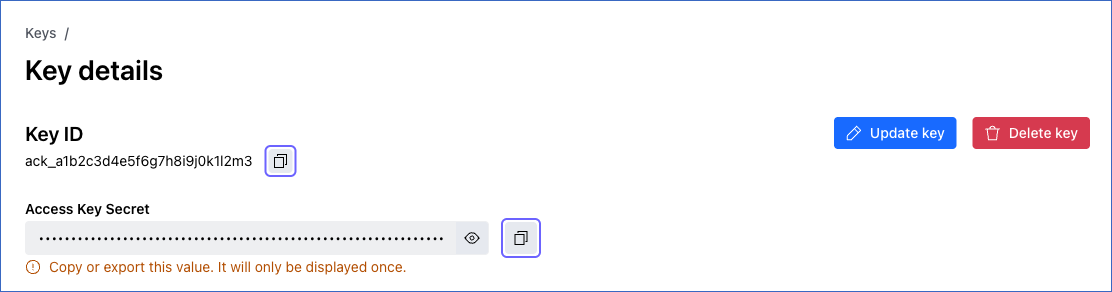
-
On the same page, in the Entity section, copy the ID that starts with ent_, and save it securely. You need to specify this ID as the Entity ID while configuring the Source.

Read OAuth 2.0 client credentials for more information about access keys.
If the access key is deleted in Checkout.com, Hevo cannot connect to your account, and the Pipeline fails. In the Source configuration, you can modify only the access key secret. The access key ID and the Entity ID cannot be changed. Therefore, to use a new access key or another entity, create a new Pipeline.
Scopes Required by Hevo
Your access key must be granted the scopes that allow Hevo to read data from your Checkout.com account. Grant the following scopes based on the objects for which you want Hevo to ingest data. No single scope is mandatory. The connection test fails only if the access key is not granted any of these scopes. If a scope is not granted, the test succeeds, but Hevo cannot ingest data for the objects associated with it.
| Scope | Objects |
|---|---|
balances:view |
balance |
disputes:view |
dispute |
reports:view |
report balance_report financial_action_by_payout_report financial_action_report payout_report |
reports:viewpayments:searchgateway:payment-details
|
payment payment_action payment_action_meta_data payment_amount_allocation payment_item payment_meta_data payment_source_bancontact payment_source_card payment_source_currency_account payment_source_eps payment_source_giropay payment_source_klarna payment_source_knet payment_source_multibance payment_source_p_24 payment_source_qpay payment_source_sepa |
vault:instruments |
customer customer_meta_data instrument_bank_account instrument_card |
Note: Hevo ingests payments from the Financial Actions reports of your account, and customers from those payments. Therefore, to ingest the payment objects, the access key must also be granted the reports:view scope, and to ingest the customer objects, the access key must also be granted the reports:view, payments:search, and gateway:payment-details scopes.
Obtain the Prefix
Checkout.com provides a unique API base URL for each account, such as https://a1b2c3d4.api.checkout.com. Hevo uses the prefix of this URL, which is the part before .api, to connect to your account.
Perform the following steps to obtain the prefix:
-
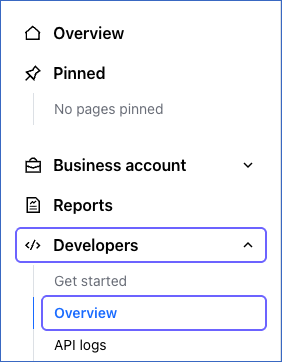
In the left navigation pane of the Checkout.com Dashboard, click Developers, and then click Overview.
-
On the Overview page, in the Base URL section, copy the part of the URL between https:// and .api. For example, if the base URL is https://a1b2c3d4.api.sandbox.checkout.com, the prefix is a1b2c3d4.
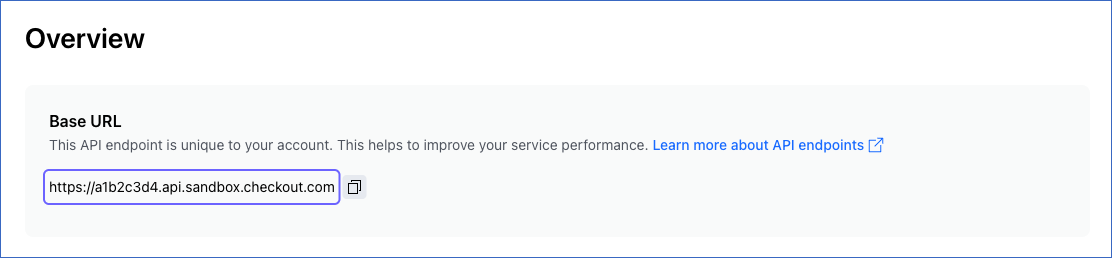
Read API endpoints for more information about the base URL of your account.
Configure Checkout.com as a Source in your Pipeline
Perform the following steps to configure your Checkout.com Source:
-
Click Pipelines in the Navigation Bar.
-
Click + Create Pipeline in the Pipelines List View.
-
On the Select Source Type page, select Checkout.com.
-
On the Select Destination Type page, select the type of Destination you want to use.
-
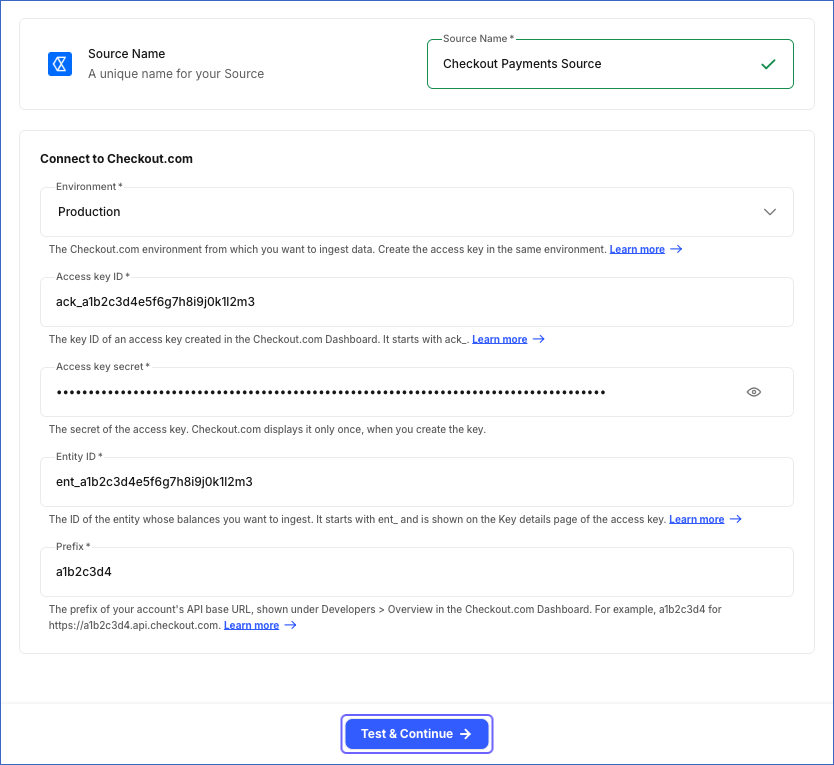
In the Configure Source screen, specify the following:
-
Source Name: A unique name for your Source, not exceeding 255 characters. For example, Checkout Payments Source.
-
In the Connect to Checkout.com section, specify the following:
-
Environment: The Checkout.com environment from which you want to ingest data. Select Production or Sandbox. Default value: Production.
-
Access key ID: The key ID of the access key that you created in Checkout.com. It starts with ack_.
-
Access key secret: The access key secret of the access key that you created in Checkout.com.
-
Entity ID: The ID of the entity whose balances you want to ingest, which you copied from the Key details page. It starts with ent_.
-
Prefix: The prefix of the API base URL of your account, which you obtained from the Checkout.com Dashboard. For example, a1b2c3d4.
-
-
-
Click Test & Continue to test the connection to your Checkout.com Source. Hevo obtains an OAuth 2.0 token using the access key, and then checks whether the key can list reports, search payments, read payment details, read customers, read disputes, and read the balances of the entity. The test fails if the access key, the prefix, or the Entity ID is incorrect, or if the key cannot read any of this data. If the key is not granted some of the scopes required by Hevo, the test succeeds, but Hevo cannot ingest the objects that need those scopes. Once the test is successful, you can proceed to set up your Destination.
Data Replication
Hevo replicates data for all the objects selected on the Configure Objects page during Pipeline creation. By default, all supported objects and their available fields are selected. However, you can modify this selection while creating or editing the Pipeline.
Hevo ingests the following types of data from your Source objects:
-
Historical Data: The first run of the Pipeline ingests all the data of the selected objects. For the payment object and the objects ingested along with it, Hevo ingests the payments requested on or after January 1, 2015. For the report object and the report line item objects, Hevo ingests the reports created on or after January 1, 2015.
-
Incremental Data: Once the historical load is complete, Hevo ingests data as per the sync frequency:
-
For the dispute object, Hevo ingests the disputes created or updated since the previous run, based on the last_update field.
-
For the report object, Hevo ingests the reports created since the previous run. For the financial_action_report, financial_action_by_payout_report, balance_report, and payout_report objects, Hevo ingests the line items of those reports.
-
For the payment object, Hevo ingests the payments listed in the Financial Actions reports created since the previous run. Checkout.com creates the Financial Actions report of a day at about 03:10 UTC on the next day. Therefore, a payment is ingested in the first run after the report of the day on which the payment was made is created. As the report lists every financial action, such as a refund or a chargeback, Hevo also ingests the changes to older payments. The objects that contain the details of a payment, such as payment_action and payment_item, and the customer, customer_meta_data, instrument_bank_account, and instrument_card objects of the customers of these payments, are ingested along with the payment object.
-
For the balance object, Hevo ingests the entire data in each run.
-
You can resync only the balance, dispute, balance_report, financial_action_by_payout_report, financial_action_report, and payout_report objects. To resync the report object, or the payment object and the other objects ingested along with it, resync the financial_action_report object.
Checkout.com limits the number of API requests that an account can make. Read API rate limits. If a limit is reached, Hevo retries the request up to three times, waiting 30 seconds between the attempts, or for the duration that Checkout.com specifies. If the limit is still exceeded, Hevo loads the data read so far for the dispute, payment, report, and report line item objects, and in the next run, resumes reading from the point at which it stopped. For the balance object, the object is not marked as failed, and Hevo reads all the balances again in the next run.
Note: You can create a Pipeline with this Source using either the Merge or the Append load mode. Merge is the default load mode, and you can change the load mode for each object. If the dispute object uses the Append load mode, its Destination table can contain duplicate records, as Hevo reads the disputes updated in the hour before the previous run again. If the balance object uses the Append load mode, Hevo loads a full copy of the balances in each run.
Schema and Primary Keys
Hevo uses the following schema to upload the records in the Destination. For a detailed view of the objects, fields, and relationships, click the ERD.
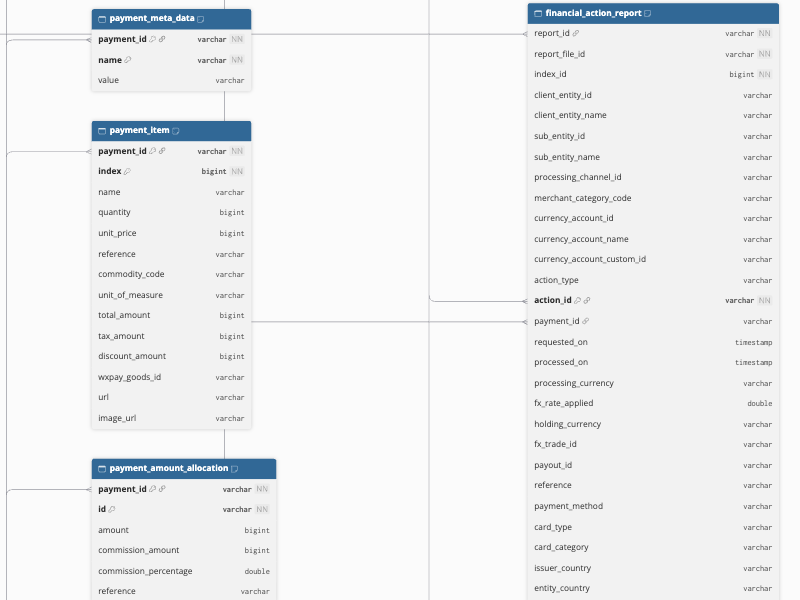
The primary key of the customer, dispute, payment, and report objects is id. The following objects use other primary keys:
-
balance:
currency_account_id. -
balance_report, financial_action_by_payout_report, and payout_report:
report_id,report_file_id, andindex_id. -
financial_action_report:
action_id,breakdown_type, andfee_detail. -
customer_meta_data:
customer_idandname. -
instrument_bank_account and instrument_card:
customer_idandid. -
payment_action:
idandpayment_id. -
payment_action_meta_data:
payment_action_id,payment_action_payment_id, andname. -
payment_amount_allocation:
payment_idandid. -
payment_item:
payment_idandindex. -
payment_meta_data:
payment_idandname. -
payment_source_bancontact, payment_source_eps, payment_source_giropay, payment_source_klarna, payment_source_knet, payment_source_multibance, and payment_source_p_24:
indexandpayment_id. -
payment_source_card:
payment_idandfingerprint_token. -
payment_source_currency_account, payment_source_qpay, and payment_source_sepa:
idandpayment_id.
Data Model
The following is the list of tables (objects) that are created at the Destination when you run the Pipeline:
| Object | Description |
|---|---|
| balance | Contains the balances of the currency accounts of the entity specified in the Source configuration, including the available, pending, payable, and collateral amounts. |
| balance_report | Contains the line items of your Balance reports, such as the opening and closing balances of each currency account. |
| dispute | Contains the disputes raised against your payments, including the category, reason code, amount, status, and the date by which evidence is required. |
| financial_action_by_payout_report | Contains the line items of your Financial actions by payout reports, such as the action type, fees, taxes, and payout reference of each financial action. |
| financial_action_report | Contains the line items of your Financial actions reports, such as the action type, fees, taxes, currency conversion details, and payout reference of each financial action. Hevo ingests the payments listed in these reports and their customers. It includes the following child objects: - customer - customer_meta_data - instrument_bank_account - instrument_card - payment - payment_action - payment_action_meta_data - payment_amount_allocation - payment_item - payment_meta_data - payment_source_bancontact - payment_source_card - payment_source_currency_account - payment_source_eps - payment_source_giropay - payment_source_klarna - payment_source_knet - payment_source_multibance (for Multibanco; the table name uses the spelling multibance) - payment_source_p_24 - payment_source_qpay - payment_source_sepa |
| payout_report | Contains the line items of your payout reports, such as the payout amount and the fees deducted from it. |
| report | Contains the reports generated for your Checkout.com account, including their type, date range, and files. |
Additional Information
Read the detailed Hevo documentation for the following related topics:
Handling of Deletes
Hevo marks a record as deleted by setting the value of the metadata column __hevo__marked_deleted to True. Hevo captures deletes as follows:
-
The balance object: Hevo ingests the balance object in full in each run. If a record exists in the Destination but is no longer returned by the Source, Hevo marks the record as deleted.
-
Objects replaced for each parent record: For the customer_meta_data, instrument_bank_account, instrument_card, payment_action_meta_data, payment_amount_allocation, payment_item, payment_meta_data, and payment_source_card objects, Hevo replaces the records of a customer, payment, or payment action each time it ingests them. As a result, a record removed in Checkout.com, such as a metadata key removed from a payment, is removed from the Destination.
-
Other objects: Hevo does not capture deletes. Records removed in Checkout.com remain in the Destination.
Hevo captures deletes only for the objects that use the Merge load mode. For the objects that use the Append load mode, records removed in Checkout.com remain in the Destination along with the newer records.
Source Considerations
-
Hevo uses the Entity ID only to ingest the balance object. For all the other objects, Hevo ingests the data of all the entities that the access key can access. To ingest the data of only one entity, use an access key that is limited to that entity.
-
Hevo ingests the balance_report, payout_report, and financial_action_by_payout_report objects only from the reports that the Checkout.com API lists for your access key. If the API does not list these reports for your account, the objects are created in the Destination without any records, even if the reports are shown in the Checkout.com Dashboard.
-
Hevo ingests the payment source details only for the payment methods listed in the Data Model.
-
If the details of a payment do not contain a customer ID, Hevo finds the customer using the customer’s email address. If more than one customer in your account has the same email address, Hevo ingests only the customer that Checkout.com returns.
Limitations
-
Hevo ingests a payment only after Checkout.com creates the Financial Actions report of the day on which the payment was made, at about 03:10 UTC on the next day. Payments made on the current day are not ingested in the same day’s runs.
-
Hevo ingests only the customers of the payments ingested in a run. Customers who have no payments are not ingested, and changes to a customer, such as a new email address, are ingested only when a new payment of that customer is ingested.