Airtable is a cloud platform that teams use to build relational databases, called bases, with a spreadsheet-like interface. Each base contains tables of records that can link to records in other tables.
Hevo uses the Airtable Web API to replicate the records of the tables in your Airtable bases to the Destination of your choice. Hevo connects to Airtable using OAuth 2.0. To ingest data, you must authorize Hevo to read the bases that you want to replicate.
Supported Features
| Feature Name | Supported |
|---|---|
| Capture deletes | Yes |
| History mode | Yes, for the tables that have a Last modified time field that tracks all the fields of the table |
| Custom data (user-configured tables & fields) | Yes. All the tables and fields of your bases are custom |
| Data blocking (skip objects and fields) | Yes |
| Resync (objects and Pipelines) | Yes |
| API configurable | Yes |
Prerequisites
-
An active Airtable account exists with access to the bases from which data is to be ingested.
-
You are assigned the Creator or Owner permission level in the bases that you want to replicate, so that Hevo can create a webhook in each base. Hevo uses the webhook to detect the records that are created, changed, or deleted.
Scopes Required by Hevo
When you authorize Hevo, Airtable asks you to grant the following scopes:
| Scope | Purpose |
|---|---|
| data.records:read | Read the records of the tables in your bases. |
| schema.bases:read | Read the structure of your bases, such as the names of tables and the types of fields. |
| webhook:manage | Create and read the webhook that Hevo uses in each base to detect the records that are created, changed, or deleted. Hevo does not change your records. |
| user.email:read | Read the email address of the Airtable user who authorizes Hevo, which is displayed as Account Added in the Source configuration. |
Configure Airtable as a Source in your Pipeline
Perform the following steps to configure your Airtable Source:
-
Click Pipelines in the Navigation Bar.
-
Click + Create Pipeline in the Pipelines List View.
-
On the Select Source Type page, select Airtable.
-
On the Select Destination Type page, select the type of Destination you want to use.
-
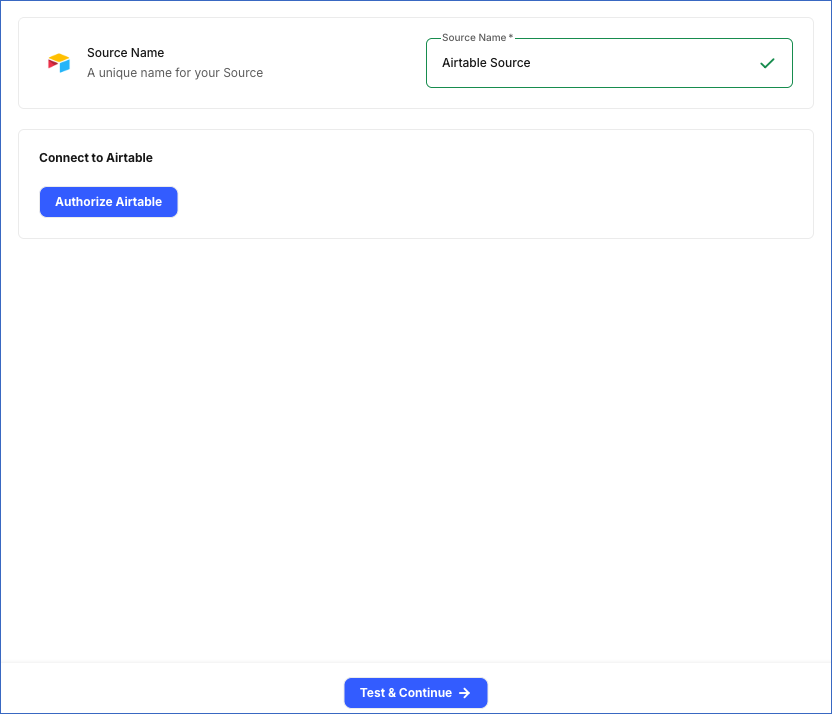
In the Configure Source screen, specify the following:
-
Source Name: A unique name for your Source, not exceeding 255 characters. For example, Airtable Source.
-
In the Connect to Airtable section, click Authorize Airtable, and log in to your Airtable account if prompted. After you grant access, Hevo displays the email address of your Airtable user as Account Added.
-
-
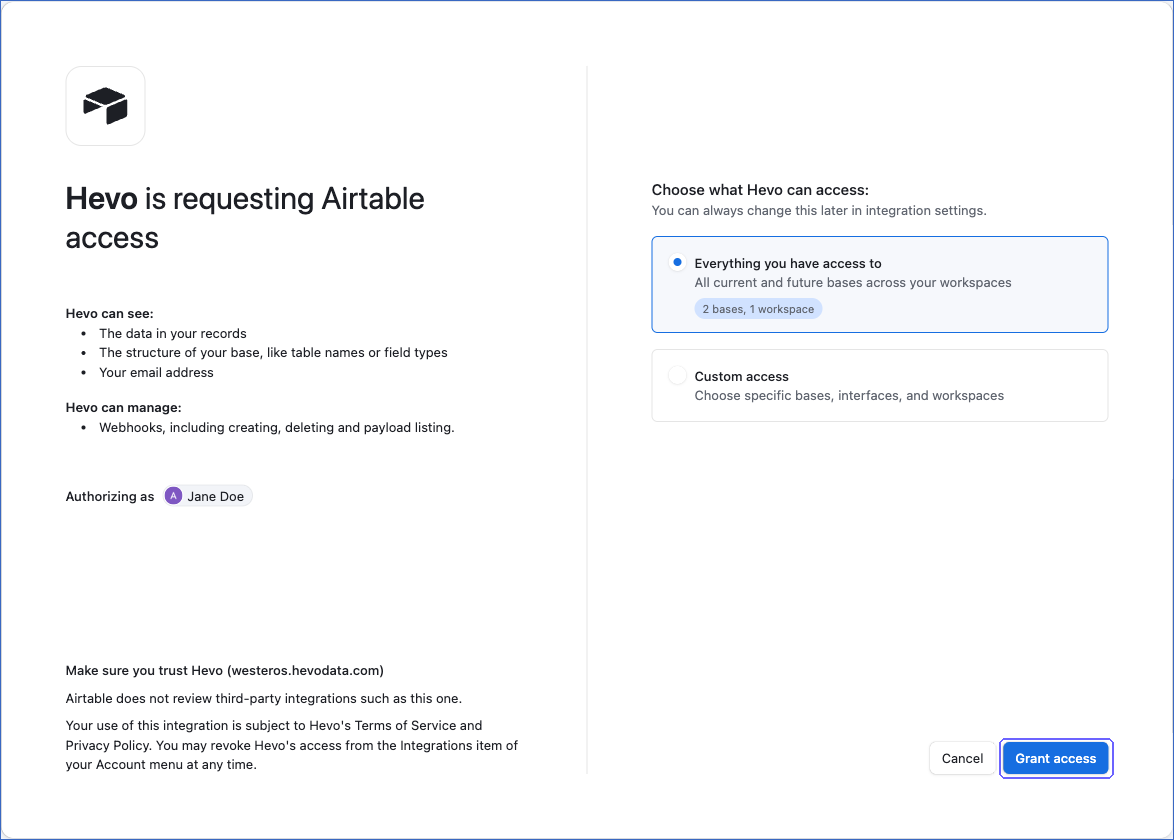
In the Airtable window, select the bases that Hevo can access, and then click Grant access:
-
Everything you have access to: Hevo can access all your current and future bases.
-
Custom access: Hevo can access only the bases, interfaces, and workspaces that you select.
-
-
Click Test & Continue to test the connection to your Airtable Source. Once the test is successful, you can proceed to set up your Destination.
You can change the bases that Hevo can access later from the Integrations section of your Airtable account. If you remove a base from the access granted to Hevo, Hevo marks the tables of that base as inaccessible and continues to ingest the tables of the other bases. If you revoke all the access granted to Hevo, Hevo cannot read your Airtable data, and the jobs of the Pipeline fail. To resume data replication, modify the Source configuration in the Pipeline and authorize Hevo again.
Data Replication
Hevo replicates the data of all the tables selected on the Configure Objects page during Pipeline creation. Hevo lists the tables of each base that you granted access to as objects. By default, all the tables and their fields are selected. However, you can modify this selection while creating or editing the Pipeline.
Hevo ingests data as follows:
-
Historical Data: In the first run of the Pipeline, Hevo ingests all the records of the selected tables.
-
Incremental Data: In the subsequent runs, as per the sync frequency, Hevo ingests the records that were created, changed, or deleted since the previous run. Hevo detects these records using a webhook that it creates in each base.
Hevo also ingests all the records of each table once every seven days. This brings the values of formula, rollup, and lookup fields up to date, because these fields can change without the record itself being changed, for example, when a linked record changes or when a formula uses the NOW() or TODAY() function. These values are also updated whenever their own record changes or Hevo ingests all the records of the table for another reason. Contact Hevo Support to change this interval for your Pipeline.
Hevo also ingests all the records of a table in the following cases:
-
A field is added to or removed from the table, or the type of a field changes. Renaming a field does not cause a full read.
-
Hevo cannot read the changes from the webhook, for example, when the Pipeline does not run for more than seven days and Airtable discards the changes.
Airtable allows 5 API requests per second for a base. Read Rate Limits. Hevo sends up to 5 requests per second to a base. If Airtable returns a rate limit error, Hevo waits and retries the request. To understand how Hevo handles such scenarios, read Handling Rate Limit Exceptions.
Pipelines with this Source support the Merge load mode. For the tables that have a Last modified time field that tracks all the fields of the table, you can also use the History Tracking load mode. Read History Mode.
Schema and Primary Keys
Hevo creates a schema in the Destination for each Airtable base. The name of the schema is made of the Destination prefix that you specify while creating the Pipeline, the name of the base, and the base ID. For example, for the base Project tracker with the ID app3UrkQfKNZMMnw7 and the prefix airtable, Hevo creates the schema airtable_project_tracker_app_3_urk_qf_knzmmnw_7. Hevo converts the name to lowercase and separates words, letters, and digits with underscores.
Each table of the base is loaded into a table with the name of the Airtable table. The primary key of each table is the id field, which contains the Airtable record ID.
Data Model
The tables and fields that Hevo creates in the Destination depend on the tables and fields of your Airtable bases:
| Airtable | Destination |
|---|---|
| Base | A schema, named as described in Schema and Primary Keys. |
| Table | A table in the schema of the base. If you rename a table in Airtable, Hevo loads it into a new table with the new name, and marks the records of the old table as deleted. |
| Field | A column of the table. Hevo creates a column for every field, even if the field has no data. The following fields are loaded as JSON: fields that hold multiple values, such as linked records, attachments, collaborators, and multiple select fields, and the single collaborator, created by, last modified by, button, barcode, and AI text fields. Number, currency, and percent fields are loaded as FLOAT. A field named id is not ingested, because the id column contains the record ID. |
| Record | A row of the table. The id column contains the Airtable record ID. |
Read Airtable field model for the types of fields in Airtable.
Additional Information
Read the detailed Hevo documentation for the following related topics:
Handling of Deletes
Hevo marks a record as deleted by setting the value of the metadata column __hevo__marked_deleted to True. Hevo captures deletes as follows:
-
In the incremental runs, the webhook of the base reports the records deleted in Airtable, and Hevo marks them as deleted in the Destination.
-
When Hevo ingests all the records of a table, records that are no longer returned by Airtable are marked as deleted in the Destination.
Source Considerations
-
Hevo creates a webhook in each base that it replicates. Airtable allows up to 10 webhooks in a base, and up to 2 webhooks for each app in a base. If Hevo cannot create a webhook in a base, Hevo ingests all the records of its tables in each run, and no warning is displayed in the Pipeline.
-
Hevo does not delete its webhook from a base when you delete the Pipeline. Airtable deletes the webhook after seven days.
-
If you rename a field in Airtable, Hevo adds a column with the new name and loads the field into it as records are changed. The column with the old name keeps its values.
-
If you delete a table in Airtable, Hevo marks its records as deleted in the next run. If you delete a field, Hevo ingests all the records of the table again. If you give Hevo access to a new base, Hevo lists its tables as objects in the next run and creates a schema for the base.
-
If Hevo cannot read a table, for example, because you no longer have access to it, Hevo marks the object as inaccessible and continues to ingest the other tables.