Adobe Analytics is a web and digital analytics platform from Adobe that collects and analyzes customer interactions across websites, apps, and other digital channels. It lets businesses build reports on traffic, engagement, marketing channels, and conversions, and break these down by segments to understand customer behavior.
Hevo uses the Adobe Analytics 2.0 Reporting API to replicate the report tables you define from your Adobe Analytics account to the Destination of your choice. Hevo connects to your account using the Client ID and Client Secret of an OAuth Server-to-Server credential that you create in the Adobe Developer Console.
Supported Features
| Feature Name | Supported |
|---|---|
| Capture deletes | No |
| History mode | No |
| Custom data (user-configured tables & fields) | Yes |
| Data blocking (skip objects and fields) | Yes |
| Resync (objects and Pipelines) | Yes |
| API configurable | Yes |
Prerequisites
-
An active Adobe Analytics account exists from which data is to be ingested.
-
Your Adobe Analytics account has at least one report suite.
-
You are assigned the Product Profile Admin role in the Adobe Admin Console to grant the permissions required by Hevo. Read Obtain the Client ID and Client Secret.
-
The Client ID and Client Secret of an OAuth Server-to-Server credential are available to provide Hevo access to your Adobe Analytics account data. Read Obtain the Client ID and Client Secret.
Obtain the Client ID and Client Secret
Hevo authenticates with Adobe Analytics using an OAuth Server-to-Server credential. The credential needs access to Adobe Analytics in two places:
-
In the Adobe Admin Console, through a product profile that grants access to the report suites, dimensions, and metrics you want to sync, and to the Web Service Access tool.
-
In the Adobe Developer Console, through a project to which the Adobe Analytics API is added.
Perform the following steps to obtain the Client ID and Client Secret:
-
Sign in to the Adobe Admin Console.
-
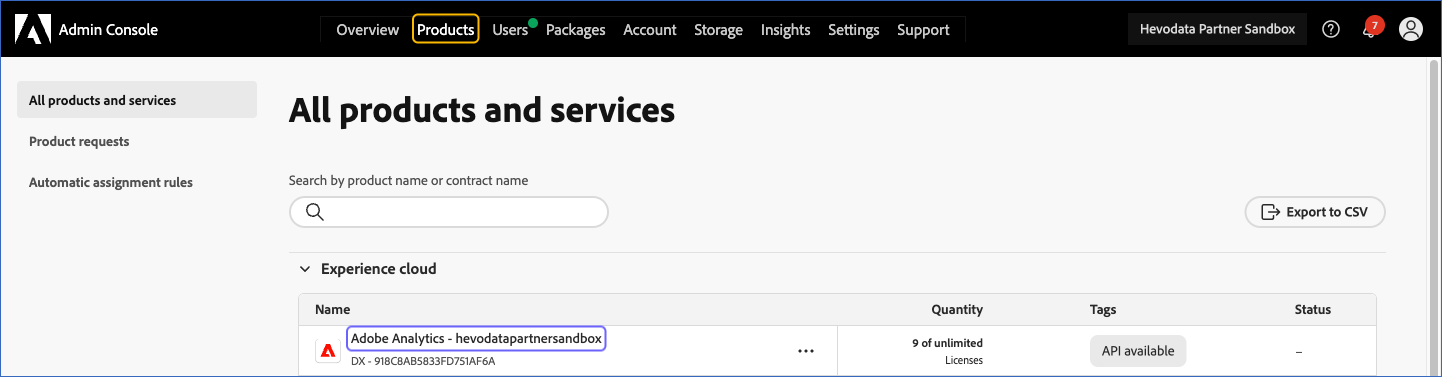
In the top navigation bar, click Products, and then click your Adobe Analytics product.
-
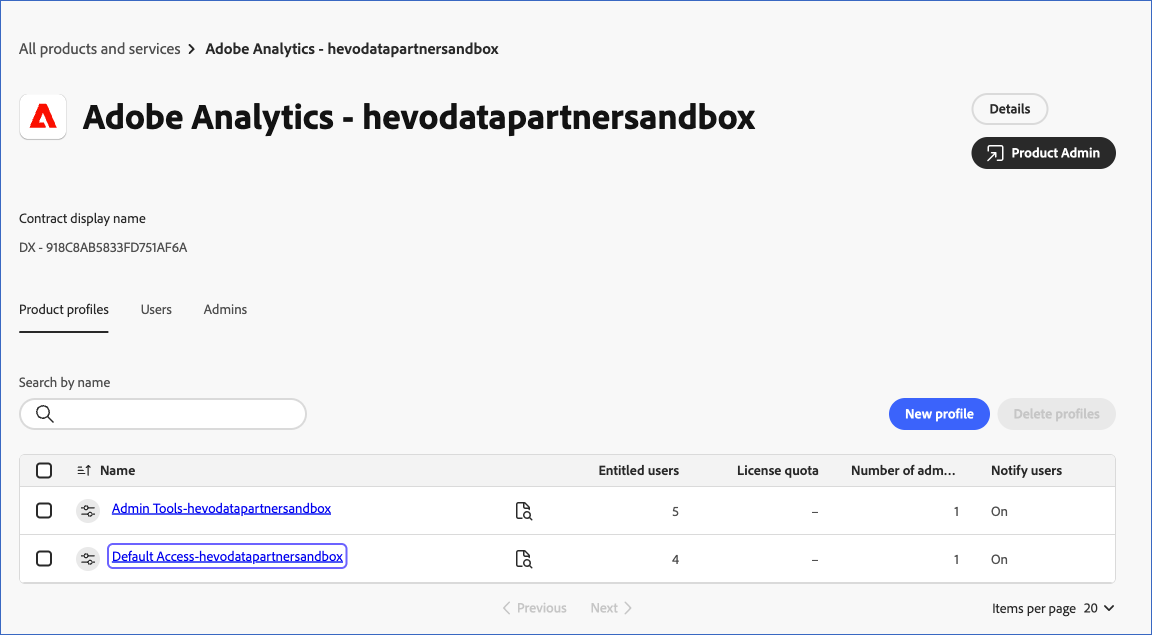
On the Product profiles tab, click the product profile that you want to use for Hevo.
-
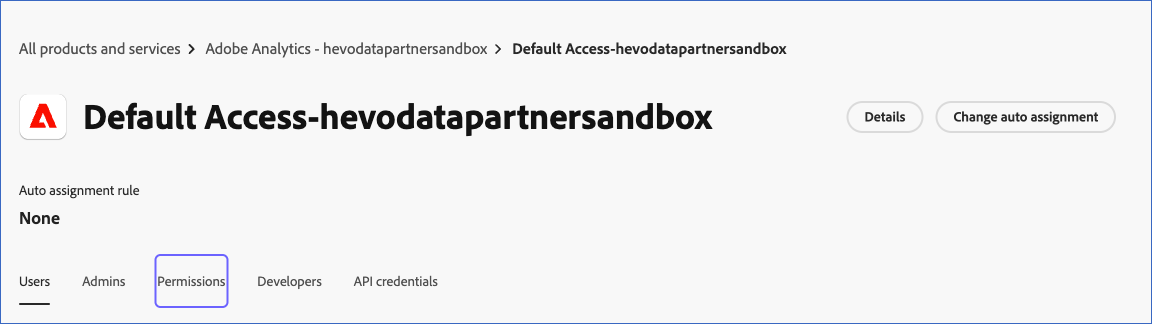
Click the Permissions tab.
-
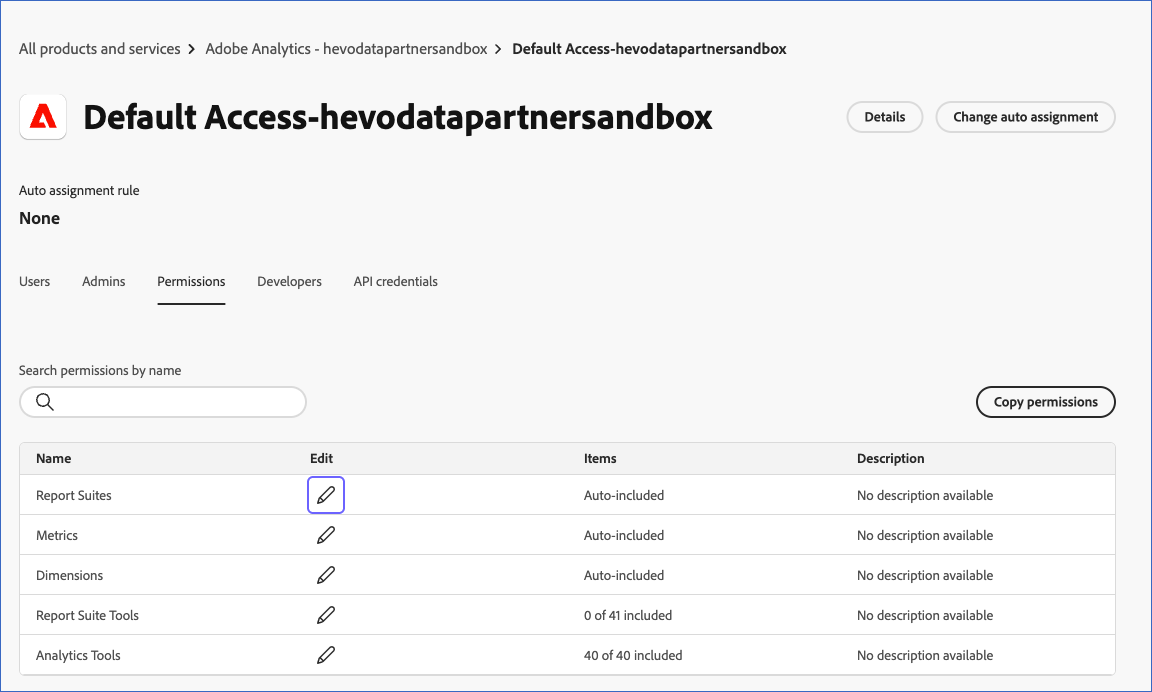
Click the edit icon next to Report Suites.
-
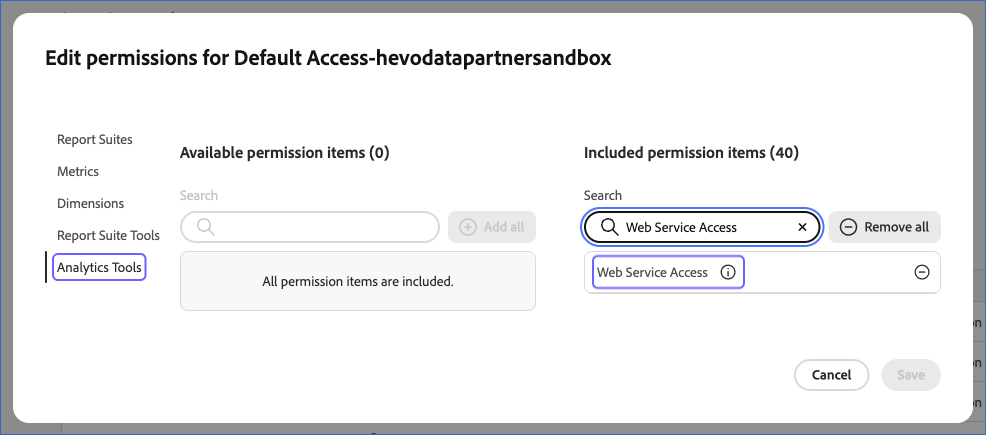
In the Edit permissions dialog, do the following, and then click Save:
-
Under Report Suites, Metrics, and Dimensions, add the report suites, metrics, and dimensions that you want Hevo to sync.
-
Under Analytics Tools, add Web Service Access.
-
-
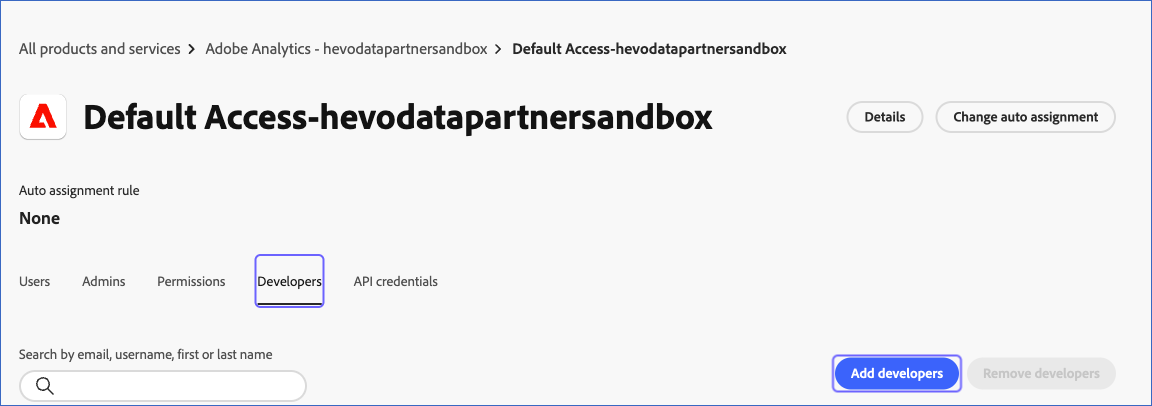
Click the Developers tab, and then click Add developers to add yourself as a developer to the product profile.
-
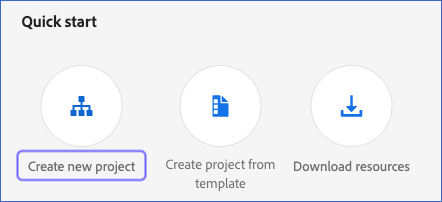
Sign in to the Adobe Developer Console, and click Create new project. To use an existing project, open it instead.
-
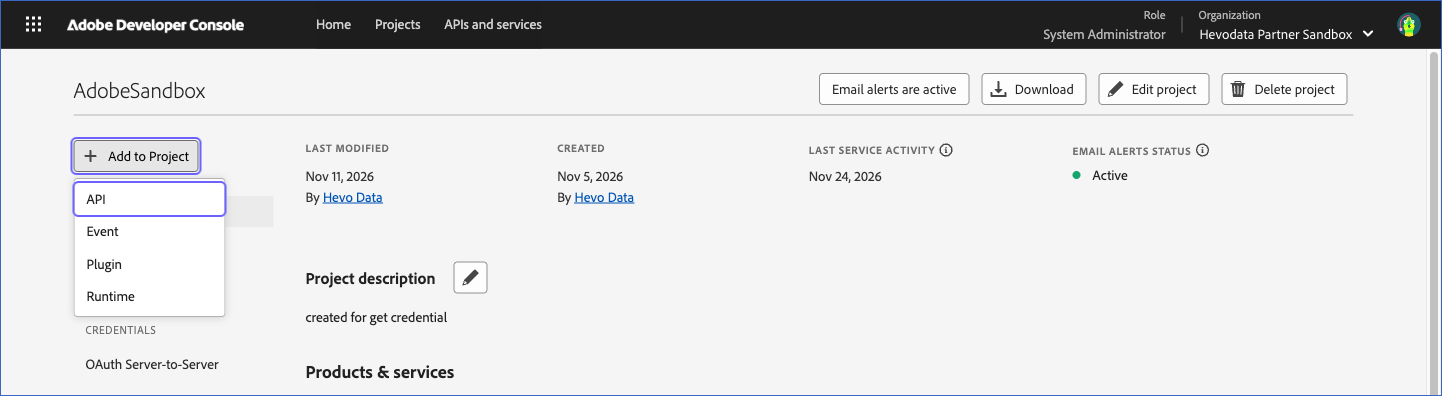
In the project, click Add to Project, and then click API.
-
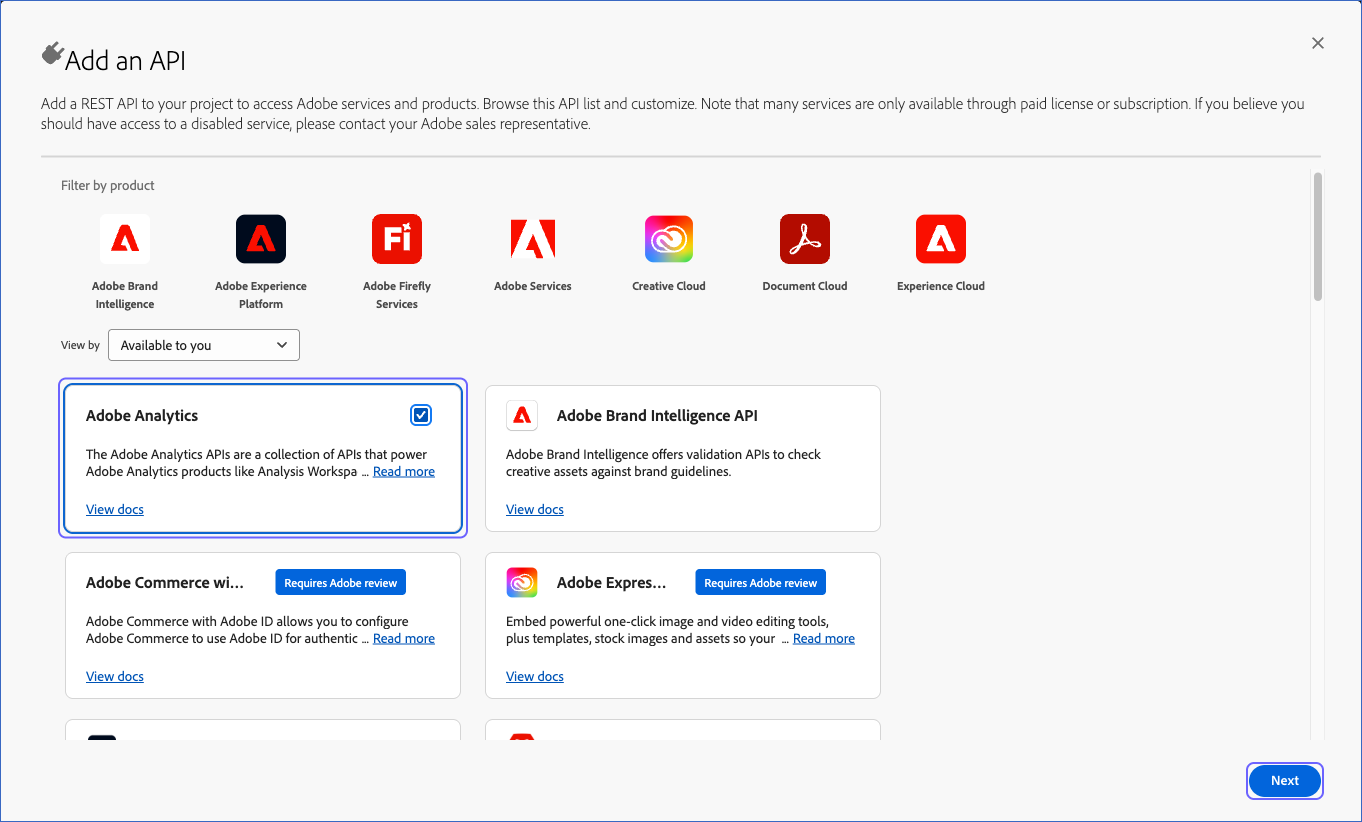
In the Add an API dialog, select Adobe Analytics, and click Next.
-
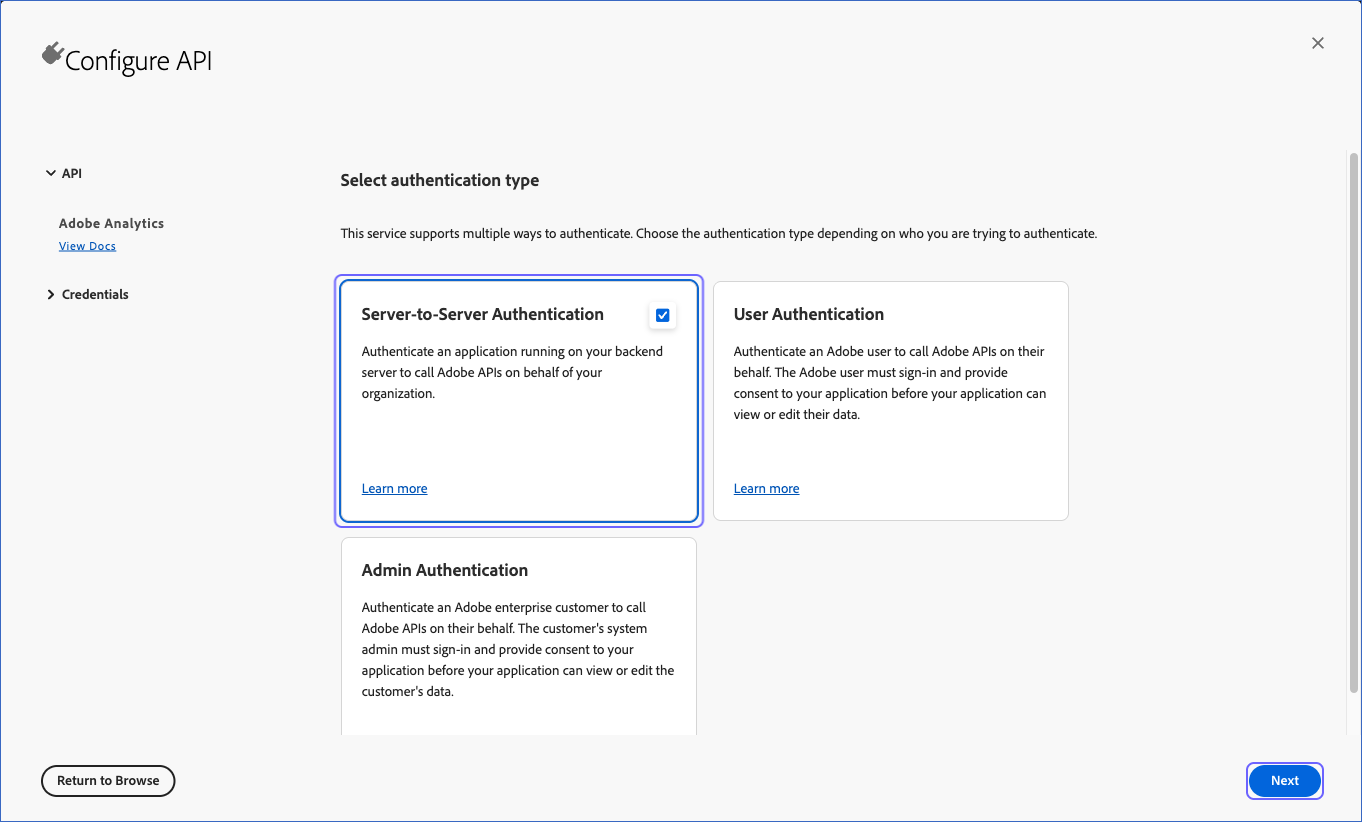
On the Select authentication type page, select Server-to-Server Authentication, and click Next. Read OAuth Server-to-Server Authentication for more information.
-
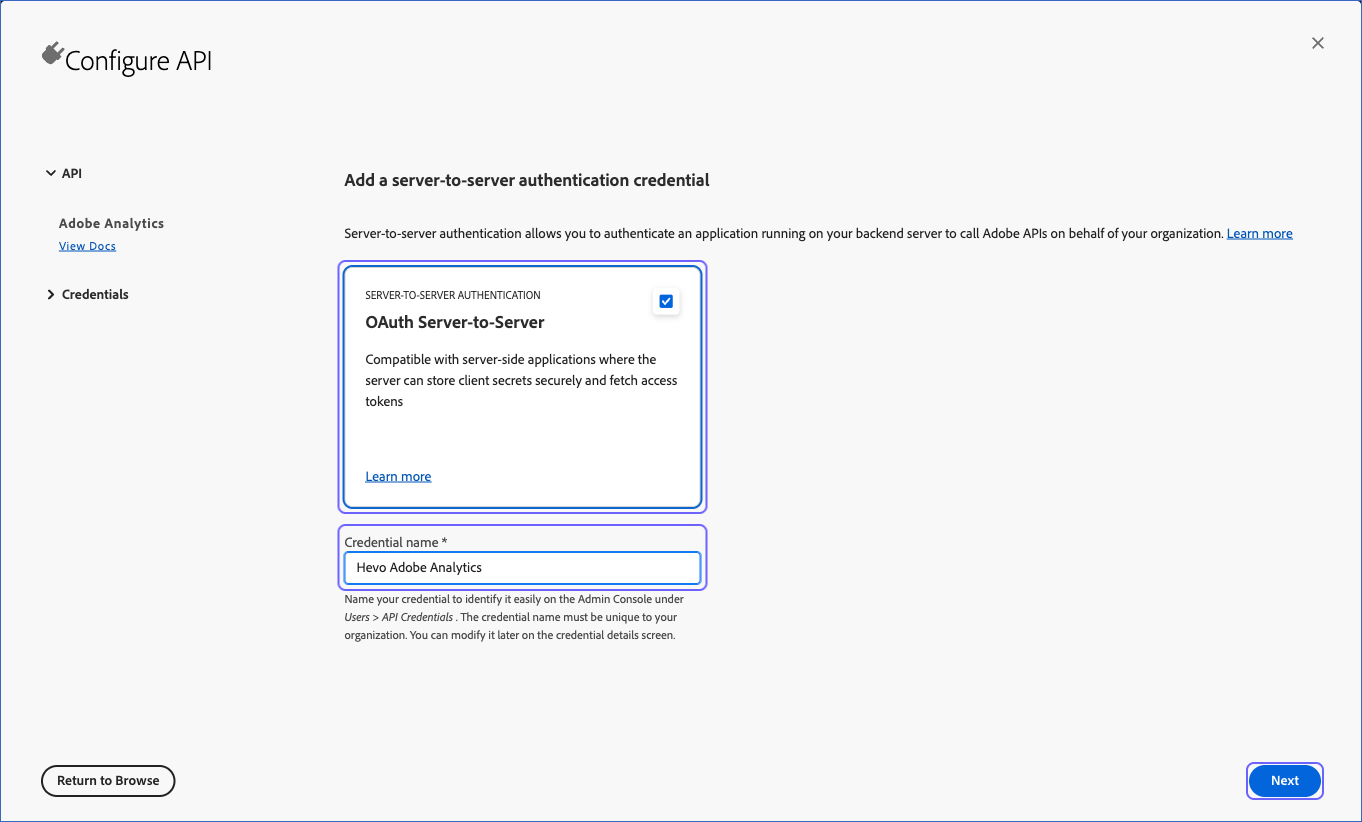
Select OAuth Server-to-Server, specify a Credential name, for example, Hevo Adobe Analytics, and click Next.
-
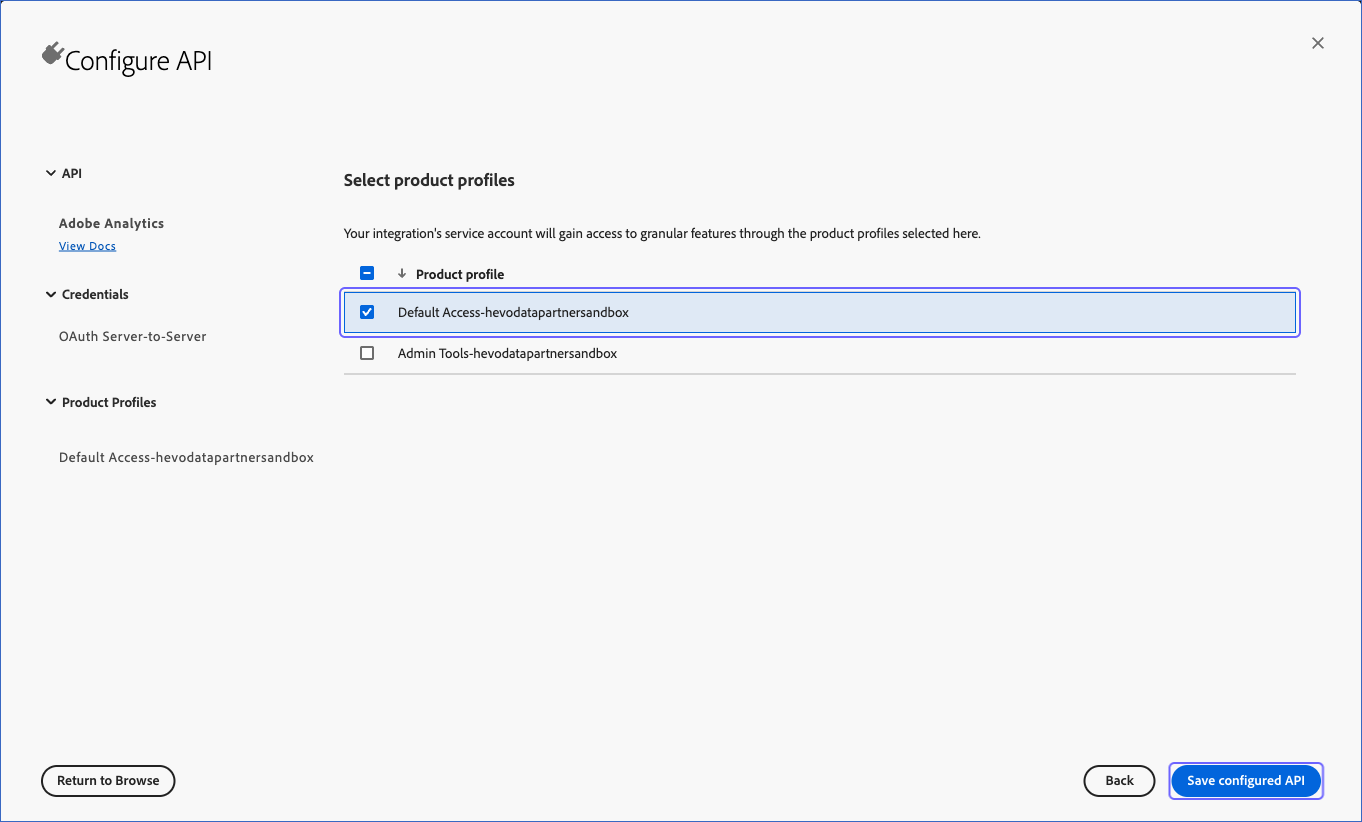
Select the product profile that you configured in Steps 3 to 7, and click Save configured API.
-
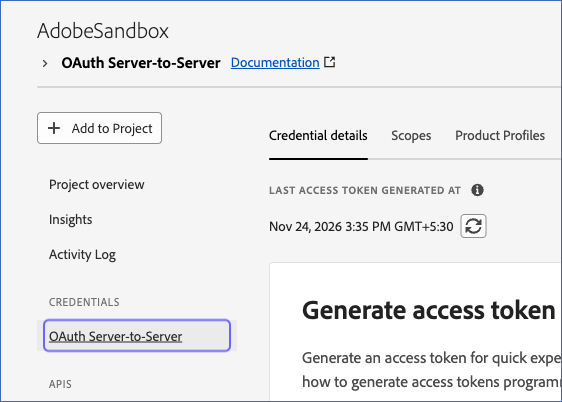
In the left navigation pane, under CREDENTIALS, click OAuth Server-to-Server.
-
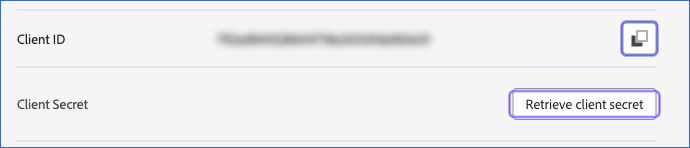
Click the copy icon next to Client ID to copy the Client ID. Then, click Retrieve client secret, and copy the Client Secret. Save them securely like any other password. You can use these credentials while configuring your Hevo Pipeline.
If the Client ID or Client Secret configured in the Pipeline is deleted or rotated in your Adobe Developer Console project, Hevo cannot authenticate with the Source. As a result, all active jobs for the Pipeline fail, and no data is replicated. To resume data replication, modify the Source configuration in the Pipeline with valid credentials, and then resync the objects that failed.
To modify the Source configuration, read Modifying the Source configuration.
Configure Adobe Analytics as a Source in your Pipeline
Perform the following steps to configure your Adobe Analytics Source:
-
Click Pipelines in the Navigation Bar.
-
Click + Create Pipeline in the Pipelines List View.
-
On the Select Source Type page, select Adobe Analytics.
-
On the Select Destination Type page, select the type of Destination you want to use.
-
On the Select Pipeline Type page, click Edge, and then click Continue.
This page appears only if the selected Destination type is supported in Edge and your Team has an existing Adobe Analytics Pipeline with the same Destination type. Otherwise, you can proceed to create an Edge Pipeline.
-
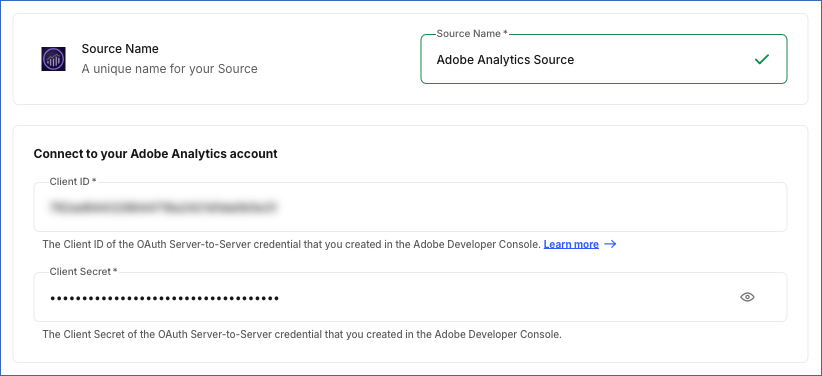
In the Configure Source screen, specify the following:
-
Source Name: A unique name for your Source, not exceeding 255 characters. For example, Adobe Analytics Source.
-
In the Connect to your Adobe Analytics account section, specify the following:
-
Client ID: The Client ID of your OAuth Server-to-Server credential that you obtained in Step 15 of the Obtain the Client ID and Client Secret section.
-
Client Secret: The Client Secret of your OAuth Server-to-Server credential that you obtained in Step 15 of the Obtain the Client ID and Client Secret section.
-
-
-
In the Report Tables section, define the reports that you want to sync. Each report is loaded into its own table in the Destination. This section appears once you specify the Client ID and Client Secret. Click Add Report, and specify the following:
-
Destination Table: A unique name for the Destination table of this report. If you rename a table, Hevo loads it as a new table, and the old table remains in the Destination.
-
Sync Mode: Select whether Hevo syncs all the report suites of your company, or only the ones you select. Default value: Sync All Report Suites.
-
Sync All Report Suites: Hevo syncs all the report suites of your company, including any report suites added later.
-
Sync Specific Report Suites: Hevo syncs only the report suites you select from the Report Suites drop-down.
-
-
Dimensions: Select the dimensions by which you want to group the report data, such as Page or Marketing Channel. You can select up to five dimensions.
-
(Optional) Metrics: Select the metrics that you want to sync, such as Page Views or Visits.
-
(Optional) Calculated Metrics: Select the calculated metrics that you want to sync. The drop-down lists only the calculated metrics shared with the technical account of your credential.
-
(Optional) Segments: Select the segments by which you want to filter the report data. If you select multiple segments, Hevo returns only the data that matches all of them. The drop-down lists only the segments shared with the technical account of your credential.
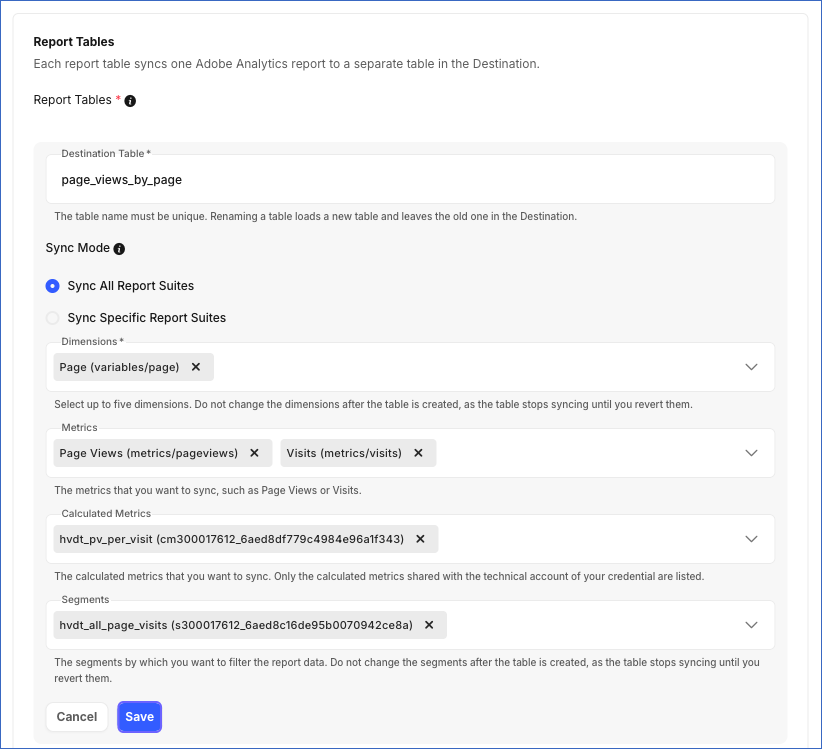
Click Save to add the report table. Repeat this step to add more report tables. You can define up to 100 report tables in a Pipeline.
Note: Each report table contains one row for each combination of time interval, dimension values, and report suite. We recommend that you select one or two dimensions for each table, as each additional dimension increases the number of requests made to Adobe and the time taken to sync the table.
-
-
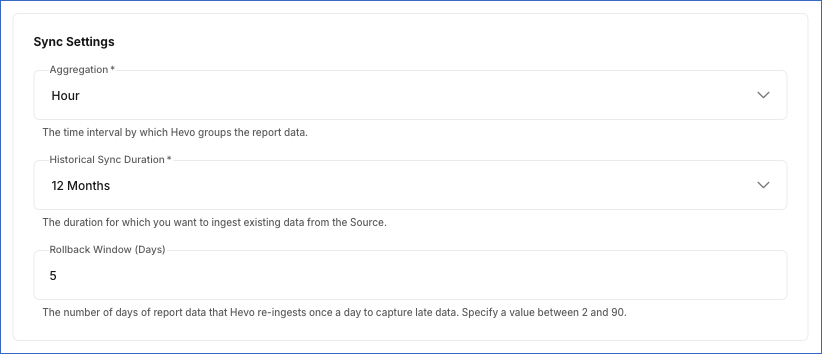
In the Sync Settings section, specify the following. These settings apply to all the report tables:
-
Aggregation: The time interval by which Hevo groups the report data. Default value: Hour. The available values are Hour, Day, Week, Month, Quarter, and Year. Hourly data requires the most requests to sync.
-
Historical Sync Duration: The duration for which you want to ingest the existing data from the Source. Default value: 12 Months. The available values are 3 Months, 6 Months, 12 Months, 24 Months, and All Time. If you select All Time, Hevo ingests data starting from the first year in which each report suite has data.
-
(Optional) Rollback Window (Days): The number of days of report data that Hevo re-ingests once a day to capture late-arriving data. You can specify a value between 2 and 90. Default value: 5.
Note: You cannot change the Aggregation and Historical Sync Duration values after the Pipeline is created.
-
-
Click Test & Continue to test the connection to your Adobe Analytics Source. Once the test is successful, you can proceed to set up your Destination.
When you click this button, Hevo performs the following validations:
-
The Client ID and Client Secret are valid, and the credential can access Adobe Analytics data.
-
The dimensions, metrics, calculated metrics, and segments selected in each report table are available in the report suites of that table.
-
No two fields in a report table map to the same Destination column.
-
Adobe Analytics returns data for a small test report for each report table.
If the test is successful, Hevo displays any warnings about your report tables, such as how calculated metric columns are named. Review them, and click Continue.
-
Data Replication
Hevo replicates data for all the report tables defined while configuring the Source. Each report table is created as an object in the Pipeline. However, you can modify this selection while creating or editing the Pipeline.
Hevo ingests the following types of data from your Source objects:
-
Historical Data: The first run of the Pipeline ingests historical data for the report tables based on the historical sync duration specified when creating the Pipeline, and loads it into the Destination.
-
Incremental Data: Once the historical load is complete, new and updated records for objects are ingested as per the sync frequency.
For all report tables, Hevo ingests only the incremental data in subsequent Pipeline runs. Hevo tracks the progress of each report suite using the start time of the last time interval ingested, and re-ingests the current time interval in each run, as its data is not final.
Adobe Analytics continues to update report data for some time after it is recorded. To capture these changes, Hevo re-ingests data for the number of days specified in the Rollback Window (Days) field during the first Pipeline run of each day. Events re-ingested for time intervals that are already loaded to the Destination are generally not billed. Changes to data older than the rollback window are not captured. To ingest such changes, you must resync the object.
If you add a report table to an existing Pipeline, Hevo ingests its historical data based on the historical sync duration specified when the Pipeline was created. Existing report tables continue syncing only incremental data. If you add a metric to an existing report table, Hevo adds a column for it in the next Pipeline run. The column contains data only for the time intervals ingested after the metric is added, and those re-ingested through the rollback window. To load the metric’s data for the entire historical sync duration, resync the object.
Adobe Analytics enforces a rate limit on the API requests made with each credential. This limit is shared by all the applications that use the same credential. If this limit is exceeded, a rate limit exception occurs. To understand how Hevo handles such scenarios, read Handling Rate Limit Exceptions. We recommend that you use a credential that is dedicated to Hevo.
Note: You can create a Pipeline with this Source only using the Merge load mode. The Append mode is not supported for this Source.
Schema and Primary Keys
Hevo creates a table in the Destination for each report table that you define in the Source configuration. As the columns of each table depend on the dimensions, metrics, and segments that you select, this Source does not have a fixed schema.
Each table contains the following columns:
| Column | Description |
|---|---|
| _hevo_id | The unique ID of the row, generated by Hevo from the report suite, time interval, dimension values, and segments of the row. This is the primary key of the table. |
| datetime | The start of the time interval of the row, converted to UTC. |
| report_suite_id | The ID of the report suite from which the row is fetched. |
| One column for each dimension | The value of the dimension. The column is named after the dimension’s Adobe ID without the variables/ prefix, for example, evar2 or page. |
| segment and segment_id | The names and IDs of the segments applied to the report. These columns are present only if the report table has segments. |
| One column for each metric | The value of the metric. The column is named after the metric’s Adobe ID without the metrics/ prefix, for example, pageviews. Calculated metrics are named after their labels. |
Data Model
The following is the list of tables (objects) that are created at the Destination when you run the Pipeline:
| Object | Description |
|---|---|
| Report Table | Contains the data of a report that you define in the Report Tables section of the Source configuration, such as the page views and visits for each page and marketing channel. A separate table is created for each report, named as per the Destination Table field. |
Additional Information
Read the detailed Hevo documentation for the following related topics:
Handling of Deletes
Adobe Analytics reports contain aggregated data, so records are not deleted in the Source. If the metric values of a row drop to zero within the rollback window, the row is retained in the Destination with its previously loaded values. To remove such rows, resync the object using the Drop and Load option.
Source Considerations
-
Do not change the dimensions or segments of a report table after the Pipeline is created. If you change them, the object fails in the next Pipeline run, and the other objects continue to sync. To resume data ingestion, revert the dimensions or segments to their earlier values, or resync the object using the Drop and Load option to rebuild the table with the new values. To report on a different combination of dimensions or segments, add a new report table instead.
-
Adobe Analytics breaks down the report data by each dimension one after the other. As a result, each dimension that you add to a report table increases the number of requests made to Adobe and the time taken to sync the table. The order of the dimensions also affects this count. For example, breaking down a few browsers by many pages requires far fewer requests than breaking down many pages by a few browsers.
-
Metrics such as visits and unique visitors are counted over the selected time interval. As a visit can span multiple hours or days, the sum of hourly or daily values may not match the value for a longer time interval in Adobe Analytics.
-
Hevo loads dimension values of up to 256 characters. Longer values are truncated in the Destination.
-
Rows in which all the metric values are zero are not loaded to the Destination.
-
If a dimension has a very large number of unique values in a month, Adobe Analytics groups the less frequent values into a single Low-traffic row. Hevo loads this row as Adobe Analytics returns it.
-
Hevo does not capture changes that Adobe Analytics makes to report data older than the rollback window, such as changes from data repair, privacy deletions, or edits to the definition of a segment or calculated metric. To load the updated data, resync the object using the Drop and Load option.
-
If you rename a calculated metric in Adobe Analytics, Hevo adds a new column with the new name to the Destination table, and the column with the old name stops updating.
-
If you rename a classification value in Adobe Analytics, the rows re-ingested through the rollback window are loaded with the new value, and the rows with the old value remain in the Destination. To remove the duplicate rows, resync the object using the Drop and Load option.
Limitations
-
You can define up to 100 report tables in a Pipeline, and select up to five dimensions in each report table.
-
Hevo does not support report suites that use a custom fiscal calendar. Such a report suite is skipped, and the other report suites of the report table continue to sync. If all the report suites of a report table use a custom fiscal calendar, the object fails.
-
If your credential can access more than one Adobe Analytics company, Hevo ingests data only from the first company returned by Adobe.
-
Hevo does not support virtual report suites. Only the report suites of your company are available for selection.