Snowflake is deprecating password-based authentication and enforcing Multi-factor Authentication (MFA). As a result, a Snowflake Destination configured with Access Credentials may stop connecting at any time, even if data is currently being loaded.
Hevo recommends connecting to your Snowflake warehouse using key pair authentication, as it is not affected by these changes. Read Obtain a Private and Public Key Pair to create a key pair, and Modifying Snowflake Destination Configuration to update an existing Destination.
Snowflake offers a cloud-based data storage and analytics service, generally termed as data warehouse-as-a-service. Companies can use it to store and analyze data using cloud-based hardware and software.
In Snowflake, you can create both data warehouses and databases to store your data. Each data warehouse can further have one or more databases, although this is not mandatory. Snowflake provides you with one data warehouse automatically when you create an account.
The Snowflake data warehouse may be hosted on any of the following Cloud providers:
-
Amazon Web Services (AWS)
-
Google Cloud Platform (GCP)
-
Microsoft Azure (Azure)
For Hevo to access your data, you must assign the required permissions. Snowflake uses Roles to assign permissions to users. You need ACCOUNTADMIN, SECURITYADMIN, or SYSADMIN privileges to create the required roles for Hevo. Read more about Roles in Snowflake.
The data from your Pipeline is staged in Hevo’s S3 bucket before being finally loaded to your Snowflake warehouse.
To connect your Snowflake instance to Hevo, you can either use a private link which directly connects to your Cloud provider through Virtual Private Cloud (VPC) or connect via a public network using your Snowflake account URL.
A private link enables communication and network traffic to remain exclusively within the cloud provider’s private network while maintaining direct and secure access across VPCs. It allows you to transfer data to Snowflake without going through the public internet or using proxies to connect Snowflake to your network. Note that even with a private link, the public endpoint is still accessible and Hevo uses that to connect to your database cluster.
Note: The private link is supported only for the Hevo platform regions.
Please reach out to Hevo Support to retrieve the private link for your cloud provider. Read Connecting Through Snowflake PrivateLink for the detailed steps to set up a PrivateLink connection to your Snowflake Destination deployed on AWS.
Prerequisites
-
An active Snowflake account.
-
The user has either the ACCOUNTADMIN or SECURITYADMIN role in Snowflake to create a new role for Hevo.
-
The user must have the ACCOUNTADMIN or SYSADMIN role in Snowflake if a warehouse is to be created.
-
Hevo is assigned the USAGE permission on data warehouses.
-
Hevo is assigned the USAGE and CREATE SCHEMA permissions on databases.
-
Hevo is assigned the USAGE, MONITOR, CREATE TABLE, CREATE EXTERNAL TABLE, and MODIFY permissions on the current and future schemas.
-
You are assigned the Team Collaborator or any administrator role except the Billing Administrator role in Hevo to create the Destination.
Refer to section, Create and Configure your Snowflake Warehouse to create a Snowflake warehouse with adequate permissions for Hevo to access your data.
Connect Using Snowflake Partner Connect
Perform the following steps to configure Snowflake as a Destination using Snowflake Partner Connect:
Note: If you are new to Hevo, setting up a Destination using Snowflake Partner Connect is the recommended method. If you are an existing user, you should connect using Snowflake Credentials.
-
Log in to your Snowflake account.
Note: You must have an ACCOUNTADMIN role to connect.
-
In the left navigation pane, hover the mouse over Admin, and then click Partner Connect.

-
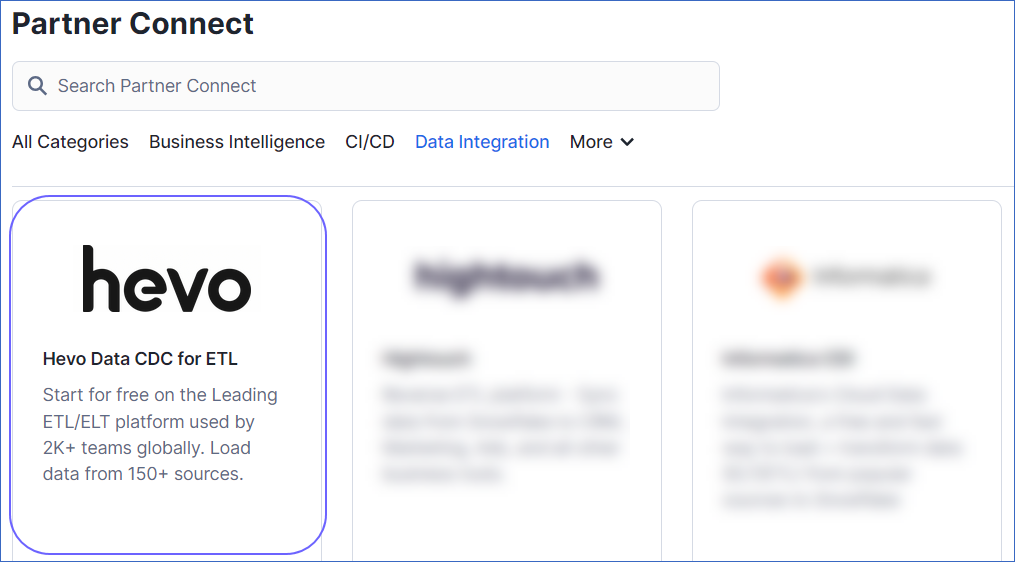
In the search field, enter Hevo, and then click the Hevo tile.
-
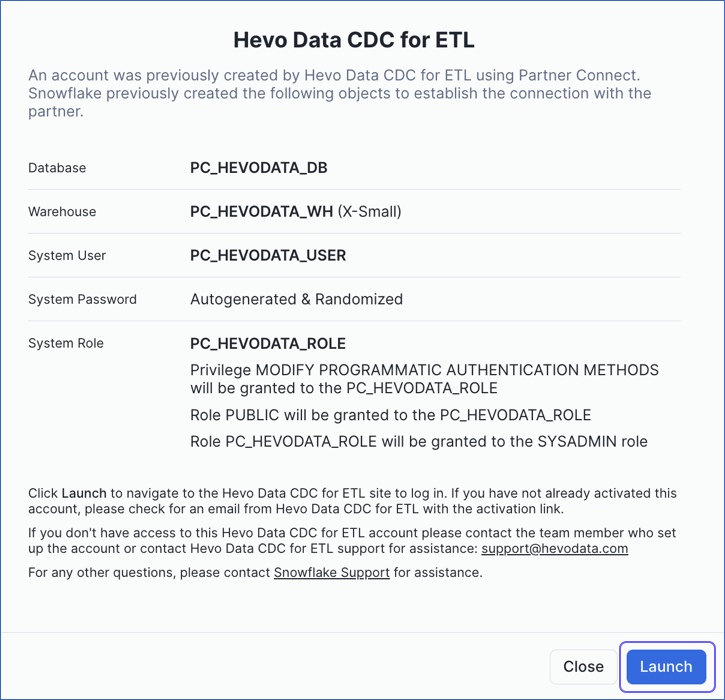
In the pop-up window that appears, do one of the following:
-
If your organization’s domain is registered with Hevo, but you are not an existing user:
-
Click Launch.
-
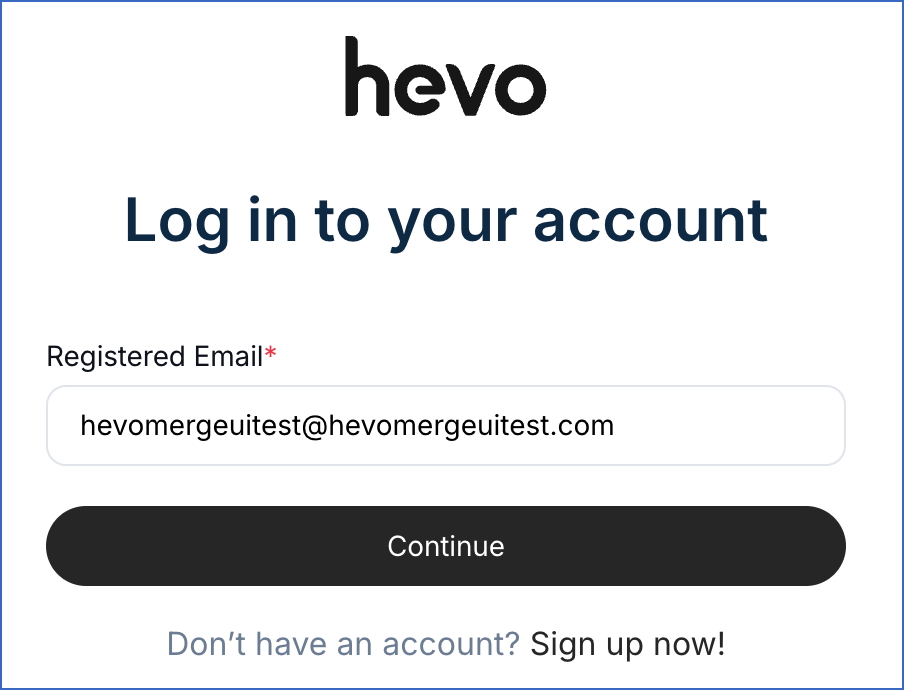
Specify your email address and click Continue.
-
Specify the password associated with your registered email address and click Log In.
-
Perform one of the following steps in Hevo:
-
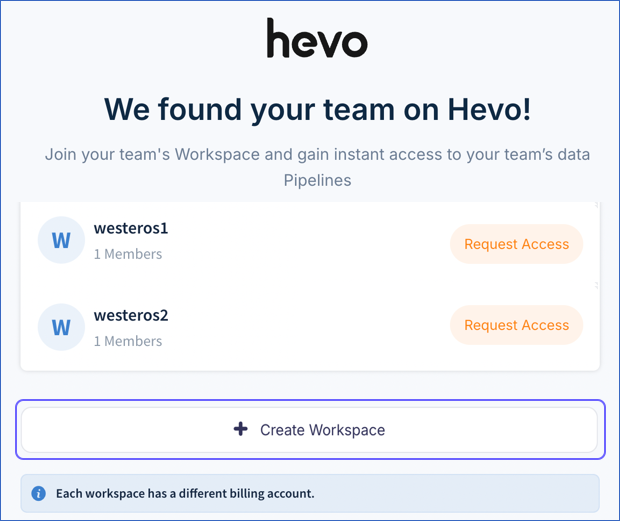
To create a new workspace, click + Create Workspace.
Note: This is the suggested option for new trial users, as it allows you to start exploring the Hevo product immediately.
-
Alternatively, you can join an existing workspace by requesting access from the workspace owner.
Note: You can configure a Snowflake Destination only after your access request is approved and you have been assigned the required role to create Pipelines and or Destinations.
-
-
Skip to Step 5 to configure your Source.
-
-
If your organization’s domain is not registered with Hevo, and you are a new user:
-
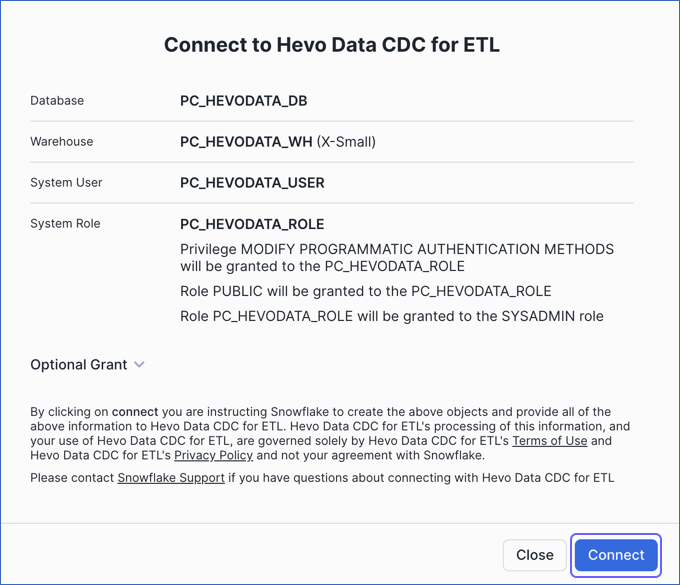
Click Connect.
-
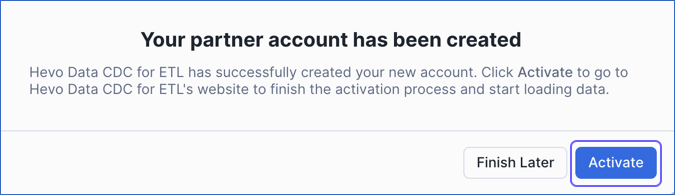
In the Your partner account… pop-up window, click Activate.
-
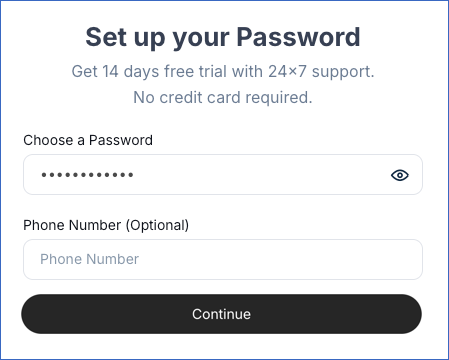
On the Set up your Password page, specify a password to create a Hevo account, and then click Continue.
-
-
-
On the Select Source Type page, select and configure your Source, and then click Test & Continue. For example, here, we have selected Amazon RDS MySQL.

-
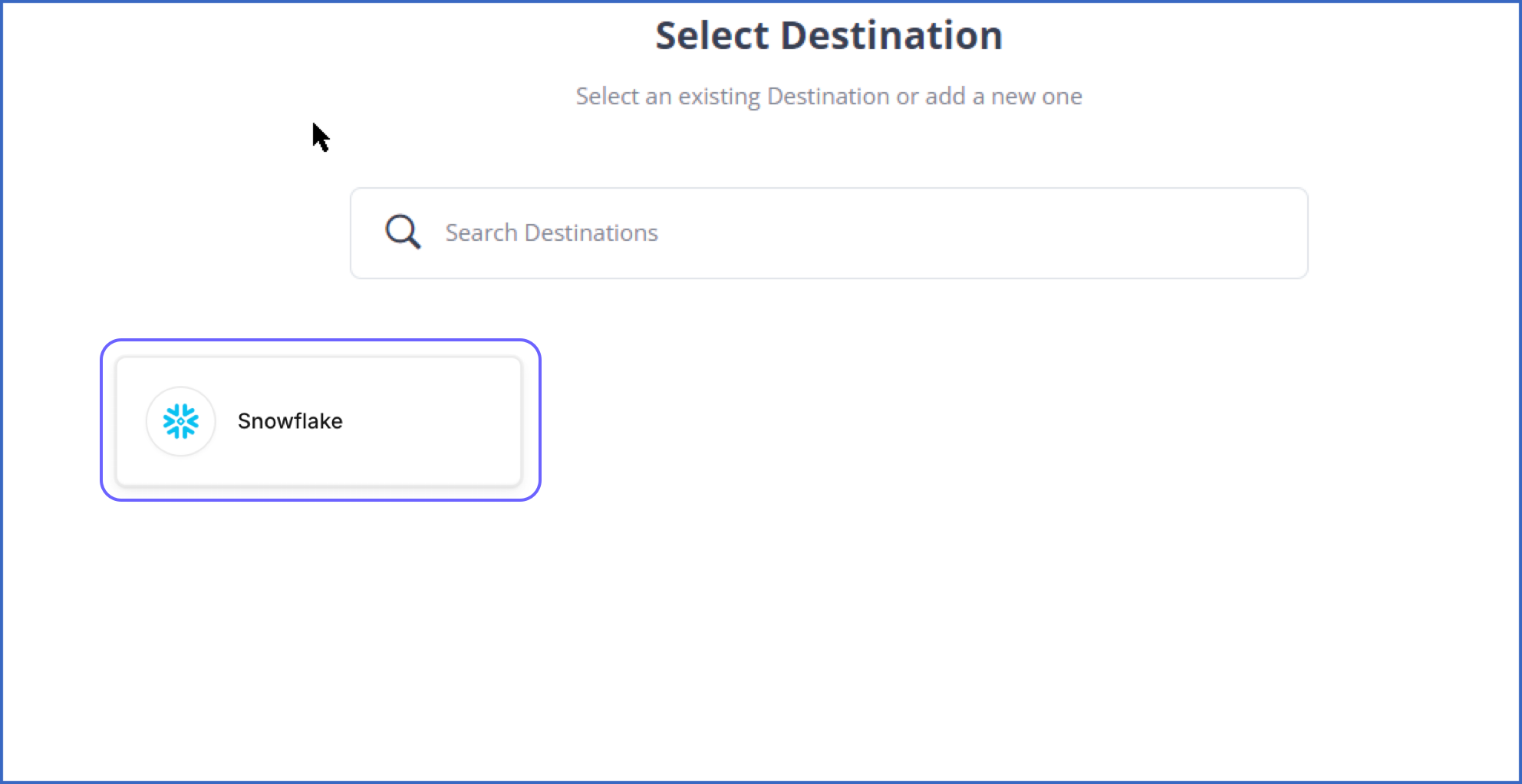
On the Select Destination page, select Snowflake.
-
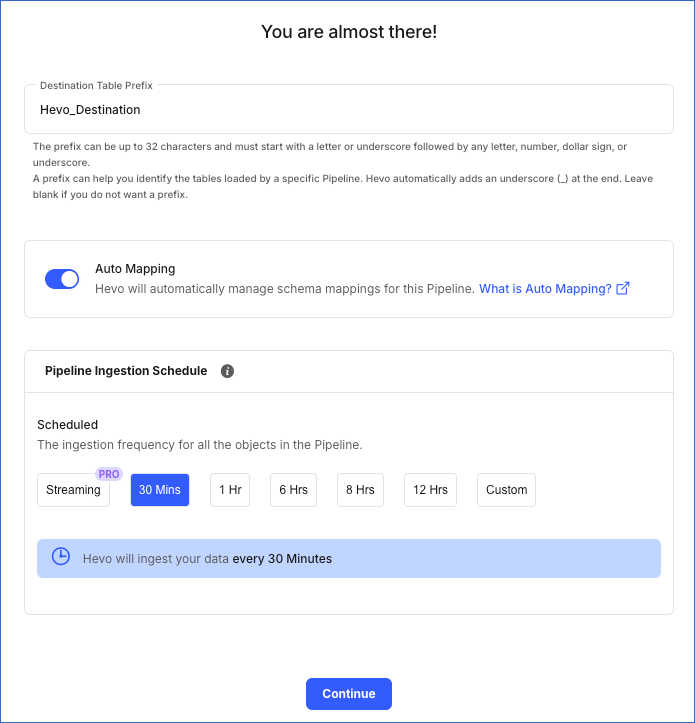
Specify the Destination Table Prefix.
-
Ensure that Auto Mapping is enabled if you want to automatically map Source Event Types to the Destination table.
-
Select the ingestion frequency at which Hevo must ingest data from the Source. You can select Custom and define the ingestion frequency by specifying an integer value in hours.
-
Click Continue.
Connect Using the Snowflake Credentials
Refer to the steps in this section to create a Snowflake account, connect to a warehouse, and obtain the Snowflake credentials.
(Optional) Create a Snowflake Account
In Snowflake, when you sign up for the account, you get 30 days of free access with $400 credits. Once you exceed this limit, charges will apply. The free trial starts from the day you complete the sign-up and activate the account. If you use the $400 credits before the 30 days, the free trial ends, and your account is suspended. You can still log in to your account, however, you cannot use any features, such as running a virtual warehouse, loading data, or performing queries.
Perform the following steps to create a Snowflake account:
-
Navigate to https://signup.snowflake.com/.
-
On the Sign up page, specify the following and click Continue:

-
First name and Last name: The first and last name of the account user.
-
Work email: A valid email address that can be used to manage the Snowflake account.
-
Why are you signing up?: Select the reason for signing up for Snowflake from the drop-down list.
-
-
On the page that appears, specify the following details:

-
Company name: The name of your organization.
-
Job title: Your designation in the organization.
-
Choose your Snowflake edition: Select the Snowflake editions you want to use.
Note: Snowflake offers multiple editions. Choose the one that best suits your organization’s needs. Read Snowflake Editions to learn about the different editions available.
-
Choose your cloud provider: Select the cloud platform where you want to host your Snowflake account. You can choose from the following:
-
Amazon Web Services (AWS)
-
Google Cloud Platform (GCP)
-
Microsoft Azure (Azure)
For more details on each platform and their pricing, read Supported Cloud Platforms.
-
-
Region: Select the region for your cloud platform. In each platform, Snowflake provides one or more regions where the account can be provisioned.
-
-
Click GET STARTED.
That’s it! An email to activate your account is sent to your registered email address. Click the link in the email to sign-in to your Snowflake account.
Create and Configure your Snowflake Warehouse
Hevo provides you with a ready-to-use script to configure the Snowflake warehouse you intend to use as the Destination.
Follow these steps to run the script:
-
Log in to your Snowflake account.
-
In the left navigation bar, hover your mouse over Projects, and then click Workspaces.

-
In the workspace pane on the left, click + Add new, and then click SQL File.

-
Rename the SQL file and press Enter to create an SQL worksheet.
-
Paste the following script in the worksheet. The script creates a new role for Hevo in your Snowflake Destination. Keeping your privacy in mind, the script grants only the bare minimum permissions required by Hevo to load the data in your Destination.
-- create variables for user / password / role / warehouse / database (needs to be uppercase for objects) set role_name = 'HEVO'; -- Replace "HEVO" with your role name set user_name = 'HARRY_POTTER'; -- Replace "HARRY_POTTER" with your username set user_password = 'Gryffindor'; -- Replace "Gryffindor" with the user password set warehouse_name = 'HOGWARTS'; -- Replace "HOGWARTS" with the name of your warehouse set database_name = 'RON'; -- Replace "RON" with the name of your database set schemaName = 'DARK_ARTS'; -- Replace "DARK_ARTS" with the database schema name set db_schema = concat($database_name, '.', $schemaName); begin; -- change role to securityadmin for user / role steps use role securityadmin; -- create role for HEVO create role if not exists identifier($role_name); grant role identifier($role_name) to role SYSADMIN; -- create a user for HEVO create user if not exists identifier($user_name) password = $user_password default_role = $role_name default_warehouse = $warehouse_name; -- Grant access to the user grant role identifier($role_name) to user identifier($user_name); -- change role to sysadmin for warehouse / database steps use role sysadmin; -- create a warehouse for HEVO, if it does not exist create warehouse if not exists identifier($warehouse_name) warehouse_size = xsmall warehouse_type = standard auto_suspend = 60 auto_resume = true initially_suspended = true; -- create database for HEVO create database if not exists identifier($database_name); -- grant HEVO role access to warehouse grant USAGE on warehouse identifier($warehouse_name) to role identifier($role_name); -- grant HEVO access to current schemas use role accountadmin; grant CREATE SCHEMA, MONITOR, USAGE, MODIFY on database identifier($database_name) to role identifier($role_name); -- grant Hevo access to future schemas use role accountadmin; grant SELECT on future tables in database identifier($database_name) to role identifier($role_name); grant MONITOR, USAGE, MODIFY on future schemas in database identifier($database_name) to role identifier($role_name); use role accountadmin; CREATE SCHEMA IF not exists identifier($db_schema); GRANT USAGE, MONITOR, CREATE TABLE, CREATE EXTERNAL TABLE, MODIFY ON SCHEMA identifier($db_schema) TO ROLE identifier($role_name); commit; -
Replace the sample values provided in lines 2-7 of the script with your own to create your warehouse. These are the credentials that you will use to connect your warehouse to Hevo.
Note: The values for
role_name,user_name,warehouse_name,database_name, andschemaNamemust be in uppercase. -
Press CMD + A (Mac) or CTRL + A (Windows) inside the worksheet area to select the script.
-
Press CMD+return (Mac) or CTRL + Enter (Windows) to run the script.
-
Once the script runs successfully, you can use the credentials from lines 2-7 of the script to connect your Snowflake warehouse to Hevo.
If you are a user in a Snowflake account created after the BCR Bundle 2024_08, Snowflake recommends connecting to ETL applications, such as Hevo, through a service user. For this, run the following command:
ALTER USER <your_snowflake_user> SET TYPE = SERVICE;
Replace the placeholder value in the command above with your own. For example, <your_snowflake_user> with HEVOSERVICEUSER.
Note: New service users will not be able to connect to Hevo via password authentication; they must connect with a key pair. Read Obtain a Private and Public Key Pair for the steps.
Obtain a Private and Public Key Pair (Recommended Method)
You can authenticate Hevo’s connection to your Snowflake data warehouse using a public-private key pair. For this, you need to:
-
Generate the public key for your private key.
1. Generate a private key
You can connect to Hevo using an encrypted or unencrypted private key.
Note: Hevo supports only private keys encrypted using the Public-Key Cryptography Standards (PKCS) #8-based triple DES algorithm.
Open a terminal window, and on the command line, do one of the following:
-
To generate an unencrypted private key, run the command:
openssl genrsa 2048 | openssl pkcs8 -topk8 -inform PEM -out <unencrypted_key_name> -nocrypt -
To generate an encrypted private key, run the command:
openssl genrsa 2048 | openssl pkcs8 -topk8 -v2 des3 -inform PEM -out <encrypted_key_name>You will be prompted to set an encryption password. This is the passphrase that you need to provide while connecting to your Snowflake Destination using key pair authentication.
Note: Replace the placeholder values in the commands above with your own. For example, <encrypted_key_name> with encrypted_rsa_key.p8.
The private key is generated in the PEM format.
-----BEGIN ENCRYPTED PRIVATE KEY-----
MIIFJDBWBg...
----END ENCRYPTED PRIVATE KEY-----
Save the private key file in a secure location and provide it while connecting to your Snowflake Destination using key pair authentication.
2. Generate a public key
To use a key pair for authentication, you must generate a public key for the private key created in the step above. For this:
Open a terminal window, and on the command line, run the following command:
openssl rsa -in <private_key_file> -pubout -out <public_key_file>
Note:
-
Replace the placeholder values in the command above with your own. For example, <private_key_file> with encrypted_rsa_key.p8.
-
If you are generating a public key for an encrypted private key, you will need to provide the encryption password used to create the private key.
The public key is generated in the PEM format.
-----BEGIN PUBLIC KEY-----
MIIBIjANBgk...
-----END PUBLIC KEY-----
Save the public key file in a secure location. You must associate this public key with the Snowflake user that you created for Hevo.
3. Assign the public key to a Snowflake user
To authenticate Hevo’s connection to your Snowflake data warehouse using a key pair, you must associate the public key generated in the step above with the user that you created for Hevo. To do this:
-
Log in to your Snowflake account as a user with the SECURITYADMIN role or a higher role.
-
In the left navigation bar, hover your mouse over Projects, and then click Workspaces.
-
In the workspace pane on the left, click + Add new, and then click SQL File.
-
Rename the SQL file and press Enter to create an SQL worksheet.
-
Run the following command in the worksheet:
ALTER USER <your_snowflake_user> SET RSA_PUBLIC_KEY='<public_key>'; // Example ALTER USER HARRY_POTTER set RSA_PUBLIC_KEY='MIIBIjANBgk...';Note:
-
Replace the placeholder values in the command above with your own. For example, <your_snowflake_user> with HARRY_POTTER.
-
Set the public key value to the content between
-----BEGIN PUBLIC KEY-----and-----END PUBLIC KEY-----.
-
To check whether the public key is configured correctly, you can follow the steps provided in the verify the user’s public key fingerprint section.
Obtain your Snowflake Account URL
To configure your Snowflake Destination in Hevo, you can either use a proxy server URL or your Snowflake account URL. Based on your setup, do one of the following:
Use a Proxy Server URL
A proxy server manages compute resources for your Snowflake account, helping reduce costs and improve query performance.
To use a proxy server, enter the proxy server URL in the Snowflake Account URL field while configuring your Destination.
Note: Hevo currently supports Yuki as a proxy server. To obtain your Yuki proxy URL, refer to the Yuki documentation.
Use your Snowflake Account URL
The Snowflake data warehouse may be hosted on any of the following Cloud providers:
-
Amazon Web Services (AWS)
-
Google Cloud Platform (GCP)
-
Microsoft Azure (Azure)
The account name, region, and cloud service provider are visible in your Snowflake web interface URL.
For most accounts, the URL looks like https://account_name.region.snowflakecomputing.com.
For example, https://westeros.us-east-2.aws.snowflakecomputing.com. Here, westeros is your account name, us-east-2 is the region, and aws is the service provider.
Similarly, if your Snowflake instance is hosted on AWS in the US West region, the URL looks like https://account_name.snowflakecomputing.com.
Perform the following steps to obtain your Snowflake Account URL:
-
Log in to your Snowflake instance. Hover your mouse over Admin, and then click Accounts.

-
Hover the mouse on the LOCATOR field corresponding to the account for which you want to obtain the URL.

-
Click on the link icon to copy your account URL.
Configure S3 Bucket for Staging Data
Note: This section is applicable only if you enable the Use your S3 Bucket option while configuring the Destination.
By default, Hevo stores your data temporarily in a Hevo-managed S3 bucket before loading it into your Destination. This allows Hevo to transfer a large volume of data to Snowflake in bulk. However, you may need to use your own S3 bucket in the following cases:
-
Your Snowflake account has organization-level or account-level security controls, such as
REQUIRE_STORAGE_INTEGRATION_FOR_STAGE_CREATIONandREQUIRE_STORAGE_INTEGRATION_FOR_STAGE_OPERATIONenabled. -
You want to manage data staging within your own AWS environment.
In such cases, you can configure Hevo to use a bucket you own. To set this up, perform the following steps:
If you do not have an S3 bucket, refer to Create an Amazon S3 Bucket to create one.
Tip: It is recommended to create the bucket in the same AWS region as your Snowflake account to avoid slower load times.
1. Create an IAM Policy for your S3 Bucket
To allow Hevo to access your S3 bucket and load data into it, you must create an IAM policy with the following permissions and attach it to the IAM role or user:
| Permission Name | Allows Hevo to |
|---|---|
| s3:ListBucket | Check if the S3 bucket: - Exists - Can be accessed - Lists all the objects |
| s3:GetObject | Read staged files from the bucket. |
| s3:PutObject | Write staged files to the bucket. |
| s3: DeleteObject | Delete objects from the S3 bucket. Hevo requires this permission to delete the file it creates in your S3 bucket while testing the connection. Note: This permission is scoped to Hevo’s own staged files, not your existing bucket contents. However, Hevo recommends using a dedicated staging bucket or prefix rather than a bucket that also stores other data. |
Perform the following steps to create the IAM policy:
-
Log in to the AWS IAM Console.
-
In the left navigation pane, under Access Management, click Policies.
-
On the Policies page, click Create policy.

-
On the Specify permissions page, click JSON.

-
In the Policy editor section, paste the following JSON statements:
{ "Version": "2012-10-17", "Statement": [ { "Sid": "VisualEditor0", "Effect": "Allow", "Action": [ "s3:ListBucket", "s3:GetObject", "s3:PutObject", "s3:DeleteObject" ], "Resource": [ "arn:aws:s3:::<your_bucket_name>", "arn:aws:s3:::<your_bucket_name>/*" ] } ] }Note: Replace the placeholder values in the commands above with your own values. For example, replace <your_bucket_name> with s3-destination1.
-
At the bottom of the page, click Next.
-
On the Review and create page, specify the Policy name, and at the bottom of the page, click Create policy.
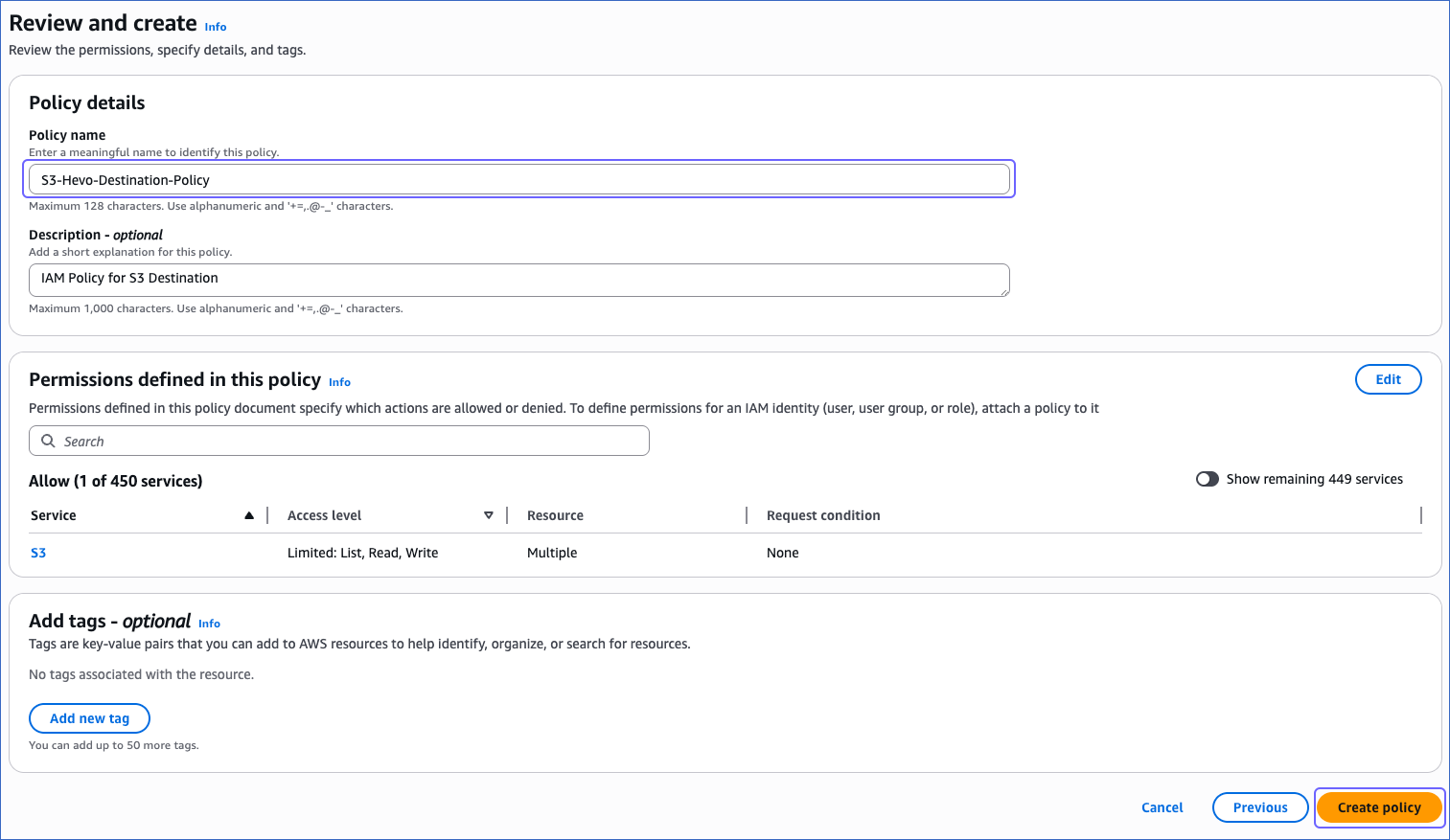
You must assign this policy to the IAM role or the IAM user that you create for Hevo to access your S3 bucket. Without this, the connection will fail.
2. Create and Retrieve the Amazon S3 Connection Settings
Hevo connects to your S3 bucket using an IAM role. To set this up, you need to create an IAM role for Hevo, attach the policy that you created in the Create an IAM Policy for your S3 Bucket section, and then retrieve the following credentials:
-
Amazon Resource Name (ARN): A unique address that identifies your IAM role in AWS.
-
External ID: A unique token that ensures only Hevo can access your AWS account.
1. Create an IAM role and assign the IAM policy
-
Log in to the AWS IAM Console.
-
In the left navigation pane, under Access Management, click Roles.
-
On the Roles page, click Create role.

-
In the Select trusted entity section, choose AWS account.

-
In the An AWS account section, choose Another AWS account, and in the Account ID field, specify Hevo’s Account ID, 393309748692.

-
In the Options section, select the Require external ID check box, specify an External ID of your choice, and click Next.

-
On the Add Permissions page, search and select the policy that you created in the Create an IAM Policy for your S3 Bucket section, and at the bottom of the page, click Next.

-
On the Name, review, and create page, specify a Role name and a Description.

-
At the bottom of the page, click Create role.
You are redirected to the Roles page.
2. Retrieve the ARN and External ID
-
On the Roles page, click the role that you created in the Create an IAM role and assign the IAM policy section.

-
On the <Role name> page, Summary section, click the copy icon below the ARN field and save it securely like any other password.

-
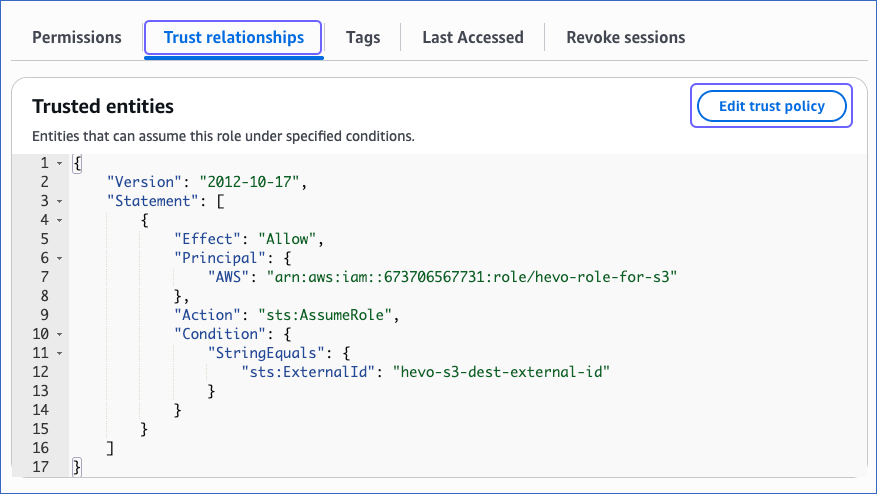
In the Trust relationships tab, copy the external ID corresponding to the sts:ExternalID field. For example, hevo-s3-dest-external-id in the image below.

Use the ARN and the external ID while creating a Snowflake storage integration and configuring your Destination in Hevo.
3. Create a Snowflake Storage Integration
A storage integration allows Snowflake to read data from your S3 bucket. To create a Snowflake storage integration, you must have the following credentials of your S3 bucket:
-
Folder path where the files are staged
Perform the following steps to create a Snowflake storage integration:
-
Log in to your Snowflake account.
-
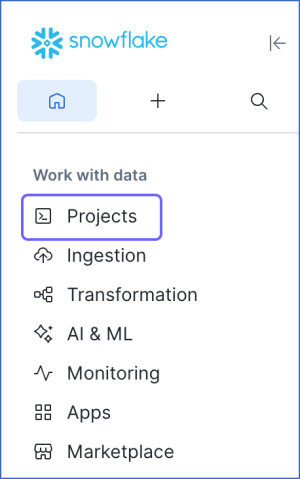
In the left navigation pane, click Projects.
-
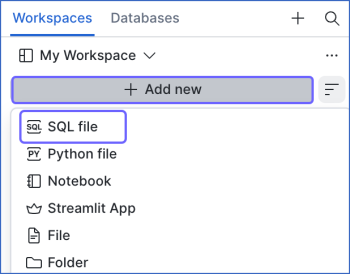
In the Workspaces tab, click + Add new, and then click SQL file to create a SQL worksheet.
-
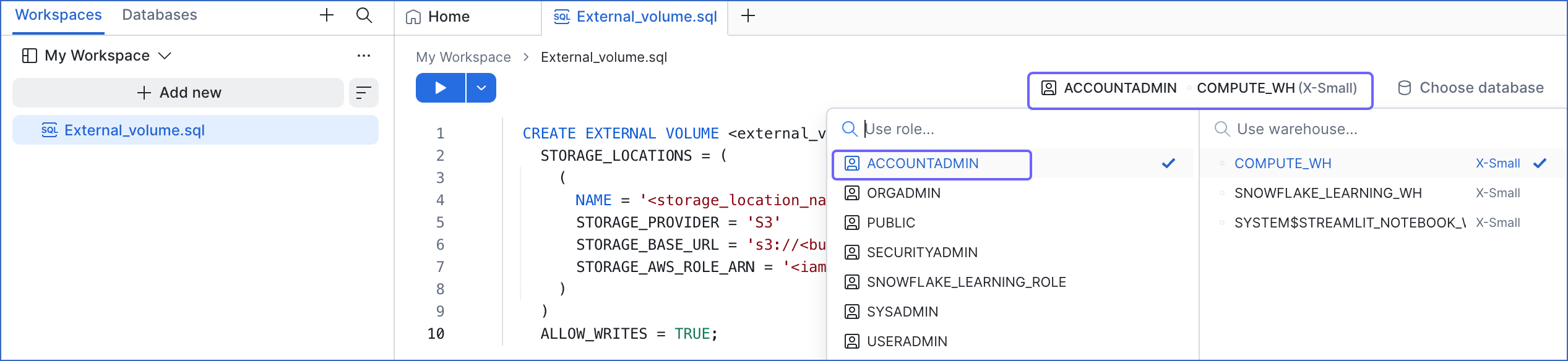
In the role selector at the top right of the worksheet, ensure that the ACCOUNTADMIN role or a role that has the CREATE INTEGRATION privilege on the account is selected. If it is not, click the drop-down and select that role.
-
Copy the following script and paste it into the worksheet. The script creates a storage integration that allows Snowflake to access your S3 bucket.
CREATE STORAGE INTEGRATION IF NOT EXISTS '<storage_integration_name>' TYPE = EXTERNAL_STAGE STORAGE_PROVIDER = 'S3' STORAGE_AWS_ROLE_ARN = '<your_iam_role_arn>' STORAGE_AWS_EXTERNAL_ID = '<your_external_id>' ENABLED = TRUE STORAGE_ALLOWED_LOCATIONS = ('s3://<your_bucket_name>/<your_folder_path>/'); GRANT USAGE ON INTEGRATION '<storage_integration_name>' TO ROLE '<snowflake_role_name>'; DESC STORAGE INTEGRATION '<storage_integration_name>';Note: Replace the placeholder values in the script above with your own values. For example, replace <storage_integration_name> with HEVO-INTEGRATION.
-
Click the Run icon to execute the script.
Once the script runs successfully, your storage integration will be created. Make a note of the STORAGE_AWS_IAM_USER_ARN and STORAGE_AWS_EXTERNAL_ID. Use them to add your Snowflake account as a trusted entity in your S3 bucket.
4. Add Snowflake as a Trusted Entity in your S3 bucket
To allow Snowflake to access the data in your S3 bucket, you must update the IAM role created in the Create and Retrieve the Amazon S3 Connection Settings section and add Snowflake as a trusted entity. To do so, perform the following steps:
-
On the Roles page of your IAM console, click the role that you created in the Create and Retrieve the Amazon S3 Connection Settings section .
-
In the Trust relationships tab, click Edit trust policy.
-
In the Edit trust policy section, paste the following JSON statements and do the following:
{ "Version": "2012-10-17", "Statement": [ { "Effect": "Allow", "Principal": { "AWS": [ "<your_iam_role_arn>", "<snowflake-aws-iam-user-arn>" ] }, "Action": "sts:AssumeRole", "Condition": { "StringEquals": { "sts:ExternalId": "<storage_aws_external-id>" } } } ] }-
Replace <your_iam_role_arn> with the ARN of your IAM role that you retrieved in the Retrieve the ARN and External ID section.
-
Replace <snowflake-aws-iam-user-arn> and <storage_aws_external-id> with the
STORAGE_AWS_IAM_USER_ARNandSTORAGE_AWS_EXTERNAL_IDvalues that you retrieved in the Create a Snowflake Storage Integration section.
-
-
Click Update policy.
The IAM role trust policy has been successfully updated, allowing your Snowflake account to access data in your S3 bucket.
Configure Snowflake as a Destination
Perform the following steps to configure Snowflake as a Destination in Hevo:
-
Click DESTINATIONS in the Navigation Bar.
-
Click + Create Standard Destination in the Destinations List View.
-
On the Add Destination page, select Snowflake as the Destination type.
-
On the Configure your Snowflake Destination page, specify the following:

-
Destination Name: A unique name for your Destination, not exceeding 255 characters.
-
Select one of the methods to connect to your Snowflake data warehouse:
-
Connect using Key Pair Authentication:
-
Snowflake Account URL: The Snowflake account URL or proxy server URL that you retrieved in Step 4.
-
Database User: A user with a non-administrative role created in the Snowflake database. This user must be the one to whom the public key is assigned.
-
Private Key: A cryptographic password used along with a public key to generate digital signatures. Click the attach (
 ) icon to upload the private key file that you generated in Step 3.
 -
Passphrase: The password given while generating the encrypted private key. Leave this field blank if you have attached a non-encrypted private key.
-
Warehouse: The Snowflake warehouse associated with your database, where the SQL queries and DML operations are performed. The warehouse can be the one that you created above or an existing one.
-
Database Name: The name of the Destination database where the data is to be loaded. This database can be the one that you created above or an existing one.
-
Database Schema: The name of the schema in the Destination database to which the specified database user has access. This schema can be the one that you created above or an existing one.
Note: The schema name is case-sensitive.
-
-
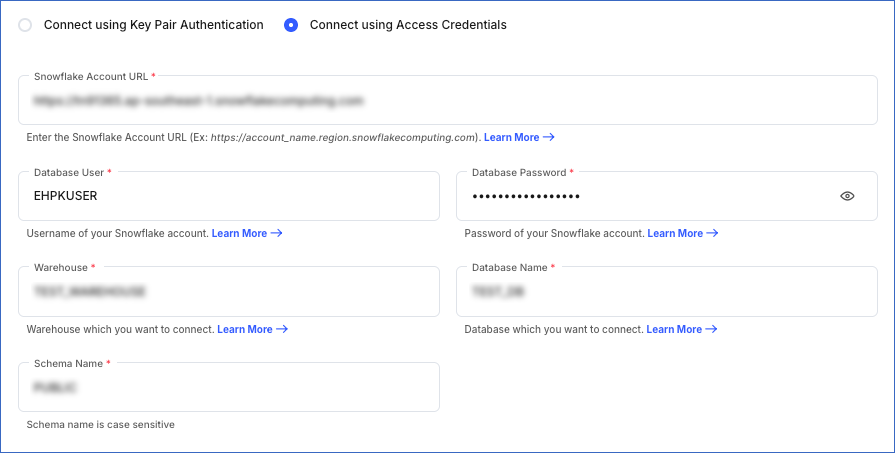
Connect using Access Credentials:
-
Snowflake Account URL: The Snowflake account URL or proxy server URL that you retrieved in Step 4.
-
Database User: A user with a non-administrative role created in the Snowflake database. This user can be the one that you created above or an existing user.
-
Database Password: The password of the database user.
-
Warehouse: The Snowflake warehouse associated with your database, where the SQL queries and DML operations are performed. The warehouse can be the one that you created above or an existing one.
-
Database Name: The name of the Destination database where the data is to be loaded. This database can be the one that you created above or an existing one.
-
Database Schema: The name of the schema in the Destination database to which the specified database user has access. This schema can be the one that you created above or an existing one.
Note: The schema name is case-sensitive.
-
-
-
Storage Configuration:
-
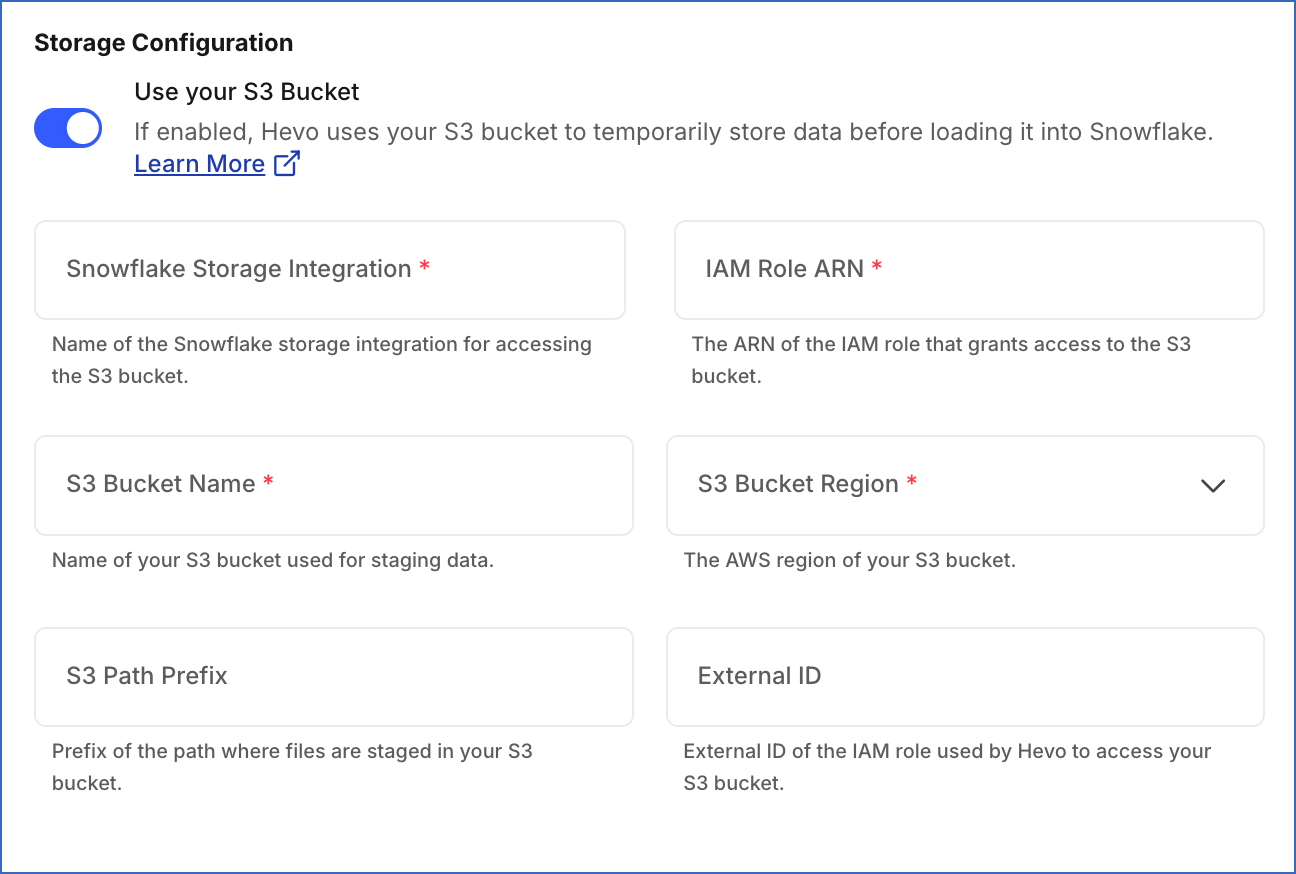
Use your S3 Bucket: Enable this option if your Snowflake account requires a storage integration, or you want to stage data in your S3 bucket instead of Hevo’s before loading it into the Destination.
Note: Ensure that Hevo has the required permissions to access your S3 bucket and load data into it.
-
Snowflake Storage Integration: The name of the storage integration created in your Snowflake account to access your S3 bucket.
-
IAM Role ARN: The unique identifier assigned by AWS to the IAM role to grant Hevo access to your S3 bucket.
-
S3 Bucket Name: The name of your S3 bucket where you want Hevo to stage data before loading it into your Destination. For example, my-s3-bucket.
-
S3 Bucket Region: The AWS region where your S3 bucket is located. For example, Asia Pacific (Singapore).
-
S3 Path Prefix (Optional): A prefix added to the directory path in your S3 bucket where you want Hevo to stage data. Refer to Configuring the Pipeline Settings for more information on the directory path.
-
External ID (Optional): The external ID of the IAM role Hevo uses to access your S3 bucket.
-
-
-
Advanced Settings:
-
Populate Loaded Timestamp: Enable this option to append the
__hevo_loaded_atcolumn to the Destination table to indicate the time when the Event was loaded to the Destination. Read Loading Data to a Data Warehouse. -
Create Transient Tables: Enable this option to create transient tables. Transient tables have the same features as permanent tables minus the Fail-safe period. The fail-safe feature allows Snowflake to recover the table if you were to lose it, for up to seven days. Transient tables allow you to avoid the additional storage costs for the backup, and are suitable if your data does not need the same level of data protection and recovery provided by permanent tables, or if it can be reconstructed outside of Snowflake. Read Transient Tables.
-
-
-
Click Test Connection. This button is enabled once all the mandatory fields are specified.
-
Click Save & Continue. This button is enabled once all the mandatory fields are specified.
Additional Information
Read the detailed Hevo documentation for the following related topics:
Modifying Snowflake Destination Configuration
You can modify some settings after creating a Snowflake Destination. However, any configuration changes will affect all the Pipelines using this Destination. To learn about the effects, refer to section, Potential impacts of modifying the configuration settings.
To modify the Snowflake Destination configuration:
-
Navigate to the Destinations Detailed View.
-
Do one of the following:
-
Click the Settings icon next to the Destination name, and then click the Edit icon.

-
Click the Kebab menu icon on the right, and then click Edit.
-
-
On the Edit Snowflake Destination connection settings page, you can modify the following settings:
-
Authentication method
-
Destination name
-
Account URL
-
Database User
-
Private Key or Database Password, depending on the authentication method
-
Passphrase
Note: You must change the passphrase if you have modified your encrypted private key.
-
Warehouse name
-
Database name
-
Schema name
-
Populate Loaded Timestamp
-
-
Click Save & Continue. Optionally, click Test Connection to check the connection to your Snowflake Destination, and then save the modified configuration.
Potential impacts of modifying the configuration settings
-
Changing any configuration setting affects all Pipelines using the Destination.
-
Changing any data warehouse or database-related settings may lead to inconsistency in the data stored in your Destination tables.
(Optional) Configuring Key Pair Rotation
You can rotate and replace the private and public keys used for authentication based on your set expiration schedule. Snowflake supports using multiple active keys, and currently, you can associate two public keys with a single user using the RSA_PUBLIC_KEY and RSA_PUBLIC_KEY_2 parameters.
Perform the following steps to rotate your keys:
-
Assign the newly generated public key to your Snowflake user. Use the parameter key that is currently not assigned to the user. For example, if
RSA_PUBLIC_KEYis presently associated with the user, then assign the new public key toRSA_PUBLIC_KEY_2and vice versa. To do this, you can run the following command in your Snowflake account:ALTER USER <your_snowflake_user> SET RSA_PUBLIC_KEY_2='<public key>'; -
Edit your Snowflake Destination configuration and replace the private key with the one you generated in Step 1.
-
Remove the old public key assigned to your Snowflake user. Assuming that your old public key is set in
RSA_PUBLIC_KEY, run the following command in your Snowflake account to remove the assigned key:ALTER USER <your_snowflake_user> UNSET RSA_PUBLIC_KEY;
Note: Replace the placeholder values in the commands above with your own. For example, <your_snowflake_user> with HARRY_POTTER.
Handling Source Data with Different Data Types
For teams created in or after Hevo Release 1.58, Hevo automatically modifies the data type of a Snowflake table column to accommodate Source data with a different data type. Data type promotion is performed on tables that are less than 50GB in size. Read Handling Different Data Types in Source Data.
Note: Your Hevo release version is mentioned at the bottom of the Navigation Bar.
Destination Considerations
- In Snowflake, when you use the conversion functions TO_VARCHAR() and TO_DATE() on a high-precision timestamp column, it returns the same output values for similar inputs. For example, both functions return the same output for the timestamp values 2023-01-01 12:00:00.000001 and 2023-01-01 12:00:00.000002. As a result, when you run a query containing any one of these conversion functions, you may see duplicate records in your Destination table.
Limitations
-
For Snowflake Destinations, Hevo supports column values of up to 16 MB for most data types, including VARCHAR, VARIANT, and OBJECT data types. For BINARY, GEOGRAPHY, and GEOMETRY data types, the limit is 8 MB per column. If any Source objects have columns with values that exceed these limits, Hevo skips those Events and does not load their data to the Destination.
-
Hevo does not support loading data into ARRAY columns for Snowflake Destinations.
-
Hevo replicates a maximum of 4096 columns to each Snowflake table, of which six are Hevo-reserved metadata columns used during data replication. Therefore, your Pipeline can replicate up to 4090 (4096-6) columns for each table. Read Limits on the Number of Destination Columns.
See Also
Revision History
Refer to the following table for the list of key updates made to this page:
| Date | Release | Description of Change |
|---|---|---|
| Sep-19-2026 | NA | Added a warning about the deprecation of password-based authentication in Snowflake. |
| Aug-07-2026 | NA | Updated the page overview to add a link to Connecting Through Snowflake PrivateLink. |
| May-11-2026 | 2.48.1 | Updated the page to mention support for creating Destination using a proxy server URL. |
| Apr-09-2026 | NA | Updated the page to add information about support for using your own S3 bucket and Snowflake integration to stage data before loading to the Destination. |
| Nov-13-2025 | NA | Updated the document as per the latest Hevo UI. |
| Nov-07-2025 | NA | Updated the page content as per the latest Snowflake UI. |
| Sep-26-2025 | NA | Updated section, Limitations to add a note about ARRAY columns in Snowflake. |
| Jul-07-2025 | NA | Updated the limitation about data type column size limits. |
| Nov-11-2024 | NA | Updated section, Limitations to add a limitation on data ingestion from Source objects with column values exceeding 16 MB. |
| Oct-08-2024 | 2.28.2 | Updated the page to make key pair authentication the recommended method and add information about service users. |
| Sep-23-2024 | NA | Added clarification about the users who can use Snowflake Partner Connect. |
| Sep-16-2024 | 2.27.3 | - Added sections Obtain a Private and Public Key Pair, Configuring Key Pair Rotation, and Modifying Snowflake Destination Configuration for information on key pair authentication and editing the Destination configuration. - Updated section Configure Snowflake as a Destination to provide description of the key pair authentication fields. |
| Aug-05-2024 | NA | Updated sections, Connect Using Snowflake Partner Connect and Connect Using the Snowflake Credentials as per the latest Snowflake UI. |
| Apr-18-2024 | 2.22.2 | Added sections: - Connect Using Snowflake Partner Connect. - Connect Using the Snowflake Credentials |
| Apr-11-2024 | NA | Added section, Destination Considerations. |
| Oct-03-2023 | NA | Updated sections, Create a Snowflake Account and Create and Configure your Snowflake Warehouse as per the latest Snowflake UI. |
| Aug-11-2023 | NA | Fixed broken links. |
| Apr-25-2023 | 2.12 | Updated section, Configure Snowflake as a Destination to add information that you must specify all fields to create a Pipeline. |
| Dec-19-2022 | 2.04 | Updated section, Configure Snowflake as a Destination to reflect the latest Hevo UI. |
| Dec-19-2022 | 2.04 | Updated the page overview to add information about Hevo supporting private links for Snowflake. |
| Nov-24-2022 | NA | Added a step in section, Create and Configure your Snowflake Warehouse. |
| Oct-10-2022 | NA | Added the section (Optional) Create a Snowflake Account. |
| Jun-16-2022 | NA | Modified section, Prerequisites to update the permissions required by Hevo to access data on your schema. |
| Jun-09-2022 | NA | Updated the page to provide a script containing all the user commands for creating a Snowflake warehouse. |
| Mar-31-2022 | NA | Updated the screenshots to reflect the latest Snowflake UI. |
| Feb-07-2022 | 1.81 | Updated the page to add the step, Create and Configure Your Snowflake Warehouse, and other permission related content. |
| Mar-09-2021 | 1.58 | Added section, Handling Source Data with Different Data Types. |
| Feb-22-2021 | NA | - Updated the page overview to state that the Pipeline stages the ingested data in Hevo’s S3 bucket, from where it is finally loaded to the Destination. - Formatting-related edits. |