Viewing User Roles and Permissions
If you are a member of the team, you can view the roles assigned to you to ensure that you have the right access level to perform the job responsibilities effectively. The roles define the access (read, edit, or manage) to the different entities within a workspace in Hevo.
Note: Only Team Administrators can view the roles assigned to all members. All other roles can view only the access provided to them.
Perform the following steps to view the roles and permissions:
-
In the Navigation Bar, click the Settings (
 ) icon.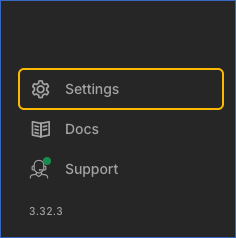
-
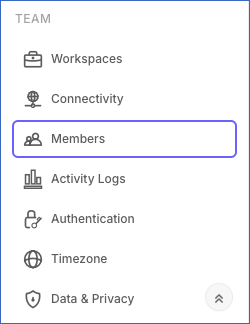
In the Settings sidebar, under TEAM, click Members.
-
Click the drop-down next to your name or member’s name (if you are a Team Administrator) to view the assigned roles.

You can also check the permissions granted to your role by hovering over it.
