Changing the Role of the User
Team administrators and collaborators can modify the team members’ roles to provide them appropriate level of permissions to perform their tasks effectively, while also maintaining the security and confidentiality of data.
Perform the following steps to change a team member’s roles:
Note: The option to modify a role is only available to individuals with Team Administrator or Team Collaborator role. For more information on the different roles, read User Roles and Permissions.
-
In the Navigation Bar, click the Settings (
 ) icon.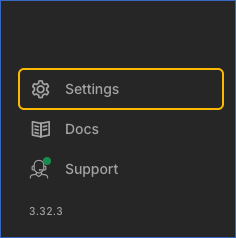
-
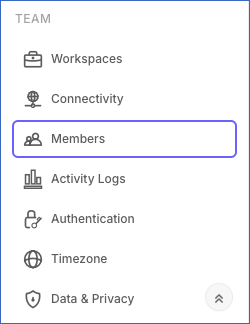
In the Settings sidebar, under TEAM, click Members.
-
On the Members page, select the required roles for the member from the drop-down.
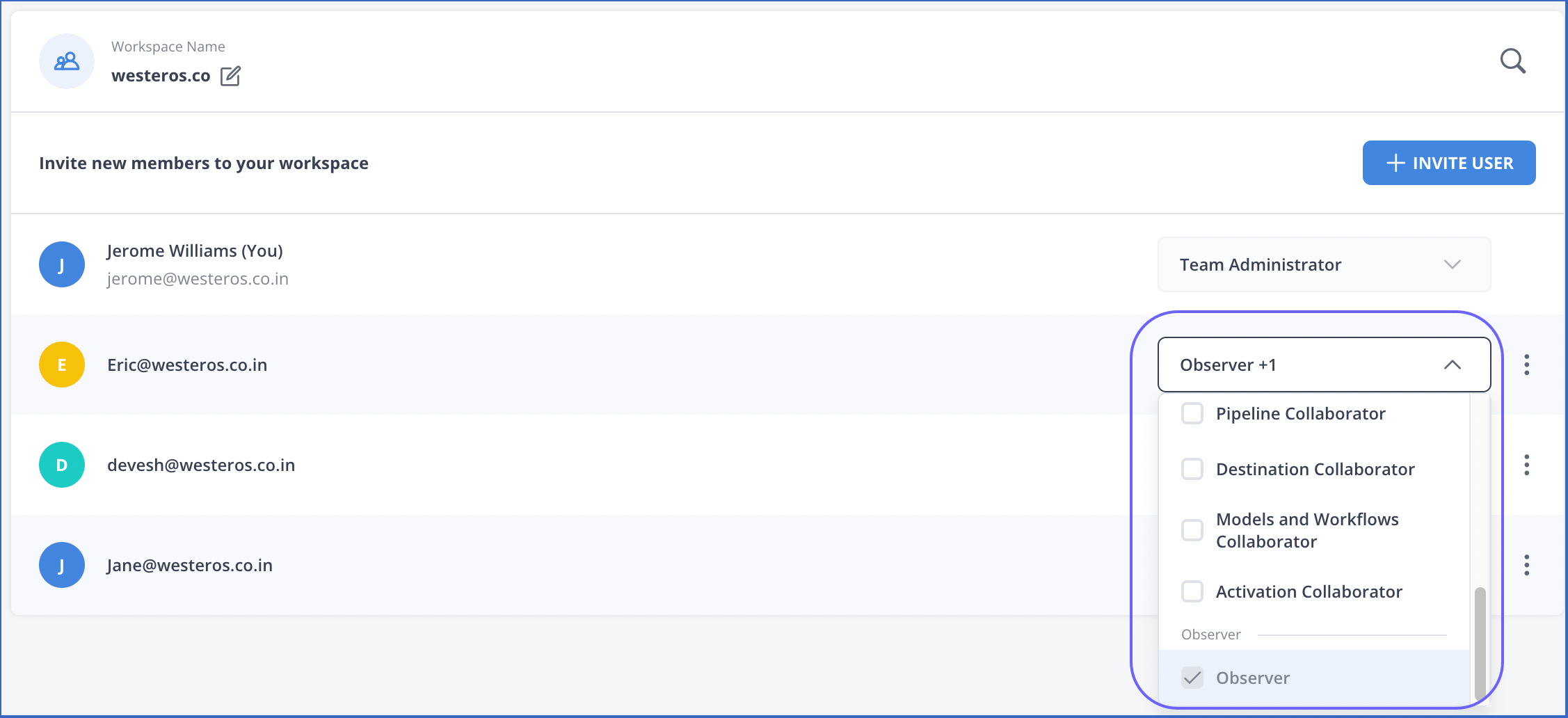
You can check the permissions granted to each role by hovering over it.

See Also
Last updated on Oct 26, 2026