Typeform is an online form and survey builder that businesses use to create conversational forms, surveys, and quizzes, collect responses, and organize their forms in workspaces and style them with themes.
Hevo uses the Typeform Create and Responses APIs to replicate your forms, form definitions, responses, themes, and workspaces to the Destination of your choice. To ingest data, you must authorize Hevo to access your Typeform account using OAuth.
Supported Features
| Feature Name | Supported |
|---|---|
| Capture deletes | Yes, except for the Response, Response Answer, Response Answer Choice, Response Tag, and Response Variable objects |
| History mode | Yes, for the Form History, Form Field History, Form Field Choice History, Form Hidden Field History, Form Logic History, Logic Action History, and Logic Action Condition History objects |
| Custom data (user-configured tables & fields) | No |
| Data blocking (skip objects and fields) | Yes |
| Resync (objects and Pipelines) | Yes |
| API configurable | Yes |
Prerequisites
-
An active Typeform account exists from which data is to be ingested.
-
You can log in to Typeform with a user that has access to the workspaces and forms whose data you want to replicate. Hevo replicates only the data that this user can access. To replicate all the workspaces, workspace members, and forms of your organization, authorize Hevo with the account owner or an admin.
-
You know the region where your Typeform account is hosted.
Identify the Region of your Typeform Account
Hevo supports Typeform accounts hosted in the US and Legacy EU regions. You must select the region of your account when you configure the Source, and you cannot change it after the Pipeline is created.
To identify the region, log in to your Typeform account and check the URL in your browser’s address bar:
| URL | Region |
|---|---|
| admin.typeform.com | US |
| admin.eu.typeform.com | Legacy EU |
Note: Hevo does not support Typeform accounts hosted in the New EU region, which you access at admin.typeform.eu.
Configure Typeform as a Source in your Pipeline
Perform the following steps to configure your Typeform Source:
-
Click Pipelines in the Navigation Bar.
-
Click + Create Pipeline in the Pipelines List View.
-
On the Select Source Type page, select Typeform.
-
On the Select Destination Type page, select the type of Destination you want to use.
-
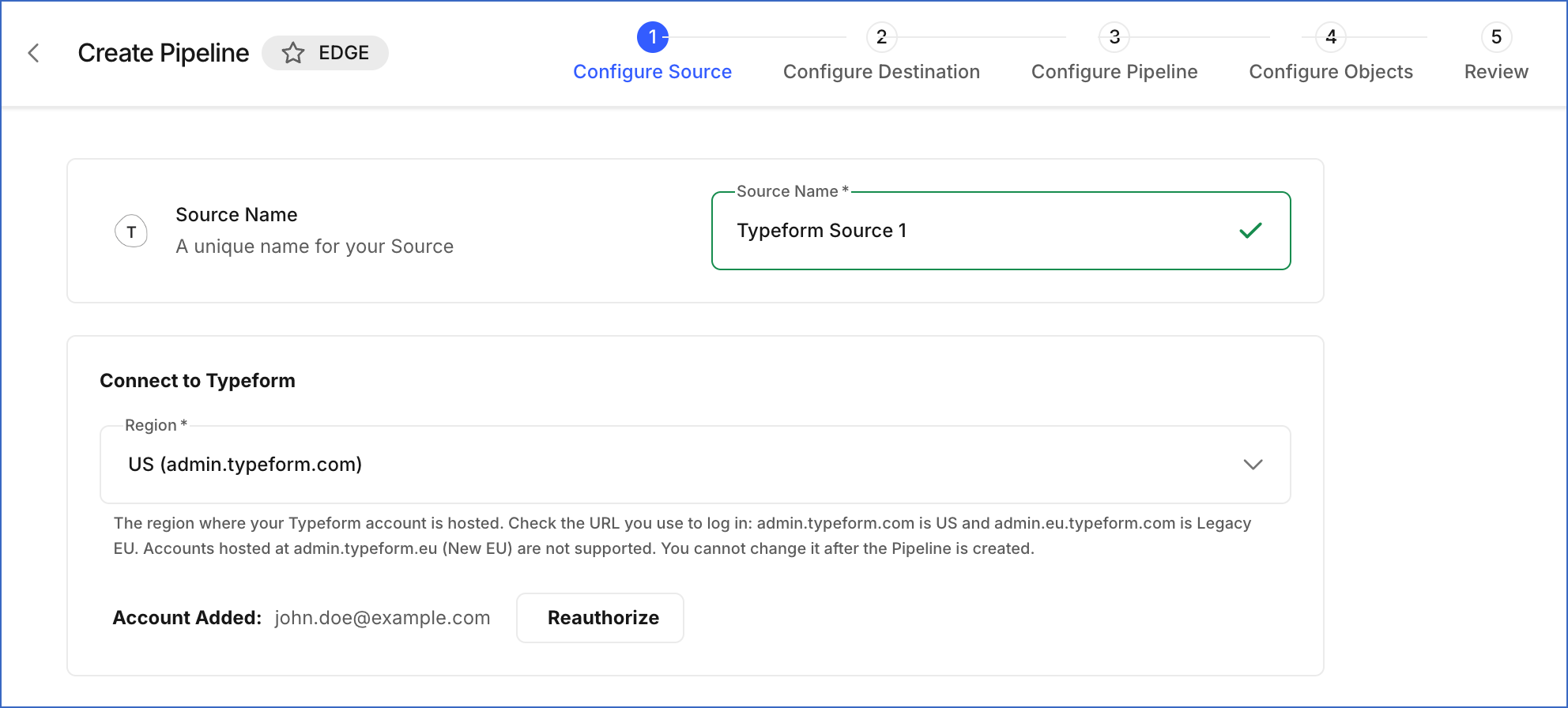
In the Configure Source screen, specify the following:
-
Source Name: A unique name for your Source, not exceeding 255 characters. For example, Typeform Source.
-
In the Connect to Typeform section:
-
Region: The region where your Typeform account is hosted, US (admin.typeform.com) or Legacy EU (admin.eu.typeform.com). Default value: US (admin.typeform.com). You cannot change this value after the Pipeline is created.
-
Click Authorize, and then perform the following steps in the window that opens:
-
Log in to your Typeform account, if you are not already logged in.
-
Review the permissions that Hevo requests, and then click Authorize.
You are redirected to the Configure Source screen, where the email address of the Typeform account appears next to Account Added.
-
-
-
-
Click Test & Continue to test the connection to your Typeform Source. Hevo checks that it can read your account information, forms, workspaces, and themes in the selected region. Once the test is successful, you can proceed to set up your Destination.
Data Replication
Hevo replicates data for all the objects selected on the Configure Objects page during Pipeline creation. By default, all supported objects and their available fields are selected. However, you can modify this selection while creating or editing the Pipeline. You can select a child object only when its parent object is selected. The Data Model lists the child objects of each parent object.
The first run of the Pipeline ingests all the existing data of the selected objects. In subsequent runs, as per the sync frequency, Hevo ingests data as follows:
| Ingestion Type | Objects |
|---|---|
| Incremental | Response and its child objects. For each form, Hevo ingests the completed responses submitted since the last run, based on the submitted_at field. To include responses that Typeform records late, each run also re-ingests the responses submitted in the hour before the latest response ingested for that form. |
| Full Load | All other objects. Hevo ingests the entire data of these objects in each run. |
Hevo ingests only completed responses. Partial and started responses are not ingested.
A response is re-ingested only within the one-hour window. As a result, the Response Tag object contains the tags of each response at the time the response was last ingested. If you add or remove tags on an older response, resync the Response object to update its tags in the Destination.
The Form History, Form Field History, Form Field Choice History, Form Hidden Field History, Form Logic History, Logic Action History, and Logic Action Condition History objects use the History Tracking load mode by default. Typeform provides only the time a form was last updated, not the time each of its fields, choices, or logic jumps changed. So, each time a form is updated in Typeform, Hevo adds a new version of all the records of that form, even the unchanged ones, and sets the metadata column _hevo_valid_from to the time the form was last updated. Hevo keeps the earlier versions. Forms that are not updated do not get a new version. You can change these objects to the Merge load mode on the Configure Objects page. All other objects support only the Merge load mode. Read History Mode for more information.
You can resync the objects of this Source. Resyncing a parent object also resyncs its child objects.
Typeform allows two requests per second for each account. Hevo sends one request every 500 milliseconds. If Typeform rejects a request with a rate limit or server error, Hevo retries it up to five times, waiting for the duration that Typeform specifies, up to 60 seconds, or three seconds if Typeform does not specify one. To understand how Hevo handles rate limit exceptions, read Handling Rate Limit Exceptions.
Because of this rate limit, a Pipeline run takes about eight seconds for each form, which is about 12 minutes for 100 forms and about two hours for 1,000 forms. If your account has thousands of forms, set a sync frequency longer than the run time, such as 6 to 24 hours, and deselect the objects that you do not need, such as Form Insight and Form Field Insight.
Note: You cannot create a Pipeline with this Source using the Append load mode.
Schema and Primary Keys
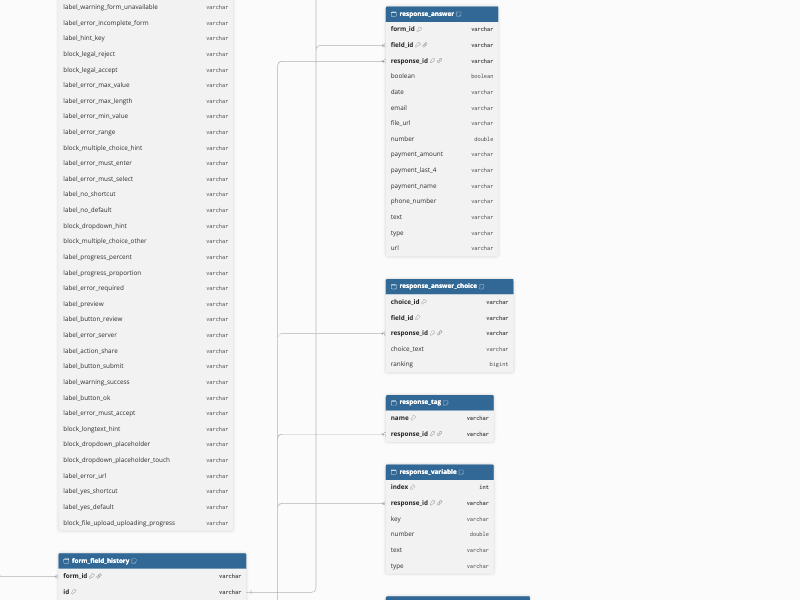
Hevo uses the following schema to upload the records in the Destination. For a detailed view of the objects, fields, and relationships, click the ERD.
Data Model
The following is the list of tables (objects) that are created at the Destination when you run the Pipeline:
| Object | Description |
|---|---|
| Form History | Contains the forms in your Typeform account, such as the title, type, language, theme, workspace, score and price variables, and the time the form was last updated. It includes the following child objects: - Form Custom Message: The custom messages of each form, such as button labels, error and warning messages, hints, and placeholder text shown to respondents. - Form Field History: The fields (questions) of each form, including the fields inside question groups, such as the title, type, properties, layout, and validation rules. - Form Field Choice History: The choices of the multiple choice, dropdown, and picture choice fields, such as the choice label, reference, and attachment details. - Form Field Insight: The insights for each field of a form, such as the number of views and drop-offs. - Form Hidden Field History: The hidden fields defined in each form. - Form Insight: The insights for each form, grouped by the respondent’s platform, such as the average completion time, completion rate, number of responses, and total and unique visits. - Form Logic History: The logic jumps defined in each form, such as the field that the logic applies to and the logic type. - Logic Action History: The actions of each logic jump, such as jumping to a field or calculating a variable, along with the target and value. - Logic Action Condition History: The conditions of each logic action, such as the condition type, operator, and value. - Form Setting: The settings of each form, such as whether the form is public, the progress bar and branding options, the redirect URL, the tracking integrations, and the meta information. - Setting Notification: The email notification settings of each form, such as whether respondent and self notifications are enabled, and their subject and message. - Respondent Notification: The reply-to addresses of the email notifications sent to respondents. - Self Notification: The recipients of the email notifications sent to you when a form receives a response. |
| Response | Contains the completed responses to each form, such as the submission and landing times, the calculated score, the response metadata, and the values of the form’s hidden fields. It includes the following child objects: - Response Answer: The answers in each response. The value of each answer is stored in the column that matches its type, such as text, number, boolean, date, email, URL, phone number, file URL, or payment details. - Response Answer Choice: The choices selected in each answer, including the text entered for the Other option. - Response Tag: The tags added to each response. - Response Variable: The values of the score, price, and other variables calculated for each response. |
| Theme | Contains the themes in your Typeform account, such as the fonts, colors, background, alignment, and visibility. |
| Workspace | Contains the workspaces that you can access in your Typeform account, such as the workspace name and whether it is shared or the default workspace. |
| Workspace Member | Contains the members of each workspace, such as their name, email address, and role. |
Note: Typeform provides the data of the Form Insight and Form Field Insight objects only on some plans, such as Business and Enterprise.
Additional Information
Read the detailed Hevo documentation for the following related topics:
Handling of Deletes
Hevo uses a full data refresh approach to capture delete actions for all the objects except the Response, Response Answer, Response Answer Choice, Response Tag, and Response Variable objects. During each Pipeline run, Hevo compares the data fetched from Typeform with the data present in the Destination tables. If a record exists in the Destination but is no longer returned by Typeform, the record is marked as deleted by setting the value of the metadata column _hevo_marked_deleted to True. For example, if you delete a theme in Typeform, the theme is marked as deleted in the Theme table in the next Pipeline run.
Typeform does not return deleted responses. As a result, if you delete a response in Typeform, the response and its answers remain in the Destination.