Tempo is a suite of project, product, and portfolio management applications built directly into Jira. It unifies time tracking, resource capacity planning, financial management, and reporting on a single platform. This helps teams track where work is being spent, align resources with business priorities, and monitor budgets and costs across programs.
Hevo uses Tempo’s REST API and Audit API to replicate data from your Tempo account to the Destination of your choice. To ingest data, you must provide Hevo with a Tempo API token for authentication.
Supported Features
| Feature Name | Supported |
|---|---|
| Capture deletes | Yes (except for the Worklog Audit object) |
| History mode | No |
| Custom data (user-configured tables & fields) | No |
| Data blocking (skip objects and fields) | Yes |
| Resync (objects and Pipelines) | Yes |
| API configurable | Yes |
Prerequisites
-
An active Tempo account in a Jira Cloud instance to ingest data from.
-
A Tempo API token with View access to provide Hevo access to your Tempo account data.
Obtain the API Token
To connect Hevo to your Tempo account, you must generate an API token from within your Jira instance where Tempo is installed.
Perform the following steps to obtain the API token:
-
Log in to the Jira Cloud instance where Tempo is installed.
-
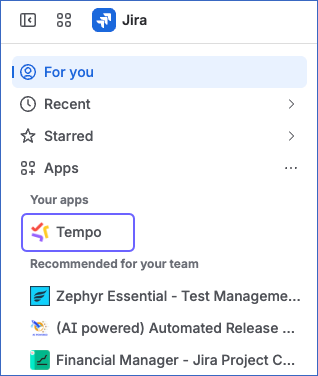
In the left navigation pane, under Apps, click Tempo.
-
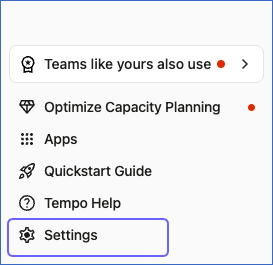
On the page that appears, in the left navigation pane, click Settings.
-
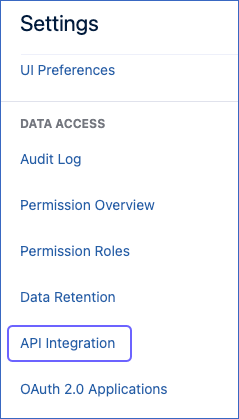
On the Settings page, in the navigation pane, under DATA ACCESS, click API Integration.
-
On the API Integration page, click + New Token.

-
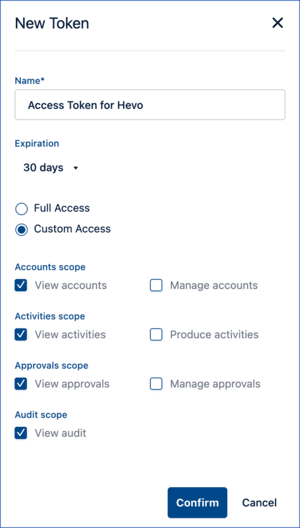
In the New Token pop-up window, do the following:
-
Specify the following:
-
Name: A unique name for the API token. For example, Access Token for Hevo.
-
Expiration: The expiration period for the token. Default value: 30 days.
-
-
Select Custom Access to restrict the token’s permissions to View access.
-
Grant the following scopes to your API token:
- View accounts
- View activities
- View approvals
- View audit
- View papertrail audit records
- View periods
- View plans
- View projects
- View schemes
- View teams
- View worklogs
-
-
Click Confirm.
-
Click the Copy icon to copy the generated token, and save it securely like any other password.
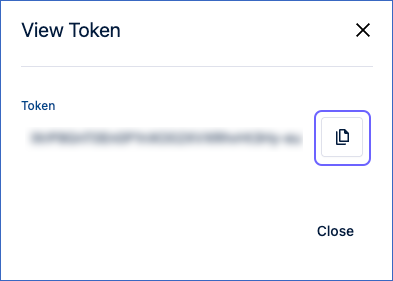
Note: Tempo displays the API token only once. Ensure that you copy and store it securely, as it cannot be retrieved later.
Use this API token when configuring your Tempo Source in Hevo. If the API token configured in the Pipeline expires or is revoked manually from your Tempo account, Hevo cannot authenticate with the Source. As a result, all active Pipeline runs fail, and no data is replicated. To resume data replication, modify the Source configuration in the Pipeline with a valid API token. Once the updated key is saved, Hevo re-authenticates the Source, and data ingestion resumes from the last saved offset.
Configure Tempo as a Source in your Pipeline
Perform the following steps to configure your Tempo Source:
-
Click Pipelines in the Navigation Bar.
-
Click + Create Pipeline in the Pipelines List View.
-
On the Select Source Type page, select Tempo.
-
On the Select Destination Type page, select the type of Destination you want to use.
-
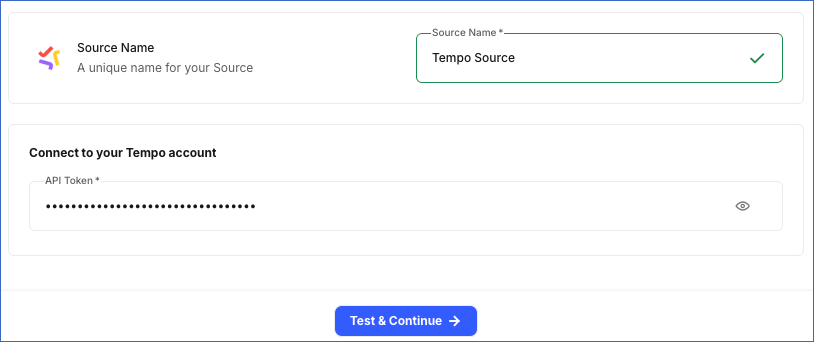
In the Configure Source screen, specify the following:
-
Source Name: A unique name for your Source, not exceeding 255 characters. For example, Tempo Source.
-
API Token: The API token that you obtained from your Tempo account.
-
-
Click Test & Continue to test the connection to your Tempo Source. Once the test is successful, you can proceed to set up your Destination.
Data Replication
Hevo replicates data for all the objects selected on the Configure Objects page during Pipeline creation. By default, all supported objects and their available fields are selected. However, you can modify this selection while creating or editing the Pipeline.
Hevo ingests the following types of data from your Source objects:
-
Historical Data: The first run of the Pipeline ingests all available historical data for the selected objects and loads it into the Destination.
-
Incremental Data: Once the historical load is complete, new and updated records for objects are ingested as per the sync frequency.
For the following objects, Hevo ingests only the incremental data in subsequent Pipeline runs:
- Deleted Allocation Audit Events
- Deleted Worklog Audit Events
- Worklog
- Worklog Attribute Value
- Worklog Audit
- Worklog Audit Description
For all other objects, Hevo ingests the entire data during each Pipeline run.
Tempo enforces a rate limit on the number of calls that can be made to its API in a given time period. If this limit is exceeded, a rate limit exception occurs. To understand how Hevo handles such scenarios, read Handling Rate Limit Exceptions.
Schema and Primary Keys
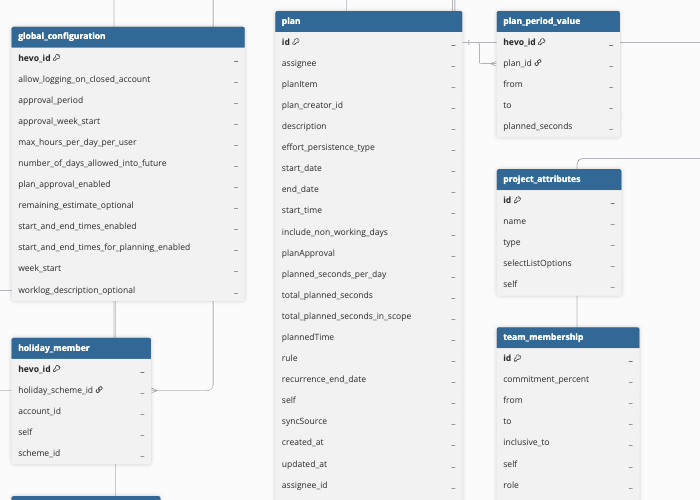
Hevo uses the following schema to upload the records to the Destination. For a detailed view of the objects, fields, and relationships, click the ERD.
Data Model
The following is the list of tables (objects) that are created at the Destination when you run the Pipeline:
| Object | Description |
|---|---|
| Account | Contains information about Tempo Accounts, which are used to categorize and track work for budgeting and reporting purposes, such as the account name, status, associated category, customer, and lead. It includes the following child objects: - User Schedule - Timesheet Reviewer |
| Account Category | Contains the categories used to organize Tempo Accounts, including the category name, unique key, and category type. |
| Account Category Type | Contains the types used to group similar Account Categories for reporting. |
| Customer | Contains information about customers configured in your Tempo account, such as customer names and keys. |
| Deleted Allocation Audit Events | Contains records of Plan allocations that were deleted from Tempo, including when they were deleted. |
| Deleted Worklog Audit Events | Contains records of Worklogs that were deleted from Tempo, including when they were deleted. |
| Global Configuration | Contains the settings that apply across your Tempo account, such as approval periods, the maximum number of hours that can be logged per day, and worklog settings. |
| Global Permission Role | Contains the roles that control what users can access across your Tempo account, including the role name and access type. It includes the following child objects: - Global Permission Access Entity - Global Permission - Global Permitted User |
| Holiday Scheme | Contains the holiday schedules configured in Tempo for groups of members, including the scheme name and the number of members assigned to it. It includes the following child objects: - Holiday - Holiday Member |
| Periods | Contains the time periods used in Tempo to track work hours, including the start and end dates of each period. |
| Permission Role | Contains the roles that control what users can access within Tempo Accounts, including the role name and access type. It includes the following child objects: - Permission Access Entity - Permission - Permitted User |
| Plan | Contains the time allocations planned for people in Tempo, including who the time is planned for, what the time is planned for (such as an issue or project), the planned duration, and the recurrence rule. It includes the following child objects: - Plan Period Value - Planned Time Day Value |
| Program | Contains information about the programs configured in Tempo, including the program name and manager. It includes a child object, Program Team Value. |
| Projects | Contains information about the projects configured in Tempo, including project status, budget, billing and cost rates, and revenue-tracking settings. |
| Role | Contains the roles that can be assigned to members in Tempo, including the role name and whether it is the default role. |
| Skills | Contains the skills configured in Tempo that can be assigned to members. |
| Subscriptions | Contains the webhook subscriptions configured in your Tempo account, including the subscribed event, target URL, and active status. |
| Team | Contains information about the teams configured in Tempo, including the team name, lead, associated program, and visibility settings. It includes the following child objects: - Generic Resource - Timesheet Approval |
| Team Membership | Contains information about a member’s association with a Team, including the commitment percentage, role, and the date range of the membership. |
| Work Attribute | Contains the custom work attributes configured in Tempo that can be applied to worklogs, including the attribute name, type, and the list of allowed values. |
| Workload Scheme | Contains the working-hour schedules configured in Tempo that define the expected working hours for members, including the scheme name and the number of members assigned to it. It includes the following child objects: - Workload Scheme Day - Workload Member |
| Worklog | Contains records of the time members spent working on Jira issues in Tempo, including the Jira issue, time spent, whether the time was billable, and the member who logged the time. It includes a child object, Worklog Attribute Value. |
| Worklog Audit | Contains the history of changes made to Worklogs, such as when a Worklog was created, updated, or deleted, including the author and timestamp of each action. It includes a child object, Worklog Audit Description. |
Handling of Deletes
During each Pipeline run, Hevo compares the data fetched from the Source object with the data present in the Destination table. If a record exists in the Destination but is no longer returned by the Source, the record is marked as deleted by setting the value of the metadata column __hevo__marked_deleted to True. This applies to the following objects:
- Account
- Account Category
- Account Category Type
- Customer
- Global Configuration
- Global Permission Role
- Holiday Scheme
- Permission Role
- Periods
- Plan
- Program
- Projects
- Role
- Skills
- Subscriptions
- Team
- Team Membership
- Work Attribute
- Workload Scheme
For the following objects, deletes are captured via Tempo’s Audit API. In such cases, Hevo marks the __hevo__marked_deleted column to True in the Destination.
- Deleted Allocation Audit Events
- Deleted Worklog Audit Events
- Worklog
For all child objects, if a record is deleted at the Source and is no longer returned with its parent object’s data, it is automatically removed from the Destination.
For the Worklog Audit object, Hevo does not support capturing deletes.
Source Considerations
- Tempo retains data for the Worklog Audit object for only 180 days. If a Pipeline remains paused for longer than this duration, Hevo cannot sync the records older than 180 days once the Pipeline resumes.
Limitations
- For the Timesheet Approval object, Hevo syncs data for only the current approval period. Data from older approval periods is replaced during each Pipeline run, so historical approval records are not available in the Destination.