SMS Storetraffic provides people counters for retail stores and T.M.A.S., a traffic management and analysis software. T.M.A.S. collects the foot traffic that the counters at your store entrances record, and organizes it by chain, region, district, and store. Businesses use it to analyze store visits over time, compare locations, and measure store performance.
Hevo uses the T.M.A.S. Web API to replicate the foot traffic data of your stores to the Destination of your choice. To ingest data, you must provide Hevo with a T.M.A.S. API key that has the Traffic Web API permission and the IDs of the T.M.A.S. locations whose data you want to replicate.
Supported Features
| Feature Name | Supported |
|---|---|
| Capture deletes | No |
| History mode | No |
| Custom data (user-configured tables & fields) | No |
| Data blocking (skip objects and fields) | Yes |
| Resync (objects and Pipelines) | Yes |
| API configurable | Yes |
Prerequisites
-
An active SMS Storetraffic T.M.A.S. account exists from which data is to be ingested.
-
You can log in to T.M.A.S. as a user with the Chain and User permission types who has access to the top level of the location tree. This is required to create an API key.
-
The API key and the IDs of the locations whose data you want to replicate are available.
Obtain the API Key
Hevo connects to T.M.A.S. using an API key with the Traffic Web API permission. This permission allows the key only to read traffic data. Only the T.M.A.S. user who creates an API key can view and copy it.
Perform the following steps to create an API key:
-
Log in to your T.M.A.S. account.
-
In the Location Options section of the left navigation pane, select your chain, which is the top-level location.
-
In the Main menu, expand Administration, and then under Configure, click Manage Locations.
-
Click API Key(s), and then click Add Key.
-
In the API Key name field, specify a name for the key. For example, Hevo.
-
Under Permissions, select only the TRAFFIC WEB API check box, and then click Add.
-
In the list of API keys, copy the key that you created, and save it securely like any other password.
Use this key when configuring your SMS Storetraffic Source in Hevo.
Obtain the Location IDs
T.M.A.S. organizes your stores in a location tree of chains, regions, districts, and stores, and each location has a location ID. Hevo replicates the data of the locations whose IDs you specify. Specify the ID of your chain to replicate the data of all your stores, or the ID of a region, district, or store to replicate the data of only that part of the location tree.
Perform the following steps to obtain a location ID:
-
Log in to your T.M.A.S. account.
-
In the Main menu, expand Administration, and then under Configure, click Manage Locations.
-
Do one of the following:
-
To obtain the ID of your chain, copy the value of the Location ID field in the Basic Information section.
-
To obtain the ID of a region, district, or store, copy the value in the Location ID column next to the location in the list of locations.
-
Configure SMS Storetraffic as a Source in your Pipeline
Perform the following steps to configure your SMS Storetraffic Source:
-
Click Pipelines in the Navigation Bar.
-
Click + Create Pipeline in the Pipelines List View.
-
On the Select Source Type page, select SMS Storetraffic.
-
On the Select Destination Type page, select the type of Destination you want to use.
-
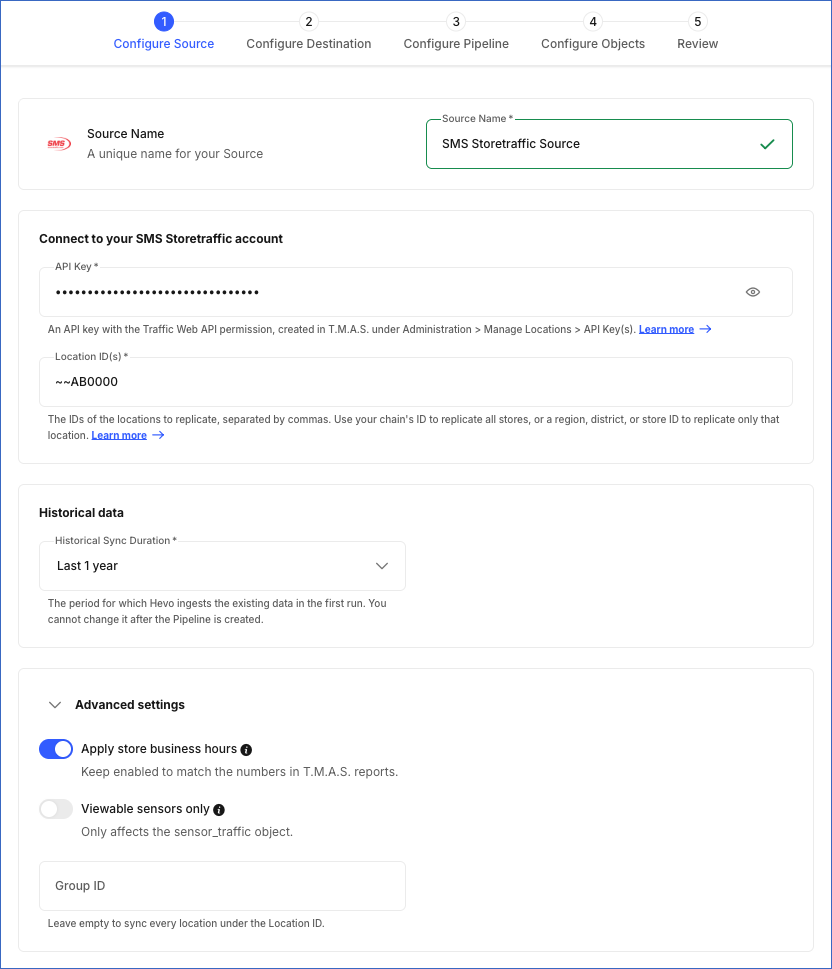
In the Configure Source screen, specify the following:
-
Source Name: A unique name for your Source, not exceeding 255 characters. For example, SMS Storetraffic Source.
-
In the Connect to your SMS Storetraffic account section:
-
API Key: The API key with the Traffic Web API permission that you created in T.M.A.S.
-
Location ID(s): The IDs of the locations whose data you want to replicate, separated by commas. For example, ~~AB0000. All the locations must belong to the chain in which you created the API key.
-
-
In the Historical data section:
-
Historical Sync Duration: The period for which Hevo must ingest the existing data during the first run of the Pipeline. Default value: Last 1 year. You can select one of the following values: Last 3 months, Last 6 months, Last 1 year, Last 2 years, Last 3 years, Last 5 years, or All time. The All time value ingests the data of the last 10 years. You cannot change this value after the Pipeline is created.
Note: T.M.A.S. returns the data of at most one month in each request and allows one request every two seconds. As a result, a longer duration increases the time taken by the first run of the Pipeline. With a long duration, the historical load may complete over several runs of the Pipeline.
-
-
In the Advanced settings section:
-
Apply store business hours: If enabled, Hevo ingests the traffic of each location only for the business hours configured for it in T.M.A.S., which matches the counts in the T.M.A.S. reports. If disabled, Hevo ingests the traffic for all hours of the day, including the traffic counted while the store was closed. If business hours are not configured for a location in T.M.A.S., Hevo ingests the traffic for all hours of the day for that location, even when this option is enabled. This setting does not apply to the Raw Traffic object, which always contains the traffic for the whole day. Default value: Enabled.
-
Viewable sensors only: If enabled, Hevo ingests the data of only the sensors that are marked as viewable in the T.M.A.S. equipment inventory, which are the sensors shown in the T.M.A.S. reports. If disabled, Hevo ingests the data of all active sensors, including the hidden ones. This setting applies only to the Sensor Traffic object. Default value: Disabled.
-
Group ID (Optional): The ID of a T.M.A.S. group, if you want to replicate the data of only the locations in that group. To obtain it, in T.M.A.S., select the group from the Groups Management section of the left navigation pane, click the edit icon next to it, and copy the ID shown in the Import data from an existing group section. Leave this field empty to replicate the data of all the locations under the specified location IDs.
Note: If you change any of the following settings after the Pipeline is created, Hevo re-ingests the data for the period specified in the Historical Sync Duration field:
-
Apply store business hours: All the objects except Raw Traffic.
-
Viewable sensors only: Only the Sensor Traffic object.
-
Group ID: All the objects.
-
Location ID(s): If you add a location ID, Hevo ingests the data of the new location for this period. The data of the existing locations is not re-ingested.
Records that were ingested only with the previous setting, such as the data of hidden sensors, remain in the Destination until you resync the object.
-
-
-
Click Test & Continue to test the connection to your SMS Storetraffic Source. Hevo checks that it can read the traffic data of each location ID with the API key. Once the test is successful, you can proceed to set up your Destination.
Data Replication
Hevo replicates data for all the objects selected on the Configure Objects page during Pipeline creation. By default, all supported objects and their available fields are selected. However, you can modify this selection while creating or editing the Pipeline.
Note: Sensor Traffic (about 100 records for each sensor per day) and Raw Traffic (96 records for each store per day) are the largest objects. If you do not need sensor-level data or the in and out counts, deselect these objects to load less data.
The first run of the Pipeline ingests the data of the selected objects for the period specified in the Historical Sync Duration field. In subsequent runs, as per the sync frequency, Hevo ingests the new data of each location ID incrementally, based on the traffic_date field for the daily objects and the traffic_time field for all other objects.
T.M.A.S. updates the counts of past intervals when the counters upload their data late. To capture these updates, Hevo also re-ingests recent data, and the updated counts replace the existing records in the Destination. Hevo re-ingests the data of the last 3 days, including the current day, once every 6 hours, and the data of the last 30 days once every 7 days. These re-ingestions run as part of the Pipeline’s syncs, so they also apply to Pipelines that use the Sync On Demand option, in the first sync that runs after the interval has passed.
You can resync the objects of this Source.
T.M.A.S. allows one API request every two seconds, and each request can include the data of at most one month. Hevo sends one request every two seconds. If T.M.A.S. rejects a request with a rate limit or server error, or the request fails due to a network issue, Hevo retries it up to six times, waiting longer after each attempt, up to two minutes. To understand how Hevo handles rate limit exceptions, read Handling Rate Limit Exceptions.
Note: You cannot create a Pipeline with this Source using the Append load mode.
Schema and Primary Keys
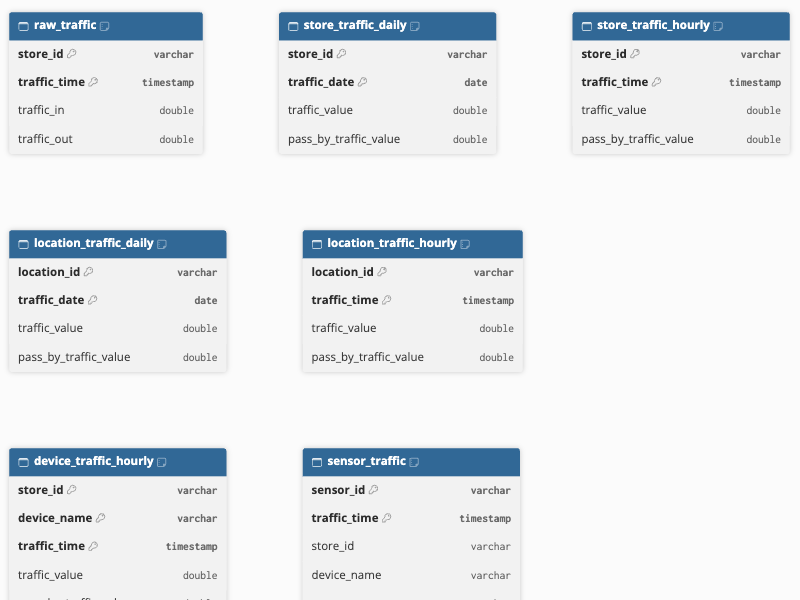
Hevo uses the following schema to upload the records in the Destination. For a detailed view of the objects, fields, and relationships, click the ERD.
Data Model
The following is the list of tables (objects) that are created at the Destination when you run the Pipeline:
| Object | Description |
|---|---|
| Device Traffic Hourly | Contains the hourly traffic counted by each device in a store, such as the store ID, device name, traffic value, and pass-by traffic value. |
| Location Traffic Daily | Contains the daily traffic of each location ID specified in the Source configuration, as summarized by T.M.A.S. for the chain, region, district, or store, such as the traffic value and pass-by traffic value. |
| Location Traffic Hourly | Contains the hourly traffic of each location ID specified in the Source configuration, as summarized by T.M.A.S., such as the traffic value and pass-by traffic value. |
| Raw Traffic | Contains the traffic of each store in 15-minute intervals, such as the number of people who entered and exited the store. |
| Sensor Traffic | Contains the traffic counted by each sensor in 15-minute intervals, such as the store ID, device name, sensor name, traffic value, and pass-by traffic value. This object contains about 100 records for each sensor every day and is the largest object of this Source. |
| Store Traffic Daily | Contains the daily traffic of each store, such as the traffic value and pass-by traffic value. |
| Store Traffic Hourly | Contains the hourly traffic of each store, such as the traffic value and pass-by traffic value. |
Additional Information
Read the detailed Hevo documentation for the following related topics:
Handling of Deletes
T.M.A.S. does not delete traffic counts. When the counts of a past interval change, T.M.A.S. updates them, and Hevo updates the corresponding records in the Destination when it re-ingests the recent data. As a result, Hevo does not capture deletes for this Source.
Source Considerations
-
T.M.A.S. does not return time zone information. As a result, the values in the traffic_date and traffic_time fields are in the local time of the store.
-
If the counters have not reported the traffic of an interval, Hevo loads the traffic values of that interval as null. A null value means that no data was reported for the interval. Intervals with no traffic are loaded with the value 0. Intervals that are less than 24 hours old and not reported yet are skipped and ingested in a later run of the Pipeline.
Limitations
-
T.M.A.S. does not return a device ID. As a result, Hevo identifies the records of the Device Traffic Hourly object by the device name. If you rename a device in T.M.A.S., the existing records of the device remain in the Destination under the old name, and new records are created under the new name. Records without a device name are skipped.
-
Hevo does not ingest weekly traffic summaries, occupancy, queue, and dwell time data, or traffic data at one-minute intervals.