Qualaroo is a customer feedback platform that businesses use to run on-site, in-app, and link surveys, and to collect and analyze the responses of their visitors and users.
Hevo uses the Qualaroo REST Reporting API to replicate the responses of the Qualaroo surveys you specify, along with the answers to each question in a response, to the Destination of your choice. To ingest data, you must provide Hevo with the API Key and API Secret of your Qualaroo account and the IDs of the surveys whose responses you want to replicate.
Supported Features
| Feature Name | Supported |
|---|---|
| Capture deletes | Yes |
| History mode | No |
| Custom data (user-configured tables & fields) | No |
| Data blocking (skip objects and fields) | Yes |
| Resync (objects and Pipelines) | Yes |
| API configurable | Yes |
Prerequisites
-
An active Qualaroo account exists from which data is to be ingested.
-
The API Key and API Secret of your Qualaroo account are available.
-
The IDs of the surveys whose responses you want to replicate are available.
Obtain the API Key and API Secret
Hevo connects to Qualaroo using the API Key and API Secret of the Qualaroo Reporting API.
Perform the following steps to obtain the API Key and API Secret:
-
Log in to your Qualaroo account.
-
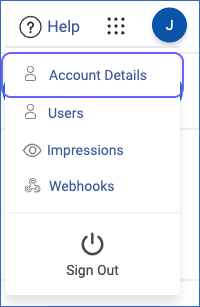
In the top-right corner of the page, click your profile icon, and then click Account Details.
-
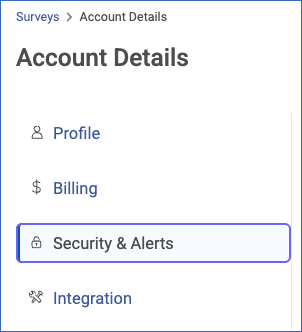
In the left navigation pane of the Account Details page, click Security & Alerts.
-
Copy the API Key and the API Secret and save them securely like any other password.
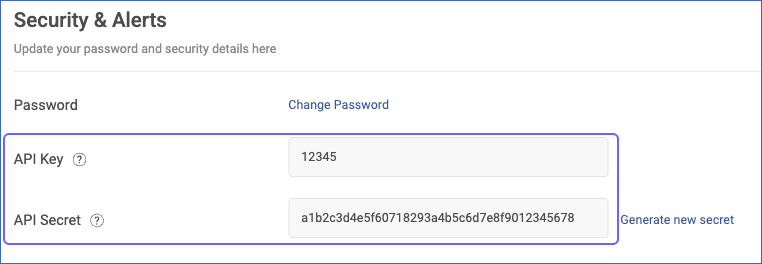
Use these credentials when configuring your Qualaroo Source in Hevo.
Obtain the Survey IDs
Each Qualaroo survey has a numeric ID. Hevo replicates the responses of only the surveys whose IDs you specify in the Source configuration.
Perform the following steps to obtain the ID of a survey:
-
Log in to your Qualaroo account.
-
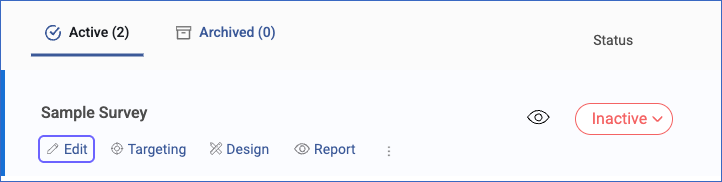
On the Surveys page, hover over the survey, and then click Edit.
-
Copy the number after /surveys/ in the URL of the page. This number is the survey ID. For example, in https://app.qualaroo.com/surveys/247333/edit, the survey ID is 247333.
Repeat these steps for each survey whose responses you want to replicate.
Configure Qualaroo as a Source in your Pipeline
Perform the following steps to configure your Qualaroo Source:
-
Click Pipelines in the Navigation Bar.
-
Click + Create Pipeline in the Pipelines List View.
-
On the Select Source Type page, select Qualaroo.
-
On the Select Destination Type page, select the type of Destination you want to use.
-
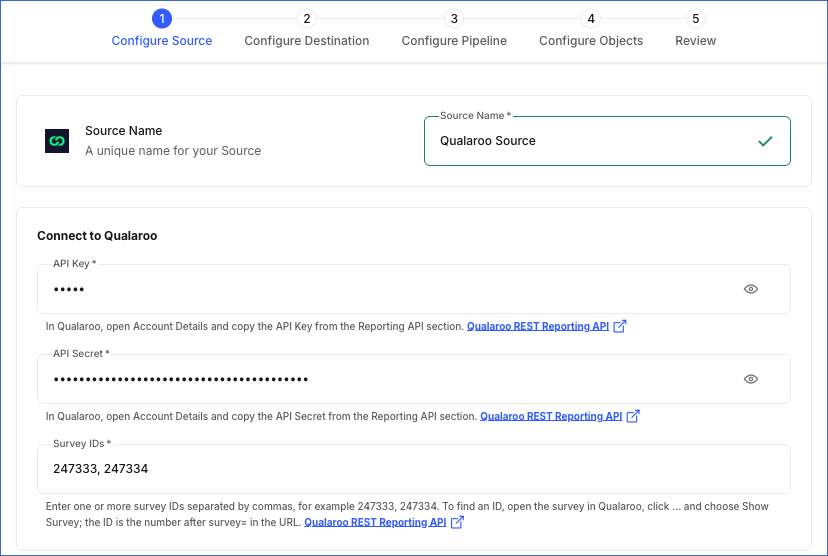
In the Configure Source screen, specify the following:
-
Source Name: A unique name for your Source, not exceeding 255 characters. For example, Qualaroo Source.
-
In the Connect to Qualaroo section:
-
API Key: The API Key that you obtained from the Security & Alerts section of the Account Details page in Qualaroo.
-
API Secret: The API Secret that you obtained from the same section.
-
Survey IDs: The IDs of the surveys whose responses you want to replicate, separated by commas. For example, 247333, 247334. You can specify up to 50 survey IDs, and each ID can appear only once.
-
-
-
Click Test & Continue to test the connection to your Qualaroo Source. Hevo checks the API Key and API Secret and that it can read the responses of the first survey ID in the list. The other survey IDs are checked when the Pipeline runs. Once the test is successful, you can proceed to set up your Destination.
Data Replication
Hevo replicates data for all the objects selected on the Configure Objects page during Pipeline creation. By default, all supported objects and their available fields are selected. However, you can modify this selection while creating or editing the Pipeline. The Survey Response Answered Question object is a child of the Survey Response object, so you can select it only when its parent object is selected.
In each run of the Pipeline, as per the sync frequency, Hevo ingests all the responses of the specified surveys, one survey at a time. This Source does not support incremental data.
You can resync the Survey Response object. Resyncing it also resyncs the Survey Response Answered Question object.
Qualaroo does not publish a rate limit for the Reporting API. If Qualaroo rejects a request with a rate limit or temporary server error, Hevo retries the request up to five times, waiting for the duration that Qualaroo specifies or 60 seconds between attempts. To understand how Hevo handles rate limit exceptions, read Handling Rate Limit Exceptions.
Note: You can create a Pipeline with this Source only using the Merge load mode. The Append mode is not supported for this Source.
Schema and Primary Keys
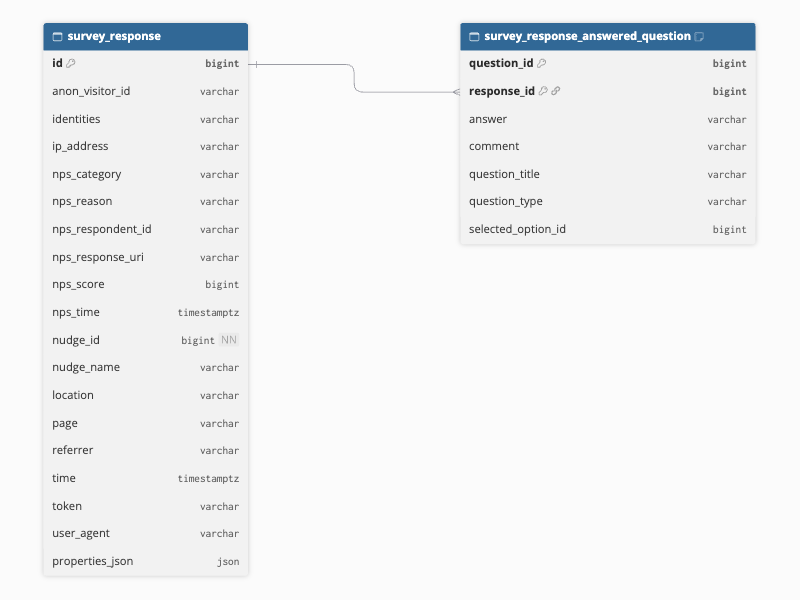
Hevo uses the following schema to upload the records in the Destination. For a detailed view of the objects, fields, and relationships, click the ERD.
Data Model
The following is the list of tables (objects) that are created at the Destination when you run the Pipeline:
| Object | Description |
|---|---|
| Survey Response | Contains the responses to the specified surveys, such as the response time, survey ID and name, page URL, referrer, visitor details, Net Promoter Score (NPS) details, and custom properties. Custom properties are loaded as a single JSON column, properties_json. It includes the following child object: - Survey Response Answered Question |
Additional Information
Read the detailed Hevo documentation for the following related topics:
Handling of Deletes
Hevo uses a full data refresh approach to capture delete actions for both objects. During each Pipeline run, Hevo compares the responses fetched from Qualaroo with the data present in the Destination tables. If a record exists in the Destination but is no longer returned by Qualaroo, the record is marked as deleted by setting the value of the metadata column _hevo_marked_deleted to True.
Hevo also marks records as deleted when you remove a survey ID from the Source configuration. In the next Pipeline run, all the responses of that survey, and the answered questions of these responses, are marked as deleted in the Destination.