OpenAI Ads is the advertising platform of OpenAI that enables businesses to create, manage, and measure ad campaigns that appear in ChatGPT. It allows you to organize your ads into campaigns and ad groups, target them by location and custom audiences, and track their delivery and spend.
Hevo uses the OpenAI Ads API to replicate data from your OpenAI Ads account to the Destination of your choice. To ingest data, you must provide Hevo with an API key of your ad account. Each API key is scoped to a single ad account. Therefore, a Pipeline ingests data only from the ad account to which the API key belongs.
Supported Features
| Feature Name | Supported |
|---|---|
| Capture deletes | Yes (for some objects) |
| History mode | No |
| Custom data (user-configured tables & fields) | Yes (custom reports) |
| Data blocking (skip objects and fields) | Yes |
| Resync (objects and Pipelines) | Yes |
| API configurable | Yes |
Prerequisites
-
An active OpenAI Ads ad account exists from which data is to be ingested.
-
You are an Admin of the ad account in Ads Manager, to create an API key.
-
The API key of the ad account is available to provide Hevo access to your OpenAI Ads data.
Obtain the API Key
Each API key is scoped to a single ad account. If you want to ingest data from multiple ad accounts, create an API key for each ad account and use it in a separate Pipeline.
Perform the following steps to create an API key:
-
Log in to OpenAI Ads Manager and select the ad account from which you want to ingest data.
-
In the left navigation pane, click Settings, and then click General.
-
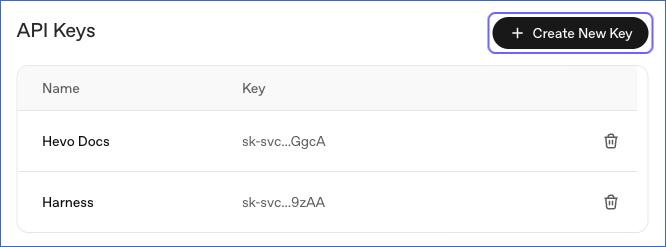
In the API Keys section, click + Create New Key.
-
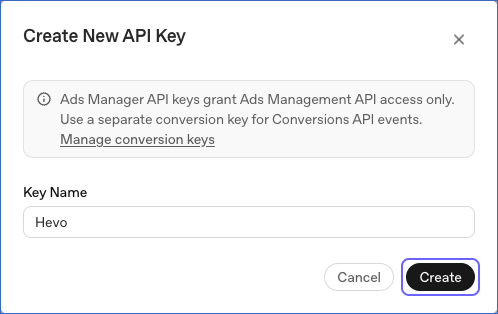
In the Create New API Key dialog, specify a Key Name, such as Hevo, and then click Create.
-
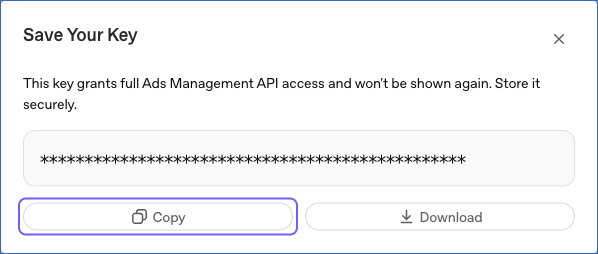
In the Save Your Key dialog, click Copy to copy the API key, and save it securely like any other password. Ads Manager displays the API key only once.
Configure OpenAI Ads as a Source in your Pipeline
Perform the following steps to configure your OpenAI Ads Source:
-
Click Pipelines in the Navigation Bar.
-
Click + Create Pipeline in the Pipelines List View.
-
On the Select Source Type page, select OpenAI Ads.
-
On the Select Destination Type page, select the type of Destination you want to use.
-
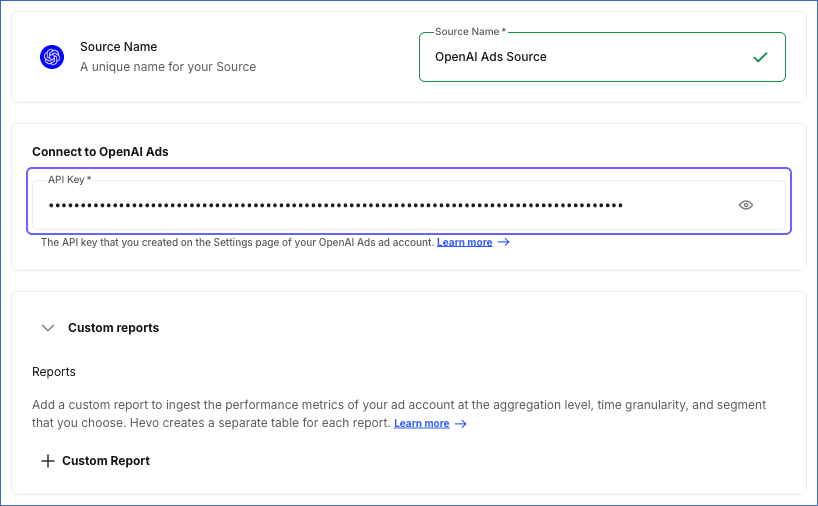
In the Configure Source screen, specify the following:
-
Source Name: A unique name for your Source, not exceeding 255 characters. For example, OpenAI Ads Source.
-
In the Connect to OpenAI Ads section, specify the following:
- API Key: The API key that you created in your OpenAI Ads ad account.
-
(Optional) In the Custom reports section, click + Custom Report to add a custom report. You can add up to 50 custom reports.
-
-
Click Test & Continue to test the connection to your OpenAI Ads Source. Once the test is successful, you can proceed to set up your Destination.
Data Replication
Hevo replicates data for all the objects selected on the Configure Objects page during Pipeline creation. By default, all supported objects and their available fields are selected. However, you can modify this selection while creating or editing the Pipeline.
You can select or deselect the child objects individually. When you resync the Campaign object or any of its child objects, Hevo resyncs the Campaign object along with all its child objects. Similarly, when you resync the Ad Group object or any of its child objects, Hevo resyncs the Ad Group object along with all its child objects. You can resync only the Campaign Custom Audience and Ad Group Product Set Filter Value child objects directly. To resync any other child object, resync its parent object.
Hevo ingests the following types of data from your Source objects:
-
Historical Data: The first run of the Pipeline ingests all available historical data for the selected objects and loads it into the Destination.
-
Incremental Data: Once the historical load is complete, new and updated records for objects are ingested as per the sync frequency.
Hevo ingests the objects as follows:
| Object | Historical data | Incremental data |
|---|---|---|
| Ad Report Daily and the custom reports | The report data from January 1, 2026, or from the earliest date for which OpenAI Ads retains the report data, whichever is later. OpenAI Ads retains the data of the last 365 days for daily and monthly reports, and approximately 30 days for hourly reports and reports segmented by Product. For the Ad Report Daily object, Hevo first ingests the data of the last 30 days and then the remaining historical data. | The report data from the last ingested day to the current day. |
| All other objects | All the records available in the Source. | All the records available in the Source. |
OpenAI Ads may update the metrics of recent days after it finishes processing them. Therefore, Hevo performs a data refresh for the report objects once a day, in the first run of the day in the time zone of your ad account. During the data refresh, Hevo ingests the data of the last 14 days again for daily reports, such as Ad Report Daily, the last 30 days for monthly reports, and the last 3 days for hourly reports.
You can create a Pipeline with this Source only using the Merge load mode.
OpenAI Ads currently enforces a rate limit of 600 API requests per minute for each endpoint and 1,200 API requests per minute overall. These limits apply to each ad account and IP address. Read Rate limits for more information. If these limits are exceeded, a rate limit exception occurs. To understand how Hevo handles such scenarios, read Handling Rate Limit Exceptions.
Custom Reports
A custom report contains the performance metrics of your ad account at the aggregation level, time granularity, and segment that you choose. Hevo creates a table for each custom report with the name that you specify, and ingests it in the same way as the Ad Report Daily object.
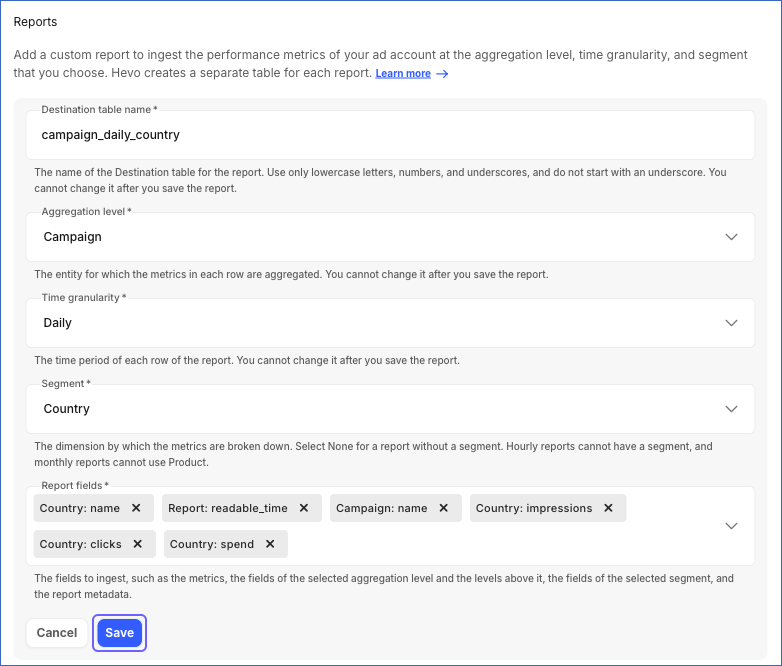
To add a custom report, click + Custom Report in the Custom reports section of the Configure Source screen, specify the following, and then click Save:
-
Destination table name: The name of the Destination table for the report. The name can contain only lowercase letters, numbers, and underscores, and cannot start with an underscore. It cannot be the same as the name of an existing object or another custom report.
-
Aggregation level: The entity for which OpenAI Ads aggregates the metrics in each row. Select one of the following: Ad account, Campaign, Ad group, or Ad.
-
Time granularity: The time period of each row of the report. Select one of the following: Hourly, Daily, or Monthly.
-
Segment: The dimension by which OpenAI Ads breaks down the metrics. Select one of the following: None, Country, Device, or Product. Select None for a report without a segment. Hourly reports cannot have a segment, and monthly reports cannot use the Product segment.
-
Report fields: The fields to ingest. You can select the metrics, such as impressions, clicks, spend, ctr, cpc, and cpm, the fields of the selected aggregation level and the levels above it, the fields of the selected segment, and the report metadata fields, readable_time and timezone. Each option shows the entity that the field belongs to, for example, Country: impressions or Campaign: name.
You cannot change the destination table name, aggregation level, time granularity, and segment of a custom report after you save it.
Schema and Primary Keys
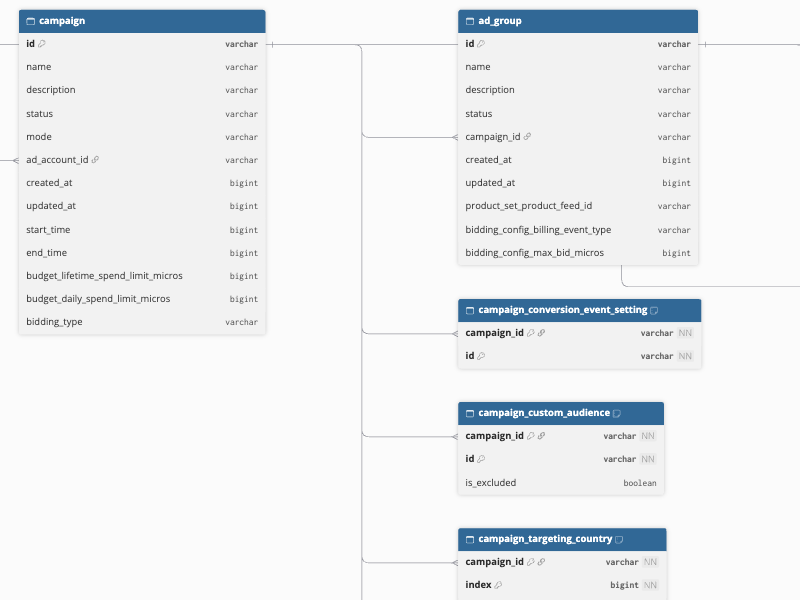
Hevo uses the following schema to upload the records in the Destination. For a detailed view of the objects, fields, and relationships, click the ERD.
Data Model
The following is the list of tables (objects) that are created at the Destination when you run the Pipeline:
| Object | Description |
|---|---|
| Ad Account | Contains the details of your ad account, such as the name, currency, time zone, URL, status, and review and integrity status. |
| Ad Group | Contains the ad groups in your campaigns, such as the name, description, status, and campaign of each ad group, its product feed, and its bidding configuration. It includes the following child objects: - Ad: The ads in the ad group, such as the name, status, and review status of each ad, and its creative details, such as the title, body, price, image, and target URL. - Ad Group Context Hint - Ad Group Custom Audience Bid Multiplier - Ad Group Product Set Filter - Ad Group Product Set Filter Value |
| Ad Report Daily | Contains the daily performance metrics of each ad, such as impressions, clicks, spend, click-through rate (CTR), cost per click (CPC), and cost per thousand impressions (CPM). |
| Campaign | Contains the campaigns in your ad account, such as the name, description, status, mode, schedule, daily and lifetime budget, and bidding type of each campaign. It includes the following child objects: - Campaign Conversion Event Setting - Campaign Custom Audience - Campaign Targeting Country - Campaign Targeting Geo Location |
Hevo also creates a table for each custom report that you add.
Additional Information
Read the detailed Hevo documentation for the following related topics:
Handling of Deletes
Hevo handles deleted records differently based on the object.
For the following child objects, whenever Hevo ingests a parent record, it replaces the child records of that parent in the Destination. As a result, the child records deleted in OpenAI Ads are removed from the Destination. For example, if you remove a location from the targeting of a campaign, the corresponding record is removed from the Campaign Targeting Geo Location table in the next Pipeline run.
-
Ad Group Context Hint
-
Ad Group Custom Audience Bid Multiplier
-
Ad Group Product Set Filter
-
Ad Group Product Set Filter Value
-
Campaign Conversion Event Setting
-
Campaign Custom Audience
-
Campaign Targeting Country
-
Campaign Targeting Geo Location
For the custom reports with a segment, whenever Hevo ingests the data of a time period, it replaces the records of that period in the Destination. As a result, segment values that OpenAI Ads no longer returns for a period are removed from the Destination.
The following objects do not support capturing deletes:
-
Ad
-
Ad Account
-
Ad Group
-
Ad Report Daily
-
Campaign
-
Custom reports without a segment
OpenAI Ads does not allow you to delete campaigns. You can only archive them. If you archive a campaign, Hevo ingests it with the value of the status field as archived, and continues to ingest its child records. If you archive an ad group or an ad, OpenAI Ads no longer returns it to Hevo. As a result, the ad group or ad remains in the Destination with the values that it had before it was archived, such as the value paused for the status field. If you restore an archived ad group or ad in Ads Manager, Hevo ingests it again.
Source Considerations
-
The fields whose names end with _micros, such as budget_daily_spend_limit_micros and bidding_config_max_bid_micros, contain amounts in micros, where 1,000,000 micros is equal to one unit of the ad account currency.
-
The metrics of a report segmented by Country, Device, or Product may not match the metrics of a report without a segment for the same period. OpenAI Ads may also return negative spend values in segmented reports and change the segmented metrics of older days. As Hevo re-ingests only the days covered by the daily data refresh, changes that OpenAI Ads makes to older days are not reflected in the Destination.
-
Custom reports segmented by Product return data only if product segments are enabled for your ad account.
Limitations
-
Hevo does not ingest conversion metrics, such as conversions, click_through_conversions, and view_through_conversions. Only delivery metrics are available for the Ad Report Daily object and the custom reports.
-
Hevo does not support the Platform segment for custom reports.