Google Analytics 4 is Google’s web and app analytics platform that uses an event-based data model to measure customer interactions across websites and applications. It provides acquisition, engagement, demographic, and conversion reports, along with machine learning-powered insights, so you can understand the complete customer journey and make data-driven marketing and product decisions.
Hevo uses the Google Analytics Data API to replicate prebuilt and custom report objects and the Google Analytics Admin API to replicate metadata objects from your Google Analytics 4 account to the Destination of your choice.
Hevo supports the following authentication methods to connect to your Google Analytics 4 account:
-
Open Authorization (OAuth): Allows Hevo to connect to your account through an authorization flow, where you sign in to Google and grant Hevo access to your account data.
-
OAuth app: Allows Hevo to connect to your account using the client ID, client secret, and refresh token of an OAuth app that you create in Google.
Note: To create a Pipeline with Google Analytics 4 as the Source using an OAuth app, you must use the Create a Pipeline endpoint through the Hevo API. This method is not available in the Hevo UI. Read Creating a Pipeline with Hevo API for the steps to create the Pipeline.
Supported Features
| Feature Name | Supported |
|---|---|
| Capture deletes | No |
| History mode | No |
| Custom data (user-configured tables & fields) | Yes |
| Data blocking (skip objects and fields) | Yes |
| Resync (objects and Pipelines) | Yes |
| API configurable | Yes |
Prerequisites
-
An active Google Analytics 4 property exists from which data is to be ingested.
-
The Google account you use to authorize Hevo has at least Viewer access to the Google Analytics 4 accounts and properties you want to sync.
Configure Google Analytics 4 as a Source in your Pipeline
Perform the following steps to configure your Google Analytics 4 Source:
-
Click Pipelines in the Navigation Bar.
-
Click + Create Pipeline in the Pipelines List View.
-
On the Select Source Type page, select Google Analytics 4.
-
On the Select Destination Type page, select the type of Destination you want to use.
-
On the Select Pipeline Type page, click Edge, and then click Continue.
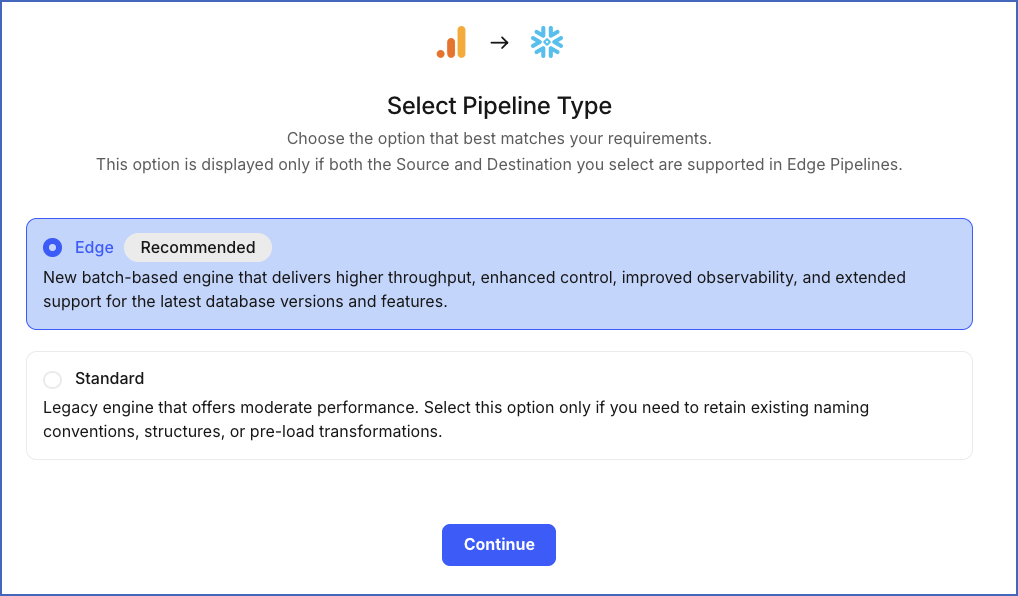
This page appears only if the selected Destination type is supported in Edge and your Team has an existing Google Analytics 4 Pipeline with the same Destination type. Otherwise, you can proceed to create an Edge Pipeline.
-
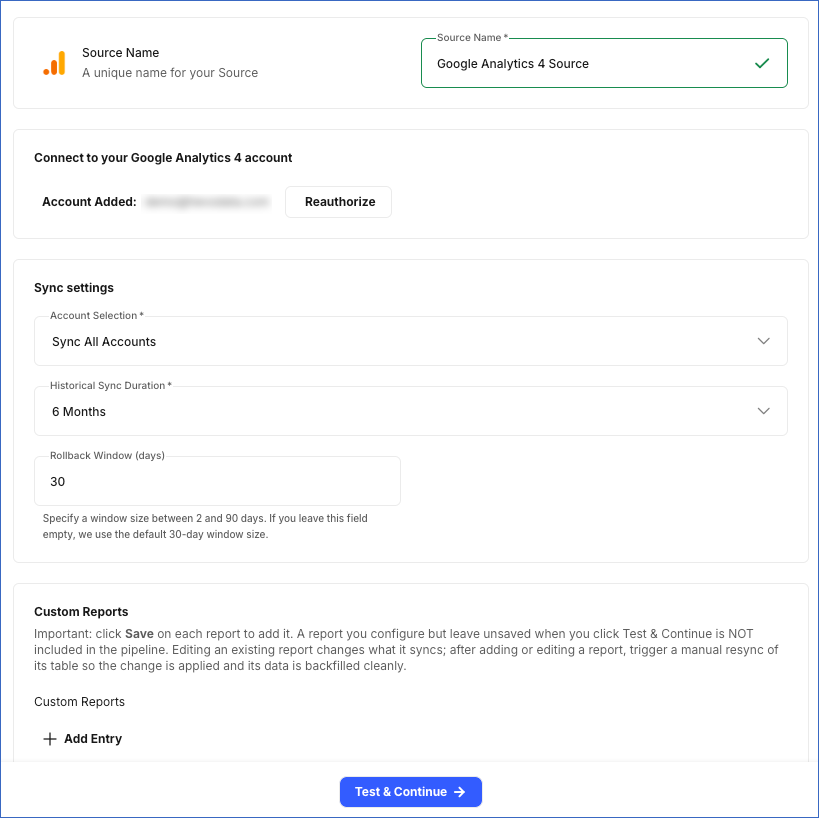
In the Configure Source screen, specify the following:
-
Source Name: A unique name for your Source, not exceeding 255 characters. For example, Google Analytics 4 Source.
-
In the Connect to your Google Analytics 4 account section, specify the following:
-
Google Account: Click the button to authorize Hevo. In the Google sign-in window that opens, select the Google account that has access to your Google Analytics 4 properties, review the requested permissions, and click Allow.
-
Account Selection: From the drop-down, select whether Hevo syncs data from all the accounts accessible to the authorized Google account, or only from specific accounts that you select.
-
Sync All Accounts: Hevo syncs data for all accounts accessible to your authorized Google Analytics 4 account, including any accounts added later.
-
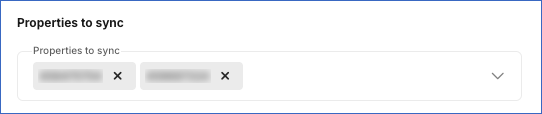
Sync Specific Accounts: Hevo ingests data only for the accounts you select from the Properties to sync drop-down.
-
-
Historical Sync Duration: From the drop-down, select how far back Hevo fetches data on the first Pipeline run. Default: 6 Months. You cannot change this value after the Pipeline is created.
-
(Optional) Rollback Window (days): Specify the number of days for which Hevo re-fetches previously ingested report data to capture updated report data. Min: 2 days. Max: 90 days. Default: 30 days.
-
-
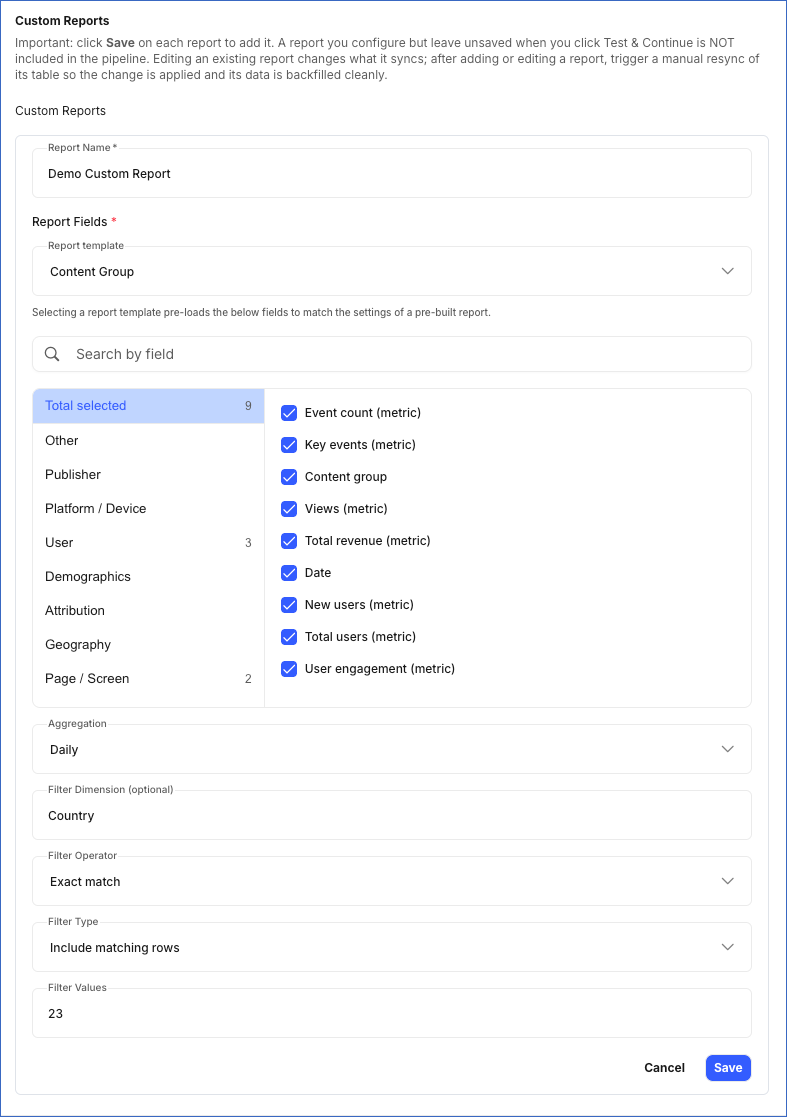
(Optional) In the Custom Reports section, define one or more custom reports. Each report you define is ingested into its own table in the Destination. To add a report, specify the following:
-
Report Name: A unique name for the report. This cannot be changed after the report is created.
-
Report Fields: Select the dimensions and metrics for the report from tabs grouped by category, such as Publisher, Platform/Device, User, Demographics, and Geography. Alternatively, you can pick a report template to automatically select the fields for a pre-built report.
Note: A report can include a maximum of 9 dimensions and 10 metrics, and must include a date dimension that matches the selected Aggregation.
-
Aggregation: From the drop-down, select the time interval used to group the report data. Default value: Daily. You cannot change this value after the report is created. The Report Fields you select must include a matching date dimension: Date for Daily, Year week for Weekly, Year month for Monthly, and Year for Yearly.
-
(Optional) Filter Dimension: The Google Analytics 4 dimension used to filter the report data, for example, Country.
-
Filter Operator: The condition used to match the selected Filter Dimension.
-
Filter Type: Determines whether rows that match the filter condition are included in or excluded from the report.
-
(Optional) Filter Values: The value or values to match for the selected Filter Dimension. Enter comma-separated values if the Filter Operator is Exact match, or a single value if the Filter Operator is Contains.
-
Note:
-
Click Save after configuring each report. Reports that are not saved before you click Test & Continue are not included in the Pipeline.
-
If you add a new custom report or edit an existing one after the Pipeline is created, resync the corresponding object to apply the changes and load the data using the updated configuration.
-
-
Click Test & Continue to test the connection to your Google Analytics 4 Source. Once the test is successful, you can proceed to set up your Destination.
Note: If any custom report is configured incorrectly, such as with an unsupported field combination, an invalid aggregation, or a duplicate table name, clicking Test & Continue fails the Source configuration. Hevo lists all configuration issues in your custom reports. You can fix these issues by editing the reports before retrying.
Data Replication
Hevo replicates data for all the objects selected on the Configure Objects page during Pipeline creation. By default, all supported objects and their available fields are selected. However, you can modify this selection while creating or editing the Pipeline.
Hevo ingests the following types of data from your Source objects:
-
Historical Data: The first run of the Pipeline ingests historical data for the selected reports based on the historical sync duration specified when creating the Pipeline, and loads it into the Destination.
-
Incremental Data: Once the historical load is complete, new and updated records for objects are ingested as per the sync frequency.
For all prebuilt and custom reports, Hevo ingests only the incremental data using the date field in subsequent Pipeline runs. During each sync, Hevo also re-fetches data for the number of days specified in the Rollback Window (days) field to capture any revisions to previously ingested report data. This ensures that your Destination stays up to date.
If you add a new custom report to an existing Pipeline, Hevo ingests its historical data based on the historical sync duration specified when the Pipeline was created. Existing reports continue syncing only incremental data.
For all metadata objects fetched through the Google Analytics Admin API, Hevo ingests the entire data during each Pipeline run.
Before each Pipeline run, Hevo checks for any new custom dimensions or metrics in your Google Analytics 4 property. This ensures that they are available the next time you configure a custom report in Hevo.
The Google Analytics Data API enforces the following quotas per property:
-
Standard properties are limited to 200,000 core tokens per day and 40,000 core tokens per hour, with a maximum of 10 concurrent requests per property.
-
Analytics 360 properties are limited to 2,000,000 core tokens per day and 400,000 core tokens per hour, with a maximum of 50 concurrent requests per property.
If this limit is exceeded, a rate limit exception occurs. To understand how Hevo handles such scenarios, read Handling Rate Limit Exceptions.
Note: You can create a Pipeline with this Source only using the Merge load mode. The Append mode is not supported for this Source.
Schema and Primary Keys
Hevo uses the following schema to upload the records to the Destination. For a detailed view of the objects, fields, and relationships, click the ERD.
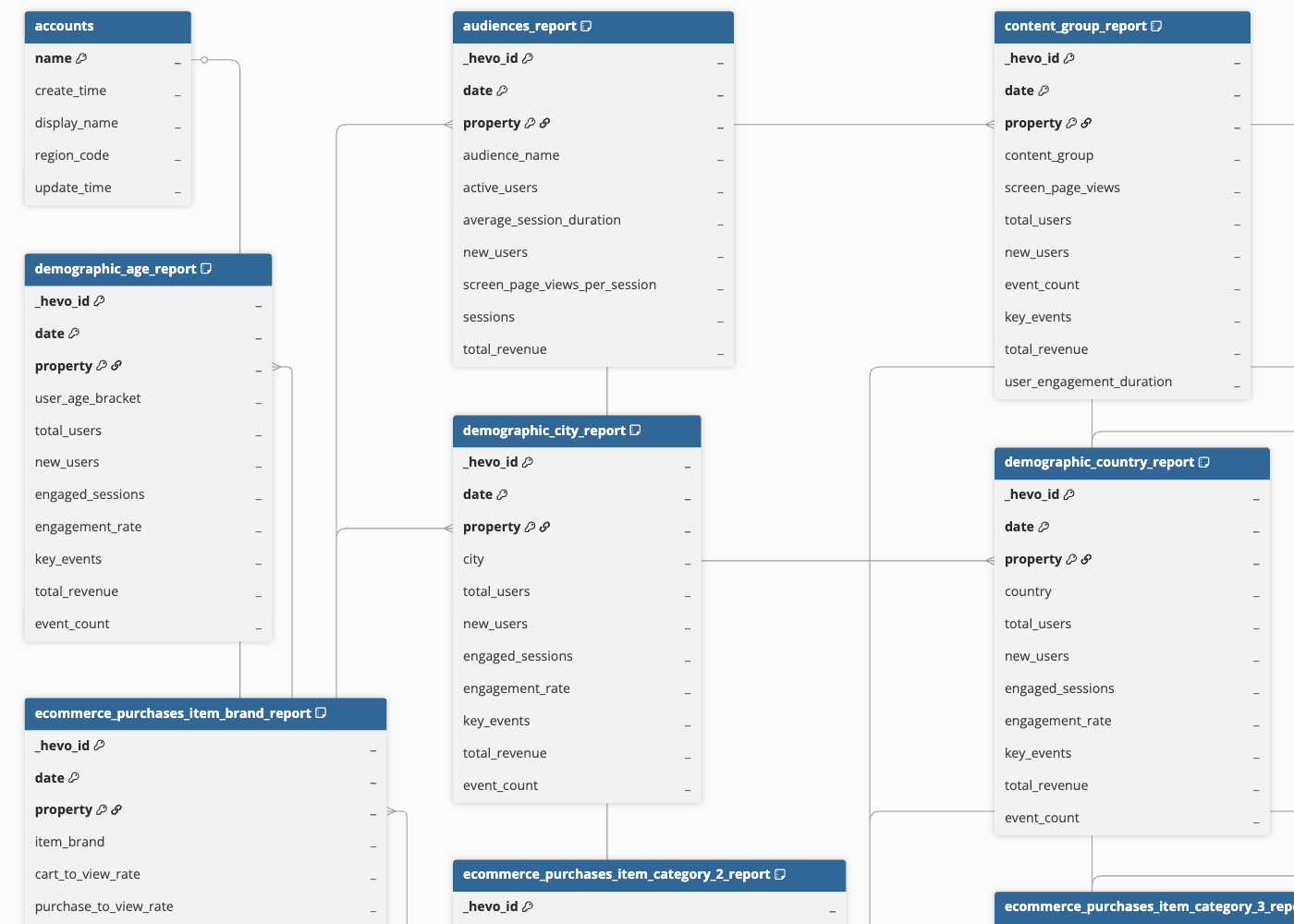
Data Model
The following is the list of tables (objects) that are created at the Destination when you run the Pipeline:
Google Analytics Admin API - Metadata Objects
| Object | Description |
|---|---|
| Account | Contains details about the Google Analytics accounts accessible to the authorized Google account, including the account’s display name, region, and creation and last-updated timestamps. |
| Property | Contains details about each Google Analytics 4 property under your accounts, such as the property’s display name, industry category, currency, time zone, and service level. |
| Conversion Event | Contains the conversion events (also known as key events) configured for a property, including the event name, whether it is a custom event, and whether it can be deleted. |
| Custom Dimension | Contains the custom dimensions defined for a property, including the dimension’s display name, parameter name, and scope. |
| Custom Metric | Contains the custom metrics defined for a property, including the metric’s display name, parameter name, measurement unit, and scope. |
| Google Ads Link | Contains details about the Google Ads accounts linked to a property, including the linked customer ID, the email address of the user who created the link, and whether ad personalization is enabled. |
Google Analytics Data API - Prebuilt Reports
All prebuilt report objects are ingested using the Google Analytics Data API. Each object below corresponds to a fixed dimension/metric combination, aggregated by day and property.
Traffic Acquisition Reports
| Object | Description |
|---|---|
| Traffic Acquisition Session Campaign | Contains daily session, engagement, and revenue metrics broken down by the session’s campaign name. |
| Traffic Acquisition Session Default Channel Grouping | Contains daily session, engagement, and revenue metrics broken down by the session’s default channel grouping, such as Organic Search, Paid Search, Direct, or Referral. |
| Traffic Acquisition Session Medium | Contains daily session, engagement, and revenue metrics broken down by the session’s medium. |
| Traffic Acquisition Session Source | Contains daily session, engagement, and revenue metrics broken down by the session’s traffic source. |
| Traffic Acquisition Session Source Medium | Contains daily session, engagement, and revenue metrics broken down by the combination of session source and medium. |
| Traffic Acquisition Session Source Platform | Contains daily session, engagement, and revenue metrics broken down by the session’s source platform, such as Google Ads or manual tagging. |
User Acquisition Reports
| Object | Description |
|---|---|
| User Acquisition First User Campaign | Contains daily new-user acquisition, engagement, and revenue metrics broken down by the campaign that first acquired the user. |
| User Acquisition First User Google Ads Ad Group Name | Contains daily new-user acquisition, engagement, and revenue metrics broken down by the Google Ads ad group that first acquired the user. |
| User Acquisition First User Google Ads Network Type | Contains daily new-user acquisition, engagement, and revenue metrics broken down by the Google Ads network type that first acquired the user. |
| User Acquisition First User Medium | Contains daily new-user acquisition, engagement, and revenue metrics broken down by the medium that first acquired the user. |
| User Acquisition First User Source | Contains daily new-user acquisition, engagement, and revenue metrics broken down by the traffic source that first acquired the user. |
| User Acquisition First User Source Medium | Contains daily new-user acquisition, engagement, and revenue metrics broken down by the combination of source and medium that first acquired the user. |
| User Acquisition First User Source Platform | Contains daily new-user acquisition, engagement, and revenue metrics broken down by the source platform that first acquired the user. |
Demographic Reports
| Object | Description |
|---|---|
| Demographic Age | Contains daily user, engagement, and revenue metrics broken down by the user’s age bracket. |
| Demographic City | Contains daily user, engagement, and revenue metrics broken down by the user’s city. |
| Demographic Country | Contains daily user, engagement, and revenue metrics broken down by the user’s country. |
| Demographic Gender | Contains daily user, engagement, and revenue metrics broken down by the user’s gender. |
| Demographic Interests | Contains daily user, engagement, and revenue metrics broken down by the user’s affinity or in-market interest category. |
| Demographic Language | Contains daily user, engagement, and revenue metrics broken down by the user’s browser or device language. |
| Demographic Region | Contains daily user, engagement, and revenue metrics broken down by the user’s region. |
Technology & Device Reports
| Object | Description |
|---|---|
| Tech App Version | Contains daily user, engagement, and revenue metrics broken down by app version. |
| Tech Browser | Contains daily user, engagement, and revenue metrics broken down by browser. |
| Tech Device Category | Contains daily user, engagement, and revenue metrics broken down by device category, such as desktop, mobile, or tablet. |
| Tech Device Model | Contains daily user, engagement, and revenue metrics broken down by device model. |
| Tech Operating System | Contains daily user, engagement, and revenue metrics broken down by operating system. |
| Tech OS Version | Contains daily user, engagement, and revenue metrics broken down by operating system version. |
| Tech OS With Version | Contains daily user, engagement, and revenue metrics broken down by operating system and version. |
| Tech Platform | Contains daily user, engagement, and revenue metrics broken down by platform, such as Web, iOS, or Android. |
| Tech Platform Device Category | Contains daily user, engagement, and revenue metrics broken down by the combination of platform and device category. |
| Tech Screen Resolution | Contains daily user, engagement, and revenue metrics broken down by screen resolution. |
E-commerce Reports
| Object | Description |
|---|---|
| Ecommerce Purchases Item Brand | Contains daily ecommerce purchase funnel metrics, including items viewed, added to cart, purchased, item revenue, and cart-to-view and purchase-to-view rates, broken down by item brand. |
| Ecommerce Purchases Item Category | Contains daily ecommerce purchase funnel metrics broken down by item category. |
| Ecommerce Purchases Item Category 2 | Contains daily ecommerce purchase funnel metrics broken down by the item’s second category. |
| Ecommerce Purchases Item Category 3 | Contains daily ecommerce purchase funnel metrics broken down by the item’s third category. |
| Ecommerce Purchases Item Category 4 | Contains daily ecommerce purchase funnel metrics broken down by the item’s fourth category. |
| Ecommerce Purchases Item Category 5 | Contains daily ecommerce purchase funnel metrics broken down by the item’s fifth category. |
| Ecommerce Purchases Item Category (Combined) | Contains daily ecommerce purchase funnel metrics broken down by all five item category levels together. |
| Ecommerce Purchases Item ID | Contains daily ecommerce purchase funnel metrics broken down by item ID. |
| Ecommerce Purchases Item Name | Contains daily ecommerce purchase funnel metrics broken down by item name. |
Publisher Ads Reports
| Object | Description |
|---|---|
| Publisher Ads Ad Format | Contains daily publisher ad impressions, exposure, clicks, and revenue broken down by ad format. |
| Publisher Ads Ad Source | Contains daily publisher ad impressions, exposure, clicks, and revenue broken down by ad source. |
| Publisher Ads Ad Unit | Contains daily publisher ad impressions, exposure, clicks, and revenue broken down by ad unit. |
| Publisher Ads Page Path | Contains daily publisher ad impressions, exposure, clicks, and revenue broken down by page path. |
Page & Screen Reports
| Object | Description |
|---|---|
| Content Group | Contains daily page views, users, events, and revenue metrics broken down by content group. |
| Page Path | Contains daily page views, users, events, and revenue metrics broken down by page path. |
| Page Title And Screen Class | Contains daily page views, users, events, and revenue metrics broken down by the unified screen class, which consists of the page title for web or the screen class for apps. |
| Page Title And Screen Name | Contains daily page views, users, events, and revenue metrics broken down by the unified screen name, which consists of the page title for web or the screen name for apps. |
Events, Conversions & Audience Reports
| Object | Description |
|---|---|
| Audiences | Contains daily user, engagement, session, and revenue metrics broken down by the Google Analytics 4 audience a user belongs to. |
| Conversions | Contains daily conversion (key event) counts, user, and revenue metrics broken down by event name. |
| Events | Contains daily event counts, user, and revenue metrics broken down by event name. |
In addition to the prebuilt reports listed above, you can define Custom Reports in the Source configuration. Each custom report you create is ingested into its own table, named after the report, containing the dimensions and metrics you select.
Additional Information
Read the detailed Hevo documentation for the following related topics:
Source Considerations
-
Some dimensions, such as demographic dimensions, may use data sampling or thresholding in Google Analytics 4 to protect user privacy. As a result, the data ingested by Hevo may differ slightly from the values shown in the Google Analytics 4 interface.
-
Google Analytics 4 supports only certain combinations of dimensions and metrics in a report. If a Custom Report contains an unsupported combination, Google Analytics 4 rejects the report when you save it. You can use the GA4 Dimensions and Metrics Explorer to check the compatibility of the selected dimensions and metrics.
-
If a dimension value is unavailable for a row, Google Analytics 4 returns (not set). Hevo replicates this as an empty value in the Destination.
Limitations
- You can define a maximum of 50 custom reports per Pipeline.