CockroachDB is a distributed SQL database designed for horizontal scalability, high availability, and fault tolerance. It automatically distributes data across multiple nodes to ensure continuous operation, even in the event of node failures.
You can use Hevo Pipelines to replicate data from your CockroachDB database to a Destination of your choice.
Supported Configurations
| Category | Supported Values |
|---|---|
| Database versions | 22.1.0 - 25.3.0 |
| Connection limit per database | No limit |
| Transport Layer Security (TLS) | 1.3 |
Supported Features
| Feature Name | Supported |
|---|---|
| Capture deletes | Yes |
| Custom data (user-configured tables & fields) | No |
| Data blocking (skip objects and fields) | Yes |
| Resync (objects and Pipelines) | Yes |
| API configurable | Yes |
Prerequisites
-
The CockroachDB cluster version is 22.1.0 or higher, up to 25.3.0.
-
Changefeed is enabled for the CockroachDB cluster.
-
The required privileges are granted to the database user. We recommend creating a database user for configuring your CockroachDB Source in Hevo. If you already have a database user, grant the required privileges.
-
The database hostname and port number of the Source instance are available.
Verify Changefeed and Configure Garbage Collection
Hevo uses CockroachDB’s sinkless changefeed mechanism to capture and replicate incremental data changes to your Destination.
Before connecting your CockroachDB database to Hevo, ensure that:
-
Changefeeds are enabled on your cluster.
-
The garbage collection period for the database is configured appropriately.
1. Verify that Changefeed is Enabled
Perform the following steps to verify that changefeed is enabled on your cluster:
-
Connect to your CockroachDB cluster as an admin user using an SQL client tool, such as cockroach sql, and run the following commands:
SHOW CLUSTER SETTING kv.rangefeed.enabled; SHOW CLUSTER SETTING feature.changefeed.enabled; -
Both commands must return true. If either value is false, run the following commands to enable changefeed on your cluster:
SET CLUSTER SETTING kv.rangefeed.enabled = true;
SET CLUSTER SETTING feature.changefeed.enabled = true;
If you are not able to execute any of these commands, contact CockroachDB support.
2. Configure the garbage collection period for your database
CockroachDB periodically removes older row-level changes based on a configurable retention period called the Garbage Collection (GC) period.
Hevo uses these changes to replicate incremental updates from your CockroachDB database. If a Pipeline remains paused longer than the configured GC period, the required changes may no longer be available. As a result, Hevo may be unable to continue incremental replication and may require a full resync of the affected tables.
Hence, Hevo recommends setting the garbage collection period to at least 72 hours (259,200 seconds).
Perform the following steps to configure the GC period:
-
Run the following command to view the current GC period (in seconds):
SHOW ZONE CONFIGURATION FROM DATABASE <database_name>; -
If the value of the gc.ttlseconds field is less than 259200, run the following commands to update it:
ALTER DATABASE <database_name> CONFIGURE ZONE USING gc.ttlseconds = 259200;
ALTER DATABASE system CONFIGURE ZONE USING gc.ttlseconds = 259200;
Note: Replace <database_name> with the name of your database. For example, defaultdb.
Create a Database User and Grant Privileges
1. Create a database user (Optional)
Perform the following steps to create a user in your CockroachDB database:
-
Connect to your CockroachDB database as an admin user using an SQL client tool, such as cockroach sql.
-
Run the appropriate command based on your CockroachDB version to create a user.
-
For CockroachDB version 22.1.0:
CREATE USER <database_username> WITH LOGIN PASSWORD '<password>' CONTROLCHANGEFEED VIEWCLUSTERSETTING; -
For CockroachDB versions 22.1.0 and above:
CREATE USER <database_username> WITH LOGIN PASSWORD '<password>' VIEWCLUSTERSETTING;
-
Note: Replace the placeholder values in the commands above with your own. For example, <database_username> with hevouser.
2. Grant privileges to the user
The following table lists the privileges that the database user for Hevo requires to connect to and ingest data from your CockroachDB database:
| Privilege Name | Allows Hevo to |
|---|---|
| USAGE | Access the objects in the specified schema. |
| SELECT | Select rows from the database tables. |
Perform the following steps to grant privileges to the database user:
-
Connect to your CockroachDB instance as an admin user using an SQL client tool, such as cockroach sql.
-
Run the following commands to grant privileges to your database user:
GRANT USAGE ON SCHEMA <schema_name> TO <database_username>; GRANT SELECT ON ALL TABLES IN SCHEMA <schema_name> TO <database_username>; ALTER DEFAULT PRIVILEGES IN SCHEMA <schema_name> GRANT SELECT ON TABLES TO <database_username>;Note: Replace the placeholder values in the commands above with your own. For example, <database_username> with hevouser and <schema_name> with public.
Retrieve the Database Hostname and Port Number (Optional)
Perform the following steps to retrieve the hostname and port number of your CockroachDB database:
-
Log in to the CockroachDB Cloud console.
-
On the Clusters page, click the cluster you want to connect to Hevo.
-
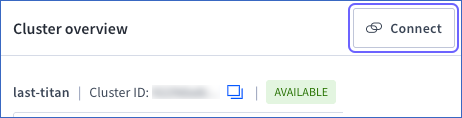
On the Cluster overview page, click Connect.
-
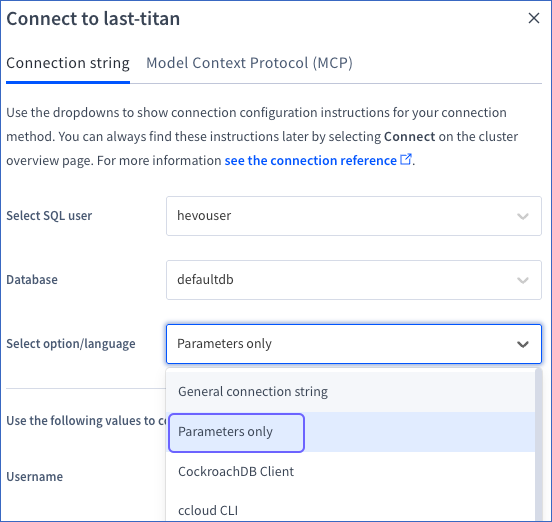
In the Connect to <Cluster name> pop-up window, choose Parameters only from the Select option/language drop down.
-
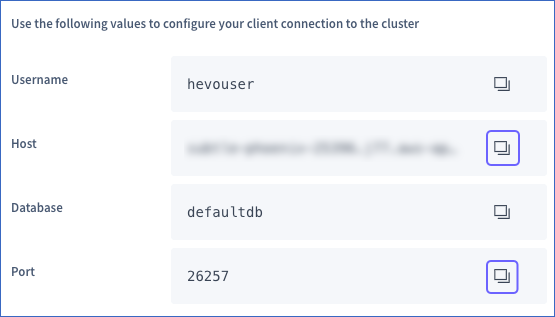
Click the copy icon to copy the Host and Port values. Use these values as your Database Host and Database Port, respectively, while configuring your CockroachDB Source in Hevo.
Configure CockroachDB as a Source in your Pipeline
Perform the following steps to configure your CockroachDB Source:
-
Click Pipelines in the Navigation Bar.
-
Click + Create Pipeline in the Pipelines List View.
-
On the Select Source Type page, select CockroachDB.
-
On the Select Destination Type page, select the type of Destination you want to use.
-
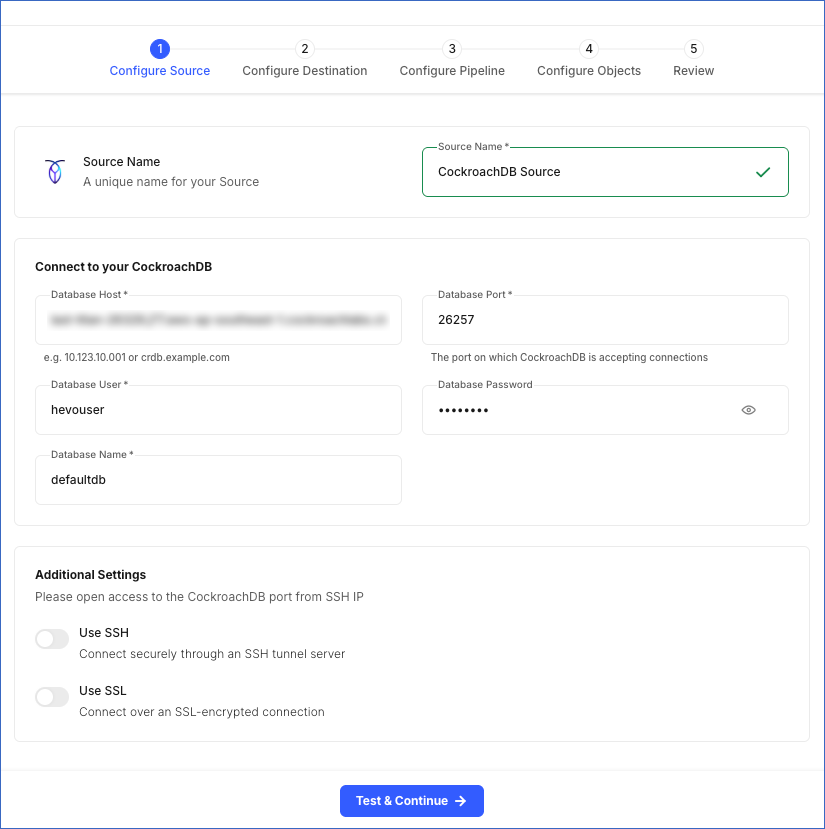
In the Configure Source screen, specify the following:
-
Source Name: A unique name for your Source, not exceeding 255 characters. For example, CockroachDB Source.
-
In the Connect to your CockroachDB section:
-
Database Host: The IP address or hostname of your CockroachDB database. This is the hostname that you obtained in the Retrieve the Database Hostname and Port Number section.
-
Database Port: The port on which your CockroachDB instance listens for connections. This is the port number that you obtained in the Retrieve the Database Hostname and Port Number section. Default value: 26257.
-
Database User: The user who has permission to read data from your database. This user can be the one you created in the Create a database user section or an existing user. For example, hevouser.
-
Database Password: The password for your database user.
-
Database Name: The database from which you want to replicate data. For example, defaultdb.
-
-
Additional Settings
-
Use SSH: Enable this option to connect to Hevo using an SSH tunnel instead of directly connecting your CockroachDB host to Hevo. This provides an additional level of security to your database by not exposing your CockroachDB setup to the public.
-
Use SSL: Enable this option to use an SSL-encrypted connection. Specify the following:
-
CA File: The file containing the SSL server certificate authority (CA).
-
Client Certificate: The client’s public key certificate file.
-
Client Key: The client’s private key file.
-
-
-
-
Click Test & Continue to test the connection to your CockroachDB Source. Once the test is successful, you can proceed to set up your Destination.
Additional Information
Read the detailed Hevo documentation for the following related topics:
Data Type Mapping
Hevo maps the CockroachDB Source data type internally to a unified data type, referred to as the Hevo Data Type, in the table below. This data type is used to represent the Source data from all supported data types in a lossless manner.
The following table lists the supported CockroachDB data types and the corresponding Hevo data type to which they are mapped:
| CockroachDB Data Type | Hevo Data Type |
|---|---|
| - INT2 - SMALLINT |
SHORT |
| - INT4 | INTEGER |
| - INT - INT8 - INT64 - BIGINT - INTEGER - OID |
LONG |
| - BOOL | BOOLEAN |
| - FLOAT - FLOAT8 - DOUBLE PRECISION |
DOUBLE |
| - REAL - FLOAT4 |
FLOAT |
| - DECIMAL | DECIMAL Note: Based on the Destination, Hevo maps DECIMAL values to either DECIMAL (NUMERIC) or VARCHAR. The mapping is determined by: P – the total number of significant digits, and S – the number of digits to the right of the decimal point. |
| - STRING - TEXT - VARCHAR - CHAR - CHARACTER - CITEXT - COLLATE - BIT - INTERVAL - UUID - INET - LTREE - ENUM |
VARCHAR |
| - BYTES | BYTEARRAY |
| - DATE | DATE |
| - TIME | TIME |
| - TIMETZ | TIMETZ |
| - TIMESTAMP | TIMESTAMP |
| - TIMESTAMPTZ | TIMESTAMPTZ |
| - VECTOR - JSONB - JSON - ARRAY |
JSON |
At this time, the following CockroachDB data types are not supported by Hevo:
-
TSQUERY
-
TSVECTOR
-
GEOMETRY
-
GEOGRAPHY
-
BOX2D
-
Any other data type not listed in the table above.
Note: If any of the Source objects contain data types that are not supported by Hevo, the corresponding fields are marked as unsupported during object configuration in the Pipeline.
Handling of Deletes
Hevo uses CockroachDB’s changefeed mechanism to capture data changes, including insert, update, and delete operations. Hevo replicates delete actions captured by the changefeed to the Destination table by setting the value of the metadata column, __hevo__marked_deleted, to True for the corresponding row.
Source Considerations
-
If a table does not have a primary key defined, CockroachDB automatically assigns rowid as the primary key. Hevo uses this column to track changes for such tables.
-
If you add a new column with a default value to a table already included in the Pipeline, the default value is replicated only for rows inserted or updated after the column is added. Existing rows already replicated to the Destination are not updated. This means historical data in the Destination will not reflect the new column’s default value until those rows are updated at the Source.
-
Hevo supports tables that use hash-sharded primary keys. However, data replication for such tables may be slower than for tables with standard primary keys. This is because hash sharding spreads data across multiple nodes to improve write performance. This makes reading the data less efficient, which can increase sync time. If sync time is a concern, consider using standard primary keys where possible.
Limitations
-
Hevo does not support data replication from tables that use multiple column families.
-
Hevo does not support ingesting data from computed columns in CockroachDB.