Braintree is a payments platform that enables businesses to accept, process, and manage online and in-app payments. It supports payment methods such as credit and debit cards, PayPal, and digital wallets, as well as recurring billing, fraud protection, and dispute management.
Hevo uses the Braintree server SDK to replicate data from your Braintree Payments account to the Destination of your choice. To ingest data, you must provide Hevo with a merchant ID, public key, and private key associated with your Braintree account, for either the Sandbox or Production environment.
Braintree Payments Environments
Braintree provides two separate environments for testing and production use:
-
Sandbox: This environment is used for development and testing. You can simulate transactions and other activities without processing real payments. Data created in the Sandbox environment is isolated from Production data and does not affect live business operations.
-
Production: This environment is used for live payment processing and contains actual customer and transaction data.
Hevo supports data replication from both the Sandbox and Production environments. You can connect to the environment you want to ingest data from by selecting it during Source configuration.
Supported Features
| Feature Name | Supported |
|---|---|
| Capture deletes | No |
| History mode | No |
| Custom data (user-configured tables & fields) | No |
| Data blocking (skip objects and fields) | Yes |
| Resync (objects and Pipelines) | Yes |
| Authorization via API | Yes |
| API configurable | Yes |
Prerequisites
-
An active Braintree Payments account to ingest data from.
-
You must have Account Admin and API Access permissions to access your account’s API keys. For more information about managing users and roles, read Managing Users and Roles.
-
You have the [merchant ID, public key, and private key] required to (#obtain-the-merchant-id-public-key-and-private-key) to provide Hevo access to your Braintree Payments account data.
Obtain the Merchant ID, Public Key, and Private Key
To connect Hevo to your Braintree Payments account, you must provide the merchant ID, public key, and private key associated with your account. Braintree maintains separate credentials for the Sandbox and Production environments, and the steps to obtain them differ depending on the environment you want to connect to. Refer to the sections below for your specific environment.
Note: You must log in as a user with Account Admin and API Access permissions to perform these steps.
Obtain credentials from the Production environment
Perform the following steps to obtain the merchant ID, public key, and private key from your Production account:
-
Log in to your Braintree Control Panel.
-
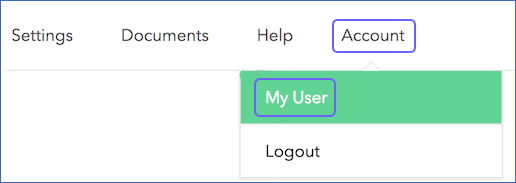
In the top-right corner, click Account, and then click My User.
-
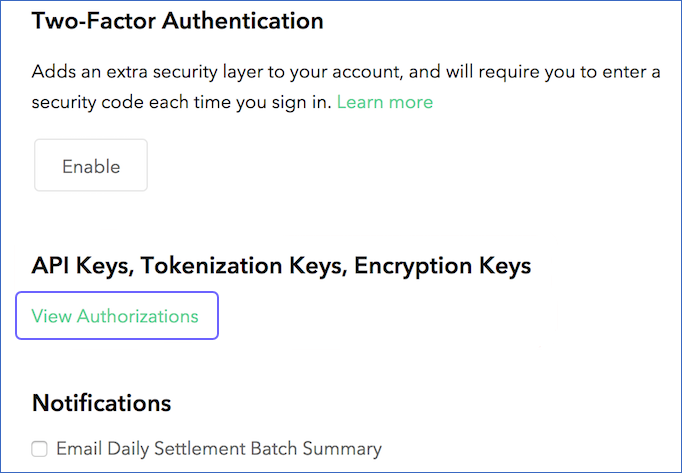
On the Edit User page, under API Keys, Tokenization Keys, Encryption Keys, click View Authorizations.
-
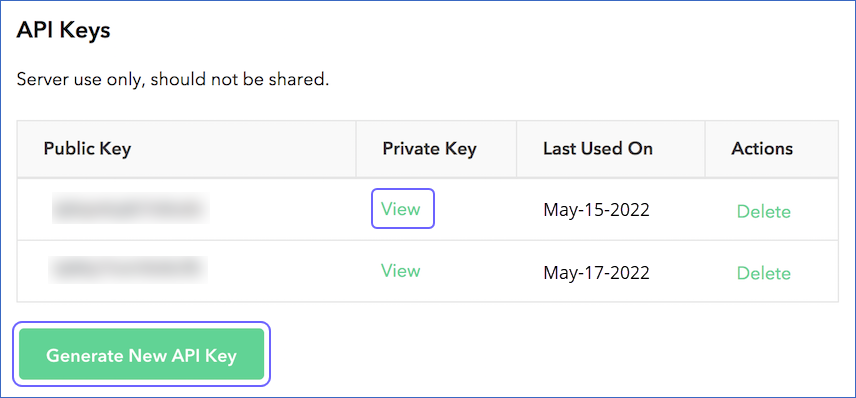
In the API Keys section, under the Private Key column, click View corresponding to the public key you want to use. Alternatively, click Generate New API Key to create a new key pair.
-
On the Client Library Key page, copy the Public Key, Private Key, and Merchant ID, and save them securely like any other password.
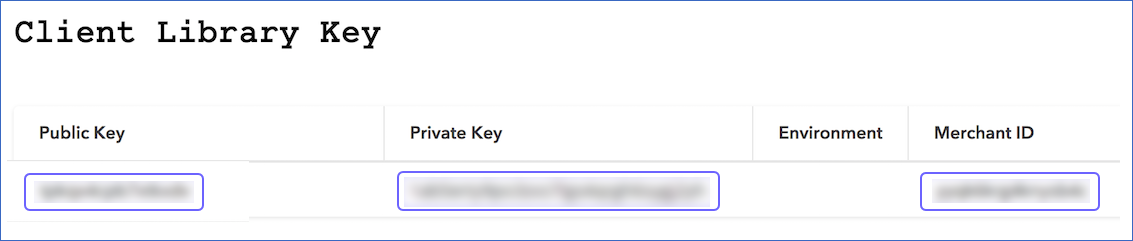
Use these credentials while configuring your Braintree Payments Source in Hevo.
Obtain credentials from the Sandbox environment
Perform the following steps to obtain the merchant ID, public key, and private key from your Sandbox account:
-
Log in to your Braintree Sandbox Control Panel.
-
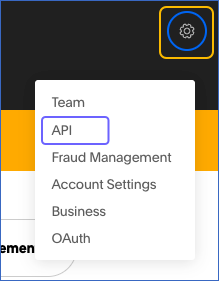
In the top-right corner, click the Settings icon, and then click API.
-
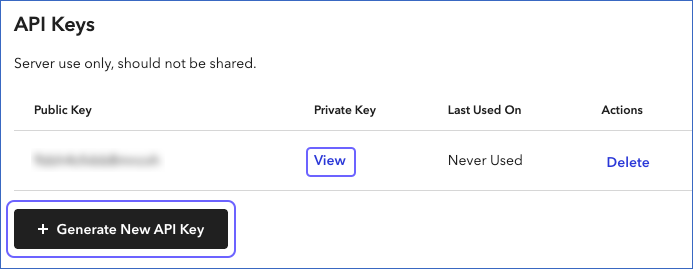
In the API Keys section, under the Private Key column, click View corresponding to the public key you want to use. Alternatively, click + Generate New API Key to create a new key pair.
-
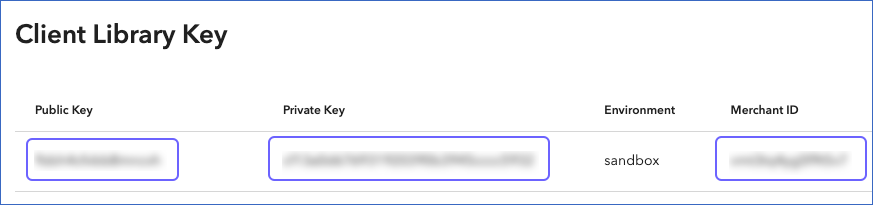
On the Client Library Key page, copy the Public Key, Private Key, and Merchant ID, and save them securely like any other password.
Use these credentials while configuring your Braintree Payments Source in Hevo.
If the public key, private key, or merchant ID configured in the Pipeline is revoked or changed in your Braintree Payments account, Hevo cannot authenticate with the Source. As a result, all active jobs for the Pipeline fail, and no data is replicated. To resume data replication, modify the Source configuration in the Pipeline with valid credentials. After you save the updated credentials, Hevo re-authenticates the Source, and data ingestion resumes from the last saved offset.
Configure Braintree Payments as a Source
Perform the following steps to configure Braintree Payments as a Source in your Pipeline:
-
Click Pipelines in the Navigation Bar.
-
Click + Create Pipeline in the Pipelines List View.
-
On the Select Source Type page, select Braintree Payments.
-
On the Select Destination Type page, select the type of Destination you want to use.
-
On the Select Pipeline Type page, click Edge, and then click Continue.
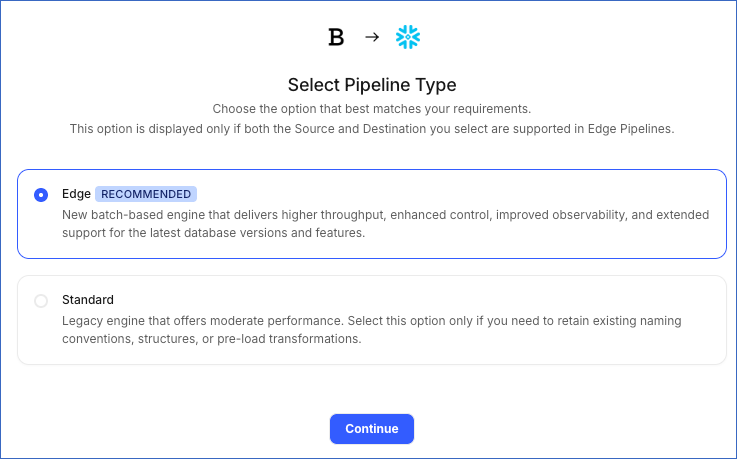
This page appears only if the selected Destination type is supported in Edge and your Team has an existing Braintree Payments Pipeline with the same Destination type. Otherwise, you can proceed to create an Edge Pipeline.
-
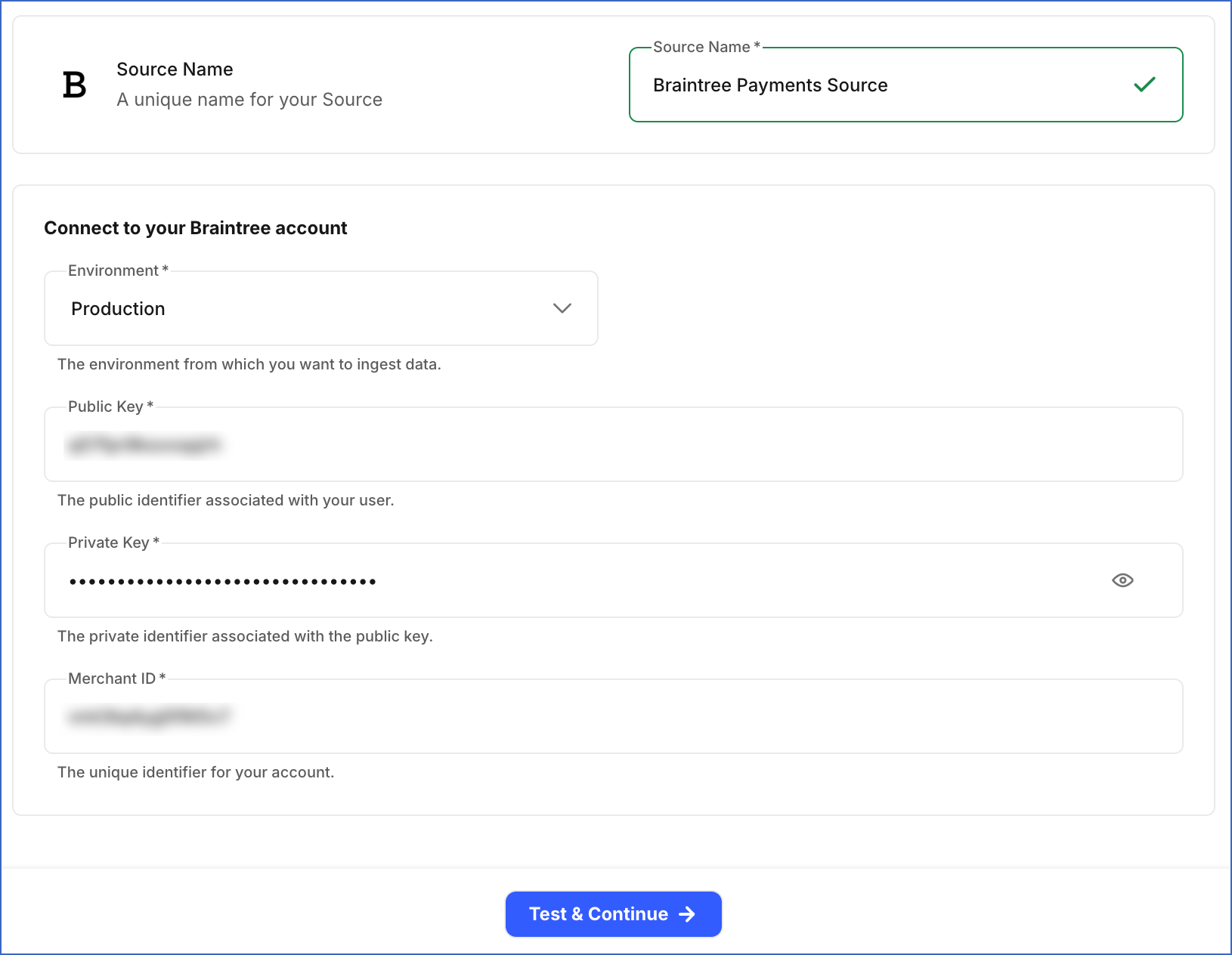
In the Configure Source screen, specify the following:
-
Source Name: A unique name for your Source, not exceeding 255 characters. For example, Braintree Payments Source.
-
In the Connect to your Braintree account section, specify the following:
-
Environment: The Braintree Payments environment you want to connect to and ingest data from. Default value: Production.
-
Public Key: The public key you obtained from your Braintree Payments account, based on the environment you want to connect to.
-
Private Key: The private key you obtained from your Braintree Payments account, based on the environment you want to connect to.
-
Merchant ID: The merchant ID you obtained from your Braintree Payments account, based on the environment you want to connect to.
-
-
-
Click Test & Continue to test the connection to your Braintree Payments Source. Once the test is successful, you can proceed to set up your Destination.
Data Replication
Hevo replicates data for all the objects selected on the Configure Objects page during Pipeline creation. By default, all supported objects and their available fields are selected. However, you can modify this selection while creating or editing the Pipeline.
Hevo ingests the following types of data from your Source objects:
-
Historical Data: The first run of the Pipeline ingests all available historical data for the selected objects and loads it into the Destination.
-
Incremental Data: Once the historical load is complete, new and updated records for objects are ingested as per the sync frequency.
For the Merchant Account and Plan objects, Hevo ingests the entire data during each Pipeline run. For all other objects, Hevo ingests only the incremental data in subsequent Pipeline runs.
For the following objects, Hevo periodically re-fetches data to capture updates to previously ingested records and to keep your Destination up to date:
| Objects | Data Refresh Duration |
|---|---|
| Registered Customer | 7 days |
| Subscription | 24 hours |
| Transaction | 24 hours |
Note: You can create a Pipeline with this Source only using the Merge load mode. The Append mode is not supported for this Source.
Schema and Primary Keys
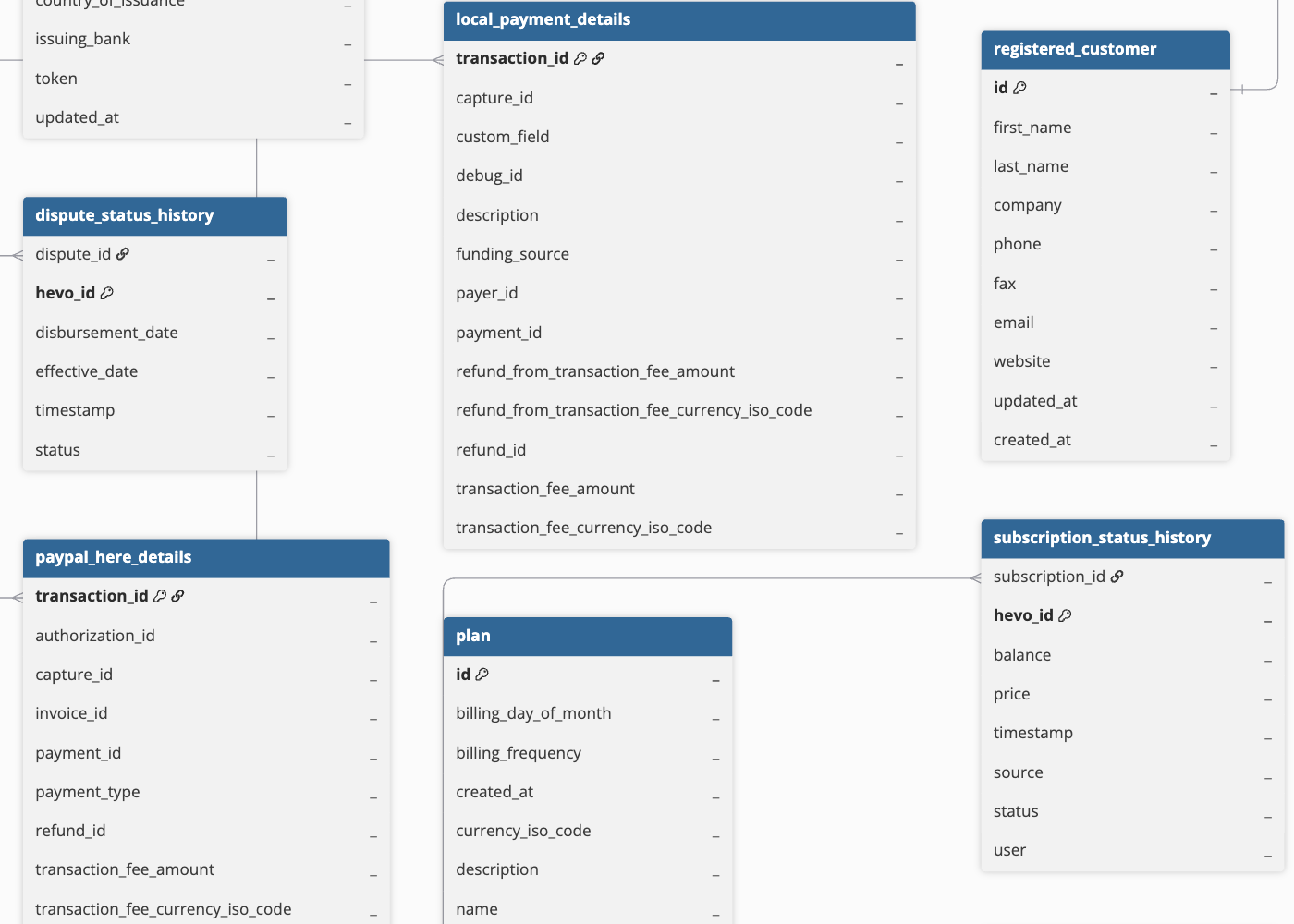
Hevo uses the following schema to load the records to the Destination. For a detailed view of the objects, fields, and relationships, click the ERD.
Data Model
The following is the list of tables (objects) that are created at the Destination when you run the Pipeline:
| Object | Description |
|---|---|
| Credit Card Verification | Contains information about credit card verification, including the verification status, Card Verification Value (CVV) response codes, and risk assessment details. |
| Dispute | Contains information about a dispute associated with a transaction, including the reason, amount, status, and reply-by date. It includes a child object, Dispute Status History. |
| Merchant Account | Contains information about a business or its sub-accounts used to process payments, including the account ID, status, currency, and funding details. |
| Plan | Contains information about a customer’s billing plan, including the billing day of the month, billing frequency, currency, and any associated discounts. |
| Registered Customer | Contains information about an individual or business added to the Braintree account, such as their name, email, phone number, and company. It includes a child object, Customer Address. |
| Subscription | Contains information about a customer’s recurring billing arrangement, including the plan ID, price, status, and next billing date. It includes the following child objects: - Subscription Add On - Subscription Discount - Subscription Status History |
| Transaction | Contains details about a payment processed through your Braintree account, including the transaction amount, status, payment instrument type, billing, and shipping details. It includes the following child objects: - Transaction Status History - Transaction Line Item - Transaction Add On - Transaction Discount - Credit Card - Unregistered Customer - Venmo Details - Android Pay Details - PayPal Details - Masterpass Card Details - Apple Pay Card - Samsung Pay Card Details - Visa Checkout Details - PayPal Here Details - Local Payment Details - US Bank Account Details - Decision Reason |