Attio is a customer relationship management (CRM) platform that teams use to manage their companies, people, deals, and other records in a customizable workspace, organize records into lists, and collaborate using notes.
Hevo uses the Attio REST API to replicate the objects, records, lists, list entries, attributes, notes, and workspace members of your Attio workspace to the Destination of your choice. To ingest data, you must authorize Hevo to access your Attio workspace.
Supported Features
| Feature Name | Supported |
|---|---|
| Capture deletes | Yes |
| History mode | No |
| Custom data (user-configured tables & fields) | Yes, the records of custom objects and the values of custom attributes |
| Data blocking (skip objects and fields) | Yes |
| Resync (objects and Pipelines) | Yes |
| API configurable | Yes |
Prerequisites
-
An active Attio workspace exists from which data is to be ingested.
-
You are an admin of the Attio workspace. Only workspace admins can grant Hevo access to the whole workspace. A member who is not an admin can only send a request to install the app, which an admin must approve.
Configure Attio as a Source in your Pipeline
Perform the following steps to configure your Attio Source:
-
Click Pipelines in the Navigation Bar.
-
Click + Create Pipeline in the Pipelines List View.
-
On the Select Source Type page, select Attio.
-
On the Select Destination Type page, select the type of Destination you want to use.
-
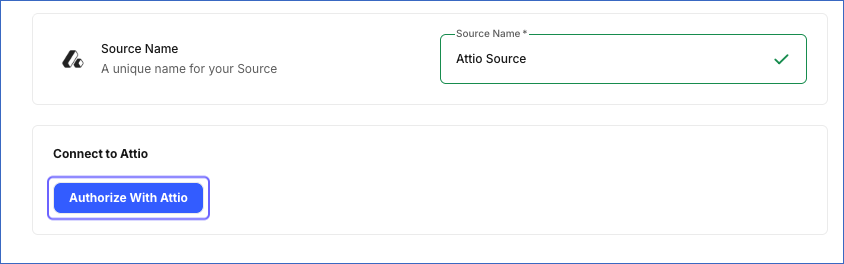
In the Configure Source screen, specify a Source Name, a unique name for your Source, not exceeding 255 characters. For example, Attio Source.
-
In the Connect to Attio section, click Authorize With Attio.
-
Log in to your Attio account, if you are not already logged in.
-
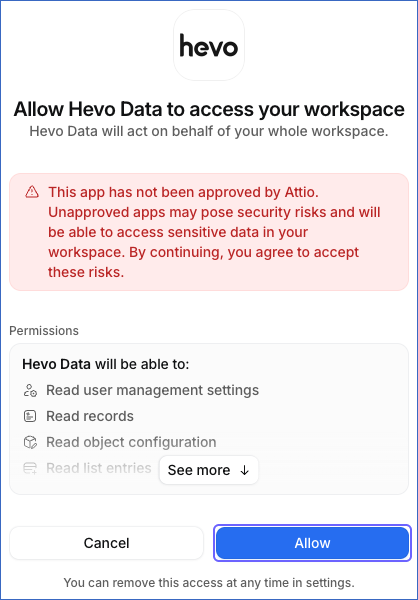
On the Allow Hevo Data to access your workspace page, review the permissions that Hevo requests, and then click Allow. Hevo only reads data from your workspace. After you allow access, Hevo displays the name of your Attio workspace as Account Added.
-
Click Test & Continue to test the connection to your Attio Source. Once the test is successful, you can proceed to set up your Destination.
Data Replication
Hevo replicates data for all the objects selected on the Configure Objects page during Pipeline creation. By default, all supported objects and their available fields are selected. However, you can modify this selection while creating or editing the Pipeline. To ingest a child object, you must also select its parent object. For example, to ingest the Record object, you must also select the Object object. The Data Model lists the child objects of each parent object.
In the first run of the Pipeline, Hevo ingests all the data available for the selected objects in your Attio workspace. In each subsequent run, as per the sync frequency, Hevo ingests all the records of the selected objects again, because the Attio API does not provide a reliable way to read only the changed records. As a result, the time a run takes and the number of API requests grow with the size of your workspace. Hevo ingests the child objects of a parent object along with it.
Hevo reads the records and attributes of each object in your workspace, including custom objects, and the entries and attributes of each list. The value of each attribute of a record or a list entry, including custom attributes, is loaded as a separate row in the Record Value or Entries Value object.
Attio limits the number of read requests to 100 per second. Read Rate limiting. If Attio returns a rate limit error, Hevo waits and retries the request. If the rate limit persists, Hevo skips the object in that run, without loading any of its data, and ingests it in full in the next run. To understand how Hevo handles such scenarios, read Handling Rate Limit Exceptions.
Schema and Primary Keys
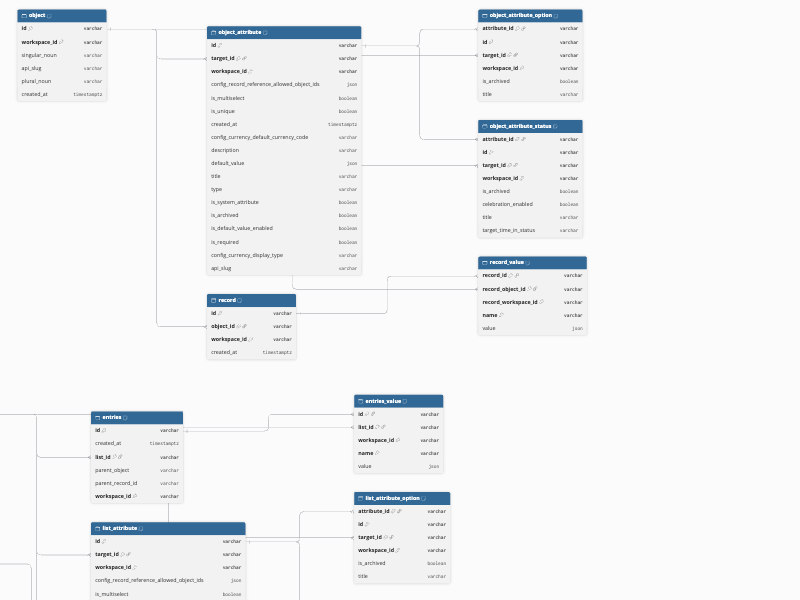
Hevo uses the following schema to upload the records in the Destination. For a detailed view of the objects, fields, and relationships, click the ERD.
Data Model
The following is the list of tables (objects) that are created at the Destination when you run the Pipeline:
| Object | Description |
|---|---|
| List | Contains the lists in your Attio workspace, such as the name, API slug, parent object, and default workspace access of each list. It includes the following child objects: - Entries, the records added to each list, which includes the Entries Value child object with one row for each entry and attribute value - List Attribute, which includes the List Attribute Option and List Attribute Status child objects - List Workspace Member Access, the access level of each workspace member on the list |
| Note | Contains the notes in your Attio workspace, such as the title, content, and the record that each note is attached to. |
| Object | Contains the standard and custom objects in your Attio workspace, such as people, companies, and deals. It includes the following child objects: - Object Attribute, including custom attributes, which includes the Object Attribute Option and Object Attribute Status child objects - Record, the records of each object, which includes the Record Value child object with one row for each record and attribute value |
| Workspace Member | Contains the members of your Attio workspace, such as the name, email address, and access level of each member. |
Additional Information
Read the detailed Hevo documentation for the following related topics:
Handling of Deletes
Attio does not mark deleted records in its API responses. Hevo ingests all the records of each object in every run. If a record that exists in the Destination is not returned by Attio, Hevo marks it as deleted by setting the value of the metadata column, __hevo__marked_deleted, to True. This applies to all the objects. For example, if you delete a company in Attio, Hevo marks it as deleted in the Record object. Similarly, if you remove an entry from a list, Hevo marks it as deleted in the Entries and Entries Value objects, and if you remove the access of a workspace member to a list, Hevo marks that row as deleted in the List Workspace Member Access object.
Archived attributes, select options, and statuses are not marked as deleted. Hevo ingests them with the value of the is_archived field set to True.