Apple Search Ads is Apple’s advertising platform that lets you promote your apps at the top of the App Store search results. It provides tools to create and manage campaigns, ad groups, keywords, and creatives, and to measure your ad performance through detailed reports.
Hevo uses the Apple Ads Campaign Management API to replicate data from your Apple Search Ads account to the Destination of your choice. To ingest the data, you must authenticate Hevo using the Client ID, Team ID, and Key ID generated for your Apple Search Ads account based on the public key generated by Hevo.
Supported Features
| Feature Name | Supported |
|---|---|
| Capture deletes | No |
| History mode | No |
| Custom data (user-configured tables & fields) | Yes |
| Data blocking (skip objects and fields) | Yes |
| Resync (objects and Pipelines) | Yes |
| API configurable | Yes |
Prerequisites
-
An active Apple Search Ads account from which data is to be ingested.
-
You have an Apple Search Ads user with the API Account Manager or API Account Read Only role.
-
The required credentials are available to provide Hevo access to your Apple Search Ads account data.
Obtain the Apple Search Ads Credentials
You require the Client ID, Team ID, and Key ID of your Apple Search Ads account to authenticate Hevo. To generate these credentials, you must upload the public key that Hevo generates for your Pipeline to your Apple Search Ads account.
To obtain the credentials:
-
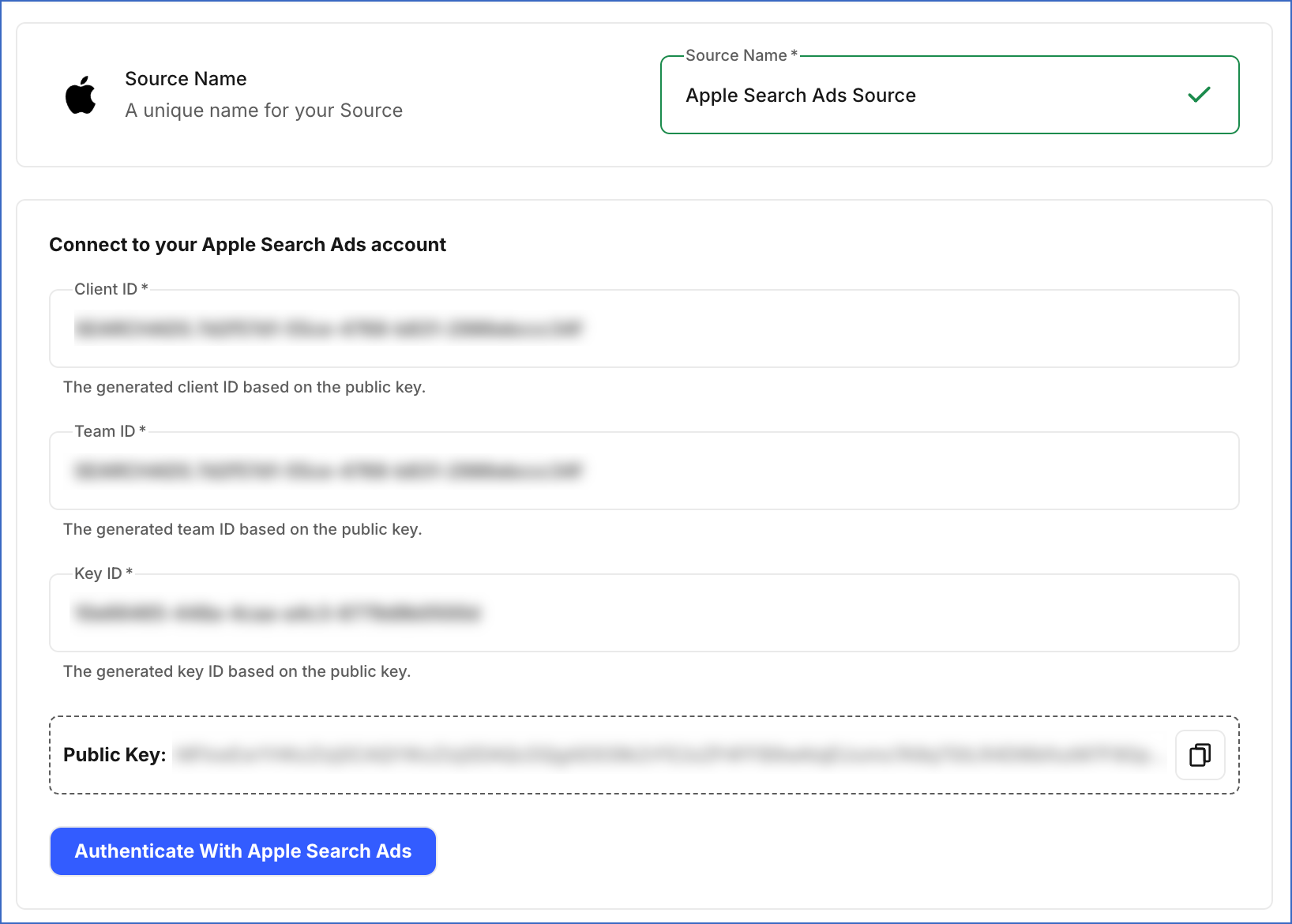
Copy the Public Key displayed in the Connect to your Apple Search Ads account section of the Configure Source screen in Hevo. Refer to Configure Apple Search Ads as a Source in your Pipeline to find the key.

-
Log in to your Apple Search Ads account.
-
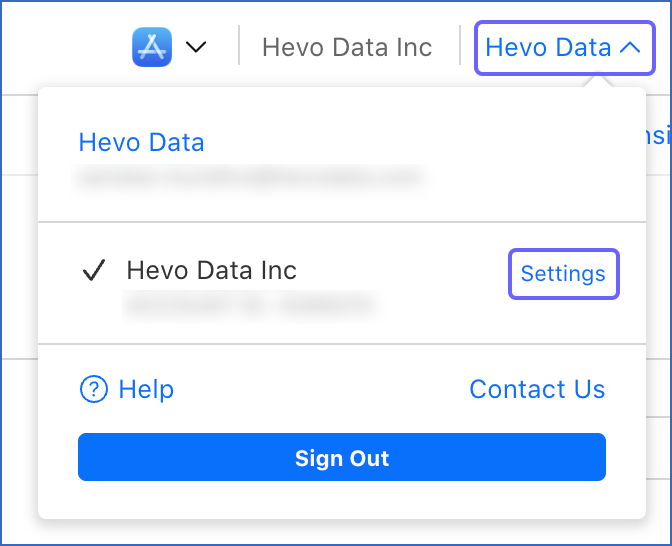
In the top right corner of the page, click your username, and then click Settings.
-
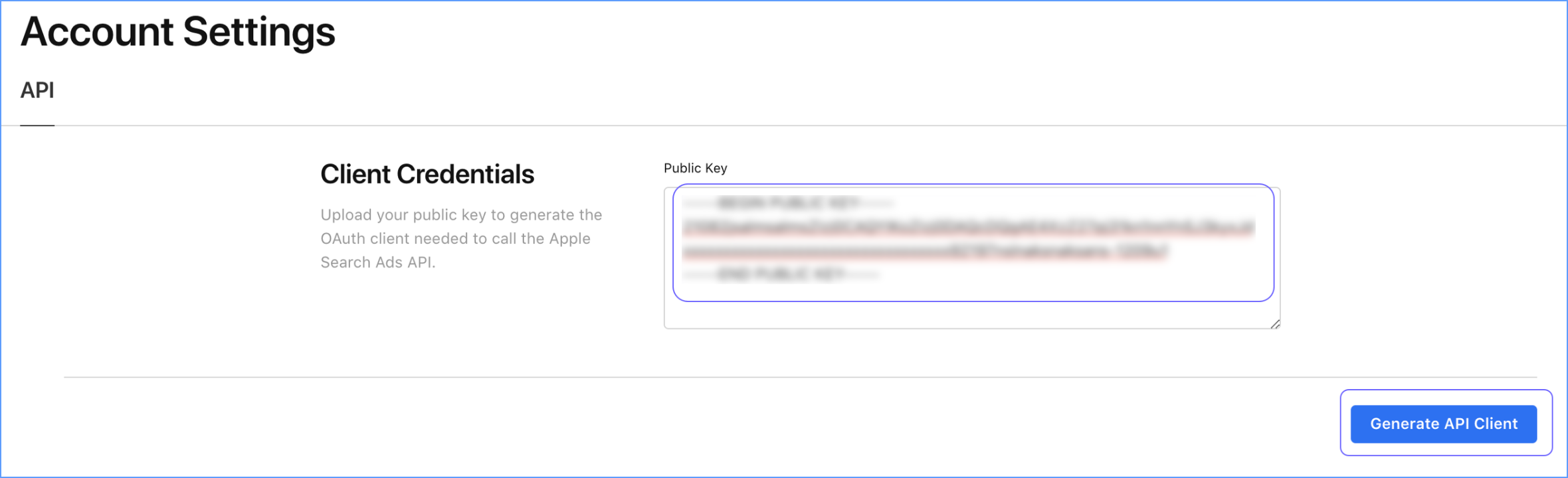
On the Account Settings page, in the API tab, Client Credentials section, do one of the following:
-
To generate new credentials:
-
Paste the Public Key that you copied from Hevo in the Public Key field, and click Generate API Client.
-
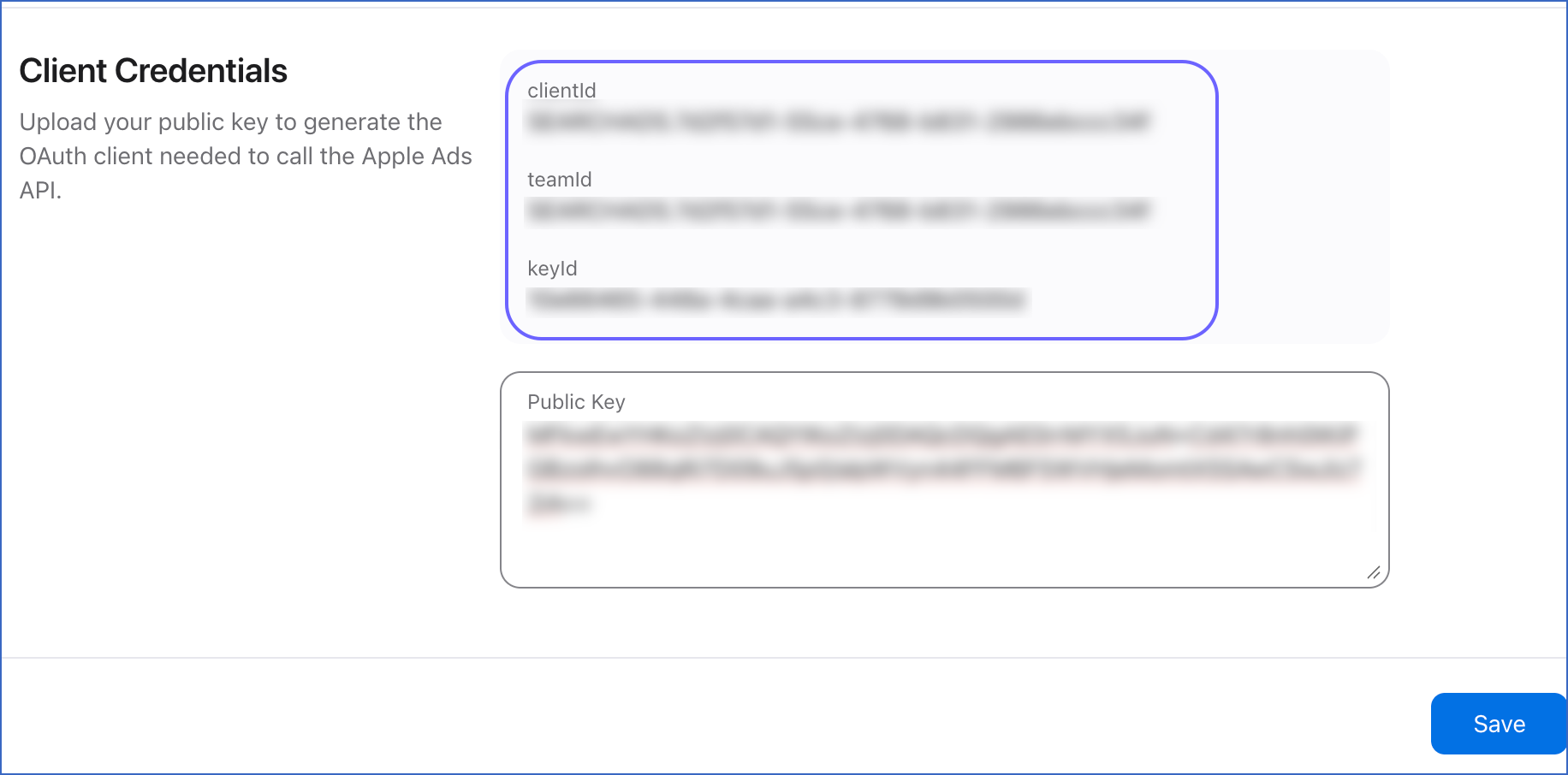
Copy the generated clientId, teamId, and keyId, and click Save.
-
-
Use these credentials while configuring your Pipeline in Hevo. If the credentials configured in the Pipeline are revoked manually from your Apple Search Ads account, Hevo cannot authenticate with the Source. As a result, all active jobs for the Pipeline fail, and no data is replicated. To resume data replication, modify the Source configuration in the Pipeline with valid credentials. Once the updated credentials are saved, Hevo re-authenticates the Source, and data ingestion resumes from the last saved offset.
Configure Apple Search Ads as a Source in your Pipeline
Perform the following steps to configure your Apple Search Ads Source:
-
Click Pipelines in the Navigation Bar.
-
Click + Create Pipeline in the Pipelines List View.
-
On the Select Source Type page, select Apple Search Ads.
-
On the Select Destination Type page, select the type of Destination you want to use.
-
On the Select Pipeline Type page, click Edge, and then click Continue.
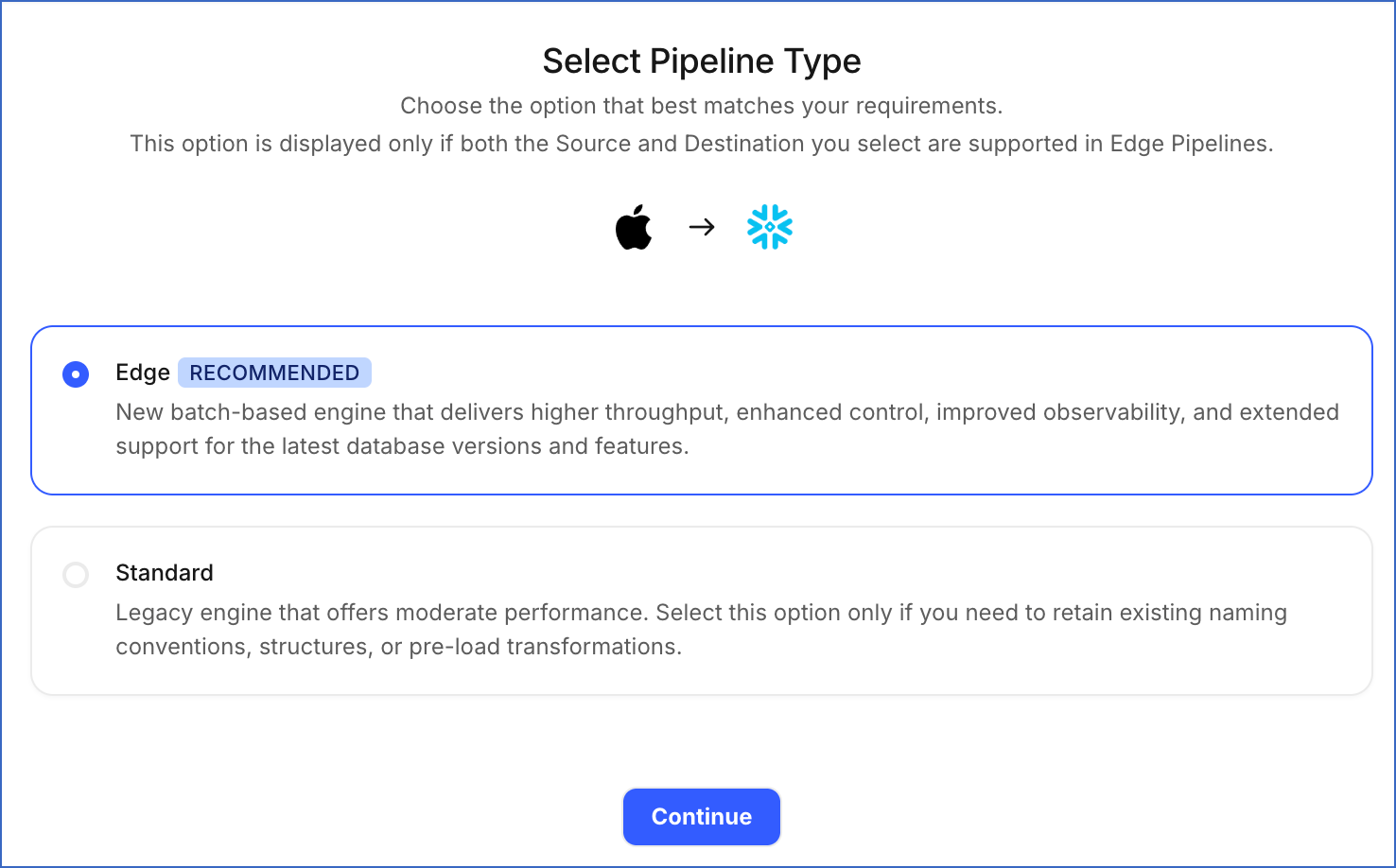
This page appears only if the selected Destination type is supported in Edge and your Team has an existing Apple Search Ads Pipeline with the same Destination type. Otherwise, you can proceed to create an Edge Pipeline.
-
In the Connect to your Apple Search Ads account section, specify the following:
-
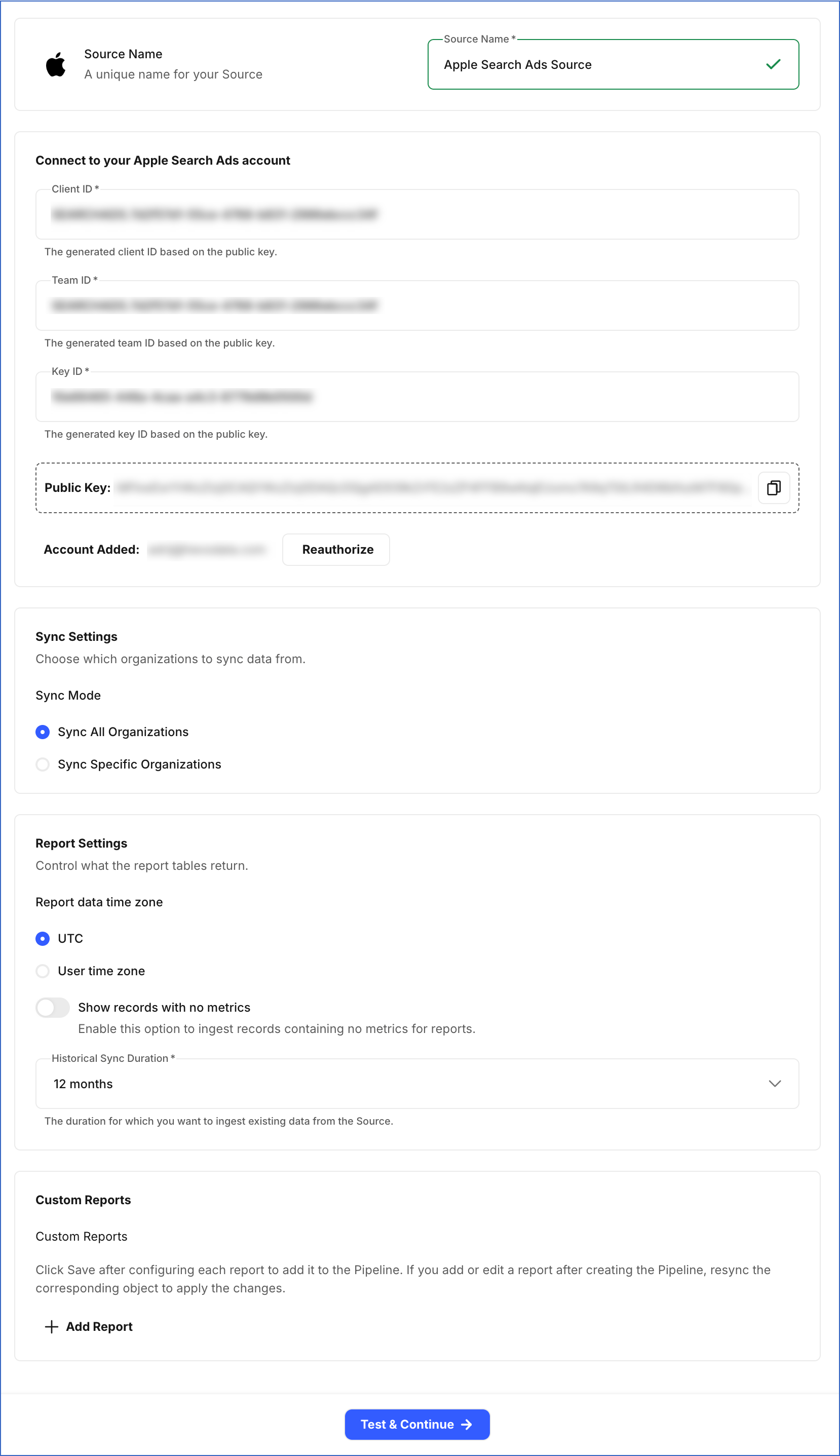
In the Sync Settings section:
-
Sync Mode: Choose whether to sync data from all organizations or only specific organizations.
-
Sync All Organizations: Hevo syncs data for all existing and new organizations accessible to the API user.
-
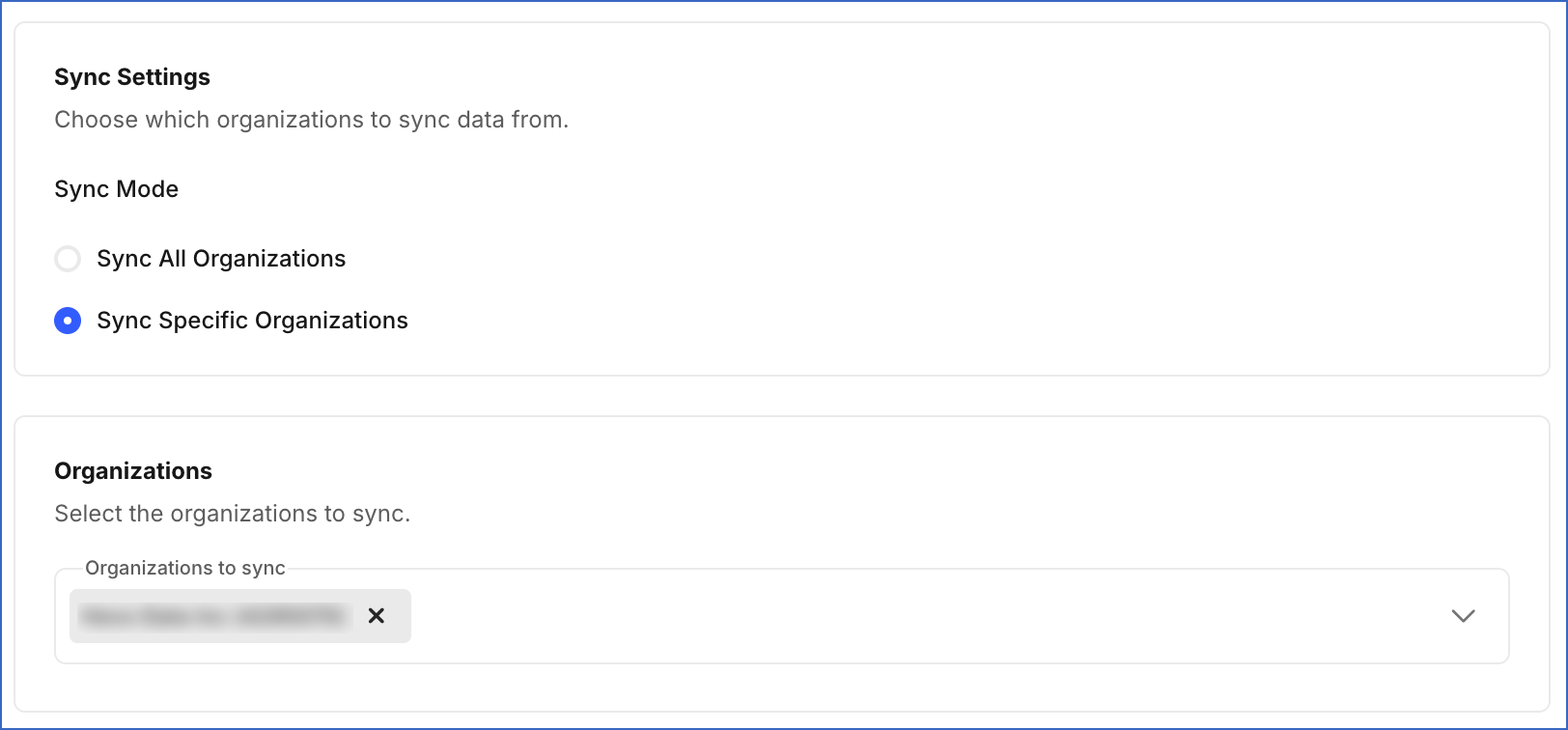
Sync Specific Organizations: Hevo ingests data only for the organizations you select from the Organizations to sync drop-down.
-
-
In the Report Settings section:
-
Report data time zone: The time zone Apple uses to group report data by day.
-
Show records with no metrics: Enable this option to load rows for days with no activity in the campaign, ad group, keyword, and ad-level reports. This may significantly increase your Event usage.
-
Historical Sync Duration: The duration for which you want to ingest existing data from the Source. Default value: 12 months.
-
-
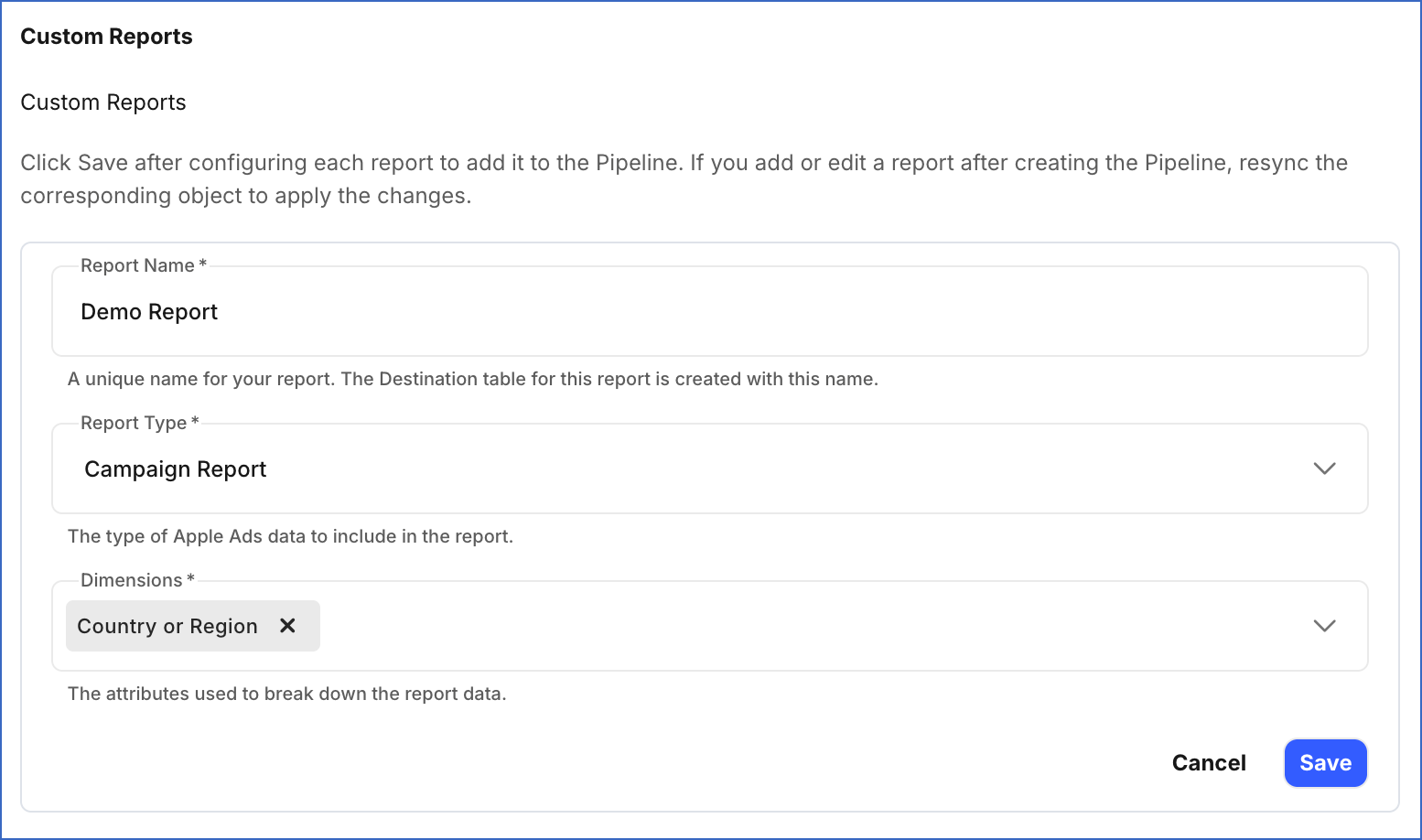
In the Custom Reports section, click + Add Report to add a report, and specify the following for each report:
-
Report Name: A unique name for the Destination table where Hevo loads the data for this report.
-
Report type: The type of Apple Search Ads data you want to ingest.
-
Dimensions: The attributes used to break down the report data.
-
Note:
-
Click Save after configuring each report. Reports that are not saved before you click Test & Continue are not included in the Pipeline.
-
If you add a new custom report or edit an existing one after the Pipeline is created, resync the corresponding object to apply the changes and load the data using the updated configuration.
-
-
Click Test & Continue to test the connection to your Apple Search Ads Source. Once the test is successful, you can proceed to set up your Destination.
Data Replication
Hevo replicates data for all the objects selected on the Configure Objects page during Pipeline creation. By default, all supported objects and their available fields are selected. However, you can modify this selection while creating or editing the Pipeline.
Hevo ingests the following types of data from your Source objects:
-
Historical Data: The first run of the Pipeline ingests historical data for the selected objects, based on the Historical Sync Duration specified when creating the Pipeline, and loads it into the Destination.
-
Incremental Data: Once the historical load is complete, new and updated records for objects are ingested as per the sync frequency.
For the following objects, Hevo ingests only the incremental data in subsequent Pipeline runs:
-
Ad Group Report
-
Ad Level Report
-
Campaign Report
-
Impression Share Report
-
Keyword Report
-
Search Term Report
For all other objects, Hevo ingests the entire data during each Pipeline run.
Apple Search Ads enforces a rate limit on the number of requests that can be made to its API in a given period of time. If this limit is exceeded, a rate limit exception occurs. To understand how Hevo handles such scenarios, read Handling Rate Limit Exceptions.
Note: You can create a Pipeline with this Source only using the Merge load mode. The Append mode is not supported for this Source.
Schema and Primary Keys
Hevo uses the following schema to upload the records to the Destination. For a detailed view of the objects, fields, and relationships, click the ERD.
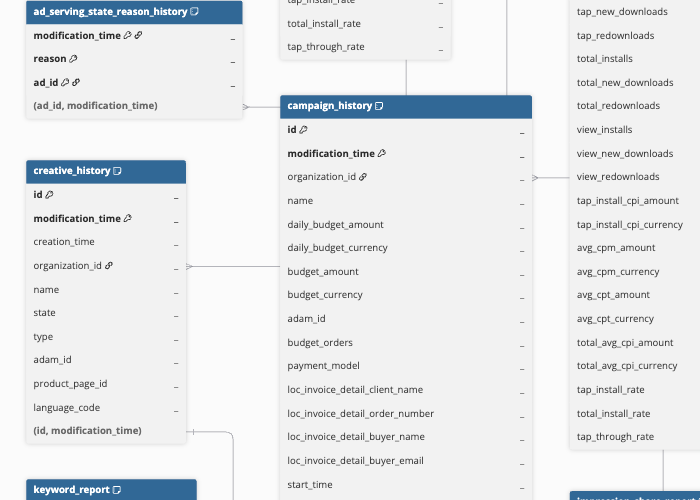
Data Model
The following is the list of tables (objects) that are created at the Destination when you run the Pipeline:
| Object | Description |
|---|---|
| Ad Group History | Contains a record of changes made over time to each set of ads within a campaign, including its name, bid, the App Store countries or regions where it runs, schedule, and status. |
| Ad Group Report | Contains daily performance metrics for each set of ads within a campaign, including impressions, taps, spend, app installs, and conversion rates. |
| Ad History | Contains a record of changes made over time to each advertisement, including the ad group and creative it belongs to, its status, and whether it is currently being shown to users. |
| Ad Level Report | Contains daily performance metrics for each individual advertisement, including impressions, taps, spend, app installs, and conversion rates. |
| Ad Serving State Reason History | Contains a record over time of the reasons why an advertisement is not being shown to users. |
| Campaign History | Contains a record of changes made over time to each campaign, including its budget, schedule, status, the type of placement where its ads appear, and the reasons it may not be running. |
| Campaign Report | Contains the daily performance metrics for each campaign, including impressions, taps, spend, app installs, and conversion rates. |
| Country or Region History | Contains a record of the geographic locations targeted by each campaign as its settings change over time. |
| Creative History | Contains a record of changes made over time to each set of visual assets used in advertisements, such as screenshots and app previews, including its name, type, state, associated app, linked custom product page, and language. |
| Creative State Reason History | Contains a record over time of the reasons behind the current state of each set of visual assets used in advertisements, for example, why it cannot be used. |
| Impression Share Report | Contains details of how often ads appear in App Store search results for a search term compared to competing ads, including the estimated share of total impressions received, the ranking among competitors, and how popular the search term is. |
| Keyword History | Contains a record of changes made over time to each word or phrase used to show ads in App Store searches, including its text, match type, bid amount, and status. |
| Keyword Report | Contains daily performance metrics for each word or phrase used to show ads in App Store searches, including impressions, taps, spend, app installs, and conversion rates. |
| Locale Device | Contains the combinations of language and supported hardware, such as iPhone or iPad, available for each custom product page. |
| Negative Keyword History | Contains a record of changes made over time to each word or phrase that prevents ads from appearing in matching searches, set at the campaign or ad group level, including its text, match type, and status. |
| Organization | Contains details of each Apple Search Ads organization that your account can access, including its name, currency, time zone, payment model, and your roles in it. |
| Product Page History | Contains a record of changes made over time to each custom product page, including its name, associated app, and state. |
| Product Page Locale | Contains the translated text of each alternative version of custom product pages for every supported language, including the app name, promotional text, short description, and subtitle. |
| Search Term Report | Contains daily performance metrics for the words and phrases people searched for on the App Store that led to ads being shown, along with the keyword, match type, and ad group linked to each one. |
| Targeting Dimensions History | Contains a record of the audience criteria, such as age, gender, and device type, applied to each ad group over time. |