| Error Code | 1017 |
| Applies To | Configuring a Snowflake Destination |
| Category | Communication |
| Error Message Text(s) | Hevo is unable to connect to your Destination. Please validate that your Snowflake account is not locked and Hevo’s IP addresses are whitelisted in Snowflake. Hevo will retry after some time. |
Potential Causes
-
The Snowflake account is disabled.
-
The Snowflake user account is temporarily locked due to multiple failed login attempts.
-
The Snowflake account administrator has locked the user account.
-
Hevo’s IP addresses are not allowlisted.
Suggested Action(s)
-
Verify that the Snowflake account is active, and billing is enabled.
-
Wait for the temporary lockout period to end, then log in to your Snowflake account and test the connection again. Read Your user account has been temporarily locked due to too many failed attempts for more information on unlocking your Snowflake user account.
-
Contact the Snowflake account administrator to unlock your user account.
-
Verify that Hevo’s IP addresses for your region are allowlisted in Snowflake. To do this, perform the following steps:
-
Log in to your Snowflake account as a user with the SECURITYADMIN role or a higher role.
-
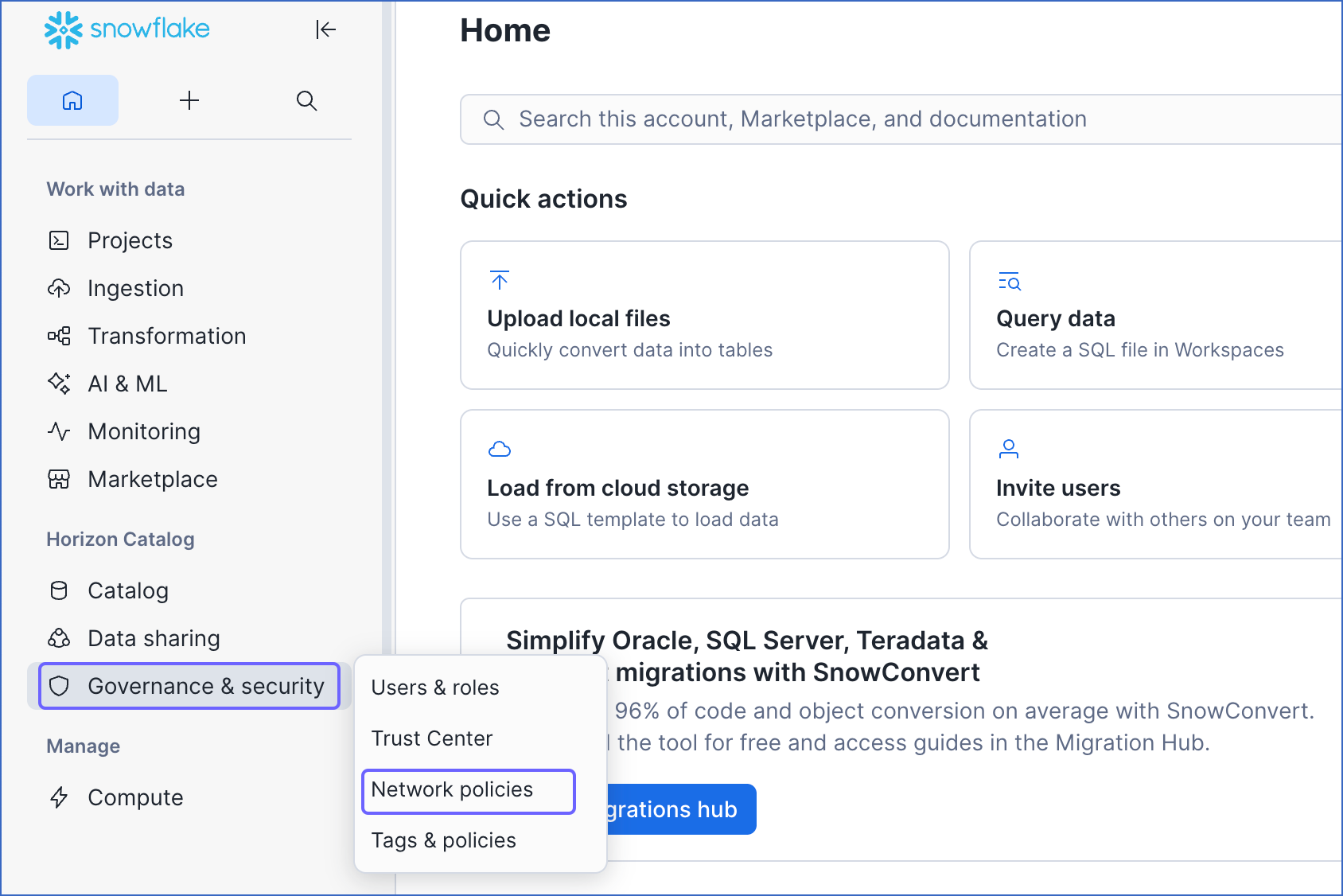
In the left navigation pane, hover the mouse over Governance & security and click Network policies.
-
On the Network policies page, click + Network Policy.
-
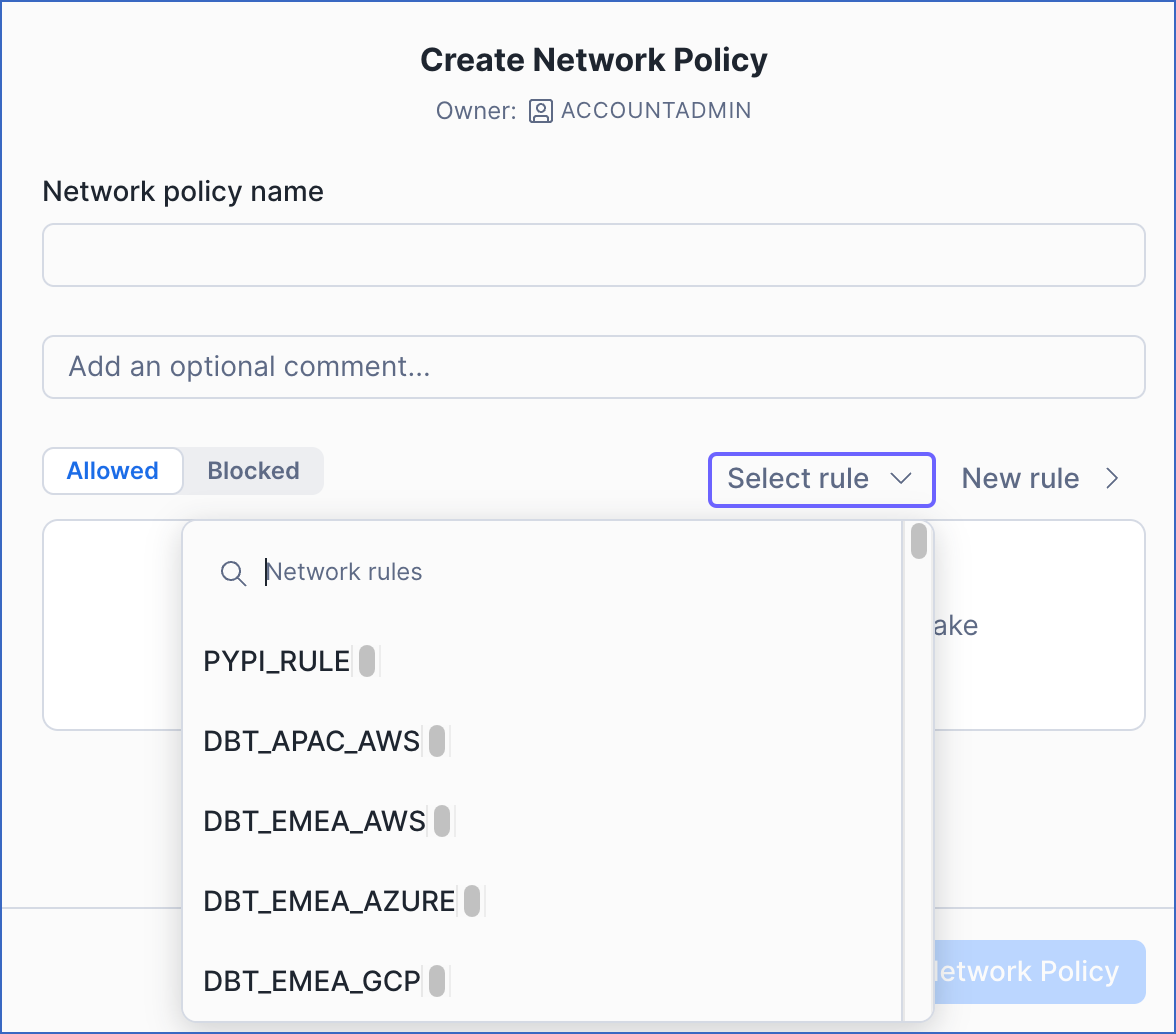
In the Create Network Policy window, you can do one of the following:
-
If you have already created a rule for Hevo’s IP addresses, click the Select Rule drop-down and select the existing rule.
-
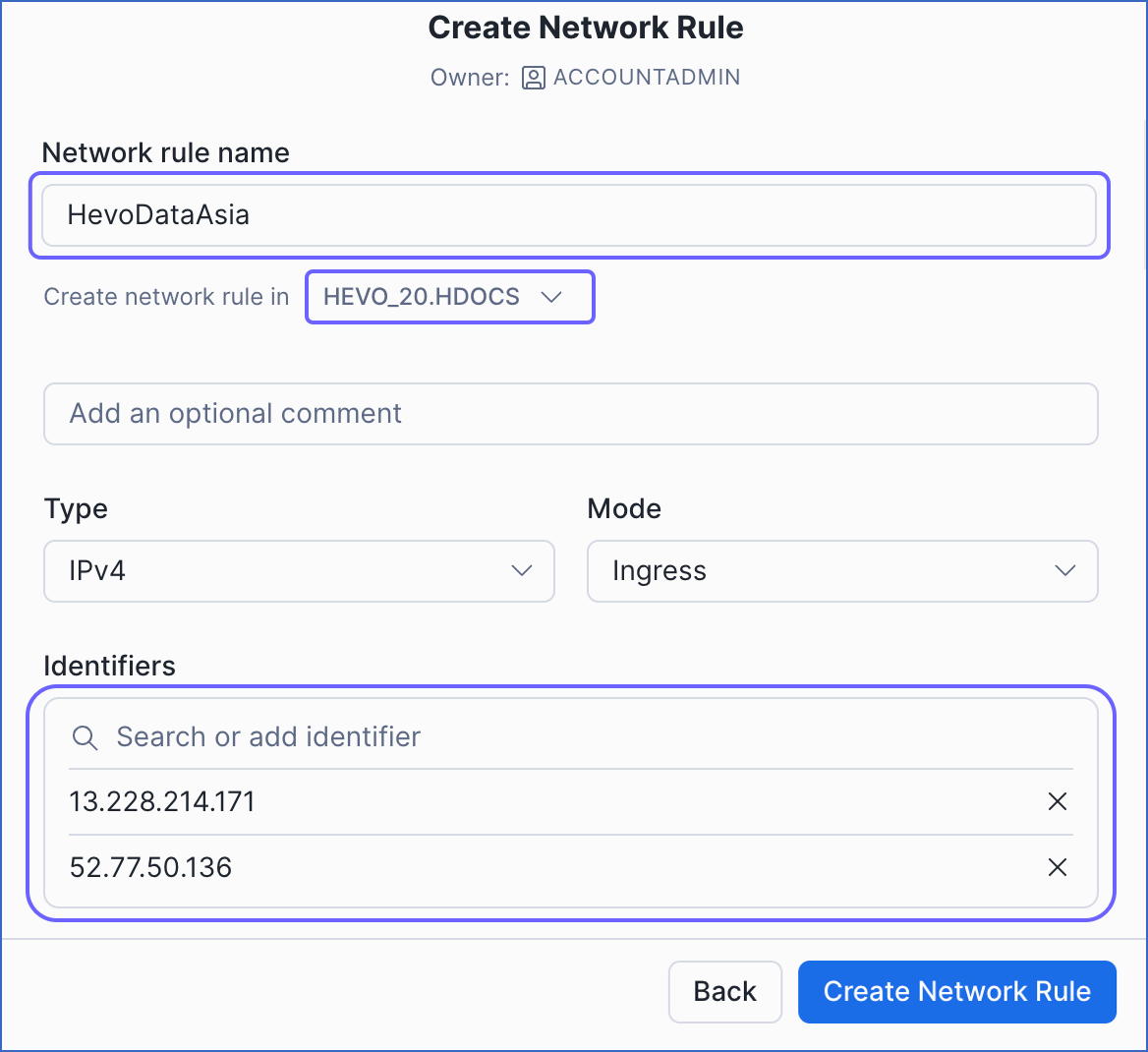
To add a new rule for Hevo’s IP addresses, click New rule and do the following:
-
In the Network rule name field, specify a unique name for the rule.
-
Select the database from the drop-down in which you want to create the rule.
-
In the Identifiers field, enter Hevo’s IP address for your region and press Enter to add the rule. Repeat this step to allowlist all the IP addresses.
-
Click Create Network Rule.
-
-
-
In the Network policy name field, specify a unique policy name of your choice. Read Identifier Requirements to know the constraints for a policy name in Snowflake.
-
Click Create Network Policy.
You can now view the new policy on the Network policies page.
-
Click the More icon corresponding to your policy and select Activate On Account.
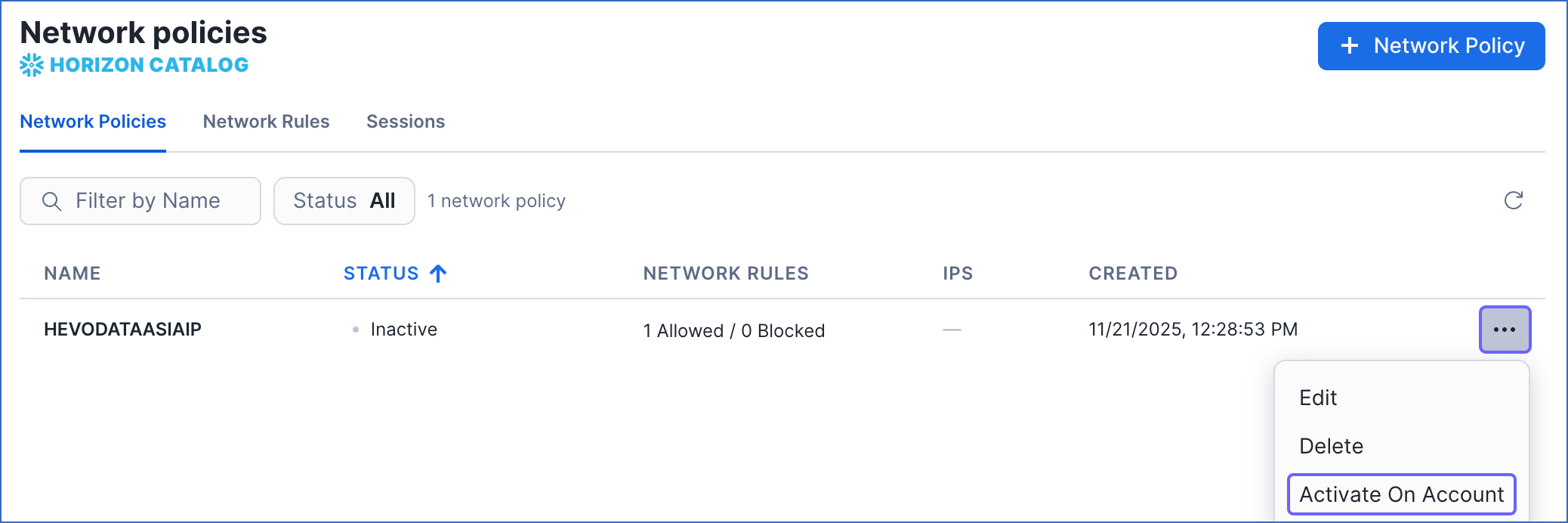
The Hevo IP addresses are successfully allowlisted.
-