Google Workspace, formerly known as G-Suite, is a collection of business, productivity, collaboration, and education software developed and powered by Google. The most popular Google Workspace tools are Gmail, Drive, Docs, Sheets, and Slides.
Hevo allows you to use only service accounts to connect to Google Workspace applications.
Prerequisites
-
An active Google service account. Read Creating a Google service account if you do not already have one.
-
The respective Google Workspace APIs are enabled. The Google Sheets and Google Drive APIs for Google Sheets, and Google Drive APIs for Google Drive as a Source. Read Enabling API access for a Google service account.
-
The user has
iam.serviceAccountAdminprivileges, for creating service accounts. Read Creating and managing service accounts - Cloud IAM Documentation. -
The user has
resourcemanager.projectIamAdminprivileges, for adding and editing roles for any account. -
The user has the Owner role in the Google Cloud Platform.
Authenticating Using Google Service Accounts
To connect to Google Workspace applications such as Google Sheets and Drive through a service account, as a user with Owner role, you must:
-
Download the key file (in JSON format), which is used to authenticate you on the application.
-
Enable the respective APIs for your Google Workspace applications in your Google Cloud project for Hevo to be able to access the resource and read the data. For example, to connect to Google Sheets, you must enable the Google Sheets and Google Drive APIs. Similarly, to connect to Google Drive, you must enable the Google Drive API. Read Enabling API access for a Google service account.
(Optional) Creating a Google service account
If you have already created a service account for your team, skip to section Enabling API access for a Google service account below to enable Hevo to access the application’s API. Else, perform the following steps to create a Google service account:
-
Log in to your Google Cloud Platform with an Owner Role.
Note: Click here and check your role against your name. If you are not an Owner, contact your account Owner to perform the following steps.
-
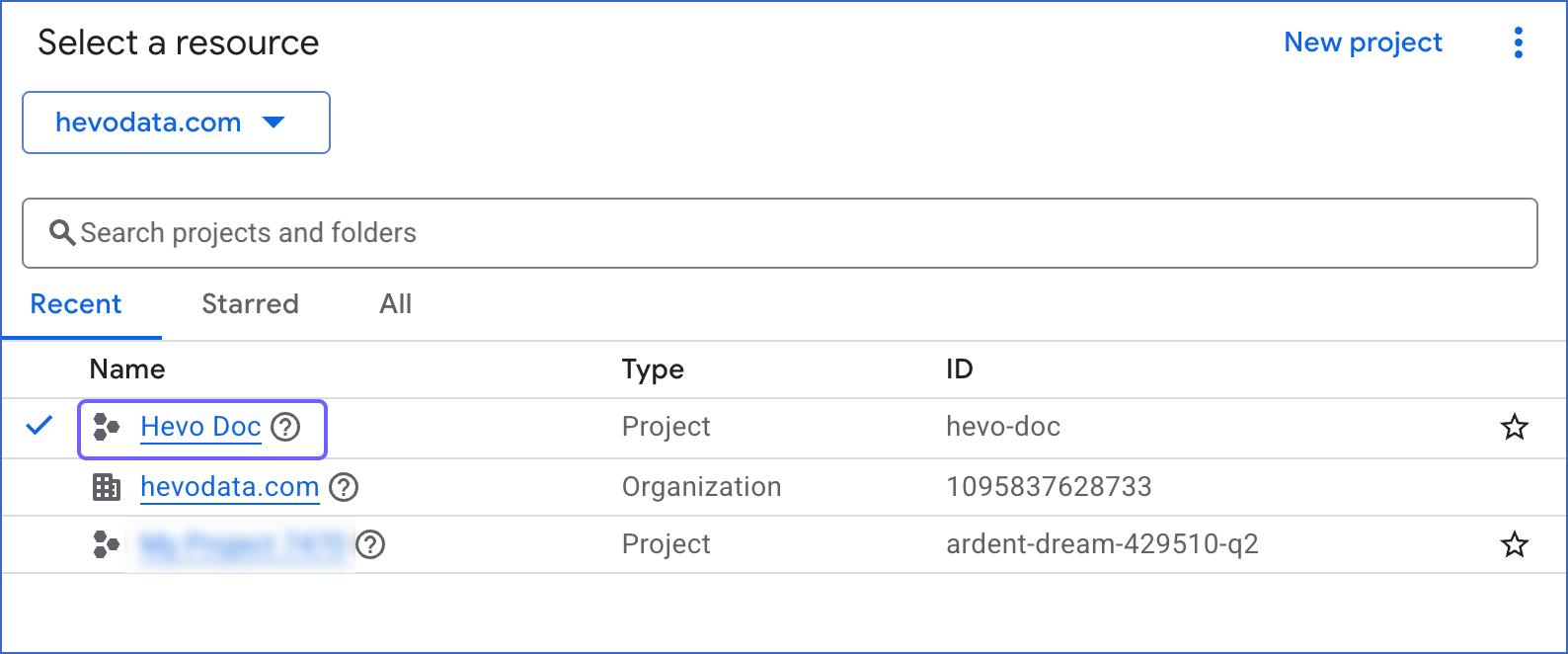
Click the Project Picker icon at the top of the page.

-
In the Select a resource window, select the project that you have configured in your BigQuery Destination. This ensures that the service account has access to the same project, dataset, and GCS bucket, and your existing Destination configuration remains unchanged.
-
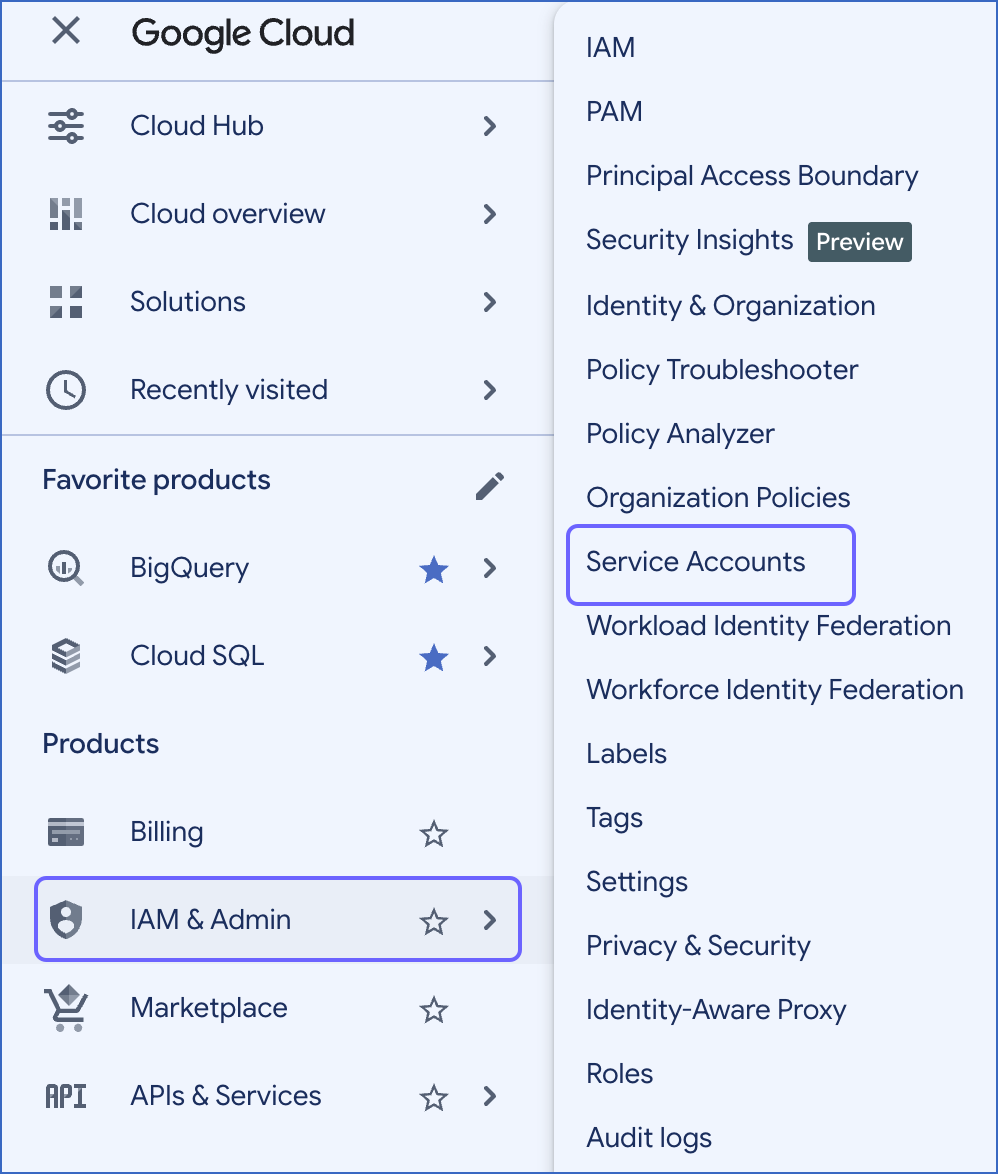
In the left navigation pane, click IAM & Admin, and then click Service Accounts.
-
Click + Create service account.

-
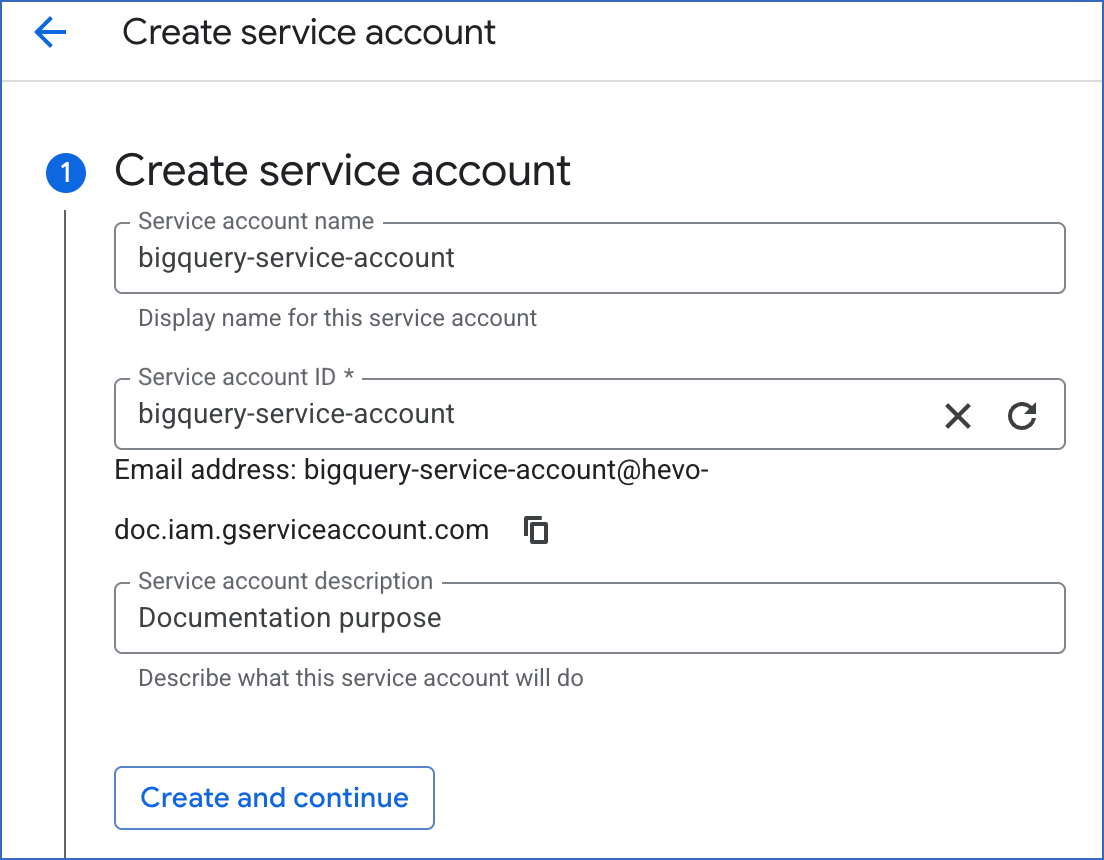
On the Create service account page, do the following:
-
Specify the following:
-
Service account name: A unique name for the service account.
-
Service account ID: A unique identifier for the service account. The account ID is automatically created based on the service account name. However, you can edit it if required.
-
Service account description: The purpose of the service account.
-
-
Click Create and continue.
-
The service account is created. Proceed to enable API access for the service account.
Enabling API access for a Google service account
For Google Workspace applications, you must enable the respective API of the application, to enable the service account to read your data.
To do this:
-
Log in to your Google Cloud Platform console.
-
In the left navigation pane, click APIs & Services, and then click Library.

-
In the API Library page, search for the API using the search box and click on it.

-
Click ENABLE to enable the API. For example, you must enable both the Google Drive API and Google Sheets API for accessing Google Sheets for a service account.

Downloading the service account key file
Service account credentials are usually stored as a key file in JSON format. You need the key file to connect your service account to Hevo.
Perform the following steps to download the file:
-
Log in to your Google Cloud Platform as Owner.
-
In the left navigation menu, click IAM & Admin, and then click Service Accounts.
-
On the Service accounts page, select the service account you want to connect to Hevo. This can be the one you created in the Creating a Google service account section.
-
On the service account page, click the Keys tab.

-
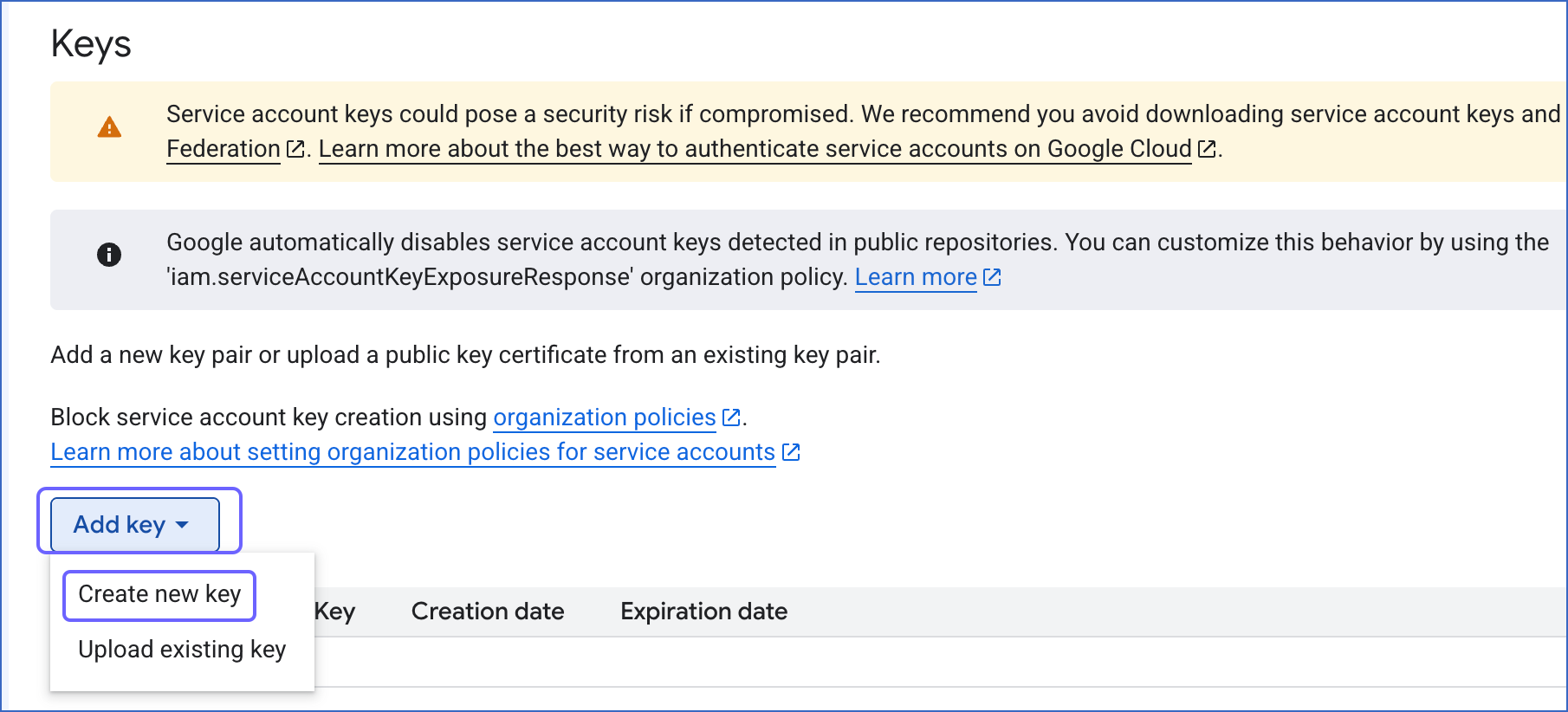
Click Add key, and then click Create new key.
-
In the pop-up dialog, select JSON as the Key type, and then click Create.
Note: Hevo supports only JSON format for the key file.
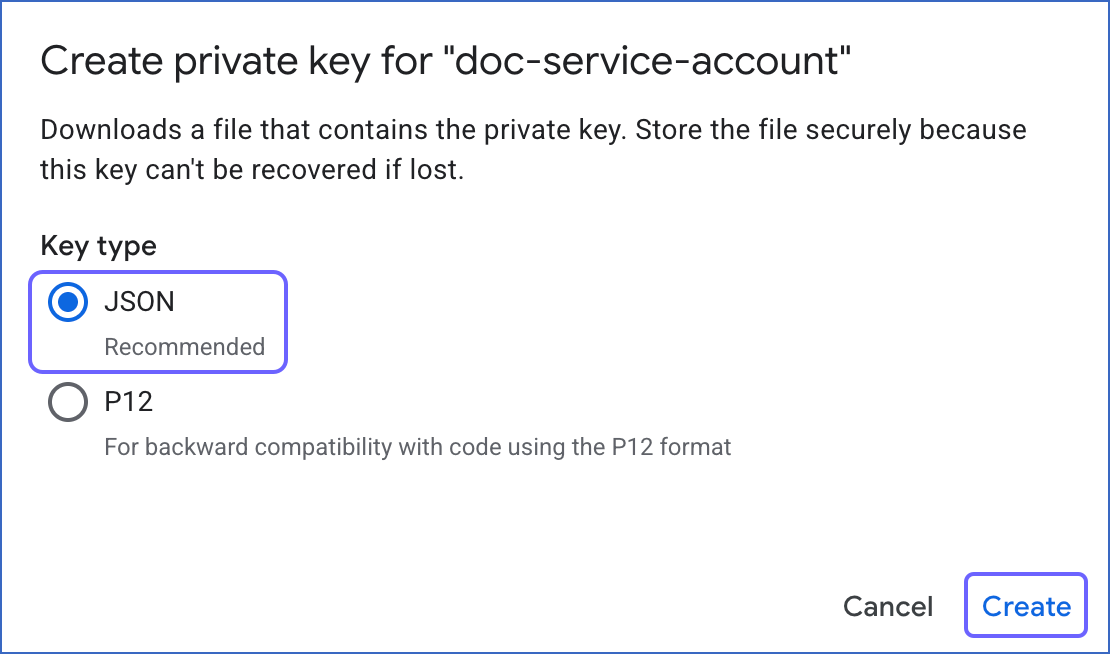
The key file is downloaded to your machine. Save this file in a secure location as it cannot be recovered if lost. Use this key file to connect your Google Workspace applications to Hevo through the service account.