Modifying a Deploy Job
Perform the following steps to modify a deploy job:
-
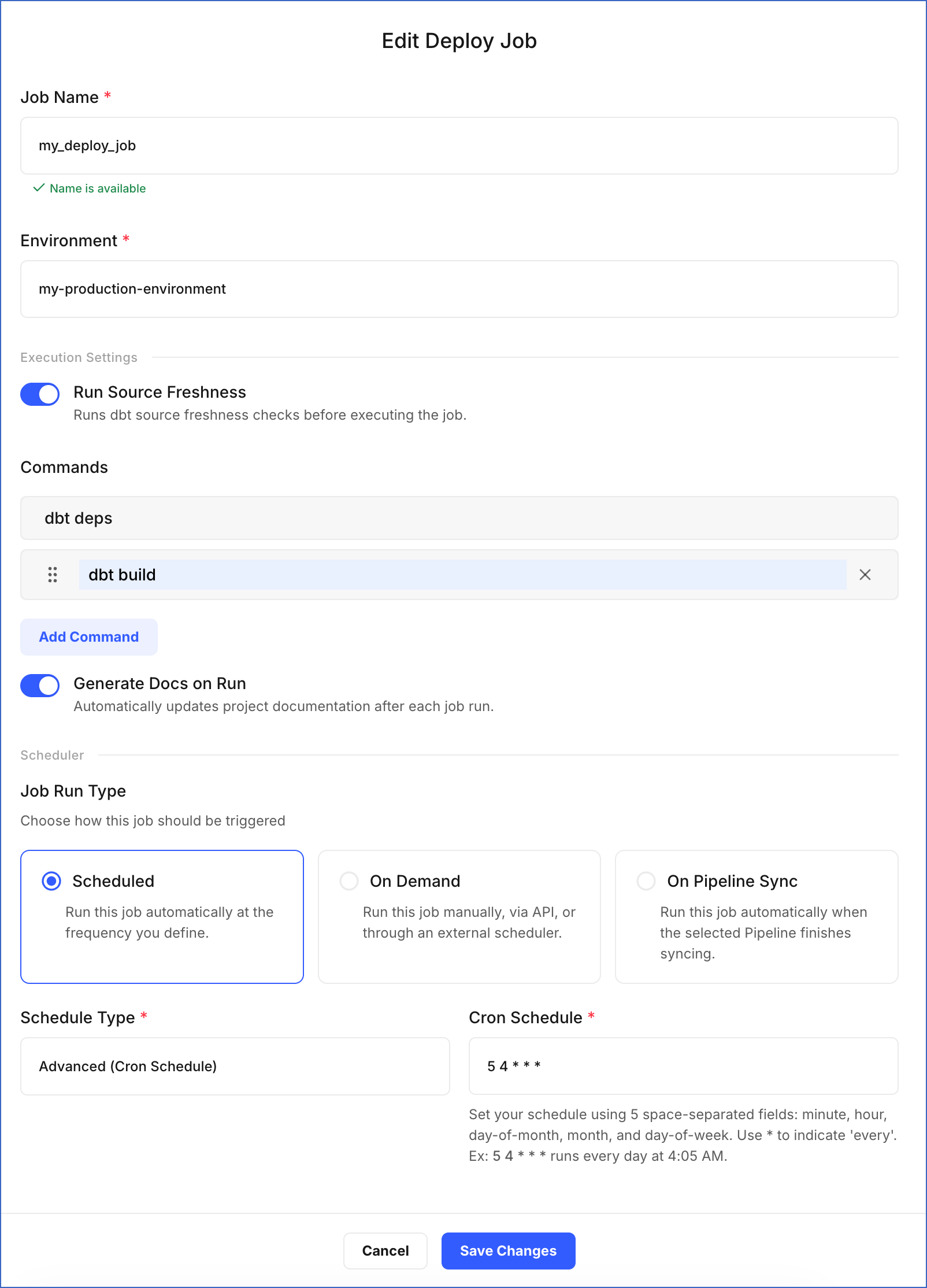
On the Edit Deploy Job page, update the required fields:
-
Job Name: Specify a new name for the job.
-
Environment: Select the environment in which the dbt models will run.
-
In the Execution Settings section:
-
Run Source Freshness: Enable or disable the toggle. This option allows the job to ensure that the data for your dbt models is up-to-date and reliable. If enabled, the dbt source freshness command is run before any other dbt commands.
-
Commands: Click Add Command to specify more commands you want to execute during the job run, or click X to remove an existing command.
-
Generate Docs on Run: Enable or disable the toggle. This option updates the documentation for your project in each run. If enabled, the dbt docs generate command is automatically invoked in each run.
-
-
In the Scheduler section, you can change how the job should be triggered:
-
Scheduled: Runs the job automatically based on the schedule you define. Select one of the following from the Schedule Type drop-down:
-
Advanced (Cron Schedule): Define a custom schedule using a cron expression.
- Cron Schedule: Specify the time and date at which the job must run. The cron expression must contain five fields, with each separated by a space to indicate the minute, hour, day of the month, month, and day of the week, respectively. Read Understanding Cron Schedules to learn how to write one.
-
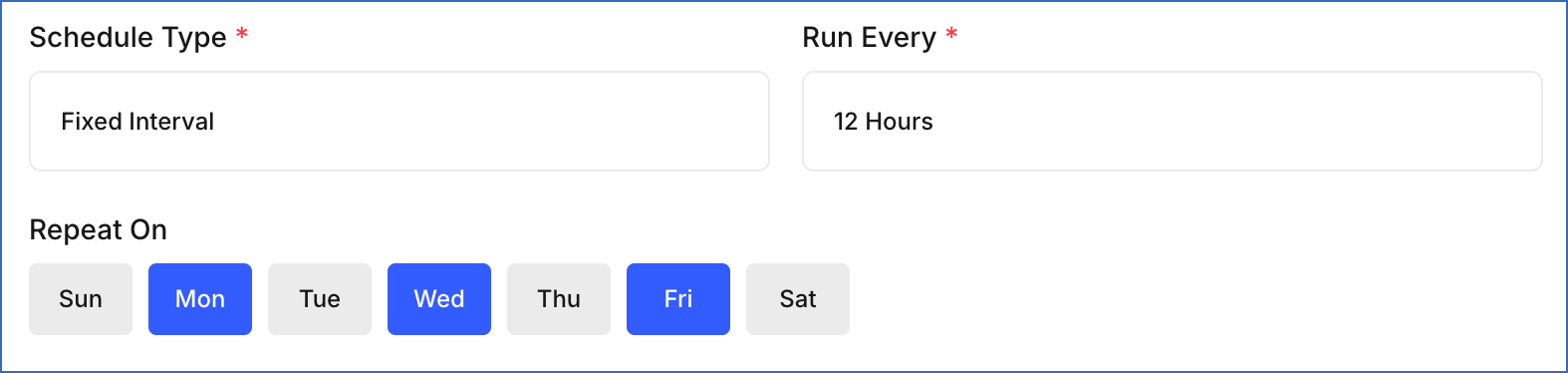
Fixed Interval: Runs the job repeatedly at a fixed time interval.
-
Run Every: Select the interval from the drop-down, such as 1 Hour, 2 Hours, or 12 Hours.
-
Repeat On: Select the days of the week on which the job should run.
-
-
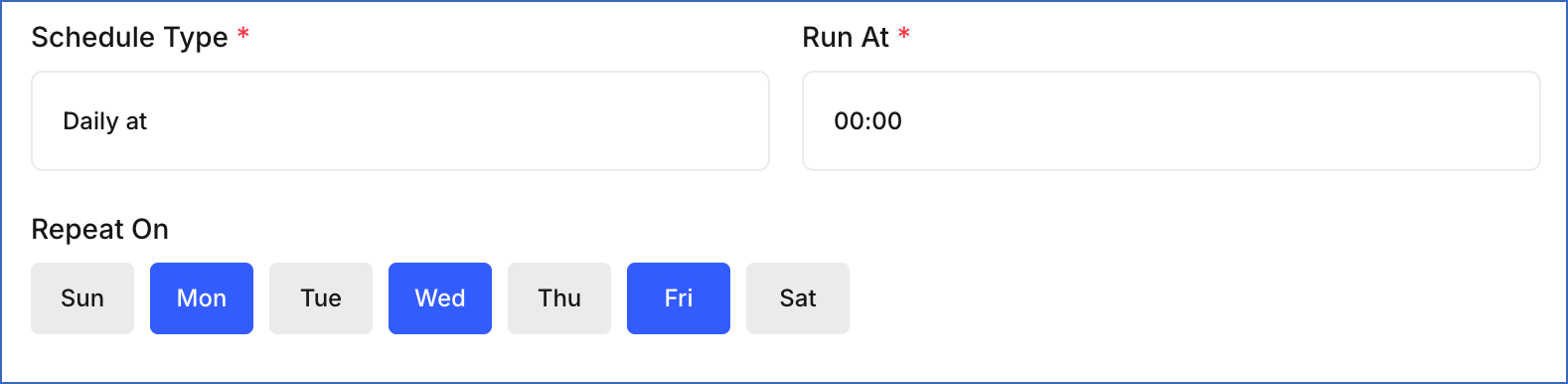
Daily at: Runs the job once per day at a specific time.
-
Run At: Select the time at which the job should run each day. Times are available in 30-minute intervals, from
00:00(12:00 AM) to23:30(11:30 PM). -
Repeat On: Select the days of the week on which the job should run.
-
-
-
On Demand: Runs the job manually from the UI or through an external orchestration tool such as Apache Airflow.
-
On Pipeline Sync: Runs the job automatically each time a selected Pipeline finishes syncing data into your Destination.
- In the Select Pipeline section, choose the Pipeline whose sync completion should trigger this job.
-
-
-
Click Save Changes.
A notification is displayed to confirm that the job has been updated successfully.