An environment defines where your dbt models run. It connects your Transformation project to a specific Destination and Git branch. The environment type can be staging (for testing changes) or production (for live data). Each environment also supports environment variables, which are configuration values that your dbt models read at runtime, allowing the same dbt code to behave differently depending on where it runs.
Environment Variables
Environment variables are key-value pairs stored outside your dbt code that your models read at runtime using the env_var() function. They are useful when you want the same dbt project to behave differently in the staging and production environments without modifying the code itself. For example, you can use the environment variables to write to a different schema or reference a different database in each environment.
In Transformations, each variable consists of:
-
Key: The name of the variable, used to reference it in your dbt code as
{{ env_var('DBT_KEY') }}. -
Project Default: The fallback value used across all environments when no environment-specific value is set. For example, if you set the Project Default for
DBT_TARGET_SCHEMAto analytics, any environment without its own value will automatically use the analytics schema when the job runs. -
Environment-specific values: Values set for a particular environment that override the Project Default value. For example, you can set analytics_staging for your staging environment and analytics_production for your production environment so that dbt writes to a different schema without changing the code.
Note: If you delete an environment, all environment-specific values configured for that environment are also deleted. The Project Default value for each variable remains unaffected.
Example
Suppose your dbt models reference a target schema using {{ env_var('DBT_TARGET_SCHEMA') }}. You want models in the staging environment to write to dev_analytics and models in the production environment to write to prod_analytics. You define the variable once and set environment-specific values:
| Key | Project Default | Staging Environment | Production Environment |
|---|---|---|---|
| DBT_TARGET_SCHEMA | analytics | dev_analytics | prod_analytics |
When a job runs in the staging environment, dbt reads dev_analytics as the value of DBT_TARGET_SCHEMA. When it runs in the production environment, it reads prod_analytics. Your dbt code does not need to change.
Read Defining Environment Variables to understand how to configure each of these fields.
Environment Variable Naming Rules
When creating environment variables, the variable keys must comply with the following naming rules:
-
Start with
DBT_orDBT_ENV_SECRET_.-
Use
DBT_for regular configuration values such as schema names or dataset identifiers. These variables can be referenced anywhere in your dbt project. -
Use
DBT_ENV_SECRET_for sensitive values such as passwords or API tokens. Values with this prefix are automatically hidden from dbt logs to keep sensitive information safe.
-
-
Use uppercase letters for the entire key. For example, DBT_TARGET_SCHEMA.
-
Match the key exactly when referencing it in dbt code.
Creating an Environment
Perform the following steps to create an environment for your Transformation project:
-
In the Navigation Bar, click Transformations.
-
On the Transformations page, select the project for which you want to create an environment.
-
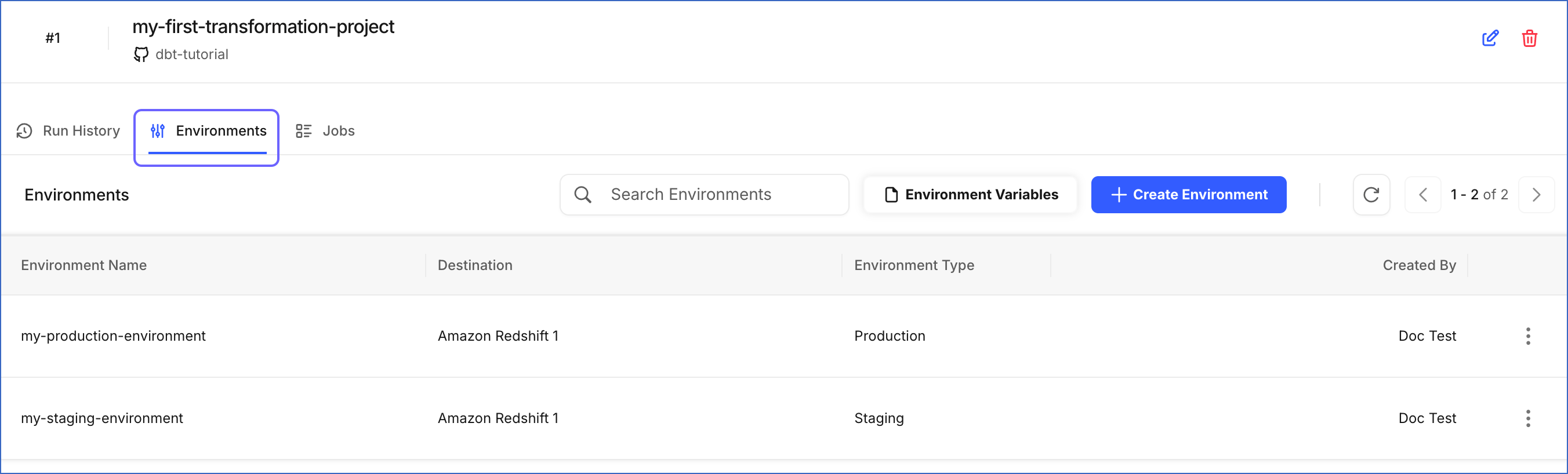
In the Transformations Detailed View, click the Environments tab.
-
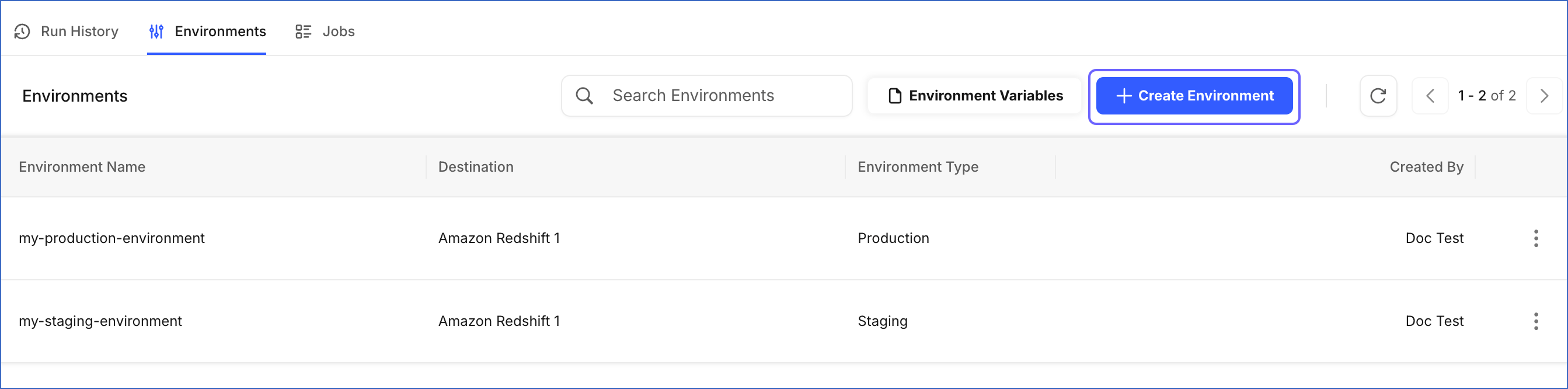
Click + Create Environment.
-
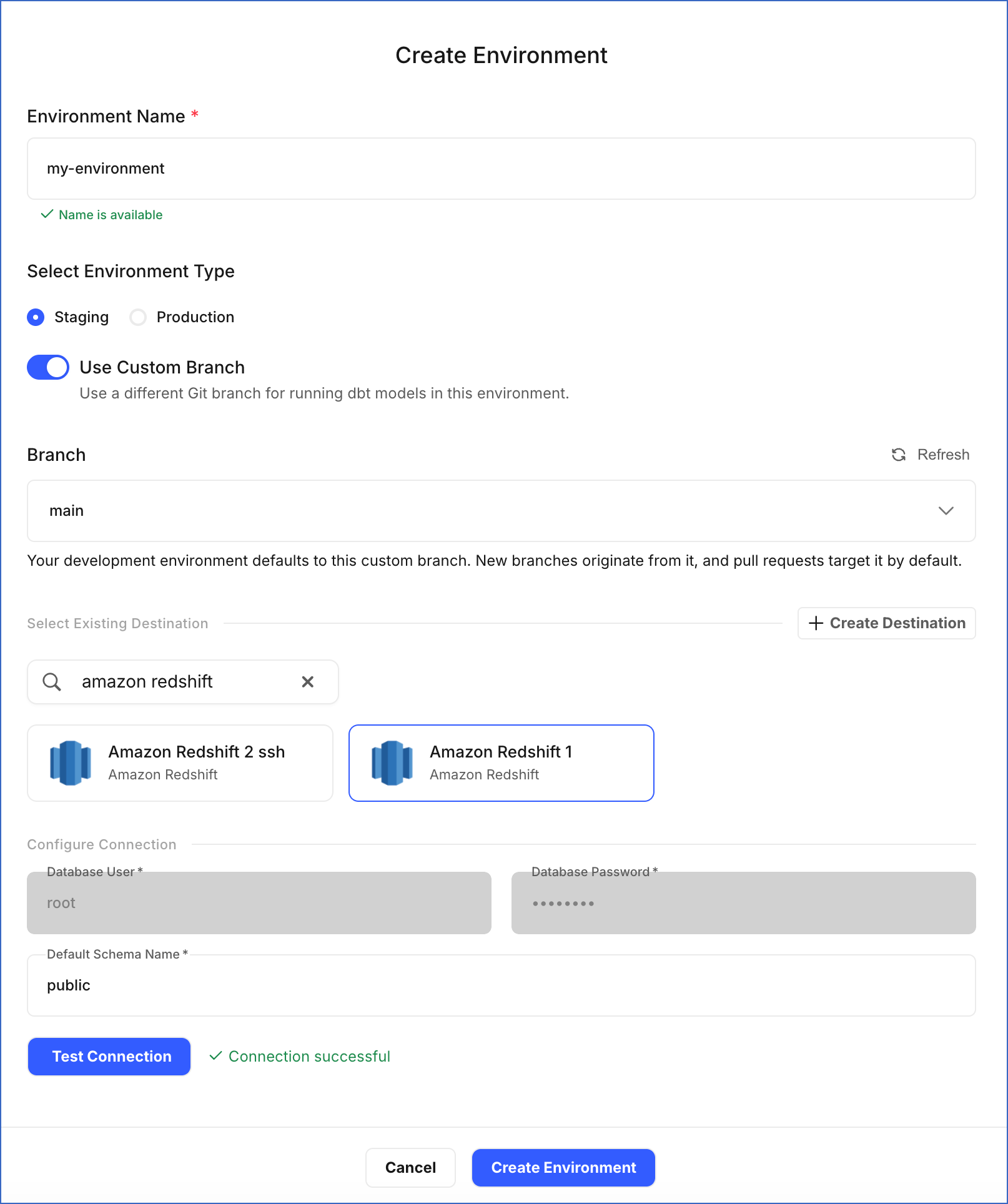
On the Create Environment page, do the following:
-
Environment Name: Specify a unique name for the environment. For example, my-environment.
-
Select Environment Type: Choose Staging for testing code changes or Production for running dbt models on live business data.
-
Use Custom Branch: By default, the environment uses the default branch of the connected GitHub repository. This branch is determined by your repository settings in GitHub and is typically named
mainordev. Enable this toggle to use a different branch instead.- Branch: The name of the branch to use for this environment.
-
Select Existing Destination: Choose the Destination where you want your dbt models to run. If you do not have a Destination configured or want to add a new one, click + Create Destination. Read the respective Destination documentation for configuration steps. For example, in the image above, we have selected an Amazon Redshift Destination.
Note: Currently, Amazon Redshift, Google BigQuery, and Snowflake Destinations are supported for Transformations.
-
Configure Connection: Review the connection details of the selected Destination.
-
Database User: The user Hevo uses to connect to the Destination.
-
Database Password: The password for the database user.
-
Default Schema Name: Specify the name of the schema in the selected Destination where dbt writes the output tables.
Note: This field is labeled Default Dataset Name for Google BigQuery Destinations because BigQuery groups tables into datasets instead of schemas.
-
-
-
-
Click Test Connection to verify the connection to the selected Destination. If the connection test fails, verify that all the credentials provided for the Destination are correct. Read the respective Destination documentation to confirm that all the required prerequisites have been completed.
-
Click Create Environment.
You are redirected to the Environments tab. The newly created environment appears in the list.
Defining Environment Variables
Perform the following steps to define environment variables for your Transformation project:
-
In the Navigation Bar, click Transformations.
-
On the Transformations page, select the project for which you want to define environment variables.
-
In the Transformations Detailed View, click the Environments tab.
-
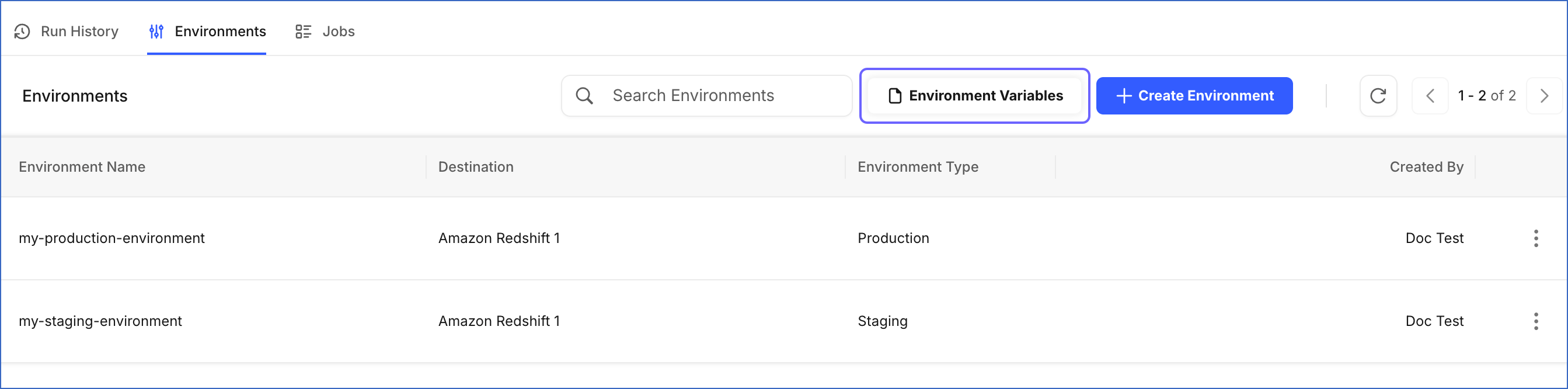
Click Environment Variables.
-
On the Define Environment Variables slide-in page, if no environment variables have been configured yet, proceed to step 6. If variables already exist, click + Add Variable.
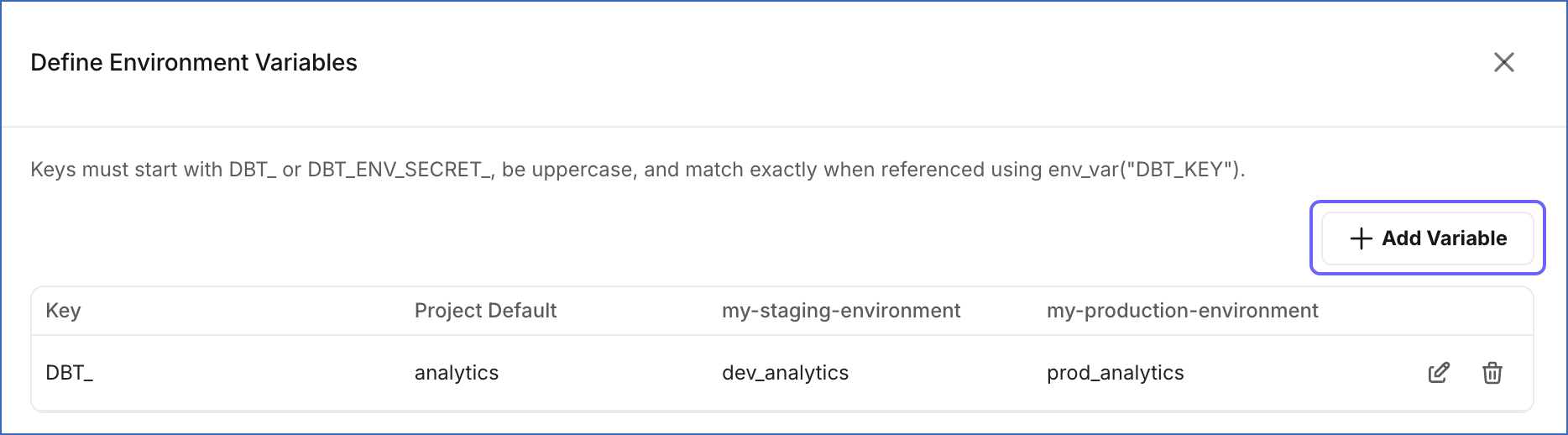
A new empty row appears at the top of the table.
-
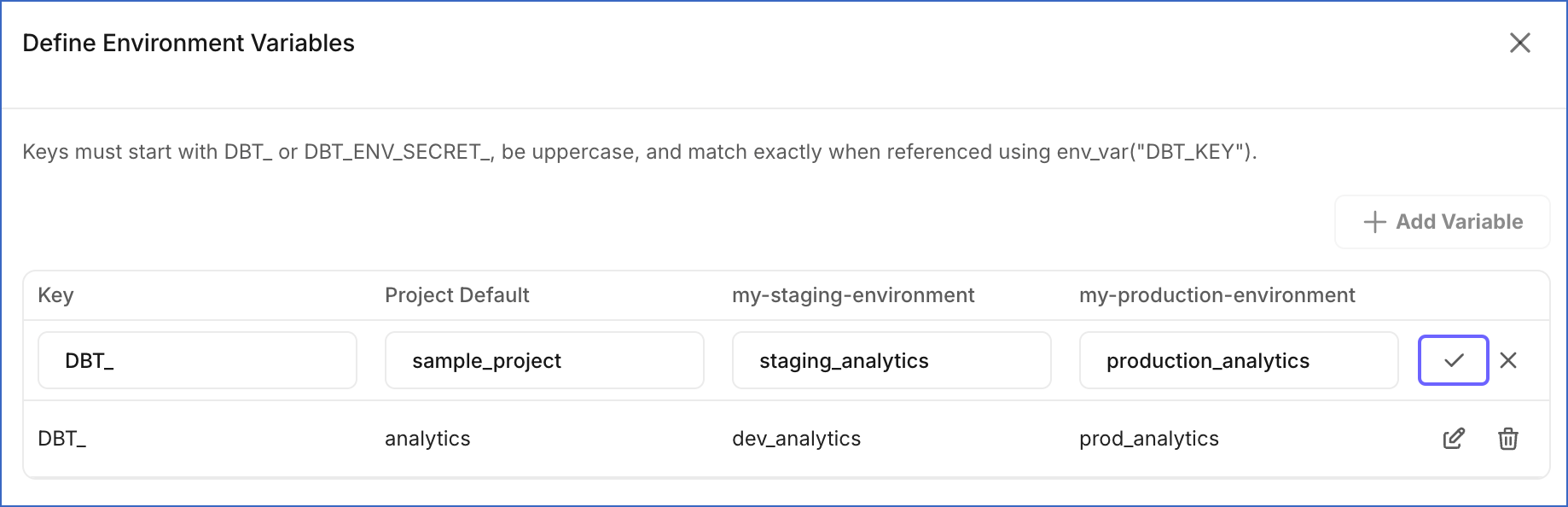
In the Key field, specify a unique name for the variable. The key must start with
DBT_orDBT_ENV_SECRET_and must be in uppercase. Ensure that you reference the key exactly as defined in your dbt code. Read Environment Variable Naming Rules to learn more about the naming requirements. -
In the Project Default field, specify the default value for the variable. This value is used in any environment where no specific value has been set.
-
In the column for each environment, enter the value to use for that particular environment. Leave the field empty to use the Project Default value.
-
Click the ✓ icon to save the row.
-
To add more variables, click + Add Variable and repeat steps 6 to 9.
-
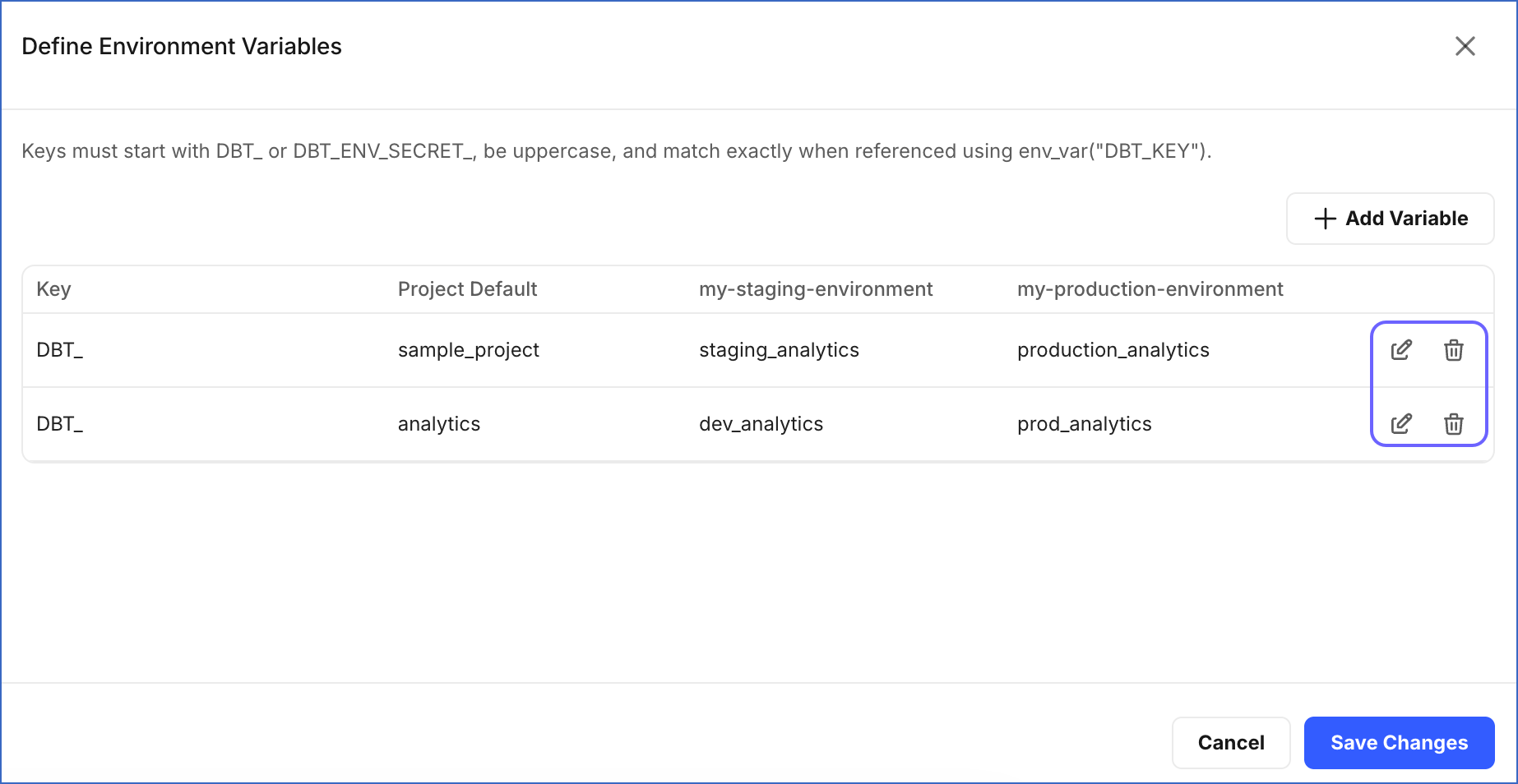
(Optional) To modify an existing variable, click the Edit icon and follow steps 6 to 9. To delete a variable, click the Delete icon.
-
Click Save Changes.
The slide-in page closes and the environment variables are saved for the Transformation project.