Transformations connects to a GitHub repository containing your dbt project and runs your models on your Destination data. Each time a Transformation job runs, Hevo pulls the latest version of your code from the connected branch and executes it against the selected Destination. This means every code change you push to GitHub is automatically picked up the next time a job runs.
To get started, you need to authorize Hevo to access your GitHub repository and then create a Transformation project that links your repository to Hevo.
Perform the following steps to set up your first Transformation project:
Prerequisites
-
An active Hevo account. You can start with a 14-day full-feature, free trial account.
-
A GitHub account with access to the repository containing your dbt project. The repository must contain a valid dbt project structure including a
dbt_project.ymlfile.
Connect your GitHub Account
Perform the following steps to connect your GitHub account:
-
In the Navigation Bar, click Transformations.
-
On the Transformations page, click the Transformation Settings (
 ) icon.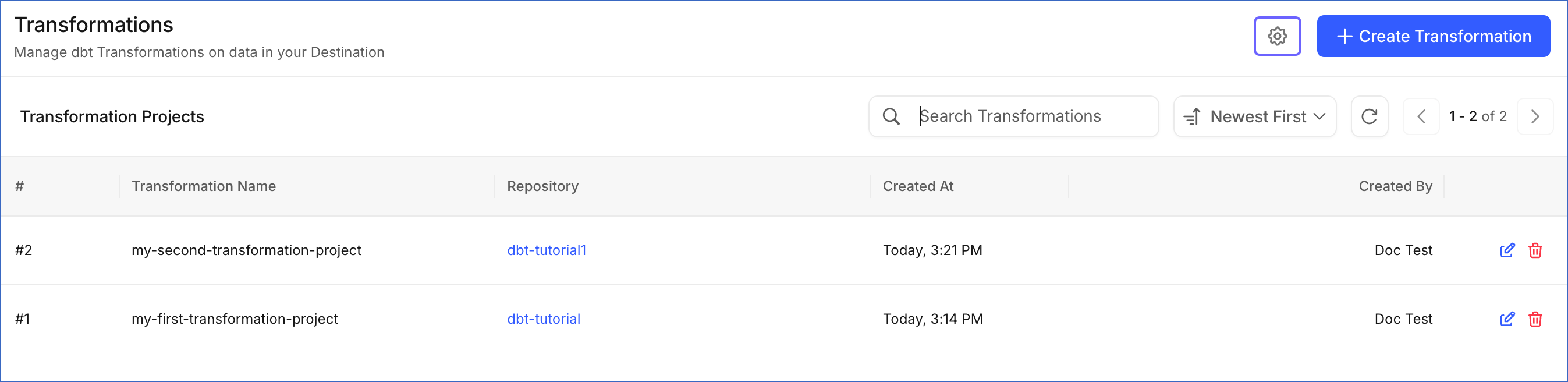
-
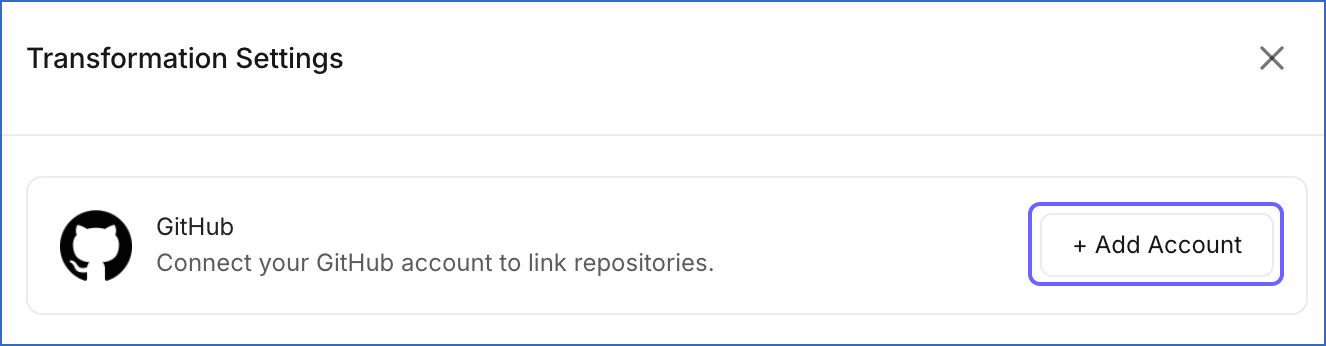
On the Transformation Settings slide-in page, do one of the following:
-
If no GitHub account has been connected yet, click + Add Account.
-
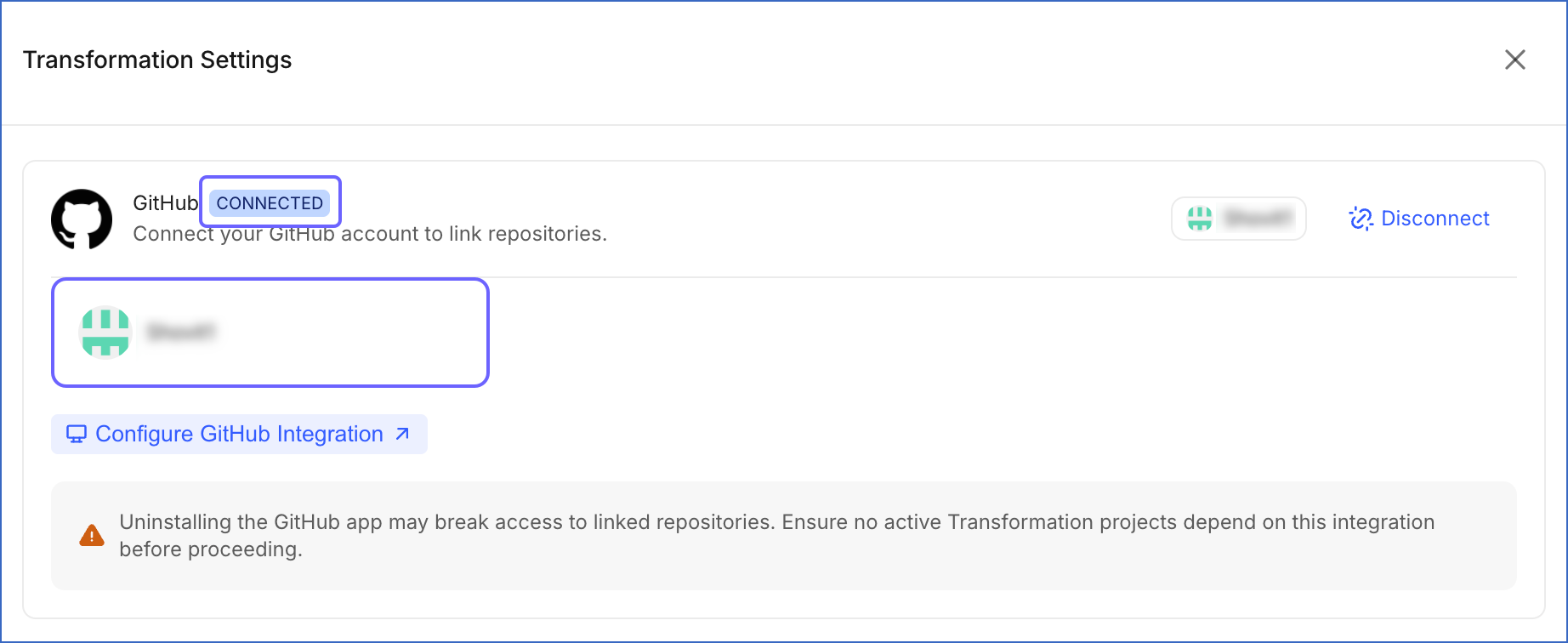
If GitHub is shown as CONNECTED and the account or organization that contains your repository appears in the list, proceed to the Create a Transformation section.
-
If GitHub is shown as CONNECTED but the account or organization that contains your repository does not appear in the list, proceed to step 5.
-
-
On the authorization page, review the permissions and click Authorize to grant the Hevo Transformations app access to your GitHub account.
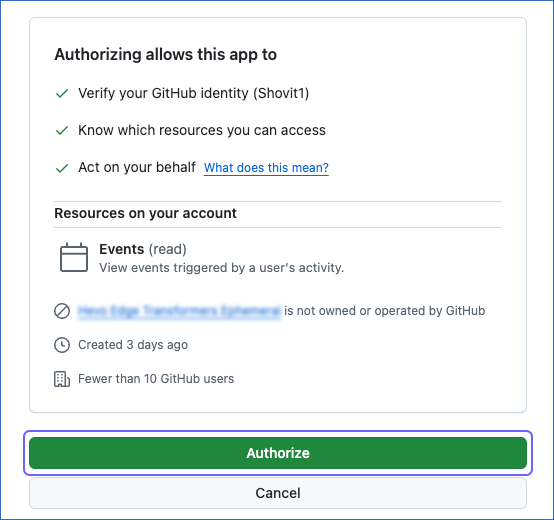
You are redirected to the Transformation Settings slide-in page.
-
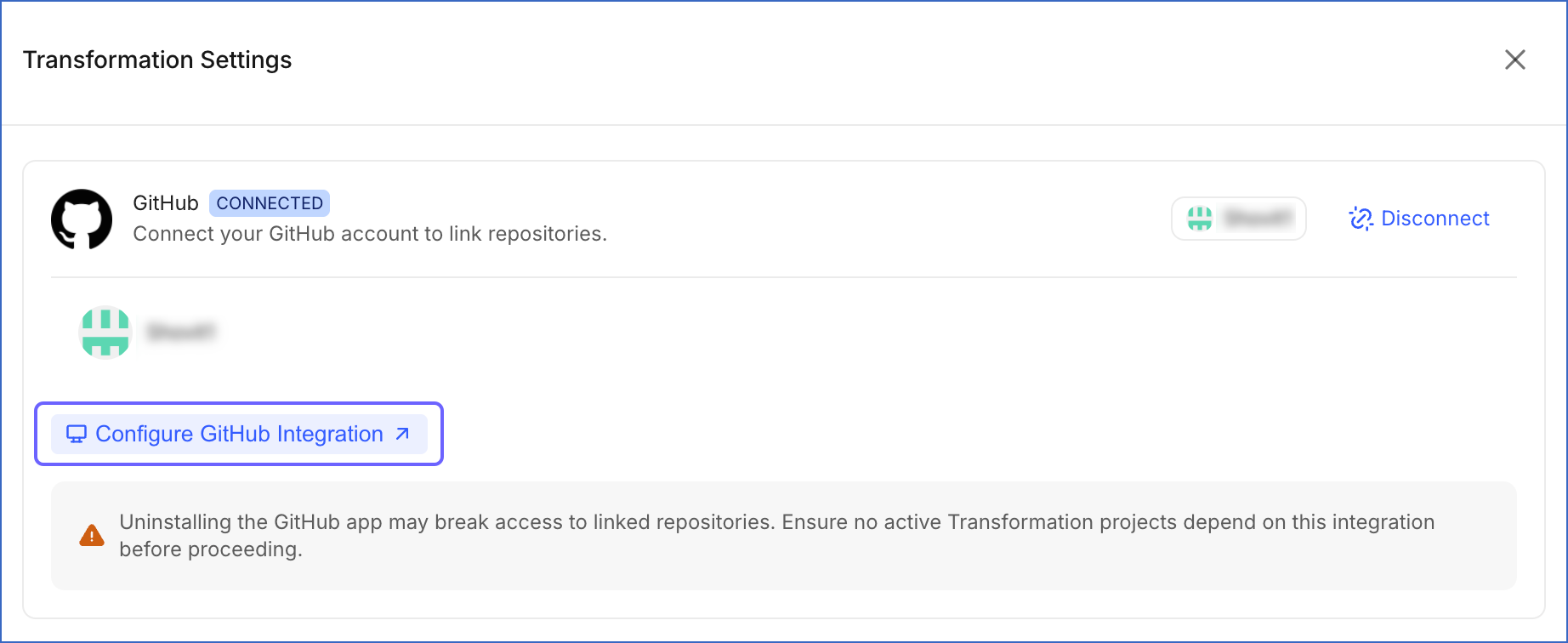
Click Configure GitHub Integration to open GitHub and install the Transformations app in the account or organization where your repository is hosted.
-
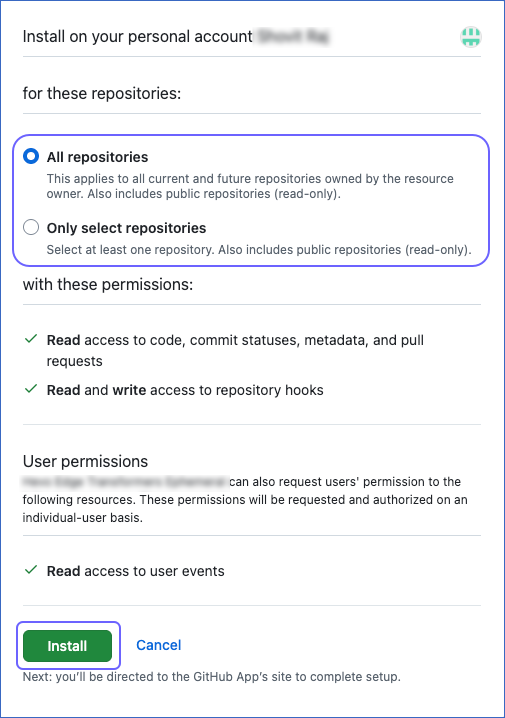
On the app installation page, select the account or organization where you want to install the Transformations app. This app enables Hevo to access your repositories and respond to pull request events for Continuous Integration (CI) and Merge jobs.
-
On the GitHub page that opens:
-
Do one of the following:
-
Select All repositories to grant Hevo access to all current and future repositories in the account.
-
Select Only select repositories and choose specific repositories from the Select repositories drop-down. This gives you more control over which repositories the Transformations app can access. You can modify this configuration at any time from the Transformation Settings slide-in page.
-
-
Click Install.
-
You are redirected to the Transformations page. Click the Transformation Settings ( ) icon to verify that GitHub is shown as CONNECTED and the account or organization where you installed the app now appears in the list. Proceed to the Create a Transformation section.
Note:
-
Uninstalling the GitHub app will break access to all linked repositories and may cause active Transformation projects to fail. Before uninstalling, ensure no active projects depend on this integration.
-
Only repositories hosted on github.com are currently supported. GitHub Enterprise repositories are not supported.
Create a Transformation
Perform the following steps to create a Transformation project:
-
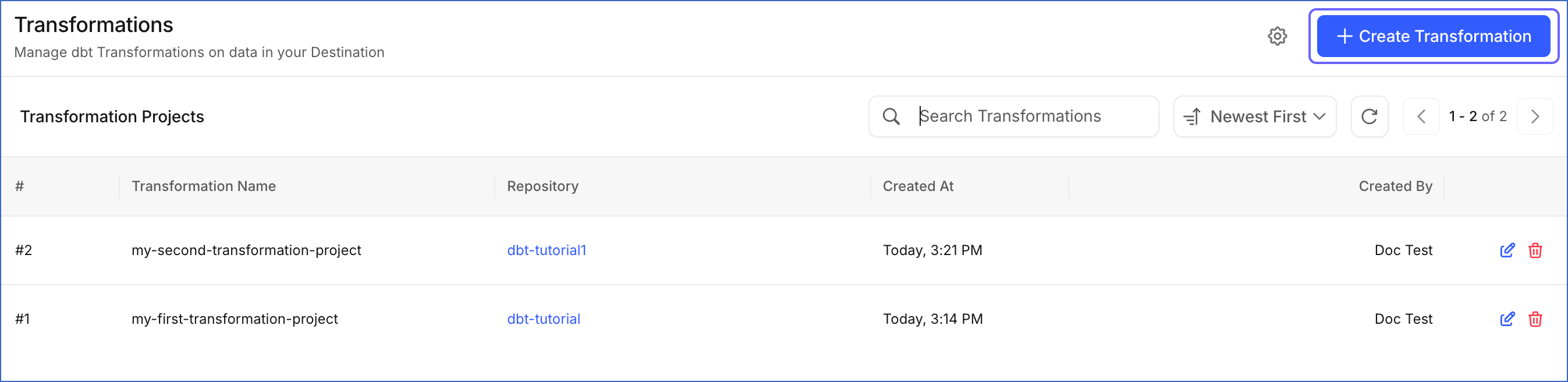
On the Transformations page, click + Create Transformation.
-
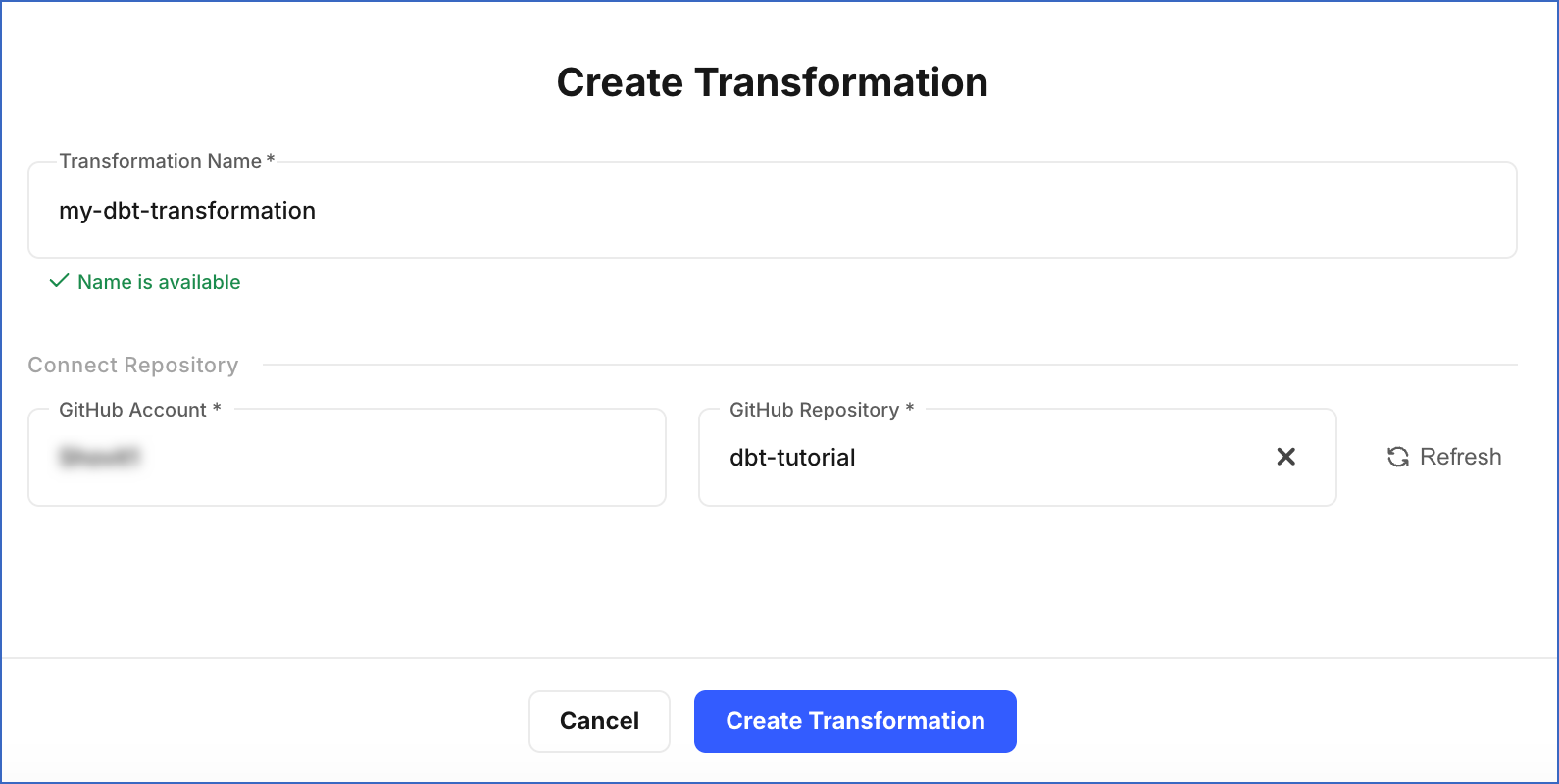
On the Create Transformation page, specify the following:
-
Transformation Name: A unique name for your Transformation project. For example, my-dbt-transformation.
-
In the Connect Repository section, select the following:
-
GitHub Account: The GitHub account that contains your dbt repository.
Note: Only accounts where the Transformations app has been installed are listed in the drop-down. To add another account or organization, follow the steps in the Connect your GitHub Account section.
-
GitHub Repository: The repository containing your dbt project.
-
-
-
Click Create Transformation. The project opens in the Transformations Detailed View.
Your Transformation project is now set up. The next step is to configure environments and jobs to start running your dbt models. Read Working with Environments and Working with Jobs for detailed steps to configure this.