Each Transformation project connects to a GitHub repository through a linked GitHub account. Over time, you may need to connect a new account, disconnect an existing one, or remove the Transformations app from your account entirely.
Refer to the following sections to manage your GitHub accounts for your Transformation projects:
Connecting a GitHub Account
You can connect a GitHub account to Hevo in two ways:
-
During Transformation creation, connect a GitHub account to create a new Transformation project. Use this method when setting up a project for the first time.
-
From the Transformation Settings slide-in page, connect a new GitHub account or switch to a different account or organization. Use this method to change the connected account for an existing project.
Connecting while creating a Transformation
Perform the following steps to connect your GitHub account while creating a Transformation project:
-
In the Navigation Bar, click Transformations.
-
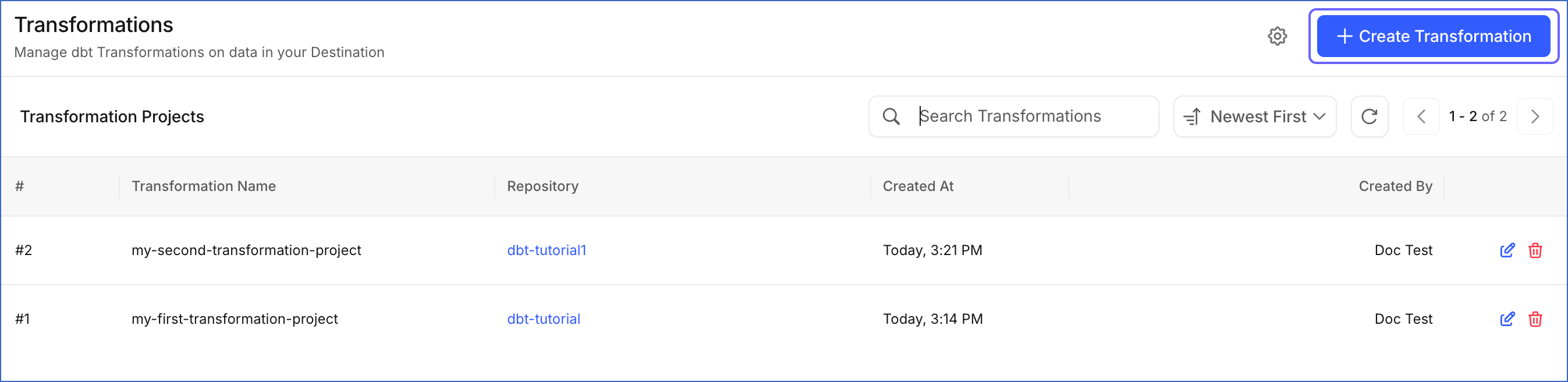
On the Transformations page, click + Create Transformation.
-
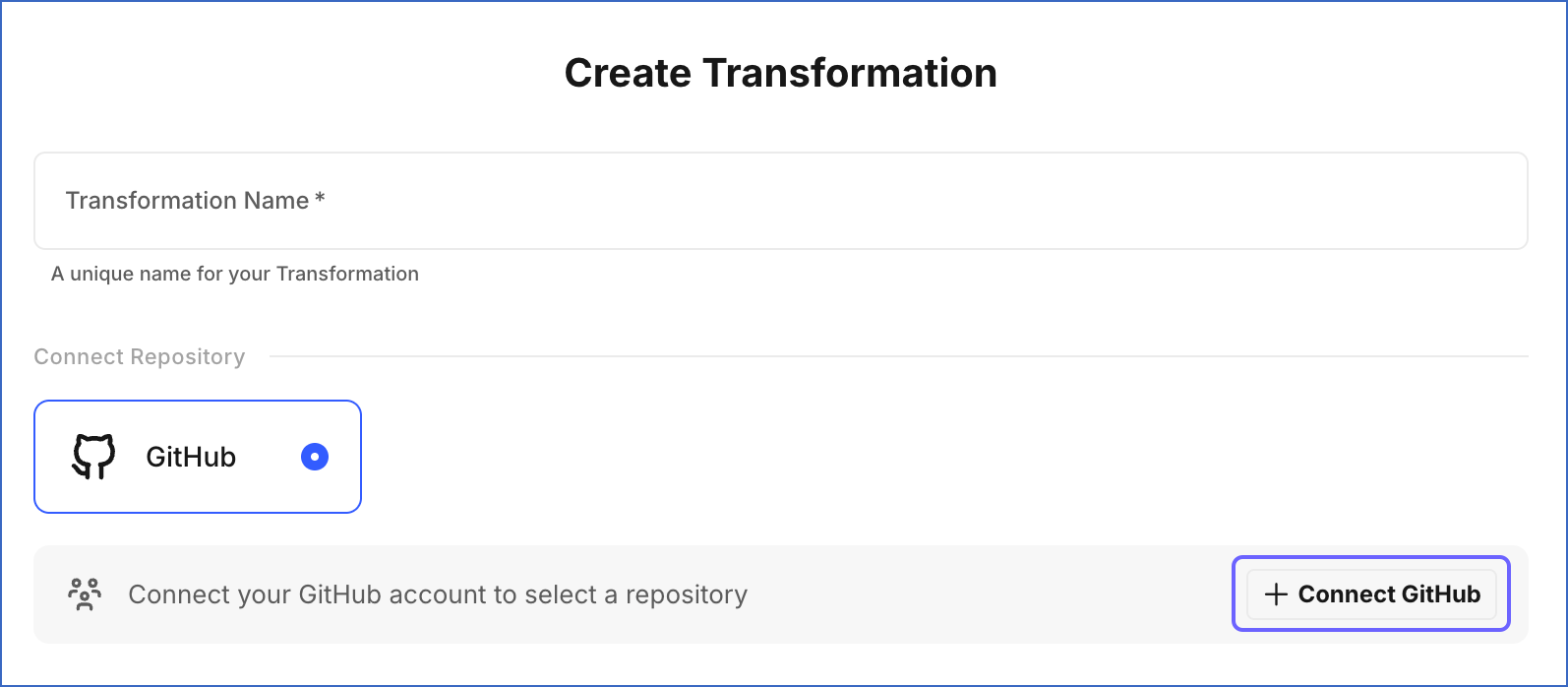
On the Create Transformation page, do one of the following:
-
If no GitHub account has been connected yet, click + Connect GitHub.
-
If GitHub is connected but the app is not installed in any account or organization, proceed to step 5.
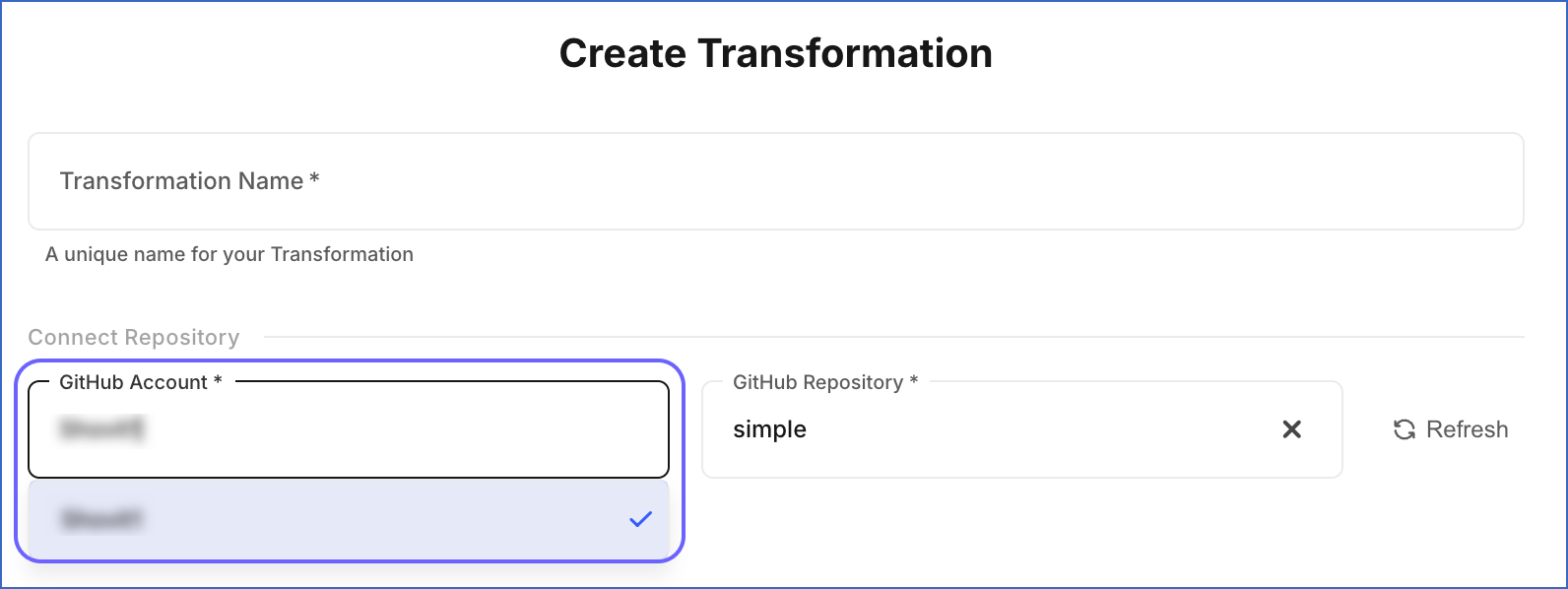
Note: If your GitHub is already connected and authorized to Hevo, the GitHub Account drop-down displays only the accounts and organizations where the Transformations app is installed. To connect a new account or organization, read Connect your GitHub Account.
-
-
On the authorization page, review the permissions and click Authorize to grant the Transformations app access to your GitHub account.
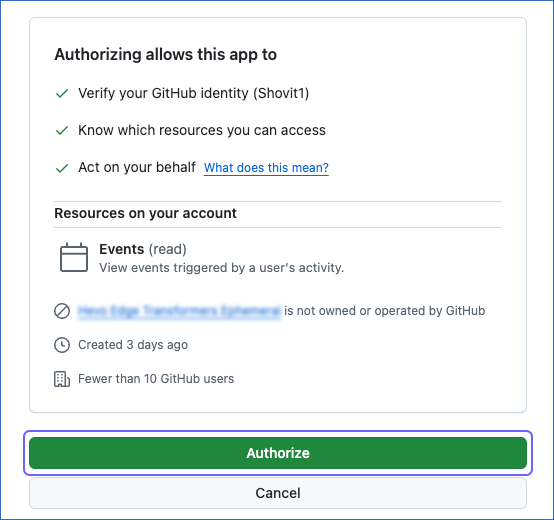
You are redirected to the Create Transformation page.
-
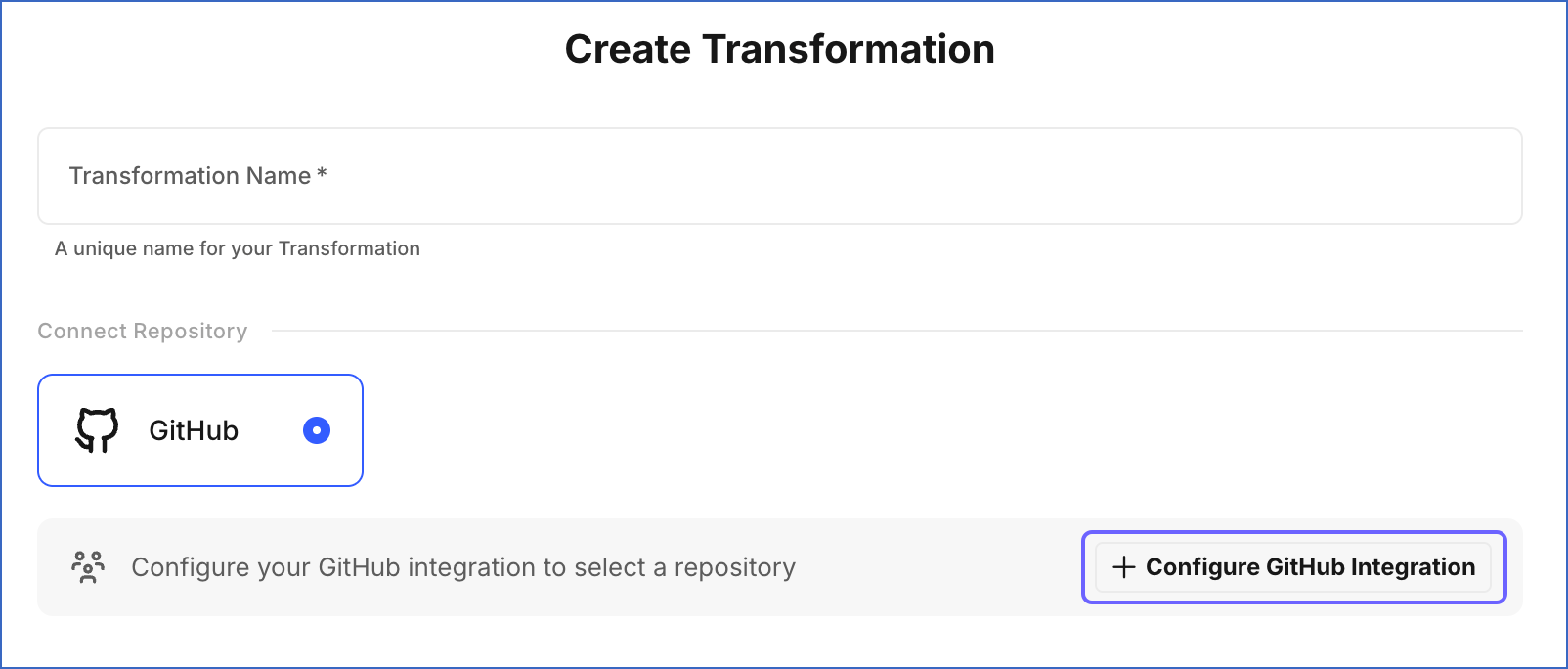
Click + Configure GitHub Integration to open GitHub and install the Transformations app in the account or organization where your repository is hosted.
-
On the app installation page, select the account or organization where you want to install the app. The Transformations app enables Hevo to access your repositories and respond to pull request events for Continuous Integration (CI) and Merge jobs.
-
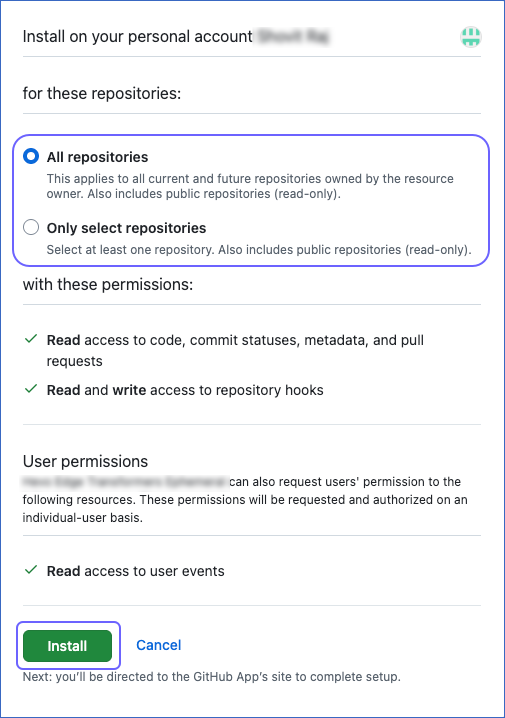
On the GitHub page that opens:
-
Select one of the following:
-
All repositories: Grants Hevo access to all current and future repositories in the account.
-
Only select repositories: Grants Hevo access to specific repositories only. This is the recommended option as it limits access to only the repositories your Transformation projects need.
- Select repositories: From the drop-down, select the repositories for which you want to grant access to Hevo.
-
-
Click Install.
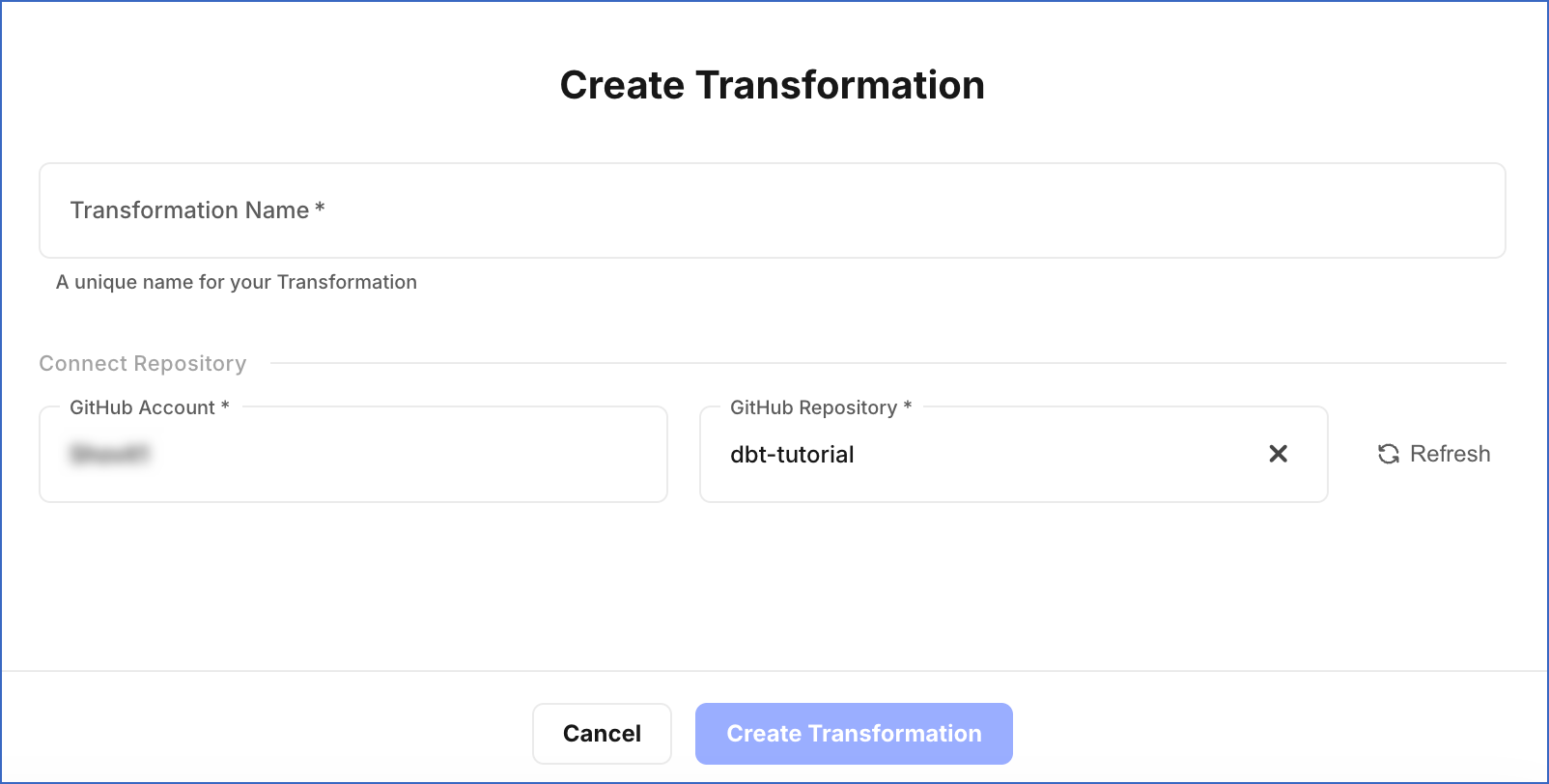
You are redirected to the Create Transformation page. The GitHub Account drop-down now lists the account or organization where you installed the app.
-
You can now specify a name for your Transformation project, select the repository, and click Create Transformation to create the project.
Connecting through the Transformation Settings
You can connect your GitHub account from the Transformation Settings slide-in page. This method provides access to the complete GitHub integration configuration, including the ability to connect a different GitHub account or install the Transformations app in another account or organization. Refer to Connect your GitHub Account for the steps to do this.
Disconnecting a GitHub Account
There are two ways to remove Hevo’s access to a GitHub account. The method you choose depends on how completely you want to remove access:
-
Disconnecting from the Transformation Settings: Removes the GitHub account from the Transformation Settings slide-in page. Your existing Transformation projects are not affected as the Transformations app remains installed in the GitHub account or organization. Use this method when you want to remove the account from Hevo’s interface without affecting the app installation.
-
Uninstalling the Transformations App: Completely removes Hevo’s access to your repositories. This requires two steps: uninstalling the app from GitHub and revoking the OAuth access. Use this method when you want to fully remove Hevo’s access, for example, before switching to a different account.
Disconnecting from the Transformation Settings
Perform the following steps to disconnect a GitHub account:
-
In the Navigation Bar, click Transformations.
-
On the Transformations page, click the Transformation Settings (
 ) icon.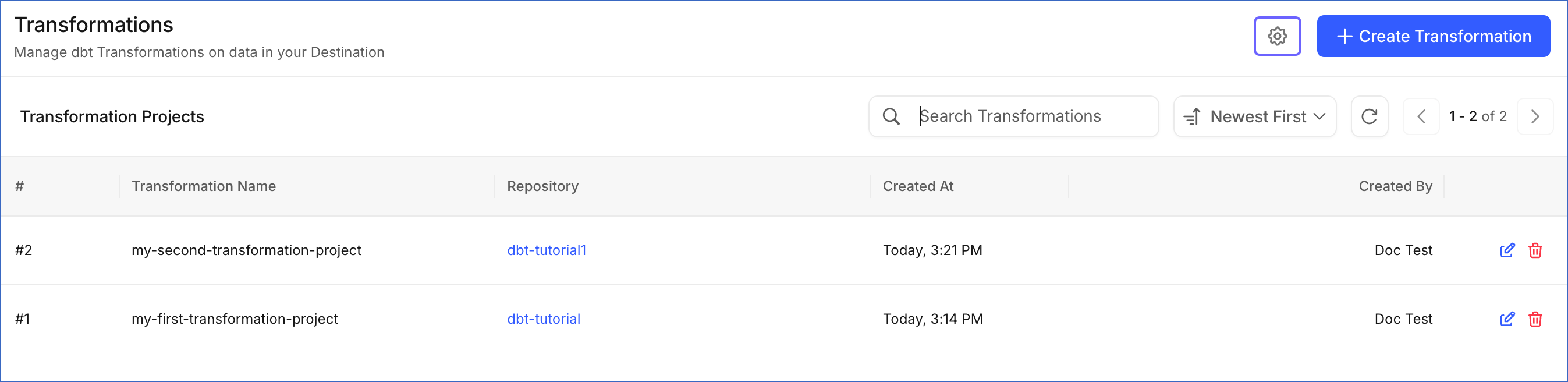
-
On the Transformation Settings slide-in page, click Disconnect.
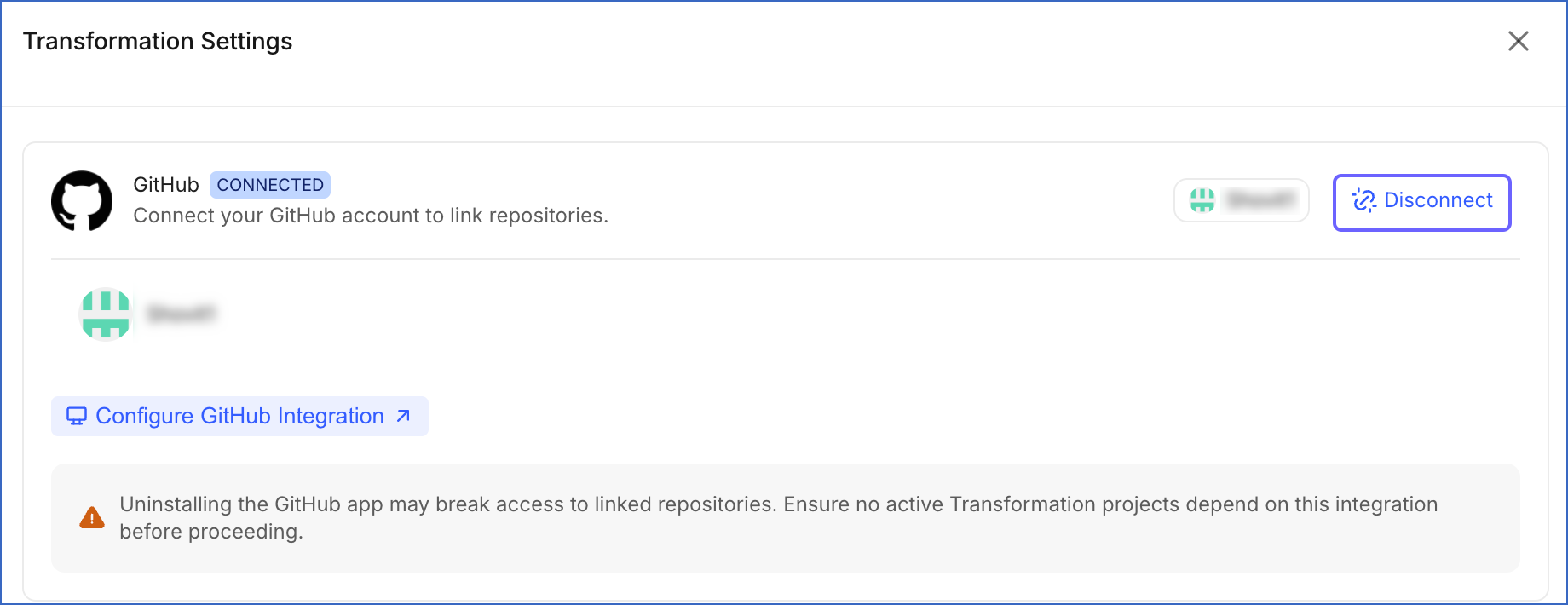
The GitHub account is removed from the slide-in page. However, the account remains authorized in your GitHub account. To completely remove Hevo’s access to your repositories, refer to Uninstalling the Transformations App.
Uninstalling the Transformations App
Uninstalling the Transformations app completely removes Hevo’s access to the repositories in the selected GitHub account or organization. This is a two-step process. You must both uninstall the app from GitHub and revoke the OAuth access. Completing only one step does not fully remove Hevo’s access.
Uninstalling the App
Perform the following steps to uninstall the Transformations app:
-
In the Navigation Bar, click Transformations.
-
On the Transformations page, click the Transformation Settings (
) icon. -
On the Transformation Settings slide-in page, click Configure GitHub Integration.
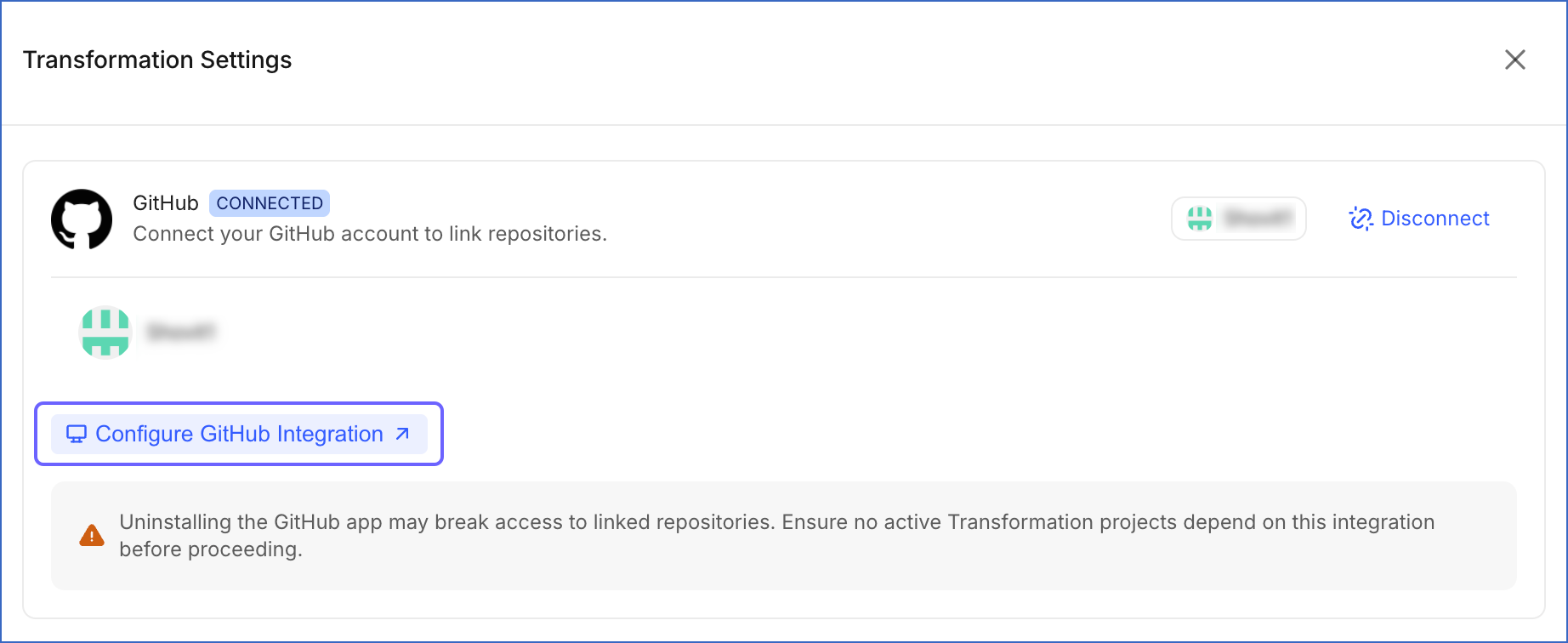
-
On the GitHub page that opens, select the account or organization from which you want to uninstall the app.
-
Scroll down to the Danger zone section and click Uninstall.
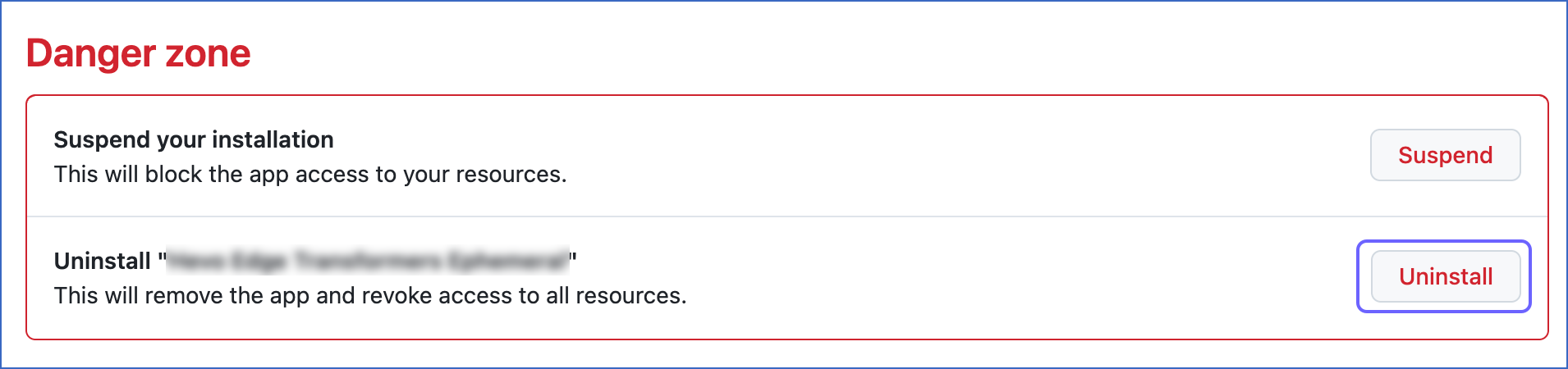
-
In the GitHub confirmation dialog, click OK.
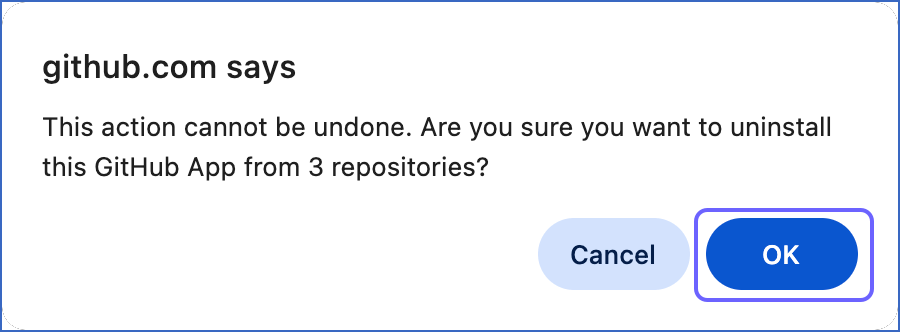
You are redirected to the Applications page.
Revoking OAuth Access
Perform the following steps to revoke the Transformations app OAuth access from your GitHub account:
-
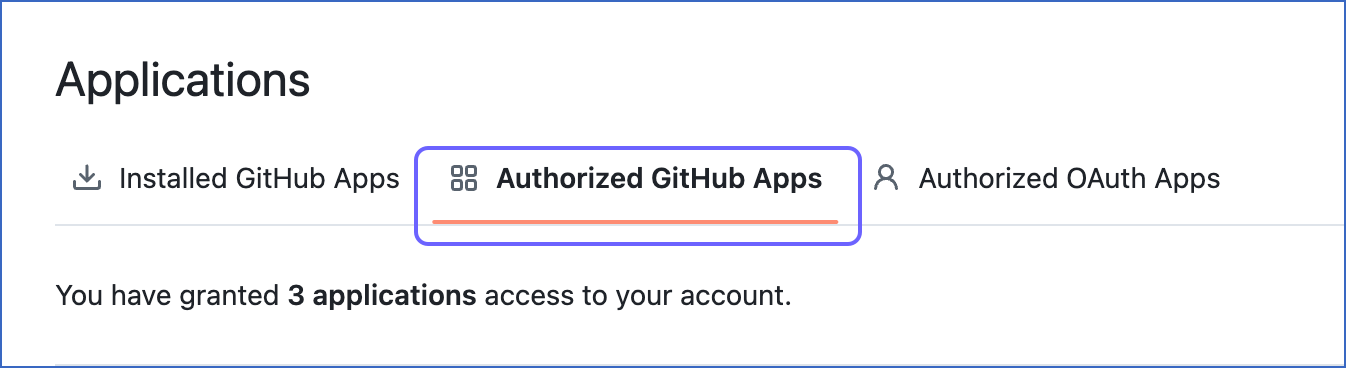
On the Applications page, click the Authorized GitHub Apps tab.
-
Click Revoke next to the Transformations app.

-
In the confirmation dialog, click I understand, revoke access.
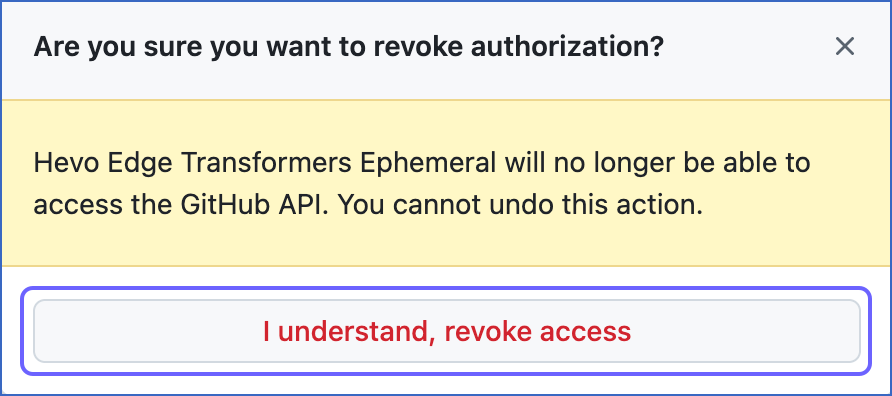
Hevo no longer has access to the repositories in the selected account or organization.