Amazon Relational Database Service (RDS) allows you to deploy, and scale multiple editions of SQL Server in minutes with cost-efficient and resizable compute capacity.
You can ingest data from your Amazon RDS SQL Server using Hevo Pipelines and replicate it to a Destination of your choice.
Prerequisites
-
The Amazon RDS SQL Server version is 2016, 2017, 2019, or 2022.
Note: Change Data Capture (CDC) is available only on Amazon RDS SQL Server Standard and Enterprise editions.
-
Change Tracking or Change Data Capture is enabled for the database and the required tables.
-
Hevo’s IP address(es) for your region is added to the Amazon RDS SQL Server database IP Allowlist.
-
The necessary privileges are granted to the database user.
Note: We recommend creating a database user for configuring your Amazon RDS SQL Server Source in Hevo. If you already have a database user, grant the required privileges.
-
The database hostname and port number of the Source instance are available.
Perform the following steps to configure your Amazon RDS SQL Server Source:
Enable Data Replication Modes
Hevo supports data replication from SQL Server using its built-in Change Tracking and Change Data Capture features. These features track changes, including inserts, updates, and deletes, made to your database. Read Supported Ingestion Modes for more information on these data tracking methods.
Enable Change Tracking
You must enable change tracking on your SQL Server database to replicate incremental data.
Perform the following steps to do this:
-
Connect to your SQL Server database as any user with the ALTER DATABASE privilege or a masteruser using an SQL client tool, such as sqlcmd.
-
Run the following commands to enable change tracking:
Note: Replace the placeholder values in the commands below with your own. For example, <database_name> with demo.
-
At the database level:
ALTER DATABASE <database_name> SET CHANGE_TRACKING = ON (CHANGE_RETENTION = 7 DAYS, AUTO_CLEANUP = ON)The
CHANGE_RETENTIONvalue specifies the duration for which change tracking information is retained. When theAUTO_CLEANUPvalue is set to ON, SQL Server runs a cleanup task to remove lapsed or invalid change tracking metadata. Read Enable Change Tracking for a Database for more information on the available options.Note: Hevo recommends setting
CHANGE_RETENTIONto 7 DAYS. This reduces the risk of log expiry and missed data changes for Pipelines with a low sync frequency, such as 24 hours. -
At the table level:
ALTER TABLE <schema_name>.<table_name> ENABLE CHANGE_TRACKINGNote: Run the command given above for each table that you want to replicate. Read Enable Change Tracking for a Table for more information on the available options.
-
Enable Change Data Capture
You must enable change data capture on your SQL Server database to replicate incremental data.
Perform the following steps to do this:
-
Connect to your SQL Server database as a masteruser with an SQL client tool, such as sqlcmd.
-
Run the following commands to enable change data capture:
Note: Replace the placeholder values in the commands below with your own. For example, <database_name> with demo.
-
At the database level:
EXEC msdb.dbo.rds_cdc_enable_db '<database_name>'; -
At the table level:
USE <database_name>; --Begin tracking a table EXEC sys.sp_cdc_enable_table @source_schema = N'<schema_name>', @source_name = N'<table_name>', @role_name = NULL;Note: Run the command given above for each table that you want to replicate. Read Tracking tables with change data capture for more information on the available options.
-
Detecting schema changes for CDC-enabled tables
Hevo displays a warning in the user interface (UI) when the schemas of a CDC-enabled Source table and the associated change table differ. This typically happens when columns are added or modified in a Source table that is already included in the Pipeline.
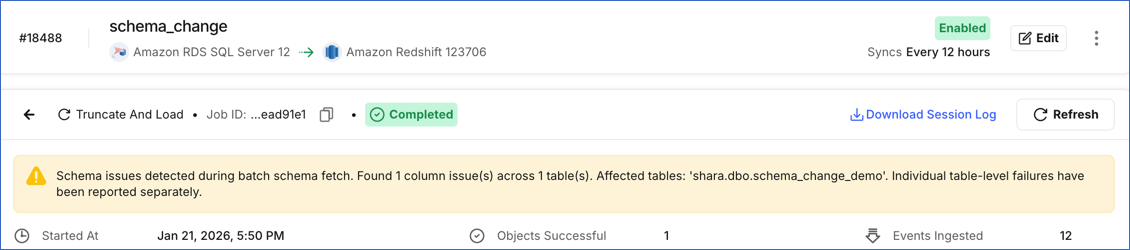
To allow Hevo to ingest data from these columns, re-enable CDC for the affected table. Re-enabling CDC recreates the change table with the updated schema. To do this, perform the following steps:
Note: Hevo provides a stored procedure to automatically re-enable CDC when schema changes are detected. Using this procedure removes the need for manual CDC reconfiguration. Refer to Hevo Stored Procedures for Change Tracking and Change Data Capture for the installation steps.
-
Connect to your SQL Server database as a masteruser with an SQL client tool, such as sqlcmd.
-
Run the following commands to re-enable CDC for the table included in your Hevo Pipeline:
Note: Replace the placeholder values in the commands below with your own. For example, <affected_table_name> with customers.
USE <database_name>; -- Switch context to the database with the changed schema

-- Stop tracking CDC for the affected table
-- This removes the existing capture instance and its change history.
EXEC sys.sp_cdc_disable_table
    @source_schema      = N'<schema_name>',
    @source_name        = N'<affected_table_name>',
    @capture_instance   = N'all';

-- Start tracking CDC for the affected table
-- This creates a new capture instance that includes the updated columns
EXEC sys.sp_cdc_enable_table
    @source_schema      = N'<schema_name>',
    @source_name        = N'<affected_table_name>',
    @role_name          = NULL;
Once CDC is successfully re-enabled for the affected table, Hevo does the following:
-
Updates the Source schema in its metastore.
-
Resyncs the object in the next Pipeline run.
If you want Hevo to ingest data immediately, Resync the Objects. If re-enabling CDC is unsuccessful, the Pipeline continues ingesting data from the affected tables using the previously stored schema.
Note: If the Schema Evolution Policy for your Pipeline is set to Allow all changes and a new table is added to your schema after the Pipeline is created, you must enable at least one data capture mechanism for the new table and refresh the schema. The newly added table is automatically included in the Pipeline for data ingestion. If none of the tracking mechanisms are enabled for the table, Hevo marks it as inaccessible and does not ingest any data from it.
Allowlist Hevo IP addresses for your region
You need to allowlist the Hevo IP addresses for your region to enable Hevo to connect to your Amazon RDS SQL Server database. To do this:
-
Log in to the Amazon RDS console.
-
In the left navigation pane, click Databases.
-
In the Databases section on the right, click the DB identifier of your Amazon RDS SQL Server database instance.

-
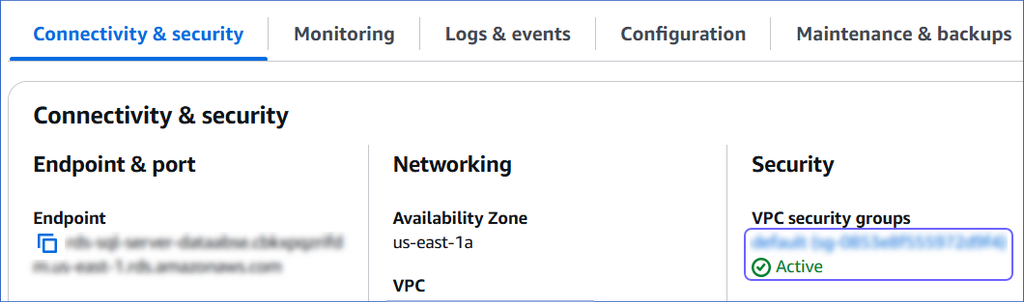
In the Connectivity & security tab, click the link text under Security, VPC security groups.
-
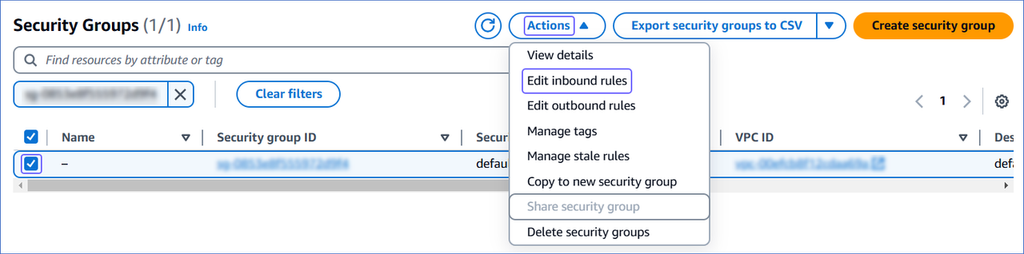
On the Security Groups page, select the check box for your Security group ID, and from the Actions drop-down, click Edit inbound rules.
-
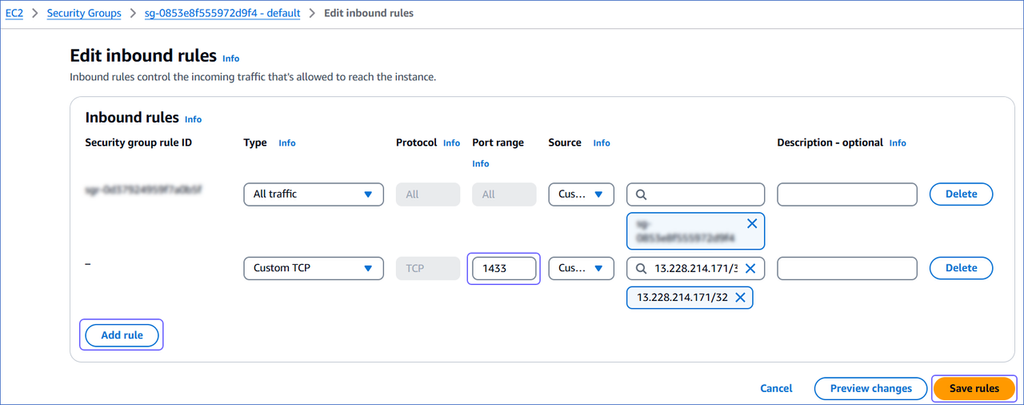
On the Edit inbound rules page:
-
Click Add rule.
-
In the Port range column, enter the port of your Amazon RDS SQL Server database instance. For example, 1433.
-
In the Source column, select Custom from the drop-down and enter Hevo’s IP addresses for your region. Repeat steps 1-3 to allowlist all the IP addresses.
-
Click Save rules.
-
Create a Database User and Grant Privileges
1. Create a database user (Optional)
Note: Skip to the Grant privileges to the user section if you are using an existing database user.
Perform the following steps to create a database user in your Amazon RDS SQL Server database:
-
Connect to your Amazon RDS SQL Server database as a masteruser with any SQL client tool, such as sqlcmd.
-
Run the following commands:
-- Select the master database to create a login USE master; CREATE LOGIN <login_user> WITH PASSWORD = '<password>'; -- Create a database user in your database for the login created above USE <database_name>; CREATE USER <database_user> FOR LOGIN <login_user>;Note: Replace the placeholder values in the commands above with your own. For example, <login_user> with hevouser.
2. Grant privileges to the user
The database user requires additional privileges to capture incremental data, depending on the replication mode selected in the Hevo Pipeline.
Grant privileges for Change Tracking
To enable the database user to replicate data from Change Tracking–enabled tables, the following privileges are required:
| Privilege | Grants access to |
|---|---|
| SELECT | Retrieve rows from the database tables. |
| VIEW CHANGE TRACKING | View changes made to tables and schemas for which with the Change Tracking feature is enabled. |
Connect to your Amazon RDS SQL Server database as a masteruser with any SQL client tool, such as sqlcmd, and run the following commands:
-- Grant SELECT privilege at the database level
GRANT SELECT ON DATABASE::<database_name> TO <database_username>;

-- Grant SELECT privilege at the schema level
GRANT SELECT ON SCHEMA::<schema_name> TO <database_username>;

-- Grant VIEW CHANGE TRACKING privilege at the schema level
GRANT VIEW CHANGE TRACKING ON SCHEMA::<schema_name> TO <database_username>;

-- Grant VIEW CHANGE TRACKING privilege at the table level
GRANT VIEW CHANGE TRACKING ON OBJECT::<schema_name>.<table_name> TO <database_username>;
Note: Replace the placeholder values in the commands above with your own. For example, <database_username> with hevo.
Grant privileges for Change Data Capture
To enable the database user to replicate data from CDC-enabled tables, perform the following steps:
-
Connect to your Amazon RDS SQL Server database as a masteruser with any SQL client tool, such as sqlcmd.
-
Run the following commands:
Note: Replace the placeholder values in the commands below with your own. For example, <database_user> with hevo.
USE <database_name>;

-- Grant SELECT privilege at the schema level
GRANT SELECT ON SCHEMA::<schema_name> TO <database_user>;

-- Optionally, grant read access to the CDC schema
GRANT SELECT ON SCHEMA::cdc TO <database_user>;
Note: Hevo recommends using a dedicated, minimum-privilege database user in production Pipelines.
Retrieve the Database Hostname and Port Number (Optional)
Note: The RDS hostnames start with your database name and end with rds.amazonaws.com. For example, rds-sql-server-database.xxxxxxxxx.rds.amazonaws.com.
Perform the following steps to obtain the configuration details required to create your Hevo Pipeline:
-
Log in to the Amazon RDS console.
-
In the left navigation pane, click Databases.
-
In the Databases section on the right, click the DB identifier of your Amazon RDS SQL Server database instance.
-
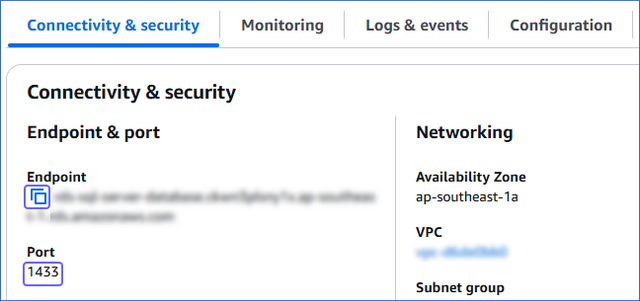
In the Connectivity & security tab, do the following:
-
Click the copy icon to copy the Endpoint and save it securely.
-
Copy the Port and save it securely.
-
Use these values as your Database Host (Endpoint) and Database Port, respectively, while configuring your Amazon RDS SQL Server Source in Hevo.
Configure Amazon RDS SQL Server as a Source in your Pipeline
Perform the following steps to configure your Amazon RDS SQL Server Source:
-
Click PIPELINES in the Navigation Bar.
-
Click + Create Pipeline in the Pipelines List View.
-
On the Select Source Type page, select Amazon RDS SQL Server.
-
On the Select Destination Type page, select the type of Destination you want to use.
-
On the page that appears, do the following:
-
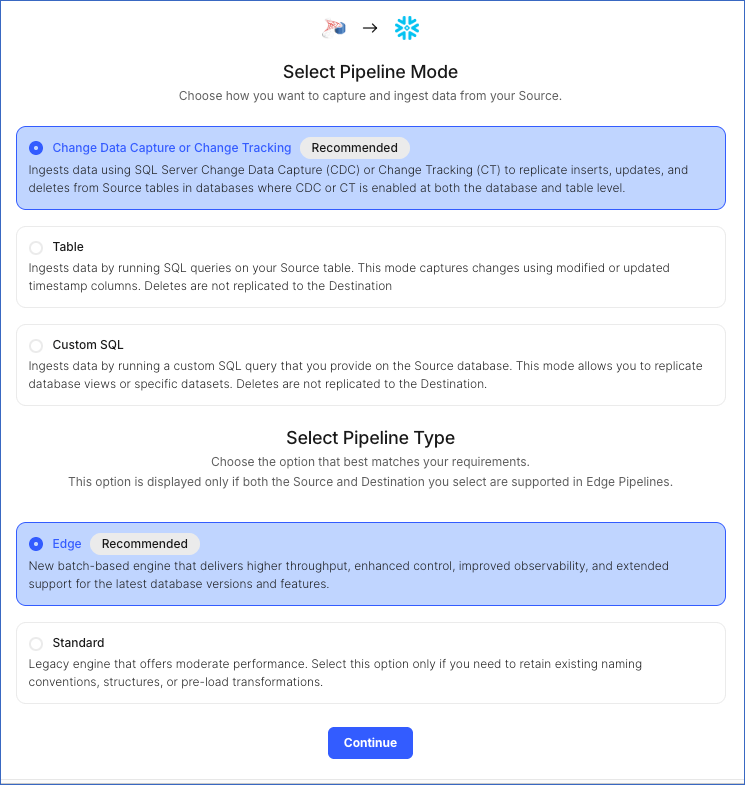
Select Pipeline Mode: Choose Change Data Capture or Change Tracking. Hevo supports only this mode for Edge Pipelines created with SQL Server Source. If you choose any other mode, you can proceed to create a Standard Pipeline.
Note: Hevo supports the Change Tracking mode for both Edge and Standard Pipelines, but Change Data Capture is supported only in Edge Pipelines.
-
Select Pipeline Type: Choose the type of Pipeline you want to create based on your requirements, and then click Continue.
-
If you select Edge, skip to step 6 below.
-
If you select Standard, read Amazon RDS SQL Server to configure your Standard Pipeline.
This section is displayed only if all the following conditions are met:
-
The selected Destination type is supported in Edge.
-
The Pipeline mode is set to Change Data Capture or Change Tracking.
-
Your Team was created before September 15, 2025, and has an existing Pipeline created with the same Destination type and Pipeline mode.
For Teams that do not meet the above criteria, if the selected Destination type is supported in Edge and the Pipeline mode is set to Change Data Capture or Change Tracking, you can proceed to create an Edge Pipeline. Otherwise, you can proceed to create a Standard Pipeline. Read Amazon RDS SQL Server to configure your Standard Pipeline.
-
-
-
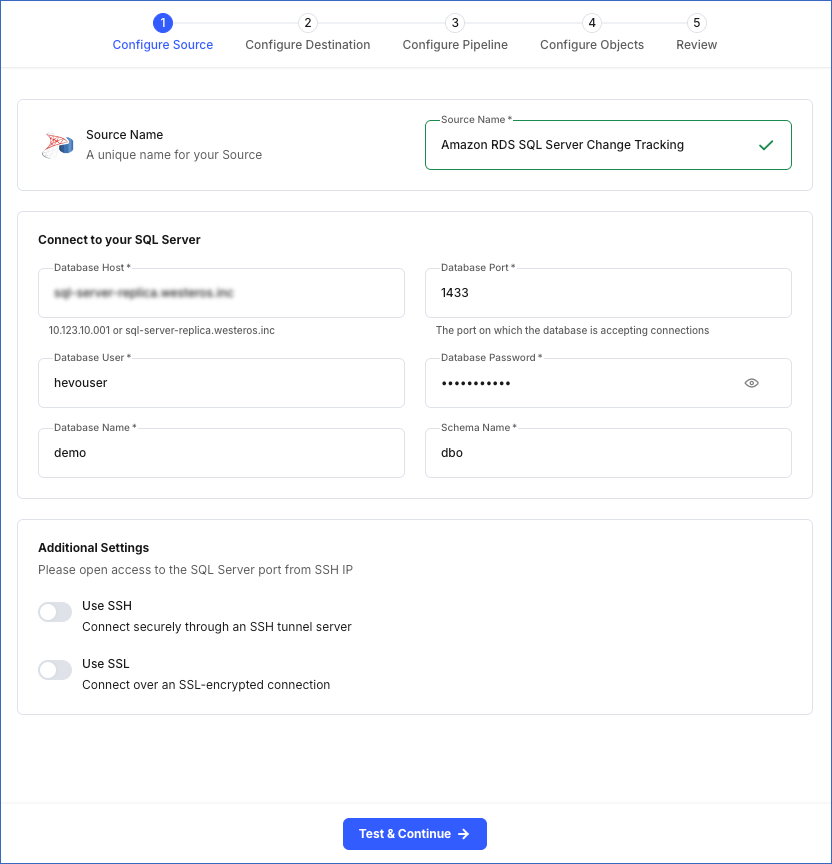
In the Configure Source screen, specify the following:
-
Source Name: A unique name for your Source, not exceeding 255 characters. For example, Amazon RDS SQL Server Change Tracking.
-
In the Connect to your SQL Server section:
-
Database Host: The Amazon RDS SQL Server host’s IP address or DNS. This is the endpoint that you obtained in the Retrieve the Database Hostname and Port Number section.
-
Database Port: The port on which your Amazon RDS SQL Server listens for connections. This is the port number that you obtained in the Retrieve the Database Hostname and Port Number section. Default value: 1433.
-
Database User: The authenticated user who has the permissions to read tables in your database. This user can be the login user you created in the Create a database user section above. For example, hevouser.
-
Database Password: The password for your database user.
-
Database Name: The database from where you want to replicate data. For example, demo.
-
Schema Name: The schema that holds the tables to be replicated. Default value: dbo.
-
-
In the Additional Settings section:
-
Use SSH: Enable this option to connect to Hevo using an SSH tunnel instead of directly connecting your Amazon RDS SQL Server database host to Hevo. This provides an additional level of security to your database by not exposing your Amazon RDS SQL Server setup to the public.
If this option is turned off, you must configure your Source to accept connections from Hevo’s IP address.
-
Use SSL: Enable this option to use an SSL-encrypted connection. Specify the following:
-
CA File: The file containing the SSL server certificate authority (CA).
-
Client Certificate: The client’s public key certificate file.
-
Client Key: The client’s private key file.
-
-
-
-
Click Test & Continue to test the connection to your Amazon RDS SQL Server Source. Once the test is successful, you can proceed to set up your Destination.
Additional Information
Read the detailed Hevo documentation for the following related topics:
Data Type Mapping
Hevo maps the SQL Server Source data type internally to a unified data type, referred to as the Hevo Data Type, in the table below. This data type is used to represent the Source data from all supported data types in a lossless manner.
The following table lists the supported SQL Server data types and the corresponding Hevo data type to which they are mapped:
| SQL Server Data Type | Hevo Data Type |
|---|---|
| - CHAR - VARCHAR - TEXT - NCHAR - NVARCHAR - NTEXT - XML - UNIQUEIDENTIFIER - GEOMETRY - GEOGRAPHY - HIERARCHYID - SQL_VARIANT |
VARCHAR |
| - DATETIMEOFFSET | TIMESTAMPTZ |
| - DATETIME - SMALLDATETIME - DATETIME2 |
TIMESTAMP |
| - TIME | TIME |
| - TINYINT - SMALLINT |
SHORT |
| - BIGINT | LONG |
| - INT | INTEGER |
| - REAL | FLOAT |
| - FLOAT | DOUBLE |
| - NUMERIC - DECIMAL - MONEY - SMALLMONEY |
DECIMAL |
| - DATE | DATE |
| - BINARY - VARBINARY - IMAGE - TIMESTAMP |
BYTEARRAY |
| - BIT | BOOLEAN |
At this time, the following SQL Server data types are not supported by Hevo:
-
CURSOR
-
VECTOR
-
ROWVERSION
-
TABLE
-
Any other data type not listed in the table above.
Note: If any of the Source objects contain data types that are not supported by Hevo, the corresponding fields are marked as unsupported during object configuration in the Pipeline.
Source Considerations
-
When a record is updated multiple times between two consecutive data ingestion runs, Change Tracking captures only the latest update made to the record. As a result, Hevo ingests only the latest record at the time of ingestion, which can lead to the loss of any updates that occurred between the previous ingestion and the current one.
-
By default, SQL Server uses a case-insensitive collation. This means that values such as tables, Tables, and TABLES are treated as identical by the server.
To differentiate between cases in your data, change the collation to case-sensitive.
-
In SQL Server, Change Tracking (CT) requires a primary key and cannot be enabled for tables without one. For such tables, Change Data Capture (CDC) can be enabled, but SQL Server may not be able to uniquely identify and capture data changes.
As a result, Hevo cannot accurately replicate data from CDC-enabled tables without a primary key. This may lead to mismatches between the Source and Destination data.
To ensure reliable data replication, define a primary key on your Source tables before enabling CT or CDC.
-
For a CDC-enabled database, SQL Server creates change tables in the
cdcschema using the database default collation. If columns in the Source table use different collations, CDC does not preserve the column-level collation in the change tables.As Hevo replicates data from the
cdcschema, this behavior may result in mismatches between the Source and Destination data, especially for string values. Therefore, it is recommended to set the same collation for the database and columns. -
SQL Server does not log values from computed columns in the CDC change tables. As a result, Hevo can ingest only historical data from such columns; any incremental updates are not captured.
-
SQL Server allows CDC to be enabled or re-enabled only on the primary instance. If a replica is configured in the Hevo Pipeline, newly added Source tables will be unavailable for ingestion until CDC is enabled for them on the primary instance. Read Known Issues, Limitations, and Errors with CDC for the entire list.
Limitations
-
Hevo does not support data replication from temporary tables and views.
-
Hevo does not set the metadata column __hevo__marked_deleted to True for data deleted from the Source table using the TRUNCATE command. This action could result in a data mismatch between the Source and Destination tables.
-
Hevo does not support ingesting data using Change Data Capture (CDC) from a single-user SQL Server database.
-
If you modify the tracking mechanism for a table from Change Tracking to CDC or vice versa, resync the table to ensure data consistency.
-
Hevo supports ingesting data only from tables with a single CDC capture instance. If Hevo detects a CDC-enabled table with two capture instances, it marks the table as inaccessible in the Pipeline.