Salesforce is a cloud computing Software as a Service (SaaS) company that allows you to use cloud technology to connect more effectively with customers, partners, and potential customers.
Hevo uses Salesforce’s Bulk API to replicate data from your Salesforce applications to the Destination database or data warehouse, switching to Salesforce REST API for unsupported objects.
Hevo supports the following authentication methods to connect to your Salesforce account:
-
Open Authorization (OAuth): Allows Hevo to connect to your account through an authorization flow, where you sign in to Salesforce and grant Hevo access to your account data.
-
OAuth app: Allows Hevo to connect to your account using the client ID, client secret, and refresh token of an OAuth app that you create in Salesforce.
Note: To create a Pipeline with Salesforce as the Source using an OAuth app, you must use the Create a Pipeline endpoint through the Hevo API. This method is not available in the Hevo UI. Read Creating a Pipeline with Hevo API for the steps to create the Pipeline.
Salesforce Environments
Salesforce allows businesses to create accounts in multiple environments, such as:
-
Production: This environment holds live customer data and is used to actively run your business. A production organization is identified by URLs starting with https://login.salesforce.com.
-
Sandbox: This is a copy of your production organization. You can create multiple sandbox environments for different purposes, such as one for development and another for testing. Working in the sandbox eliminates risk of compromising your production data and applications. A sandbox is identified by URLs starting with https://test.salesforce.com.
Supported Features
| Feature Name | Supported |
|---|---|
| Capture deletes | Yes |
| Custom data (user-configured objects & fields) | Yes |
| Data blocking (skip objects and fields) | Yes |
| Resync (objects and Pipelines) | Yes |
| API configurable | Yes |
Prerequisites
-
An active Salesforce production or sandbox account from which data is to be ingested exists.
-
History tracking is enabled to track history objects.
Configuring Salesforce Bulk API V2 as a Source in your Pipeline
Perform the following steps to configure your Salesforce Bulk API V2 Source:
-
Click PIPELINES in the Navigation Bar.
-
Click + Create Pipeline in the Pipelines List View.
-
On the Select Source Type page, select Salesforce Bulk API V2.
-
On the Select Destination Type page, select the type of Destination you want to use.
-
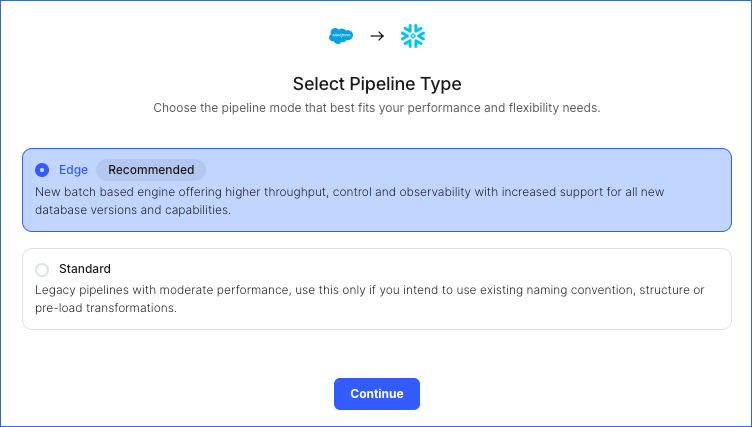
On the Select Pipeline Type page, choose the type of Pipeline you want to create based on your requirements, and then click Continue.
-
If you select Edge, skip to step 6 below.
-
If you select Standard, read Salesforce Bulk API V2 to configure your Standard Pipeline.
This page appears only if all the following conditions are met:
-
The selected Destination type is supported in Edge.
-
Your Team was created before September 15, 2025, and has an existing Pipeline created with the same Destination type.
For Teams that do not meet the above criteria:
-
If the selected Destination type is supported in Edge, you can proceed to create an Edge Pipeline.
-
If the Destination type is not supported, you can proceed to create a Standard Pipeline. Read Salesforce Bulk API V2 to configure your Standard Pipeline.
-
-
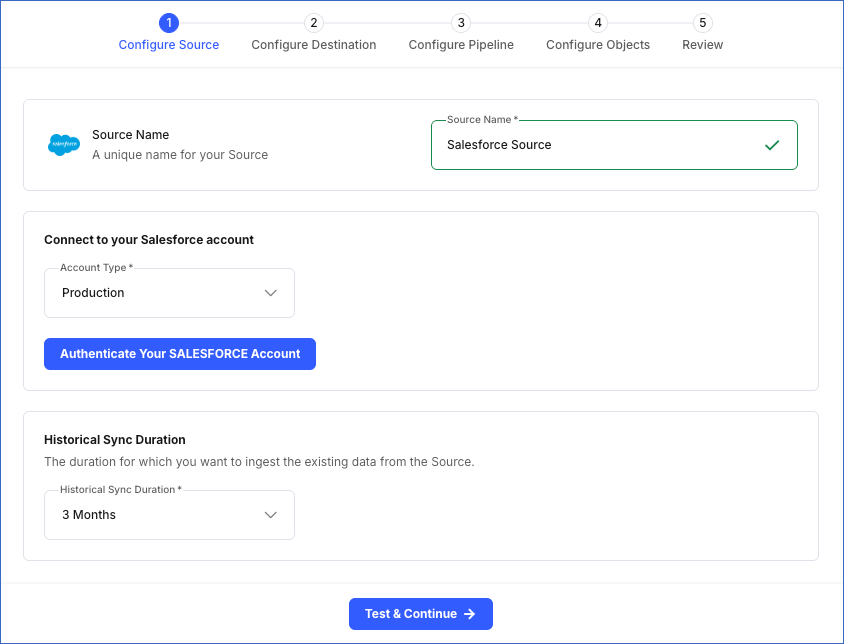
In the Configure Source screen, do the following:
-
Source Name: Specify a unique name for your Source, not exceeding 255 characters. For example, Salesforce Source.
-
Configure your Salesforce app: Select the environment from which Hevo must ingest the data. This can be Production or Sandbox.
-
Click Authenticate Your SALESFORCE Account and perform the following steps to set up an account now:
-
Log in to your Salesforce account.
-
Click Allow to authorize Hevo to access the account.
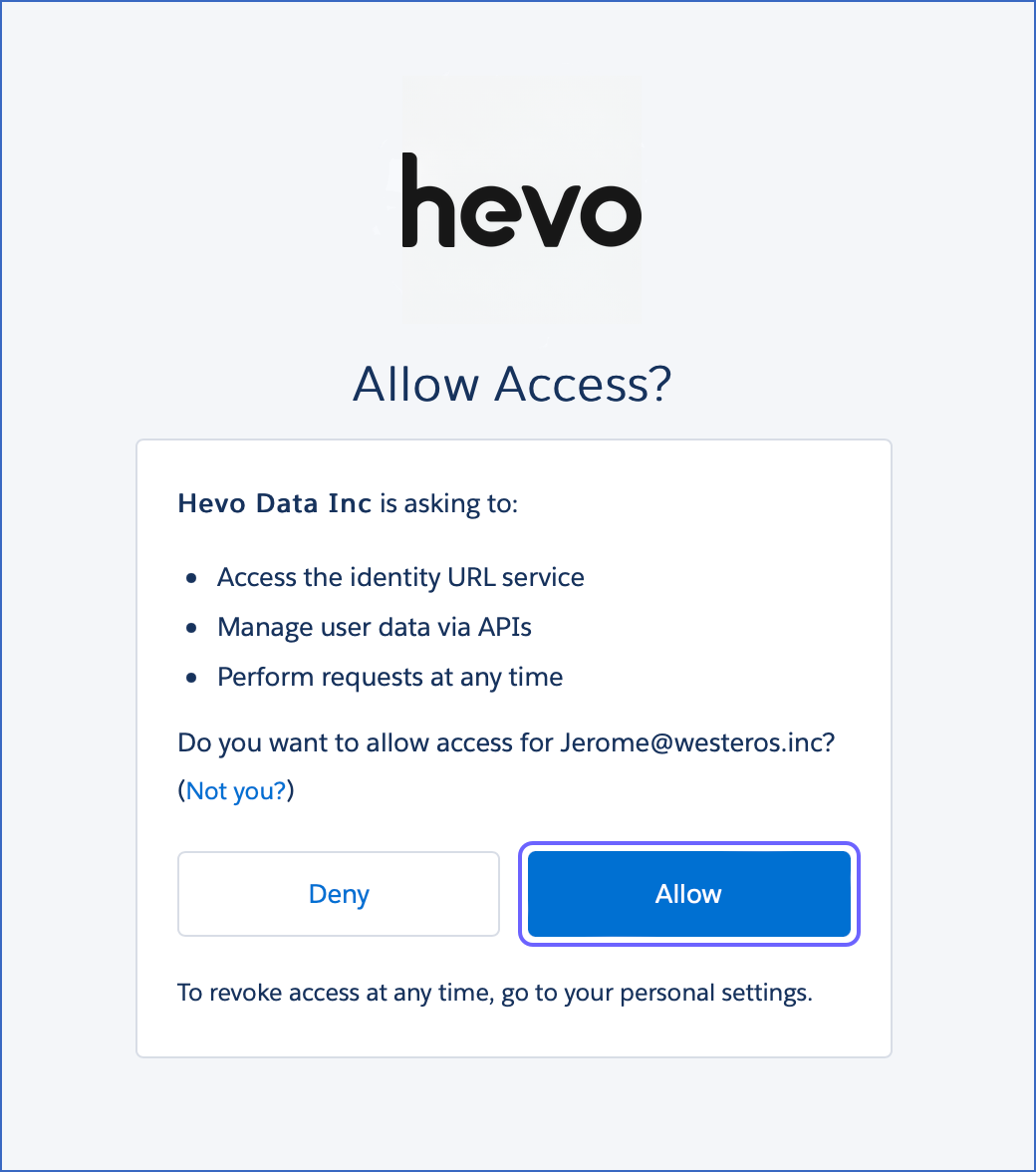
You are redirected to the Salesforce screen.
-
-
In the Historical Sync Duration section, from the drop-down, select the duration for which you want to ingest existing data from the Source. This cannot be changed after the Pipeline is created. Default duration: 3 Months.
Note: If you select All Available Data, Hevo ingests all the data available in your Salesforce account since January 01, 1970.
-
-
Click Test & Continue to test the connection to your Salesforce Bulk API V2 Source. Once the test is successful, you can proceed to set up your Destination.
Data Replication
Hevo loads all the objects associated with your Salesforce account. By default, Hevo ingests all the columns available in an object. However, you can select the columns to load on the Object Configuration page.
-
Historical Data: The first run of the Pipeline ingests all available historical data for the selected objects and loads it to the Destination. Hevo utilizes Salesforce’s Bulk API for data replication and falls back to the REST API when the Bulk API is unsupported for an object.
-
Incremental Data: Once the historical load is complete, data is ingested according to the specified sync frequency. Hevo fetches only the data that has been modified since the last sync by checking for updates in the timestamp fields, in the following order: SystemModstamp, LastModifiedDate, CreatedDate, and LoginTime. These fields allow Hevo to identify the records that have been modified or created since the last sync. If the selected object does not contain any of these timestamp fields, Hevo fetches all records from the object during each incremental run.
If the number of requests made to the Salesforce Bulk API exceeds the allowed rate limit, a rate limit exception occurs. In such cases, Hevo retries the request based on its internal retry logic. To understand how Hevo handles these exceptions, read Handling Rate Limit Exceptions.
Note: Hevo creates a Destination table for an object after the first successful API call, even if that call returns no records. Once created, the table is updated with new data from subsequent API calls. However, if the initial API call fails due to issues such as missing permissions or incompatible field configurations, the table is not created.
Handling Compound Fields
In Salesforce, compound fields combine multiple related values into a single field. They can be of different types, such as address, geolocation, or name. Each type defines the group of subfields it contains. For example, the BillingAddress field in the Accounts object represents an address and includes subfields such as city, state, and country.
Hevo does not replicate compound fields as a single column in the Destination. Instead, it ingests each subfield separately and replicates it to individual columns. If a Salesforce object contains multiple compound fields of the same type, Hevo adds a prefix to each subfield name to indicate its parent field. For example, the Account object includes multiple compound fields of Address type, such as BillingAddress and ShippingAddress. In this case, Hevo ingests the subfields from the respective compound field as BillingCity, BillingCountry, and ShippingState. If the Salesforce object contains only one compound field, Hevo replicates the subfields without adding a prefix. For example, the Address field in the Lead object is ingested as City, State, and Country.
Although compound fields are replicated as separate fields, all underlying data is retained. You can recreate the original structure by combining the relevant columns using SQL or other transformations in the Destination.
When filtering data, you must use the subfields, as compound fields cannot be used to filter rows.
Schema and Primary Keys
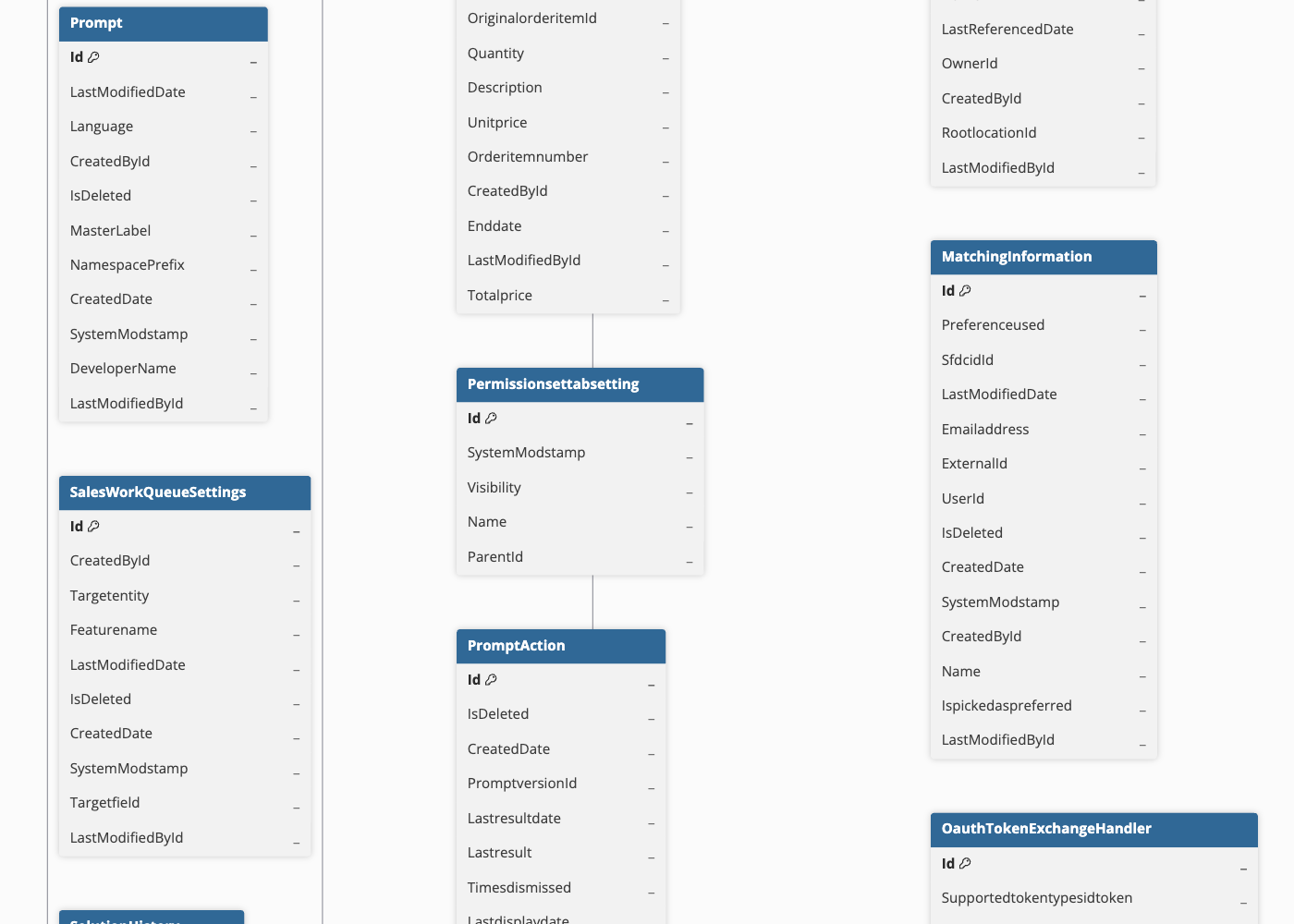
Hevo uses the following schema to upload the records in the Destination. For a detailed view of the objects, fields, and relationships, click the ERD.
Data Model
Hevo supports ingesting data from more than 100 standard Salesforce objects, as well as custom objects that you may have created in your Salesforce account. Hevo also supports associated objects that relate to the standard objects.
The following table lists the most frequently used objects along with their descriptions:
| Object | Description |
|---|---|
| Account | Contains information about a specific company, organization, or entity that you do business with. |
| Contact | Contains information about a company or a person associated with an account that can become a potential customer. |
| Opportunity | Contains information about a potential revenue-generating event, such as a sale or deal. |
| Lead | Contains information about a prospect or potential customer that has shown interest in your products or services. |
| Case | Contains information about a customer inquiry, issue, or support request. |
| Task | Contains information about a business activity, such as a to-do item. |
| Event | Contains information about a scheduled event, such as a meeting, call, or appointment. |
| User | Contains information about a user in your organization. |
| Campaign | Contains information about campaigns and tracks their efficiency with cost, revenue, and converted leads analysis. |
| Product2 | Contains information about a product your company sells. |
| Custom Objects | Contains information about custom objects, entities that support custom objects, and their standard fields, named with the suffix __c. Custom objects allow businesses to extend Salesforce functionality to store unique business data. |
| StandardObjectNameShare | Contains information about the data model used to store record-sharing rules for a standard object. These rules determine which users or groups can access specific records. |
| StandardObjectNameHistory | Contains information about the data model that stores the history of changes made to records in a standard object, including field-level modifications over time. |
| StandardObjectNameOwnerSharingRule | Contains information about the data model that defines ownership-based sharing rules for a standard object. These rules specify how access is granted to users other than the record owner. |
| StandardObjectNameFeed | Contains information about the data model that tracks collaboration and activity updates for records in a standard object. |
Additional Information
Read the detailed Hevo documentation for the following related topics:
Source Considerations
-
Formula fields, also known as derived fields or calculated fields, in Salesforce generate their values dynamically based on other fields, functions, or expressions. Every time a Salesforce object containing formula fields is accessed, the value is recalculated in real time instead of being stored in the schema.
Hevo identifies these fields by replicating their formula definitions into system tables in your Destination, and then creating views that recalculate the formula logic after each incremental load. Read Handling Formula Fields for more information. -
When a record from a replicable object is deleted in Salesforce, the IsDeleted column for it is set to True. Salesforce moves the deleted records to the Salesforce Recycle Bin, and they are not displayed in the Salesforce dashboard. Now, when Hevo starts the data replication from your Source, using either the Bulk APIs or REST APIs, it also replicates data from the Salesforce Recycle Bin to your Destination. As a result, you might see more Events in your Destination than the Source.
-
If you disable a Pipeline for more than 15 days, Hevo cannot replicate the deleted data, if any, to your Destination. This is because Salesforce retains deleted data in its Recycle Bin for 15 days. Also, Salesforce purges the oldest records in the Recycle Bin every two hours if their count exceeds the limit for your organization. The record limit is 25 times your organization’s storage capacity. Therefore, to correctly capture the deleted data, you must run the Pipeline within two hours of deleting the data in Salesforce.
-
Hevo primarily uses Salesforce’s Bulk API for data retrieval but switches to the REST API when necessary, especially for unsupported objects.
-
Custom fields in Salesforce are mapped directly to corresponding fields in the Destination, following the appropriate conventions for field names and data types.
-
Salesforce allows only 5 active sessions per user per connected app. If you create more than 5 Pipelines using the same Salesforce user account, Salesforce revokes the refresh token of the oldest session. As a result, earlier Pipelines lose access and require manual reauthorization to resume.
Limitations
- It is not possible to avoid loading the deleted data. Hevo loads the new, updated, and deleted data from your Salesforce account.