Amazon RDS for PostgreSQL is a PostgreSQL-compatible relational database, fully managed by Amazon RDS. As a result, you can set up, operate, and scale PostgreSQL deployments in the cloud in a fast and cost-efficient manner. The compatibility with the PostgreSQL database engine ensures that the code, applications, and tools used by your existing databases can be used seamlessly with your deployments.
You can ingest data from your Amazon RDS PostgreSQL database using Hevo Pipelines and replicate it to a Destination of your choice.
Prerequisites
-
The IP address or hostname and port number of your Amazon RDS PostgreSQL server are available.
-
The Amazon RDS PostgreSQL server version is 11 or higher, up to 18.
-
Hevo’s IP address(es) for your region is added to the Amazon RDS PostgreSQL database IP Allowlist.
- Log-based incremental replication is enabled for your Amazon RDS PostgreSQL database instance if Pipeline mode is Logical Replication.
-
A non-administrative database user for Hevo is created in your Amazon RDS PostgreSQL database instance. You must have the Superuser or CREATE ROLE privileges to add a new user.
-
The SELECT, USAGE, CONNECT, and rds_replication privileges are granted to the database user.
Note:
rds_replicationprivilege is not required if your Pipeline is created using XMIN mode.
Perform the following steps to configure your Amazon RDS PostgreSQL Source:
Create a Read Replica (Optional)
Note: Hevo currently supports logical replication using read replicas only for database versions 16, 17, and 18.
If you want to connect to Hevo using an existing read replica instance or your primary database instance, skip to the Set up Logical Replication for Incremental Data section.
Perform the following steps to create a read replica:
-
Log in to the Amazon RDS console.
-
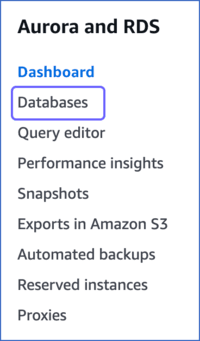
In the left navigation pane, click Databases.
-
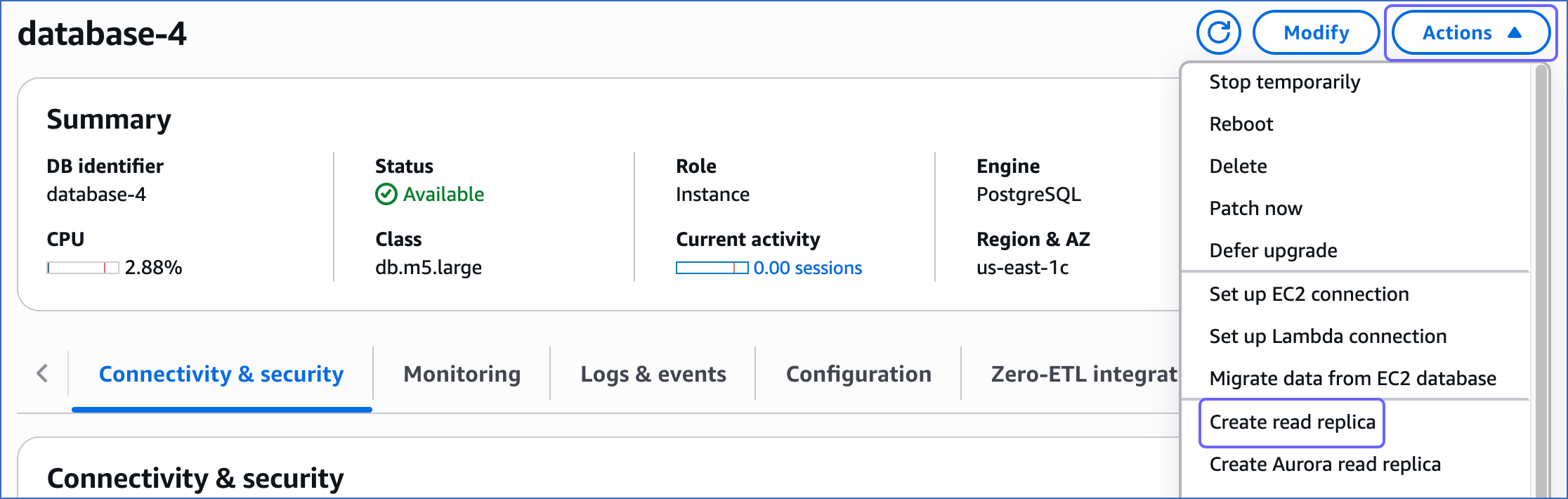
In the Databases section on the right, click the DB identifier of your Amazon RDS PostgreSQL database instance. For example, database-4 in the image below.

-
Click the Actions drop-down, and then click Create read replica.
-
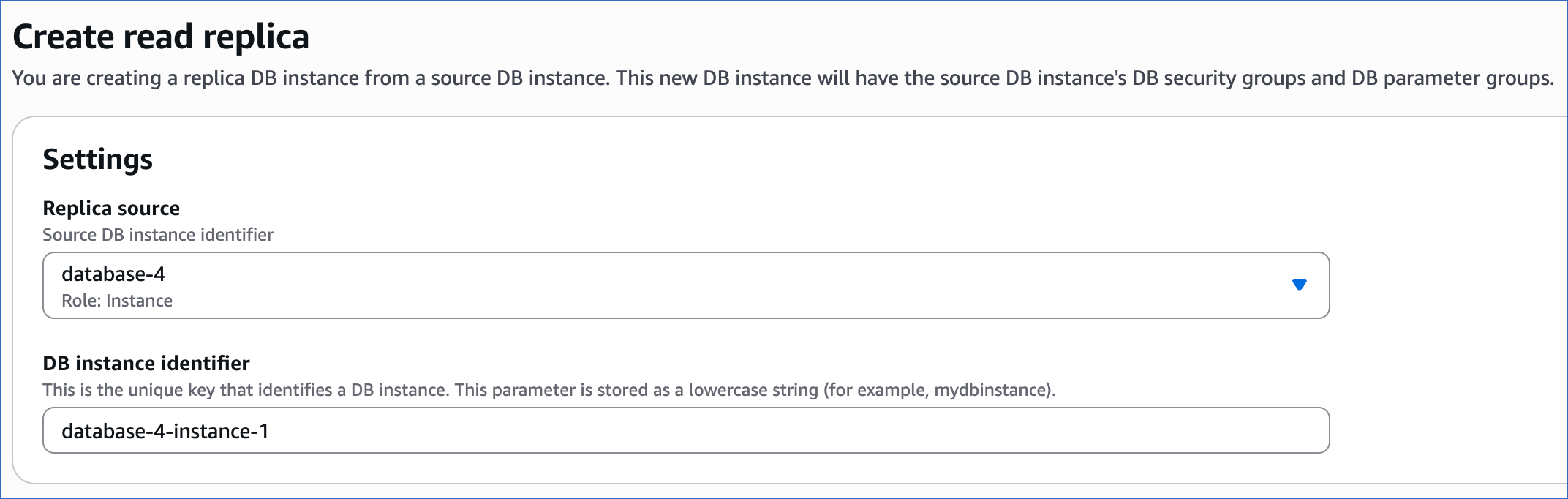
On the Create read replica page, under the Settings section, specify the following:
-
Replica source: The primary database instance being replicated.
-
DB instance identifier: The replica instance you are creating.
-
-
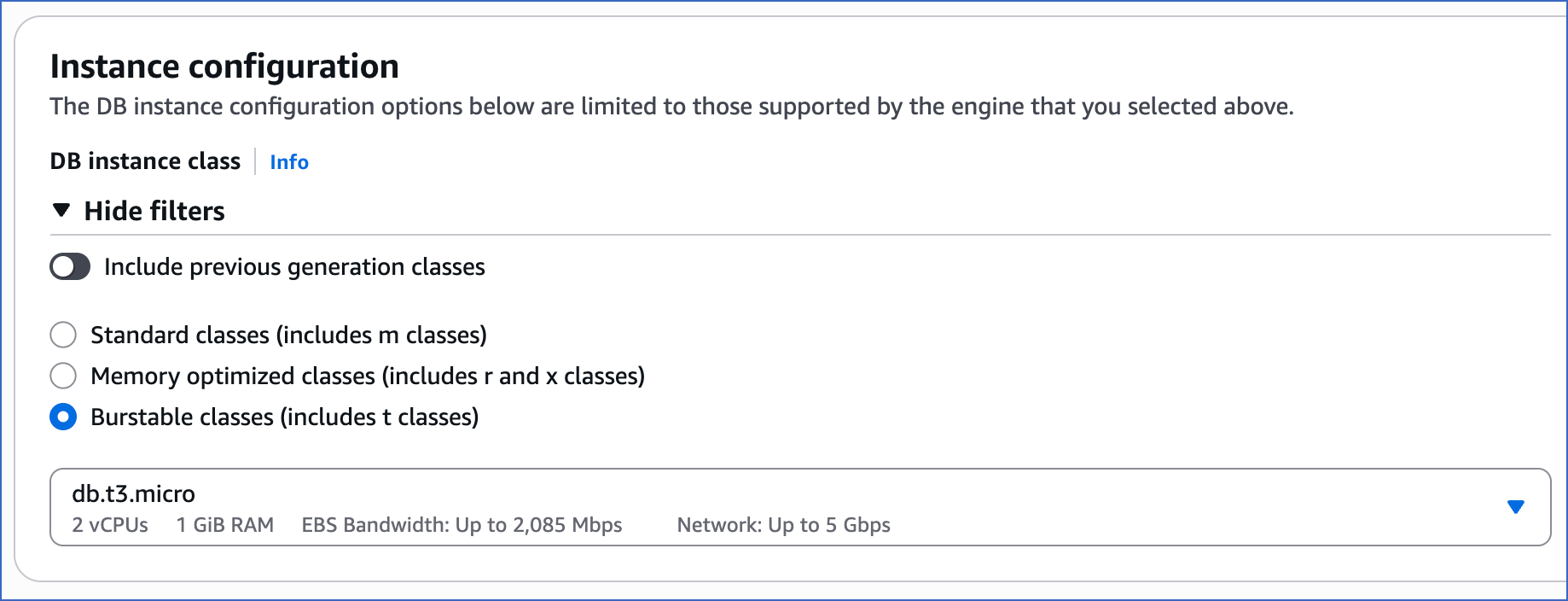
Under the Instance configuration section, select the instance specifications relevant to your requirements. The DB instance class does not need to be as large as your primary instance. For example, here, we are selecting Burstable classes (includes t classes).
-
Scroll down to the bottom and click Create read replica. The replica status changes to Creating. It takes a few minutes for the read replica to be created, after which the status changes to Available.
You can now view the read replica instance in the Databases section. The Role column indicates the instance type.

Set up Logical Replication for Incremental Data
Note: If your Pipeline is created using XMIN mode, skip to the Allowlist Hevo IP addresses for your region section.
Hevo supports data replication from PostgreSQL servers using the pgoutput plugin (available on PostgreSQL version 10.0 and above). For this, Hevo identifies the incremental data from publications, which are defined to track changes generated by all or some database tables. A publication identifies the changes generated by the tables from the Write-Ahead Logs (WALs) set at the logical level.
Perform the following steps to enable logical replication on your Amazon RDS PostgreSQL server:
1. Create a parameter group
-
Log in to the Amazon RDS console.
-
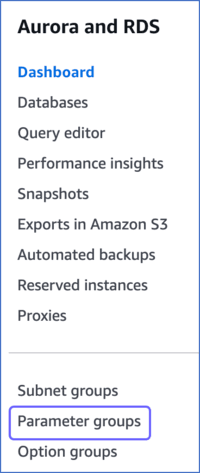
In the left navigation pane, click Parameter groups.
-
On the Parameter groups page, click Create parameter group.

-
On the Create parameter group page, perform the following steps:
-
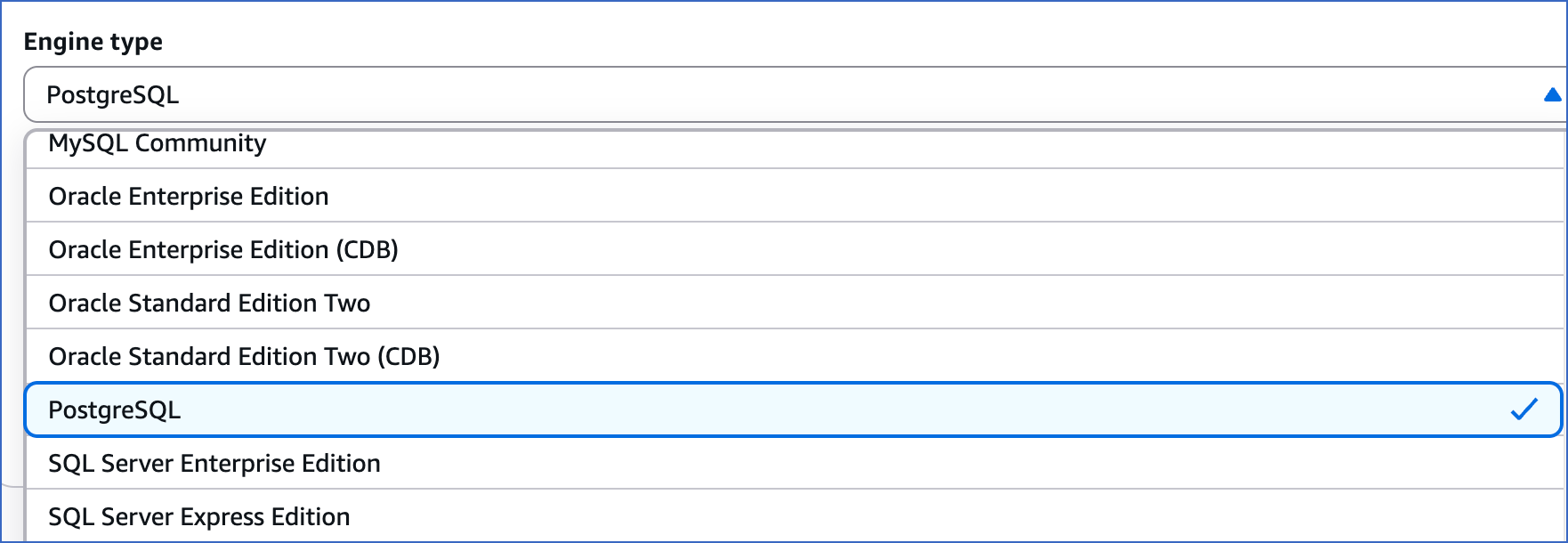
Select PostgreSQL from the Engine type drop-down.
-
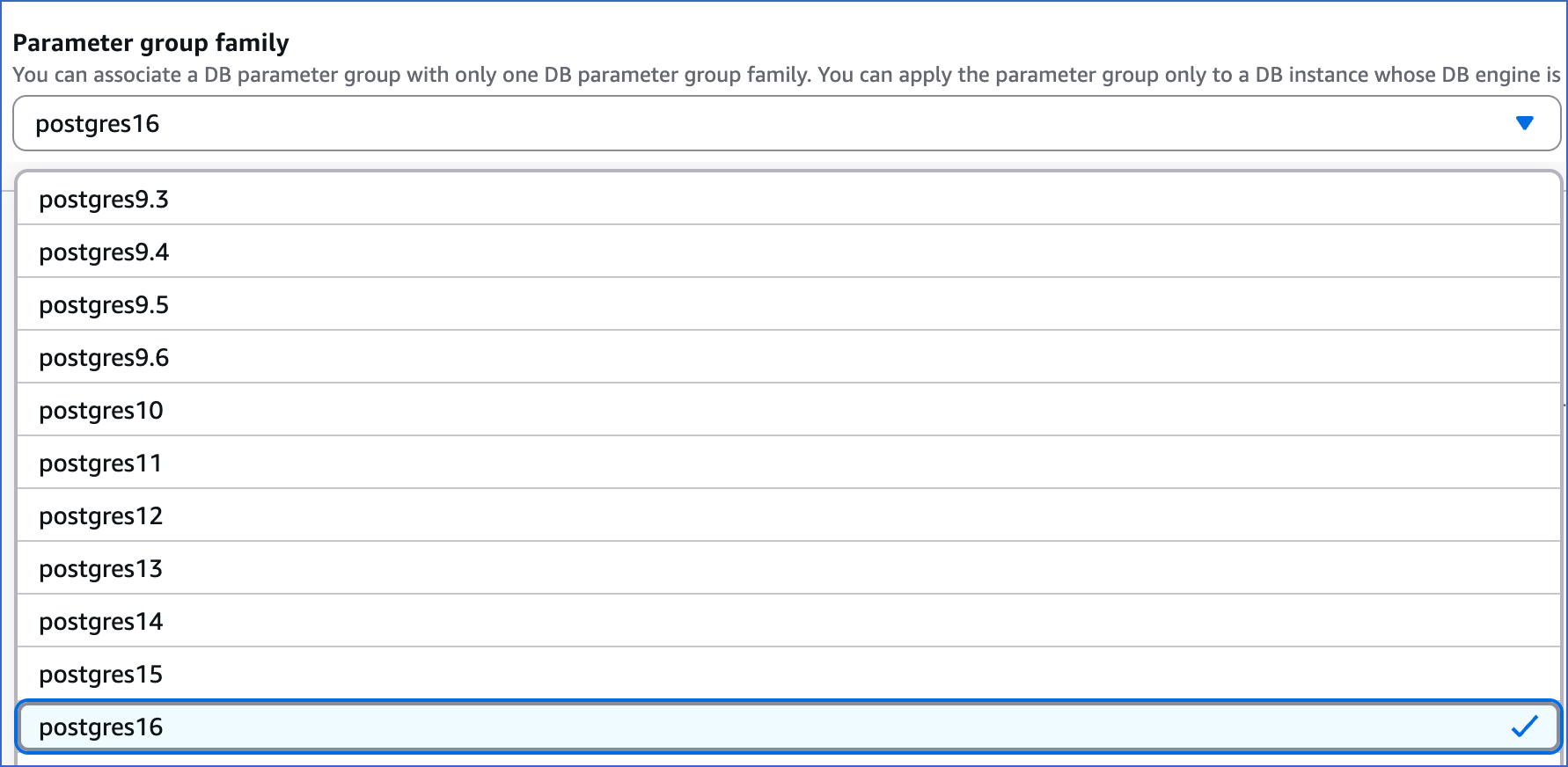
Select a postgresql version from the Parameter group family drop-down.
-
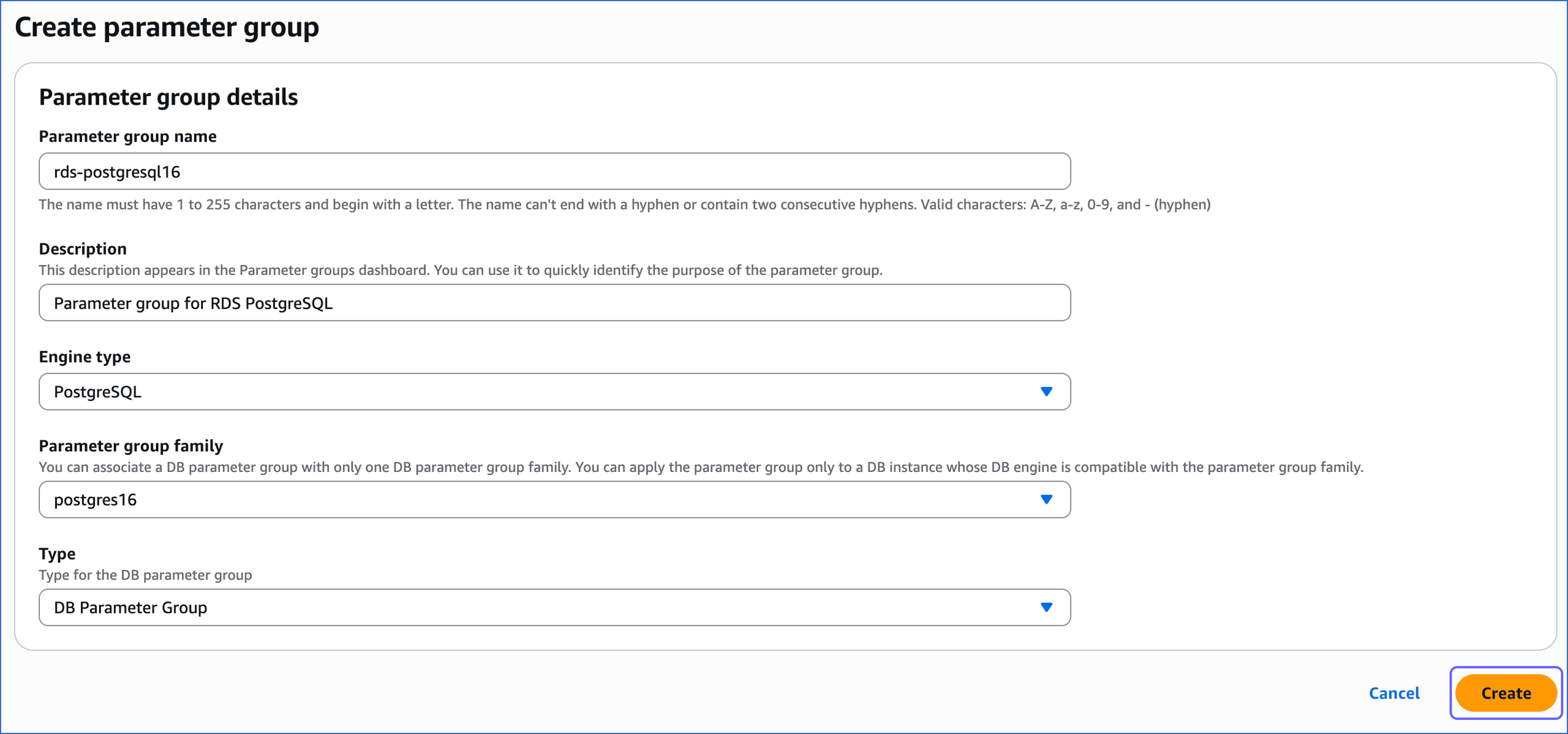
Specify the Parameter group name and Description, and then click Create.
-
You have successfully created a parameter group.
2. Configure the replication parameters
-
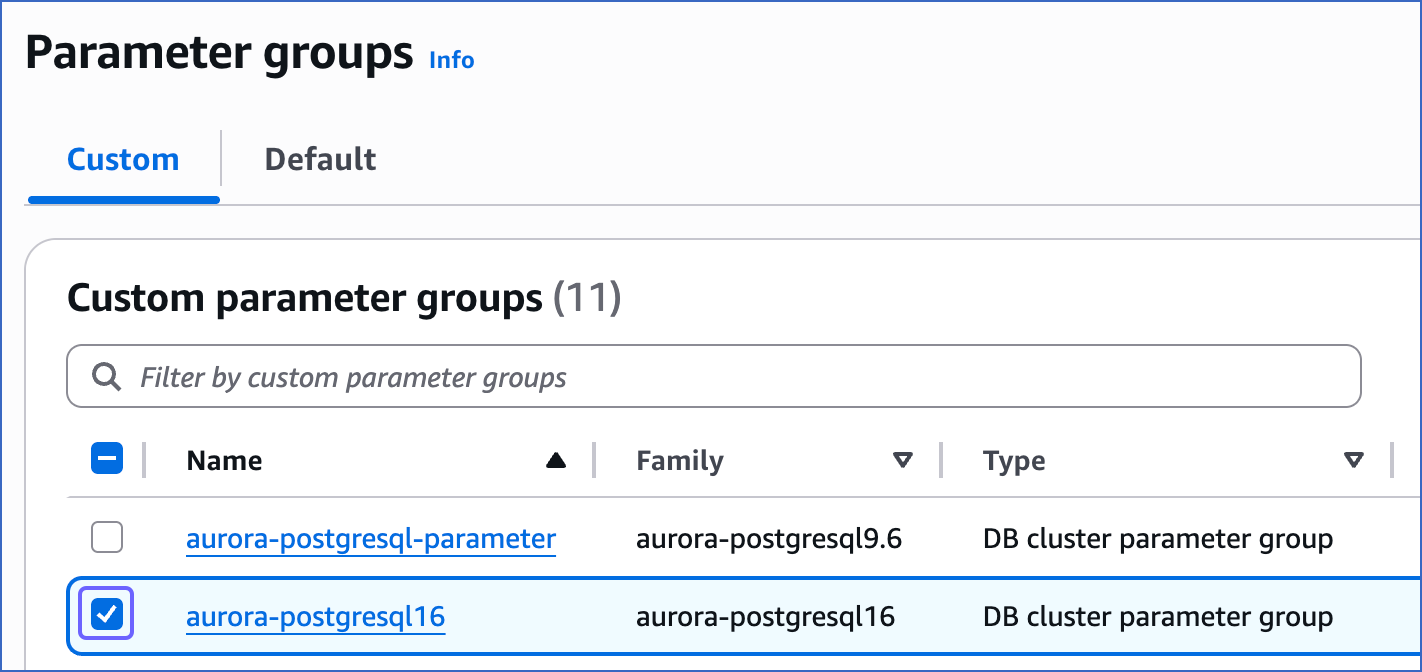
On the Parameter groups page, select the check box corresponding to the parameter group you created in the Create a parameter group section.
-
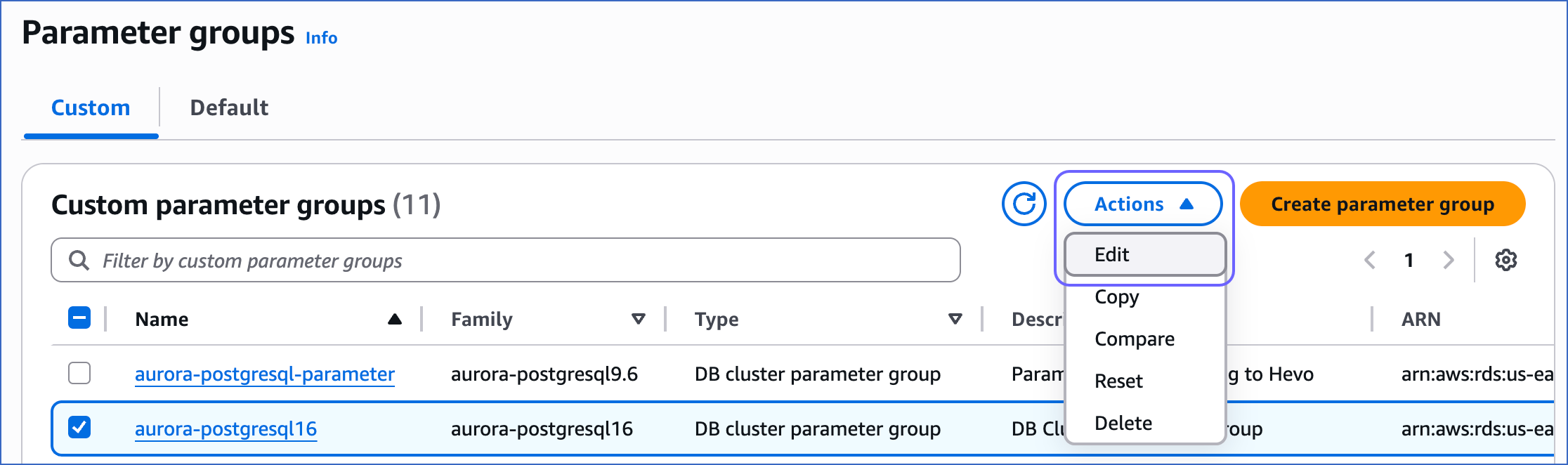
Click the Actions drop-down, and then click Edit.
-
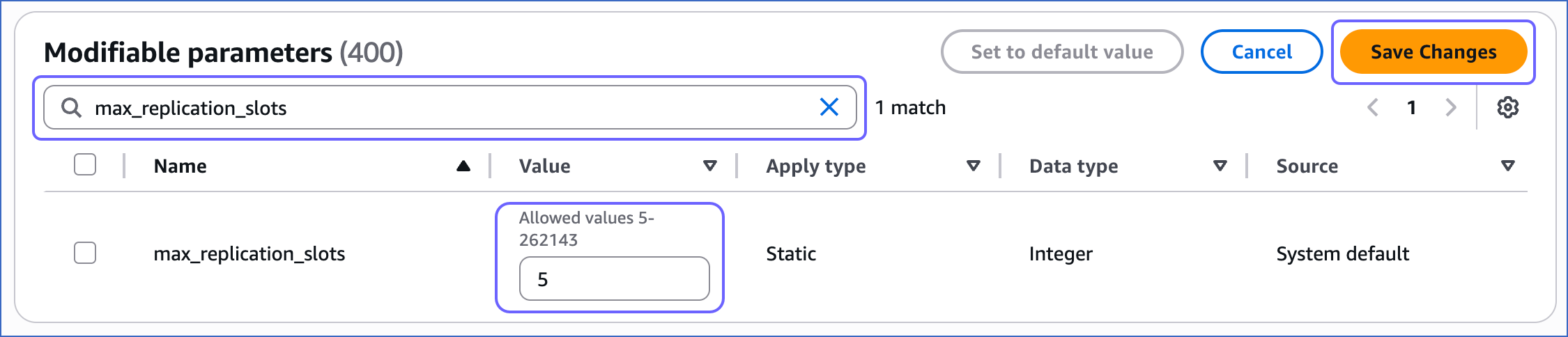
On the Modifiable parameters page, do the following:
-
Search for and update the value of the following parameters:
Parameter Value Description max_replication_slots5 The number of clients that can connect to the server. Default value: 20.
RDS recommends setting this parameter value to more than or equal to the number of planned publications and subscriptions so that internal replication by RDS is not affected.rds.logical_replication1 The setting to enable or turn off logical replication. The default value for this parameter is 0, which means logical replication is turned off. To enable logical replication, a value of 1 is required. max_wal_senders5 The maximum number of processes that can simultaneously transmit the WAL. Default value: 10.
RDS recommends setting this value to at least 5 so that its internal replication is not affected.wal_sender_timeout0 The time after which PostgreSQL terminates the replication connections due to inactivity. A time value specified without units is assumed to be in milliseconds. Default value: 60 seconds.
You must set the value to 0 so that the connections are never terminated, and your Pipeline does not fail.hot_standby_feedback1 The setting that allows the standby server to send updates to the primary server about the queries currently running on the standby. This prevents the primary server from removing WAL data required by these queries.
Set this value to 1 to avoid query interruptions caused by replication conflicts. However, enabling it causes the primary server to retain older WAL data longer, which can increase storage usage.max_standby_streaming_delay15000-25000 The maximum time (in milliseconds) the standby server can lag while applying changes from the primary database. If the delay exceeds this limit, the standby server cancels any conflicting queries to continue data replication. Default value: 14000.
Set this parameter to allow a delay of 15–25 seconds so that the queries can complete before being canceled. However, this may increase replication lag and affect the availability of current data on the standby server, particularly when it acts as a backup for the primary database.Note: The
max_standby_streaming_delayandhot_standby_feedbackparameters are required only if you are connecting to Hevo using a read replica. -
Click Save Changes.
-
3. Apply the parameter group to your PostgreSQL database
-
In the left navigation pane of the Amazon RDS console, click Databases.
-
On the Databases page, select the DB identifier of your Amazon RDS PostgreSQL database instance, and then click Modify.

-
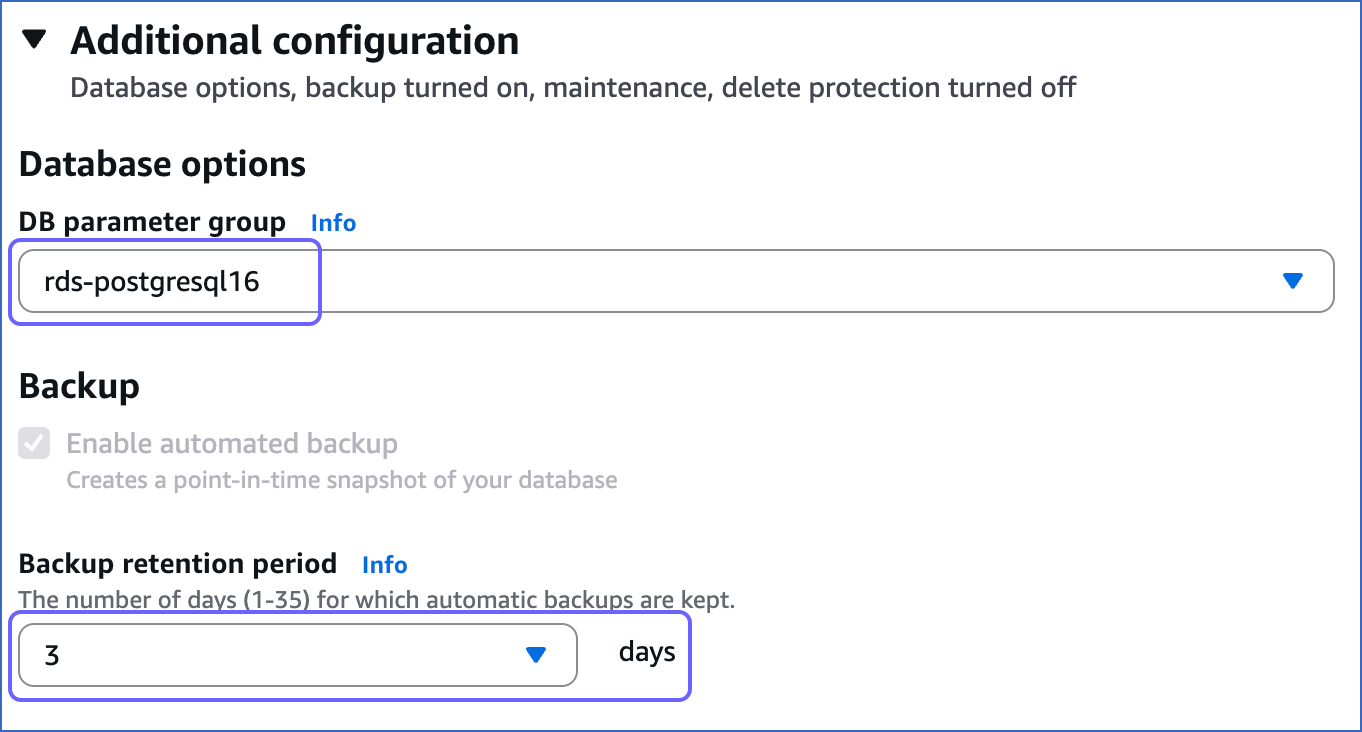
Scroll down to the Additional configuration section and do the following:
-
In the Database options section, click the DB parameter group drop-down and select the parameter group you created in the Create a parameter group section.
-
Ensure that the Backup retention period is set to at least 3 days. If not, select 3 from the drop-down. This setting defines the number of days for which automated backups are retained. Default value: 7.
-
-
Scroll down to the bottom and click Continue.
-
On the Modify DB instance: <your database instance> page, in the Schedule modifications section, select the time window for applying the changes, and then click Modify DB instance.
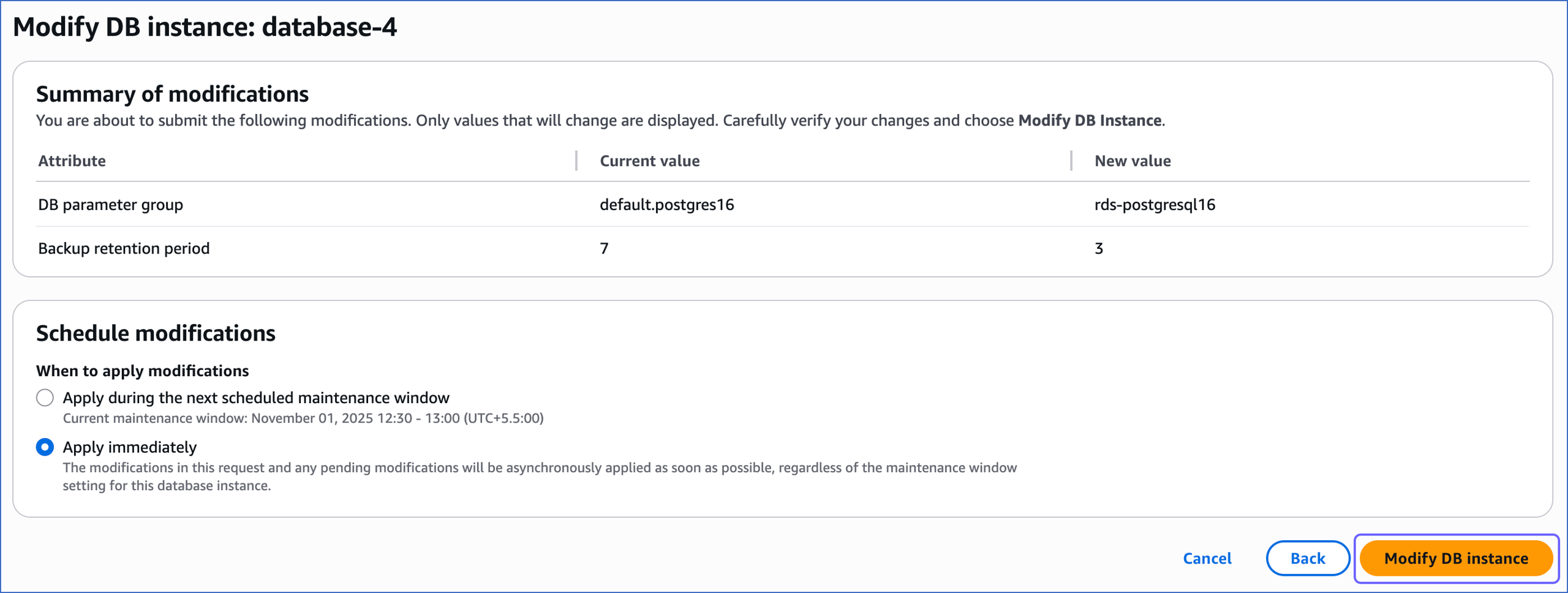
-
Reboot the database instance that you are using to connect to Hevo, to apply the above changes. To do this:
-
In the left navigation pane, click Databases.
-
In the Databases section on the right, click the DB identifier of your Amazon RDS PostgreSQL database instance.
-
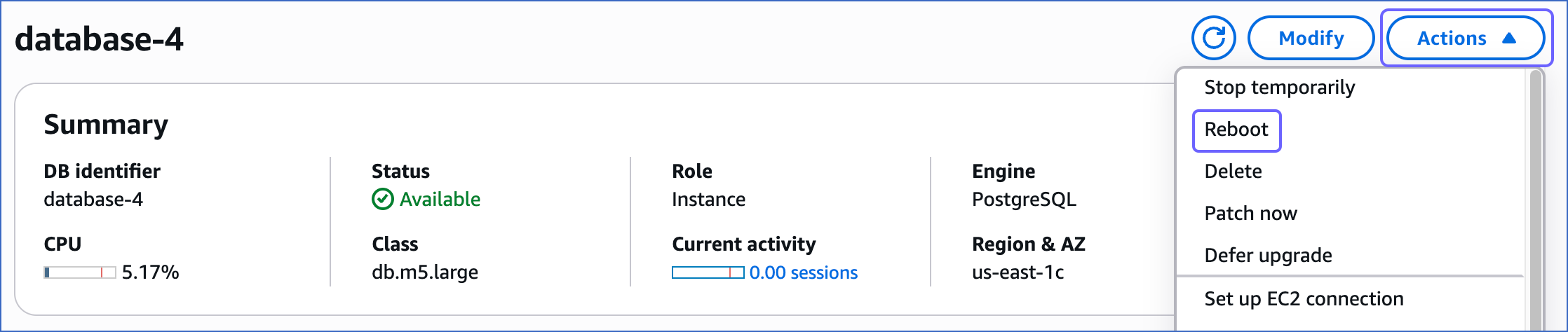
Click the Actions drop-down, and then click Reboot.
-
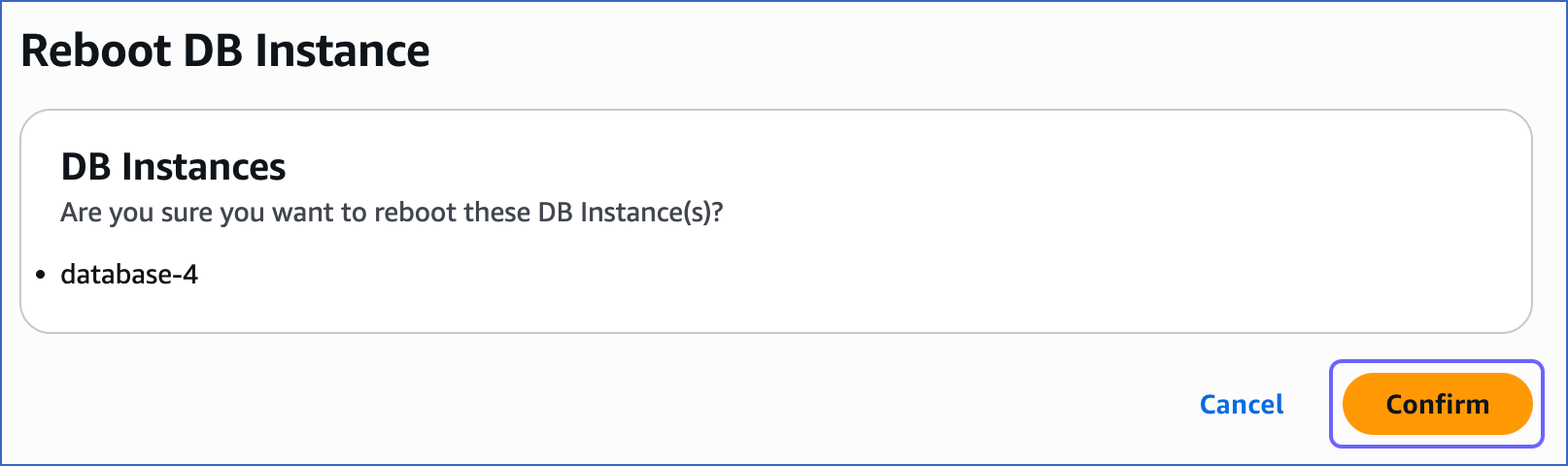
In the Reboot DB Instance section, click Confirm to reboot your database instance.
-
4. Create a publication for your database tables
In PostgreSQL 10 and later, the data to be replicated is identified via publications. A publication identifies a group of tables whose data changes are made available for replication. It can include:
-
All tables in a database
-
All tables within a specific schema
-
Selected individual tables
The publication tracks and determines the set of changes generated by those tables from the Write-Ahead Logs (WALs).
Note: A publication applies only to the database in which it is created.
A publication must include at least one of the following change operations:
-
insert
-
update
-
delete
Hevo captures only the operations defined in the publication. For example, if the publication includes only the delete operation, inserts and updates made to the Source table are not replicated to the Destination. If no operations are configured for a table, Hevo cannot capture changes from that table and marks the corresponding objects as Inaccessible in the Pipeline. Therefore, at least one operation must be included in the publication for Hevo to capture changes from the Source table.
Note: The commands in this section create a publication that includes all three change operations (insert, update, and delete). This configuration ensures that Hevo captures all changes made to the Source tables. If you want to replicate only specific operations, you can define a publication with a subset of operations. For example, the following command creates a publication that captures only insert operations for the employees table:
CREATE PUBLICATION insert_only FOR TABLE employees WITH (publish = 'insert');
Refer to the CREATE PUBLICATION documentation for details on configuring the operations based on your requirements.
Perform the following steps to define a publication:
-
Connect to your primary Amazon RDS PostgreSQL database instance as a Superuser with an SQL client tool, such as psql.
-
Run one of the following commands to create a publication:
Note: You can create multiple distinct publications whose names do not start with a number in a single database.
-
In PostgreSQL 11 and above, up to 18 without the
publish_via_partition_rootparameter:Note: By default, the versions that support this parameter create a publication with
publish_via_partition_rootset to FALSE.-
For one or more database tables:
CREATE PUBLICATION <publication_name> FOR TABLE <table_1>, <table_4>, <table_5>; -
For all database tables:
Note: You can run this command only as a Superuser.
CREATE PUBLICATION <publication_name> FOR ALL TABLES;
-
-
In PostgreSQL 13 and above, up to 18 with the
publish_via_partition_rootparameter:-
For one or more database tables:
CREATE PUBLICATION <publication_name> FOR TABLE <table_1>, <table_4>, <table_5> WITH (publish_via_partition_root); -
For all database tables:
Note: You can run this command only as a Superuser.
CREATE PUBLICATION <publication_name> FOR ALL TABLES WITH (publish_via_partition_root);
Read Handling Source Partitioned Tables for information on how this parameter affects data loading from partitioned tables.
-
-
-
(Optional) Run the following command to add table(s) to or remove them from a publication:
Note: You can modify a publication only if it is not defined on all tables and you have ownership rights on the table(s) being added or removed.
ALTER PUBLICATION <publication_name> ADD/DROP TABLE <table_name>;When you alter a publication, you must refresh the schema for the changes to be visible in your Pipeline.
-
(Optional) Run the following command to create a publication on a column list:
Note: This feature is available in PostgreSQL versions 15 and higher.
CREATE PUBLICATION <columns_publication> FOR TABLE <table_name> (<column_name1>, <column_name2>, <column_name3>, <column_name4>,...);

-- Example to create a publication with three columns

CREATE PUBLICATION film_data_filtered FOR TABLE film (film_id, title, description);
Run the following command to alter a publication created on a column list:
ALTER PUBLICATION <columns_publication> SET TABLE <table_name> (<column_name1>, <column_name2>, ...);

-- Example to drop a column from the publication created above

ALTER PUBLICATION film_data_filtered SET TABLE film (film_id, title);
Note: Replace the placeholder values in the commands above with your own. For example, <publication_name> with hevo_publication.
5. Create a replication slot
Hevo uses replication slots to track changes from the Write-Ahead Logs (WALs) for incremental ingestion.
Perform the following steps to create a replication slot:
-
Connect to your Amazon RDS PostgreSQL database instance as a user with the REPLICATION privilege using any SQL client tool, such as psql.
Note: If your database version is 16, 17, or 18 and you are connecting through a read replica, connect to the replica instance to create the replication slot.
-
Run the following command to create a replication slot using the
pgoutputplugin:SELECT * FROM pg_create_logical_replication_slot('hevo_slot', 'pgoutput');Note: You can replace the sample value, hevo_slot, in the command above with your own replication slot name.
-
Run the following command to view the replication slots created in your database:
SELECT slot_name, database, plugin FROM pg_replication_slots;This command lists all the replication slots along with the associated database and plugin. Verify that the output displays your replication slot name, the corresponding database, and the plugin as
pgoutput.Sample Output:
slot_name database plugin hevo_slot mydb pgoutput
Note: Hevo does not automatically drop the replication slot when you disable or delete a Pipeline. An unused slot continues to retain WAL files, causing storage consumption on your Source database. Read Managing Replication Slot when Disabling, Enabling, or Deleting a Pipeline for more information.
Allowlist Hevo IP addresses for your region
You must add Hevo’s IP address for your region to the database IP allowlist, enabling Hevo to connect to your Amazon RDS PostgreSQL database. To do this:
1. Add inbound rules
-
Log in to the Amazon RDS console.
-
In the left navigation pane, click Databases.
-
In the Databases section on the right, click the DB identifier of your Amazon RDS database instance.

-
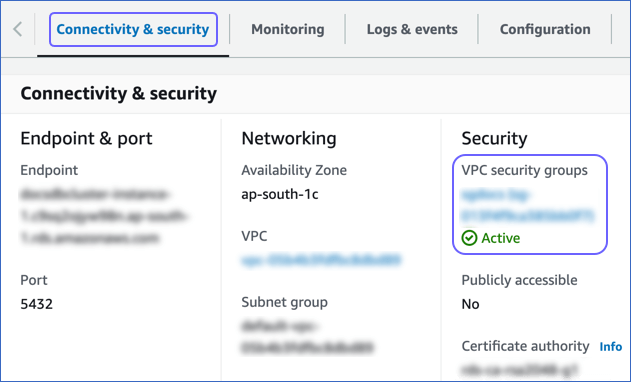
In the Connectivity & security tab, click the link text under Security, VPC security groups.
-
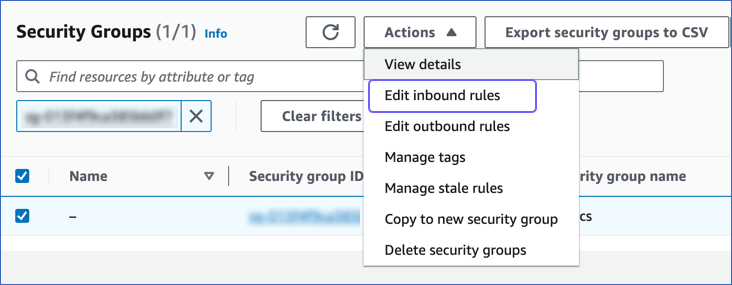
On the Security groups page, select the check box for your Security group ID, and from the Actions drop-down, click Edit inbound rules.
-
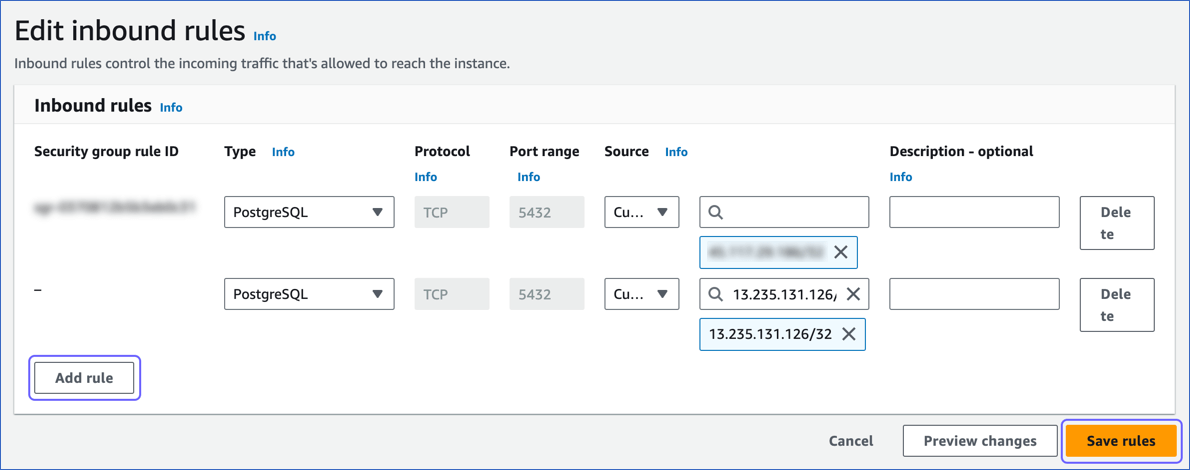
On the Edit inbound rules page:
-
Click Add rule.
-
Add Hevo’s IP address for your region to allow connections to your Amazon RDS PostgreSQL database instance.
-
Click Save rules.
-
2. Configure Virtual Private Cloud (VPC)
-
Follow steps 1-3 from the section above.
-
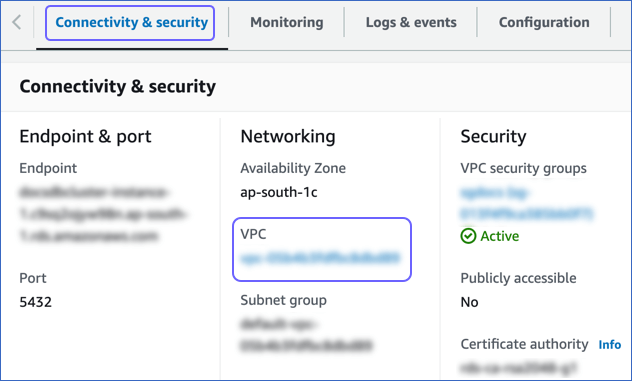
In the Connectivity & security tab, click the link text under Networking, VPC.
-
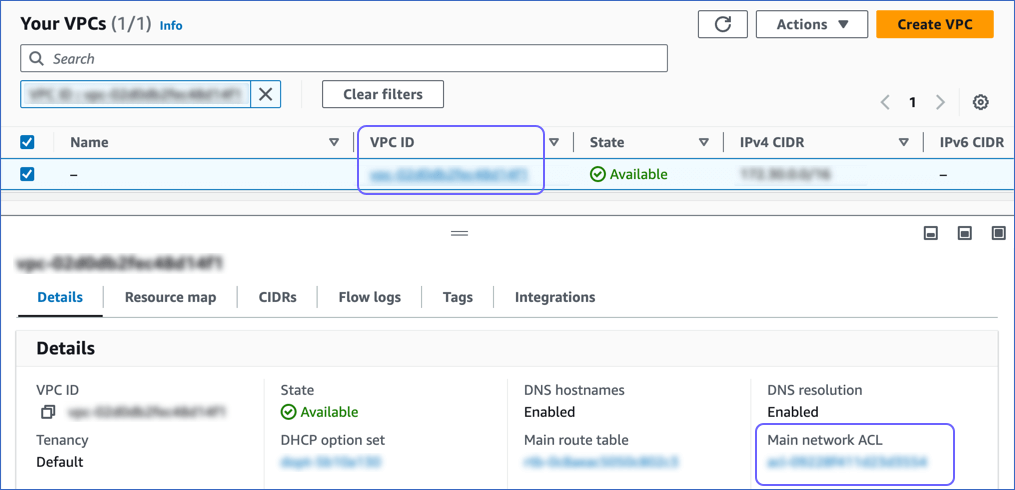
On the Your VPCs page, click the VPC ID, and in the Details section, click the link text under Main network ACL.
-
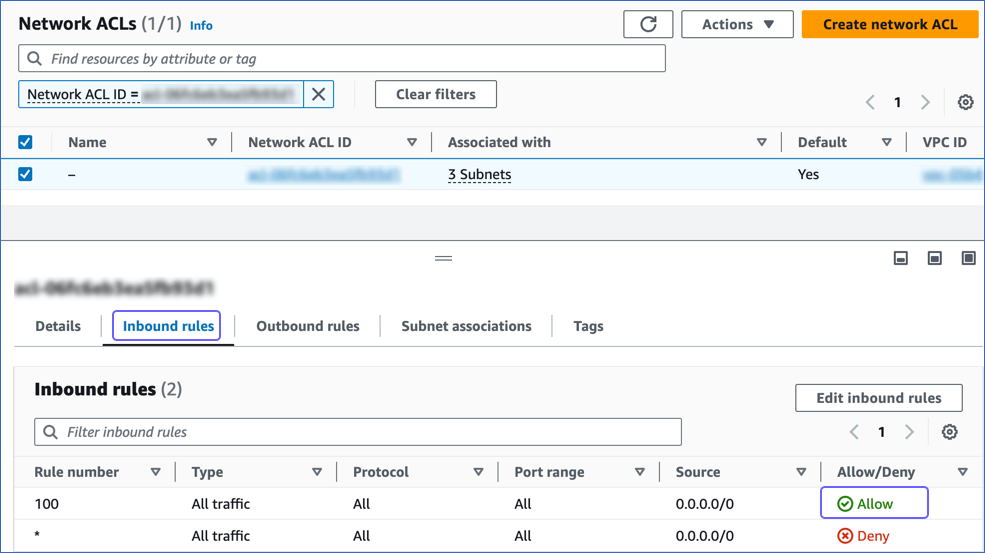
On the Network ACLs page, click the Inbound Rules tab and ensure that the IP address you added is set to Allow.
Create a Database User and Grant Privileges
1. Create a database user (Optional)
Perform the following steps to create a user in your Amazon RDS PostgreSQL database:
-
Connect to your Amazon RDS PostgreSQL database instance as a Superuser with an SQL client tool, such as psql.
-
Run the following command to create a user in your database:
CREATE USER <database_username> WITH LOGIN PASSWORD '<password>';Note: Replace the placeholder values in the command above with your own. For example, <database_username> with hevouser.
2. Grant privileges to the user
The following table lists the privileges that the database user for Hevo requires to connect to and ingest data from your PostgreSQL database:
| Privilege Name | Allows Hevo to |
|---|---|
| CONNECT | Connect to the specified database. |
| USAGE | Access the objects in the specified schema. |
| SELECT | Select rows from the database tables. |
| ALTER DEFAULT PRIVILEGES | Access new tables created in the specified schema after Hevo has connected to the PostgreSQL database. |
| rds_replication | Access the WALs. Note: This privilege is not required if your Pipeline is created using XMIN mode. |
Perform the following steps to grant privileges to the database user connecting to the PostgreSQL database as follows:
-
Connect to your Amazon RDS PostgreSQL database instance as a Superuser with an SQL client tool, such as psql.
-
Run the following commands to grant privileges to your database user:
GRANT CONNECT ON DATABASE <database_name> TO <database_username>; GRANT USAGE ON SCHEMA <schema_name> TO <database_username>; GRANT SELECT ON ALL TABLES IN SCHEMA <schema_name> to <database_username>; -
(Optional) Alter the schema to grant
SELECTprivileges on tables created in the future to your database user:Note: Grant this privilege only if you want Hevo to replicate data from tables created in the schema after the Pipeline is created.
ALTER DEFAULT PRIVILEGES IN SCHEMA <schema_name> GRANT SELECT ON TABLES TO <database_username>; -
Run the following command to grant your database user permission to read from the WALs:
GRANT rds_replication TO <database_username>;
Note: Replace the placeholder values in the commands above with your own. For example, <database_username> with hevouser.
Retrieve the Database Hostname and Port Number (Optional)
The Amazon RDS PostgreSQL hostnames start with your database name and end with rds.amazonaws.com. For example, database-4.xxxxxxxxx.rds.amazonaws.com.
Perform the following steps to retrieve the database hostname (Endpoint):
-
In the left navigation pane of the Amazon RDS console, click Databases.
-
In the Databases section on the right, click the DB identifier of your Amazon RDS PostgreSQL database instance. For example, database-4 in the image below.

-
Click the Connectivity & security tab, and copy the values under Endpoint and Port.
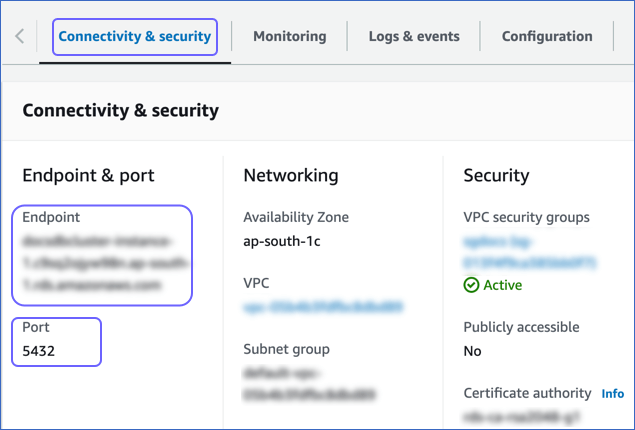
Use these values as your Database Host and Database Port, respectively, while configuring your Amazon RDS PostgreSQL Source in Hevo.
Configure Amazon RDS PostgreSQL as a Source in your Pipeline
Perform the following steps to configure your Amazon RDS PostgreSQL Source:
-
Click PIPELINES in the Navigation Bar.
-
Click + Create Pipeline in the Pipelines List View.
-
On the Select Source Type page, select Amazon RDS PostgreSQL.
-
On the Select Destination Type page, select the type of Destination you want to use.
-
On the page that appears, do the following:
-
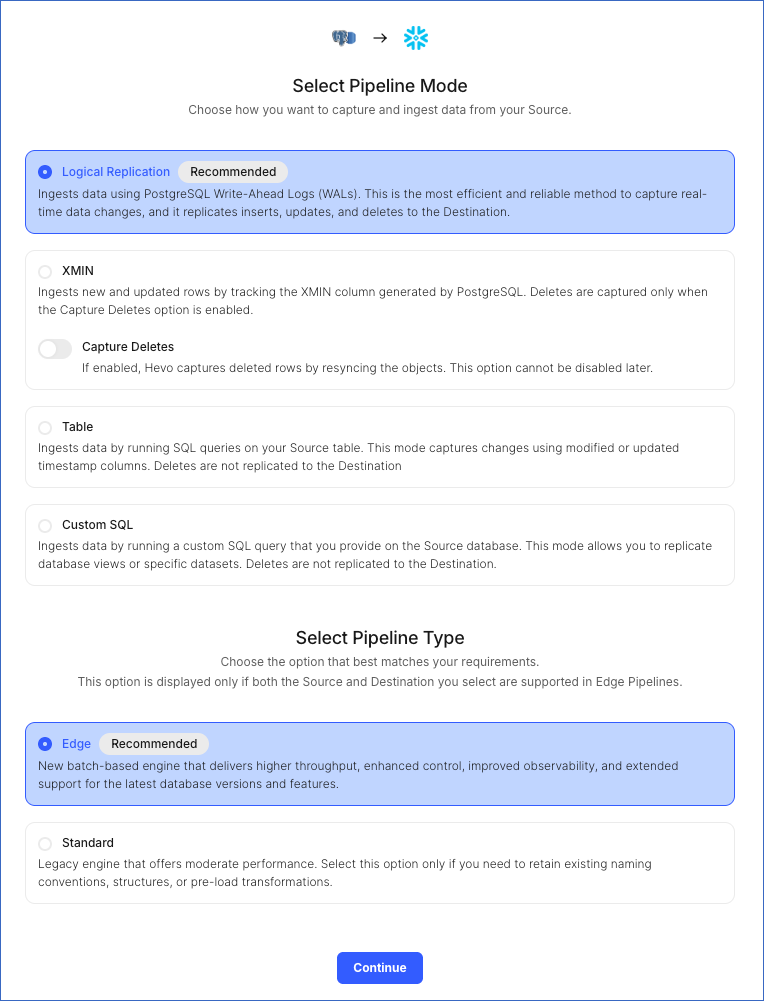
Select Pipeline Mode: Choose Logical Replication or XMIN. Hevo supports only these modes for Edge Pipelines created with PostgreSQL Source. If you choose any other mode, you can proceed to create a Standard Pipeline.
-
Select Pipeline Type: Choose the type of Pipeline you want to create based on your requirements, and then click Continue.
-
If you select Edge, skip to step 6 below.
-
If you select Standard, read Amazon RDS PostgreSQL to configure your Standard Pipeline.
This section is displayed only if all the following conditions are met:
-
The selected Destination type is supported in Edge.
-
The Pipeline mode is set to Logical Replication.
-
Your Team was created before September 15, 2025, and has an existing Pipeline created with the same Destination type and Pipeline mode.
For Teams that do not meet the above criteria, if the selected Destination type is supported in Edge and the Pipeline mode is set to Logical Replication or XMIN, you can proceed to create an Edge Pipeline. Otherwise, you can proceed to create a Standard Pipeline. Read Amazon RDS PostgreSQL to configure your Standard Pipeline.
-
-
-
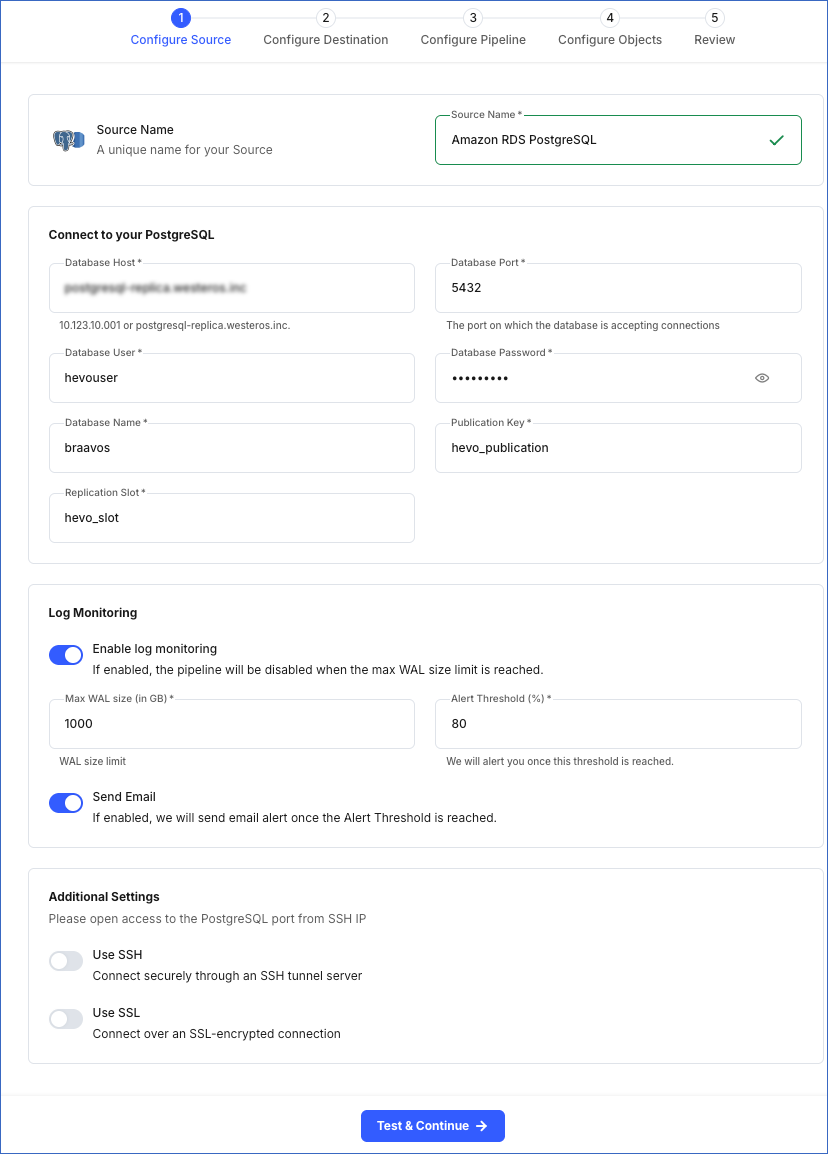
In the Configure Source screen, specify the following:
-
Source Name: A unique name for your Source, not exceeding 255 characters. For example, Amazon RDS PostgreSQL.
-
In the Connect to your PostgreSQL section:
-
Database Host: The Amazon RDS PostgreSQL host’s IP address or DNS. This is the endpoint that you obtained in the Retrieve the Database Hostname and Port Number section.
-
Database Port: The port on which your Amazon RDS PostgreSQL server listens for connections. This is the port number that you obtained in the Retrieve the Database Hostname and Port Number section. Default value: 5432.
-
Database User: The user who has permission only to read data from your database. This user can be the one you added in the Create a database user section or an existing user. For example, hevouser.
-
Database Password: The password for your database user.
-
Database Name: The database from which you want to replicate data. For example, braavos.
-
Publication Key: The name of the publication that tracks changes to the tables in your Source database. This key can be the publication you added in the Create a publication for your database tables section or an existing publication.
Note: For an existing publication, ensure that it is created in the database you specified above.
-
Replication Slot: The name of the replication slot created for your Source database to stream changes from the Write-Ahead Logs (WALs) to Hevo for incremental ingestion. This can be the slot you added in the Create a replication slot section or an existing replication slot. For example, hevo_slot.
Note: Publication Key and Replication Slot fields are not displayed if your Pipeline is created using XMIN mode.
-
-
Log Monitoring: Enable this option if you want Hevo to disable your Pipeline when the size of the WAL being monitored reaches the set maximum value. Specify the following:
Note: This option is not displayed if your Pipeline is created using XMIN mode.
-
Max WAL Size (in GB): The maximum allowable size of the Write-Ahead Logs that you want Hevo to monitor. Specify a number greater than 1.
-
Alert Threshold (%): The percentage limit for the WAL, whose size Hevo is monitoring. An alert is sent when this threshold is reached. Specify a value between 50 to 80. For example, if you set the Alert Threshold to 80, Hevo sends a notification when the WAL size is at 80% of the Max WAL Size specified above.
-
Send Email: Enable this option to send an email when the WAL size has reached the specified Alert Threshold percentage.
If this option is turned off, Hevo does not send an email alert.
-
-
Additional Settings
-
Use SSH: Enable this option to connect to Hevo using an SSH tunnel or VPC peering connection instead of directly connecting your PostgreSQL database host to Hevo. This provides an additional level of security to your database by not exposing your PostgreSQL setup to the public.
If this option is turned off, you must configure your Source to accept connections from Hevo’s IP addresses.
-
Use SSL: Enable this option to use an SSL-encrypted connection. Specify the following:
-
CA File: The file containing the SSL server certificate authority (CA).
-
Client Certificate: The client’s public key certificate file.
-
Client Key: The client’s private key file.
-
-
-
-
Click Test & Continue to test the connection to your Amazon RDS PostgreSQL Source. Once the test is successful, you can proceed to set up your Destination.
Additional Information
Read the detailed Hevo documentation for the following related topics:
- Data Type Mapping
- Handling of Deletes
- Handling Source Partitioned Tables
- Handling Toast Data
- Source Considerations
- Limitations
Error Connection Attempt Failed
Error Summary
- Hevo cannot connect to the PostgreSQL database instance due to network or connection setup issues.
Potential Causes
-
The PostgreSQL service is stopped, paused, or in recovery following a crash.
-
Incorrect connection parameters, such as hostname, port, database name, username, or password.
-
Hevo IP addresses for your region are not in the database IP allowlist.
-
The database user does not have the required permissions to access the database.
-
The PostgreSQL server is terminating the connection due to internal issues.
Suggested Action(s)
-
Ensure that the PostgreSQL service is running:
-
For Generic PostgreSQL, run the
systemctl status postgresqlcommand on your database host. -
For Cloud-managed PostgreSQL services, such as Amazon RDS or Google Cloud, confirm the instance status in the cloud console.
-
-
Verify the Source connection settings, including the database name, hostname, port, and user.
Note: The default port for any PostgreSQL database is 5432.
-
Ensure that your Source database is publicly accessible and accepts connections from the Internet.
-
Specify the public IP address of your database as the Database Host. Validate it with your PostgreSQL database administrator.
-
Ensure that Hevo IP addresses for your region are added to the database IP allowlist. If not, refer to the Allowlist Hevo IP addresses for your region section in your PostgreSQL variant documentation for the steps.
-
For Amazon RDS databases, confirm that the Security Group and VPC subnet allow access from all Hevo IP addresses.
-
Ensure that the database user has the necessary permissions to access your database.
-
Connect to your Source database using an SQL client, such as DBeaver, with the configuration details.
-
Check whether the database server is terminating connections due to full storage or too many concurrent connections. Review the reason in the cloud console or your database host.
Error Invalid Publication Key
Error Summary
- The publication key does not exist or is not valid for the specified PostgreSQL database.
Potential Causes
-
The publication key was deleted or renamed after it was created.
-
The publication key exists in a database other than the one specified in the Source configuration.
-
The publication key is incorrect or has a case mismatch.
-
The publication key was created by another user and is not visible to the one specified in the Source configuration.
-
The publication key exists, but the database user does not have access to the publication tables.
-
The PostgreSQL server runs an incompatible version or logical replication may not be enabled.
Suggested Action(s)
-
Ensure that the PostgreSQL server version is 10 or higher, up to 18. You can run the
SHOW server_versioncommand in an SQL client to check the version of your PostgreSQL database.Note: Publications are supported only in versions 10 and above.
-
Confirm that logical replication is enabled for your PostgreSQL database by running the
SHOW wal_levelcommand for your database. If the value is not logical, refer to section, Set up Logical Replication for Incremental Data in your Source documentation for the steps. -
Verify that the publication key exists in the specified database. To do this:
-
Connect to the database with the user configured in the Source using an SQL client, such as psql.
-
Run the following command to check if the publication exists:
SELECT * FROM pg_publication WHERE pubname = '<your_publication_key';Note: Replace the placeholder value in the command with your own. For example, <your_publication_key> with hevo_publication.
If the query does not return a result, create a publication with the same name as the missing key. Refer to section, Create a publication for your database tables, in your Source documentation for the steps.
-
-
Confirm that the publication key in the Source configuration matches the name exactly, including case sensitivity.
-
Ensure that the database user has permission to list publications and access the publication tables. To do this:
Note: Replace the placeholder value in the commands below with your own. For example, <your_publication_key> with hevo_publication.
-
Connect to the database with the user configured in the Source using an SQL client, such as psql.
-
Run the following commands to check if the user has permission to list publications and access the publication tables:
SELECT pubname, puballtables, pubowner FROM pg_publication WHERE pubname = '<your_publication_key>';If the query returns rows, the user can list publications. If it does not, refer to section, Grant privileges to the user, to grant the required permissions.
Note: The
puballtablesfield is set to true if the publication is created for all tables. For such publications, the query below may return no rows. -
Run the following command to verify that the user can access the publication tables:
SELECT p.pubname, c.relname FROM pg_publication p JOIN pg_publication_rel r ON p.oid = r.prpubid JOIN pg_class c ON r.prrelid = c.oid WHERE p.pubname = '<your_publication_key>';Note: The query may return no rows if the publication is created for all tables in the database.
-
Data Type Mapping
Hevo maps the PostgreSQL Source data type internally to a unified data type, referred to as the Hevo Data Type, in the table below. This data type is used to represent the Source data from all supported data types in a lossless manner.
The following table lists the supported PostgreSQL data types and the corresponding Hevo data type to which they are mapped:
| PostgreSQL Data Type | Hevo Data Type |
|---|---|
| - INT_2 - SHORT - SMALLINT - SMALLSERIAL |
SHORT |
| - BIT(1) - BOOL |
BOOLEAN |
| - BIT(M), M>1 - BYTEA - VARBIT |
BYTEARRAY Note: PostgreSQL supports both single BYTEA values and BYTEA arrays. Hevo replicates these arrays as JSON arrays, where each element is Base64-encoded. |
| - INT_4 - INTEGER - SERIAL |
INTEGER |
| - BIGSERIAL - INT_8 - OID |
LONG |
| - FLOAT_4 - REAL |
FLOAT Note: Hevo loads Not a Number (NaN) values in FLOAT columns as NULL. |
| - DOUBLE_PRECISION - FLOAT_8 |
DOUBLE Note: Hevo loads Not a Number (NaN) values in DOUBLE columns as NULL. |
| - BOX - BPCHAR - CIDR - CIRCLE - CITEXT - COMPOSITE - DATERANGE - DOMAIN - ENUM - GEOMETRY - GEOGRAPHY - HSTORE - INET - INT_4_RANGE - INT_8_RANGE - INTERVAL - LINE - LINE SEGMENT - LTREE - MACADDR - MACADDR_8 - NUMRANGE - PATH - POINT - POLYGON - TEXT - TSRANGE - TSTZRANGE - UUID - VARCHAR - XML |
VARCHAR |
| - TIMESTAMPTZ | TIMESTAMPTZ (Format: YYYY-MM-DDTHH:mm:ss.SSSSSSZ) |
| - ARRAY - JSON - JSONB - MULTIDIMENSIONAL ARRAY - POINT |
JSON |
| - DATE | DATE |
| - TIME | TIME |
| - TIMESTAMP | TIMESTAMP |
| - MONEY - NUMERIC |
DECIMAL Note: Based on the Destination, Hevo maps DECIMAL values to either DECIMAL (NUMERIC) or VARCHAR. The mapping is determined by: P – the total number of significant digits, and S – the number of digits to the right of the decimal point. |
At this time, the following PostgreSQL data types are not supported by Hevo:
-
TIMETZ
-
Arrays and multidimensional arrays containing elements of the following data types:
-
BIT
-
INTERVAL
-
MONEY
-
POINT
-
VARBIT
-
XML
-
-
Any other data type not listed in the table above.
Note: If any of the Source objects contain data types that are not supported by Hevo, the corresponding fields are marked as unsupported during object configuration in the Pipeline.
Handling Range Data
In PostgreSQL Sources, range data types, such as NUMRANGE or DATERANGE, have the start bound and an end bounds defined for each value. These bounds can be:
-
Inclusive [ ]: The boundary value is included. For example, [1,10] includes all numbers from 1 to 10.
-
Exclusive ( ): The boundary value is excluded. For example, (1,10) includes numbers between 1 to 10.
-
Combination of inclusive and exclusive: For example, [1,10) includes 1 but excludes 10.
-
Open bounds (, ): One or both boundaries are unbounded or infinite. For example, (,10] has no lower limit and [5,) has no upper limit.
Hevo represents these ranges as JSON objects, explicitly marking each bound and its value. For example, a PostgreSQL range of [2023-01-01,2023-02-01) is represented as:
{
  "start_bound": "INCLUSIVE",
  "start_date": "2023-01-01",
  "end_bound": "EXCLUSIVE",
  "end_date": "2023-02-01"
}
When a bound is open, no specific value is stored for that boundary. For an open range such as (,100), Hevo represents it as:
{
  "start_bound": "OPEN",
  "end_value": 100,
  "end_bound": "EXCLUSIVE"
}
Handling of Deletes
In a PostgreSQL database for which the WAL level is set to logical, Hevo uses the database logs for data replication. As a result, Hevo can track all operations, such as insert, update, or delete, that take place in the database. Hevo replicates delete actions in the database logs to the Destination table by setting the value of the metadata column, __hevo__marked_deleted to True.
If your Pipeline is created using XMIN mode, read Handling of Deletes in XMIN to understand how deletes are captured and replicated.
Source Considerations
-
If you add a column with a default value to a table in PostgreSQL, entries with it are created in the WAL only for the rows that are added or updated after the column is added. As a result, in the case of log-based Pipelines, Hevo cannot capture the column value for the unchanged rows. To capture those values, you need to:
-
Resync the historical load for the respective object.
-
Run a query in the Destination to add the column and its value to all rows.
-
-
Any table included in a publication must have a replica identity configured. PostgreSQL uses it to track the UPDATE and DELETE operations. Hence, these operations are disallowed on tables without a replica identity. As a result, Hevo cannot track updated or deleted rows (data) for such tables.
By default, PostgreSQL picks the table’s primary key as the replica identity. If your table does not have a primary key, you must either define one or set the replica identity as FULL, which records the changes to all the columns in a row.
Limitations
-
Hevo supports logical replication of partitioned tables for PostgreSQL versions 11 and above, up to 18. However, loading data ingested from all the partitions of the table into a single Destination table is available only for PostgreSQL versions 13 and above. Read Handling Source Partitioned Tables.
-
If you are using PostgreSQL version 17 or 18, Hevo does not support logical replication failover. This means that if your standby server becomes the primary, Hevo will not synchronize the replication slots from the primary server with the standby, causing your Pipeline to fail.
-
Hevo does not support data replication from foreign tables, temporary tables, and views.
-
If your Source table has indexes (indices) and or constraints, you must recreate them in your Destination table, as Hevo does not replicate them. It only creates the existing primary keys.
-
Hevo does not set the __hevo__marked_deleted field to True for data deleted from the Source table using the TRUNCATE command. This action could result in a data mismatch between the Source and Destination tables.
-
You cannot select Source objects that Hevo marks as Inaccessible for data ingestion during object configuration in the Pipeline. Following are some of the scenarios in which Hevo marks the Source objects as inaccessible:
-
The object is not included in the publication (key) specified while configuring the Source.
-
The publication is defined with a row filter expression. For such publications, only those rows for which the expression evaluates to FALSE are not published to the WAL. For example, suppose a publication is defined as follows:
CREATE PUBLICATION active_employees FOR TABLE employees WHERE (active IS TRUE);In this case, as Hevo cannot determine the changes made in the employees object, it marks the object as inaccessible.
-
The publication specified in the Source configuration does not include any of the insert, update, or delete operations. For example, suppose a publication is defined as follows:
CREATE PUBLICATION no_changes FOR TABLE employees WITH (publish = '');In this case, the publication does not generate any data modification events in the Write-Ahead Logs (WALs). As a result, Hevo cannot capture any changes from the employees table and marks the object as Inaccessible in the Pipeline.
-