Activating Edge Pipelines
Hevo allows you to disable a Pipeline that is enabled and vice versa. You may want to disable your Pipeline in scenarios such as:
-
The configured Source or Destination is unavailable.
-
The Pipeline is not required for some time.
-
There are errors while loading data to the Destination.
Disabling a Pipeline halts all ingestion and loading tasks, reducing resource consumption in your Source and Destination systems. You can re-enable the Pipeline once you are ready to resume data ingestion or after resolving any data loading issues.
Hevo may disable a Pipeline in these cases:
-
The WAL size in your PostgreSQL Source exceeds the specified threshold value (%).
-
The Pipeline remains in a Failed state for seven days.
In such cases, resolve the issue and then enable the Pipeline to resume data ingestion.
Disabling your Edge Pipeline
You can disable any of your active Pipelines.
To do this:
-
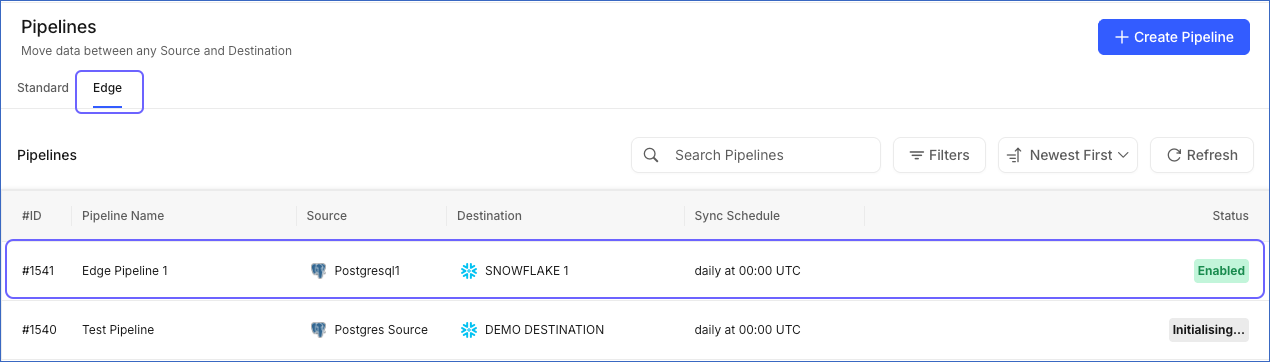
In the Pipelines List View, click the Pipeline that you want to disable.
Note: If your team was created before August 20, 2026, click the Edge tab to view your Edge Pipelines.
-
In the Pipeline Summary bar, click the More (
 ) icon and then click Disable.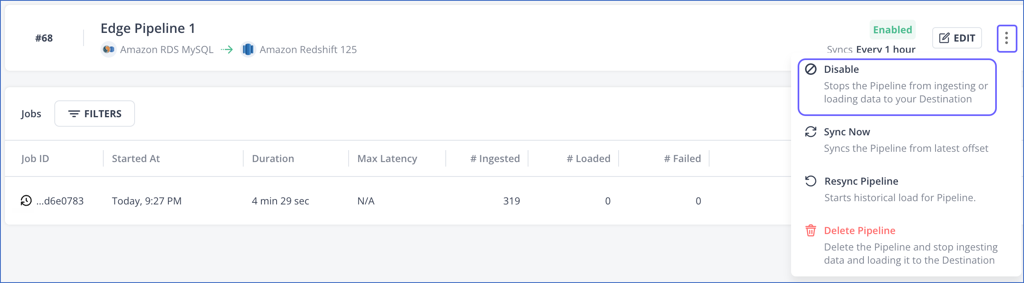
-
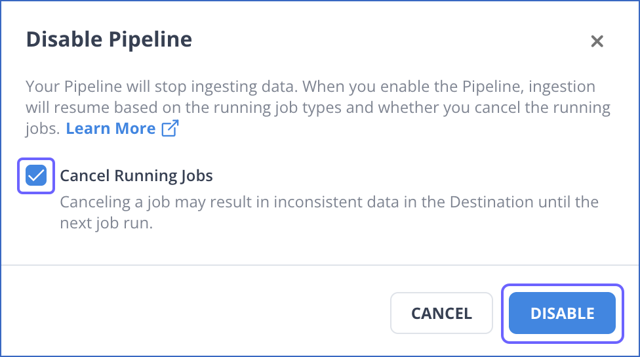
In the Disable Pipeline pop-up dialog:
-
If you want Hevo to cancel the active jobs in the Pipeline, select the Cancel Running Jobs check box.
-
Click DISABLE.
-
After you click DISABLE, Hevo performs the following actions on your Pipeline:
-
Cancels all active jobs, including the ingestion and loading tasks. This action is performed only if you select the Cancel Running Jobs check box while disabling the Pipeline. By default, this check box is not selected. In that case, Hevo completes any active jobs, ensuring that all ingested data is loaded into the Destination.
-
As part of canceling the ingestion task:
-
Stops any queries running in the Source system.
-
Closes the connection to your Source.
Note: Any data files that are not loaded from the staging location to the Destination are discarded.
-
-
As part of canceling the loading task:
-
Stops any queries running in the Destination system.
-
Closes the connection to your Destination.
-
-
Cancels any scheduled sync task.
-
Marks the Pipeline as Disabled.
Note: If your Pipeline is created with any PostgreSQL Source variant using logical replication, the replication slot remains active in your Source database after the Pipeline is disabled. An unused slot continues to retain WAL files, causing storage consumption. Read Managing Replication Slot when Disabling, Enabling, or Deleting a Pipeline for more information.
Enabling your Edge Pipeline
You can enable a disabled Pipeline whenever you are ready to sync data from your Source to the Destination.
Note: If your Pipeline is created with any PostgreSQL Source variant using logical replication, ensure that the replication slot configured for your Source is active on your Source database before enabling the Pipeline. Read Managing Replication Slot when Disabling, Enabling, or Deleting a Pipeline for more information.
To do this:
-
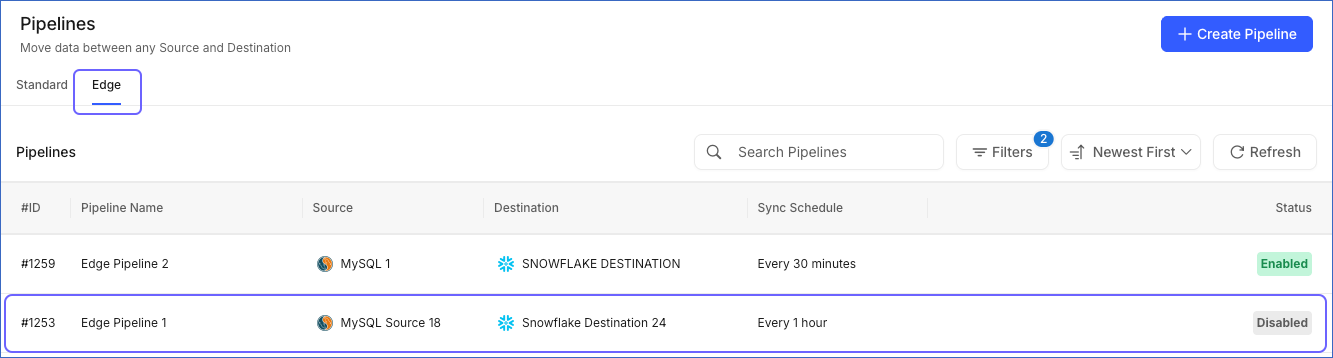
In the Pipelines List View, click the Pipeline that you want to enable.
Note: If your team was created before August 20, 2026, click the Edge tab to view your Edge Pipelines.
-
In the Pipeline Summary bar, click the More (
) icon and then click Enable.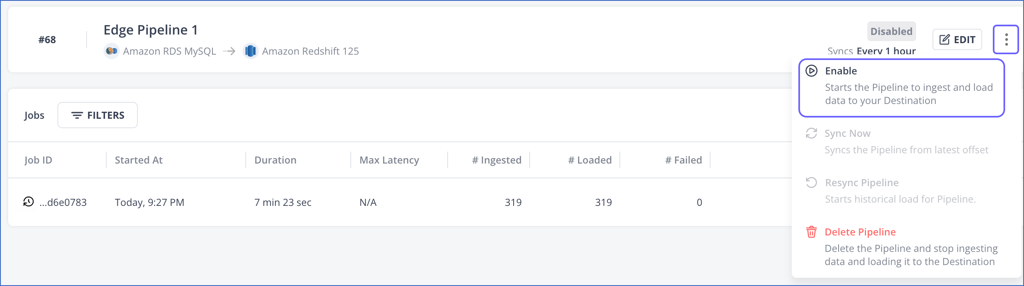
-
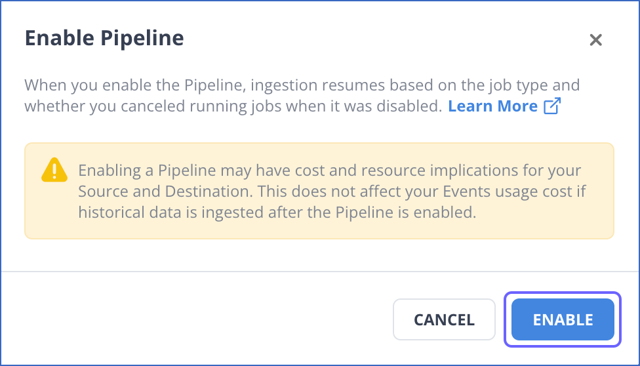
In the Enable Pipeline pop-up dialog, click ENABLE to start data replication for your Pipeline.
After you click ENABLE, Hevo performs the following actions on your Pipeline:
-
Refreshes the schema of all the selected objects in the Pipeline.
-
Fetches any newly created objects from the Source.
-
Resumes data ingestion based on whether you canceled the active jobs while disabling the Pipeline:
-
If the historical job was canceled, the Pipeline restarts the historical load.
-
If the historical job was completed, the Pipeline resumes incremental ingestion from the last saved offset up to which data was successfully ingested and loaded into the Destination.
Note: In log-based Pipelines, if the offset is no longer valid, the incremental job fails. For example, this can happen if the Pipeline is disabled for longer than the log retention period configured in the Source. In such cases, you must resync the Pipeline.
-
-
Moves the Pipeline to the Enabled state.
-
Schedules the sync task for incremental load.