After creating a Target, you can rename it, reauthorize it if it loses access to the application, or delete it when you no longer need it.
You can perform the following actions on a Target:
-
Rename a Target: Change the name that identifies the Target in Hevo.
-
Reauthorize a Target: Restore the connection by replacing the access Hevo stores for the Target.
-
Delete a Target: Permanently remove a Target that is no longer needed.
Renaming a Target
You can rename a Target at any time. Use a name that identifies the account the Target connects to, especially if you have multiple Targets for the same application. Renaming a Target does not affect the Activations that send data to it.
Perform the following steps to rename a Target:
-
In the Navigation Bar, click Activate.
-
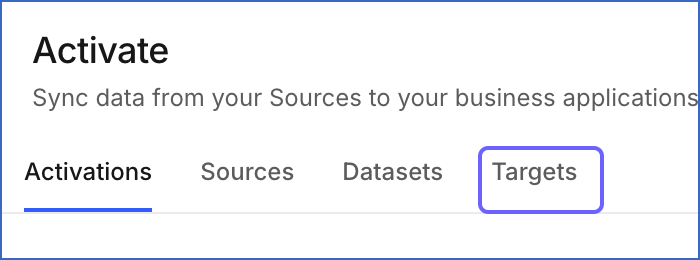
On the Activate page, click the Targets tab.
-
Click the Target you want to rename to open it in the Detailed View.
-
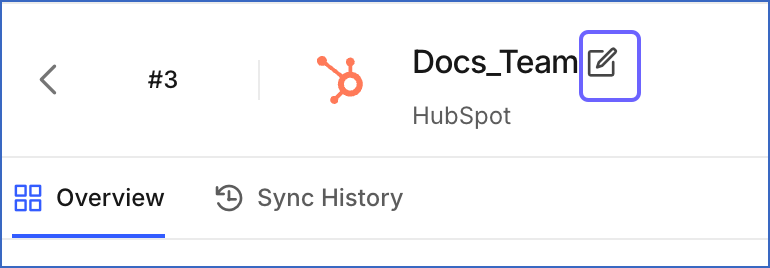
In the Target Header, click the Edit icon next to the Target name.
-
Specify a new name for your Target, and then click Save.
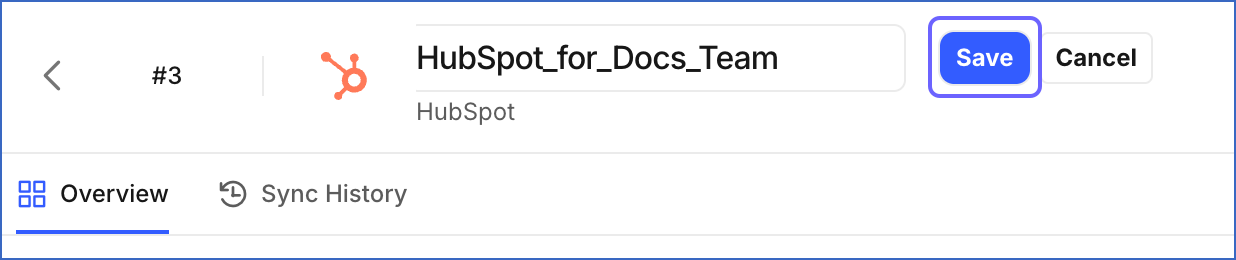
A notification is displayed to confirm that the Target has been renamed successfully.
Reauthorizing a Target
Reauthorizing repeats the connection flow and replaces the access Hevo stores for your Target. A Target whose access has stopped working shows the Failed status, and the Activations that send data to it fail on their next run.
Following are some of the reasons a Target can lose access to the application:
-
The Hevo app is removed or uninstalled from the application’s settings.
-
The permissions granted to Hevo are reduced, so Activate can no longer write to an object it previously could.
-
The user who authorized the connection no longer has access to the account.
-
The application expired the authorization, or the token you provided was revoked or rotated.
Perform the following steps to reauthorize a Target:
-
In the Navigation Bar, click Activate.
-
On the Activate page, click the Targets tab.
-
Click the Target you want to reauthorize to open it in the Detailed View.
-
In the Target Header, click Reauthorize.

-
Complete the connection flow in the application, and grant Hevo the permissions it requests.
Once the access is restored, the Target returns to the Active status, and its Activations sync on their next scheduled run. Reauthorization replaces the access for the existing Target, and connected Activations continue sending data to that Target.
Note: To connect a different account, create a new Target instead of reauthorizing an existing one.
Deleting a Target
You can delete a Target if it is no longer needed. A Target cannot be deleted while any Activation sends data to it. Hevo blocks the deletion and asks you to delete those Activations first. Read Deleting an Activation for detailed steps.

Deleting a Target is permanent and cannot be undone. If you need it later, you must create the Target again and authorize the application account again.
Deleting a Target removes Hevo’s connection to the application. The records that previous syncs sent to the application are not removed, and remain exactly as they are. To remove those records, delete them in the application itself.
Some scenarios where you may want to delete a Target:
-
You created it for testing and no longer need it.
-
It connects to an account that you no longer send data to.
-
It was created incorrectly.
Perform the following steps to delete a Target:
-
In the Navigation Bar, click Activate.
-
On the Activate page, click the Targets tab.
-
Click the Target you want to delete to open it in the Detailed View.
-
Click the Actions icon at the top-right corner, and then click Delete.

-
In the Delete Target dialog, click Delete.
A notification is displayed to confirm that the Target has been deleted successfully.