Familiarizing with the Sources UI (Edge)
When you click Activate in the Navigation Bar, the Activations List View is displayed by default. Click the Sources tab to open the Sources List View. This page displays the Sources created by you or your team. You can search for Sources, filter the list, and open a Source in the Detailed View to view its details.
The following sections highlight the main elements of the Sources List View and the Detailed View:
Sources List View
Refer to the image and descriptions below to familiarize yourself with the components of the Sources List View.
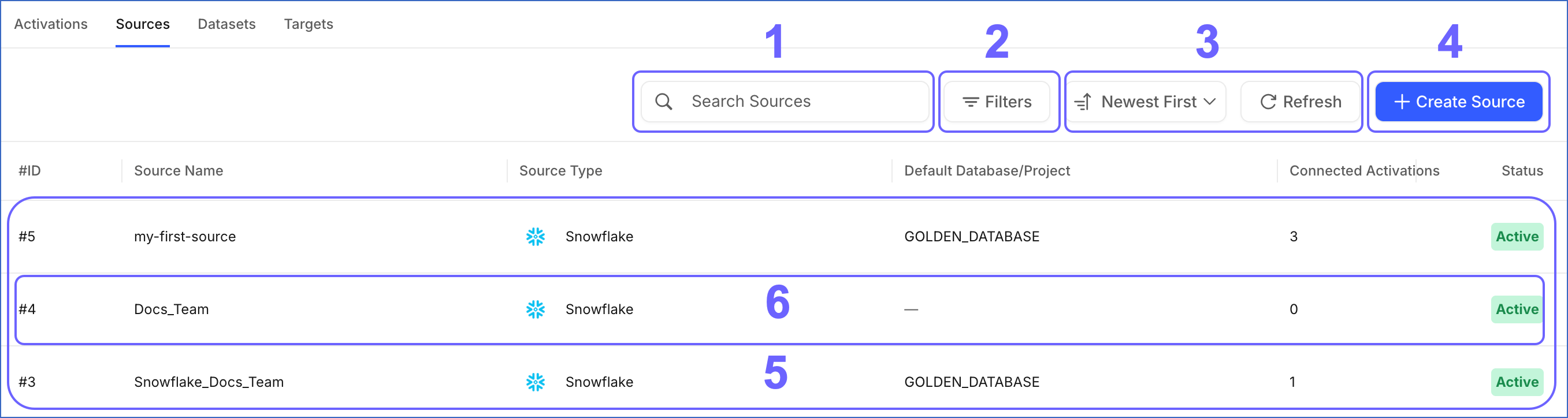
The following table describes each of these components:
| Page Component | Title | Description |
|---|---|---|
| 1 | Search Bar | Searches for Sources created by you or your team. You can search using a partial or complete Source name. |
| 2 | Filters | Filters the list of Sources based on the following criteria: - Source Type: The type of Source, such as Snowflake. - Status: The connection status of the Source, either Active or Failed. |
| 3 | Data Controls | Controls the list of Sources that is displayed. The Data Controls, from left to right, are: - Newest First: Sorts and displays the Sources based on the criterion selected from the drop-down. The available options are Oldest First, A → Z, and Z → A. - Refresh: Allows you to view the newly created Sources that are not yet visible in the UI. |
| 4 | + Create Source | Opens the flow to create a Source. Refer to the documentation for your respective Source type for the steps. |
| 5 | Asset List | Displays the list of Sources created by you or your team. This list can be refined using the Search Bar, Filters, or Data Controls. |
| 6 | Source Summary | Provides a brief summary of an existing Source. This includes: - #ID: The sequential number assigned to the Source when it is created. - Source Name: The name of the Source. - Source Type: The type of Source, such as Snowflake. - Default Database/Project: The database or project that dataset queries run against by default. A dash is displayed if no default database or project is configured. - Connected Activations: The number of Activations that read from this Source. - Status: The connection status of the Source, either Active or Failed. |
Sources Detailed View
Click anywhere in a Source Summary row to open it in the Detailed View. The following image highlights the main components displayed and the actions you can perform on the page:
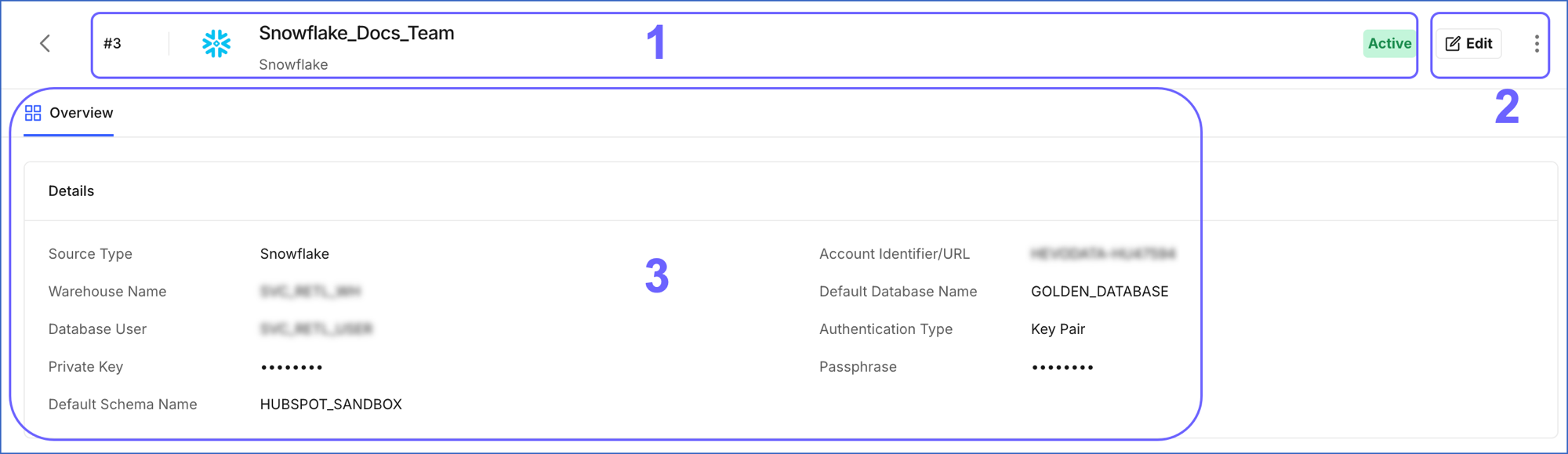
The following table describes each of these components:
| Page Component | Title | Description |
|---|---|---|
| 1 | Source Header | Displays the Source’s ID, name, type, and connection status. |
| 2 | Source Actions | Displays the actions you can perform on the Source: - Edit: Click to modify the Source configuration. - Actions icon: Click to open a menu with the Delete option. Read Deleting Sources for detailed steps. |
| 3 | Overview Tab | Displays the Details section, which lists the connection details of the Source. The fields shown here depend on the Source type. |