Familiarizing with the Datasets UI (Edge)
When you click Activate in the Navigation Bar, the Activations List View is displayed by default. Click the Datasets tab to open the Datasets List View. This page displays the datasets created by you or your team. You can search for datasets, filter the list, and open a dataset in the Detailed View to view its details.
The following sections highlight the main elements of the Datasets List View and the Detailed View:
Datasets List View
Refer to the image and descriptions below to familiarize yourself with the components of the Datasets List View.
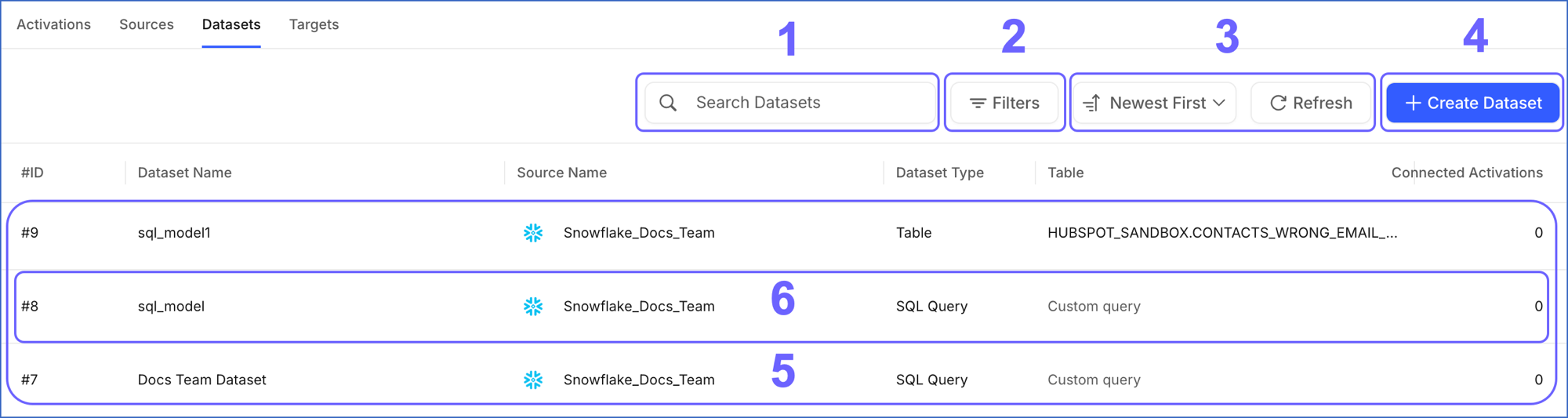
The following table describes each of these components:
| Page Component | Title | Description |
|---|---|---|
| 1 | Search Bar | Searches for datasets created by you or your team. You can search using a partial or complete dataset name. |
| 2 | Filters | Filters the list of datasets by the Source that they read data from. |
| 3 | Data Controls | Controls the list of datasets that is displayed. The Data Controls, from left to right, are: - Newest First: Sorts and displays the datasets based on the criterion selected from the drop-down. The available options are Oldest First, A → Z, and Z → A. - Refresh: Allows you to view the newly created datasets that are not yet visible in the UI. |
| 4 | + Create Dataset | Opens the flow to create a dataset. Read Creating a Dataset for detailed steps. |
| 5 | Asset List | Displays the list of datasets created by you or your team. This list can be refined using the Search Bar, Filters, or Data Controls. |
| 6 | Dataset Summary | Provides a brief summary of an existing dataset. This includes: - #ID: The sequential number assigned to the dataset when it is created. - Dataset Name: The name of the dataset. - Source Name: The Source that the dataset reads from. - Dataset Type: Either SQL Query or Table. The type determines how the dataset is defined and whether it can filter, rename, or combine data. Read Dataset Types for more information. - Table: For a Table dataset, displays the schema and table it reads from, in the <SCHEMA_NAME>.<TABLE_NAME> format. For an SQL Query dataset, displays Custom query because the dataset is defined by a query instead of a single table. - Connected Activations: The number of Activations that use this dataset. |
Datasets Detailed View
Click anywhere in a Dataset Summary row to open it in the Detailed View. The tabs available on this page depend on the dataset type. The following image highlights the main components displayed and the actions you can perform on the page:
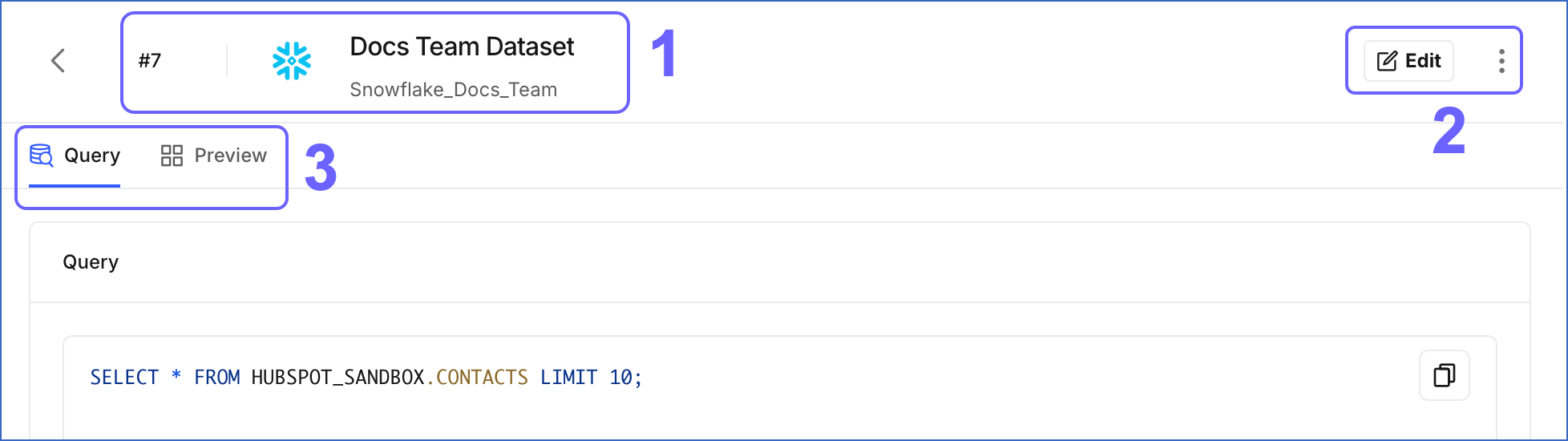
The following table describes each of these components:
| Page Component | Title | Description |
|---|---|---|
| 1 | Dataset Header | Displays the dataset’s ID, name, and the Source it reads from. |
| 2 | Dataset Actions | Displays the actions you can perform on the dataset: - Edit: Click to modify the query or change the selected table. Read Modifying a Dataset for detailed steps. - Actions icon: Click to open a menu with the Delete option. Read Deleting a Dataset for detailed steps. |
| 3 | Tool Bar | Provides access to the following tabs: - Query or Table: For an SQL Query dataset, the Query tab displays the SQL query that defines the dataset. For a Table dataset, the Table tab displays the database, schema, and table from which the dataset reads data. - Preview: Displays the records the dataset currently returns from the Source. Read Previewing a Dataset for more information. |