Managing a Workspace
Once a Workspace is created, you can monitor Event consumption across its Pipelines, rename it, or delete it when it is no longer needed.
Prerequisites
-
You are on the Business Critical plan in Hevo.
-
You must be assigned the Team Administrator role at the vendor level.
Viewing Usage by Workspace
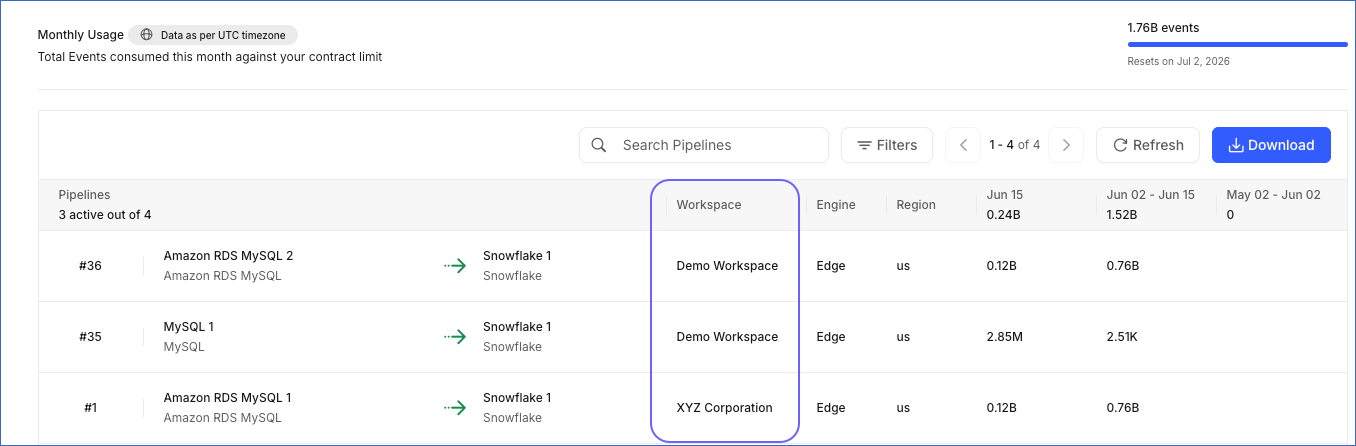
You can view Event consumption (the total Events processed by Pipelines) across all Workspaces from the Usage Summary page.
To view the usage summary for the Workspaces, perform the following steps:
-
In the Navigation Bar, click the Settings (
 ) icon.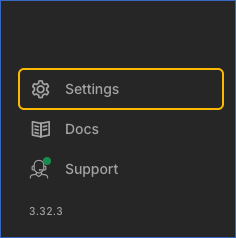
-
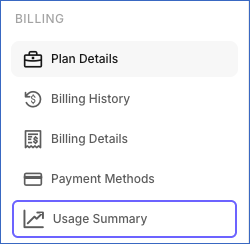
In the Settings sidebar, under BILLING, click Usage Summary.
On the Monthly Usage page, the Workspace column displays the Workspace each Pipeline belongs to.
Filtering by Workspace
You can filter Pipelines by Workspace to view their Events consumption over the last 3 months. To do so, perform the following steps:
-
On the Monthly Usage page, click Filters.

-
From the Workspace filter, select one or more Workspaces, and click Apply.
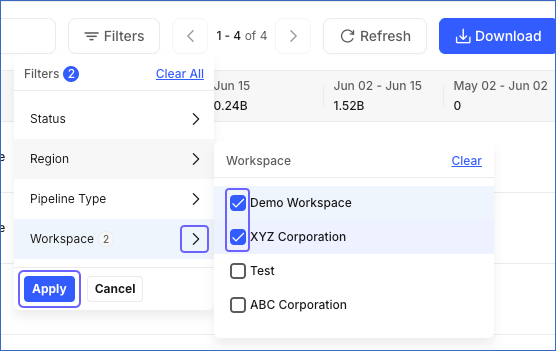
The table is updated to display only the Pipelines belonging to the selected Workspaces.
Renaming a Workspace
You can rename a Workspace by updating its Client Name. Renaming a Workspace does not affect its Workspace ID or any of its Pipelines, Destinations, or users.
To rename a Workspace, perform the following steps:
-
In the Navigation Bar, click the Settings (
) icon. -
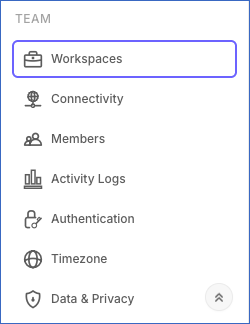
In the Settings sidebar, under TEAM, click Workspaces.
-
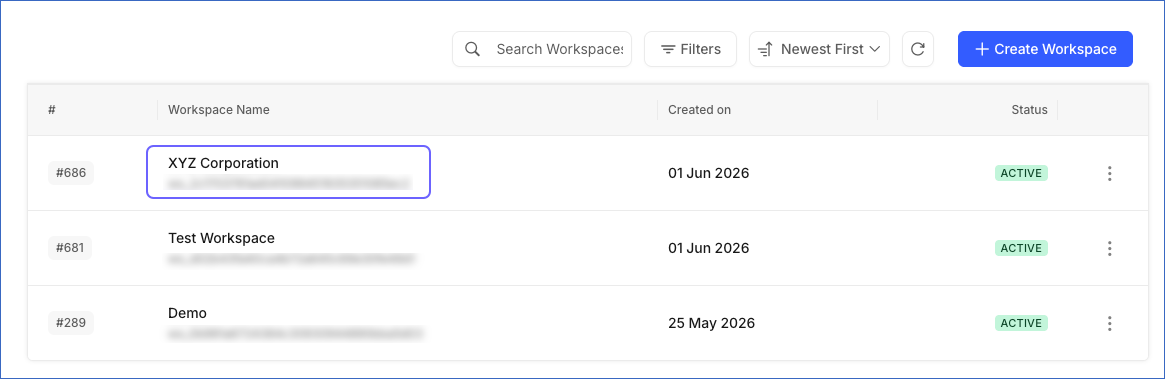
Click the Workspace Name of the Workspace you want to rename.
-
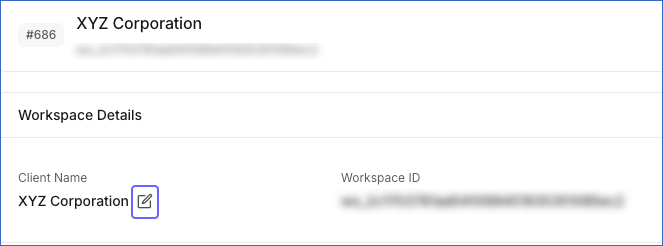
On the Workspace Detailed View, under Workspace Details, click the edit icon next to the Client Name.
-
Enter the new name and click the checkmark to save your changes.
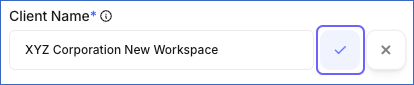
Your Workspace has been renamed successfully.
Deleting a Workspace
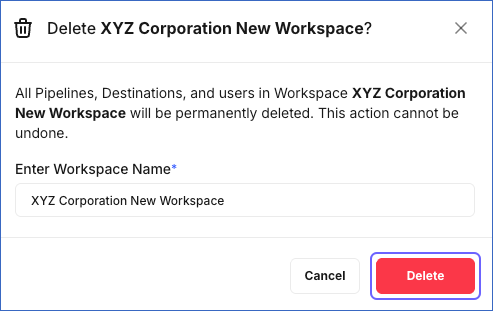
Deleting a Workspace is permanent and cannot be reversed. All Pipelines and users within the Workspace will be deleted. Before proceeding, ensure no active Pipelines are running in the Workspace.
You can delete a Workspace from the Workspaces List View or the Workspace Detailed View. To delete a Workspace, perform the following steps:
-
In the Navigation Bar, click the Settings (
) icon. -
In the Settings sidebar, under TEAM, click Workspaces.
-
Do one of the following:
-
Delete the Workspace from List View
-
On the Workspace list view, click the Workspace Actions (
 ) icon for the Workspace you want to delete, and then click Delete.
-
In the Delete <Workspace Name>? pop-up window, enter the Workspace name to confirm deleting the Workspace, and then click Delete.
-
-
Delete the Workspace from Detailed View
-
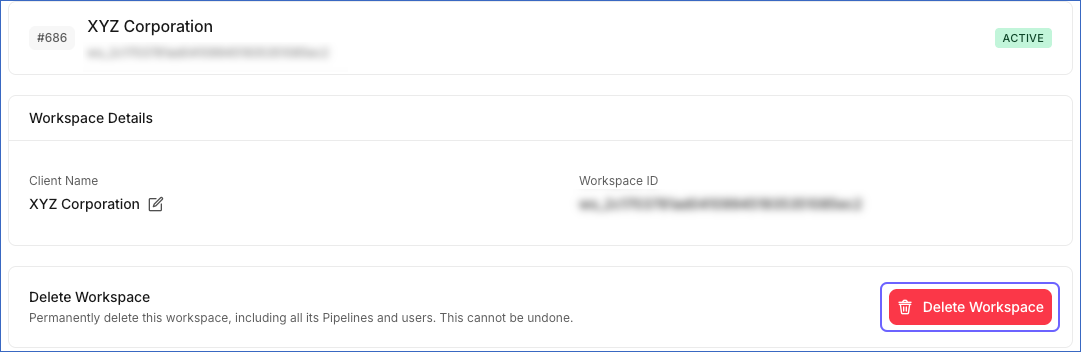
Click the Workspace Name of the Workspace you want to delete to open its detailed view.
-
Click Delete Workspace.
-
In the Delete <Workspace Name>? pop-up window, enter the Workspace name to confirm deleting the Workspace, and then click Delete.
-
-
Hevo permanently deletes the Workspace and removes it from the Workspaces list. All associated Pipelines, Destinations, and users are also deleted.